To ensure stable printing and safe operation, allow the following space when positioning the printer:
Minimum operating space: 550 mm (width) × 743 mm (depth) × 630 mm (height).
Recommended additional clearance: Leave at least 30 mm of extra space around the printer beyond the dimensions above for operation, observation, and maintenance.
Allow for heated bed travel: The heated bed moves forward and backward during printing. When it reaches its rearmost position, make sure its cable does not press against or become pinched by the wall behind the printer. Repeated strain may damage the cable.
¶ Watch the Video
¶ Illustrated Guide
¶ 1. i8 Overview
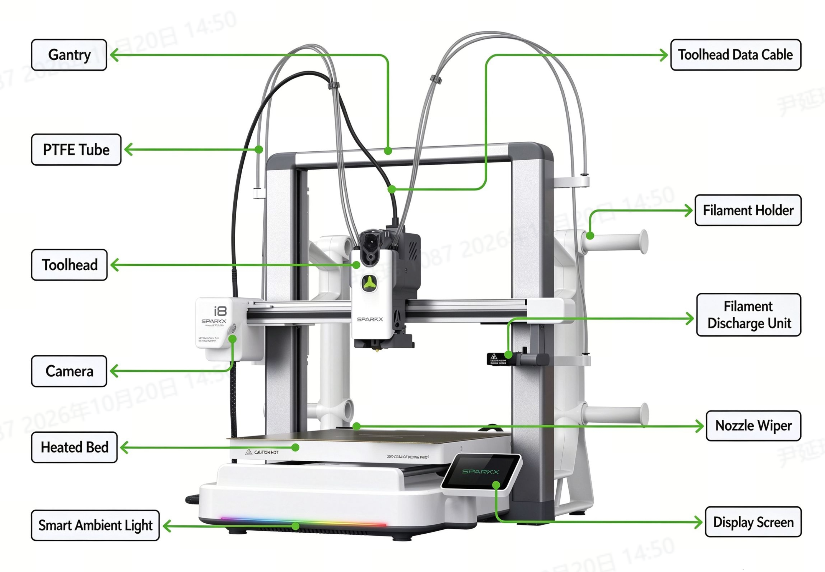
The i8 is a 3D printer for home use and everyday creativity, featuring fast color changes and four-color printing with a single printer.
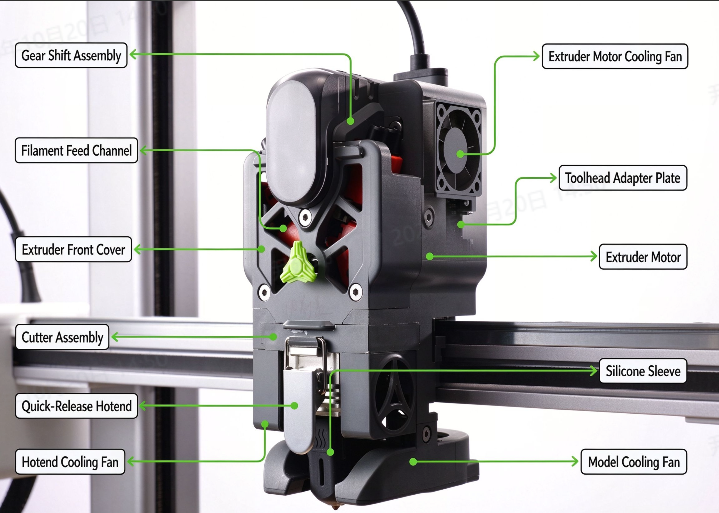
For detailed descriptions of the SPARKX i8's components, see the Product Glossary.
 |
 |
¶ 2. Unboxing
¶ 2.1 Open the Box
- Cut the sealing tape with a utility knife or another suitable tool. Open the moisture-protective bag and remove the build plate and top foam packing.
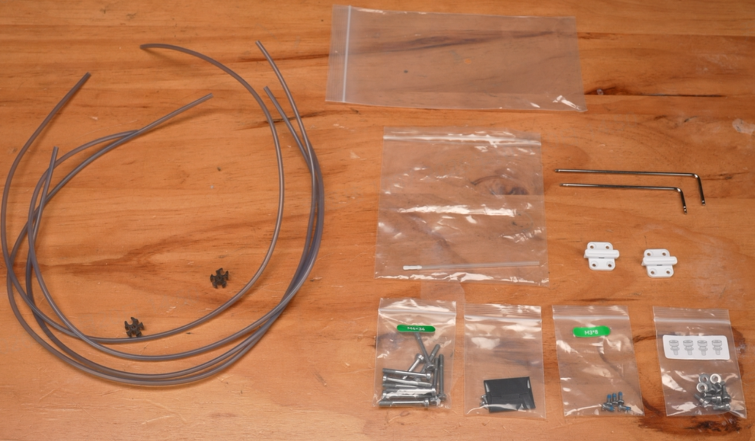
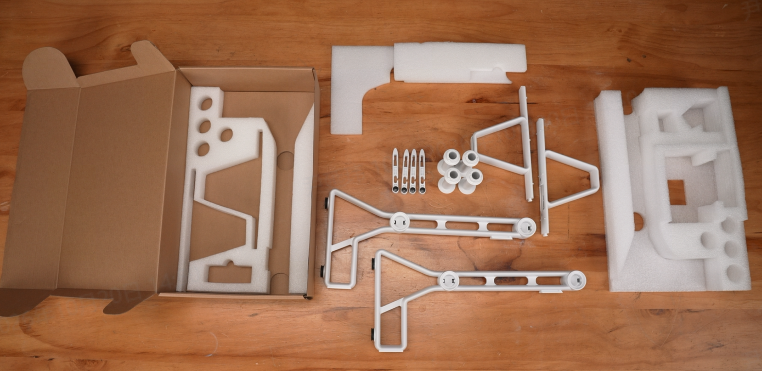
- Remove the accessory box, which contains the accessories and spool holder components. Read the Quick Start Guide carefully before proceeding.
 |
 |
¶ 2.2 Remove the i8 Gantry and Base (International Version)
Remove the gantry, protective foam, and printer base.
 |
 |
¶ 2.3 Remove the i8 (CN Version)
- Lift out the corrugated cardboard support and remove the foam packing from all four corners.
- Remove the front and rear foam panels.
- Hold the top of the gantry and lift the i8 out of the box.
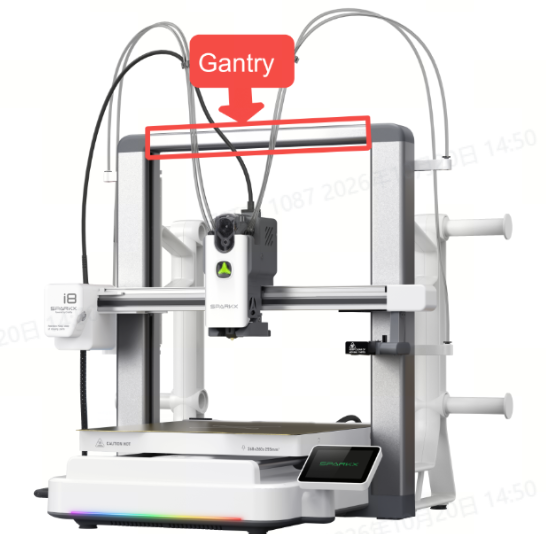
Note: When lifting or carrying the i8, hold the gantry at the top of the printer frame. Do not lift or carry the printer by its cables, spool holder, or X-axis assembly.
¶ 2.4 Remove the transport securing materials.
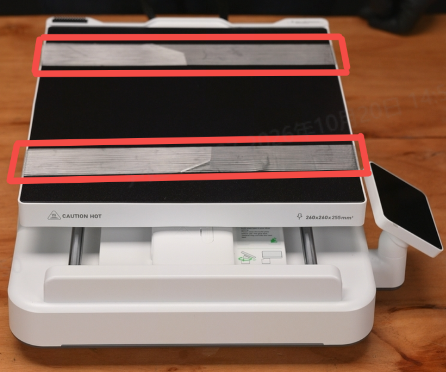
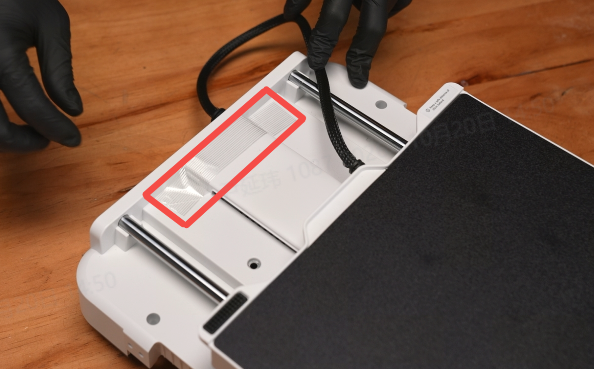
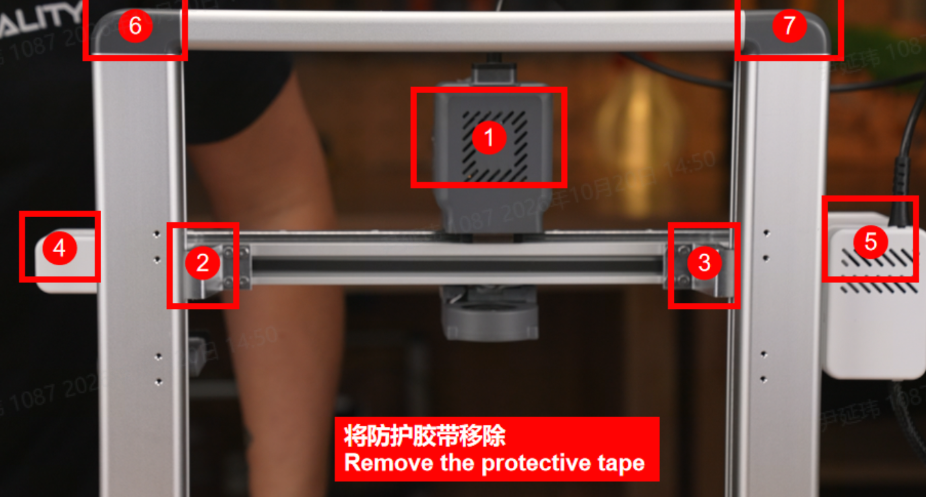
Remove all tape from the printer.
- Base acetate tape ×3:
- Gantry acetate tape ×2
- X-axis acetate tape ×2
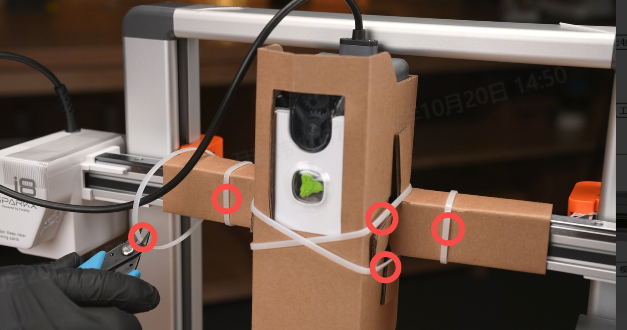
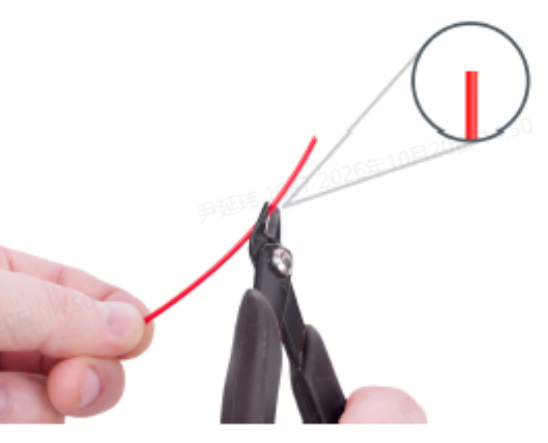
Use flush cutters or scissors to remove all cable ties and from the toolhead.
 |
 |
 |
¶ 3. What's in the Box
For the complete list, see i8 Package Contents.
¶ 4. Assemble the i8 Printer (Optional)
¶ 4.1 Assemble the Printer (International Version)
Lift the printer base through the printer frame and engage the base clips on both sides of the gantry.

¶ 4.2 Secure the Heated Bed Base Screws
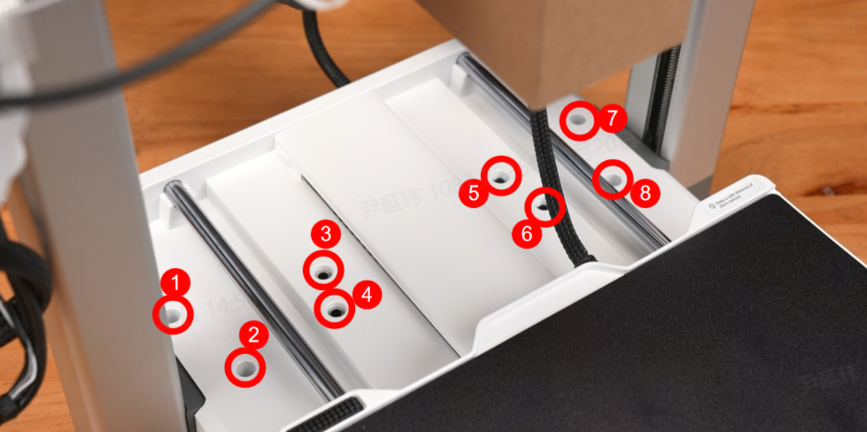
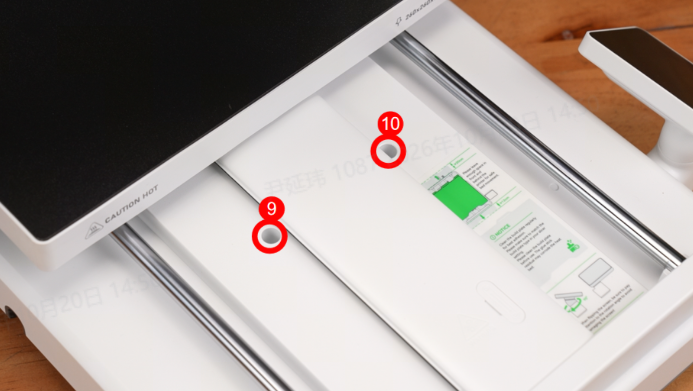
Use a 2.5 mm hex key to install and tighten the 10 M4 × 34 heated bed base screws, securing the base.
 |
 |
¶ 4.3 Secure the Base Side Screws (International Version)
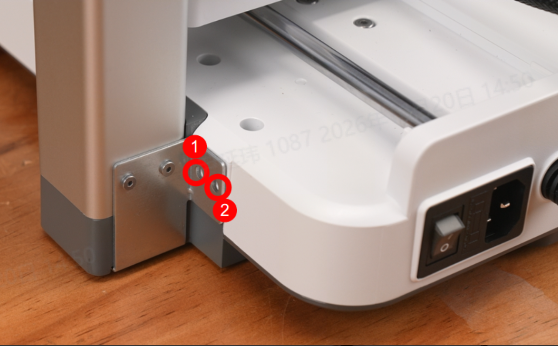
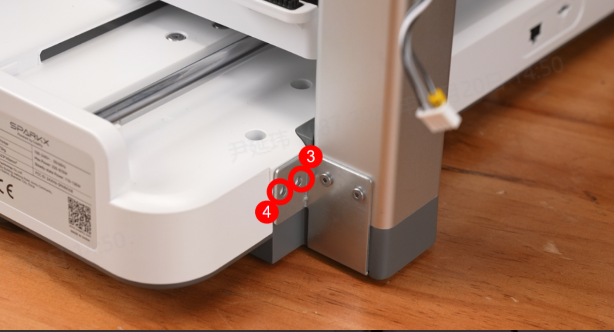
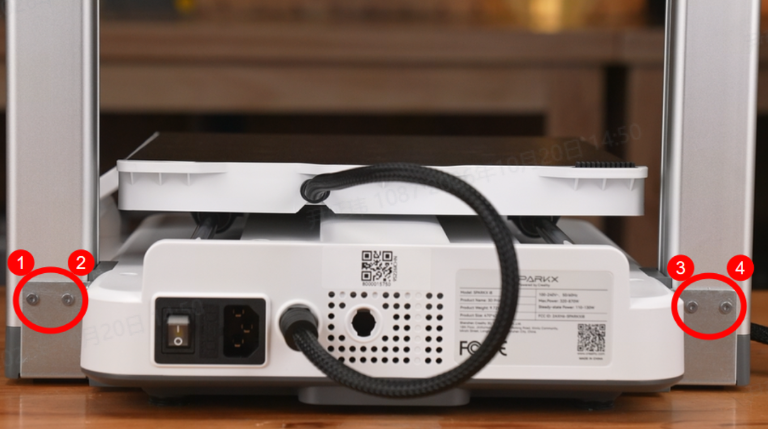
Use a 2.0 mm hex key to install and tighten the four M3 × 8 base side screws, securing the printer frame to the printer base.
 |
 |
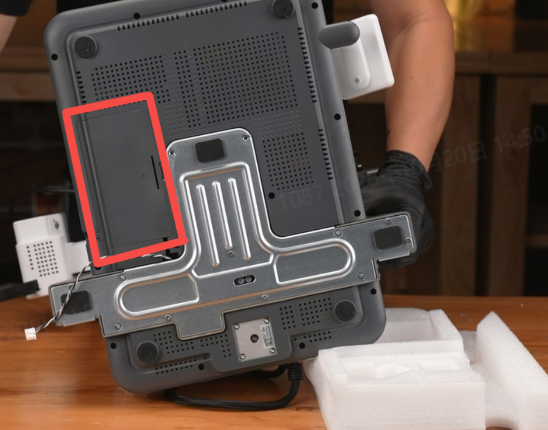
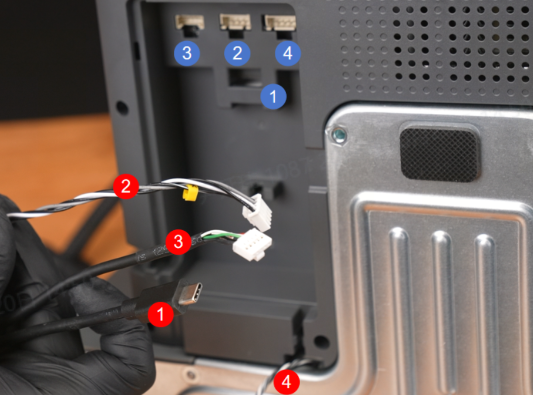
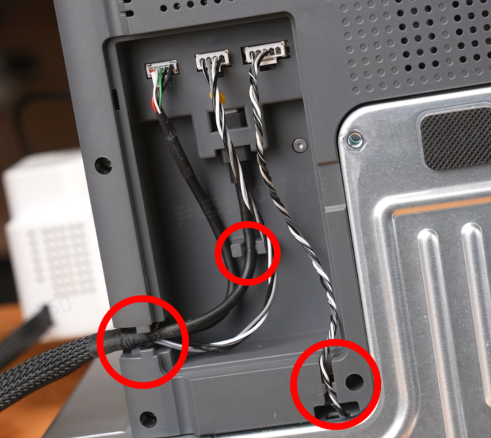
¶ 4.4 Connect the Signal Cables (International Version)
Open the mainboard cover on the underside of the printer base. Insert the signal cables into their corresponding connectors, then reinstall the cover.
 |
 |
 |
¶ 5. Remove the Toolhead Cardboard Cover
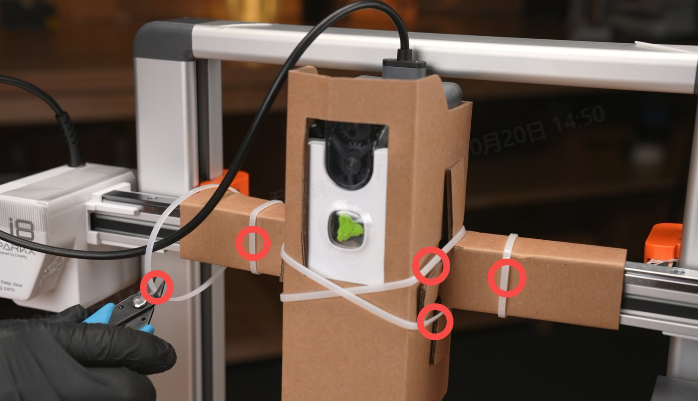
Cut the cable ties on the toolhead and remove the protective cardboard cover.
Note: Take care not to cut or scratch the tubes, cables, or printer housing.
¶ 6. Remove the Axis Shipping Restraints
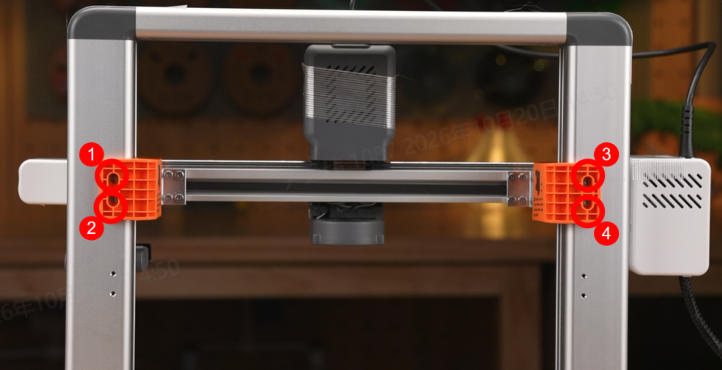
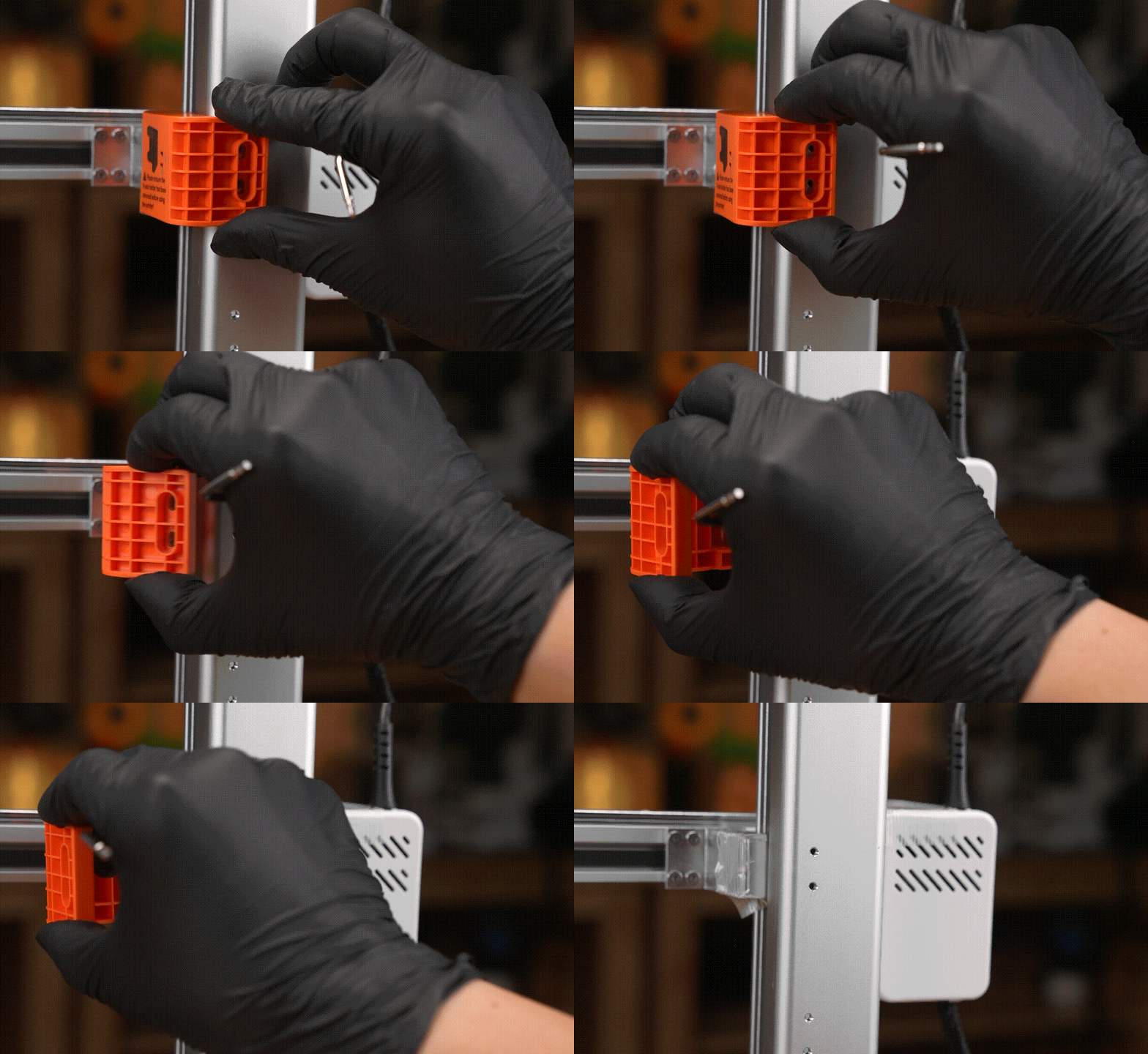
Use a 2.0 mm hex key to remove the four M3 × 6 retaining screws at the rear, then remove the two Z-axis shipping restraints.
Remove the protective tape.
 |
 |
 |
¶ 7. Replace the Frame Screws
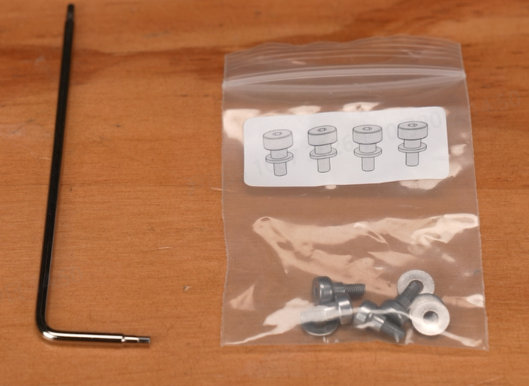
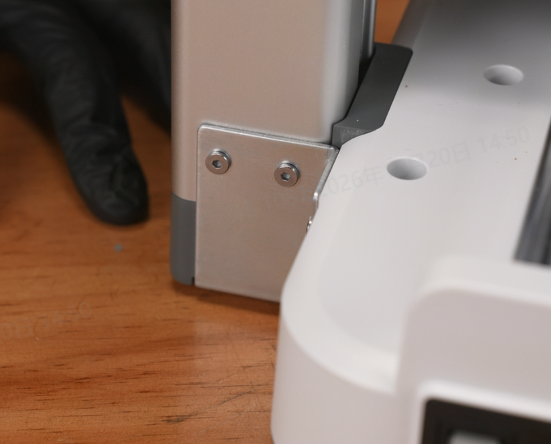
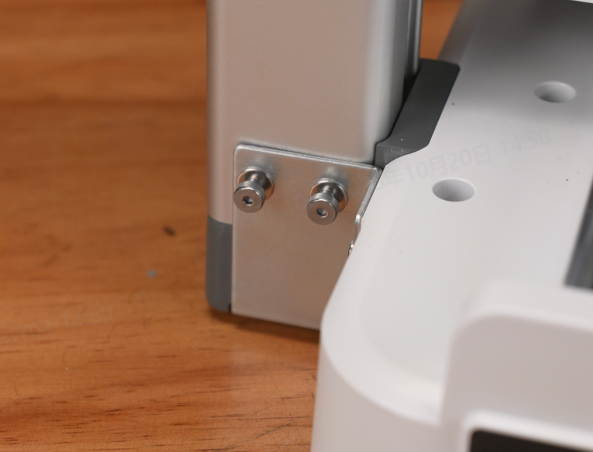
Remove the four original frame screws and replace them with the four spool holder shoulder screws for the left and right main brackets.
 |
 |
 |
 |
¶ 8. Install the Spool Holder
We recommend using the original spool holder. If you are comfortable making your own parts, you can also 3D-print a custom holder.
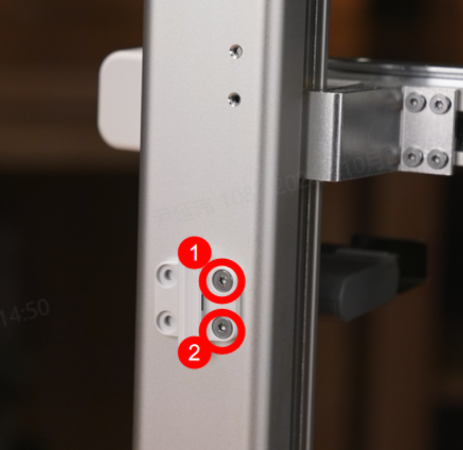
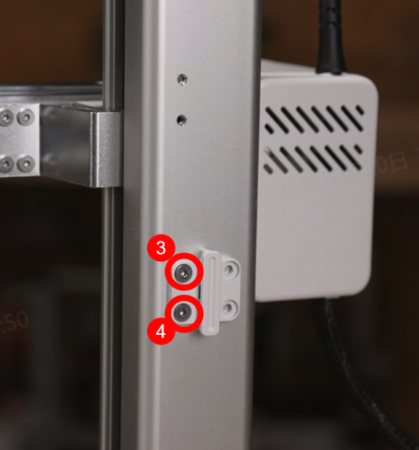
¶ 8.1 Install the Sliding Clips
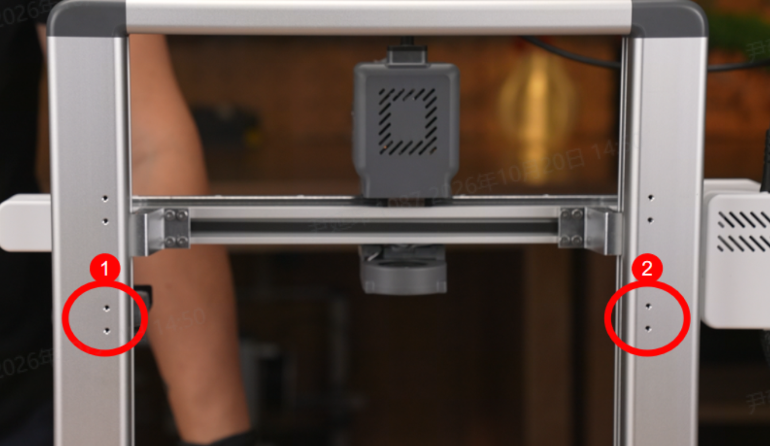
Using a 2.0 mm hex key, install the two sliding clips with the four M3 × 6 clip screws at the locations previously occupied by the Z-axis shipping restraints.
 |
 |
 |
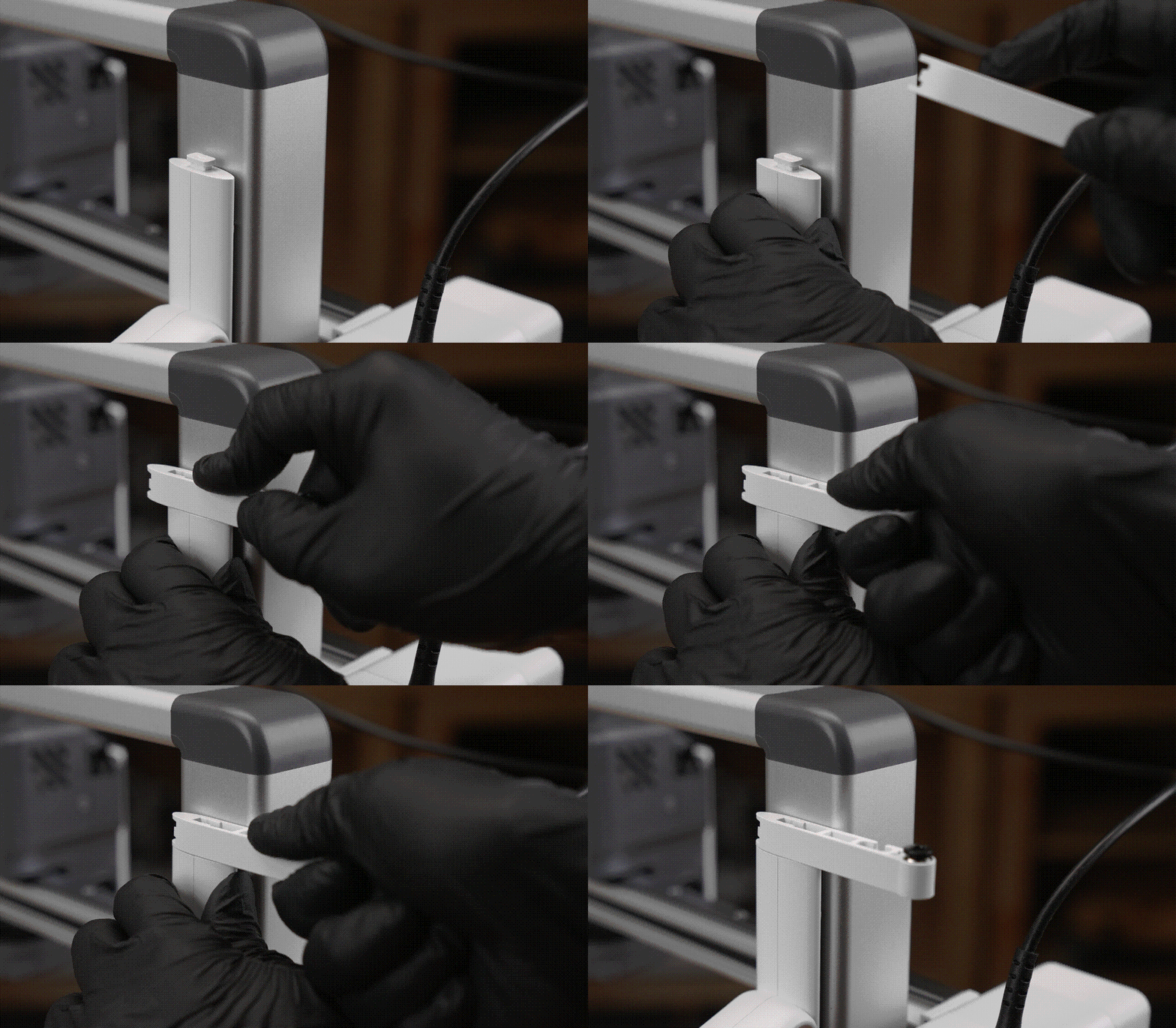
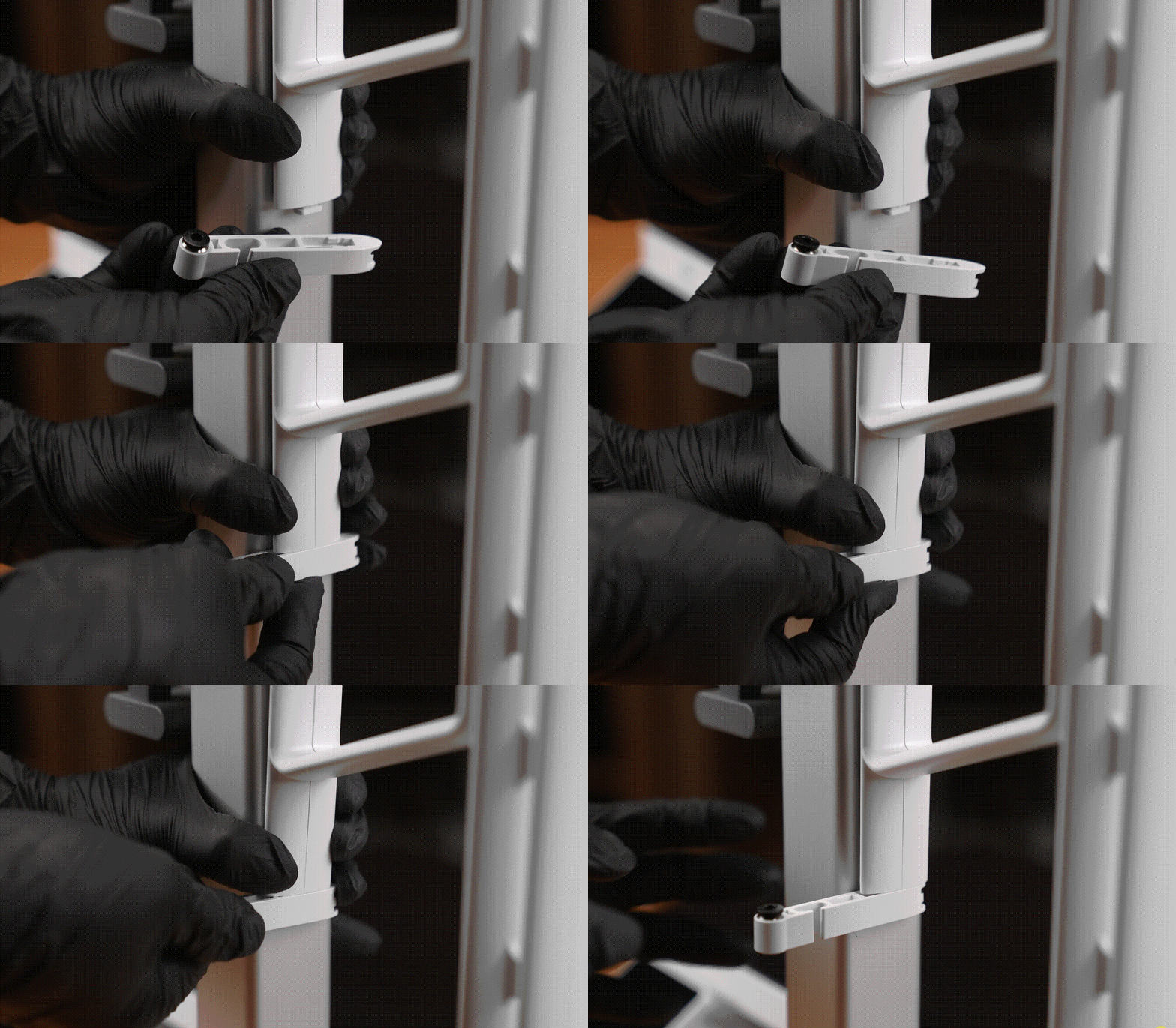
¶ 8.2 Assemble the Left and Right Connecting Pieces
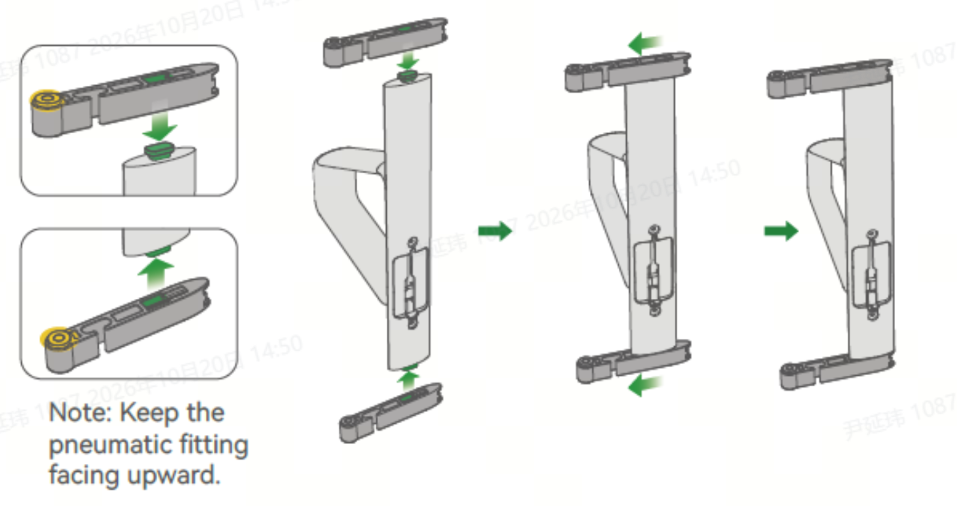
Assemble the two connecting pieces (one left and one right) with the four push-fit fitting connectors to form the left and right spool holder bracket assemblies.
Note: Keep the PTFE tube push-fit fittings facing upward during assembly.
 |
 |
 |
¶ 8.3 Assemble the Left and Right Main Brackets
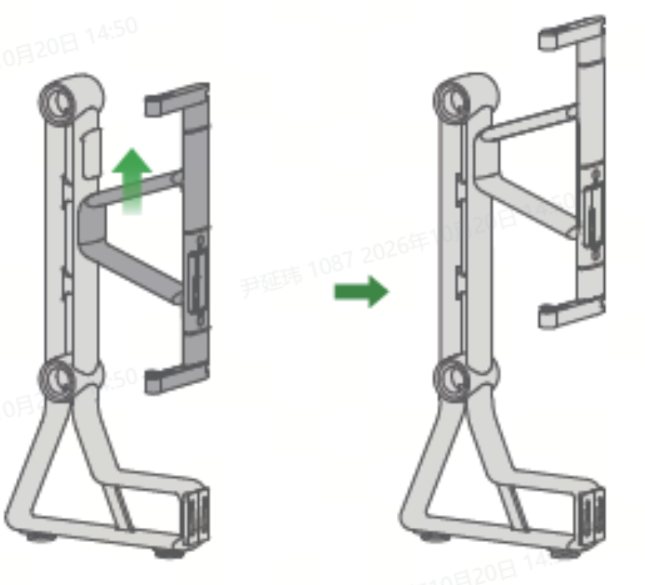
- Slide the left and right spool holder bracket assemblies into the main brackets from bottom to top to form the left and right main bracket assemblies.
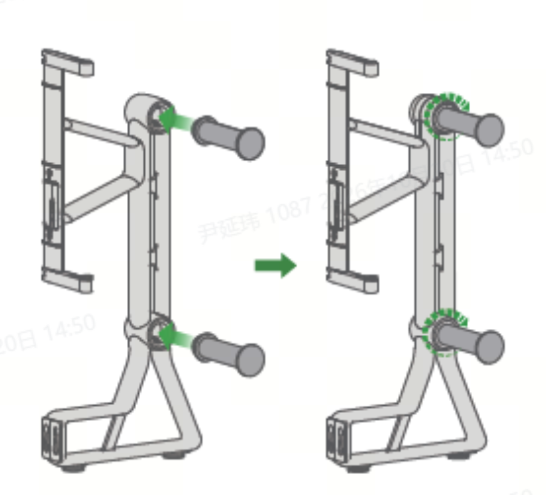
- Screw the four spool support cylinders clockwise into the left and right main bracket assemblies.
|
|
 |
 |
¶ 8.4 Secure the Left and Right Main Brackets
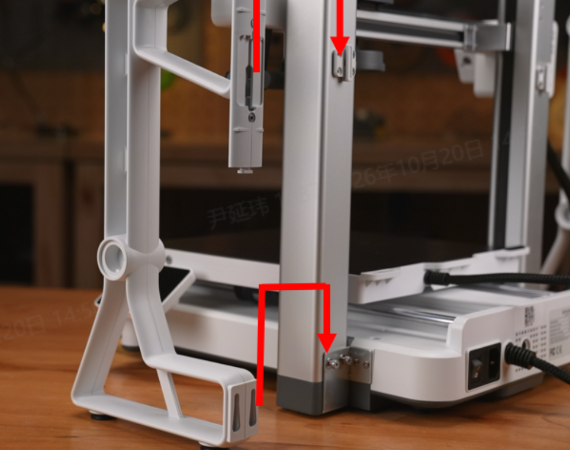
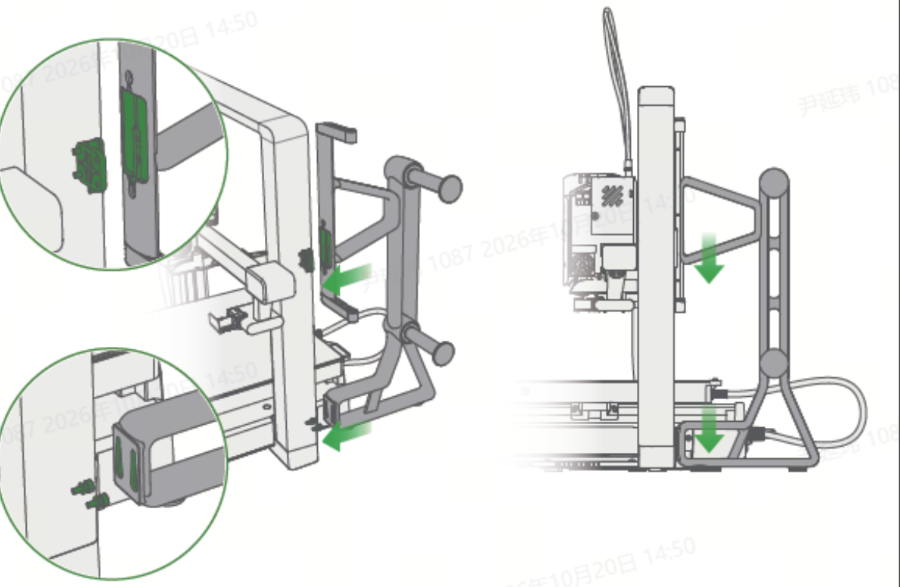
Slide the left and right main bracket assemblies downward into engagement with the sliding clips and spool holder shoulder screws.
 |
 |
 |
¶ 9. Connect the PTFE Tubes
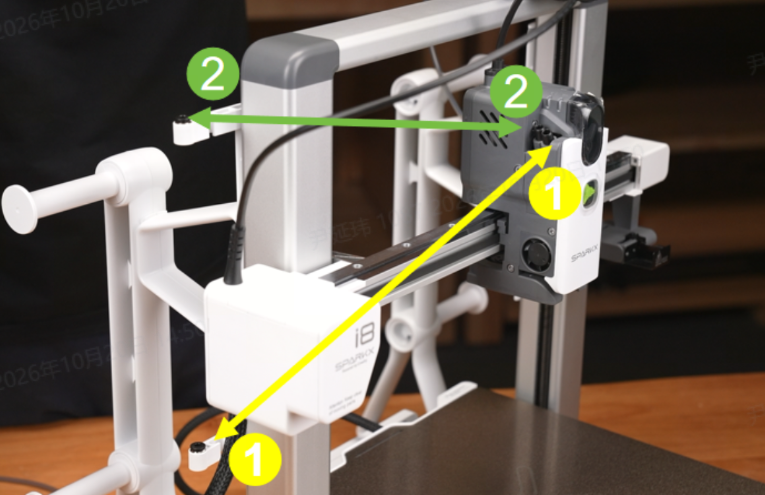
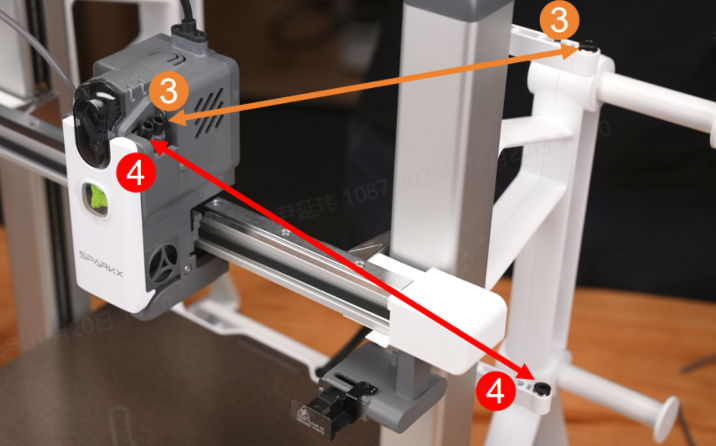
- Take the two 80 cm PTFE tubes. Connect one end of each tube to the lower push-fit fittings numbered 1 and 4 on the spool holders, as shown. Connect the other ends to the matching toolhead ports numbered 1 and 4.
- Take the two 60 cm PTFE tubes. Connect one end of each tube to the upper push-fit fittings numbered 2 and 3, as shown. Connect the other ends to the matching toolhead ports numbered 2 and 3.
- Secure the PTFE tubes with the tube organizer.
a. Press the black release collars on the pneumatic fitting and the toolhead feed inlet to unlock the connectors.
b. Insert the PTFE tube into the connector until it cannot be pushed any further.
c. Release the collar to lock the tube securely in place.
Note: If you use a custom spool holder, purchase PTFE tubing of a suitable specification and length separately.
 |
 |
¶ 10. Install the Build Plate
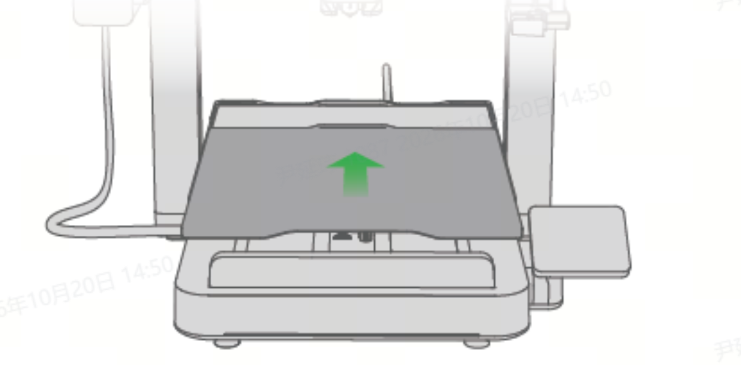
Use the locating guides to align the build plate with the heated bed edges. Lower it carefully onto the heated bed so that it is held in place magnetically.
¶ 11. Position a Filament Waste Container
Before printing, place a container below the purge assembly on the side of the printer to collect filament waste.
Tips:You can print an i8 Filament Waste Container, or use a filament packaging box or another suitable container.
¶ 12. Power On the Printer
The power inlet is on the rear of the printer. Before connecting or disconnecting the power cord, turn off the physical power switch next to the inlet.
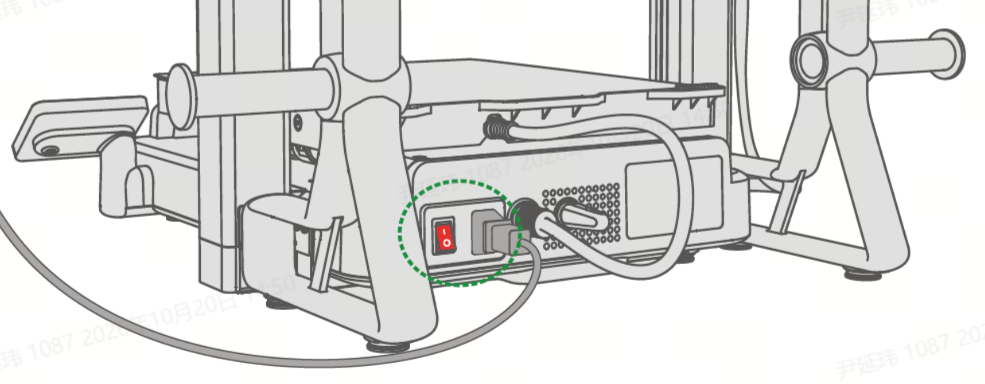
Note: When unplugging the cord, hold the connector and pull it out. Never pull on the cable itself. Incorrect handling may damage the connector or cable.
¶ 13. Initial Setup and Calibration
¶ 13.1 Connect to a Local Network (Optional)
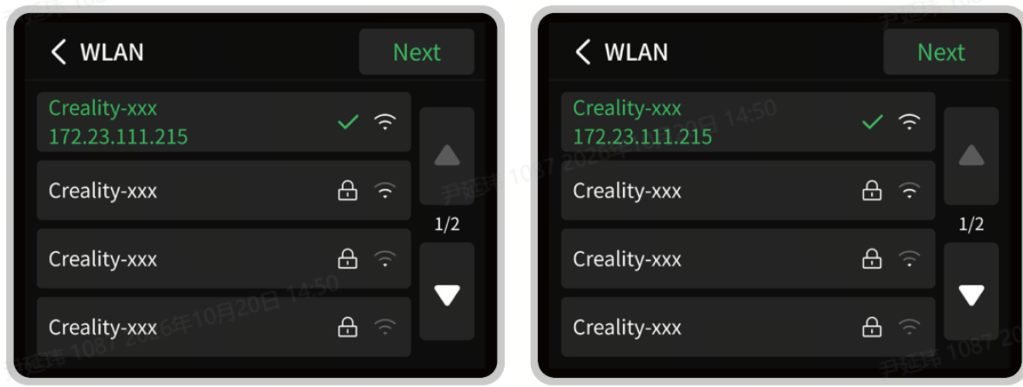
Open the WLAN page on the printer screen and connect to your local network as appropriate.
¶ 13.2 Download Creality Cloud and Sign In (Optional)
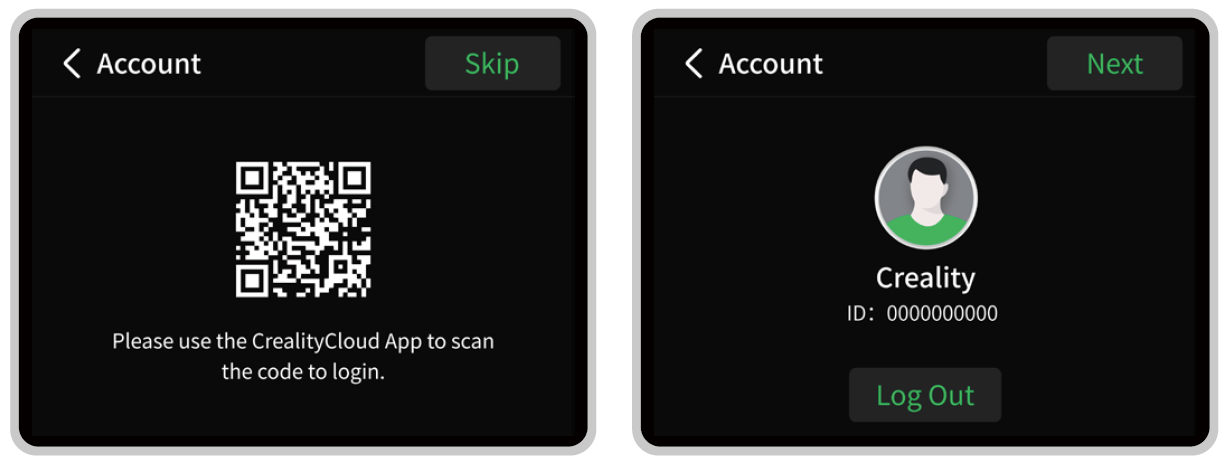
Download the Creality Cloud app and create an account or sign in:
- QR code: Scan the QR code on the printer screen using your phone's camera or browser to download the app.
- App store: Search for Creality Cloud in the App Store, Google Play, or your phone manufacturer's app store.
¶ 13.3 Run the Self-Check
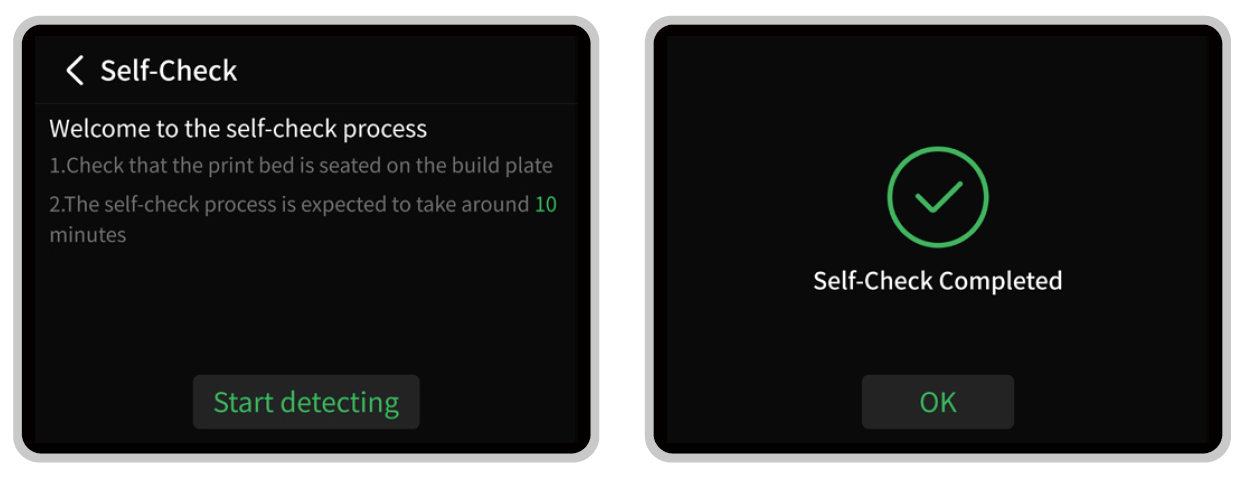
The self-test checks the printer's hardware functions one by one to confirm that the printer is ready for use. You only need to run it once during initial setup; It does not need to be repeated before everyday prints.
Warning: Before starting the self-test, place the printer on a stable, level surface and install the build plate on the heated bed. Do not operate or touch the printer during the self-test unless prompted on the screen.
The self-check is a diagnostic tool that includes the following tests.
| Checklist | Description |
| Nozzle heating | Heats the nozzle assembly to melt filament so that it can be extruded smoothly. |
| Hotend cooling fan | Continuously cools the heatbreak region to keep filament solid and prevent premature melting and clogs. |
| Part cooling fan | Blows air onto freshly extruded filament to cool and solidify the layers, improving overhangs and small, thin-walled features. |
| Heated bed heating | Heats the build surface to improve first-layer adhesion and reduce warping or lifted corners. |
| Homing detection | Triggers endstop sensors before motion or at startup to locate the axes' mechanical home positions, establish machine coordinates, and maintain positioning accuracy. |
| Channel switching detection | Checks whether the extrusion head has switched into position and identifies the active extrusion unit. |
| Filament runout detection | Monitors filament feeding to detect depletion, breakage, or jams, pausing the print and notifying the user to prevent printing without filament. |
| Filament cutter calibration | Checks and calibrates the cutter's mounting position, travel, and cutting force to ensure reliable filament cutting during filament changes. |
| Vibration compensation | Measures motion system vibration and dynamically adjusts motion control parameters to reduce periodic surface ringing. |
| Automatic bed leveling | Probes multiple points on the build surface and generates height compensation data to compensate for bed unevenness and maintain a consistent first-layer nozzle gap. |
When should calibration be run again?
You can run calibration again if the printer develops a fault, print quality deteriorates, or components have been replaced. If calibration fails, contact customer support or consult the troubleshooting and maintenance guides.
¶ 14. Make Your First Print
¶ 14.1 Insert the Filament
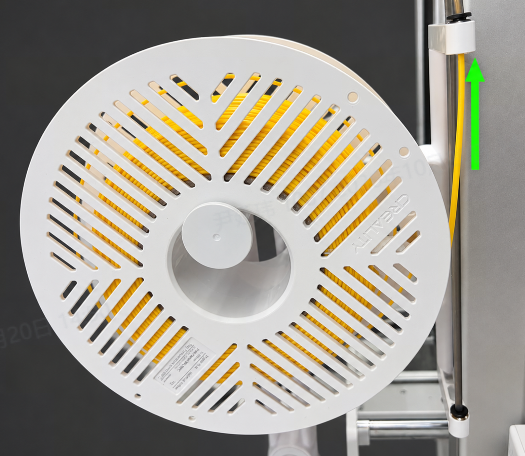
Place a spool of filament on the spool holder. Insert the filament end into the corresponding inlet push-fit fitting and feed it through the PTFE tube until it enters the toolhead and cannot be pushed any farther. For detailed loading instructions, refer to the Filament Loading Guide.
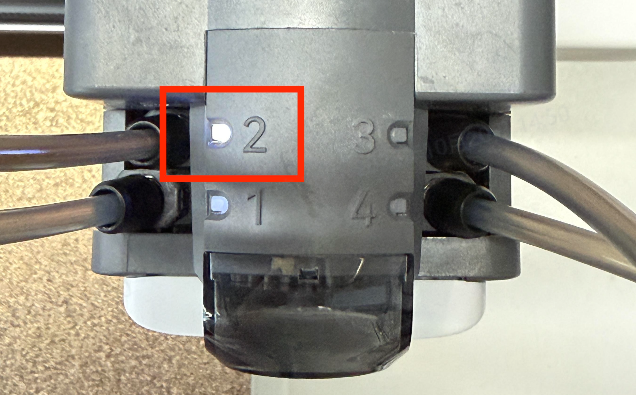
The indicator for that filament channel lights up when the toolhead detects filament.
 |
 |
 |
¶ 14.2 Set the Filament Information
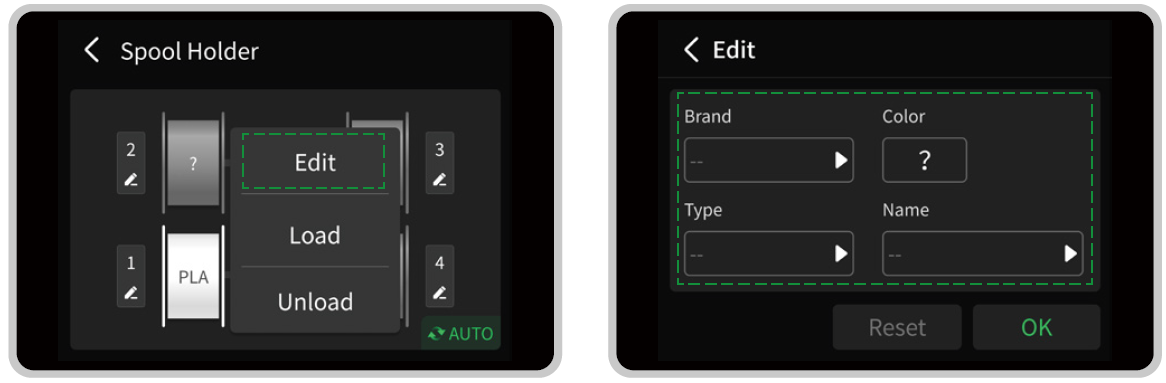
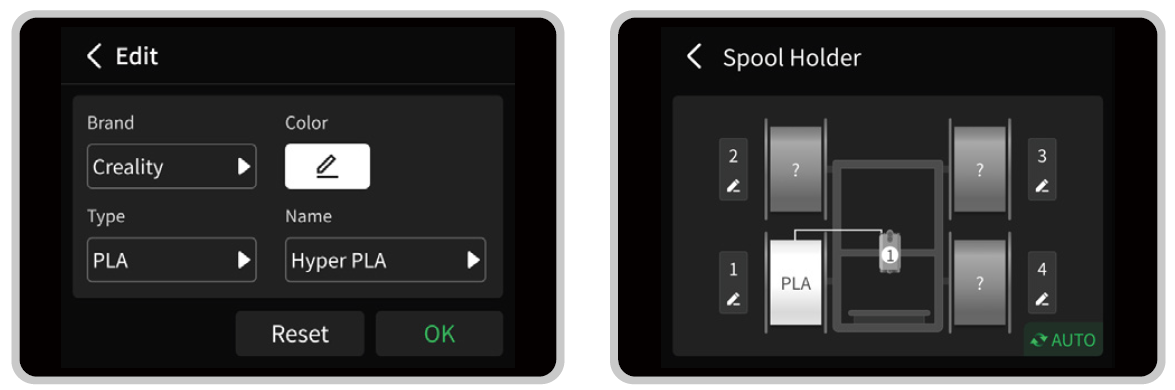
Use the filament manufacturer's label to determine the material type and nozzle temperature. We recommend configuring the spool holder filament settings in the app for a better printing experience.
Common filament references:
PLA — suggested nozzle temperature: 190–210 °C. A common beginner-friendly filament with low warping and fast cooling. Avoid excessive temperatures, which may cause softening and clogging.
PETG — suggested nozzle temperature: 230–250 °C. Tough and impact-resistant, with finished prints that do not readily absorb water. Control retraction carefully, as PETG is prone to stringing.
For more filament information, see the Product Glossary.
 |
 |
¶ 14.3 Load Filament
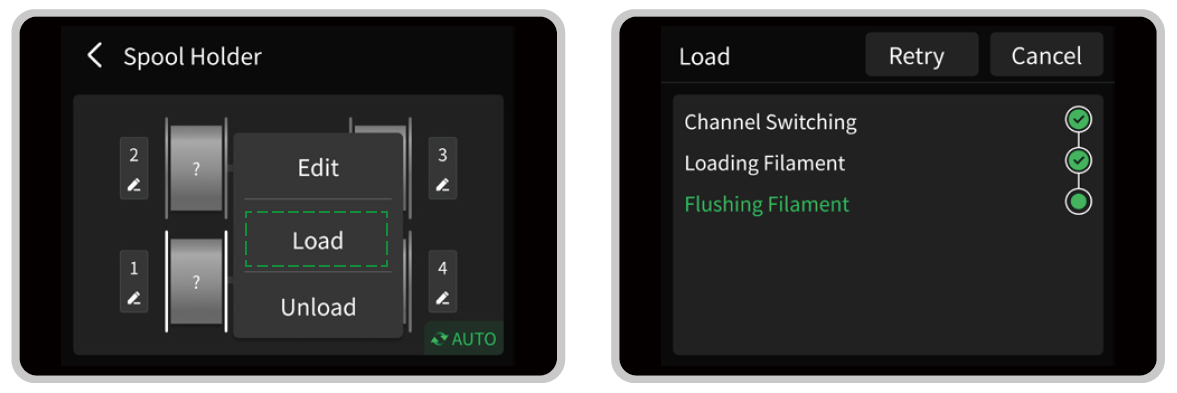
Select the filament color you want to use and run the loading procedure. This heats the filament to prepare for printing.
¶ 14.4 Unload Filament (Optional)
- Tap Unload. The printer heats the hotend to the required temperature and cuts the filament. Wait for the unloading sequence to finish.
- Once unloading is complete, pull the filament out of the toolhead and back through the PTFE tube until it is clear of the tube.
Tip: To change filament color, first finish or pause the current print. Remove the old filament before loading the new filament.
¶ 14.5 Print a Model
Prerequisite: Place the printer on a stable, level surface. Make sure the build plate and heated bed are free of filament debris and foreign objects.
¶ 14.5.1 Print a Local File
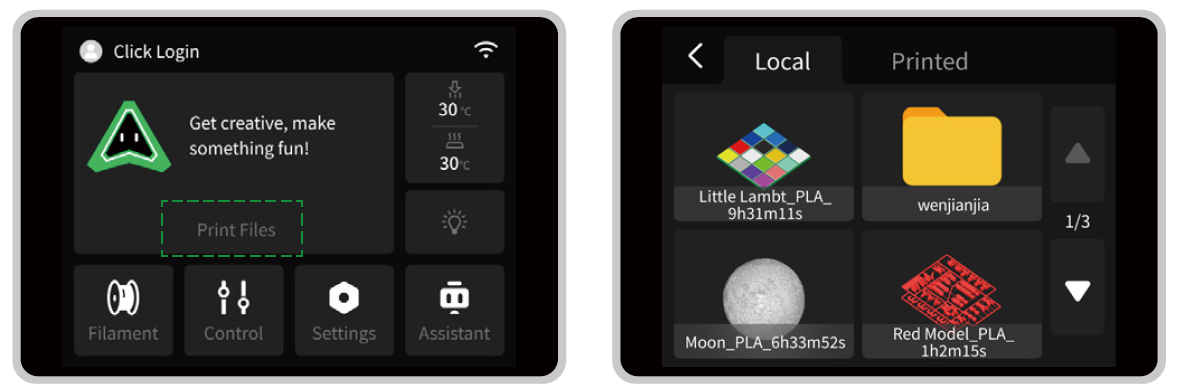
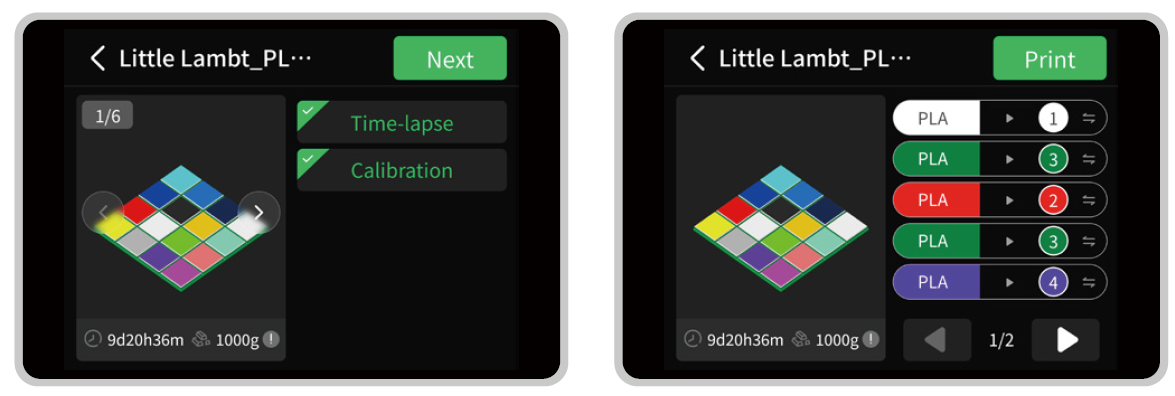
- From the printer's home screen, open the local print files.
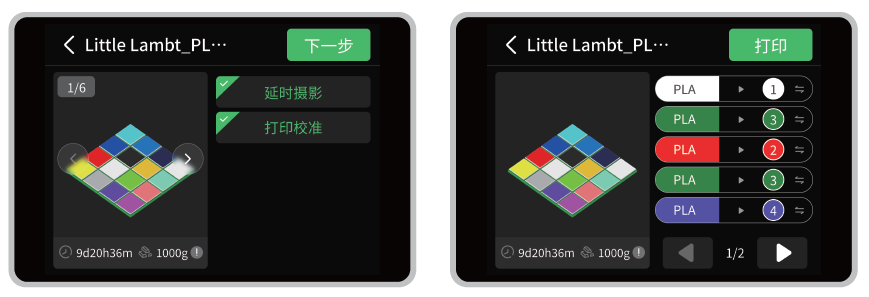
- Select the model file you want to print. A file may contain one or more printed objects. Source files for the local models are available from Creality Cloud.
- Assign the corresponding filament to each print object.
- Tap Print and wait for the print to finish.
Watch the first layer carefully. Grease or other contamination on the build plate can reduce adhesion.
If the print lifts or detaches from the plate, tap Stop Print to stop the job. Clean the build plate and try again.
 |
 |
¶ 14.5.2 Print from Creality Cloud App
Prerequisite: Download Creality Cloud from the official download page, then create an account or sign in.
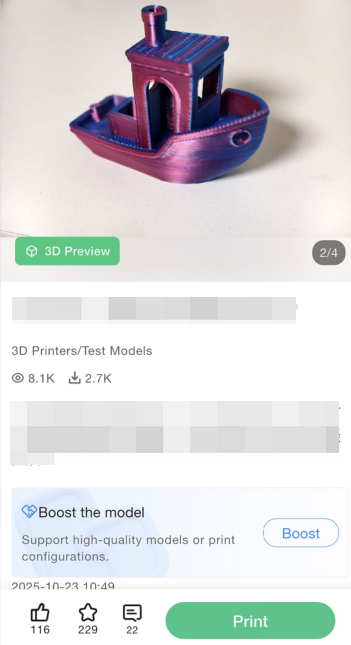
- Open the model page and select the model you want to print.
- Tap One-Click Print to start the print job.
For detailed instructions, see How to Start a Print Using the Creality Cloud App.
¶ 14.5.3 Print from Creality Print
Prerequisite: Download Creality Print from the official download page, then create an account or sign in.
- Open the model page and select the model you want to print.
- Click One-Click Print to start the print job.
- Import the model and select the SPARKX i8 printer and appropriate nozzle profile.
- Configure the filament, color mapping, and print settings.
- Slice the model and review the preview, estimated time, and filament usage.
- Send the print file using a supported LAN, then confirm the printer and filament before starting.
For detailed instructions, see How to Start a Print Using Creality Print.
¶ 14.6 Remove the Print
¶ 14.6.1 Wait for Cooling
Check the heated bed temperature shown on the screen.
Do not handle it until it has cooled to a safe temperature.
¶ 14.6.2 Remove the Print from the Plate
- Check whether the print has released from the build plate: If it has, lift it off. If it has not, remove the build plate from the printer.
- Gently flex the build plate by holding its two sides.
- Rotate the plate 90° and flex it again.
- Remove the print once it loosens.
¶ 14.6.3 Clean the Build Plate
Remove all plastic debris from the plate, including the priming line beside the print.
Notes:
Do not scrape residual plastic off with your fingernails, as this may cause injury. Use a plastic scraper.
Avoid touching the print surface with your fingers. Skin oils can reduce filament adhesion.