¶ 1. Symptoms
Filament does not extrude, extrusion is intermittent, or the printer continues moving without depositing filament. The printer may also report extruder motor overload error 951302 or 951303, sometimes accompanied by clicking sounds.
¶ 2. Possible Causes
- Pre-loading was not performed before starting the print.
- Tangled filament restricting the feed path.
- A fault in the filament channel selector motor.
- Filament buildup on the extruder gears, worn gears, or poor filament grip.
- A blockage in the hotend or heatbreak.
- Trapped filament in the cutter assembly obstructing loading or unloading.
- A fault in a feed channel assembly, filament odometer, or associated cable.
- An intermittent fault or a loose electrical connection.
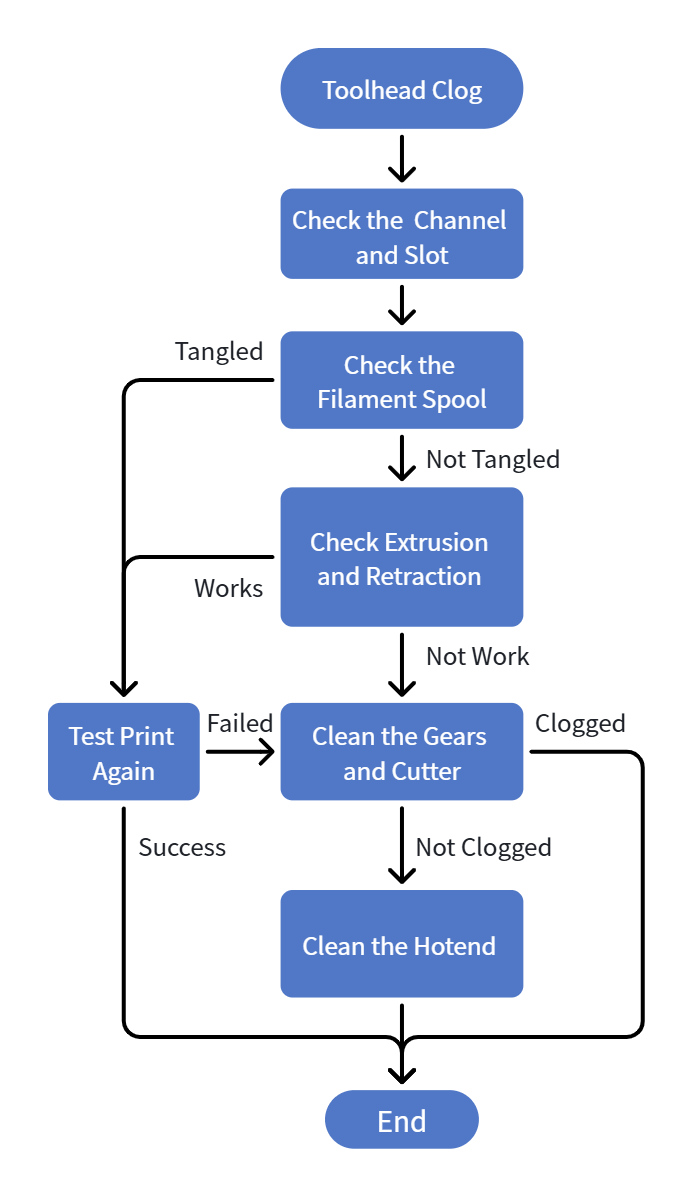
¶ 3. Troubleshooting Flowchart
¶ 4. Before You Start
- Record the error code and the affected channel shown on the screen.
- Confirm which filament channel is currently in use.
- Prepare the tools required by the relevant maintenance procedure, such as cutting pliers, a hex wrench, and a nozzle cleaning needle.
- Before removing components, checking internal connections, or touching moving parts, disconnect power as specified in the relevant maintenance procedure. Keep the printer powered on only for checks that explicitly require it.
¶ 4.1 Identify When the Error Occurs
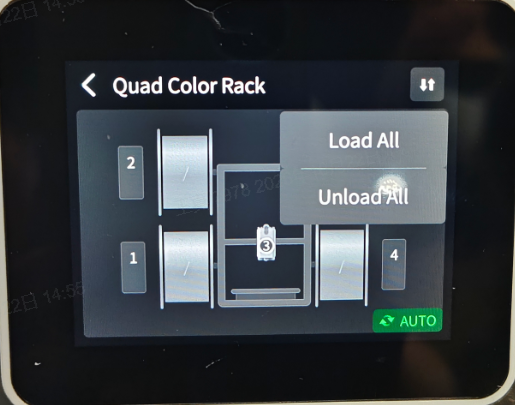
- If the error occurs before printing starts, while the printer is feeding filament through the four channels in sequence: Check whether pre-loading has been completed. If not, tap Quad Color Rack > Load All to run the loading process again, then resume printing.
- If the error occurs during printing: Continue with the following steps to troubleshoot the issue.
¶ 4.2 Check Channel
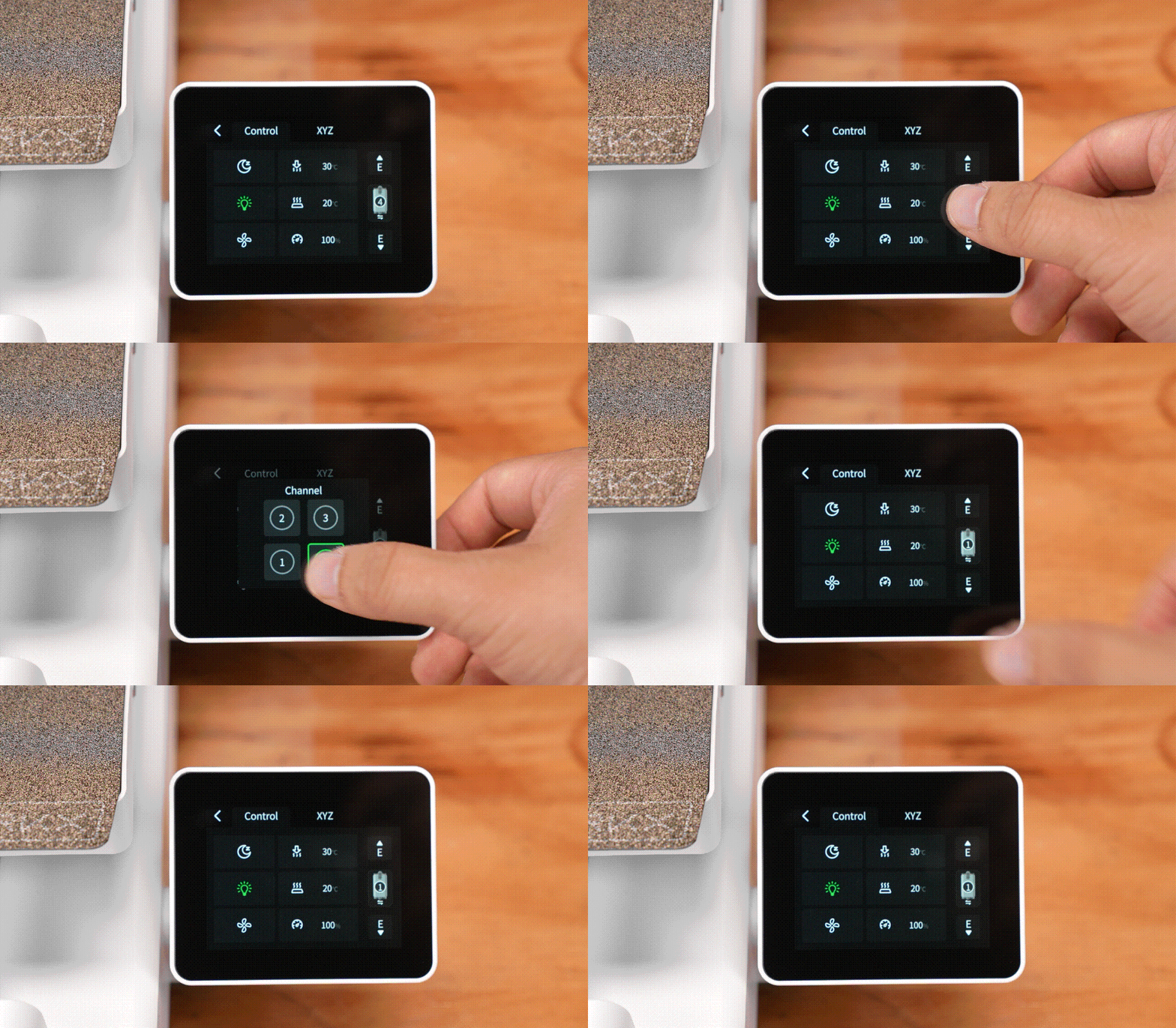
1. Go to Home > Control and check the selector position associated with the affected channel.
2. Compare that position with the actual selector position.
- The positions match: Continue to Section: Try Pulling Out the Filament and Check for Tangles.
- The positions do not match: Continue with the next step.
3. Open Channels, select another channel, and check whether the selector switches successfully.
- Switching succeeds: The mismatch may have been temporary.
- Switching failure: If the issue persists after restarting the printer and retrying the operation several times, the corresponding component may need to be replaced. Contact technical support for assistance.
¶ 4.3 Try Pulling Out the Filament and Check for Tangles
1. Switch to another filament channel to disengage the drive gear from the current channel. Then try disconnecting the PTFE tube and removing the filament.
- If the filament can be removed easily: Check the filament tip for shaving or deformation. Cut off the damaged section, reload the filament, and test again.
- If the filament cannot be removed easily: The toolhead may be clogged. Continue to Section: Check Extrusion.
Note: Before removing the filament, switch to another channel to ensure that the drive gear is no longer gripping the filament in the current channel. Otherwise, the filament may not come out.
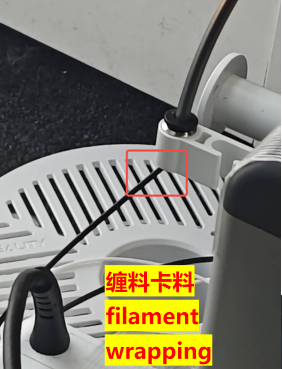
2. Also, visually inspect the filament spool corresponding to the channel reporting the error. Check whether the filament is tangled, knotted, or unable to unwind smoothly.
- If the filament is tangled or knotted: Unload the filament, remove it from the printer, and untangle it. Then reload the filament and test again.
- If the filament is not tangled or knotted: Continue with the troubleshooting steps in Section,Check Extrusion.
¶ 4.4 Check Extrusion
- Go to Home > Control and select the affected channel.
- Heat the nozzle to the appropriate printing temperature for the loaded filament. The source also lists clog-clearing temperatures of 250 °C for PLA and 270 °C for PETG.
- Once the nozzle reaches the set temperature, tap the downward-pointing extrusion icon for that channel.
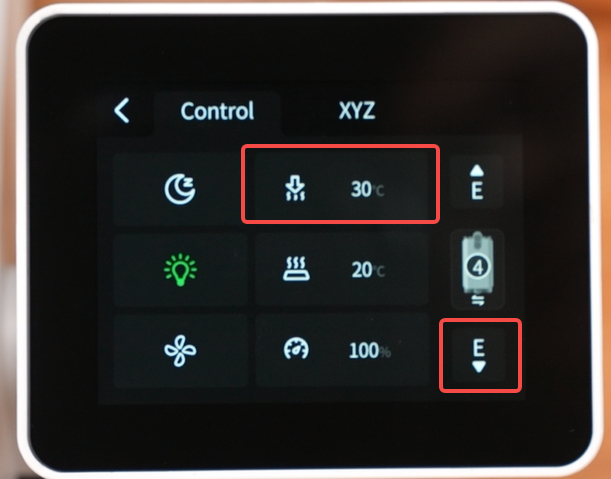
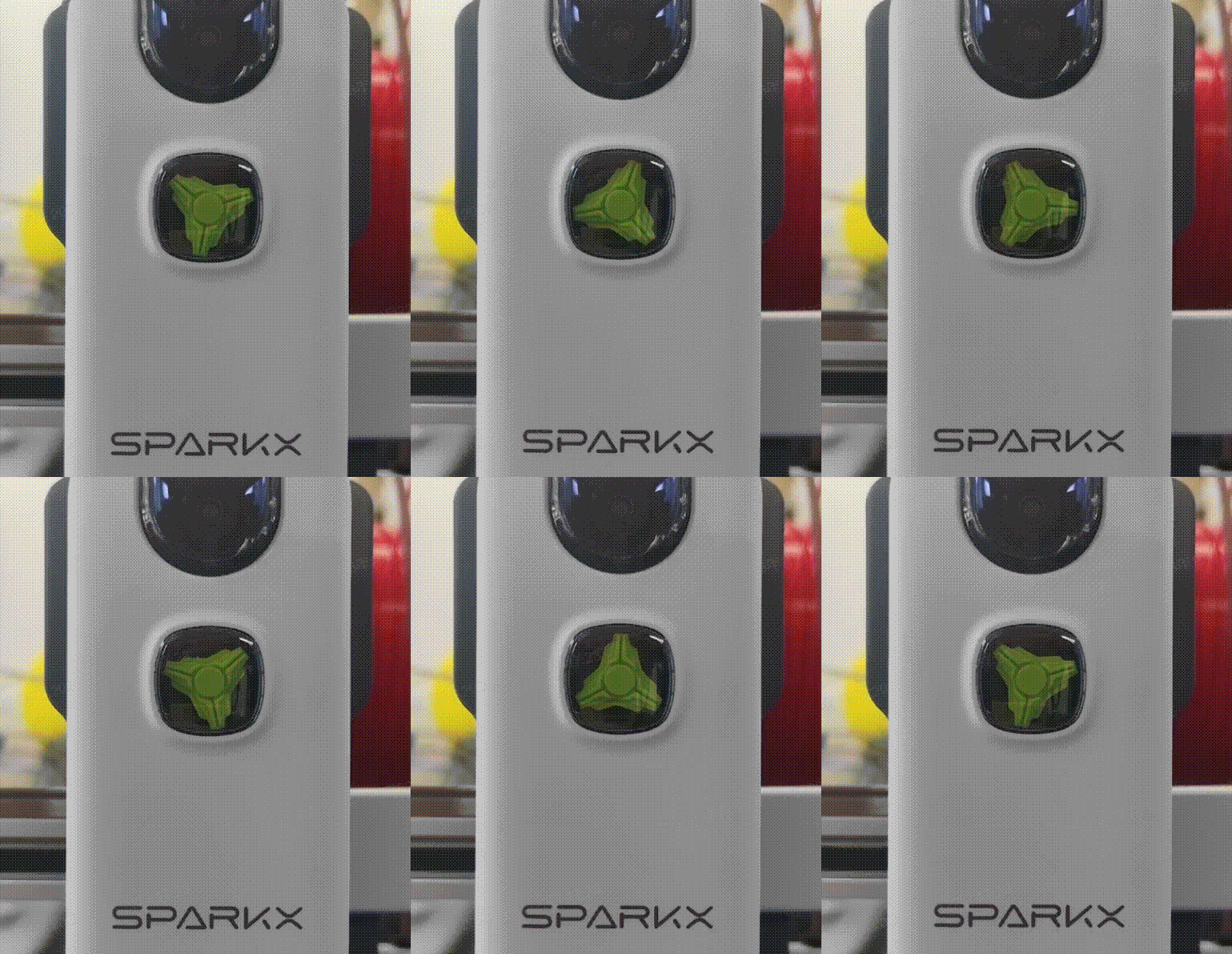
4. Check whether the green decorative wheel on the extruder rotates and whether filament extrudes normally.
- The wheel does not rotate, and the extruder makes clicking noises: Filament buildup or a jam in the extruder gears may be preventing the gears from turning. Disassemble the extruder for further inspection. Refer to the Extruder Cleaning Guide.
- The wheel rotates normally, and filament extrudes normally: Extrude filament several times to help clear the feed channel, then try printing again.
- The wheel rotates normally, but no filament is extruded: Continue to Section: Check Filament Retraction for further troubleshooting.
|

|
¶ 4.5 Check Filament Retraction
- Go to Home > Control and select the affected channel.
- Heat the nozzle to the appropriate printing temperature for the loaded filament. The source repeats 250 °C for PLA and 270 °C for PETG for clog clearing.
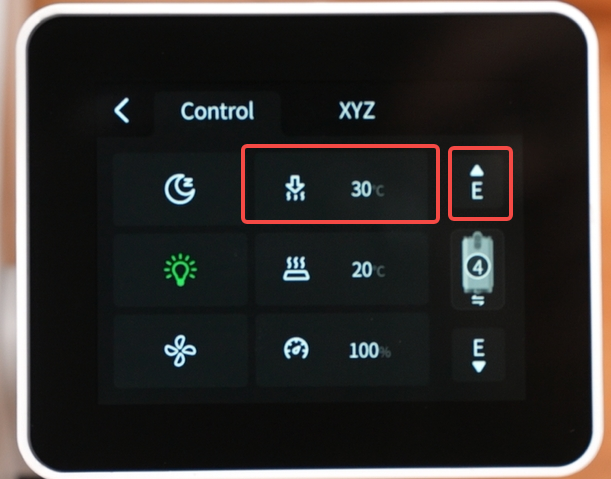
- Once the nozzle reaches the set temperature, tap the upward-pointing retraction icon and assist by pulling the filament out by hand.
- Continue according to whether the filament can be removed and whether it is engaged by the extruder gears.
¶ 4.5.1 Case A: The Filament Can Be Removed and Its Surface Is Intact
- Check whether the filament is moisture-damaged and confirm that the correct filament type is selected in the slicer or filament settings.
- Reload the filament according to the printer's operating instructions, then check whether filament feeding works normally.
- If the issue persists, there may be a clog in the cutter assembly, extruder gears, hotend, or heatbreak. First, remove the toolhead front cover and check the extruder for leftover filament or other abnormalities. Refer to the Extruder Cleaning Guide for further instructions.
- If the feed channel and cutter channel are clear, refer to the Hotend/Heatbreak Cleaning Guide for further troubleshooting.
¶ 4.5.2 Case B: Filament Cannot Be Retracted or Removed
- Unlock the motors and manually move the toolhead to the far left of the X-axis. Then cut the filament.
- Try to remove the remaining filament.
- Determine the likely location of the blockage based on whether the filament can be removed and the condition of its tip. Follow the appropriate troubleshooting steps below:
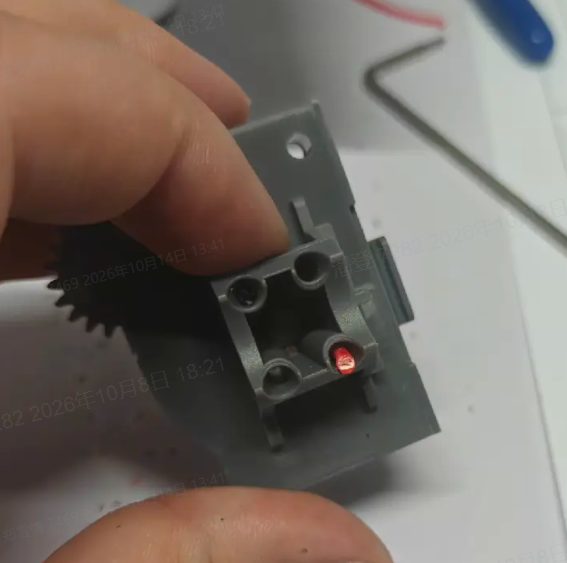
- The filament still cannot be removed after being cut: The cutter assembly may be clogged. Refer to the Extruder Cleaning Guide to inspect and clean the cutter assembly.
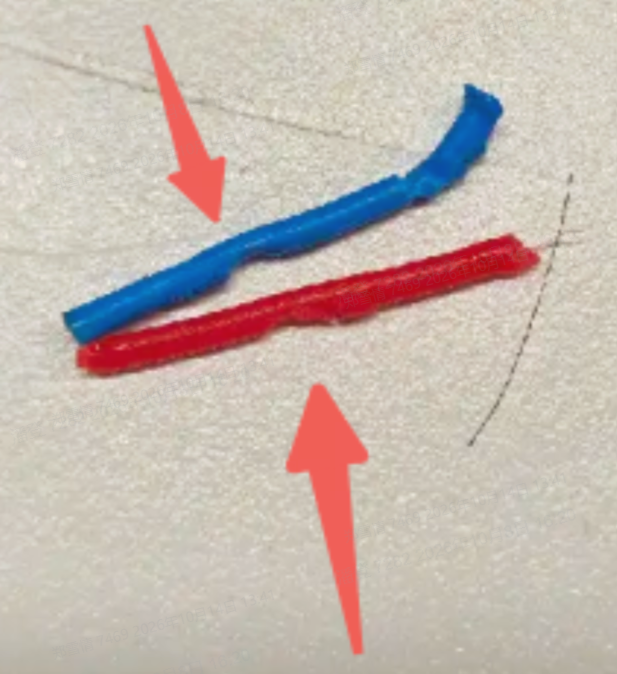
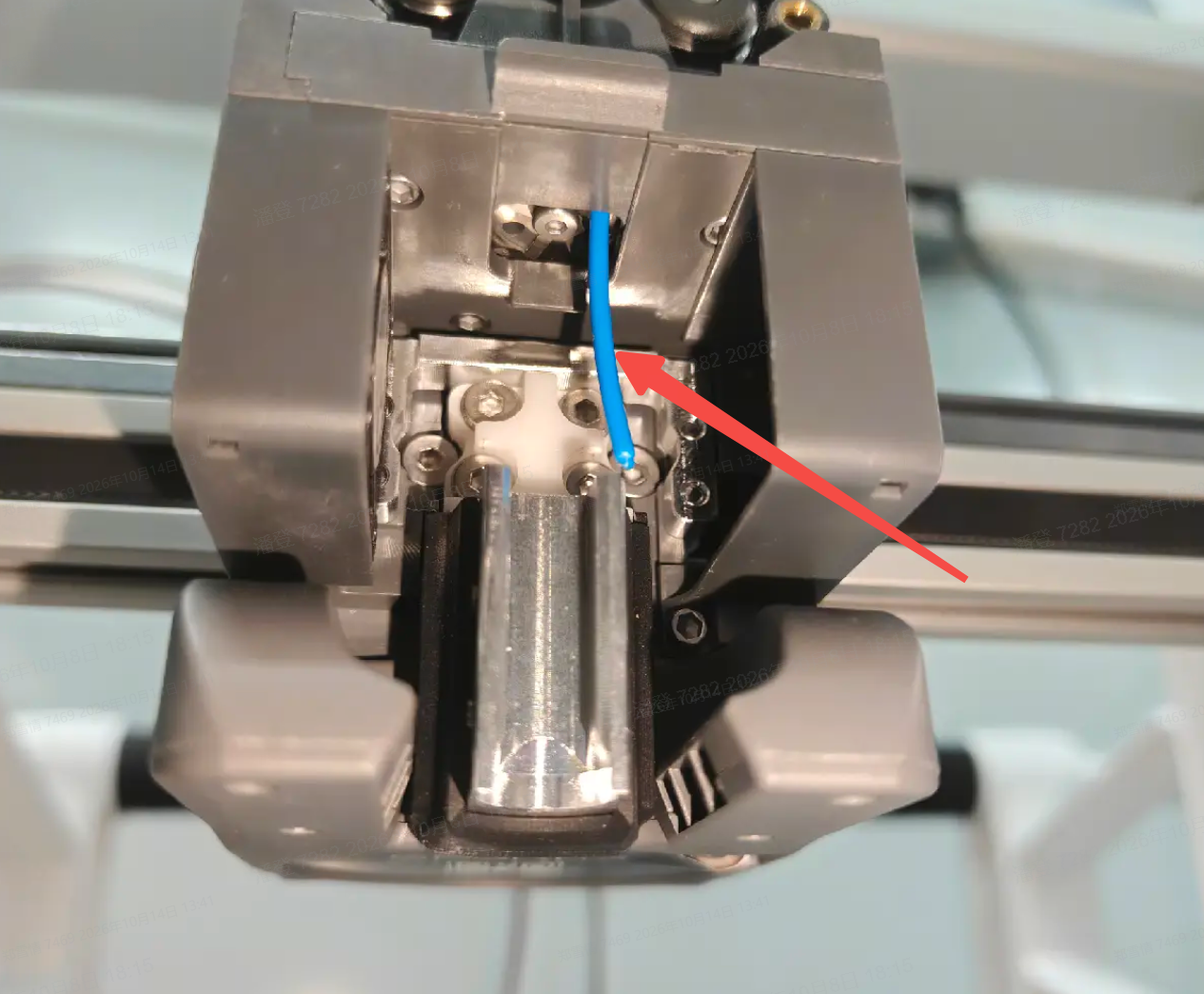
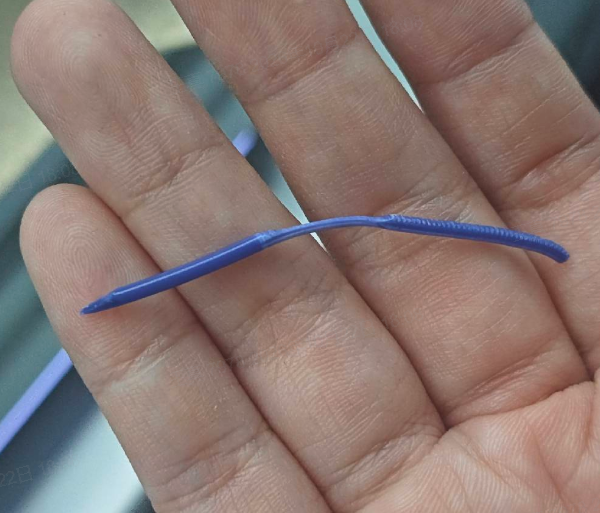
- The filament can be removed, but its end shows obvious signs of melting and cooling, along with gear marks: The hotend is likely clogged. Remove the quick-release nozzle, then insert a new piece of filament into the feed channel and ensure it passes through the cutter assembly to verify that the feed channel is clear. Then refer to the Hotend and Heatbreak Unclogging Guide to clear the hotend.
|
|
- The filament can be removed, and its tip is smooth and flat, but gear marks are present: Filament may be stuck inside the cutter channel. Inspect the cutter channel and refer to the Extruder Cleaning Guide to clear the affected channel.
- No filament is stuck in either the feed channel or the cutter channel: The hotend may be clogged. Refer to the Hotend and Heatbreak Unclogging Guide to clear the hotend.
|
|
¶ 4.6 Run a Test Print
If the rotating wheel turns normally and filament extrudes properly after troubleshooting, follow the steps below to check whether the issue persists.
- Print a test model again.
- Check whether error
951302or951303returns to the affected channel, or whether the printer continues moving without extruding filament.
- Printing returns to normal: The fault may have been intermittent. Check that the FPC cable for the affected feed channel is securely connected, following the power-off requirements above, and retest as needed.
- The error returns or the printer again fails to extrude during printing: Contact technical support.