¶ 1. When to Use This Guide
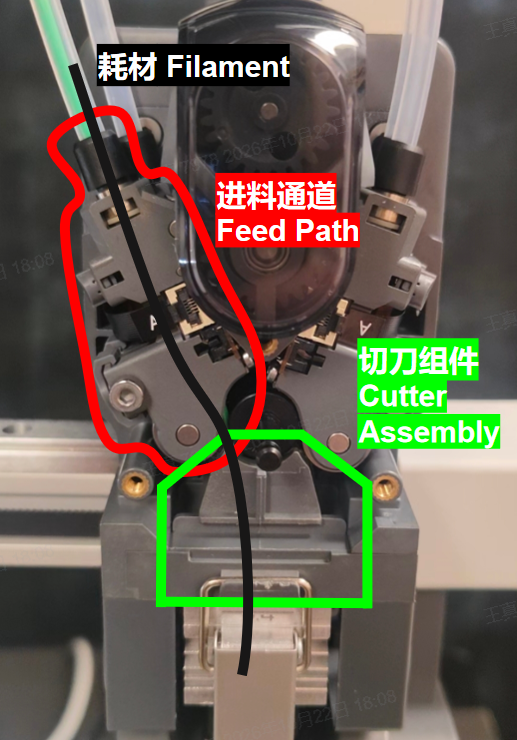
Use this guide if filament is stuck inside the extruder and cannot be removed using the normal unloading procedure. On the i8, filament may become trapped in the feed channel assembly, cutter channel, or cutter assembly.
Other symptoms may include:
- The printer reports a clog error (error code 951302 or 951303).
- The printer continues printing without extruding filament.
- Filament still does not extrude properly after the hotend has been replaced.
- Filament is stuck inside the extruder and cannot be removed using the normal procedure.
These symptoms may indicate an extruder jam, but they do not identify the exact location of the blockage.
¶ 2. Tools Required
- 2.0 mm hex driver or hex key
- Needle-nose pliers for removing trapped filament
- Tweezers for handling small parts
- Filament cutters
¶ 3. Safety Precautions
IMPORTANT
Before opening the toolhead or working on its wiring, turn off the printer, unplug it, and allow the hotend to cool. Exposed wires and electrical components can cause a short circuit if they contact one another or nearby metal parts while the printer is powered on.
¶ 4. Clear the Jam
¶ 4.1 Preparation
¶ 4.1.1 Cut the Filament
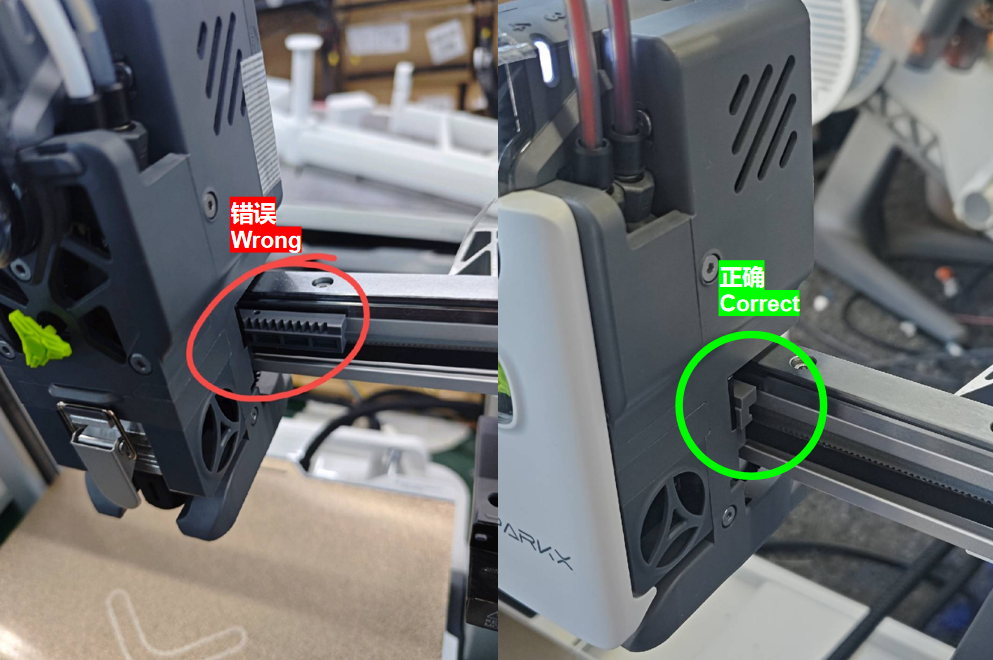
- Release the motors, then manually move the toolhead to the far left along the X-axis to cut the filament.
- Move the toolhead to the far right to reset the filament cutter.
- Move the toolhead to a central position where it is accessible for disassembly.
- Remove the filament from the channels that are not jammed, then disconnect the 4 PTFE tubes.

For detailed unloading and cutting instructions, see the Filament Loading and Unloadin Guide.
¶ 4.1.2 Remove the Toolhead Front Cover
- Press both sides of the front cover to release it, then remove the cover. Keep your fingers clear of the hotend cooling fans on either side.
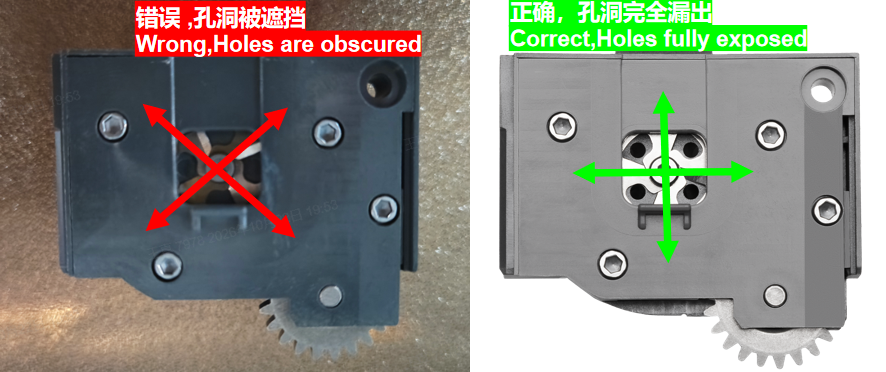
- Reach under the toolhead, grip the rotating wheel, and pull it outward along the Y-axis to remove it.
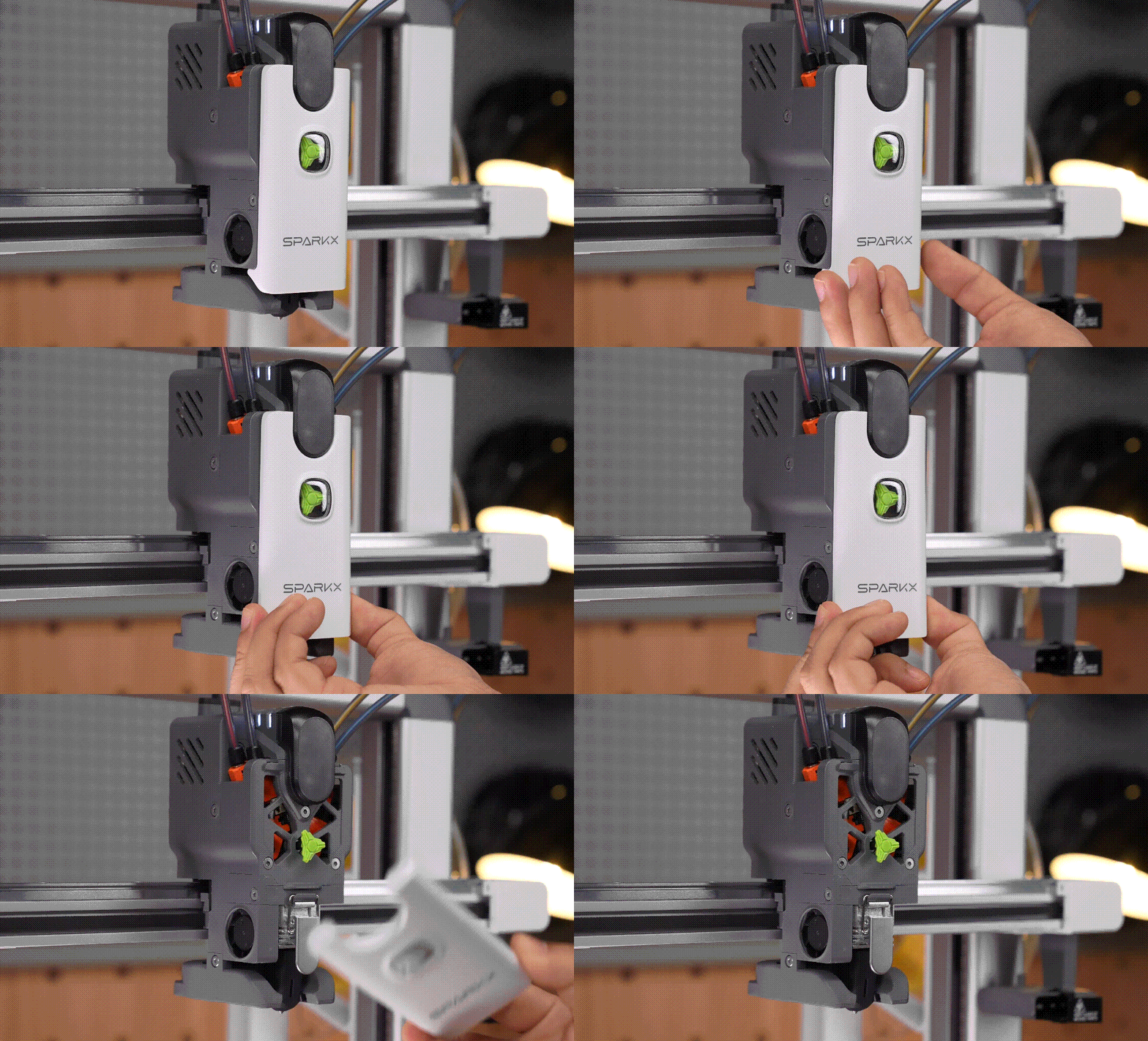
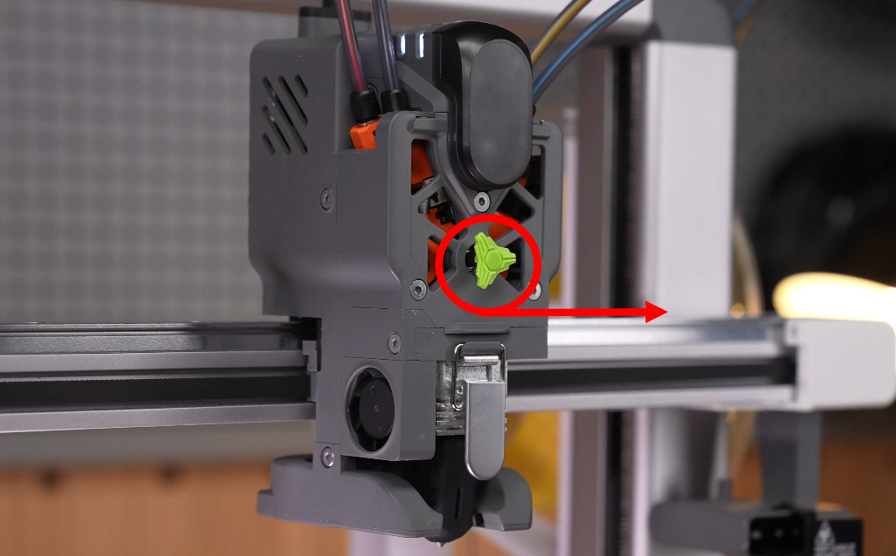
¶ 4.1.3 Remove the Extruder Cover
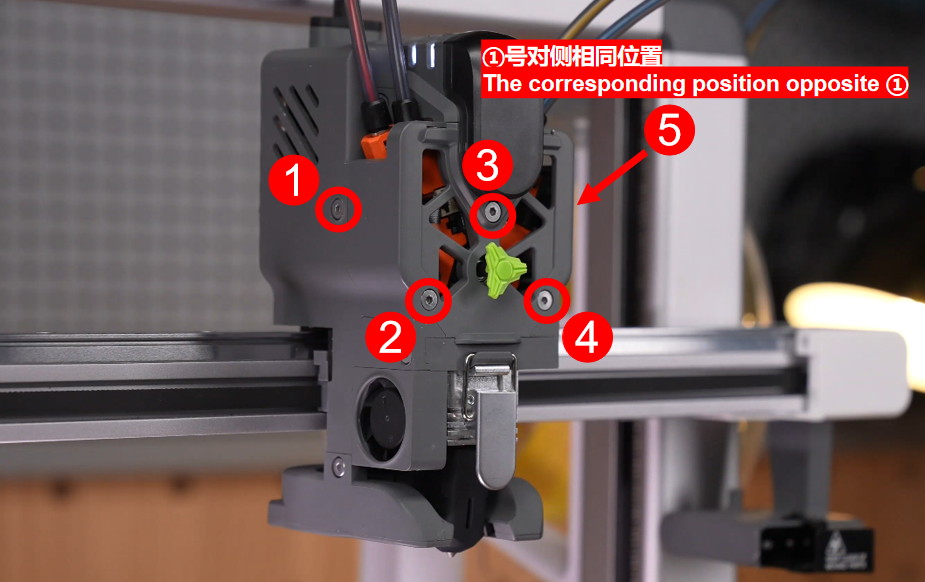
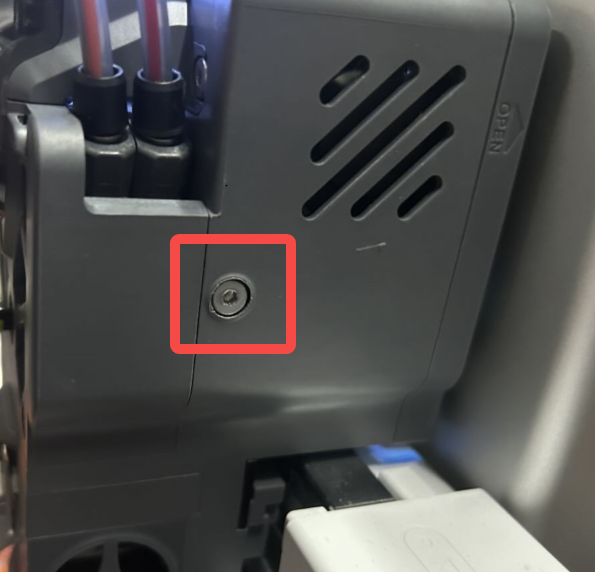
- Use a 2.0 mm hex driver or hex key to remove the five cover screws: three at the front and two on the sides in total.
- Pull the cover outward to remove it.
¶ 4.1.4 Remove the Filament Feed Channel
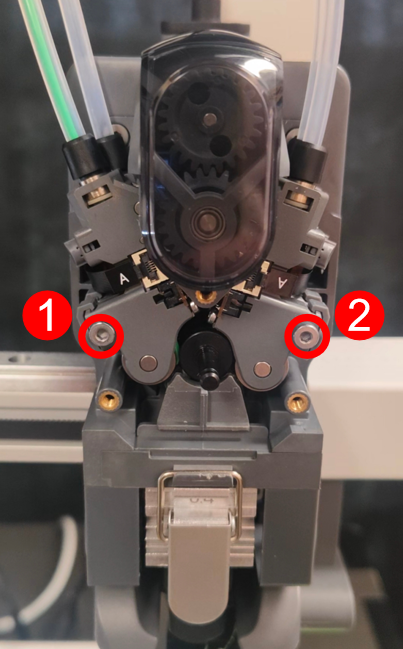
Use a 2.0 mm hex driver or hex key to remove the two retaining screws for the left and right filament feed channel assemblies. Remove both assemblies.
The arrows below indicate the screws and ribbon cable.
¶ 4.2 Clear the Filament Feed Channels
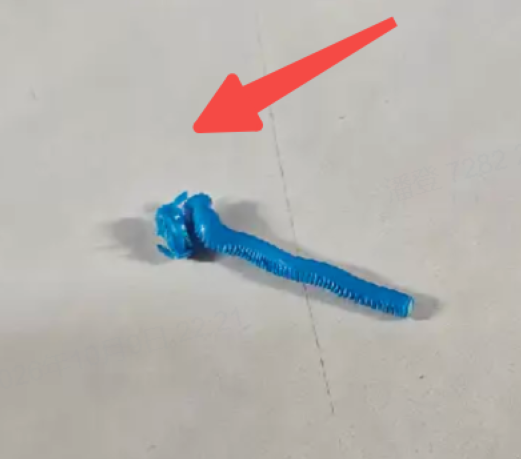
- After removing the retaining screws, check for a length of filament passing through both the feed channel and the cutter assembly. Move the feed channel assembly diagonally upward to remove the filament and the corresponding channel assembly.
- Once the feed channel assembly has been removed, use filament cutters to cut the deformed filament.
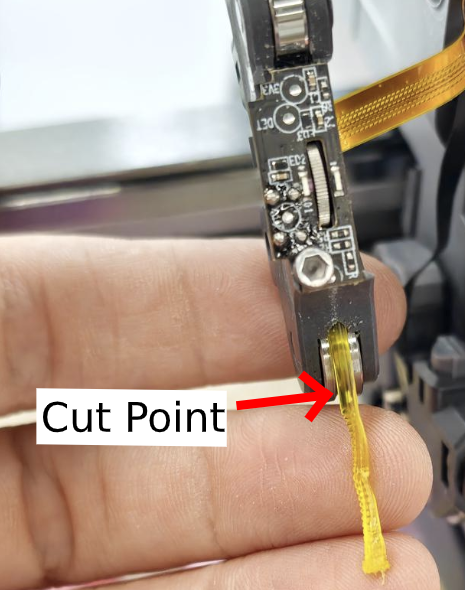
Note:The FPC cable has sufficient slack to allow you to clear the channel without disconnecting it. Do not pull the feed channel assembly outward with excessive force. Support the assembly during maintenance to prevent the FPC cable from hanging under its own weight.
¶ 4.3 Clear the Filament Cutter Inlet
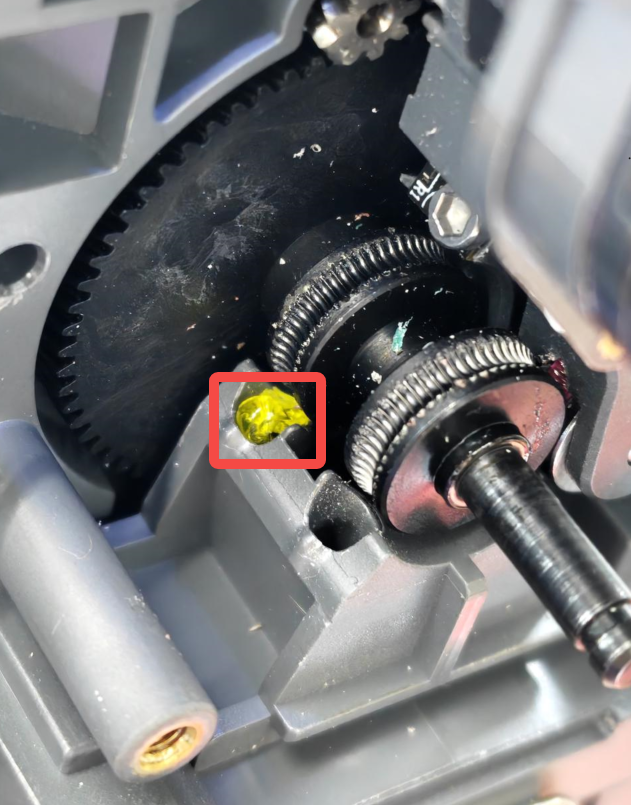
If a piece of filament remains lodged in the cutter inlet, use needle-nose pliers to grip and remove it.
¶ 4.3.1 Remove the Filament Cutter
If the filament cannot be removed with pliers—for example, if it has bent into an S shape—remove the cutter to access the blockage.
¶ 1. Loosen the Feed Channel Assemblies
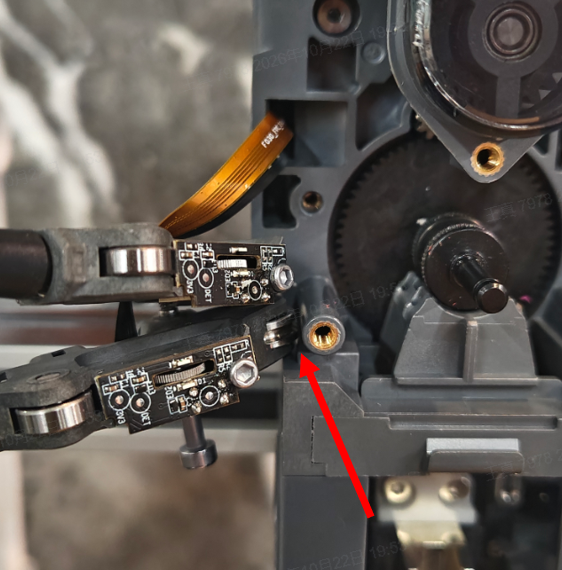
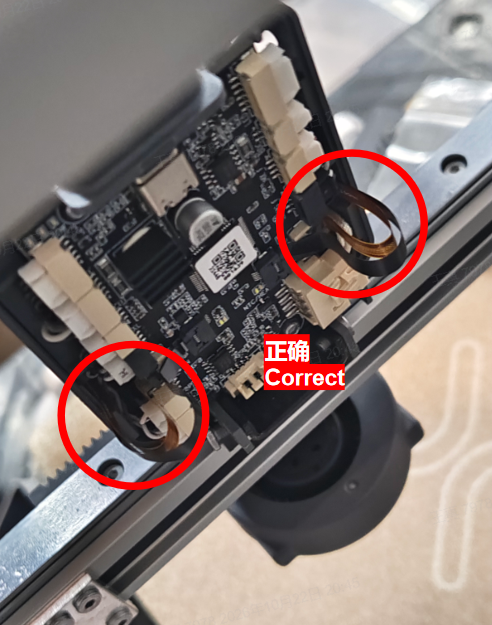
Make sure both retaining screws securing the four feed channel assemblies on the left and right have been fully removed. You do not need to disconnect the FPC cables. Loosen the feed channel assemblies and gently let them hang to either side.
Note:
When reinstalling the feed channel assemblies, make sure the FPC cables are not pinched. Remove the rear cover and gently reposition the cables with a hex key if necessary.
¶ 2. Remove the Hotend
- Remove the hotend silicone sock.
- Locate the metal spring clip. Grip the end of the clip and lift it until it disengages from the retaining slot in the cutter assembly.

¶ 3. Remove the Cutter
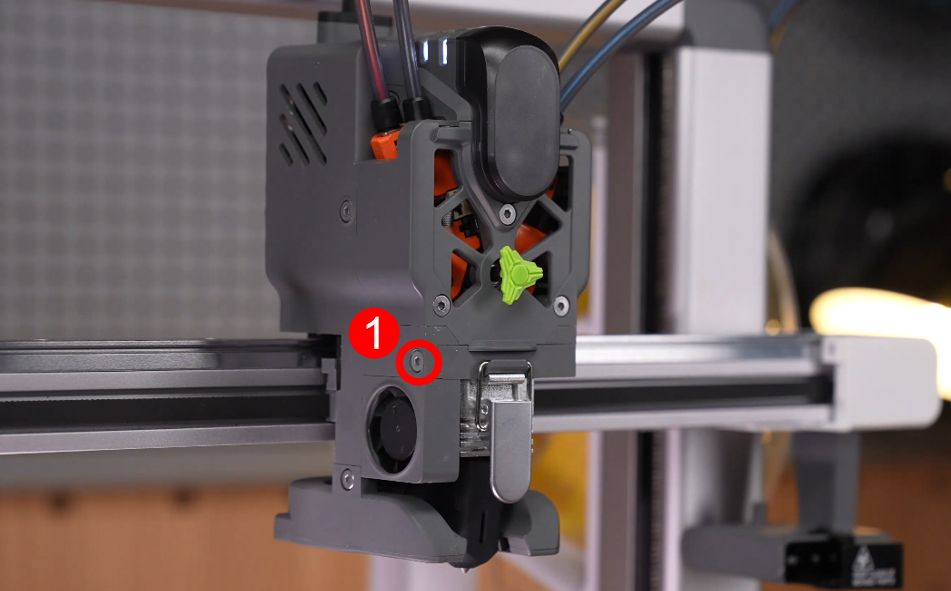
- Use a 2.0 mm hex driver or hex key to loosen the retaining screw on the left side.
- Insert one finger into the innermost part of the cutter channel and push outward with slight force to slide the entire cutter assembly out of its mounting slot.
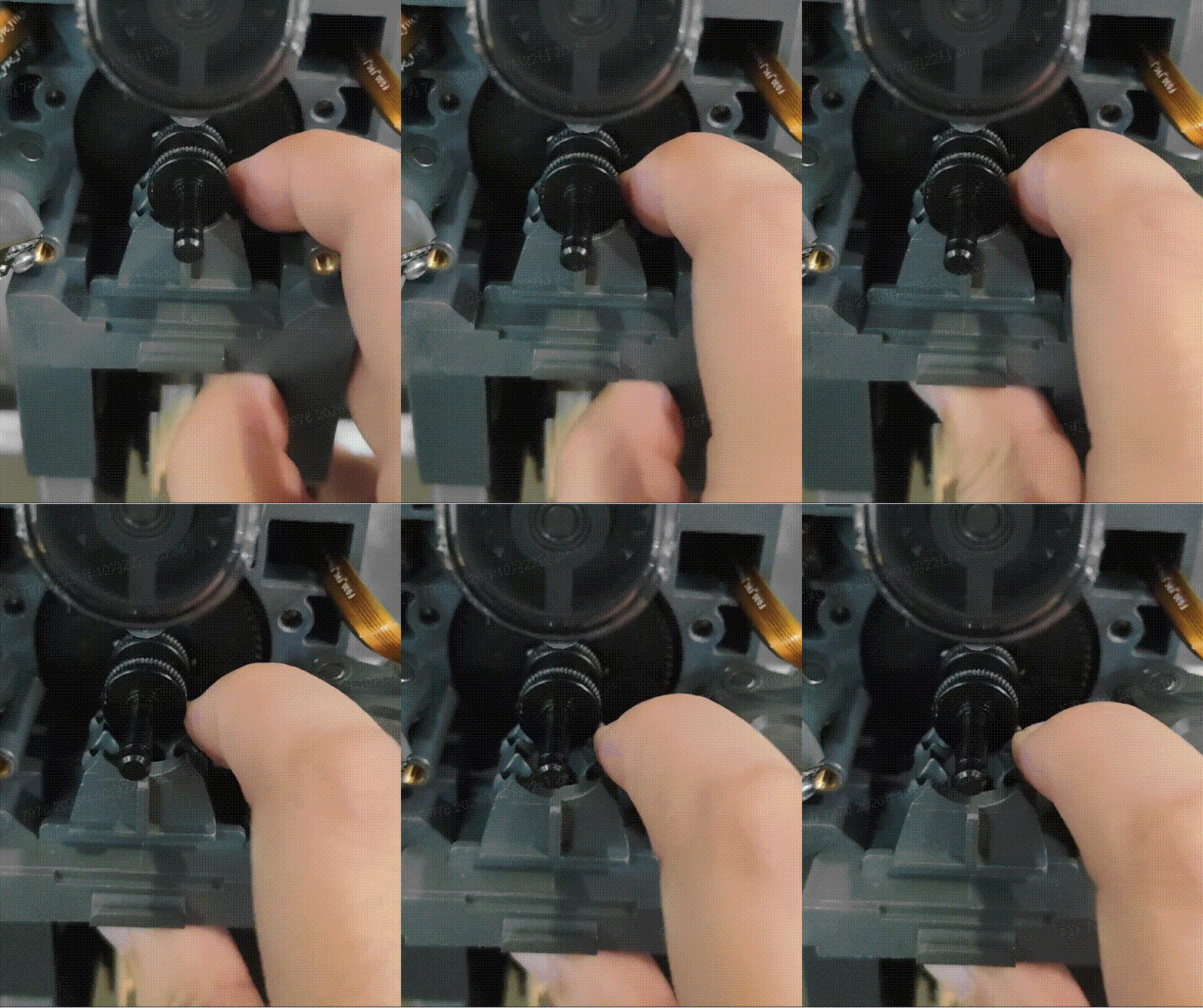
- Use filament cutters to pull the leftover filament upward and out of the cutter. Then insert a clean piece of filament into the channel to ensure the inside is clear.
¶ 4. Reinstall the Cutter
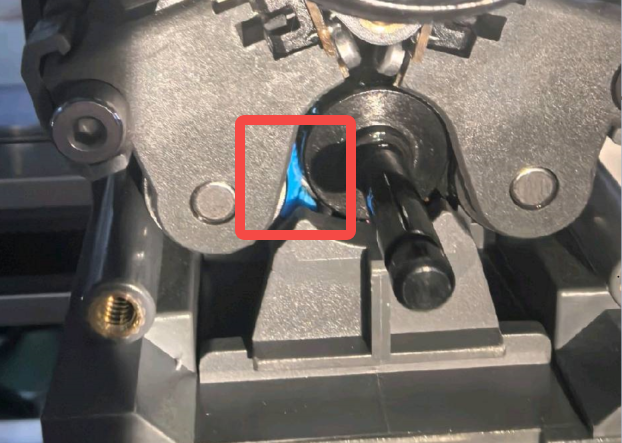
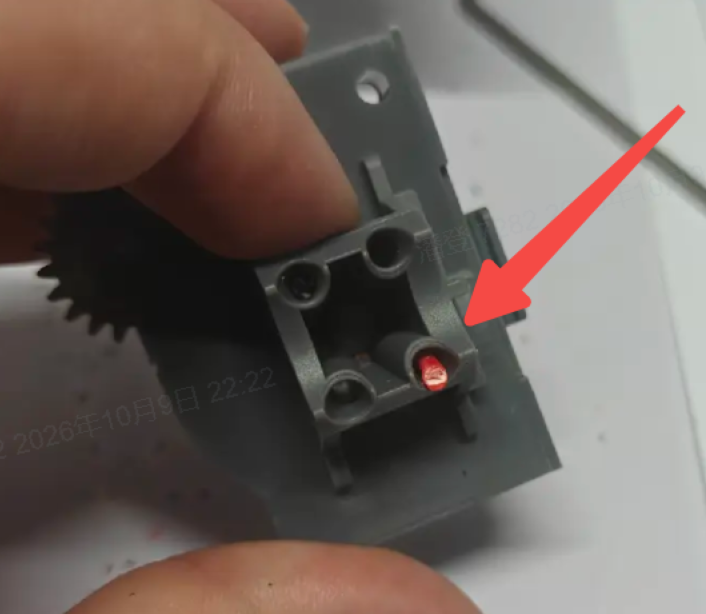
When reinstalling the cutter assembly, refer to the figure below to ensure that the cutter gear and rack are in their reset positions.