¶ Reload Filament
Note:
Use replacement filament of the same material type and with the same printing temperature as the original filament.
Follow the manual reloading procedure below to help prevent clogs.
¶ Reload Manually
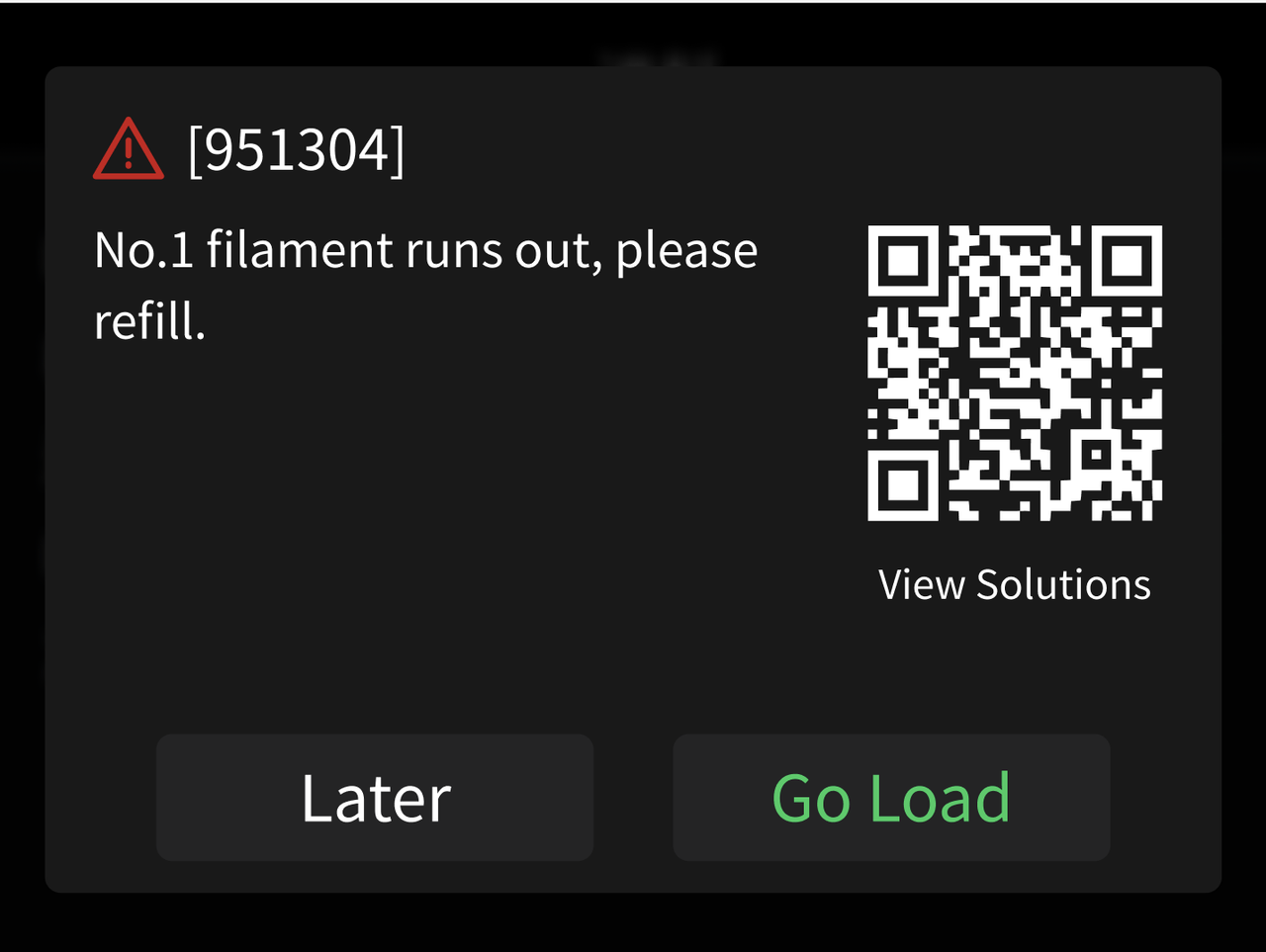
If the filament runs out during printing and no suitable filament is available for automatic backup, the printer pauses and prompts you to reload filament, displaying error code 951304.
1. Tap Load Filament in the pop-up. If you select Later, open the Filament page manually.
2. Place the new spool on the spool holder. Insert the filament into the PTFE tube for the same channel and gently feed it in until it stops advancing.
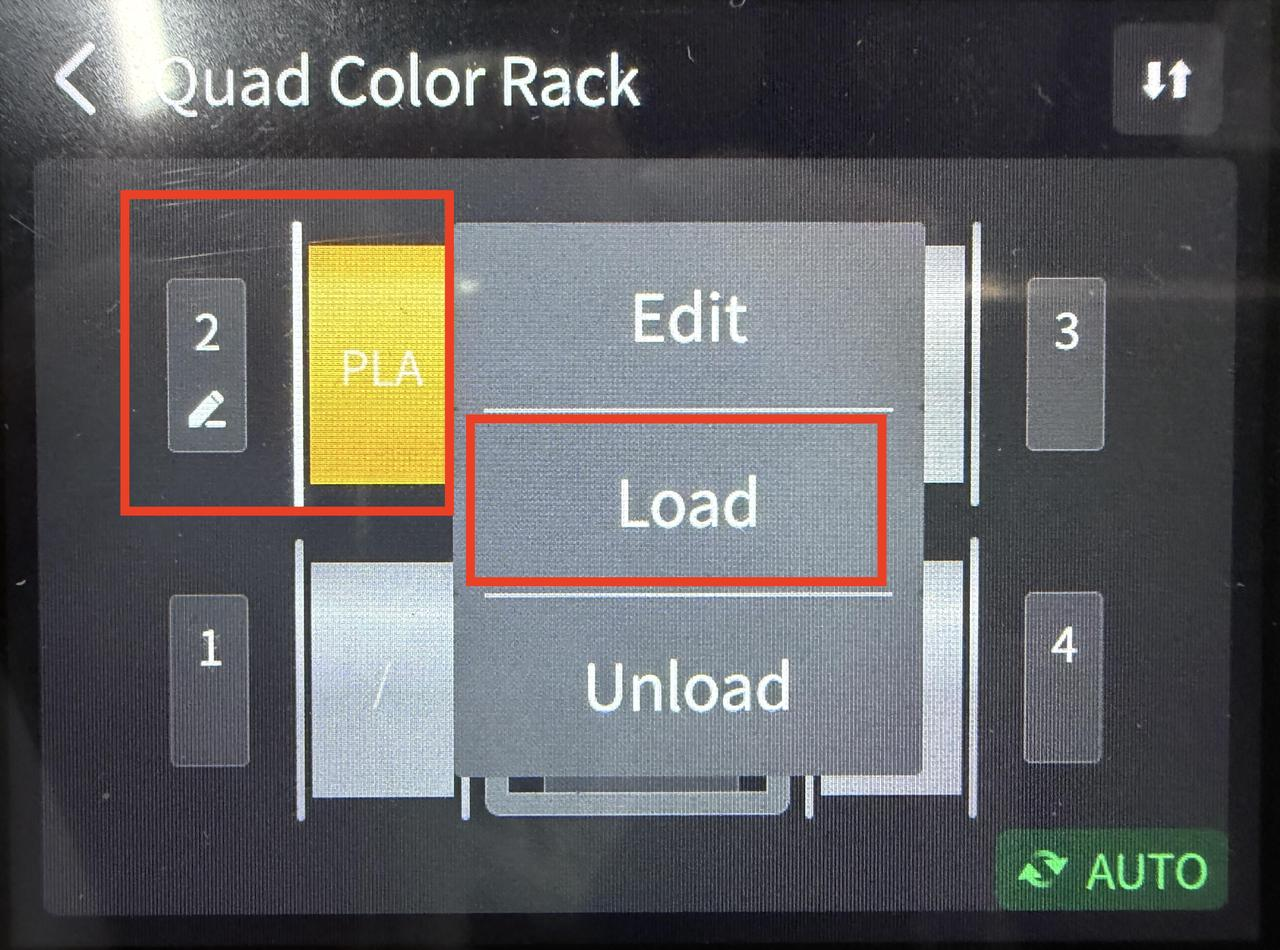
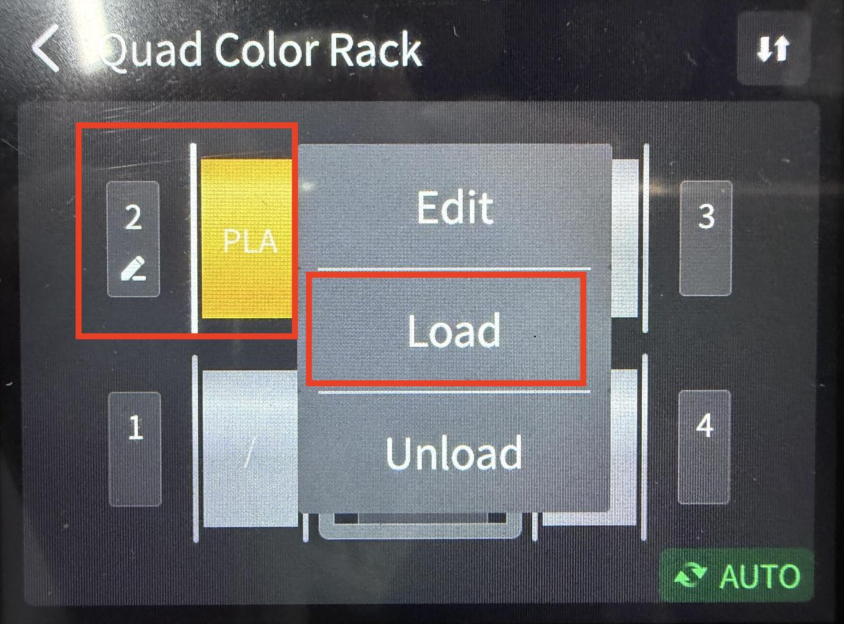
3. Tap the spool icon for that channel and select Load.
 |
 |
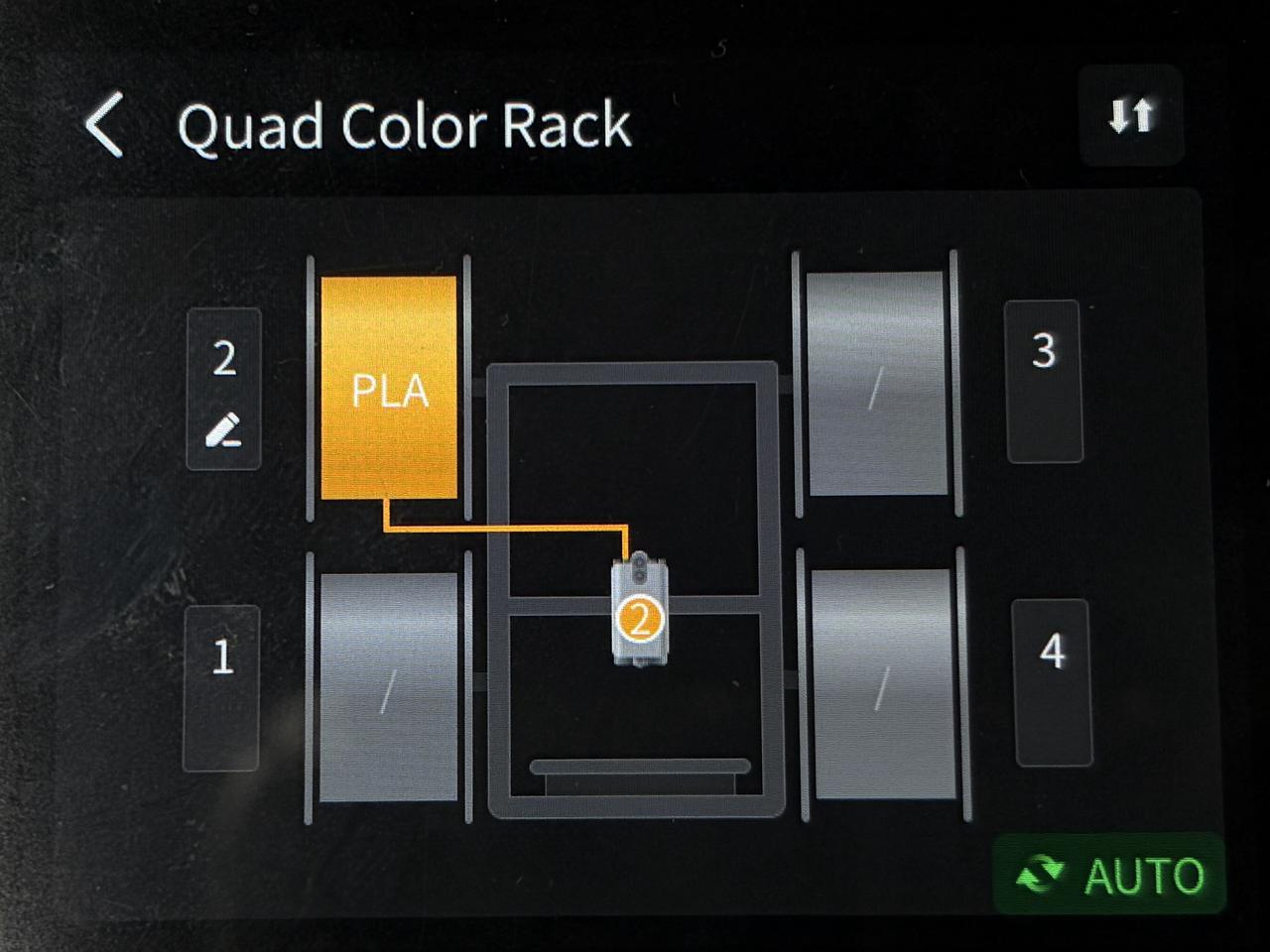
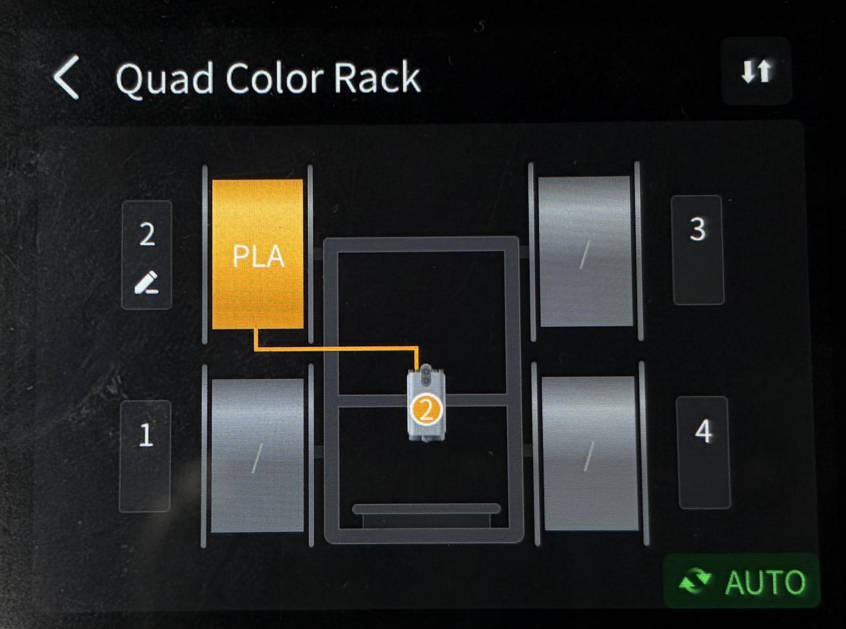
4. Wait for the loading sequence to finish. A line connecting the spool icon to the toolhead icon indicates that loading is complete.
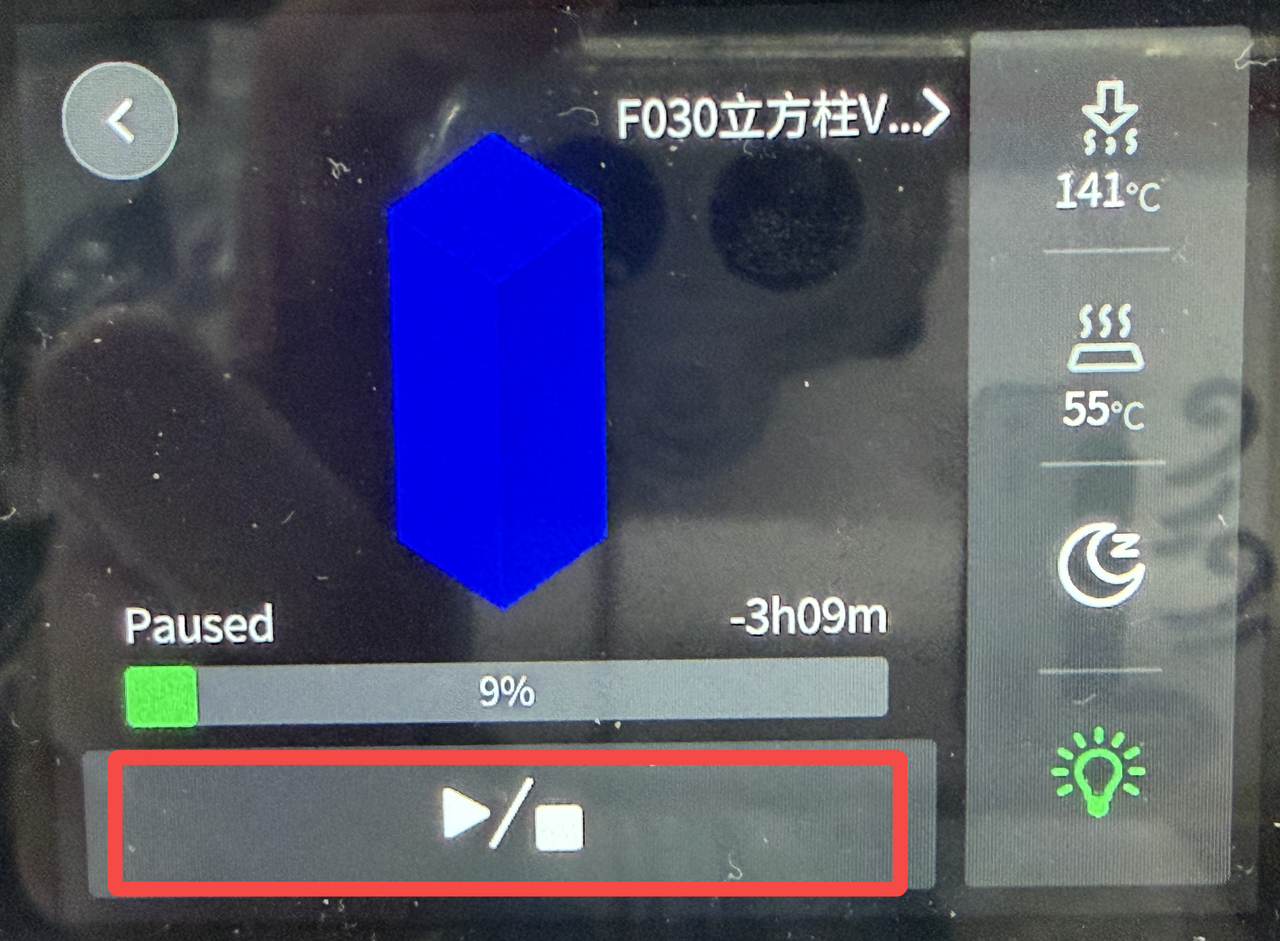
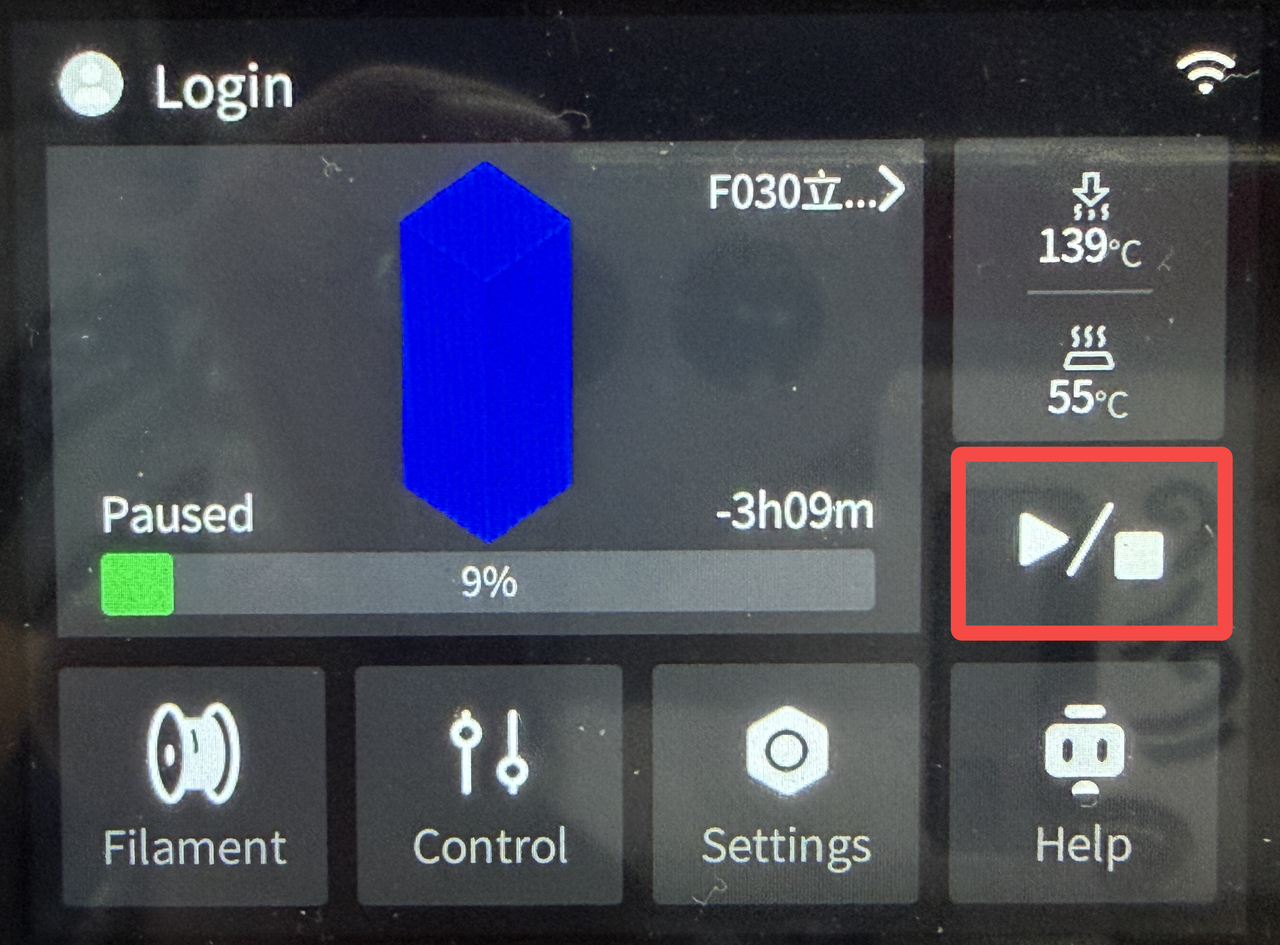
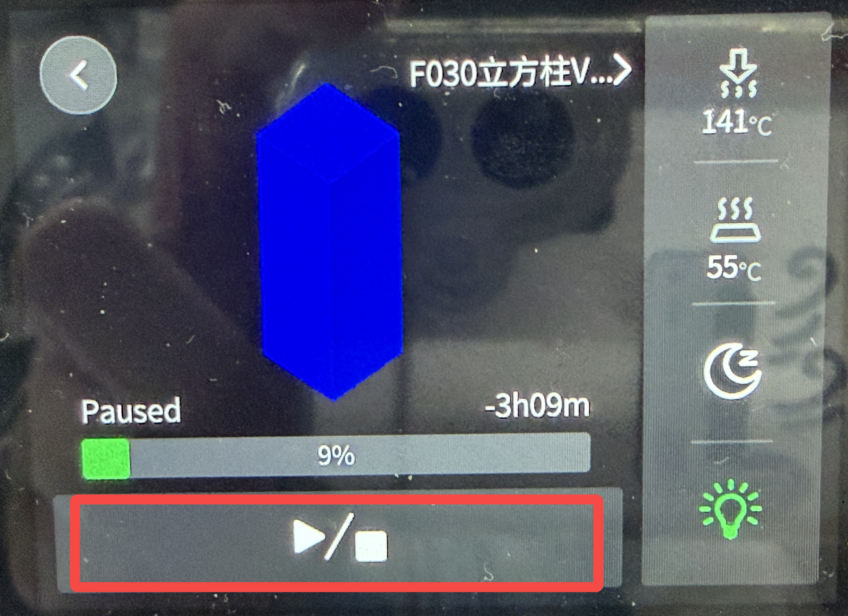
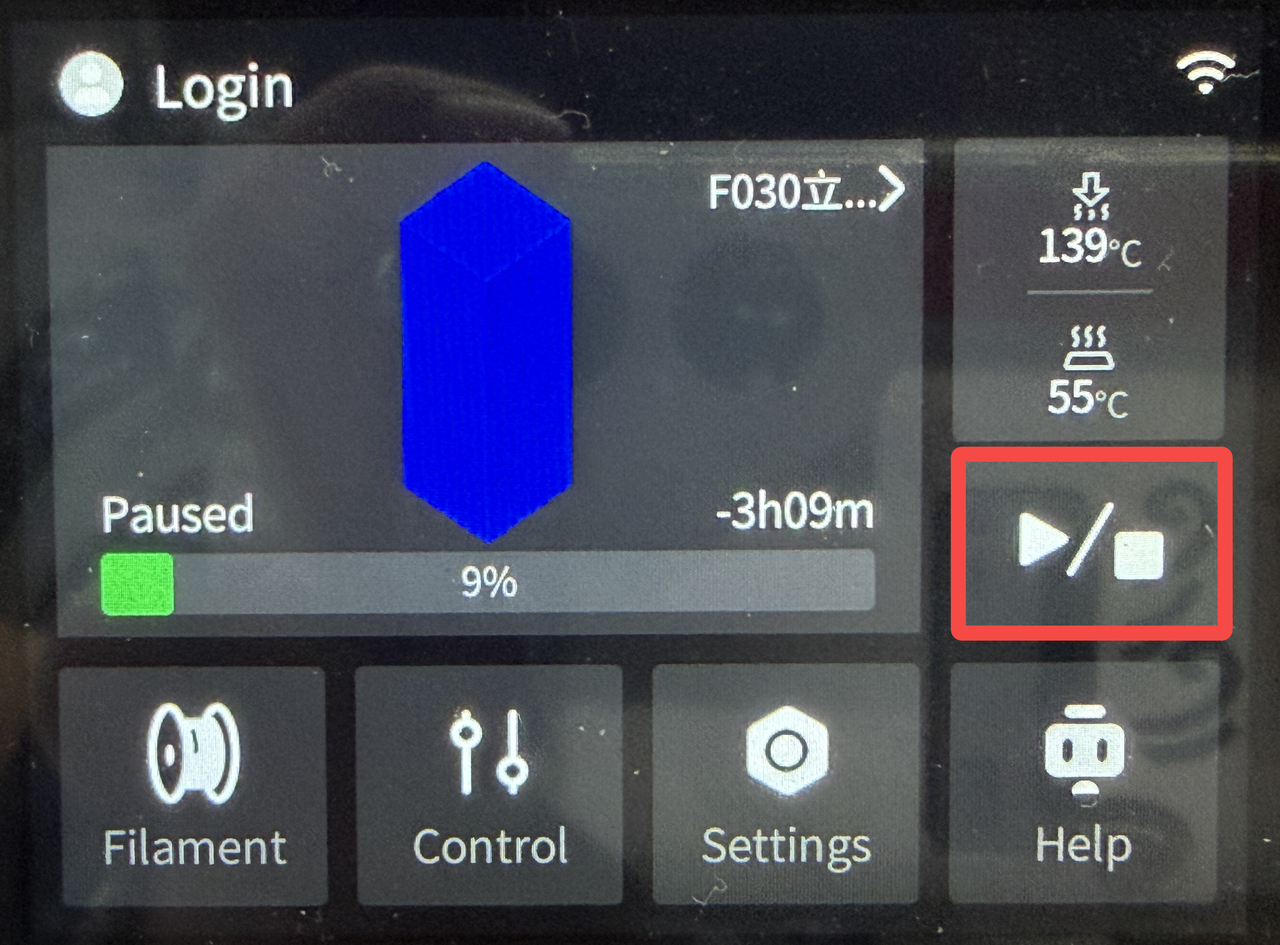
5. Return to the home screen or print status screen and tap the Resume Print icon.
 |
 |
 |
For detailed instructions on inserting and loading filaments, see the Filament Loading and Unloading Guide.
¶ Automatic Filament Backup
For setup and operating instructions, see Automatic Filament Backup.
¶ Change Filament
Note: The new filament must be the same material type and use the same printing temperature as the original filament. Pause the print before changing filament.
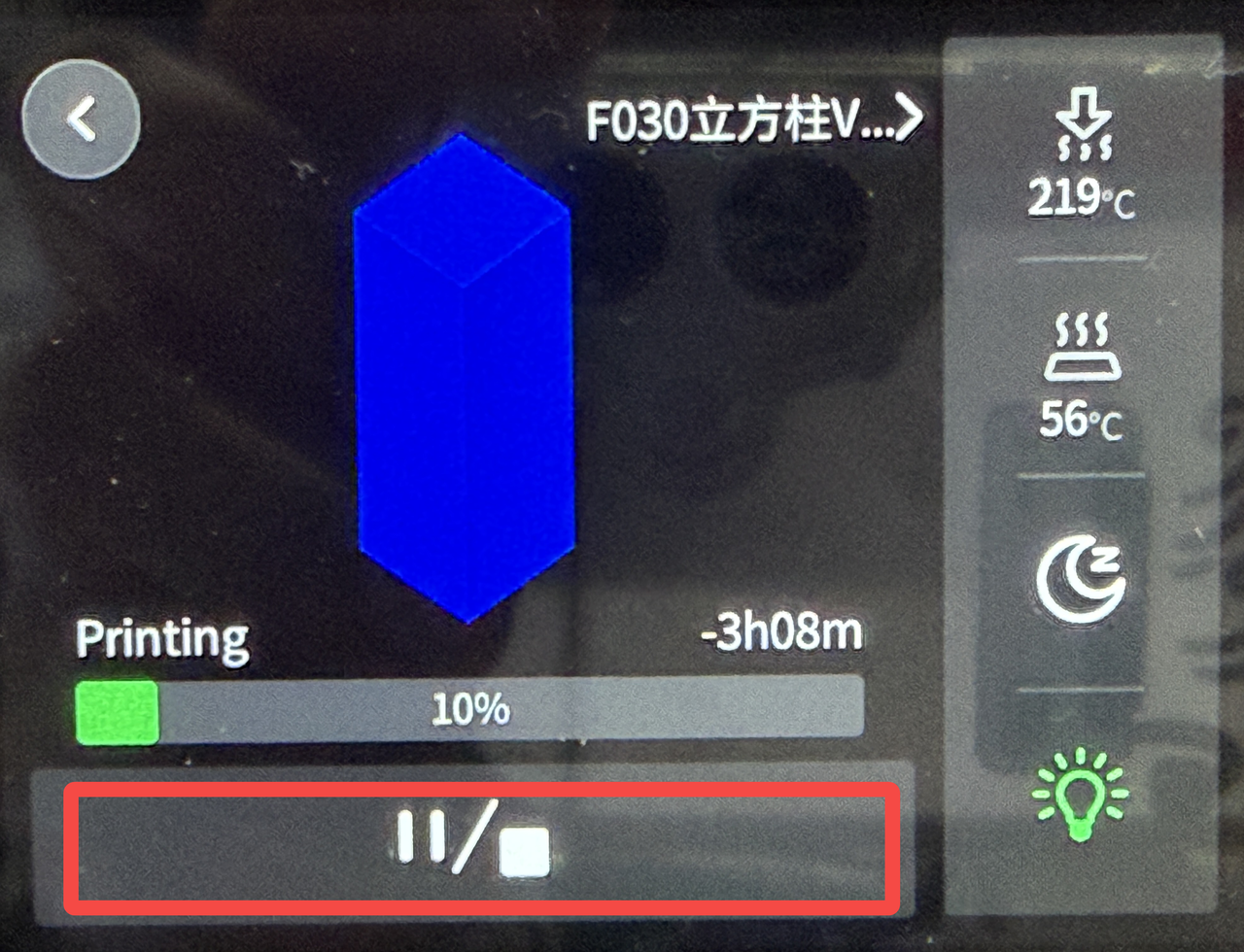
1. Tap Pause on the home screen or print status screen and wait for the printer to pause.
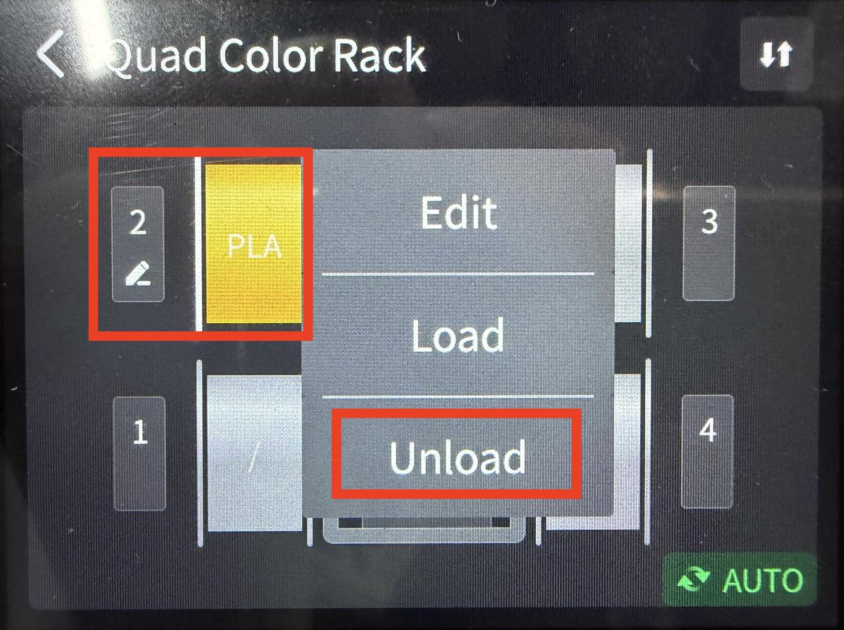
2. Open the Filament page, tap the spool icon for the channel you want to change, and select Unload.
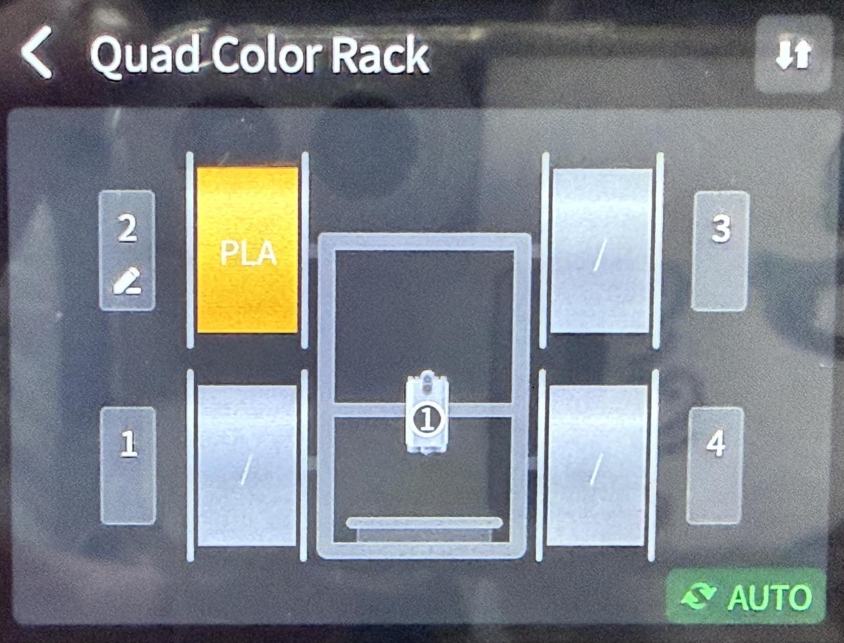
3. Wait for the unloading sequence to finish. Once the line between the spool icon and toolhead icon disappears, pull the filament out of the PTFE tube, rewind it onto the spool, and remove the spool.
 |
 |
 |
4. Place the new spool on the holder. Insert the filament into the PTFE tube for the same channel and gently feed it in until it stops advancing.
5. Tap the spool icon for that channel and select Load.
6. Wait for the loading sequence to finish. A line connecting the spool icon to the toolhead icon indicates that loading is complete.
7. Return to the home screen or print status screen and tap Resume Print.
 |
 |
 |
 |
For detailed loading and unloading instructions, see the Filament Loading and Unloading Guide.