¶ 951302: Extruder Clog Detected. Check for Filament Tangles, a Nozzle Clog, or Incomplete Filament Loading. Resolve the Issue and Tap Retry.
¶ Applicable Model:
SPARKX i8
¶ Why Did This Message Appear?
When a print job starts, the printer automatically loads the filament required for printing. If the filament movement sensor in the active feed channel does not detect forward filament movement, this message appears.
Possible causes include:
¶ 1. Filament Tangles or Feed Resistance
- Filament Tangling: Filament on the spool is knotted or crossed over itself, preventing it from feeding smoothly into the inlet.
- Excessive Feeding Resistance: The automatic feeding system (such as CFS) encounters excessive resistance, preventing filament from feeding continuously into the extruder.
¶ 2. Hotend Clog
Carbonized material or foreign particles may block the nozzle. Alternatively, inadequate cooling may cause the filament to soften prematurely inside the throat due to heat creep, resulting in a clog.
¶ 3. Extruder Gear Slippage or Incorrect Tension
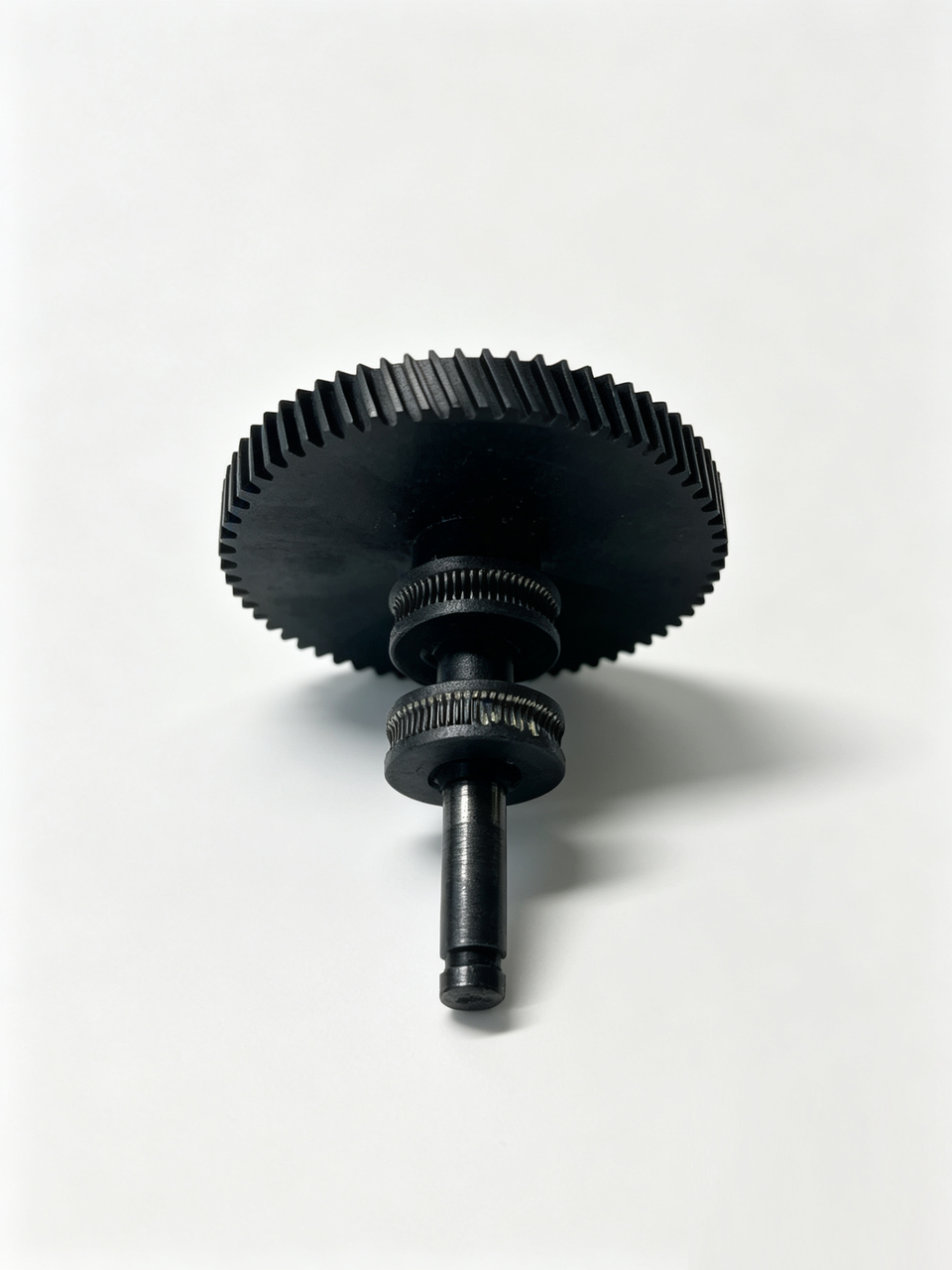
The extruder gears may be clogged with filament debris or worn. Alternatively, the gear tension screw may be too loose or too tight, preventing the gears from gripping and feeding the filament effectively.
¶ 4. Filament Quality or Temperature Issues
The printing temperature may be too low for the filament to melt properly. Alternatively, filament that has absorbed moisture, become deformed, or has an inconsistent diameter may swell or become stuck inside the hotend.
¶ How to Fix It
1. Retry Filament Loading
If error code 951302 appears during printing, follow these steps to retry filament loading:
- Tap Retry on the touchscreen.
- Manually push the filament forward until it is fully engaged with the extruder gears.
- If the filament cannot be pushed in, pull it out, reinsert it, and try pushing it forward again.
For scenarios where filament extrudes normally but faults frequently occur at the final stage of the feeding process, please refer to the document Troubleshooting Guide: Normal Filament Extrusion with Frequent Nozzle Clogging Alerts for in-depth investigation.
2. Check for Filament Tangles
Check whether the filament unwinds freely from the spool. Untangle any crossed or knotted filament loops to ensure smooth, unrestricted feeding.
3. Identify the Location of the Clog
For detailed troubleshooting instructions, refer to the i8 Toolhead Clog Troubleshooting Guide.
4. Clear a Hotend Clog
Heat the hotend to the upper end of the recommended temperature range for the filament in use. For example, heat PLA to 230–240 °C, if permitted by the filament specifications.
Insert a nozzle cleaning needle through the nozzle opening to remove possible carbonized debris, or use the cold-pull method to remove internal residue.
For detailed instructions, refer to the i8 Hotend Cleaning Guide.
5. Clean the Extruder Gears
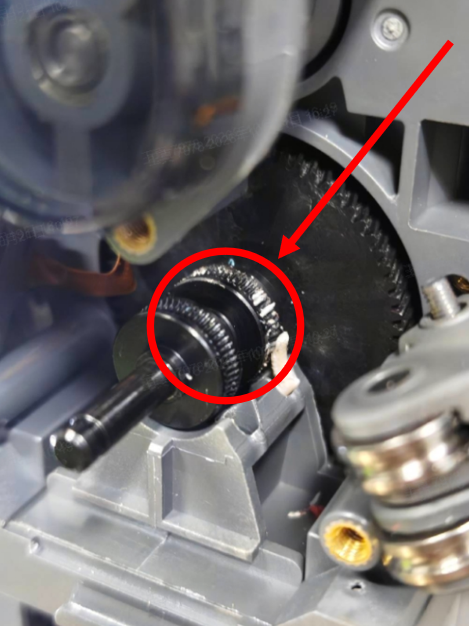
Open the extruder housing or service cover and inspect the feed gears. If the gear teeth are clogged with filament debris, remove it with tweezers or a brush. Make sure the gears can grip the filament effectively.
6. Check the Temperature and Filament Condition
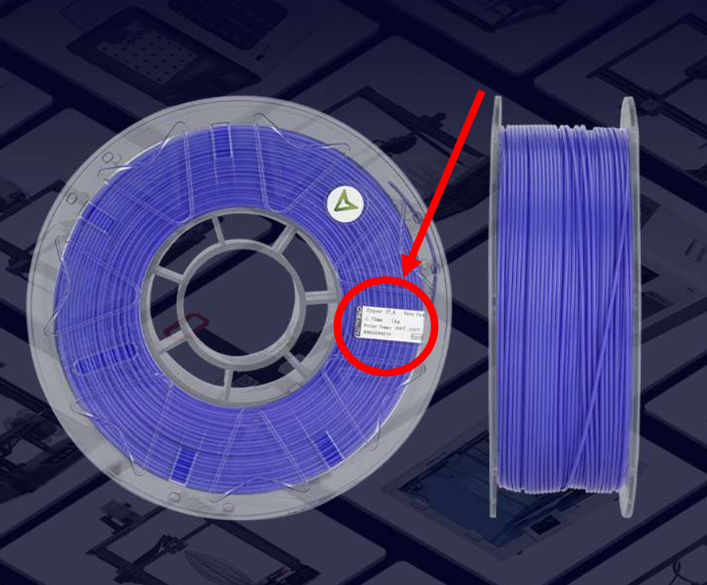
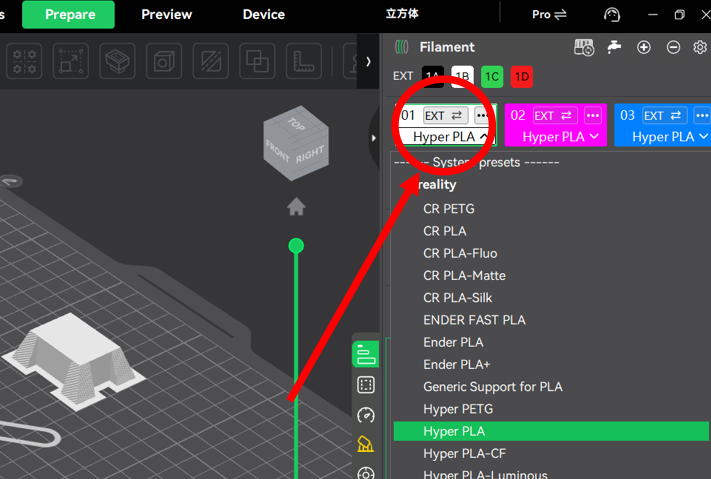
Check whether the printing temperature set in the slicing software is appropriate for the filament in use. If the filament has absorbed excessive moisture, dry it before use.
 |
 |
7. Retry Printing
After resolving the issues above, tap Retry on the touchscreen to restart the filament-loading process.
¶ General Troubleshooting Steps
¶ Step 1: Check the Hotend Temperature
If a filament clog occurs, preheat the hotend to the appropriate temperature to soften any residual filament. Then manually load and unload the filament to assess the feeding resistance.
¶ Step 2: Inspect the Filament Path Section by Section
Check the filament path in sequence: spool, PTFE tube, extruder, and hotend.
Pull out a short section of filament and inspect its tip for signs of excessive grinding or thinning caused by the extruder gears.
¶ Step 3: Check the Cooling System
Check whether the hotend cooling fan is operating properly and whether the heatsink is free of dust and obstructions.
A clog caused by heat creep may occur if the cooling fan fails or the airflow path is blocked by dust, allowing heat to travel farther up the hotend and soften the filament prematurely.
¶ Step 4: Perform Regular Maintenance
Clean filament debris from the extruder gears regularly and inspect the inside of the hotend throat for wear.
When switching between filament types, clean the nozzle thoroughly as needed to prevent residual materials with different melting characteristics from mixing and carbonizing inside the hotend.