Note: This FAQ will be updated regularly with additional information and guidance.
¶ Using the Printer
You can refer to the Wiki Usage Guide.
¶ How to search and quickly locate within a single Wiki page?
You can press Ctrl + F in the Wiki document and type your keywords to search.
¶ How should I choose between the i7 and i8? Does the i8 replace the i7?
The i7 and i8 are designed for different needs:
i7: For users who mainly print single-color models and want to start creating with a lower budget. Multicolor printing uses a prime tower, also called a wipe tower in Prusa terminology.
i8: For users who frequently print in four colors and prioritize faster multicolor printing and lower filament consumption.
The i8 expands SparkX's multicolor product range, while the i7 continues to serve entry-level and single-color printing needs.
¶ Can I upgrade an i7 to an i8?
No. The i8 uses a new four-channel toolhead, extrusion mechanism, hotend, and control system. It cannot be converted by simply replacing the extruder or nozzle. There is currently no kit or supported upgrade path for converting an i7 into an i8.
¶ What is the maximum build volume of the i8?
260 × 260 × 255 mm (W × D × H).
¶ Switch Channels
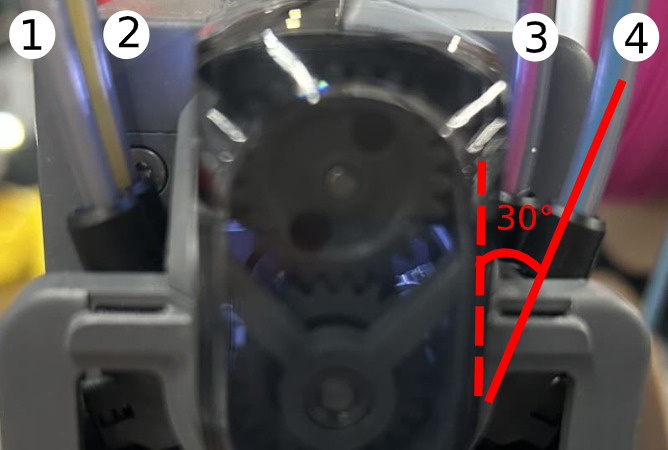
When a filament channel is positioned at an angle of approximately 30° away from the channel indicator light (e.g., Channel 4 in the illustration below), the channel is in the closed position.
A closed channel can cause the following issues:
- The gear in the filament channel assembly blocks the cutter entrance.
- Filament cannot be pushed forward into the cutter.
- After the filament is cut, it cannot be pulled out directly, even with force.
How to fix this:
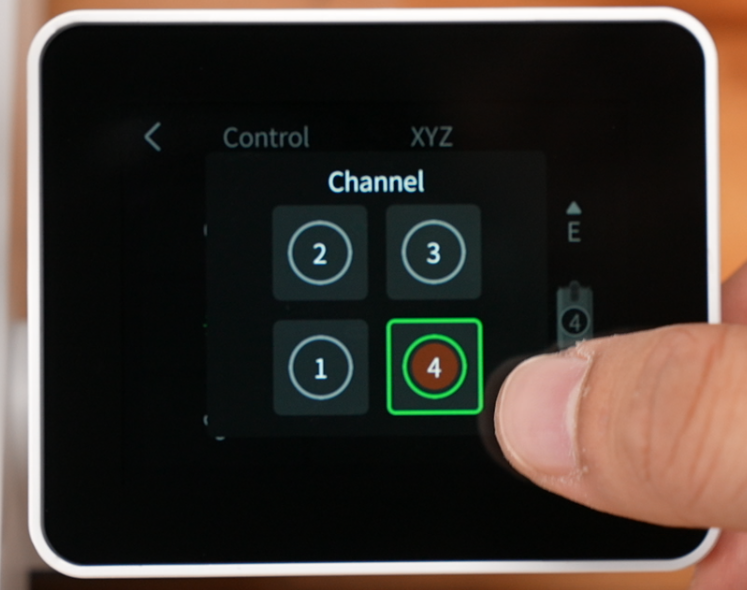
Go to Home > Control. Locate the position control for the affected channel and switch to a different channel position to return the channel to its normal position.
 |
 |
¶ When Should I Cut the Filament?
Filaments do not need to be cut during routine color changes. The built-in cutter is used when unloading or replacing filament, and when removing the quick-release hotend, to make these operations easier.
When used with CFS Lite in the future, the printer will automatically cut the filament at the end of each print, allowing you to replace it directly without manually unloading it first.
¶ Do I need to load all four filament spools to use the i8?
For good print quality, we recommend loading filament into all four channels. Because of QuarTeks™'s special four-channel hotend design, the system uses filament from the other channels to regulate pressure and stabilize the pressure in each channel's melt zone.
¶ Can the i8 print more than four colors?
Yes. Related features are available in Creality Cloud app > MakeNow and Creality Print to help users create and print models. Layering materials produces visual color blending. The actual result depends on filament color, translucency, and model design.
¶ Does “no prime tower” mean that the i8 produces no waste?
No. “No prime tower” means that a separate conventional prime tower is not required. If the model cannot accommodate the necessary purging internally, a small amount of purge waste may still need to be discharged outside the model.
¶ Which build plates do the i7 and i8 support?
Currently, only textured PEI build plates are supported. Each printer comes with a double-sided gold-colored textured build plate.
¶ Which materials do SparkX printers support?
The i7 and i8 support PLA and PETG. The i8 is primarily designed for multicolor printing. We recommend loading the same material type into all four channels, such as four spools of PLA or four spools of PETG. You can choose the colors as needed.
¶ Which filaments are compatible with the included textured PEI build plate, and how should I use it?
Compatible filaments: PLA, PETG, Glue is not required when the plate surface is clean.
Note: After printing, wait until the heated bed has cooled completely before removing the print.
Maintenance: After a period of use, wash the plate surface with water and dishwashing detergent to maintain adhesion.
¶ Which nozzle comes with the i8, and where can I buy a replacement?
The i8 comes with a 0.4 mm hardened steel nozzle. To purchase a replacement, visit the brand's official website or contact customer support.
Note: Hotends with 0.2 mm, 0.6 mm, and 0.8 mm nozzles are currently planned but are not yet available.
¶ What are the maximum nozzle and heated bed temperatures of SparkX 3D printers?
The maximum nozzle temperature is 300 °C, and the maximum heated bed temperature is 100 °C.
¶ What specifications should I look for when buying a new microSD card for the i8?
Use the following specifications as a reference when purchasing a microSD card for the i8:
| Specification | Requirement |
| Capacity | [8 GB –2 TB] |
| Bus interface | UHS-I |
| File system | FAT32 |
| Speed class | Class 10 and U1 or higher |
| Brand | Choose a reputable brand, such as SanDisk, Samsung, Kingston, or Lexar, or contact customer support for a replacement. |
Note: Insert the new microSD card into the i8 and format it using the printer.
¶ Can I skip pre-print calibration?
We do not recommend skipping it. Pre-print calibration is performed for each print job after the print file is sent to the printer and before the model is printed. It compensates for current variations in the bed, temperature, and motion system. Skipping it may cause poor first-layer adhesion, the nozzle scraping the build plate, or inaccurate print dimensions.
If calibration repeatedly fails, refer to the troubleshooting guide or contact customer support.
¶ Do I need to buy an additional cooling fan?
No. SparkX 3D printers have built-in cooling fans. The cooling fan speed settings in the slicer control the printer's own fan. You only need to purchase a replacement if the fan fails.
¶ What is the RFID reader, and how do I use it?
The RFID reader is a separate accessory for the i8 that connects to the printer's RS485 port. Hold filament equipped with an RFID tag close to the RFID module. After you hear a beep, move it away and load the filament. The i8 will automatically identify the filament brand, model, and color, so you do not need to enter this information manually.
¶ How do I update the firmware on a SparkX 3D printer?
We regularly release new firmware through the cloud to add features or fix known issues. Once the printer is connected to the internet, it automatically checks for firmware updates. If an update is available, a prompt will appear, and you can choose whether to install it. For details of i8 firmware updates, see i8 Firmware Release Notes.
¶ Which official printable models are available for SparkX 3D printers, and where can I get them?
The SparkX i7 and i8 share a set of official printable parts and tools, including an extruder rotary part, a PTFE tube removal tool, lead screw and linear rail maintenance tools, a hotend cleaning brush, and protective support blocks. For the complete model files, see SparkX Official Files.
¶ What precautions should I take when using a SparkX 3D printer?
Do not touch heated components, including the heated bed, build plate, and printhead assembly, as they can cause burns.
Warning: During printing, the printhead and parts of the heated bed become very hot. After printing, allow the printer to cool sufficiently before touching these components to avoid burns.
Maintenance procedures vary slightly between build plate types. Incorrect handling may damage the build plate, heated bed, or other components. Build plates are consumable parts and will wear over time.
Important: Do not use acetone to clean textured or matte build plates, as it may damage the surface coating.
This printer is intended for indoor use only. Do not expose it to rain or snow. Water or other liquids can damage electronic components and cause short circuits. Use the printer in a dry environment.
Place the printer on a secure, level, stable surface, preferably a workbench. Leave at least 30 cm of clearance around the printer. Nearby obstructions may interfere with operation or cause excessive wear on cable insulation. Worn cables can pose electric shock and fire hazards.
Keep air inlets and fans unobstructed. The printer monitors fan speed, but this monitoring may not work correctly in some situations, such as incorrect assembly, damaged components, or unofficial firmware. Insufficient cooling can cause overheating, damage electronic components, or, in severe cases, cause a fire.
Position the printer so that it cannot tip over or fall. Do not continue using a printer that has been physically damaged, as damaged parts can pose safety hazards.
Arrange the power adapter and cables so that they cannot be tripped over, stepped on, or damaged. If a cable is damaged, stop using it immediately and replace it. Damaged cables pose an electric shock hazard.
Do not touch internal components while the printer is powered on or operating. Moving parts and electrical circuits can cause injury or electric shock.
Connect the SparkX 3D printer only to a standard 100–240 V AC, 50/60 Hz mains outlet. Do not use other power supply cables, as this may cause faults or damage the printer.
Do not allow unauthorized persons, including children under 10, to access the printer, even when it is not printing.
¶ How do I use a new Micro SD card?
Before using a new Micro SD card, insert it into the i8 printer and format it. The card is ready for use once formatting is complete.
¶ Are there any restrictions on importing model files to a Micro SD card?
When importing model files to a Micro SD card from an external device, the total size of all model files imported in a single operation must not exceed 1 GB.
¶ Why am I prompted to format the TF card when reading a Micro SD card on a Windows computer?
The Micro SD card uses a dual-partition format (exFAT and ext4), and Windows does not natively support the ext4 file system. As a result, Windows may prompt you to format the TF card. This is normal Windows behavior. Ignore the prompt and do not format the TF card to avoid data loss.
¶ Does SparkX have the same after-sales policy as Creality? How can I contact support?
SparkX and Creality share the same after-sales support system and warranty policy.
We recommend submitting a support ticket through the Creality Cloud app for official technical support. Support is also available by email, live chat, and telephone.
If you are comfortable carrying out hands-on maintenance, you can first consult the troubleshooting guides on the SparkX Wiki.