¶ 1. Overview
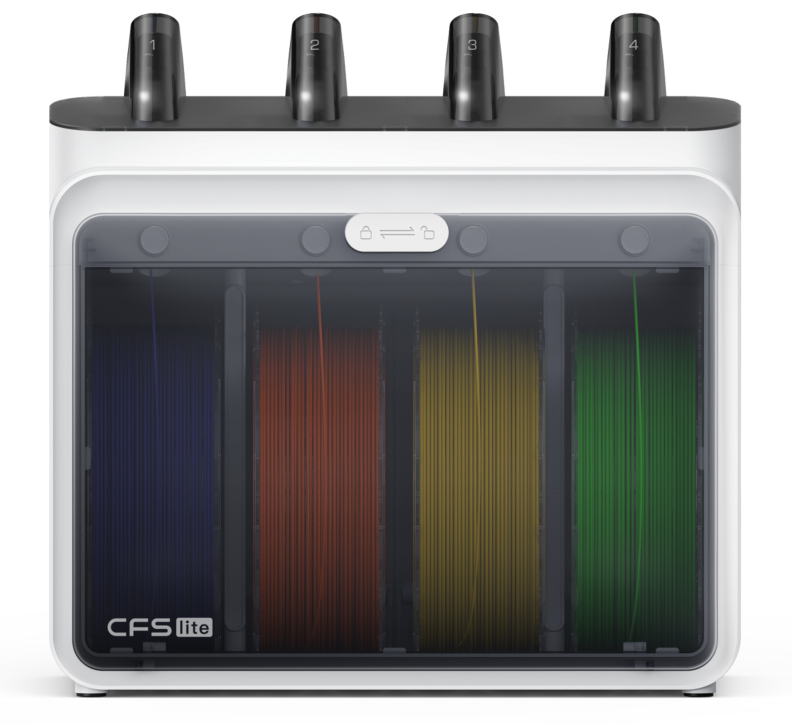
CFS Lite is an intelligent filament management system designed for SPARKX 3D printers. It provides filament feeding, RFID identification, automatic filament resume and sealed filament storage to support stable multi-color and multi-material printing. For the i8, multi-color switching is performed by its built-in QuarTeks™ 4-channel toolhead.
¶ 2. Package Contents
- CFS Lite
- RS-485 communication cable with a 6-pin connector at each end
- Four PTFE tubes, 98 cm each
- Quick Guide
¶ 3. Install CFS Lite
¶ 3.1 Connect the CFS Lite
1. Place CFS Lite to the left of the i8.
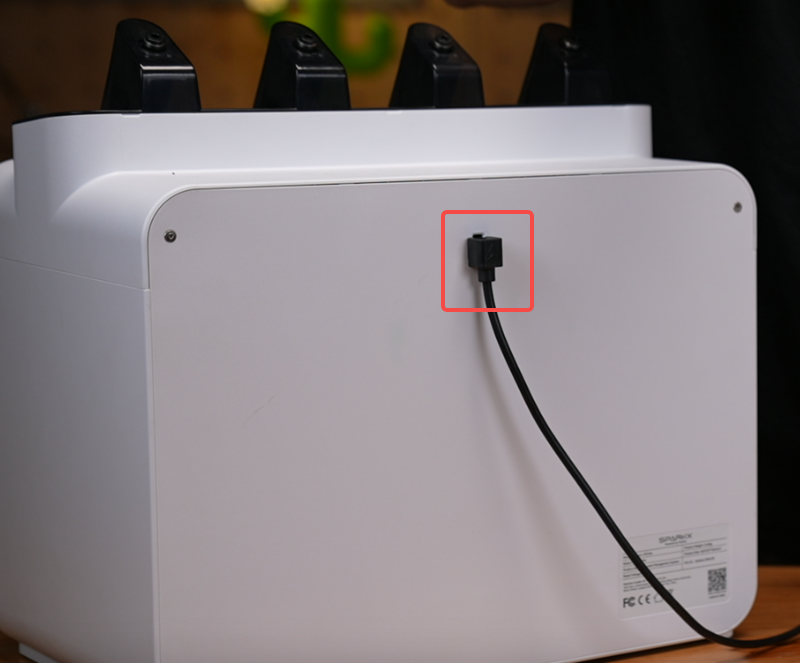
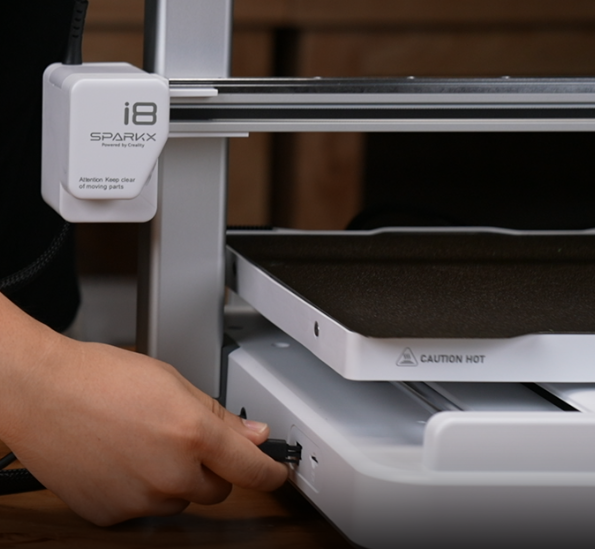
2. Connect the RS-485 cable to the 6-pin communication ports on CFS Lite and the i8.
¶ 3.2 Connect the PTFE Tubes
1. Prepare four PTFE tubes and connect them one-to-one by number:
- Tube 1: Connect one end to CFS Lite Channel 1, the other end to the marked Channel 1 inlet on the toolhead
- Tube 2: Connect one end to CFS Lite Channel 2, the other end to the marked Channel 2 inlet on the toolhead
- Tube 3: Connect one end to CFS Lite Channel 3, the other end to the marked Channel 3 inlet on the toolhead
- Tube 4: Connect one end to CFS Lite Channel 4, the other end to the marked Channel 4 inlet on the toolhead
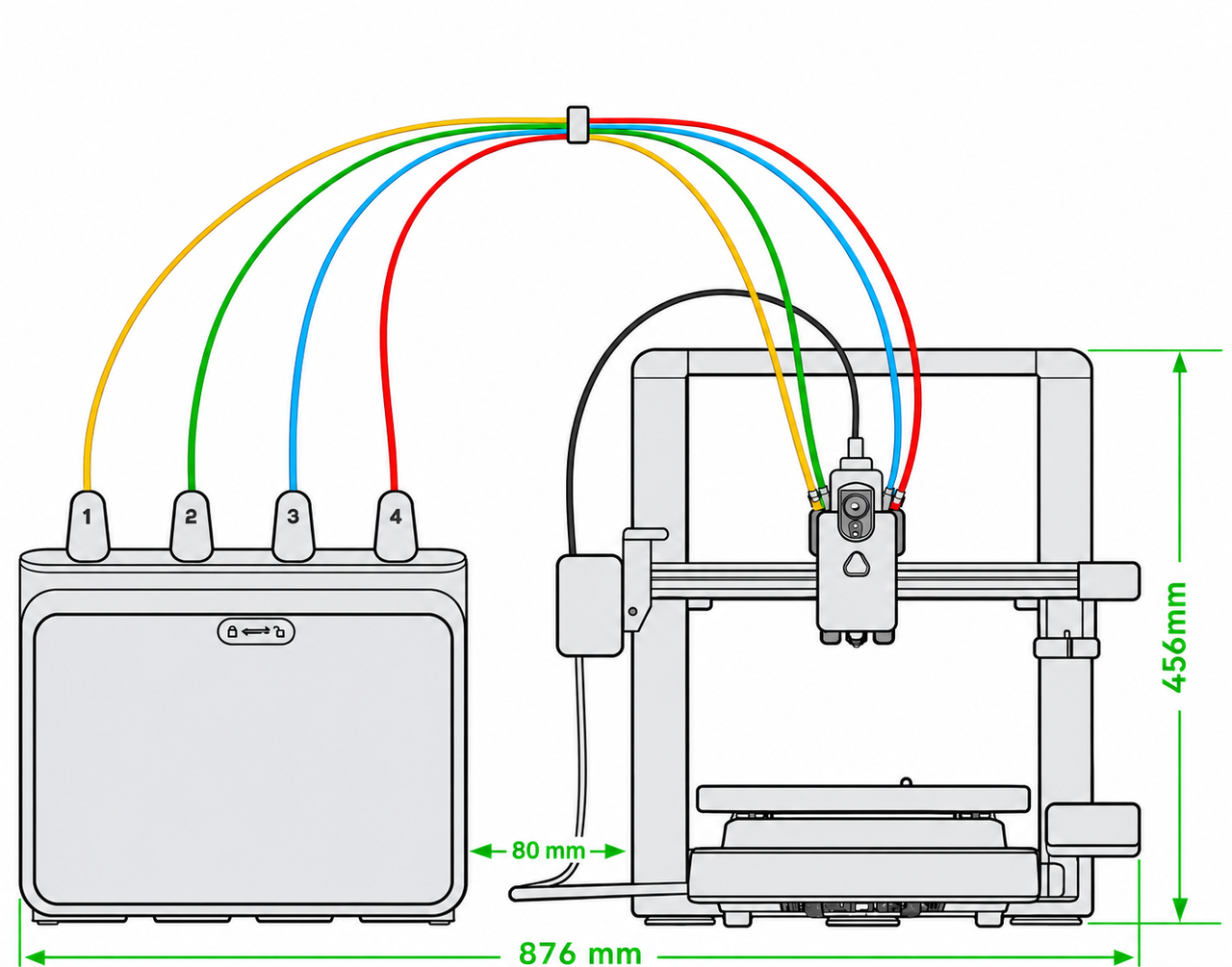
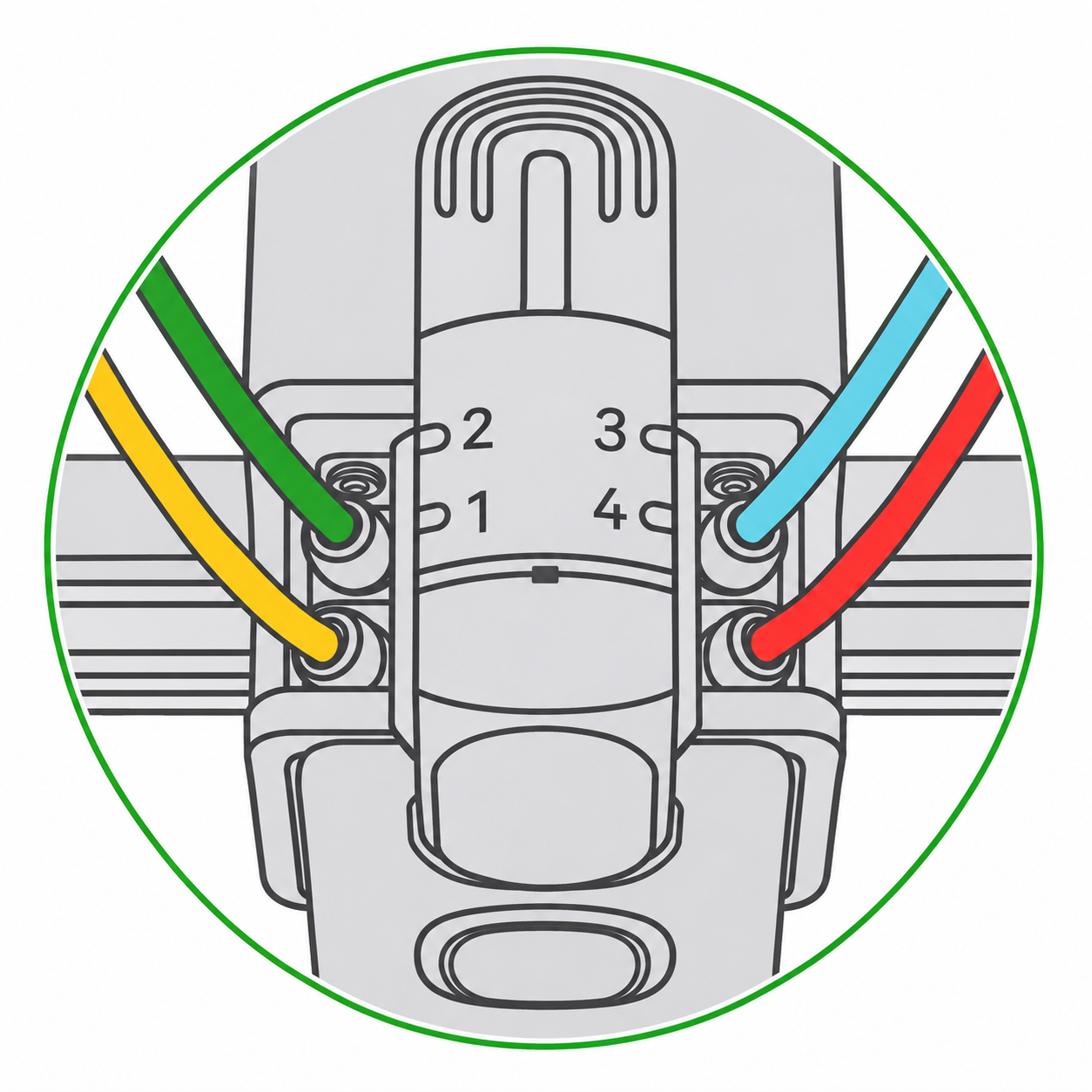
2. Insert each PTFE tube into the fitting until it seats fully and cannot be pushed further.
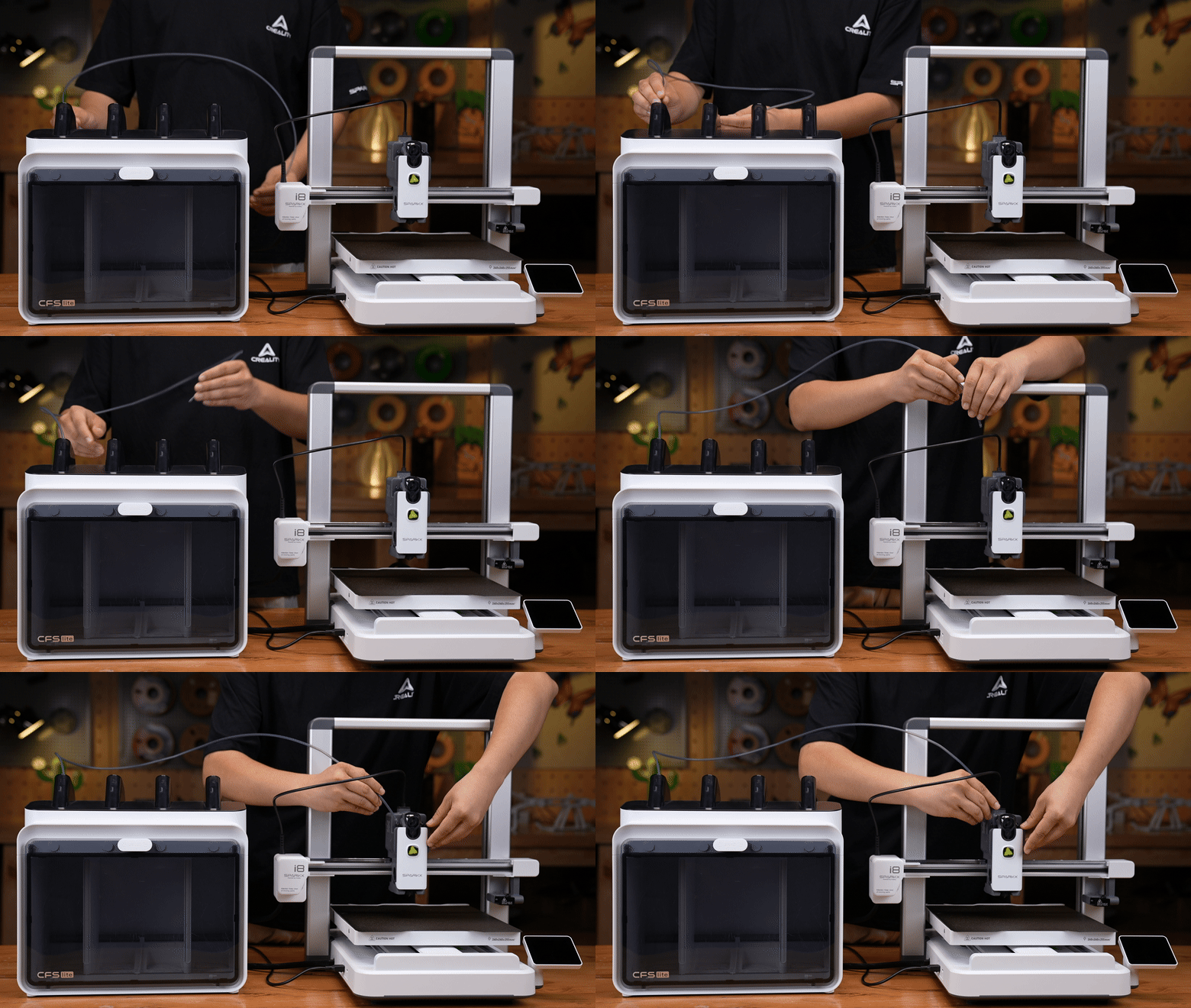
3. Secure all PTFE tubes with the tube manifold.
Note:
When inserting a PTFE tube, push it all the way in until it cannot go any further. If the tube is not fully inserted, the filament may not feed properly.
¶ 3.3 Insert the Filament
1. Prepare four RFID-enabled filament spools.
2. Place the filament spool on the CFS Lite spool holder. Insert the filament tip into the inlet of the corresponding channel. The CFS Lite will automatically feed the filament a certain distance along the PTFE tube.
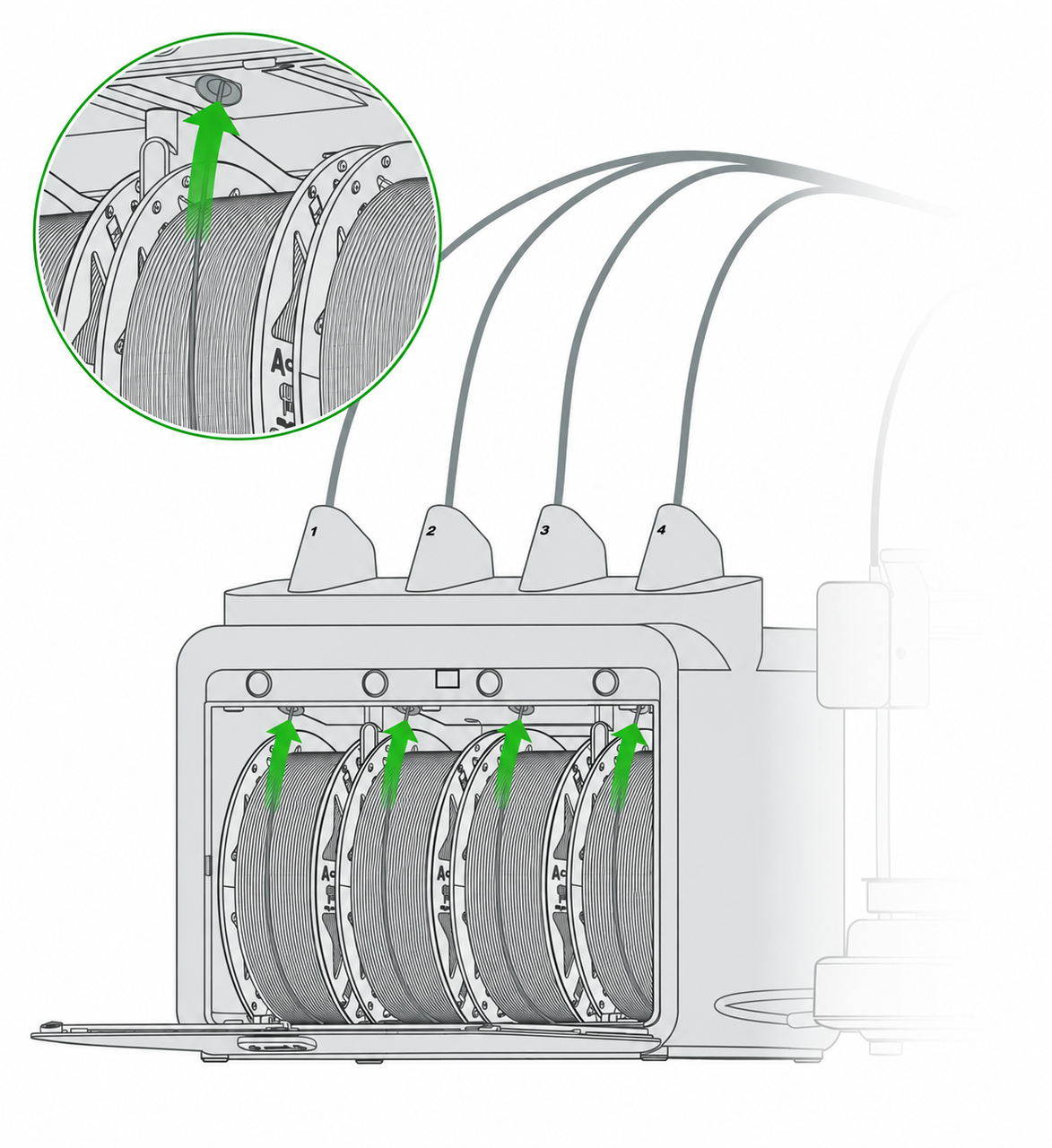
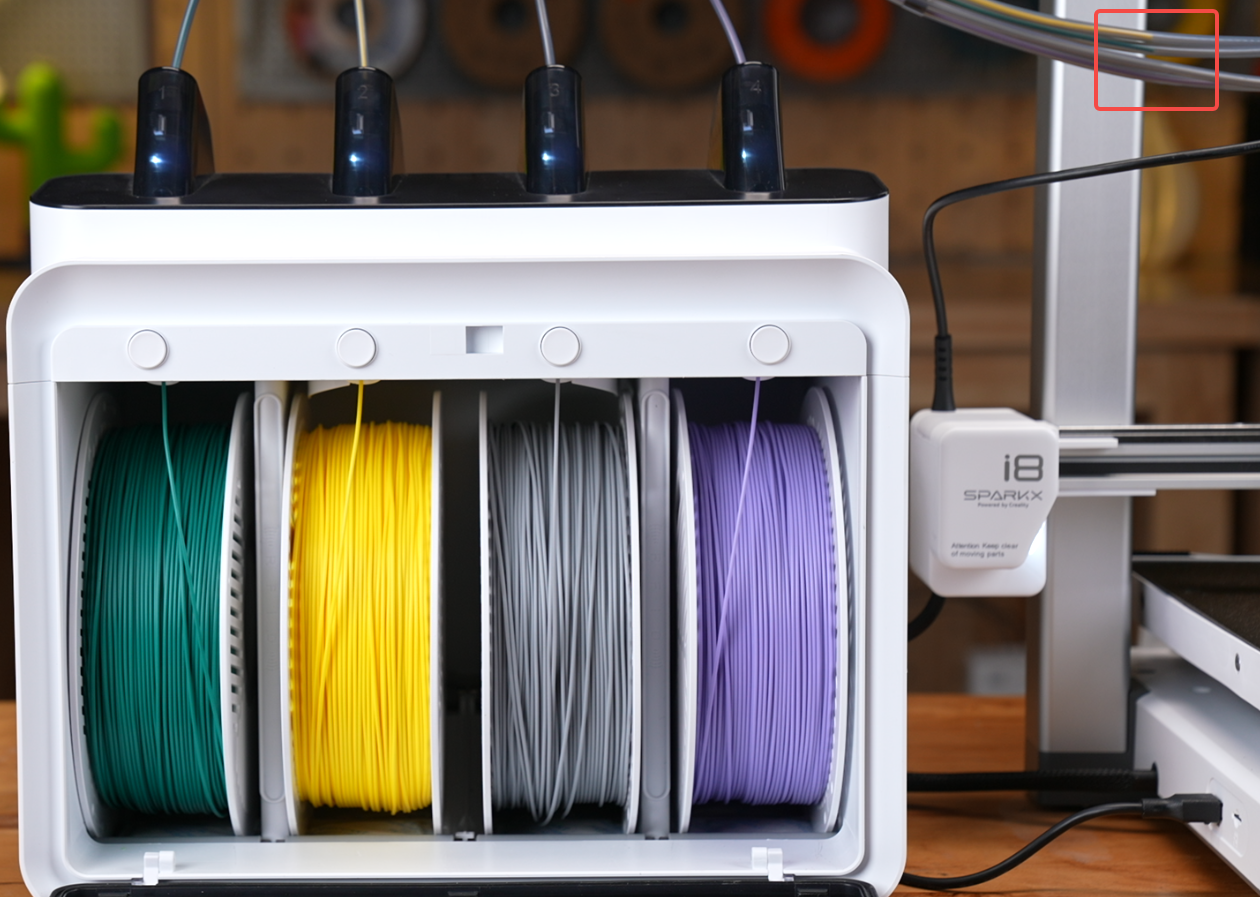
Note:
- Filament spools with built-in RFID tags are recommended. The CFS Lite can automatically identify filament parameters without manual on-screen configuration.
- If the filament spool does not support RFID, you will need to set the filament parameters manually on the printer screen.
3. Set the filament information (Optional)
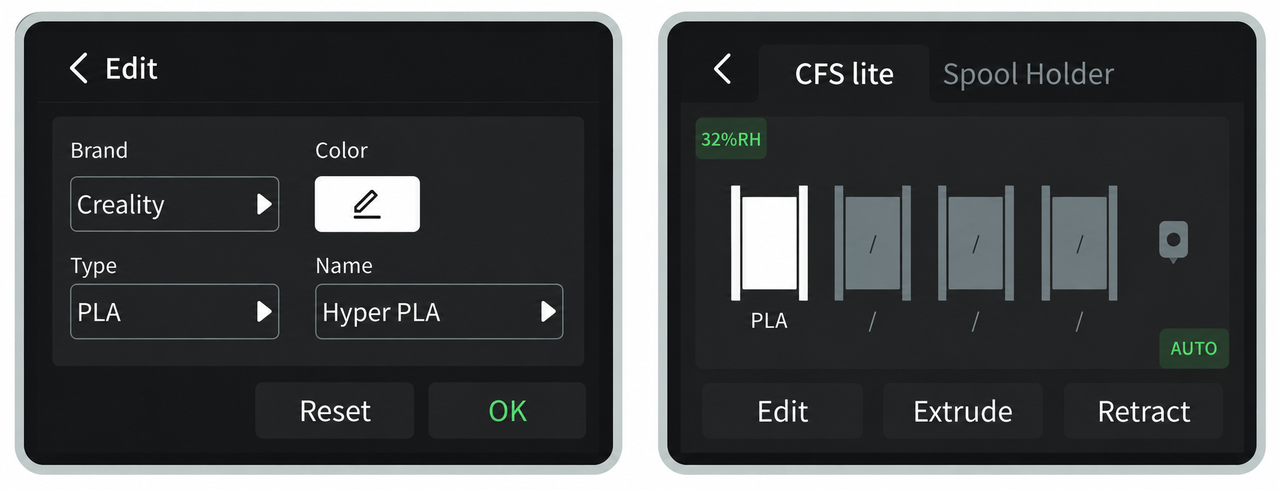
¶ 3.4 Manual Filament Loading (Optional)
Select the filament color you want to use and run the loading procedure.
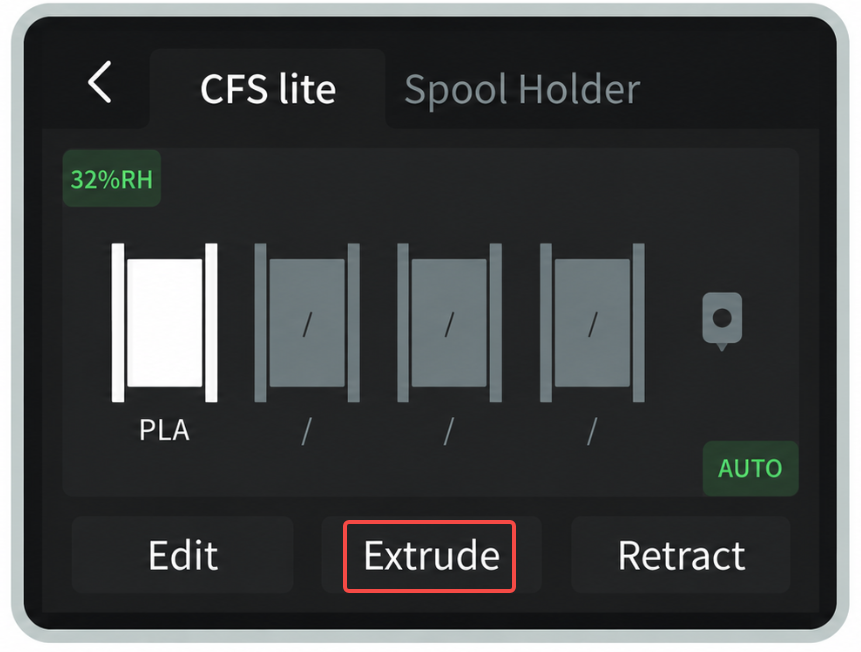
Note: The CFS Lite supports feeding before starting a print job.
¶ 4. Print a Local File
1. From the printer's home screen, open the local print files.
2. Select the model file you want to print. A file may contain one or more printed objects.
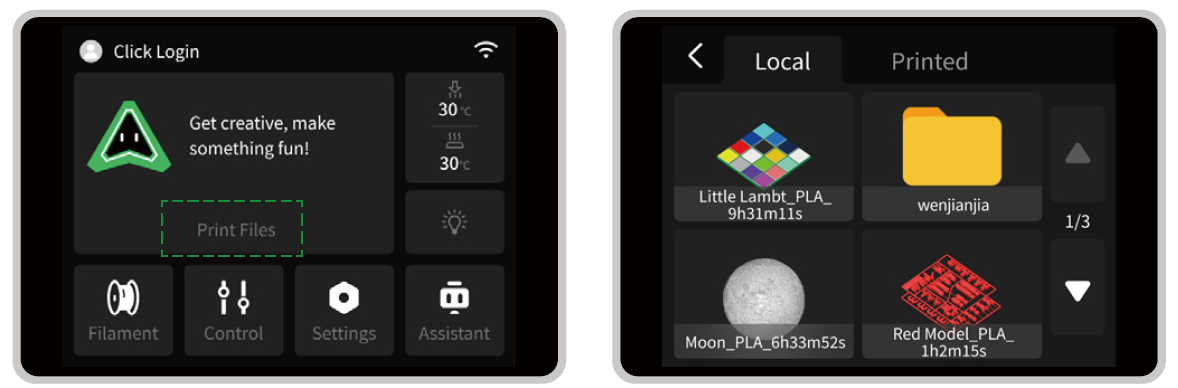
Source files for the local models are available from Creality Cloud.
3. Assign the corresponding filament to each print object.
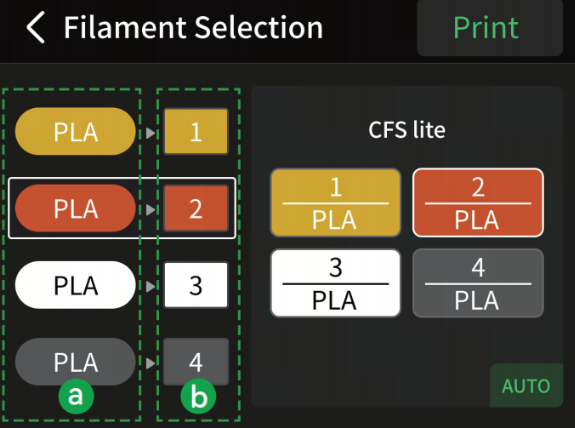
a: indicates the filament configured in the print file.
b: indicates the filament actually used.
4. Tap Print and wait for the print to finish.
¶ 5. Filament Resumption
When the filament runs out during printing, the print job will be paused automatically.
¶ 5.1 Auto Filament Resumption
Place filament spools with identical properties (same brand, material type, color and name) in multiple CFS Lite slots and enable the auto filament resumption function. When the current filament is exhausted, the printer will automatically switch to the spare slot and continue printing without manual intervention.
Note: Auto resumption only works for filaments with fully matching parameters. For detailed steps, refer to Introduction to i8 Automatic Filament Backup.
¶ 5.2 Manual Filament Resumption
If no matching filament is available in spare slots, the printer will alert you when filament runs out. Manually load the same type of filament, then tap Resume Print on the screen to continue the job.
¶ 6. Filament Replacement
¶ 6.1 Unload Current Filament
- Go to the CFS Lite Filament Management page, select the target slot and tap Unload.
- The cutter cuts the filament at the toolhead.
- The QuarTeks™ 4-channel toolhead retracts the filament into the CFS Lite.
- Open the CFS Lite cover and remove the old filament spool.
¶ 6.2 Load New Filament
Follow the steps in the Load Filament section to install the new filament. Once the filament is loaded and recognized, you can start printing.