CFS refers to the Creality Filament System, which works with 3D printers to enable automated filament management and printing.
CFS Lite is a brand-new automatic filament feeding system launched by SPARKX, and it supports multi-color printing. This article provides an overview of the various modules and main functions of the CFS Lite feeding system.
If you have other questions about CFS Lite, you can also refer to: CFS Lite FAQ
¶ Main Modules of CFS Lite
¶ Filament Slots
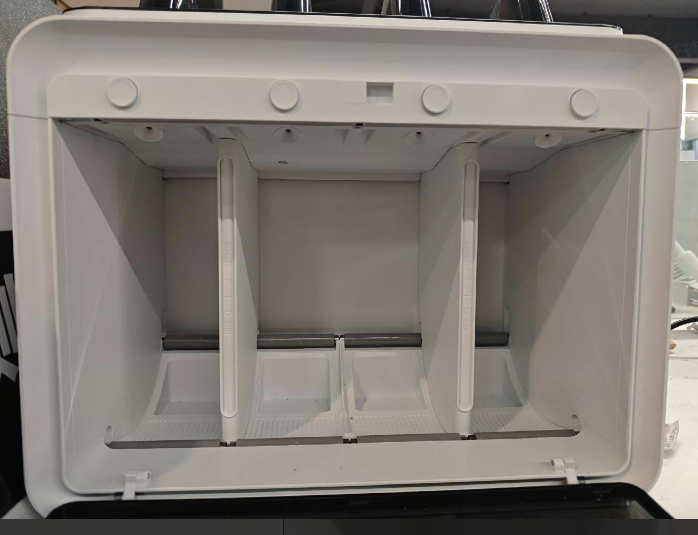
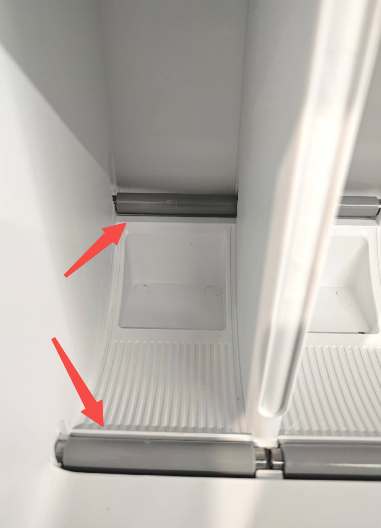
The CFS Lite features four independent filament slots. Each slot is equipped with rollers at both the front and rear, and supports standard 1 kg filament spools. For detailed spool-related precautions, please refer to CFS Lite 耗材兼容性指南
After a filament spool is placed in the slot, it is supported by the front and rear rollers. During filament loading, the rollers assist the spool in rotating, helping to reduce feeding resistance.
 |
 |
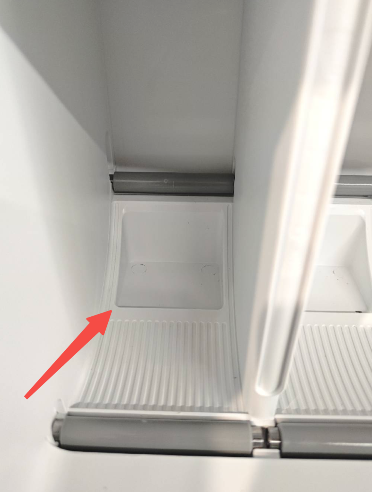
There is a recess at the bottom of each filament slot for placing a desiccant. Four packs of desiccant are included with the machine for your use.
Each filament slot has an independent filament inlet at the top. After the filament is inserted into the inlet, it enters the feeder section, after which the filament is fully managed automatically by the i7 + CFS lite system.
¶ Feeder
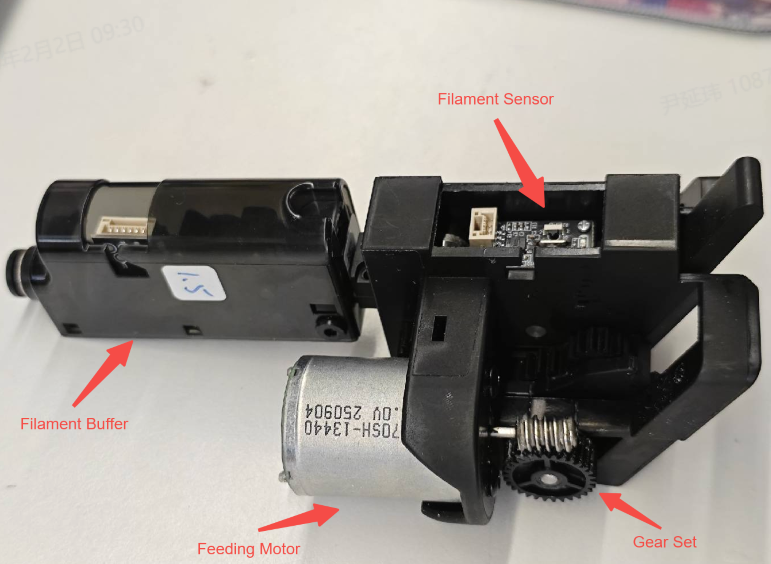
Each filament slot is equipped with an independent feeder, which is responsible for feeding filament into or retracting it from the Toolhead.
¶ Filament Detection Sensor
A filament detection sensor is installed in each feeder near the filament inlet. When filament is inserted through the inlet, the sensor is triggered, the motor starts, and the feeding gears grip the filament and automatically feed it forward.
When the filament runs out, the filament tail leaves the detection sensor. The sensor then sends a filament-out signal to the printer, which will automatically trigger a pop-up notification or start an automatic refill process.
¶ Odometer
Each feeder is equipped with an odometer at the pinch roller position. The odometer wheel is a passive roller. When it grips the filament together with the feeding gears and the filament is being fed, the wheel rotates accordingly. This allows the system to determine whether filament is being successfully fed out of the CFS Lite.
¶ Filament Buffer
A filament buffer is installed near the filament outlet to better assist filament feeding. Inside the buffer, there is a photoelectric sensor and a spring. The spring is connected to a black structural block, and together they form a filament entanglement detection module.
During loading or printing, if the external feeding resistance becomes too high and the filament cannot be fed forward properly, the spring inside the buffer will be compressed. When the photoelectric sensor is triggered by the black structural block, a filament entanglement alarm is activated, helping to prevent further printing issues.
For more information, please refer to Wiki: Introduction to the CFS lite Filament Entanglement Detection Function.
¶ CFS Lite Key Features
¶ Pre-Feeding
When a filament slot in the CFS lite is empty, inserting the filament into the Feeder will automatically feed about 50 cm of filament into the PTFE tube. This process is called pre-feeding.
¶ RFID Recognition
Each filament slot in the CFS Lite has a corresponding RFID detection coil. Once a spool is placed in the slot and inserted into the feed port, the CFS Lite can automatically read the filament information, including material type, color, and other relevant details.
¶ Automatic Feeding and Retraction
Unlike single-machine feeding, with CFS Lite you no longer need to manually feed or retract filament. Simply place the filament in the slot and insert it into the feed port. After editing the filament information, you can feed or retract by tapping the corresponding button on the screen—the printer and CFS Lite will automatically complete all actions.
During printing, CFS Lite works with the printer to feed or retract filament as needed for material switching, enabling multi-color or multi-material printing. After printing, CFS Lite can also automatically retract the filament to make it easier to replace.
¶ Filament Runout Detection
Single-material printing: Works the same as the runout detection on a standalone printer. When the Toolhead detects no filament, it reports “Filament Out” and prompts to insert new filament. If auto-resume is enabled, the system automatically continues feeding.
Multi-material printing: In some cases, the last segment of filament may have already left the spool and the CFS lite slot. If a filament change is required during printing, the remaining filament cannot be pulled back. The printer will first purge the leftover filament, then switch to another slot with the correct material. The screen will show “Filament Out, Purging Old Filament.”
¶ Automatic Filament Resupply
When a filament in a CFS lite slot runs out, the system can automatically switch to another slot containing filament with the same properties, including brand, type, color, and printing temperature. Please ensure filament information is properly configured before printing.
¶ Automatic Filament Mapping
When starting a multi-color print task, if a required color is not available, CFS lite will automatically assign the closest matching filament from the available slots for the model.
¶ Assisted Filament Feeding
When spool rotation is restricted, the filament path is long, or feeding resistance increases, the buffer reaches its empty-limit position. CFS Lite then activates its feed/retract module to assist filament delivery, reducing the load on the extruder and minimizing the risk of under-extrusion or print interruptions.
High feeding resistance: Assisted feeding activates automatically
Smooth feeding: No intervention is required
On-demand operation: Activates only when the buffer reaches its empty-limit position, preventing overfeeding or filament buildup