Creality Print 7.2.0 introduces the first stage of our AI-powered printing workflow, bringing intelligent assistance throughout the entire process—from model discovery and preparation to slicing, risk detection, parameter recommendations, and printing.
In this release, we also deliver major improvements in multi-material printing, filament management, slicing accuracy, and cross-platform compatibility. Together, these enhancements make printing more accessible for beginners while giving experienced users greater control and efficiency.
(Only the Windows version currently supports in-app updates; the Mac version requires manual downloading)
¶ Creality Print AI Edition(beta)
¶ First-Time Setup
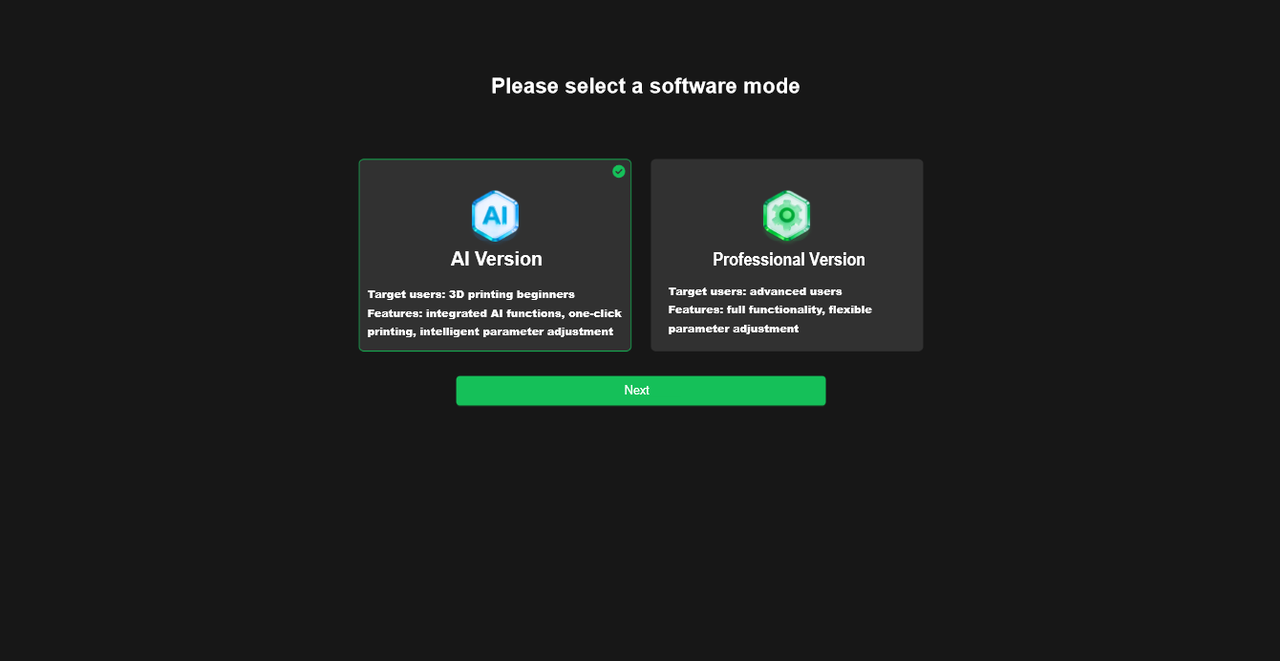
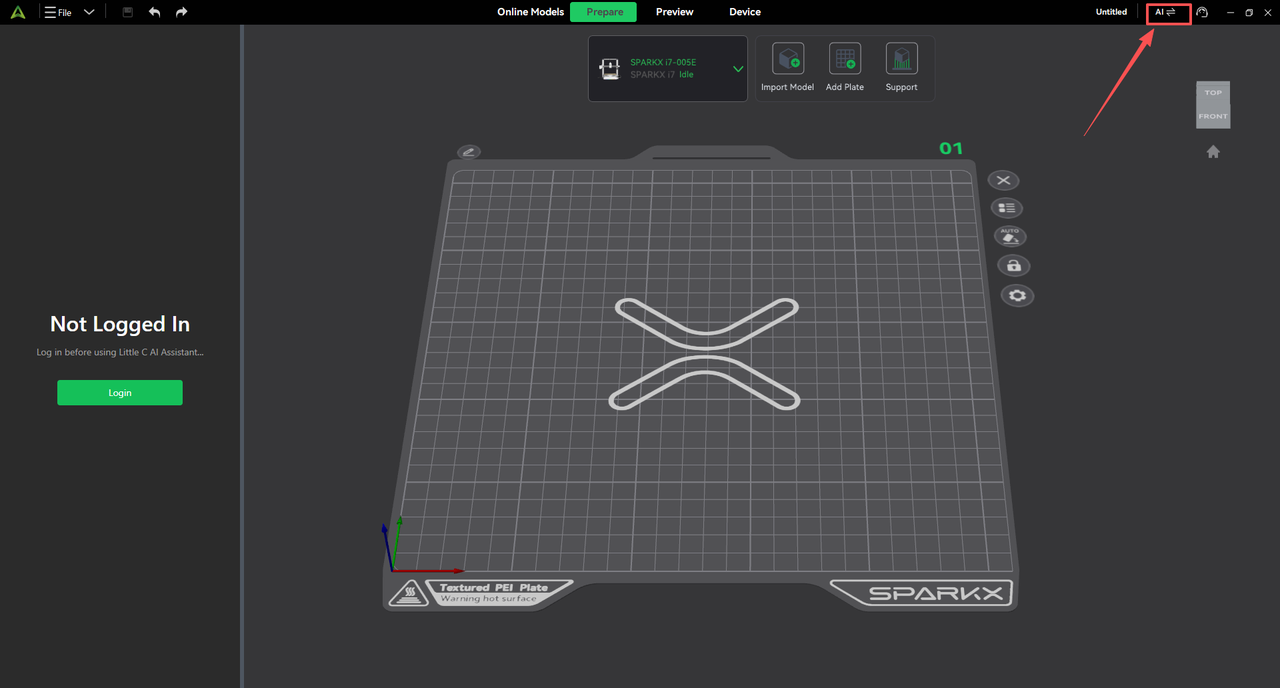
Introducing the new AI Edition mode. When launching Creality Print for the first time, users can choose between AI Edition and Professional Edition, and switch between the two modes at any time from the upper-right corner of the Prepare page.
AI Edition transforms complex parameter configuration into a guided workflow, helping new users quickly complete model preparation and printing tasks. Advanced users can continue using the full set of professional slicing parameters in Professional Edition.
 |
 |
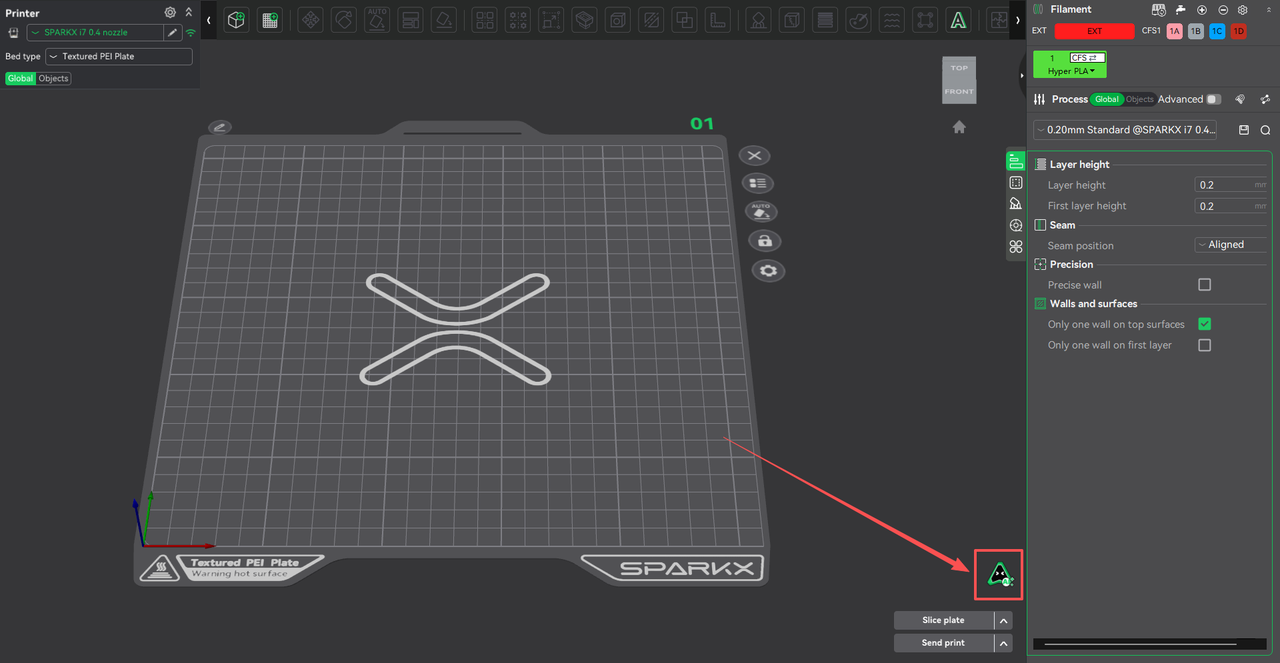
In Professional Edition, AI features can also be accessed at any time through the AI Assistant icon in the lower-right corner without switching modes.
¶ AI Printing Workflow
¶ Login & Device Connection Guidance
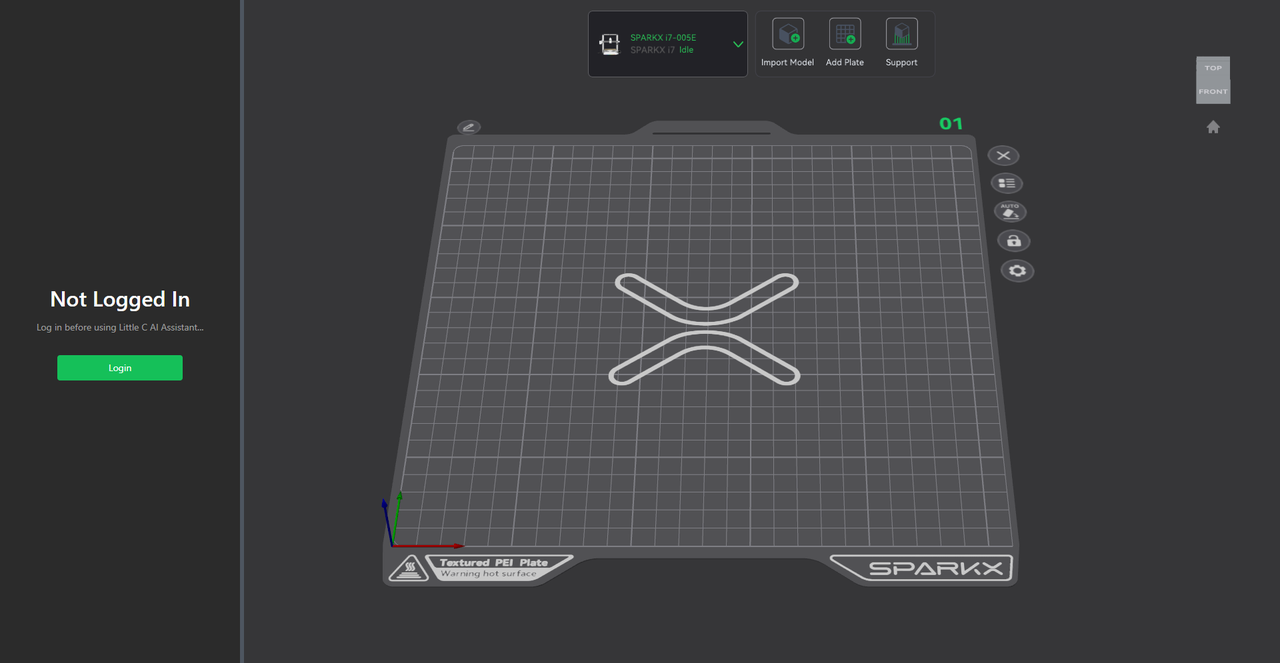
After launching the software, the system automatically checks:
- Creality Cloud login status
- Printer connection status
The AI Assistant will guide users through the setup process if login or printer connection is incomplete.
¶ Model Import & Discovery
When no model is detected in the current project, the AI Assistant provides multiple ways to obtain models:
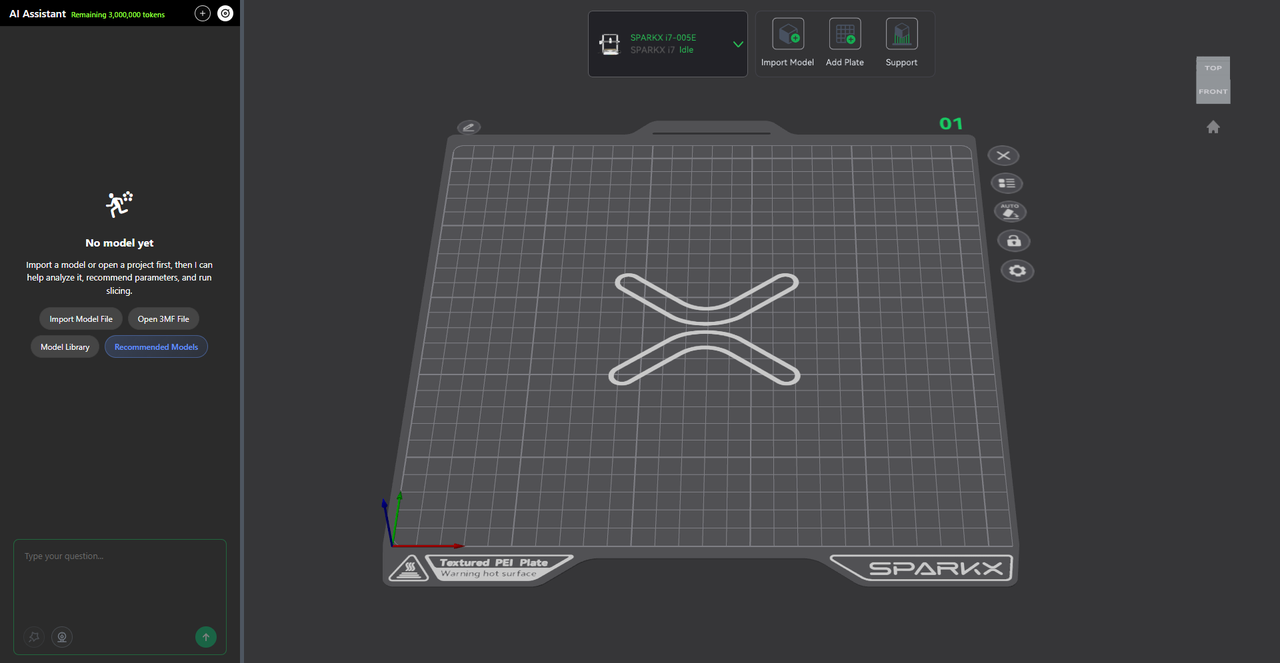
- Click Import Model File to import local STL, OBJ, and other supported model formats.
- Click Open New Project to import a local 3MF project file.
- Click Model Library to browse models from the online model repository.
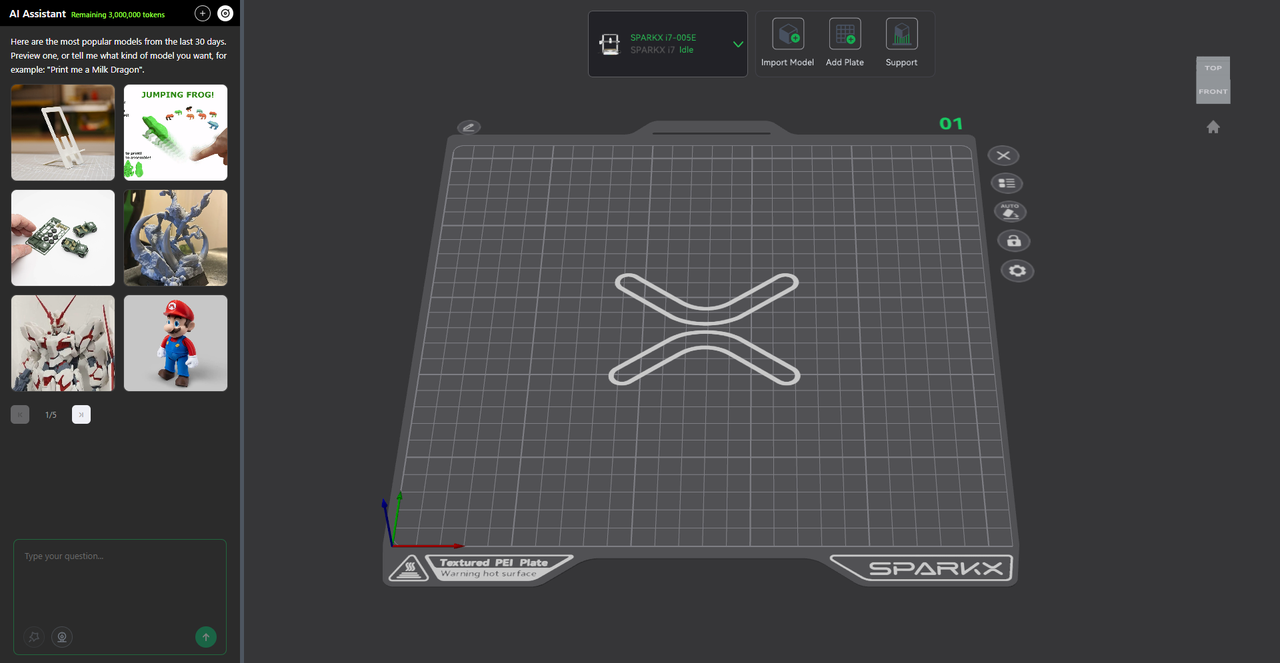
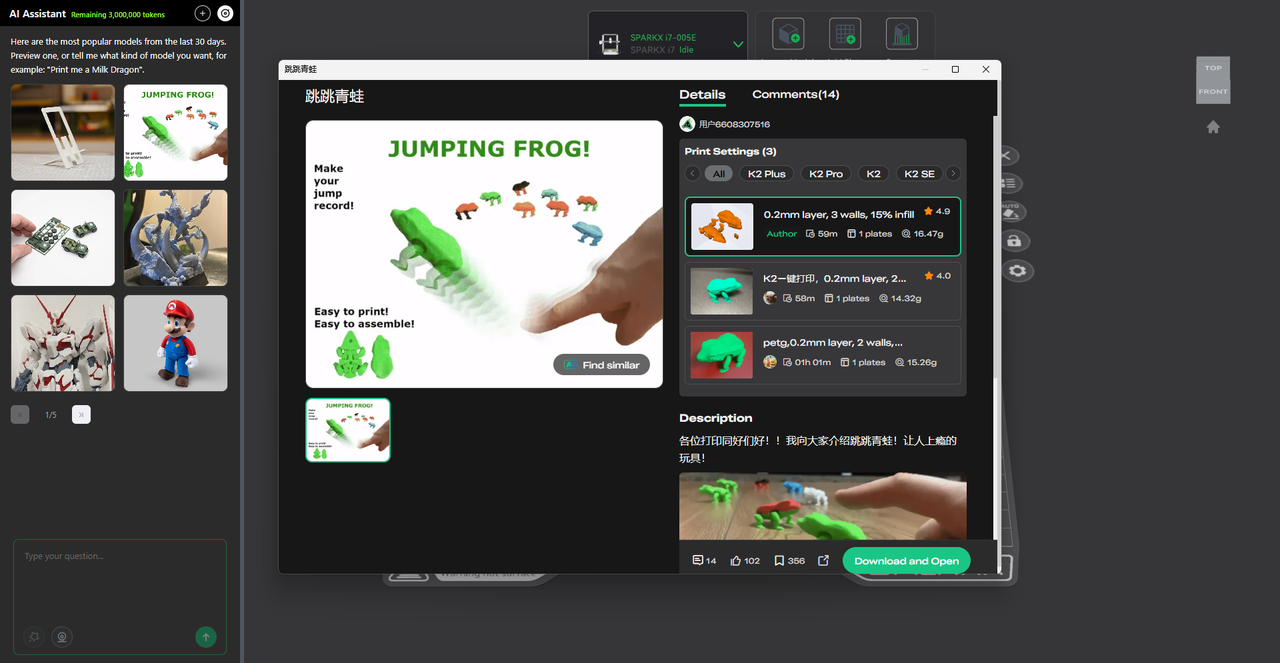
- Click Recommended Models to receive AI-curated model recommendations based on current trends. Click a model thumbnail to open its detail page, then select Download & Open to import it directly into Creality Print.
 |
 |
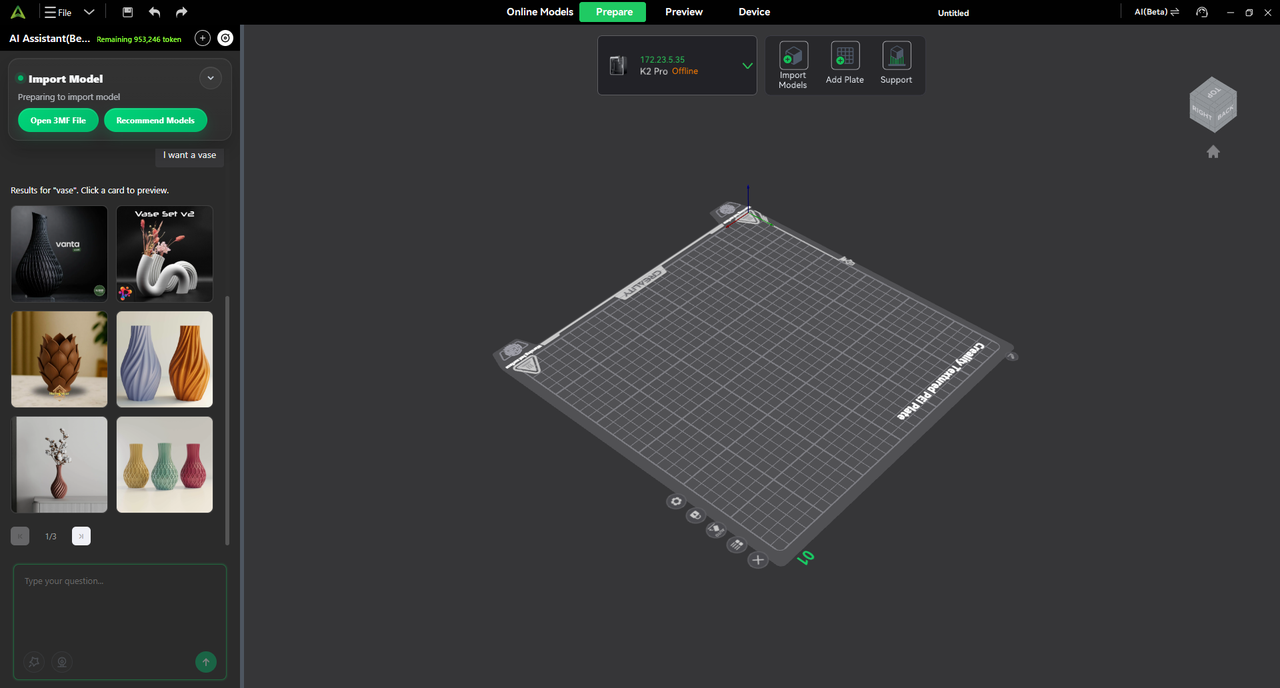
Natural language model search is also supported. For example, entering:"I want a vase"
will prompt the AI Assistant to recommend several relevant vase models for selection.
¶ Model Error Detection & Auto Repair
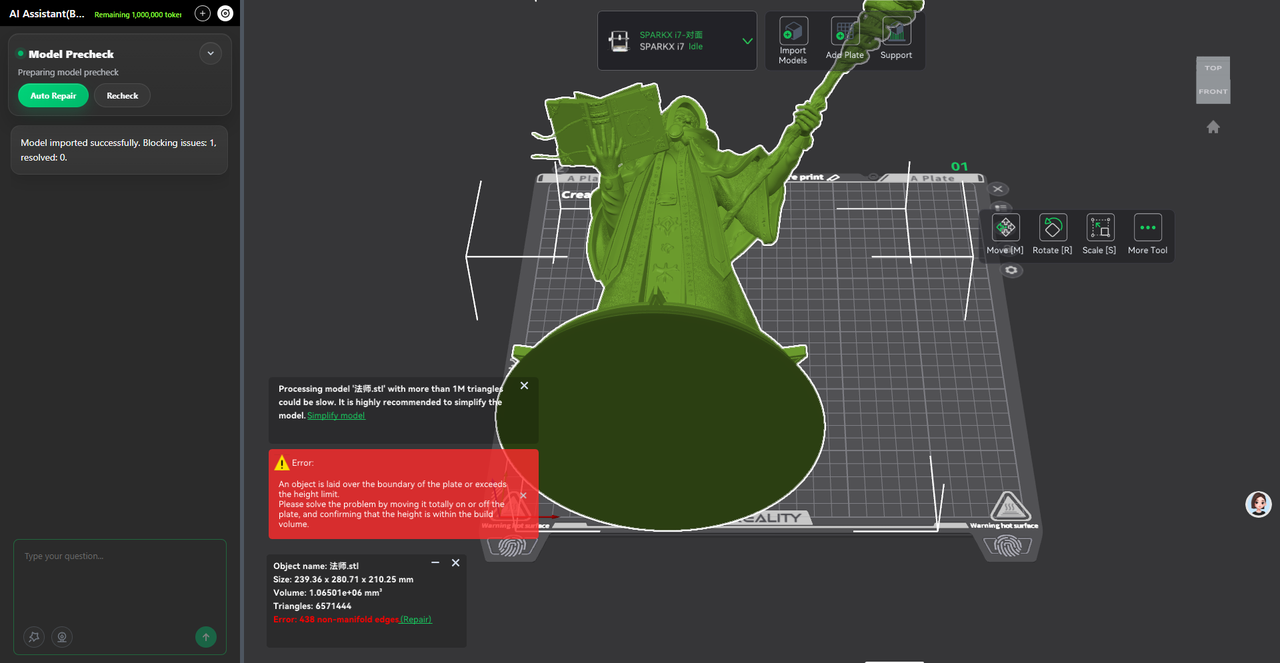
After importing a model, the AI Assistant automatically checks for common model issues, including:
- Model exceeding the build volume
- Excessive model height
- Other common geometry-related issues
For supported issues, one-click repair is available. For issues that cannot currently be repaired automatically, the system will provide guidance for manual correction.
¶ Intelligent Filament Mapping
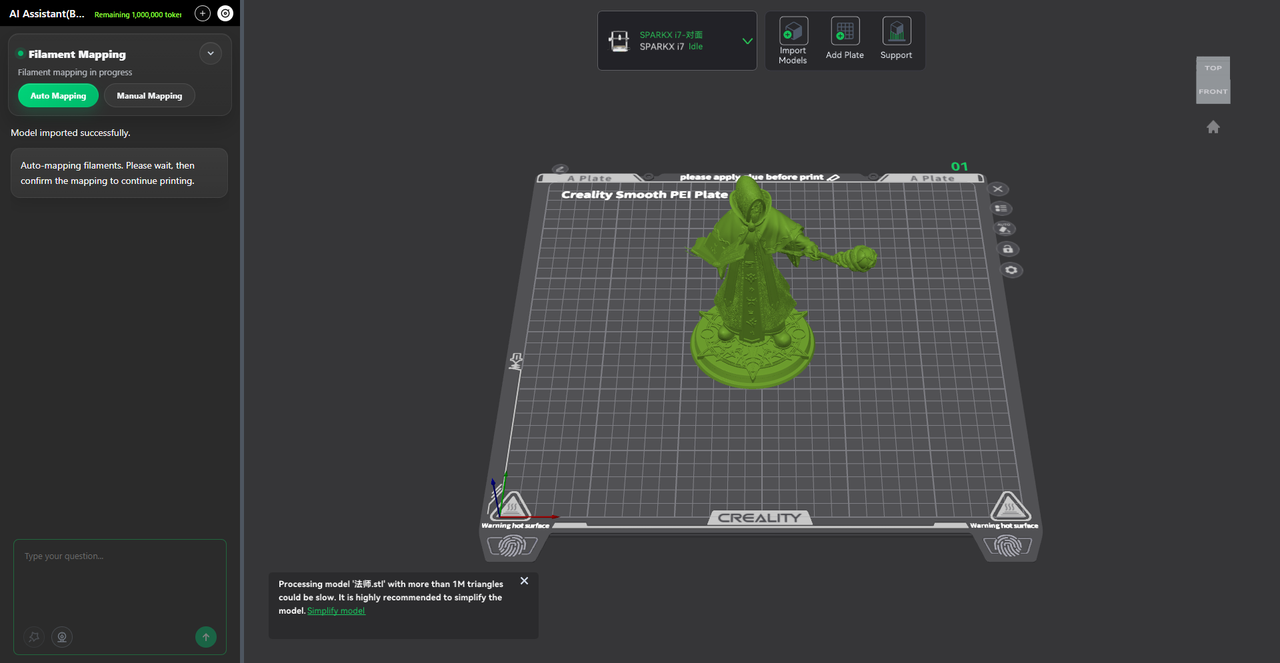
For color models and multi-material prints, AI-assisted filament mapping is now available.
Automatic Mapping
- Automatically matches filaments with the closest available colors.
- This significantly reduces preparation time for color printing workflows.
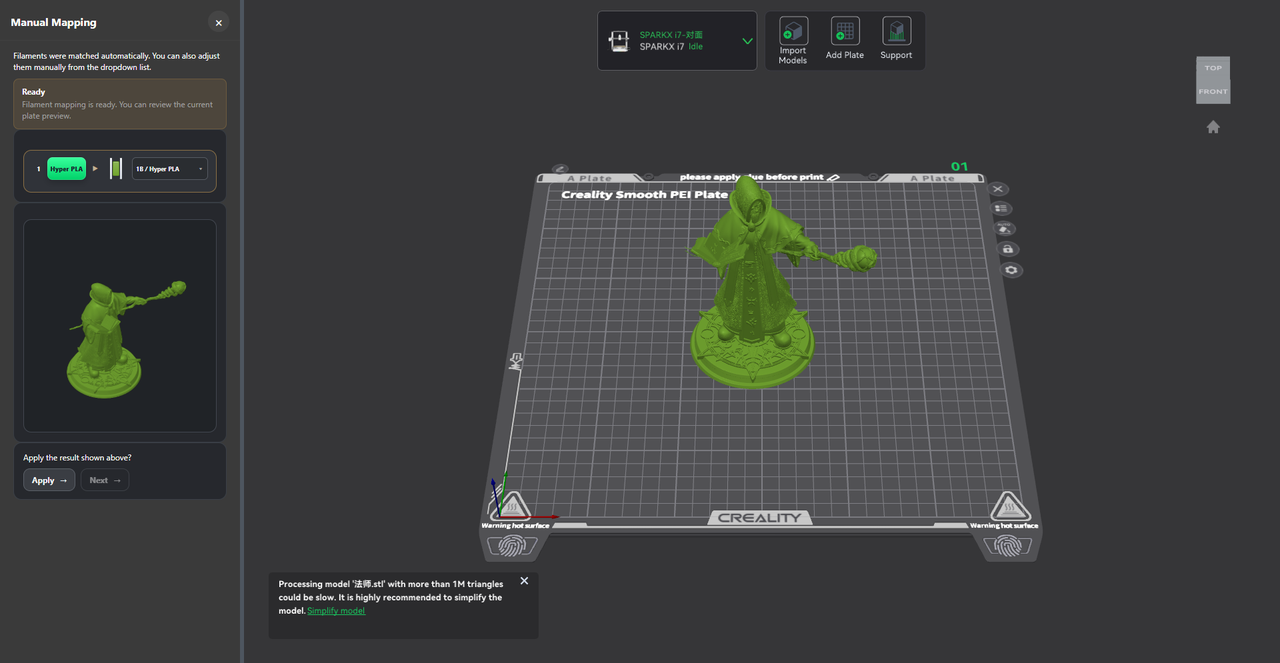
Manual Mapping
- Manually assign filaments from available CFS slots.
- Preview the updated color mapping in real time.
- Apply the mapping configuration with a single click.
¶ AI Print Risk Analysis
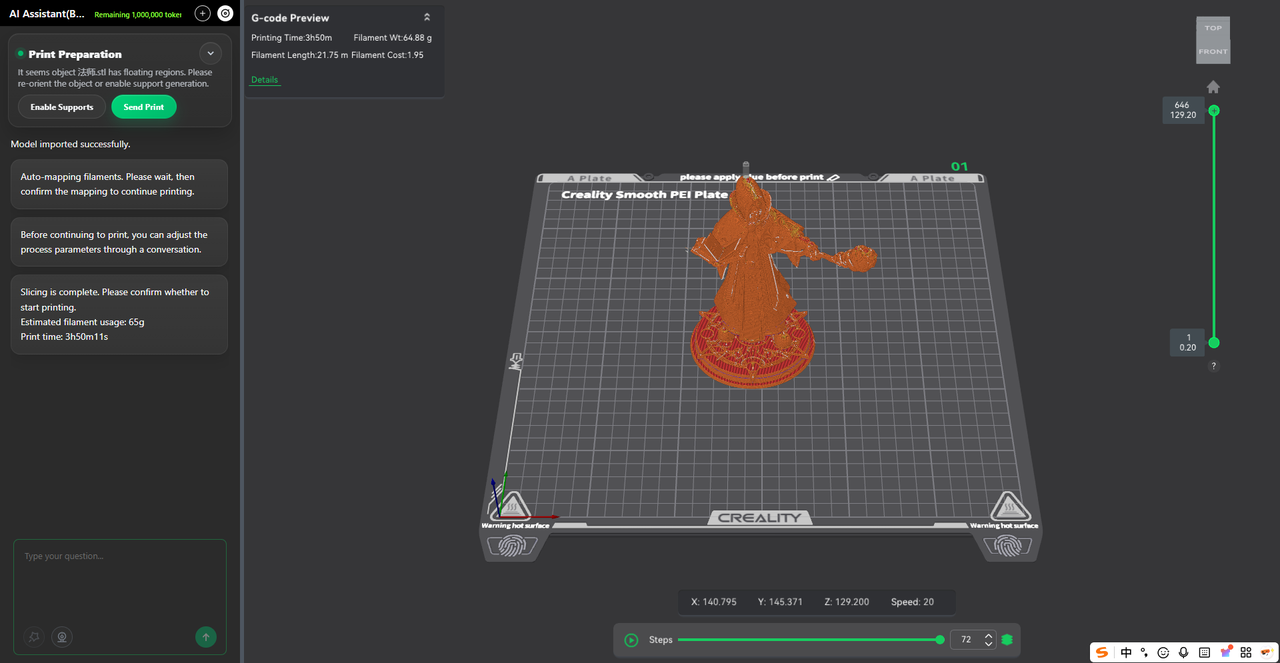
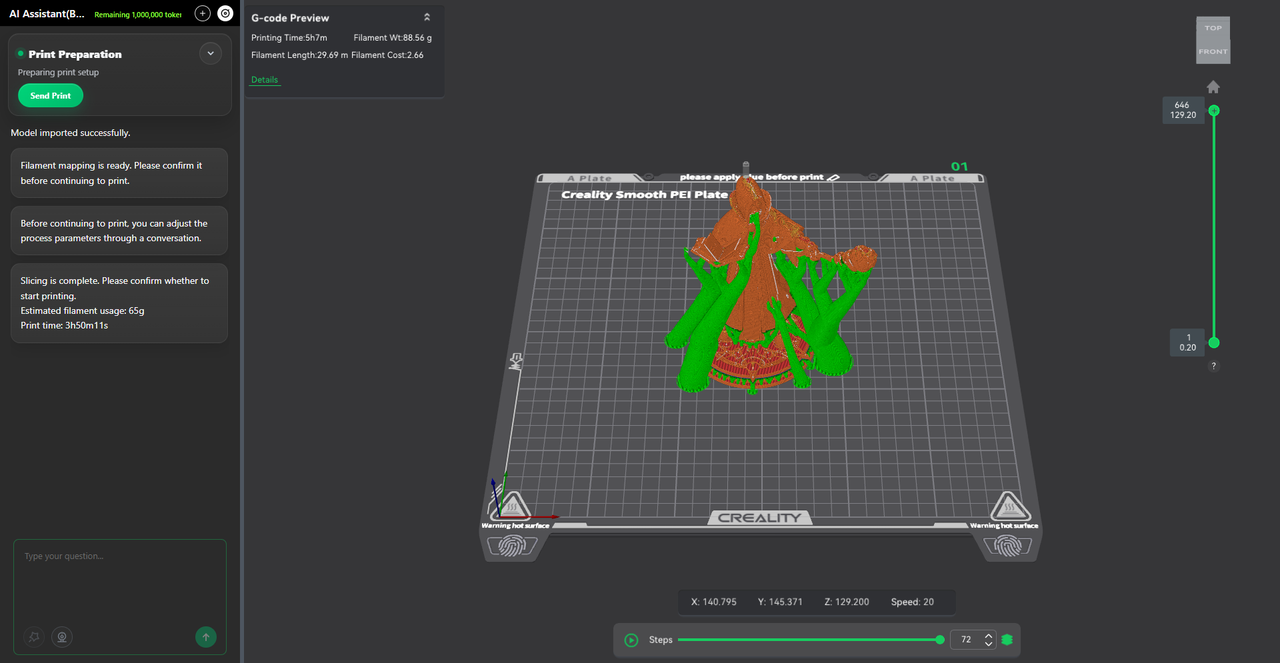
After slicing, the AI Assistant automatically evaluates potential print risks.
Currently supported risk detection includes:
- Unsupported overhang regions
- Missing support structures
- Areas prone to collapse or print failure
When a fixable risk is detected, the system automatically recommends a solution and generates the required support structures.
¶ AI Pre-Print Inspection
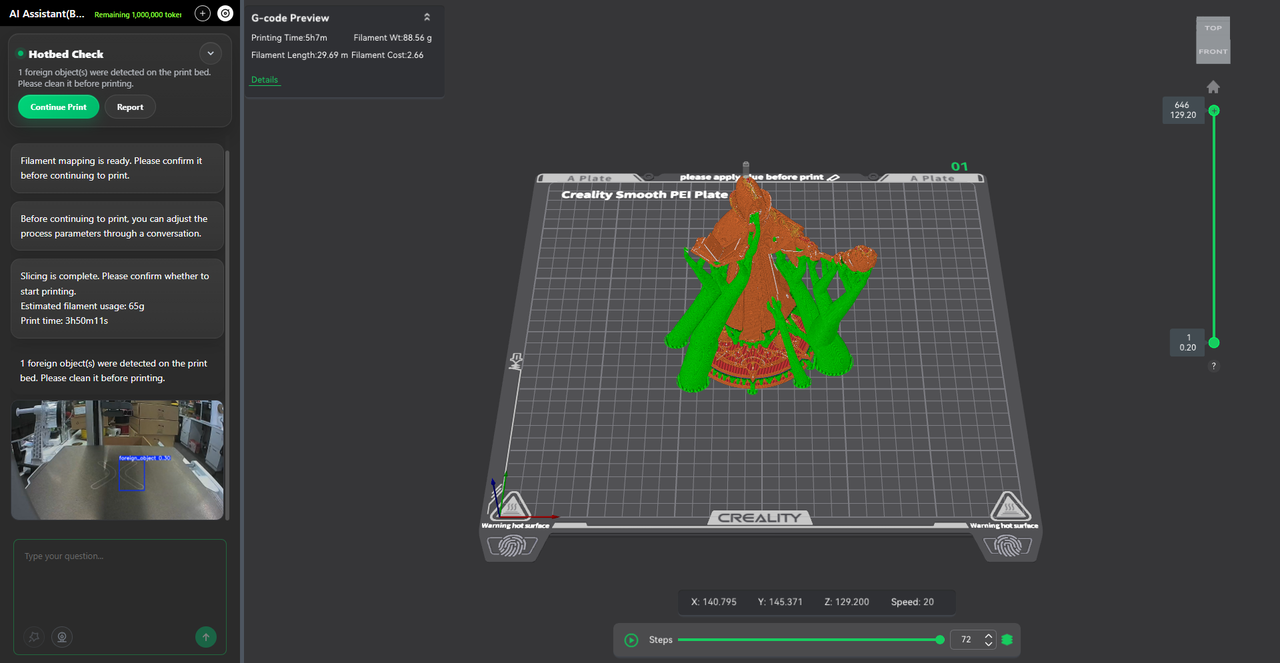
After a print job is sent but before printing begins, the system captures a live image of the build plate using the printer camera and analyzes it for:
- Leftover printed parts
- Print debris
- Foreign objects on the build plate
As this feature is still being continuously optimized, users are encouraged to review the captured image before confirming the print.
 |
 |
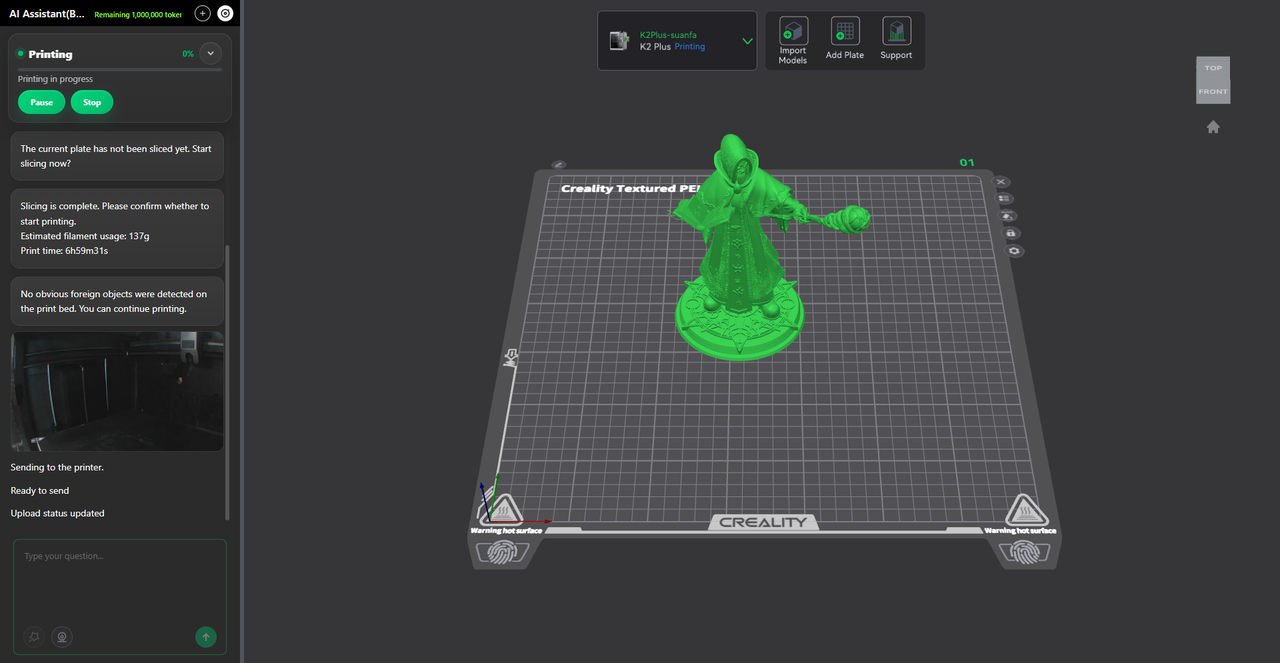
During printing, users can pause or stop the print job at any time.
¶ AI Parameter Recommendation
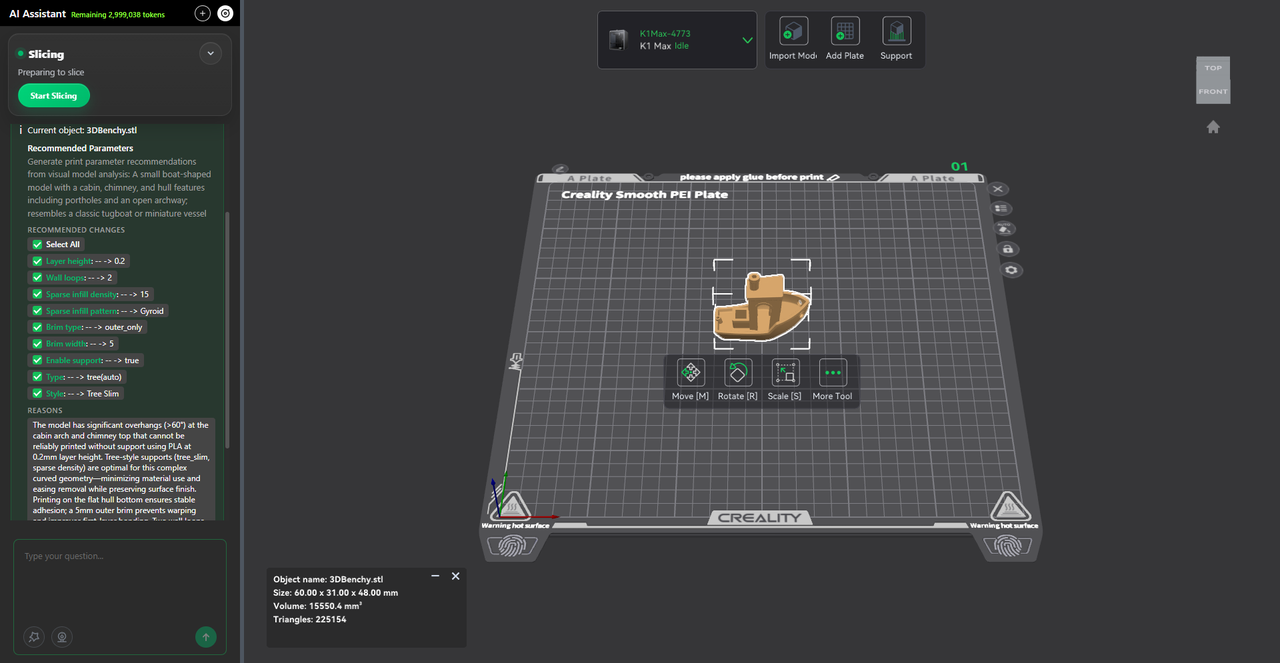
After selecting a model object, click Parameter Recommendation within AI Assistant to receive:
- Recommended slicing parameters
- Recommendation rationale
- Applicable usage scenarios
This helps users quickly obtain optimized print settings.
The current release supports recommendations for commonly used parameters, with additional parameter categories planned for future updates.
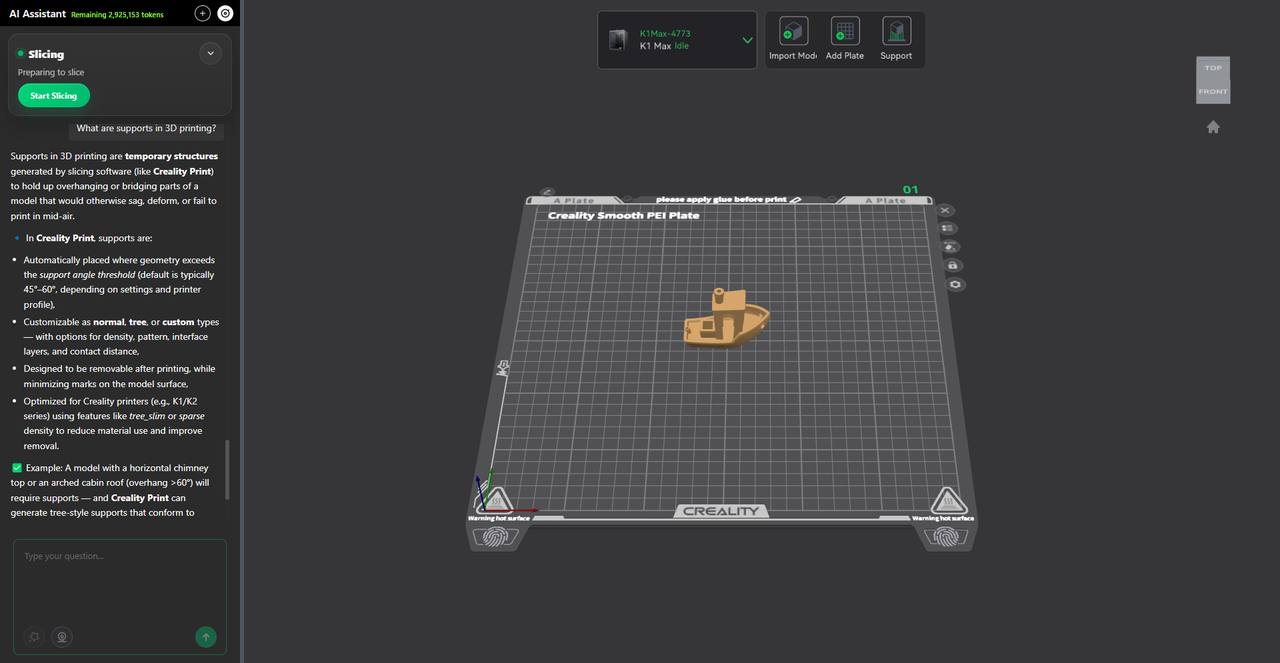
¶ AI Knowledge Assistant
Introducing AI-powered Q&A capabilities.
Users can ask questions related to Creality products and 3D printing.
Supported topics include:
- 3D printing knowledge and best practices
- Creality product guidance
- Slicing parameter recommendations
- Common troubleshooting assistance
Responses include supporting reference materials where applicable. Users can provide feedback on AI responses to help continuously improve answer quality and accuracy.
Currently, only topics related to Creality FDM products are supported.
¶ Multi-Material Printing Enhancements
¶ Color Mixing Printing
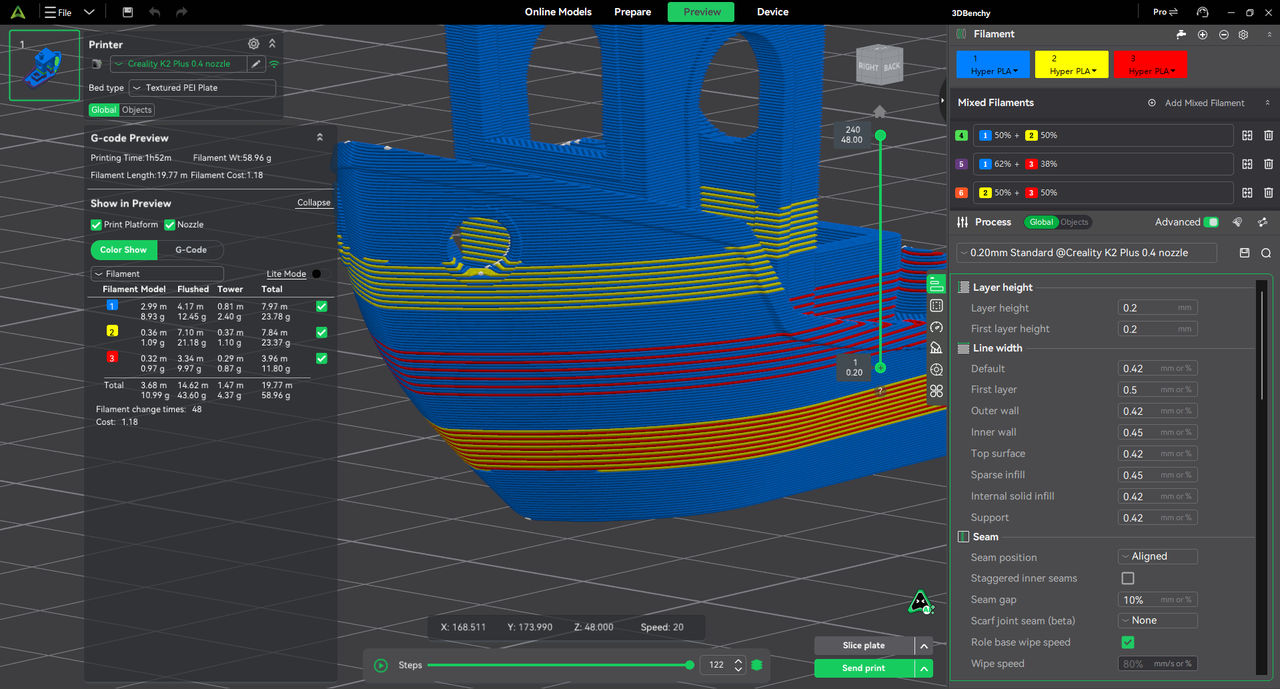
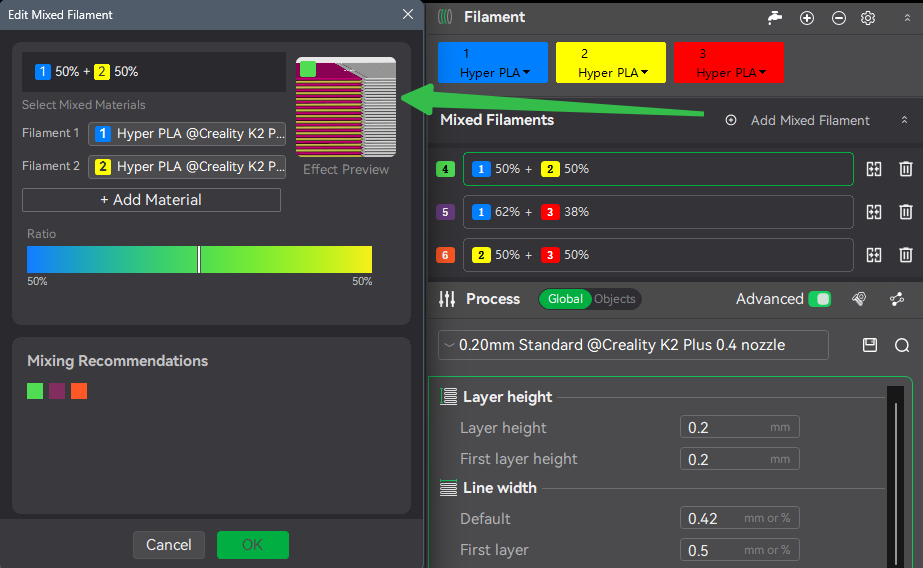
Users can now access the Color Mixed Filament Panel directly within the slicer, making it easier to set up multi-color prints without switching between tools.
This feature works by combining different colored filaments across layers to create a blended visual effect in the finished model. Instead of physically mixing materials, the slicer arranges color changes in a way that takes advantage of the translucency and stacking of printed layers. As light passes through these layers, the colors can appear to blend, producing smoother transitions, richer tones, and more expressive surface effects.
Compared with traditional multi-color printing, this approach offers several advantages:
- No need to increase the number of filament colors used
- Easier creation of gradients and color transitions
- More visually striking results for decorative and artistic models
- Better support for creative multi-color printing projects
 |
 |
¶ OBJ Files Import Support
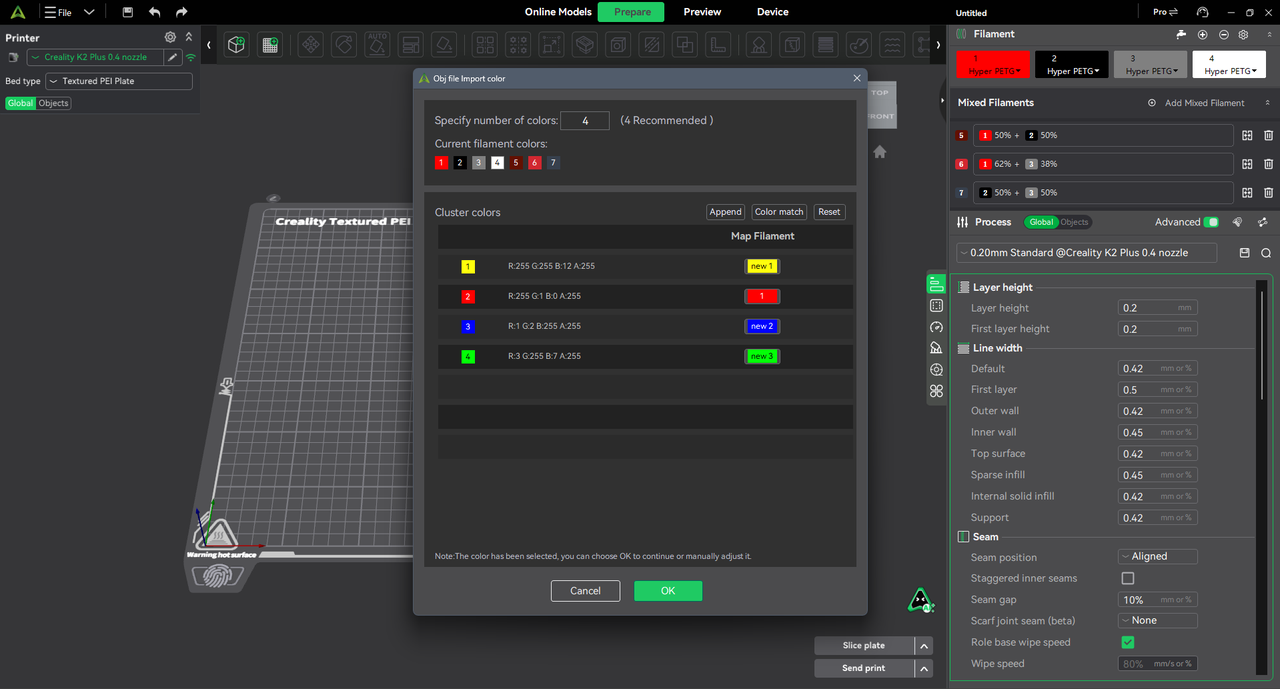
Added support for importing color OBJ models.
After import, Creality Print can automatically recognize embedded color information and supports:
- Color clustering
- Automatic color mapping
- New filament creation
- Filament color remapping
For detailed instructions, please refer to the Wiki: OBJ Multi-Color Model Import and Color Mapping Feature Description
¶ Print Algorithm Optimizations
¶ Improved Print Time Estimation Accuracy
Optimized print time estimation for Klipper-based printers.
Previous estimation logic included legacy calculations that were not fully applicable to Klipper motion planning, resulting in reduced accuracy in certain scenarios.
This release recalibrates K2, K2 Pro &SPARKX i7 time estimation and speed limit calculations, including:
- Linear motion timing
- Arc motion timing
- Motion planning constraints
Based on extensive testing across multiple models, print time estimation error can now be maintained within 5% under properly configured conditions.
¶ Support Generation Algorithm Optimization
The support generation engine has been comprehensively refactored with major algorithm improvements to increase print success rates, improve supported surface quality, and simplify support removal for complex models.
During slicing, the system automatically detects and analyzes all overhang regions using topology analysis, then accurately identifies support segments that are themselves suspended and therefore unable to transfer structural loads during layer-by-layer printing.
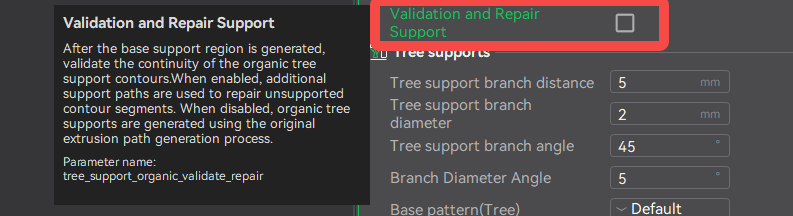
For Tree Supports, a new Validate and Repair Supports option has been added.
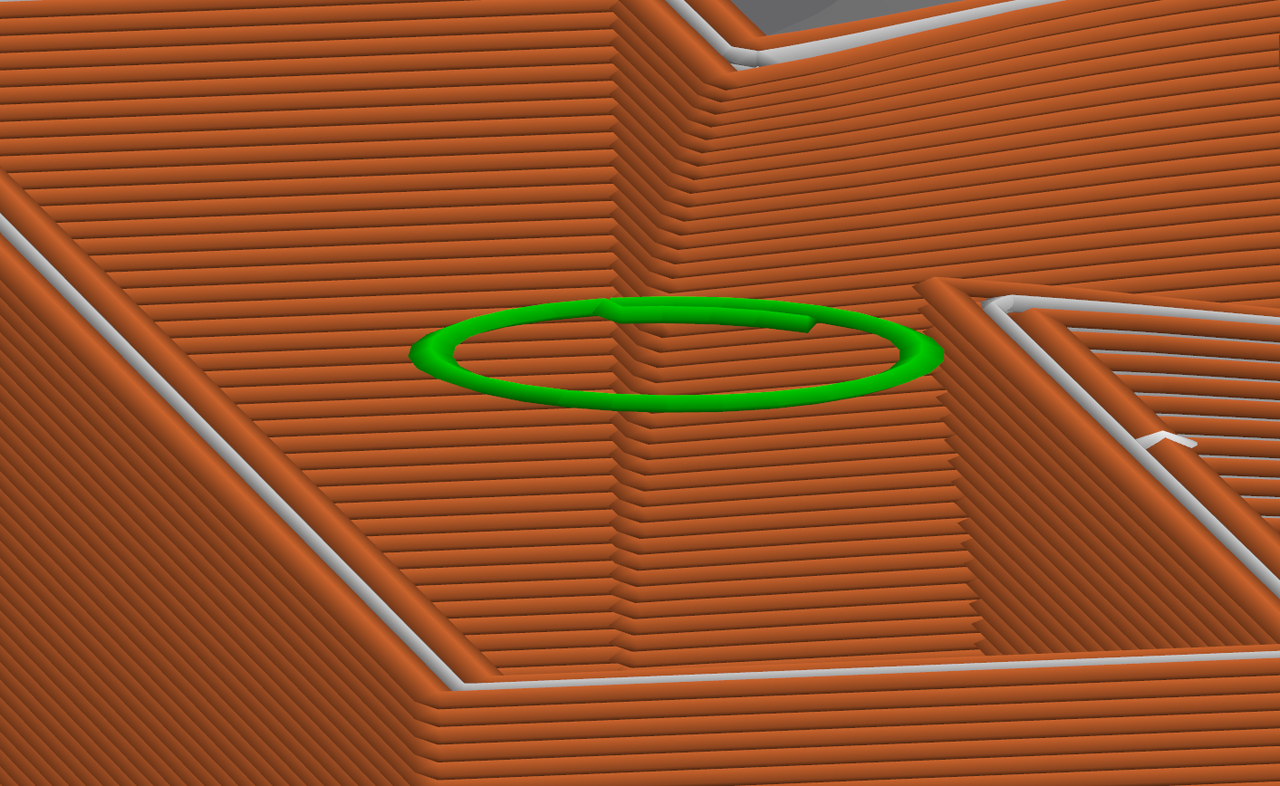
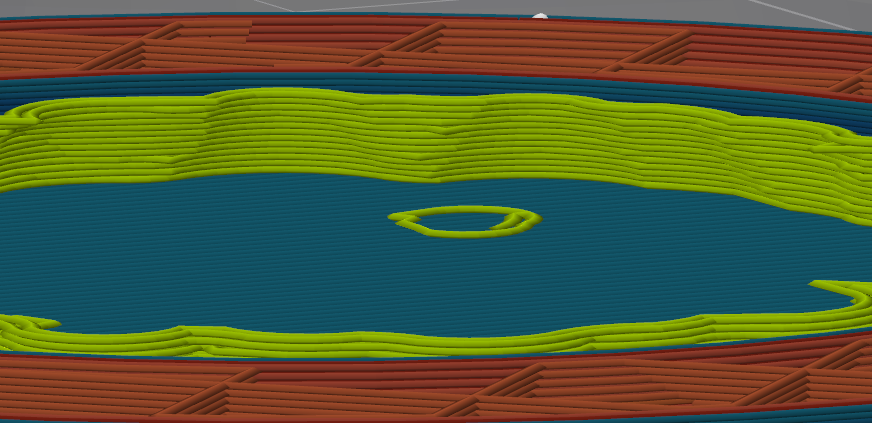
When enabled, after the initial support structure is generated, the slicer performs layer-by-layer validation of the organic tree support network, automatically detecting and repairing broken branches, disconnected paths, misaligned segments, and unsupported overhanging branches.
This ensures a continuous load-bearing path from the build plate to the model, significantly improving printing reliability for complex internal cavities and deep overhangs.
 |
 |
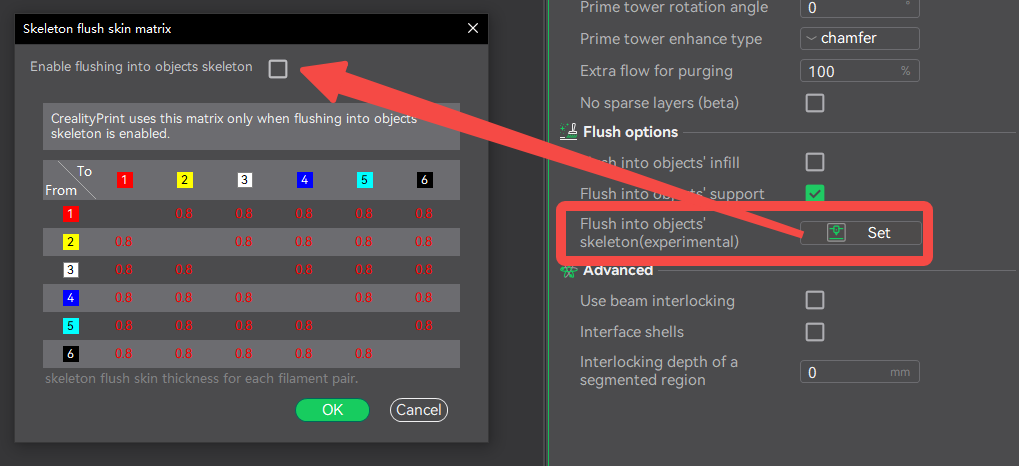
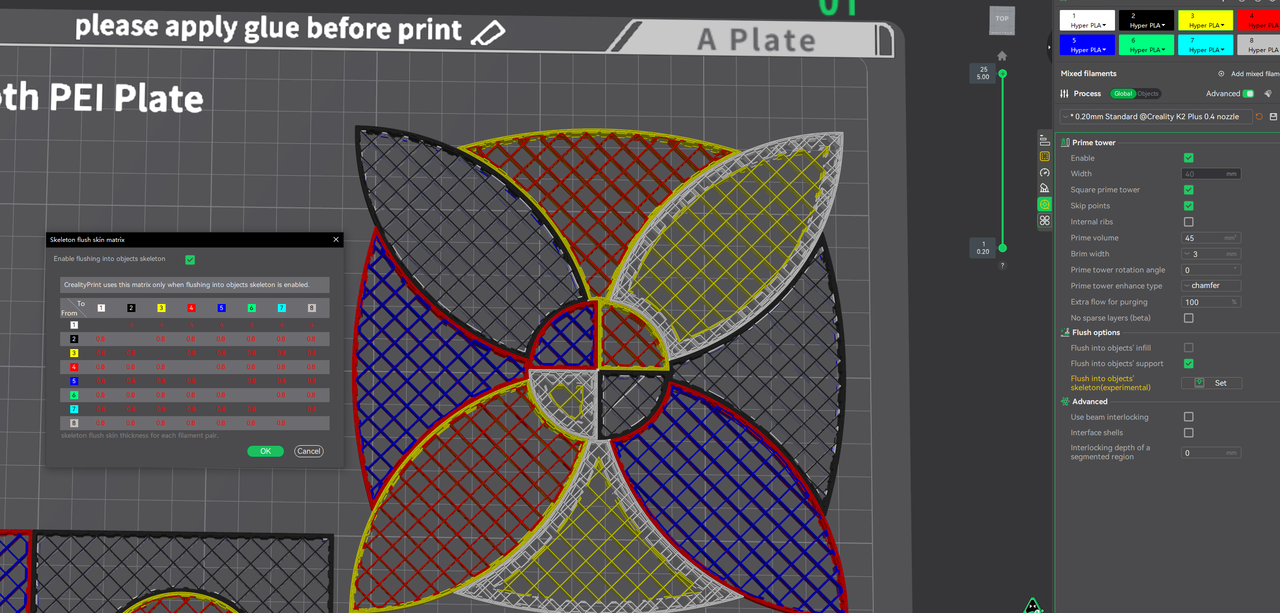
¶ Flush Options—Flush into objects‘ skeleton(experimental)
To reduce purge waste during multi-color printing, this release introduces Flush into objects‘ skeleton (Experimental).
Instead of discarding purge material, the slicer intelligently reuses it within the model's internal infill whenever possible.
To minimize color bleed, the feature combines the Locked Zag infill pattern with a Filament Color Transmission Matrix and adaptive wall count calculation. Based on the color transmission difference between the shell and infill, the slicer automatically adjusts the minimum wall count needed to prevent bleed-through while avoiding unnecessary material usage and longer print times.
This allows the software to intelligently balance material savings and surface appearance.
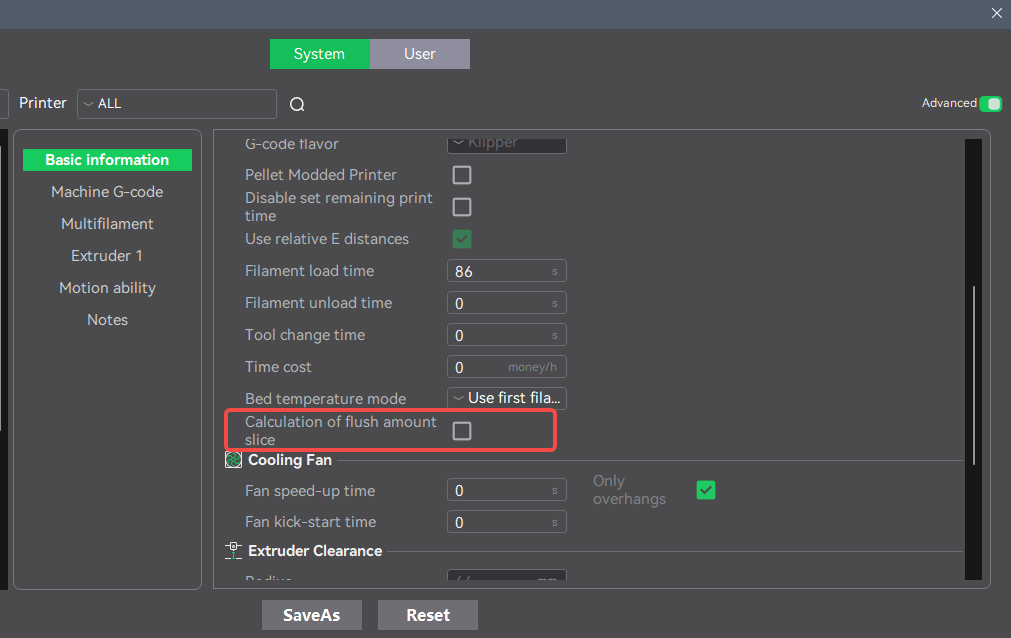
This feature requires Calculation of flush amount slice to be enabled in the printer settings. Once enabled, "Flush into objects skeleton (experimental)" can be activated under Process Settings.
Note: To use Flush into objects' skeleton (Experimental), please update to Creality Print 7.2 or later. This feature is currently supported only on K2, K2 Pro, and K2 Plus.
 |
 |
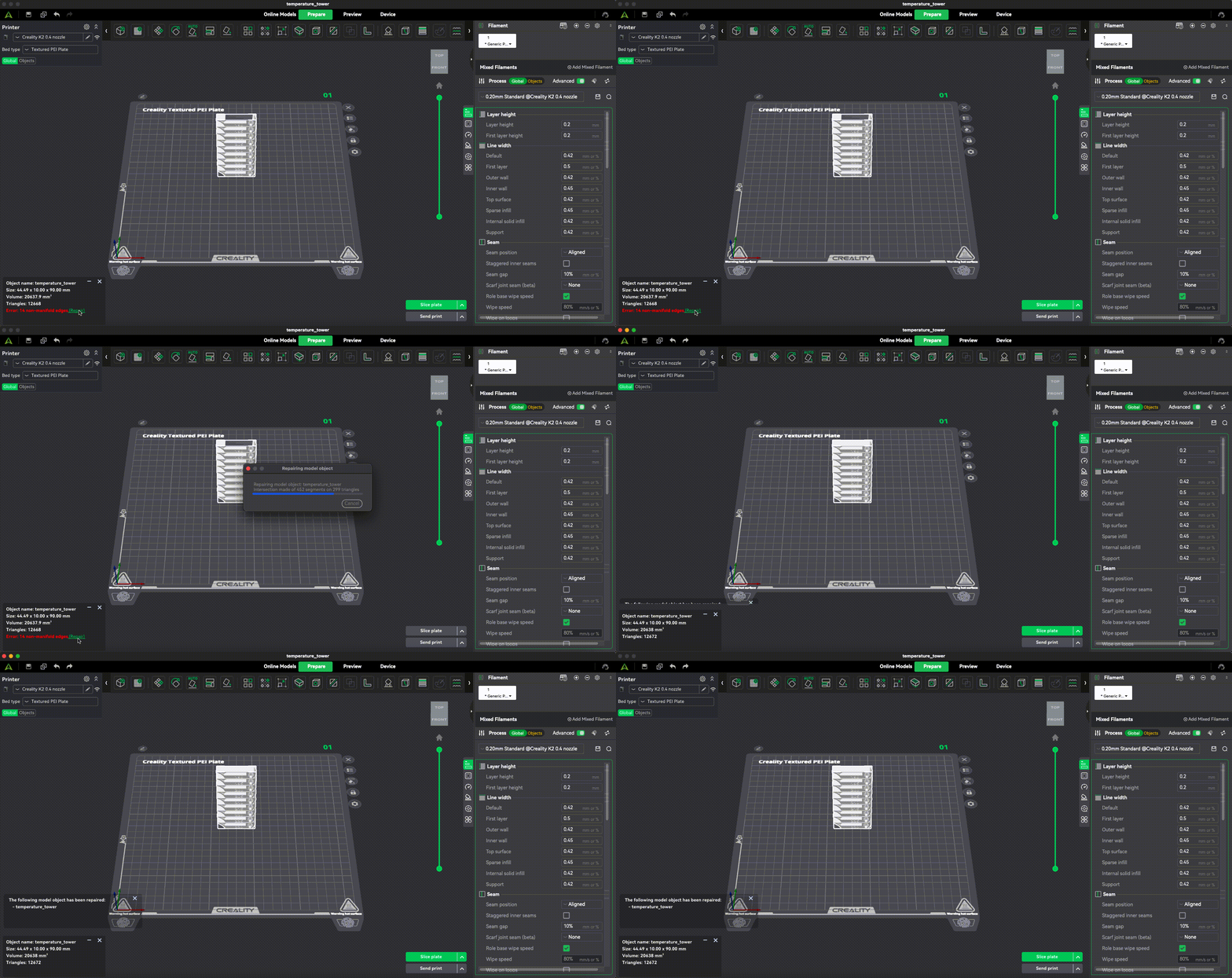
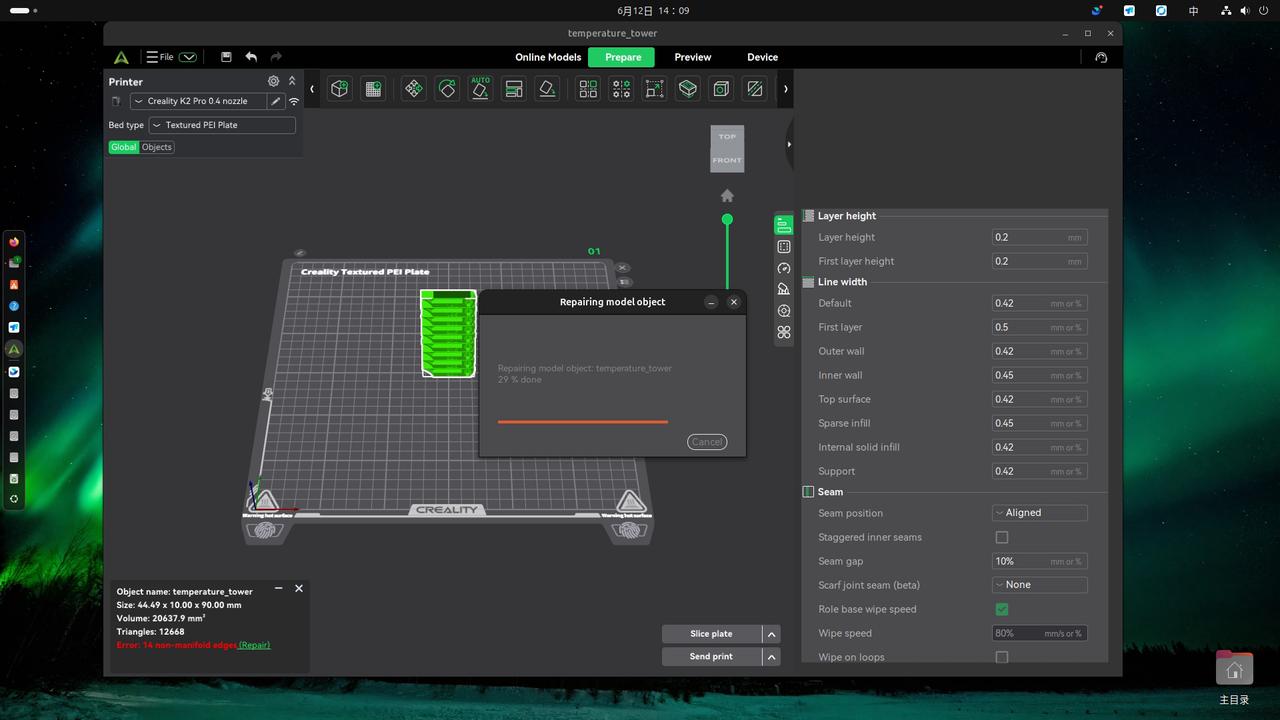
¶ Model Repair Support for macOS & Linux
Model Repair is now supported on:
- macOS
- Linux
Users can perform model analysis and repair directly within Creality Print without relying on third-party software, further improving the cross-platform user experience.
 |
 |
¶ Wipe Line Optimization
The start print wipe line has been optimized for K2, K2 Pro, and K2 Plus, improving first-layer print quality while ensuring the nozzle is properly cleaned and primed before printing.
Key improvements include:
A wipe strategy that better reflects real printing conditions
The wipe process now uses extrusion parameters that are matched to the actual printing speed, allowing the nozzle to establish more stable melt pressure before the first layer and reducing the risk of under-extrusion at print start.
A more efficient wipe path
The wipe line length and motion path have been optimized to reduce filament waste and shorten print preparation time while maintaining effective nozzle cleaning and consistent extrusion.
¶ Bug Fixes
- Fixed an issue where the Device page appeared blank after an in-app update. Thanks to @Lori Anne Brown.
- Fixed an issue on macOS where clicking Update from the update notification did not open the download page. Thanks to @Dub.
- Fixed a crash that occurred when adding or removing printer models on the printer selection page.
- Fixed an issue where changing the layer height unintentionally affected overhang fan speed.
- Fixed incorrect slice colors after using custom process settings. Thanks to @我是大瞌学家.
- Fixed an issue where filament parameter changes were not saved correctly. Thanks to @忘了.
- Fixed overlapping text on the Device page when using multiple displays. Thanks to @Ahmet Utku ÖZKAN.
- Fixed inconsistencies between global settings and object settings.
- Corrected inaccurate English text displayed after successfully uploading to Creality Cloud from the Preview page.
- Fixed the "Invalid Parameter" error when downloading and opening online community models.
- Fixed an error message that appeared after slicing and sending AI-generated Creality Cloud models to the printer.
- Fixed an issue where the Small Area Flow Compensation parameter under Quality → Walls & Surfaces changed after being uploaded to the cloud.
- Fixed false warnings about inconsistent layer heights in certain files.
- Fixed an Illegal Access error that could occur during slicing.
- Fixed an issue where switching CFS filaments on the Prepare page could fail. Thanks to @玩野先生.
- Fixed several translation issues in AI Version.
- Fixed an issue where the print preview information panel was collapsed by default.
- Fixed an intermittent error when navigating back to the previous step. Thanks to @三月的狮子.
- Fixed an issue where continuous GPU utilization could eventually cause the application to crash. Thanks to @DanBGold, Daniel Goldwasser, David Thomas, and MadNachos.
- Fixed DPI scaling compatibility issues. Thanks to @toviding.
- Fixed an issue where models could not be found in AI Version. Thanks to @Elderbiggums.
- Fixed an issue where the AI Chat page failed to launch in certain scenarios. Thanks to @Yang.
- Fixed a crash that occurred when clicking the AI button in the lower-right corner. Thanks to @梓川咲太.
- Fixed an issue where Automatic Filament Mapping did not respond in AI Version.
- Fixed reduced slicing performance after repositioning a model and slicing again.
- Fixed an issue where the Filament Start G-code was not executed correctly.
- Fixed an issue where printers that do not support 3MF still defaulted to sending files in 3MF format.
- Fixed several additional stability and crash issues.