¶ Troubleshooting
¶ Problem Phenomenon
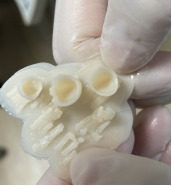
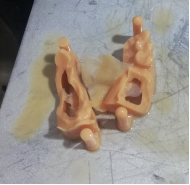
¶ 1. Demolding failure caused by model edge warping
You could refer Bottom Wrapping of Printing
¶ 2. Malfunction of the sliced file
You need to re - slice and print for testing to confirm.
¶ 3. No holes were punched at the bottom during slicin
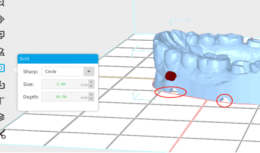
Especially for hollow models, it is necessary to punch holes. Otherwise, the negative pressure of the vacuum will cause the model to crack.
- When slicing, evenly create four semi - circular holes at the bottom of the dental model to relieve the negative pressure.
¶ 4. Insufficient number and size of supports
- Increase the support density or reduce the contact point spacing (Some software only has the option of support density, while some software only has the option of contact point spacing).
- If there is only the support density option, increase the support density to about 80%.
- If there is only the contact point spacing option, reduce the contact point spacing to about 2.5 mm.
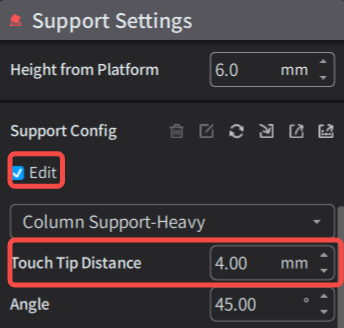
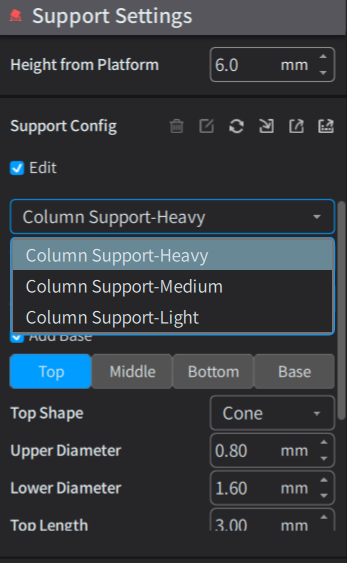
- Set the support to thick support.
- "Heavy" means thick support, "Medium" means medium support, and "Light" means thin support.
¶ 5. There are foreign objects on the printing screen
Wipe the surface of the printing screen clean with alcohol. Wait for the alcohol to completely evaporate and confirm that the printing screen is clean before re - printing for testing.
¶ 6. There are foreign objects in the material tank
- After cleaning the material tray, dry the alcohol thoroughly.
- If there is residual alcohol in the material tank, it will dilute the resin and prevent the resin from curing.
- There are impurities in the resin, which need to be cleaned.
- Click the clear - screen button for 15 seconds.
- Place a filter paper on the mouth of the resin bottle.
- Filter the resin in the material tank and pour it back into the resin bottle.
- Clean the material tank with alcohol to ensure that all the cured resin is removed.
- Wait for the material tank to dry after cleaning.
- Pour the resin back in and conduct a printing test.
¶ 7. The printing screen is damaged
You could refer LCD Screen Not Working