¶ Issue Description
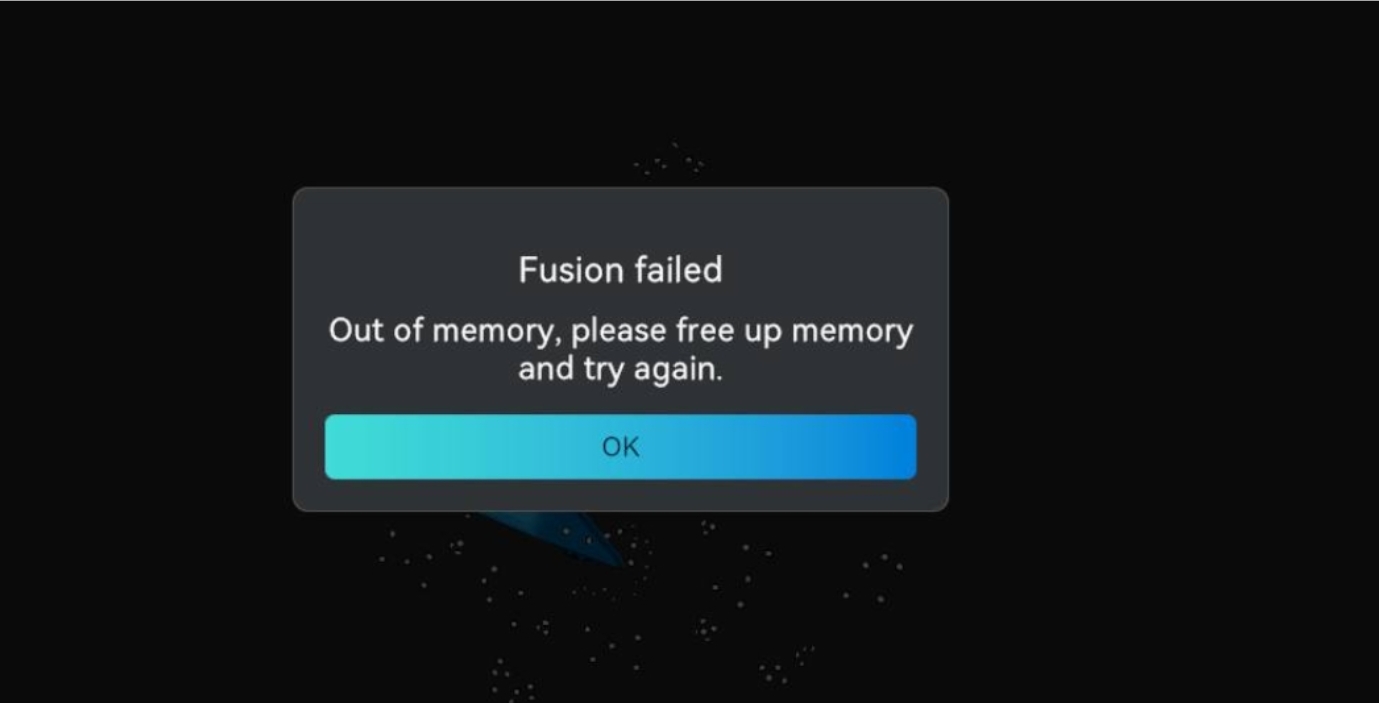
During point cloud fusion or meshing, the software displays an “Out of memory, please free up memory and try again” error.
¶ Possible Cause
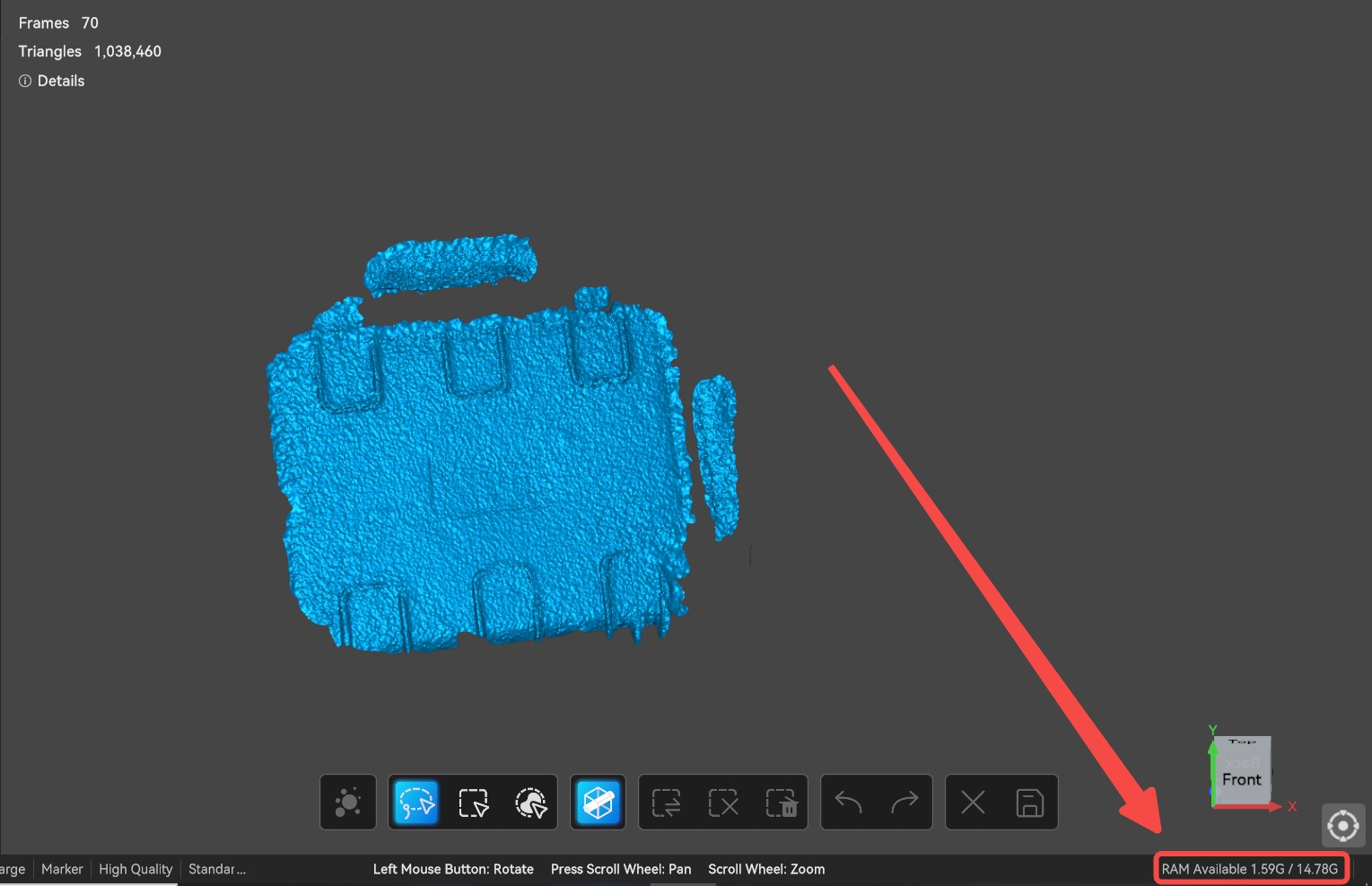
This issue is usually caused by insufficient computer RAM, which prevents fusion or meshing from completing successfully. You can check the available memory in the lower‑right corner of the software interface.
¶ Solutions
1. Check your computer configuration
Make sure your computer meets the minimum requirements for the scanner. Refer to the device performance requirements document to verify this information. If the configuration does not meet the requirements, we recommend upgrading your computer hardware.
https://wiki.creality.com/en/3d-scanner/tutorials/general/performance
2. Close background software that consumes memory
If the configuration meets the requirements, other software running in the background may be using most of the available memory, preventing Creality Scan from performing fusion or meshing properly. Try closing unnecessary applications to free up memory, then retry fusion or meshing.
3. Adjust fusion or meshing parameters
If the problem persists, try adjusting the fusion or meshing parameters. For example, use a larger resolution value for fusion, then re‑perform fusion before meshing. During meshing, you can also lower the Triangles setting.
4. Scan in multiple parts and align them together
You can also try scanning only part of the object at a time to reduce the amount of data per scan. After scanning all parts, use the align function to combine them into a complete model, rather than scanning the entire object in one go.
5. Remove unnecessary parts from the point cloud
After scanning, delete any unwanted parts from the point cloud (e.g., background, noise) before performing fusion and meshing.
6. Restart the software or rescan
If you have adjusted the parameters and multiple attempts at fusion or meshing still return an “out of memory” error, the scanned data itself may be corrupted. Try closing the software and restarting your computer, then perform fusion and meshing again. If the error persists, close the current project, create a new one, and scan the object again.
7. If the above problems occur frequently, please contact after‑sales support for further technical assistance. Send an email to cs@creality.com and provide the following information:
[Device Information] Scanner model, computer configuration, OS version, CrealityScan version, device SN code
[Reproduction Steps] For example: 1. Open the software → 2. Select blue laser scan mode → …
[Attachments] Screenshots, screen recordings, scan project files, log files