After scanning, the point cloud or mesh model may contain unwanted data, such as background, supports, and noise. Before proceeding with fusion, meshing, and other post-processing steps, cleaning up the point cloud first can effectively improve model quality and reduce processing time.
This tutorial introduces the functions, usage, and applicable scenarios of the point cloud/mesh editing tools in CrealityScan.
¶ 1. View Operations
After moving the cursor into the 3D model preview area, you can adjust the view using the following buttons. If you need to change the button settings, please refer to the Operation Shortcut Changes tutorial.
| Button | Operation |
|---|---|
| Left mouse button | Hold to select point cloud |
| Middle button pressed | Hold and drag to rotate the rendering view |
| Middle mouse button scroll | Scroll to zoom in/out the point cloud |
| Left mouse button | Hold and drag to pan the point cloud |
Tip: Before cleaning, it is recommended to rotate the view with the middle mouse button to observe the scan data from different angles and identify which areas need to be deleted.
¶ 2. Cleaning Tools and Applicable Scenarios
The tools in the editing bar can be divided into two categories: selection tools and editing operations.
¶ Selection Tools
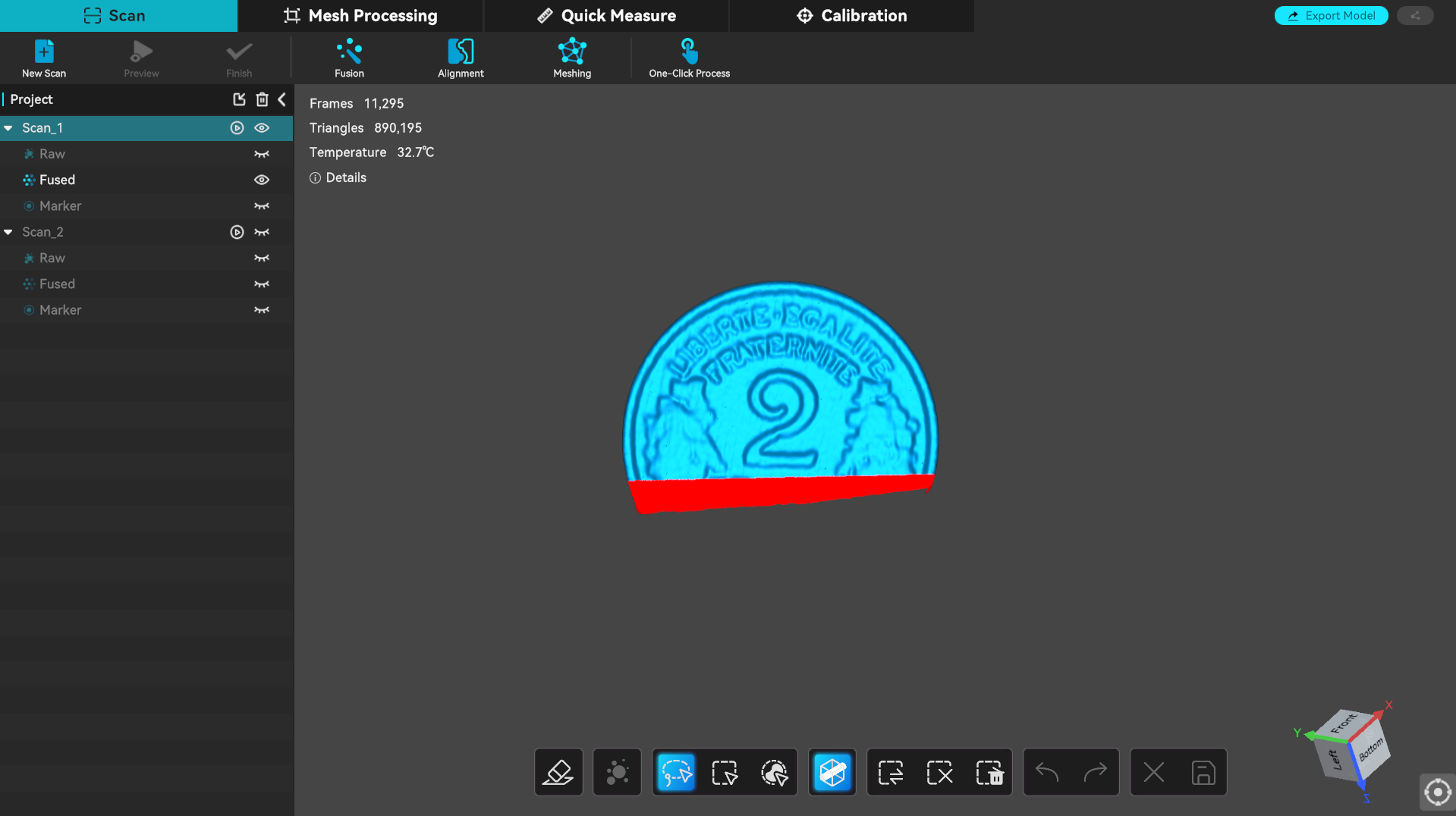
¶ 1. Lasso:
Press and hold the left mouse button and move the mouse to draw a freeform selection.

Use case: For deleting point cloud data with irregular shapes, the Lasso is more flexible and precise than the Rectangle tool.
.png)
¶ 2. Rectangle:
Press and hold the left mouse button and drag to select a rectangular area.

Use case: For deleting large, regularly shaped areas (such as an entire tabletop, floor, or background wall), or when you want a neat boundary after deletion.
¶ 3. Connected Components:
Selects all interconnected points in the clicked area.
.png)
Use case: For objects used to assist feature tracking, or noise generated during scanning that is not connected to the main scanned subject, it is recommended to use Connected Components → Invert Selection to quickly select and delete them.
.png)
¶ 4. Penetrate Selection:
Allows you to select point cloud data that is occluded in the current view and located behind the selected area.

Use cases:
When to enable Penetrate Selection:
Penetrate Selection is enabled by default. By choosing a suitable angle for lasso or box selection, you can delete most of the data in one go, avoiding missed selections due to occlusion and reducing the need to repeatedly rotate the view and delete in multiple passes. (The blue parts in the image on the right are unselected data.)
| Penetrate Selection enabled | Penetrate Selection disabled |
|---|---|
.png) |
.png) |
When to disable Penetrate Selection:
When noise or unwanted data overlaps with the main scan subject in direction, and adjusting the view cannot avoid accidentally deleting the main subject data, it is recommended to disable Penetrate Selection.
.png)
Note: For raw point cloud data, Penetrate Selection is always enabled by default and cannot be disabled.
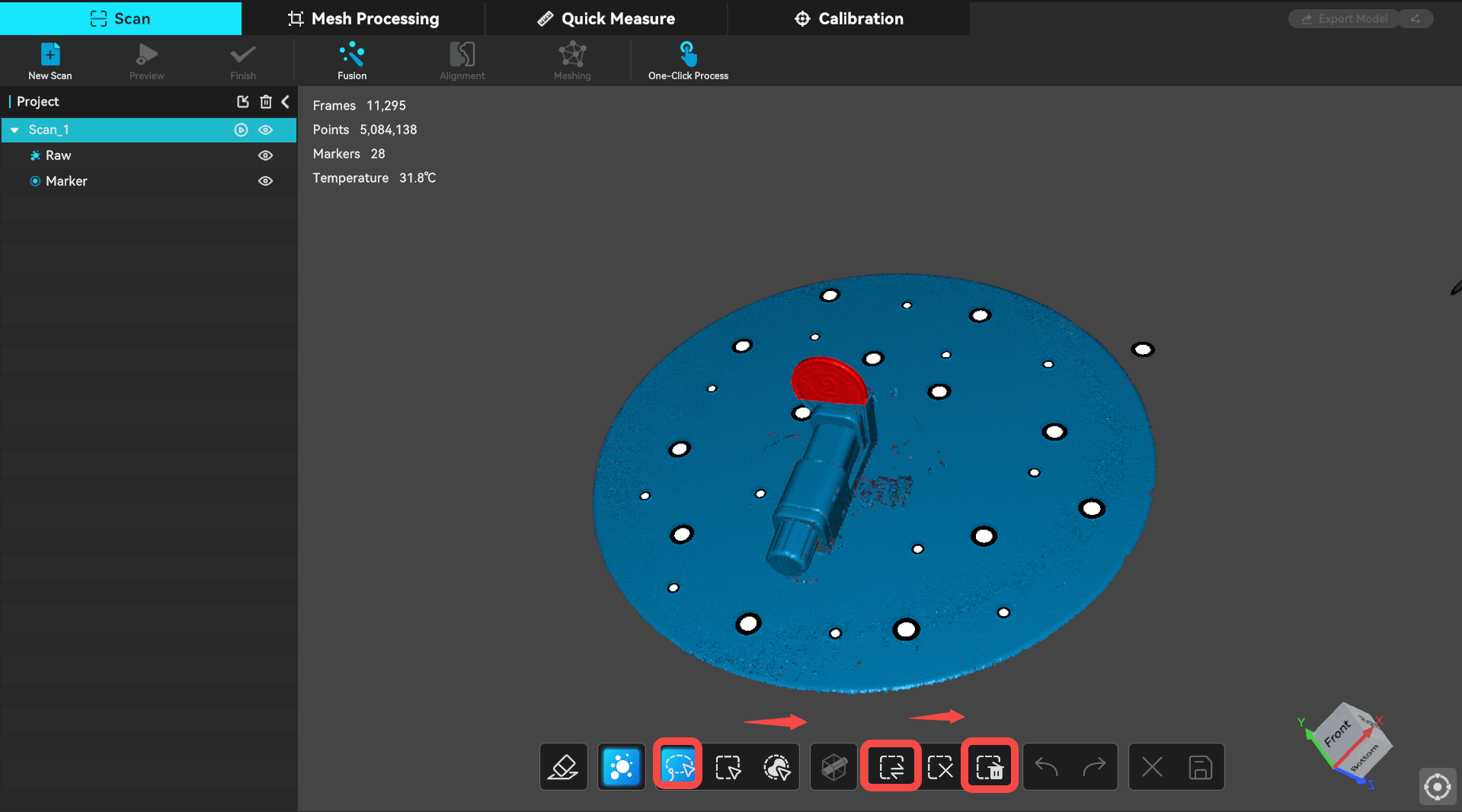
¶ 5. Invert Selection:
Automatically selects the currently unselected areas.

Use cases:
- When there is little data to keep and a lot of data to delete, you can first select the part you want to keep, then click Invert Selection to quickly select all the data to be deleted.
- Used together with Connected Components: First select the main subject, then invert the selection to quickly select all the data to be deleted.
¶ 6. Deselect:
Clears the current selection.

Use case: Use when you have selected the wrong area or want to make a new selection.
¶ Editing Operations
¶ 1. Delete:
Deletes the currently selected point cloud data.

Use case: Execute after confirming the selection is correct.
¶ 2. Undo:
Undoes the last deletion operation.

Use case: If you accidentally delete data you want to keep, click Undo to restore it.
¶ 3. Redo:
Restores the last undone deletion operation.

Use case: If you undo and then decide the data should still be deleted, click Redo to restore the deletion result.
¶ 4. Cancel Edit:
Discards all current editing operations and exits edit mode.

Use case: Use when you realize during cleaning that the approach is wrong and want to start over.
Note: This operation does not save any changes.
¶ 5. Save Edit:
Saves all current editing results and exits edit mode.

Use case: After cleaning, click Save to proceed to the next step. Note that saved data results cannot be undone. If you delete and save after fusion or meshing, but later want to restore the data, you can re-run the fusion or meshing operation.
¶ 3. Clipping Plane
If the scan captured unwanted planar point clouds such as a tabletop or base plate, it is recommended to use the Clipping Plane function to trim and delete them. For detailed instructions, please refer to: Clipping Plane
.png)
¶ 4. Cleaning Tips
-
If the scan captured large background areas such as a tabletop or floor, you can first use the Clipping Plane function to quickly delete the planar data.
.gif)
-
If there is still a lot of noise and useless point cloud data, use the** Connected Components + Invert Selection functions to delete them**.
.gif)
-
Remember to click Save after cleaning to avoid losing your edits due to accidental operations.
-
If you need to stitch models later, you can appropriately clean up some low-quality edge data to improve stitching quality. However, make sure to retain enough common features between the two scans for stitching.