¶ 1. Overview
Multicolor printing often uses a prime tower to restore stable extrusion after a color change and reduce surface defects caused by residual filament or inconsistent flow. However, a prime tower takes up space on the build plate and uses extra filament. If it collapses, it may also disrupt the print.
For models with sufficient internal toolpaths, No prime tower Mode on the SPARKX i8 uses those paths for the color transition, eliminating the need for a separate prime tower and helping reduce color-change waste.
This guide explains how the mode works, when to use it, and how to set it up.
¶ 2. No Prime Tower Solution
¶ 2.1 How It Works
A sliced model typically contains internal structures such as infill and inner walls. Internal toolpaths that do not affect the model’s appearance can be used for the color transition.
In No prime tower Mode, Creality Print identifies internal toolpaths available for purging on the current layer. After a filament channel changes, it prioritizes these paths to purge residual filament of the previous color and restore stable extrusion.
Using transition material as part of the model’s internal structure reduces reliance on a separate prime tower and helps cut down on color-change waste.
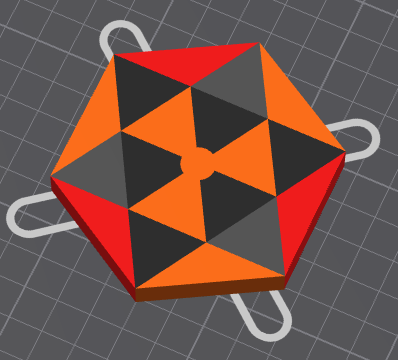
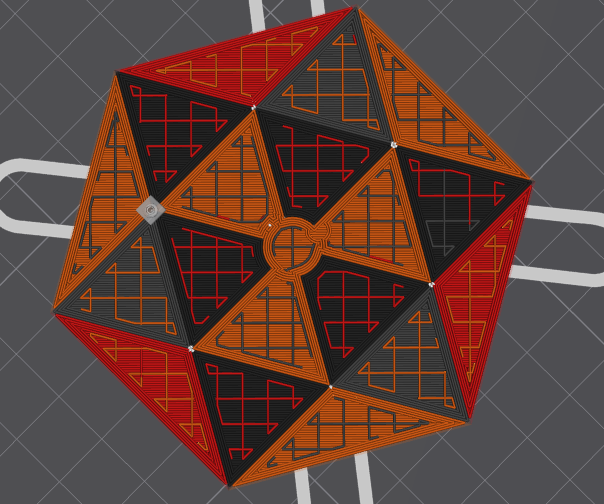
¶ 2.2 Printing After a Color Switch
After a color change, some filament must be extruded before the color and flow stabilize. No prime tower Mode prioritizes available internal toolpaths for this transition before printing areas where color accuracy and surface finish matter.
These areas include the common purge area for isolating mixed-color infill, as well as inner walls, outer walls and purge layers (isolation strips) that require stable color and extrusion quality.
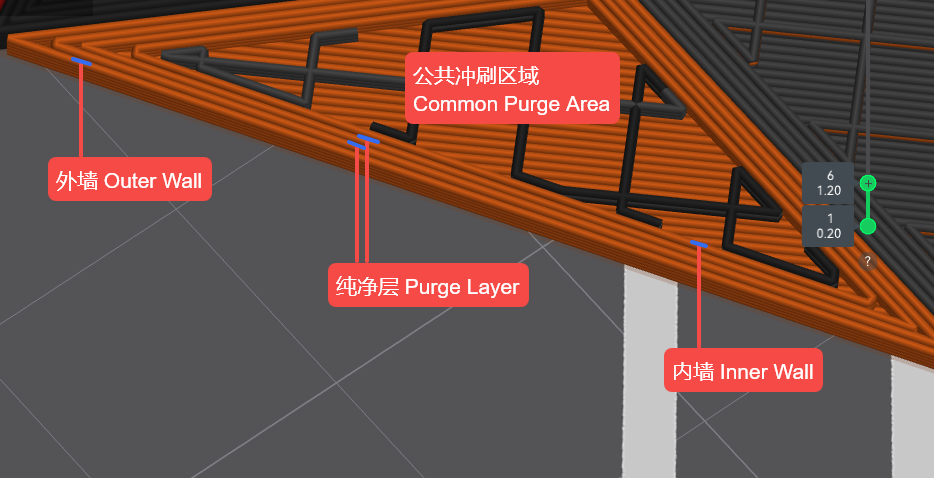
Whether the transition can be completed inside the model depends on the layer geometry, the length of available toolpaths, and the difference between the outgoing and incoming colors. If internal paths are insufficient, some filament may still need to be purged outside the model.
¶ 2.3 When to Use This Mode
This mode is better suited to models with large infill regions and sufficient continuous internal toolpaths. Assess suitability from the sliced result.
Use caution with models that have limited internal space or surfaces whose appearance may be affected by mixed-color material inside. Check the color-change toolpaths after slicing.
In the slice preview, check the following:
|
Preview result
|
Recommended action
|
|---|---|
| Sufficient internal toolpaths are available for the transition. | Try printing without a prime tower. |
| Internal paths are insufficient, so some filament is purged outside the model. | Expect external purge waste and review the toolpaths before printing. |
| The transition is uncertain, or a test print shows color contamination or inconsistent extrusion. | Enable the prime tower, then reslice and check the result. |
Printing without a prime tower does not mean zero external purge waste. If internal paths are insufficient, color changes may still produce waste outside the model. Whether this waste can be avoided depends on the toolpaths available for each change. This does not guarantee that the entire print will be free of other purging waste.
¶ 3. Before You Print
No-prime-tower mode relies on the model's internal print paths to complete color transitions. The following slicing scenarios may not provide sufficient paths for color transitions, so no-prime-tower mode is not recommended.
| Slicing Scenario | Limitation |
|---|---|
| Thin-walled, hollow, or vase-mode models | The model has insufficient internal print paths for color transitions. |
| Small cross-sections in the current layer | The available internal print paths in the current layer are too short for color transitions. |
| Color changes on the first layer | The first layer must maintain good bed adhesion, and its bottom surface may remain visible on the finished model. It is not suitable for color transitions that may cause inconsistent extrusion or color residue. |
| Color changes on the top layer | The top surface remains visible on the finished model, making color residue or extrusion marks from transitions difficult to cover with subsequent layers. |
| Small color regions or frequent color changes | The internal print path between two color changes may be too short to complete the transition. |
| Large differences in color brightness | Removing residual color when switching between light and dark colors may require a longer transition path. |
¶ 4. How to Set Up No-Prime-Tower
¶ 4.1 Import a Multicolor Model
Import the multicolor model and check whether the prime tower is currently enabled.
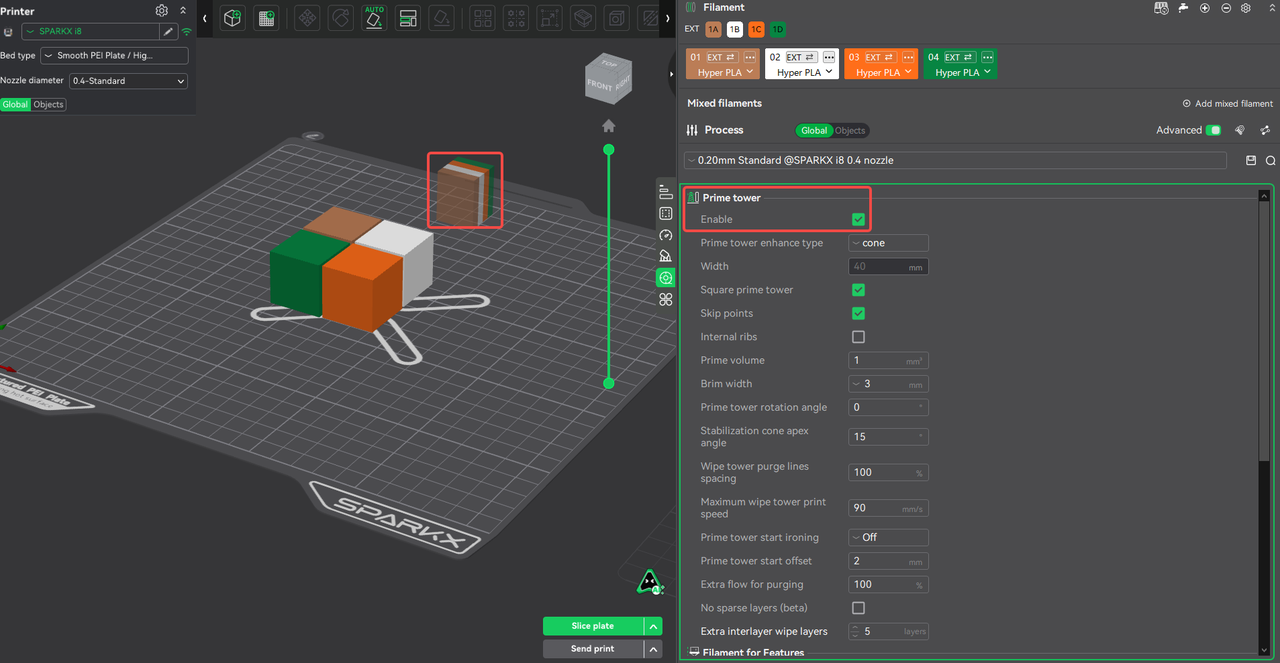
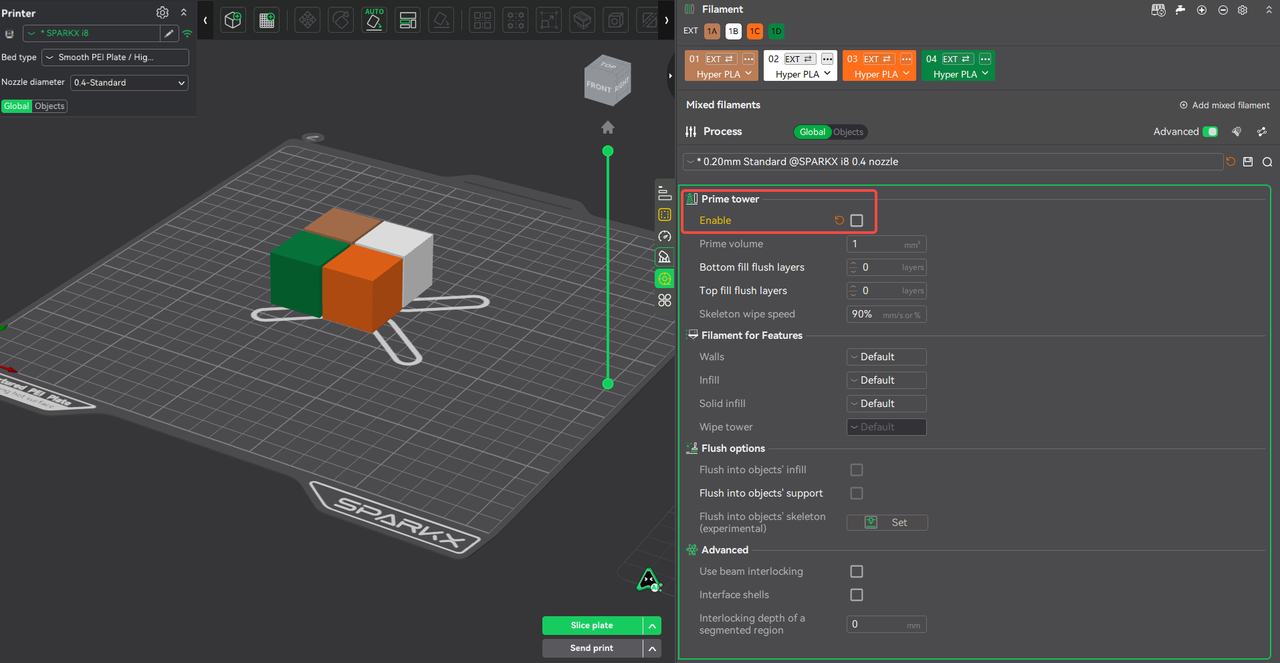
¶ 4.2 Disable the Prime Tower
Show the advanced settings in the print settings panel and disable the prime tower. In a version that supports this feature for the i8, the slicer will generate toolpaths for No Prime Tower Mode.
Adjust the mode’s settings as needed.
¶ 4.3 Slice and Review the Toolpaths
Slice the model, then review the color-change purge paths in the preview. Check which internal toolpaths are used for the transition and whether any purging is still scheduled outside the model. If you change any settings, reslice the model.
¶ 4.4 Send the Print Job
Once you have checked the preview, send the print job to the printer.