¶ 951304: Filament in Slot %s Has Run Out. Load New Filament.
¶ Applicable Model:
SPARKX i8
¶ Why Did This Message Appear?
The printer may display this message for any of the following reasons:
1. The filament has run out.
The spool is empty, or the end of the filament has passed the runout sensor.
2. The filament has broken or become stuck.
A break in the PTFE tube, or a blockage before the sensor, may prevent filament from reaching the sensor.
3. The filament runout sensor is stuck or faulty.
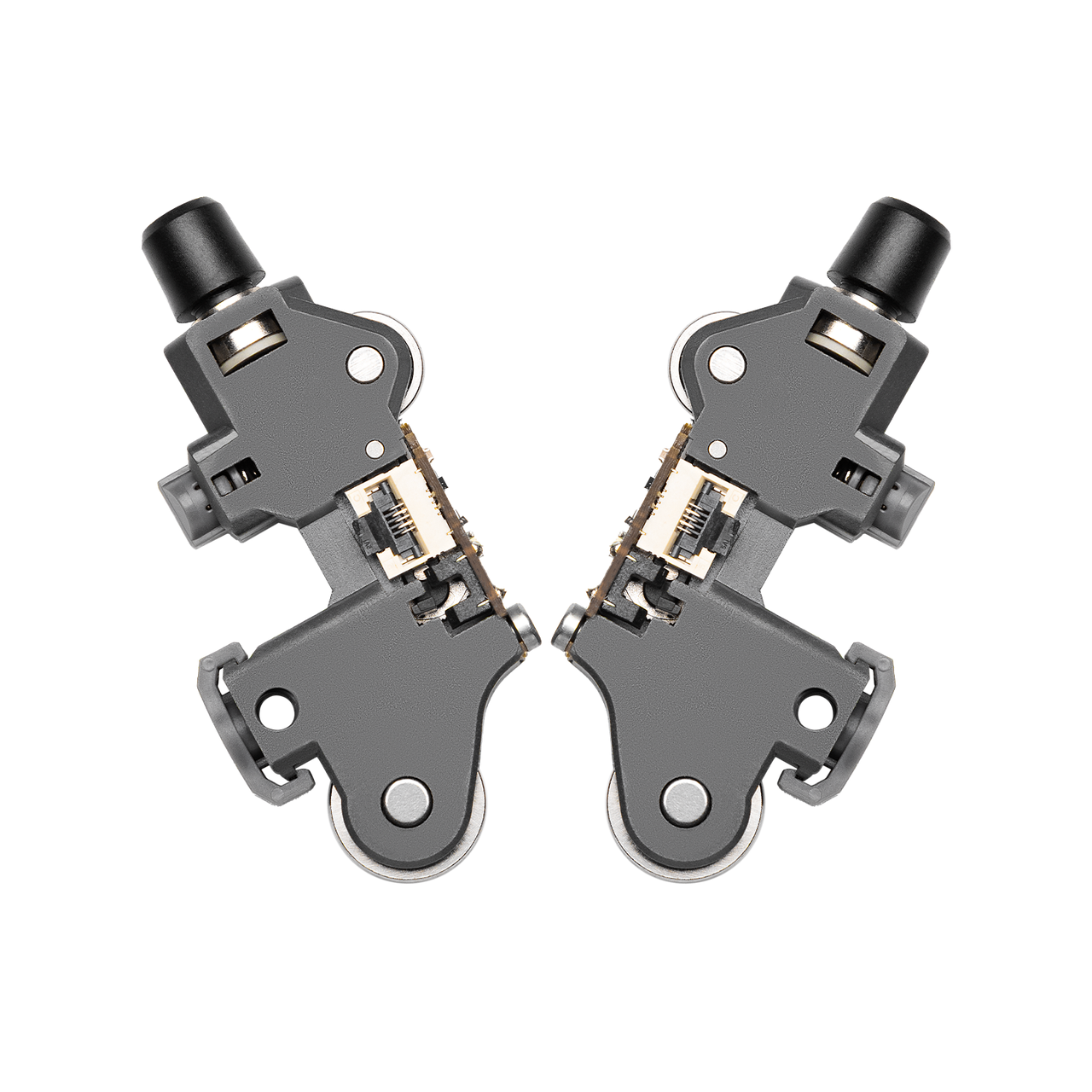
The sensor may fail to detect filament correctly if its microswitch is stuck, its metal actuator is deformed, or dust and filament debris interfere with its operation.
4. A sensor cable or connection is faulty.
A loose, disconnected, or damaged cable between the sensor module and its control board may prevent the printer from receiving the expected signal.
¶ How to Fix It
1. Check the Filament Status
Check the spool and filament inlet to determine whether the filament has run out. If the spool is empty, load new filament using the printer's standard filament-loading procedure.
2. Check for Broken Filament
Inspect the PTFE tube for broken filament pieces. If filament is broken inside the tube, disconnect the tube and remove the broken pieces.
3. Manually Load Filament
On the printer's touchscreen, tap Load Filament or Resume Print, as applicable, and try feeding a short length of new filament into the inlet. Check whether the sensor detects the filament and the printer feeds it successfully.
4. Clean the Sensor
If filament debris is trapped inside the sensor, open the sensor module housing and remove the debris. Make sure the internal microswitch can move freely and return to its original position.
¶ General Troubleshooting Steps
Step 1: Visually Inspect the Filament Spool
Check whether the filament on the spool has run out or broken.
Step 2: Check the Status Indicator
Observe the LED indicator on the toolhead while inserting and removing filament. Check whether the LED status changes when filament is present or absent. This helps determine whether the sensor is powered and responding to filament.
Step 3: Inspect and Manually Test the Sensor
Disassemble the toolhead and check the sensor for visible damage, jamming, or misalignment.
Manually trigger the sensor several times by inserting and removing a short piece of filament. Listen for a distinct click to check whether the microswitch is functioning properly.
Step 4: Check the Cables and Connectors
Turn off and unplug the printer before checking the sensor connections.
Check whether the connector between the sensor and the mainboard or adapter board is loose. Disconnect and reconnect the plug to ensure a secure connection.
Step 5: Troubleshoot the Software and Firmware
If the sensor hardware and mechanical components appear to be in good condition but the error persists, try restarting the printer or updating the firmware.
Step 6: Replace the Sensor Module
If the troubleshooting steps confirm that the sensor is damaged, contact customer support to request a replacement filament runout sensor module of the same model.