¶ 951303: Filament not fully loaded. Manually push the filament forward, or check for filament tangles or a nozzle clog. Once the issue is resolved, tap Retry.
¶ Applicable Model:
SPARKX i8
¶ Why Did This Message Appear?
During filament loading, the odometer for the selected channel has not detected the expected forward movement of the filament.
Possible causes include:
1. The extruder gears have not gripped the filament.
The filament presence sensor has been triggered, but the filament has not reached a position where the gears can grip and feed it.
2. The filament is tangled.
Crossed or knotted filament on the spool, sometimes caused by a loose filament end during handling, can prevent it from unwinding and feeding into the printer.
3. Excessive resistance in the PTFE tube.
Incorrect tube installation or severe wear can increase friction and restrict feeding.
4. The gears have ground into the filament.
5. A partial nozzle clog or resistance in the heatbreak.
Debris in the nozzle or insufficient temperature can prevent filament from melting and extruding properly. The source associates this with motor overload or a feeding timeout; The relationship to error 951303 requires confirmation.
6. Filament slipping at the feed gears or insufficient gripping force.
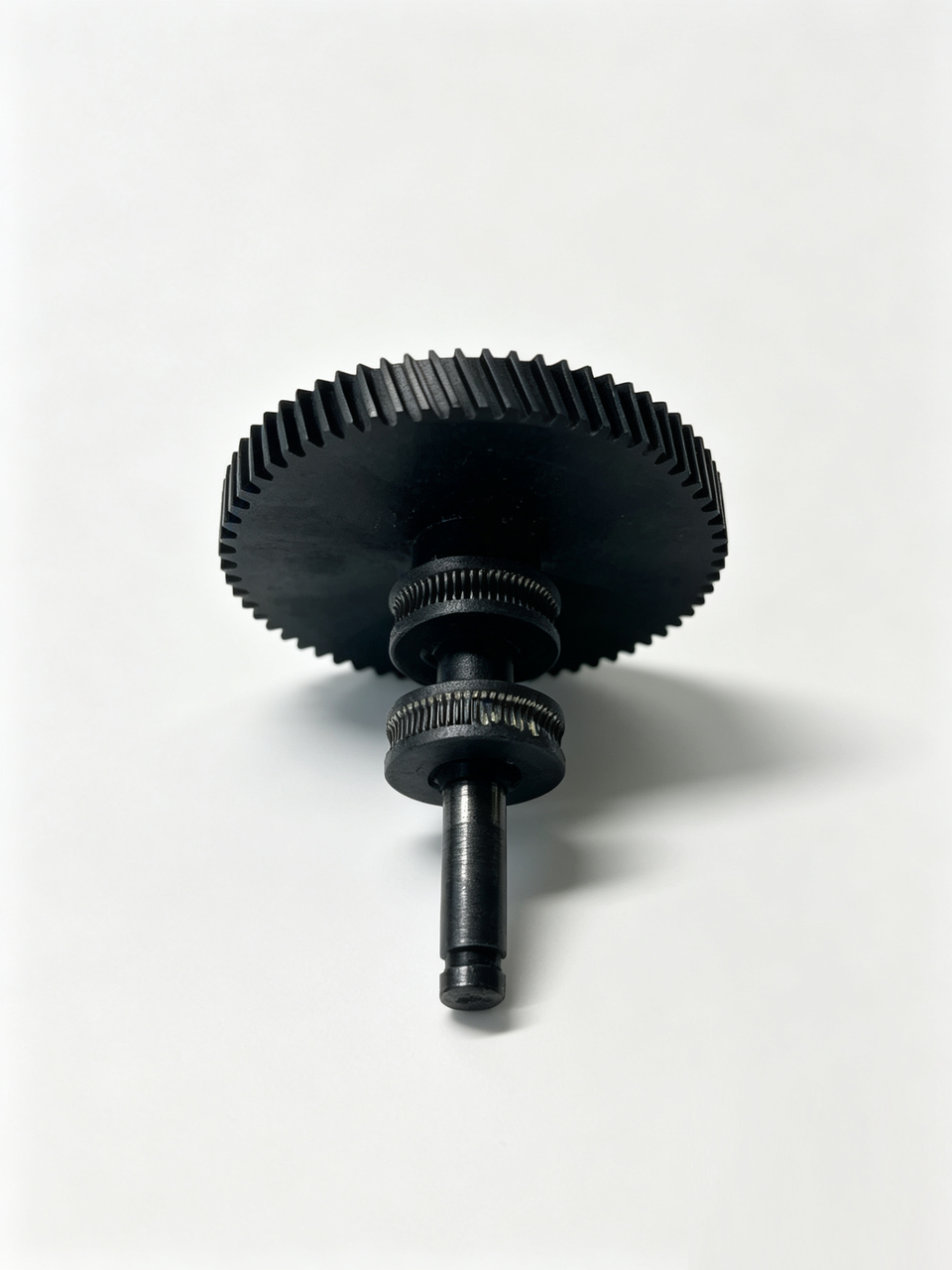
Worn gears, filament debris, or a loose tension spring can prevent the gears from advancing the filament.
¶ How to Fix It
1. Retry Filament Loading
If error code 951303 appears during printing, follow these steps to retry filament loading:
- Tap Retry on the touchscreen.
- Manually push the filament forward until it is fully fed into the extruder gears.
- If the filament cannot be pushed in, pull it out, reinsert it, and try pushing it forward again.
2. Check the Spool for Tangles
Inspect the spool in the affected filament slot. Check whether the filament is crossed, tangled, or caught on the edge of the spool. Rotate the spool by hand to straighten and untangle the filament.
3. Check the PTFE Tube
Disconnect the section of the PTFE tube where feeding resistance occurs. Check for broken filament or other obstructions inside the tube. Make sure the tube is routed smoothly without sharp bends or kinks.
4. Clean the Feed Gears and Remove Debris
Open the extruder cover or feeder compartment according to the relevant service procedure. Check the feed gears for filament shavings or debris. If necessary, remove the debris with a brush or tweezers. Make sure the gears can grip the filament properly.
¶ General Troubleshooting Steps
Step 1: Check Each Section of the Filament Path
Inspect the filament path section by section, including the spool and feeder compartment, PTFE tube, extruder, and hotend. Manually pull or push the filament to identify where it is stuck.
Step 2: Check the Temperature and Filament Condition
Make sure the temperature settings are appropriate for the filament in use. For example, using a temperature setting intended for a high-temperature material instead of the appropriate PLA setting may cause the filament to soften, deform, and become stuck.
Check whether the filament diameter is consistent and whether the filament is deformed or has absorbed moisture.
Step 3: Clean the Feed Mechanism
Regularly clean dust and filament debris from the feed gears and guide rollers.
Check the optical sensor openings and microswitches for any filament debris or other obstructions.
Step 4: Reset the Feed Mechanism and Reload Filament
If a severe filament jam occurs, select Unload Filament from the printer's touchscreen menu to release the motor's locked state, then load the filament again.