¶ 1. Overview
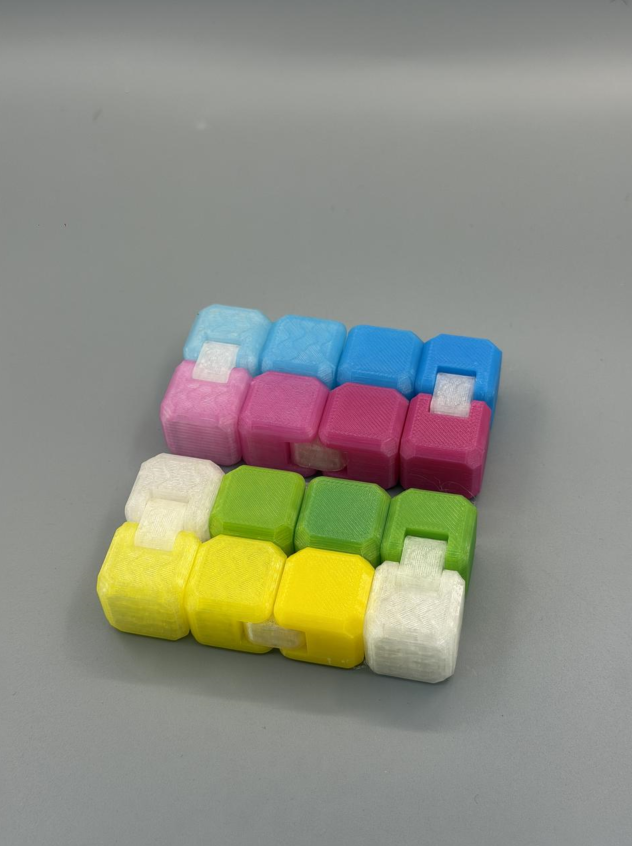
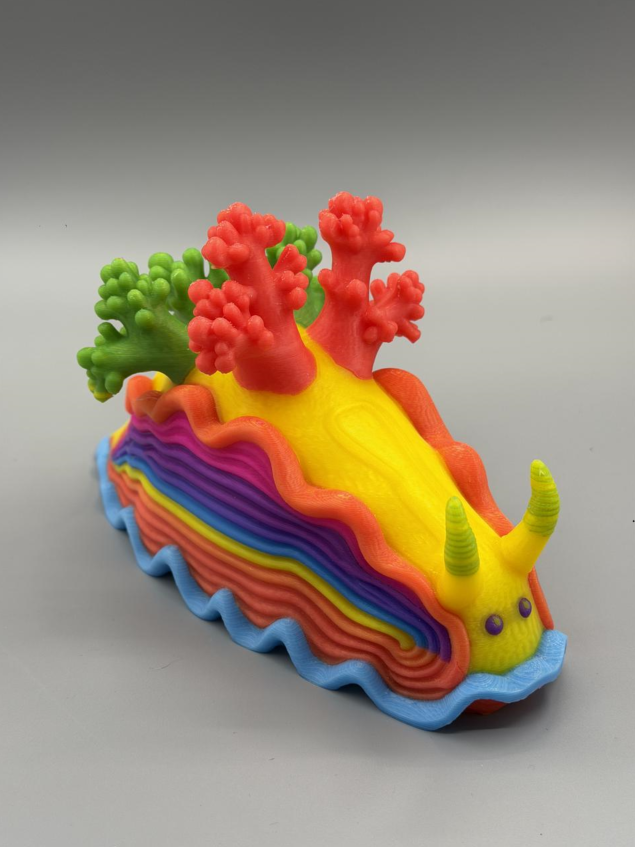
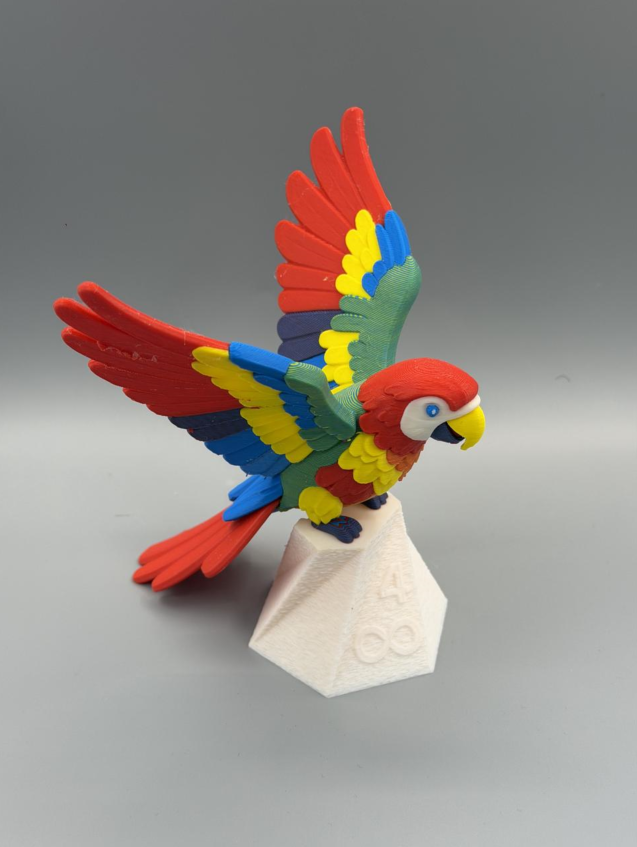
With just four filament colors—cyan, magenta, yellow, and white—you can create 3D prints that appear to contain many more colors.
This guide explains how layered color printing works, how to configure it in the slicer, and how to get better color results.
 |
 |
 |
¶ 2. How Layered Color Printing Works
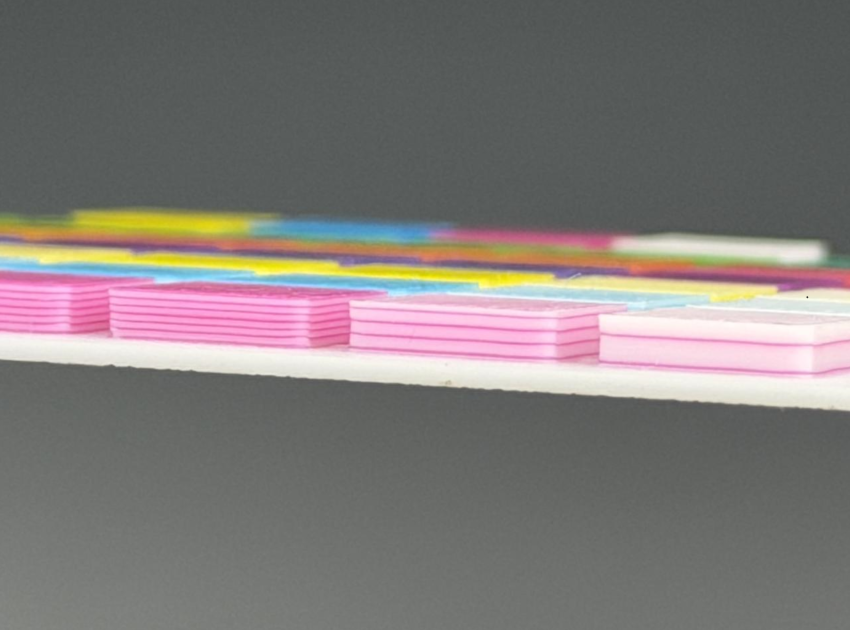
Layered color printing alternates thin layers of different filament colors. At a suitable viewing distance, the eye perceives these layers as a blended color.
For example, alternating thin black and white layers may appear gray from a distance, while the individual black and white layers remain visible up close.
In this guide, color blending refers to the visual effect produced by layered colors. The filaments are not physically mixed together to make a new filament color.
¶ 2.1 Comparing Multicolor Printing Methods
| Method | How the Colors Are Produced | Description |
| Conventional multicolor printing | Different regions are printed directly with the corresponding filament colors. | Each region uses its assigned filament color. |
| Layered color printing on 3D models | Thin layers of the base colors alternate to create a visually blended appearance. | Results depend on model size and viewing distance. |
| Color lithophanes | Variations in thickness and light transmission form the image and its colors. | Usually displayed with backlighting. |
¶ 3. The Four-Color Filament Set
This guide uses cyan (C), magenta (M), yellow (Y), and white (K) filaments, referred to here as CMYK.
Note: Standard CMYK uses black (K), rather than white, as its fourth color.
Cyan, magenta, and yellow provide the base colors. Varying their layering sequence and relative proportions can create a range of perceived hues, including greens, purples, and oranges.
White provides white regions and helps produce lighter, softer shades.
We recommend this combination as a starting palette for layered color printing. The 54-color chart below illustrates the range of effects that can be produced.

¶ 4. Before You Print
¶ 4.1 Choose Suitable Filament
Use filaments of the same material type, such as four PLA filaments. i8 does not support blending PLA with PETG or other material types.
Prefer filaments designed for layered color printing with suitable translucency.
Filament color, opacity, and translucency affect the finished result. Print a small color chart before committing to a full model.
The CMYK color swatch chart is available from Creality Cloud.
¶ 4.2 Choose the Layer Height
With a 0.4 mm nozzle, we recommend a layer height of 0.12 mm or lower for layered color printing. Thinner layers can improve the blended appearance.
¶ 4.3 Choose the Printer
Layered color printing uses thinner layers and more frequent color changes than conventional multicolor printing. This increases print time and can generate more filament waste.
We recommend a printer designed for efficient multicolor printing, such as the SPARKX i8.
¶ 4.4 Choose the Model
Because the effect relies on alternating colored layers, the model's shape also influences the result. Models with vertical sidewalls and fewer sloped or curved top surfaces generally show the layered color effect more clearly.
¶ 5. Set Up Layered Colors in the Slicer
¶ 5.1 Create a Color Blend
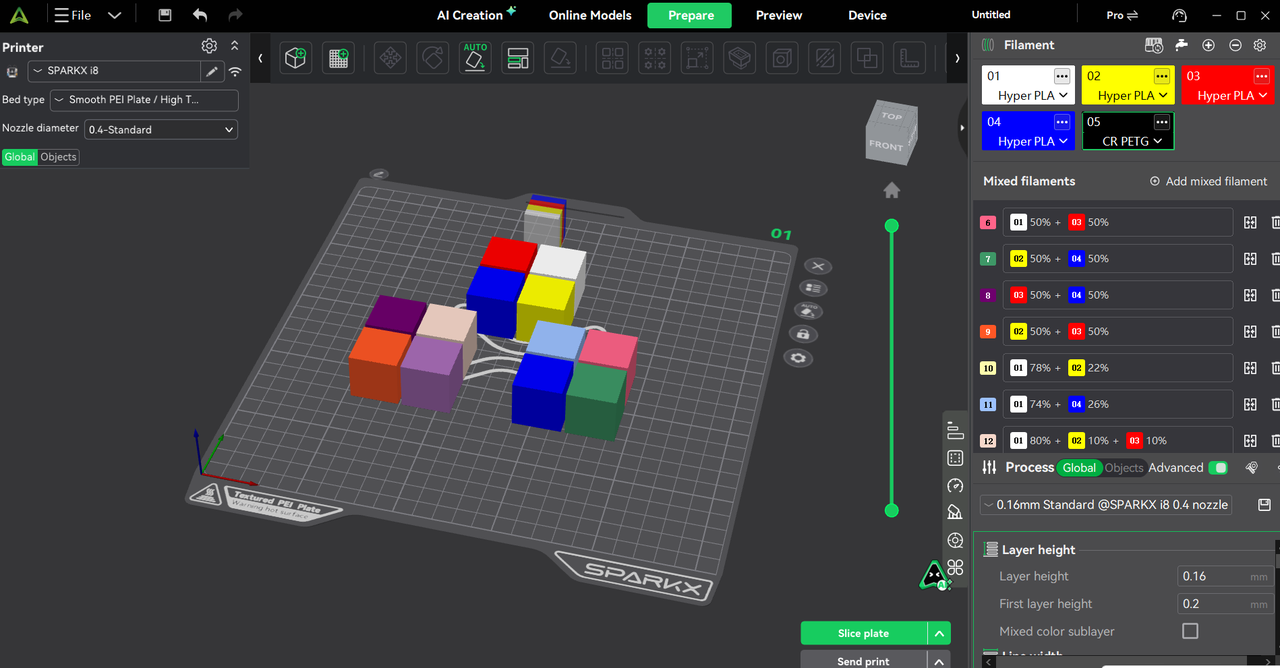
In the slicer, find Blended Filament on the right and select Add Blended Filament.
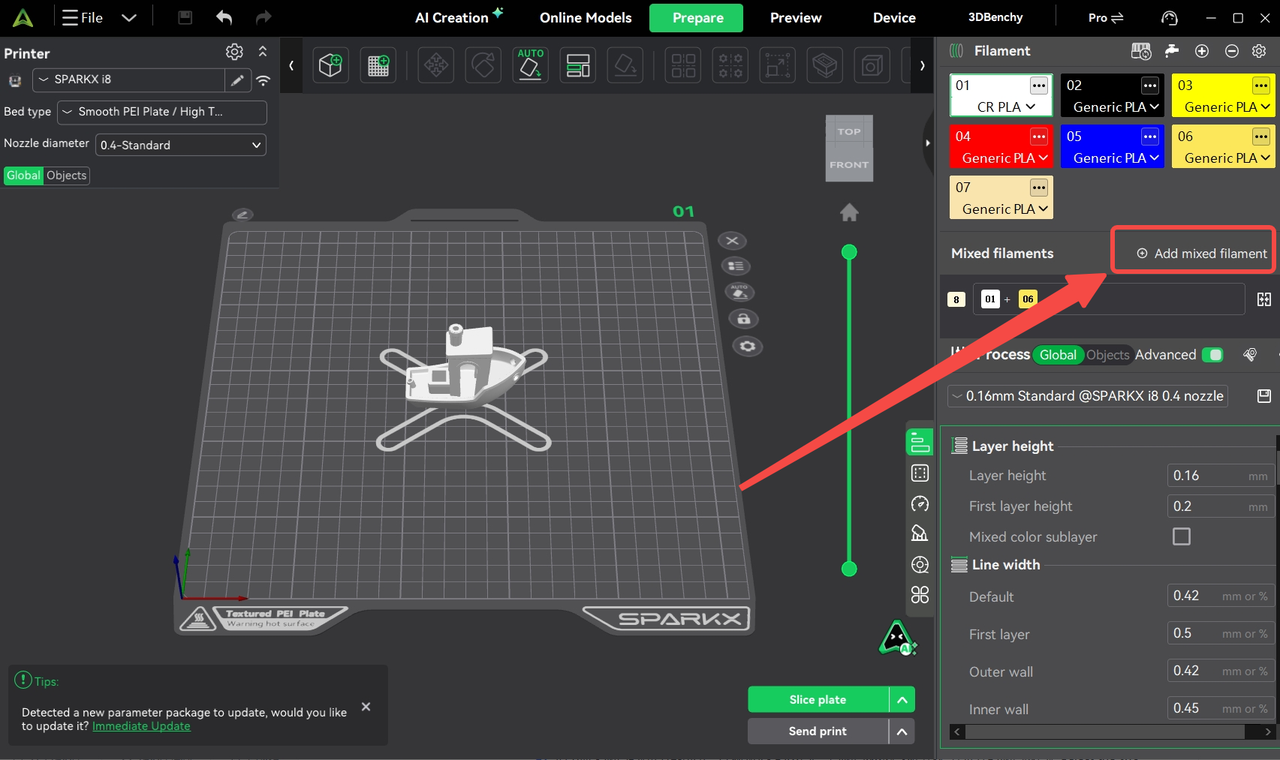
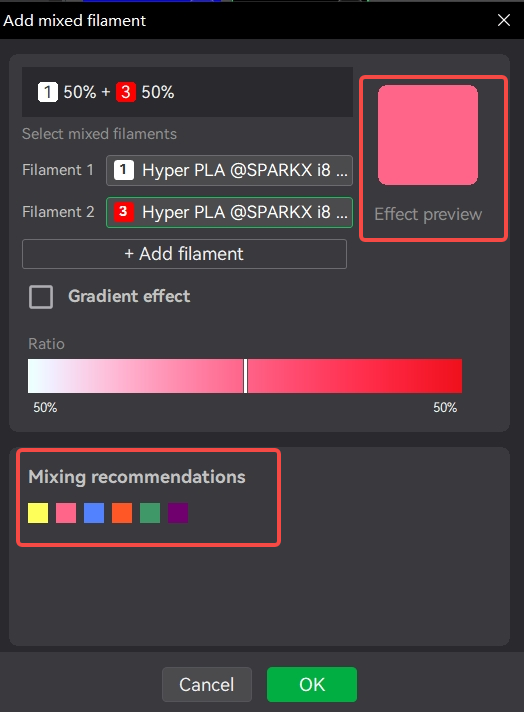
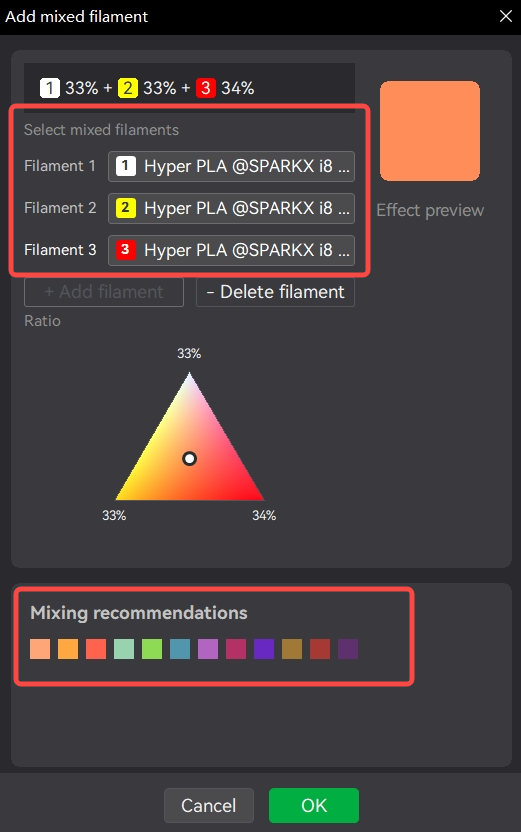
Select the two or three filaments you want to combine and adjust their relative proportions using the on-screen controls. Alternatively, choose a recommended color blend.
 |
 |
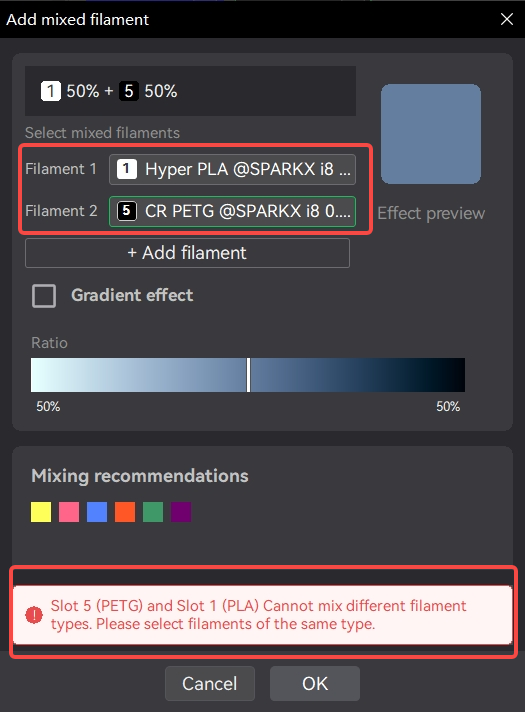 |
Note: Use only filaments of the same material type for i8, for example, all PLA. Do not combine PLA and PETG in a blend.
¶ 5.2 Slice and Print
Use the color blends you created to paint the model. Slice it, then send the print file to the printer. The slicer handles the layer sequence needed to produce the blended colors.