¶ Starting a Print Job Using a USB Drive
¶ Prepare the USB Drive
The performance of the USB drive significantly affects file parsing speed. For best results, we recommend using a USB drive from a reputable brand.
¶ Prepare the Sliced Model File
Open the model file you created or downloaded from an online model repository using Creality Print slicing software.
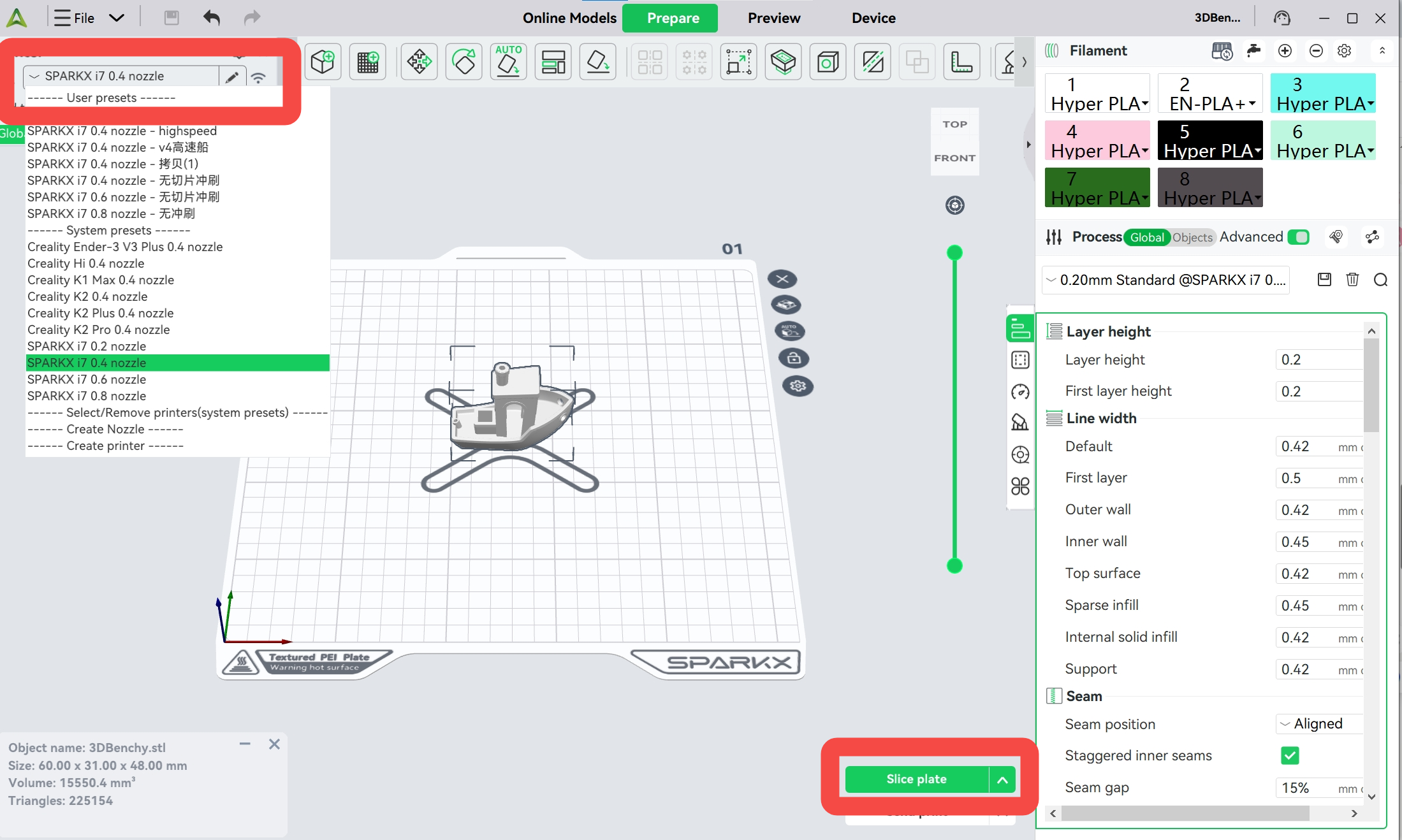
In the upper-left corner, select the printer model SPARKX i7.
Verify that all slicing parameters are correct.
Click Slice in the lower-right corner to generate the sliced file.
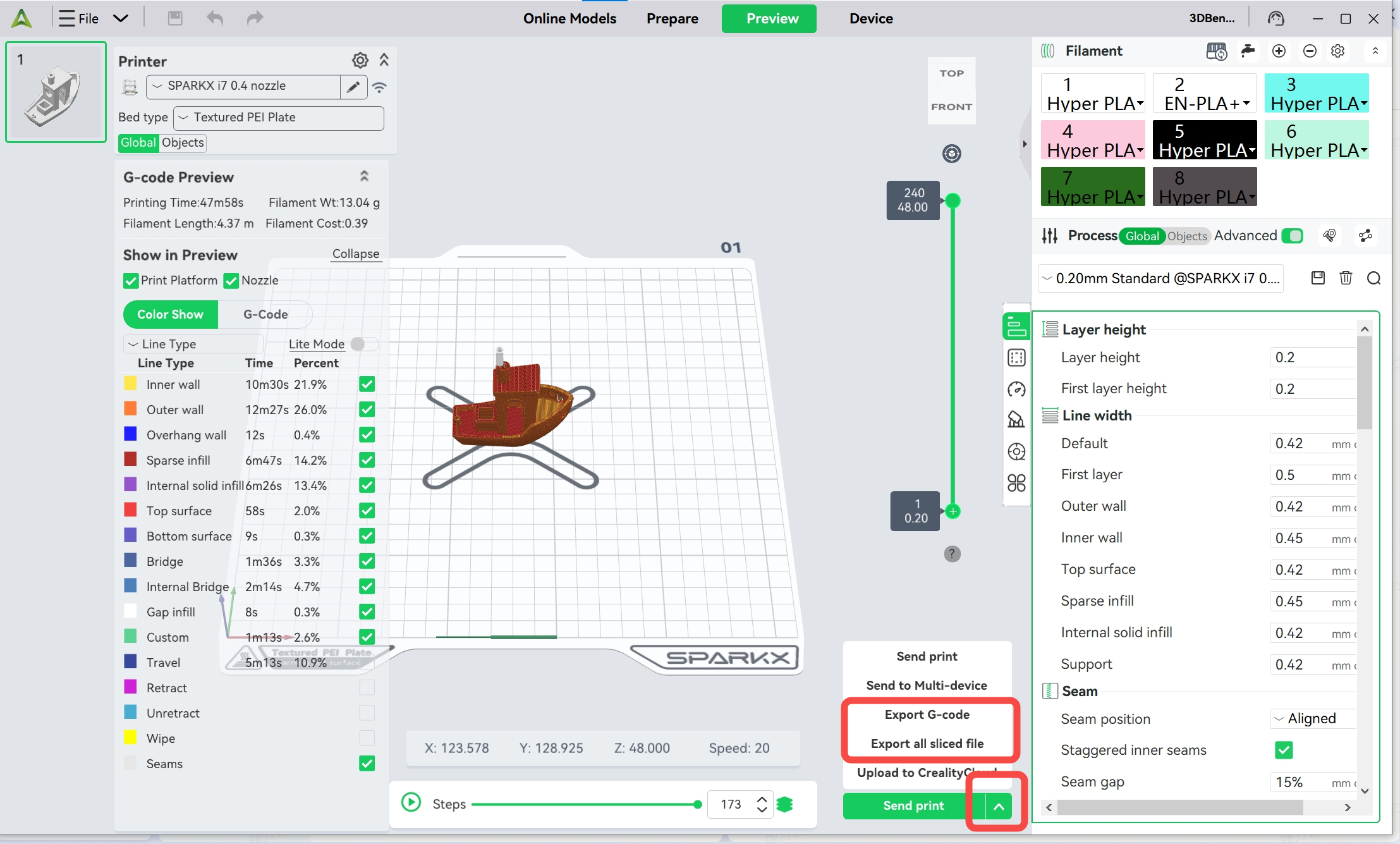
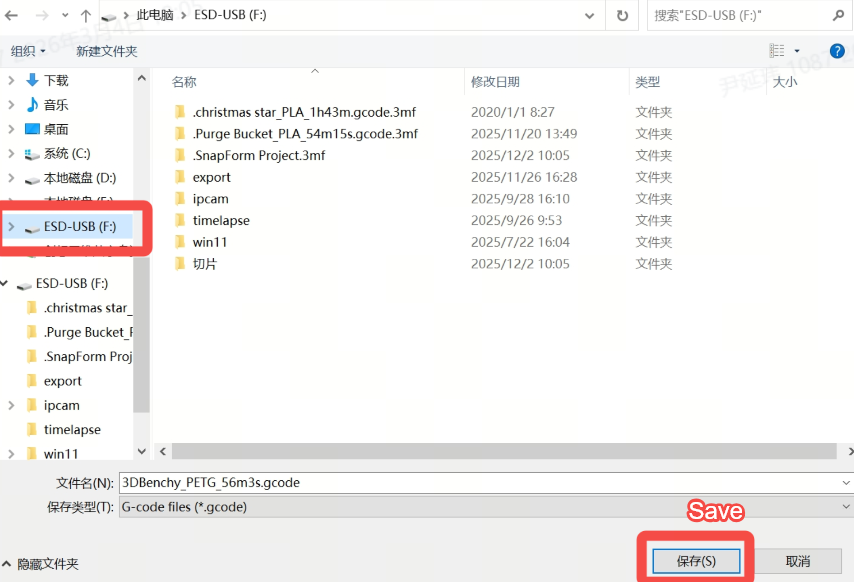
After slicing is complete, export the sliced file and save it to the prepared USB drive.
¶ Insert the USB Drive and Start Printing
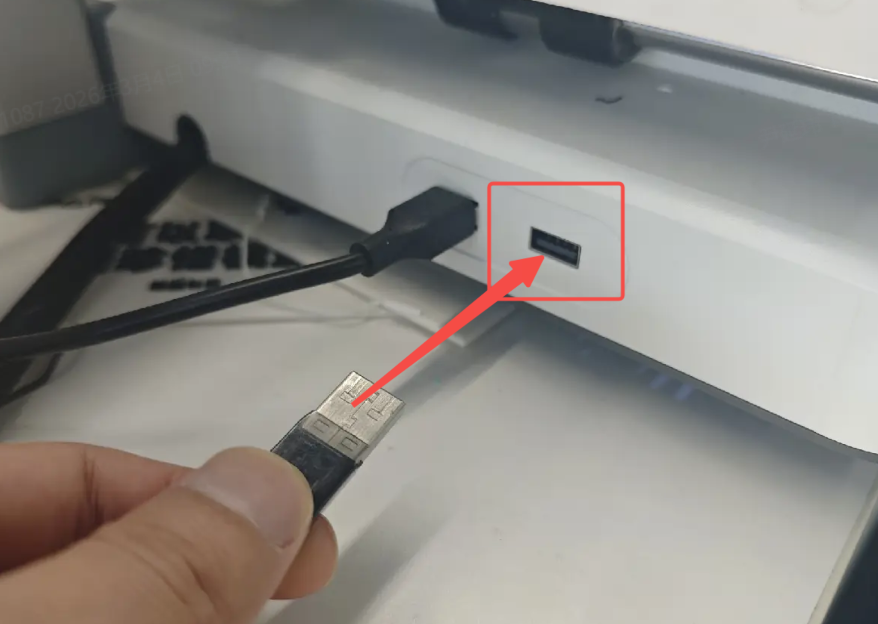
Insert the USB drive into the USB port on the left side of the printer. The printer will automatically detect and read the USB drive.
On the touchscreen:
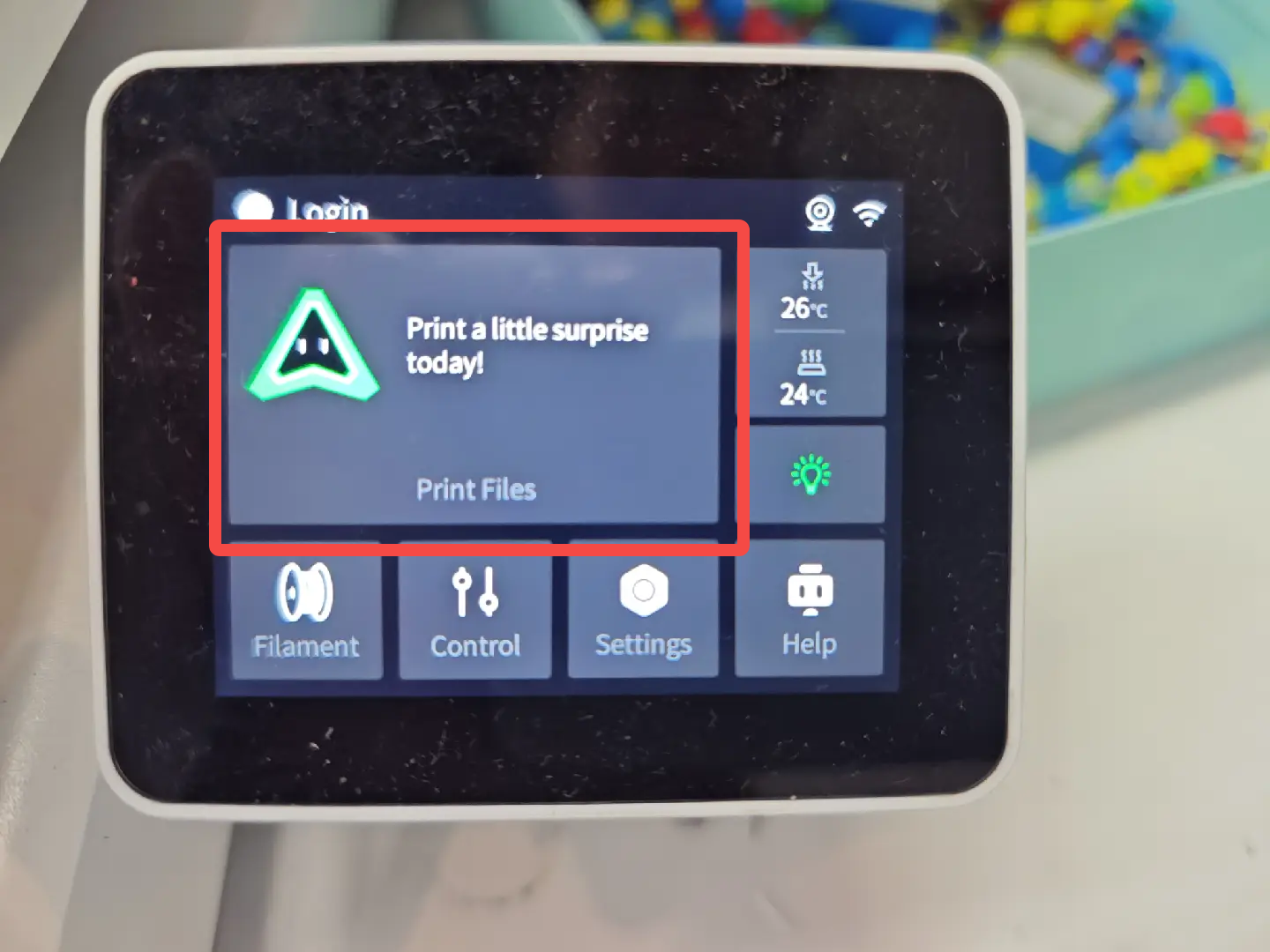
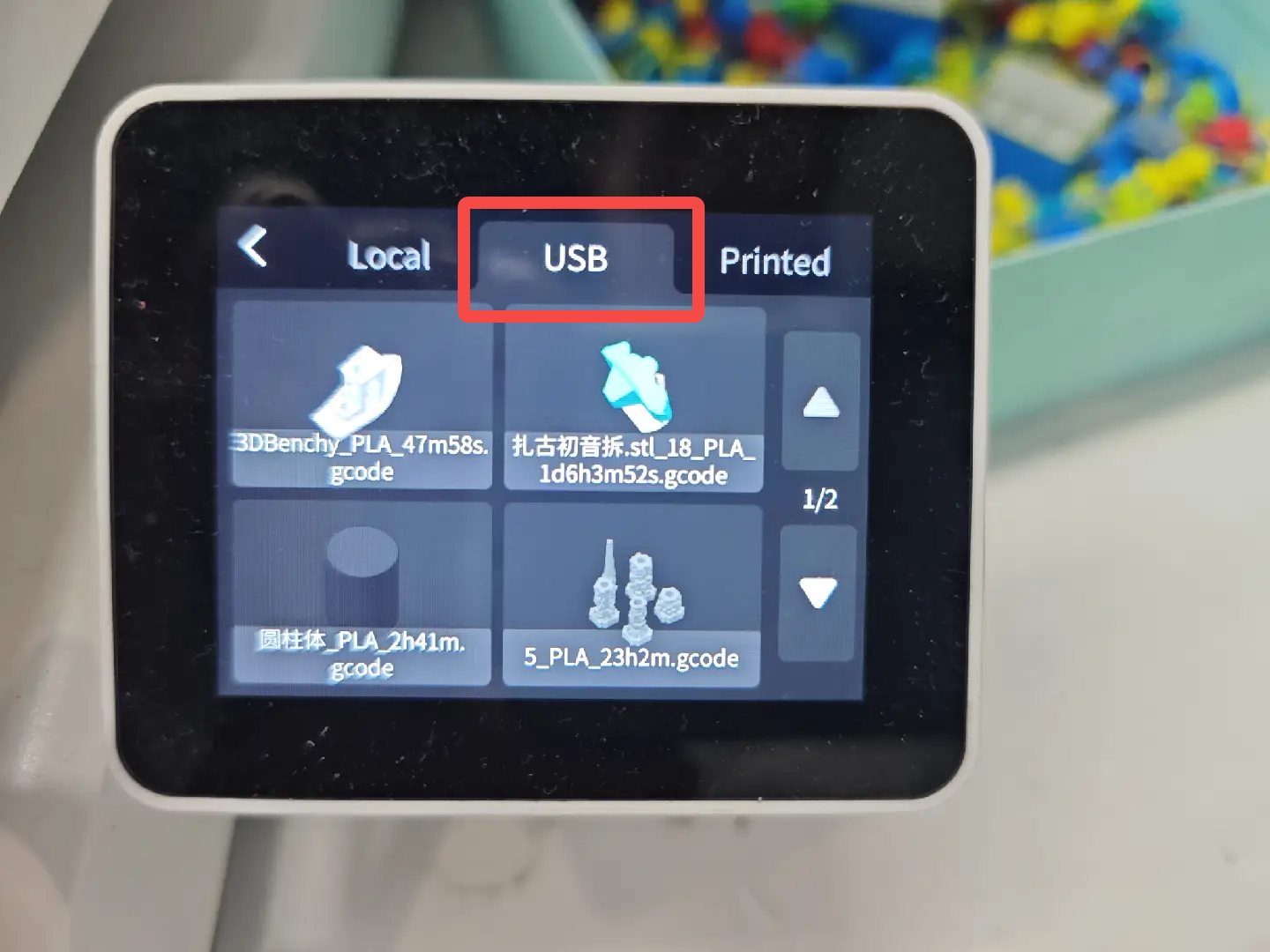
Tap Print Files → USB.
Wait for the USB drive to finish loading.
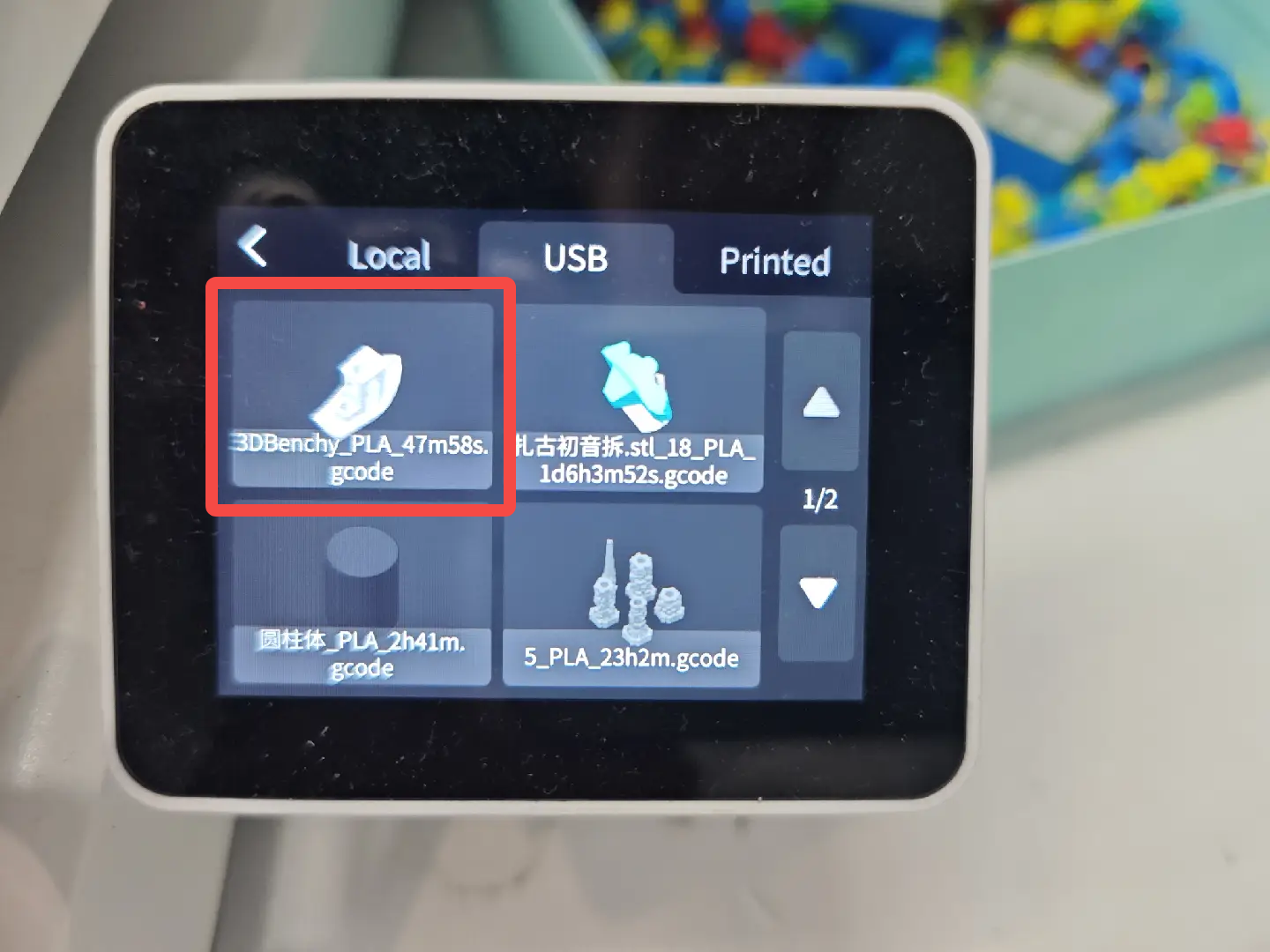
Select the sliced file you want to print.
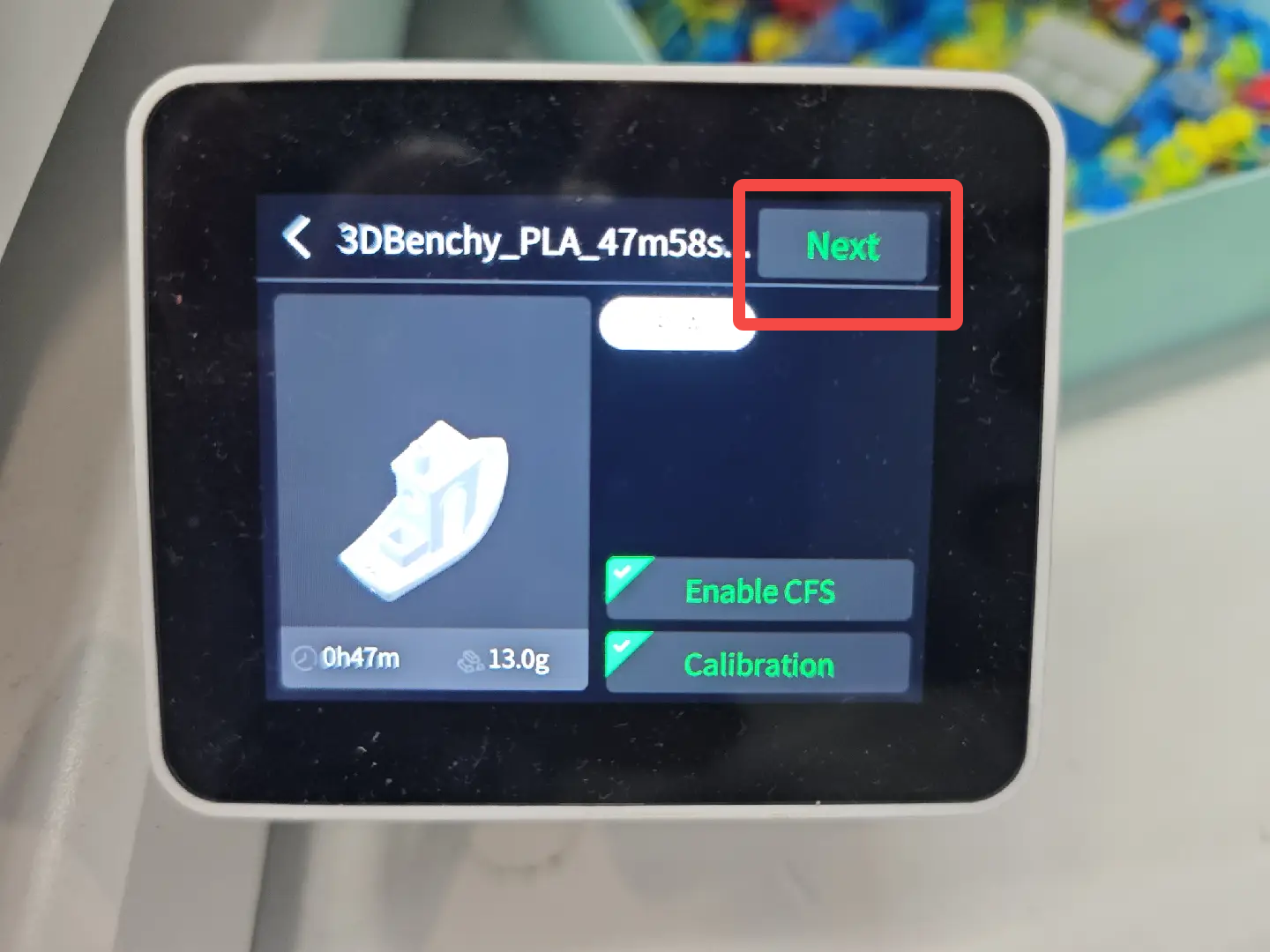
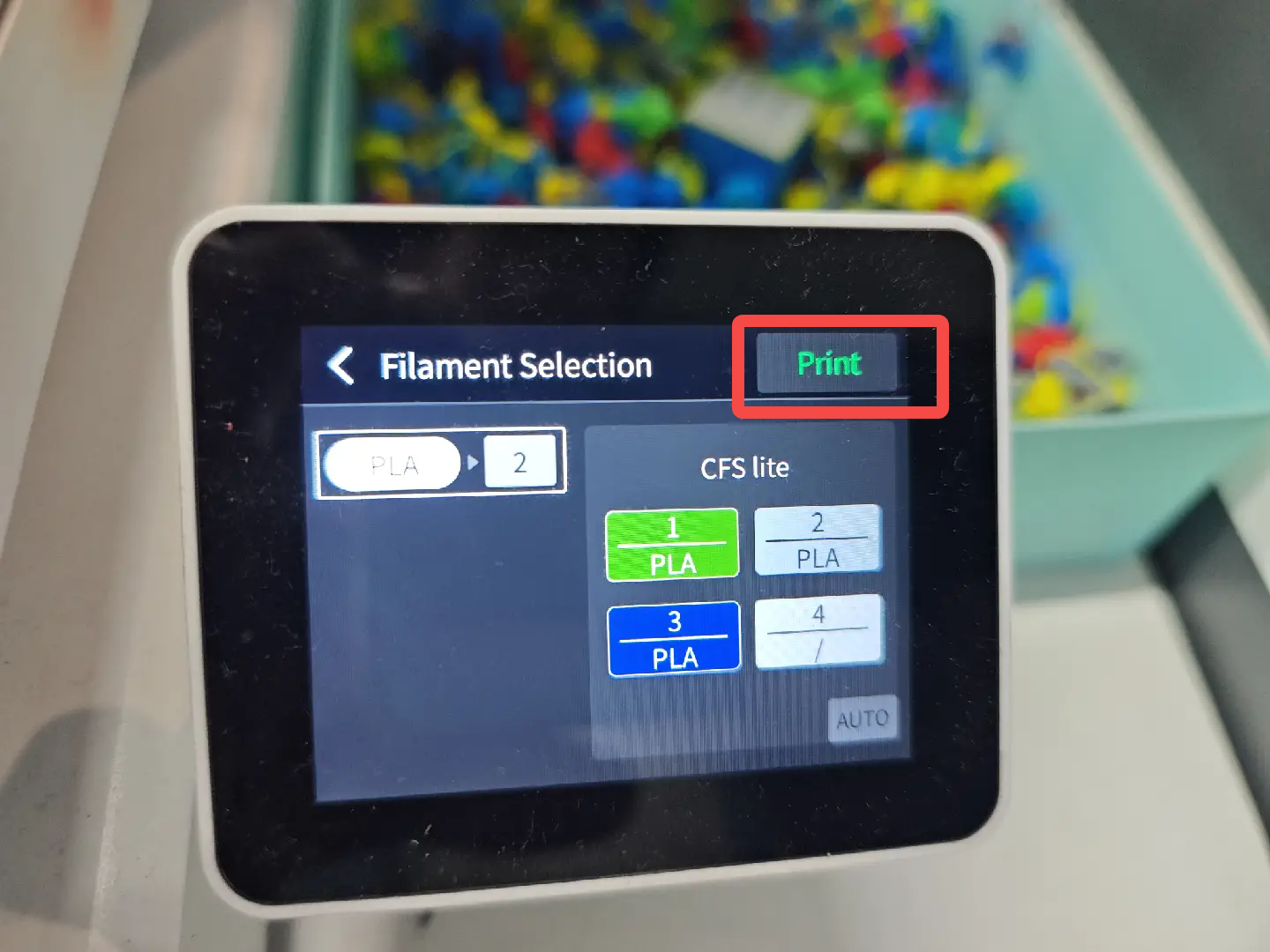
Choose whether to enable CFS (if available) and printing calibration.
For Color Combo models, you can also select the filament colors to be used.
Tap Print to start the printing task.
|
 |
 |
|
 |
 |
|
 |
 |
¶ USB Drive Specifications and Requirements
The USB drive must support USB 2.0 protocol or higher, with a minimum sustained write speed of over 10 MB/s. Supported file systems include: FAT32 / exFAT / NTFS / ext2 / ext3 / ext4.
The SPARKX i7 supports mounting only one USB drive at a time. Connecting multiple USB drives via a USB hub is not supported.
The printer itself does not impose a capacity limit on USB drives. However, the maximum supported capacity depends on the file system format:
FAT32
When formatted on Linux or macOS, the maximum supported capacity is 2 TB.
When formatted on Windows, the maximum supported capacity is 32 GB. On Windows systems, USB drives larger than 32 GB are formatted as exFAT by default, while Linux and macOS do not have this limitation.
exFAT
The maximum supported USB drive capacity is 128 PB.
¶ The SPARKX i7 supports the following USB drive functions:
Copying model files from the USB drive to local storage;
Starting print jobs directly from sliced files stored on the USB drive;
Copying local G-code files to the USB drive;
Deleting files stored on the USB drive.
Note: When using a high-capacity USB drive (e.g., 1 TB or larger) or when the USB drive contains a large number of files, the time required for the printer to read the USB drive may increase accordingly.