When your printer encounters an issue and you need to submit a service ticket, we recommend attaching the machine logs to help our engineers identify the problem more quickly.
¶ Upload logs when submitting a service ticket.
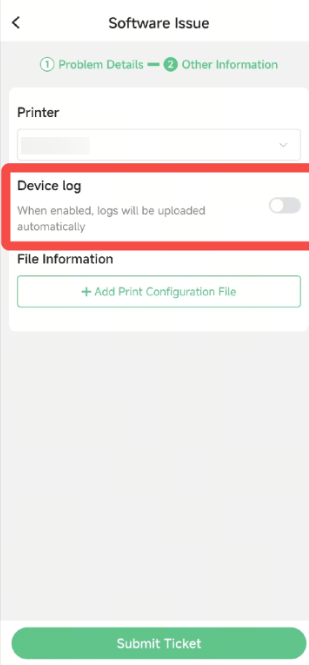
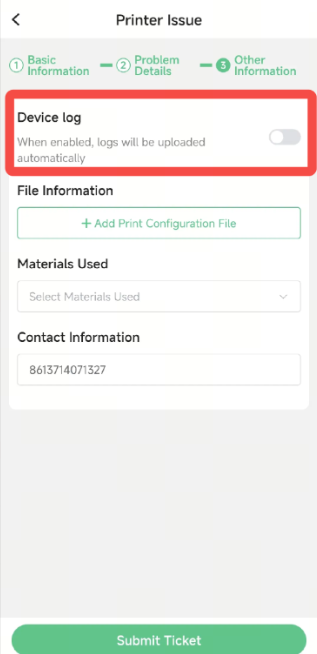
If your printer is logged in to a Creality Cloud app account, you can simply check the option to upload device logs when submitting a service ticket, without downloading the logs locally.
For instructions on how to submit a service ticket, please refer to Information Required to Submit a Service Ticket
When submitting a service ticket, check “Device Logs”, and the device logs will be uploaded automatically.
 |
 |
¶ Download Logs in Offline Mode
If your printer is in offline mode, you will need to download the log files using a USB flash drive and provide them to our after-sales support team.
Prepare a USB flash drive. The performance of the USB drive largely affects the file transfer speed of the printer, so we recommend using a well-known brand USB drive.
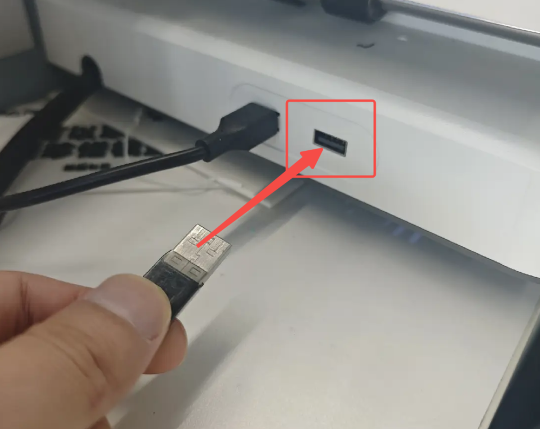
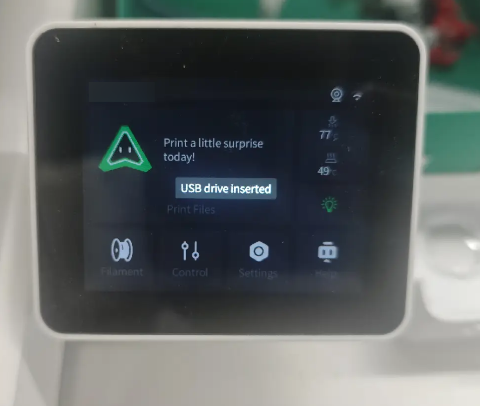
Insert the USB drive into the USB port on the left side of the printer. When the on-screen prompt displays “USB inserted”, the USB drive has been successfully recognized.
 |
 |
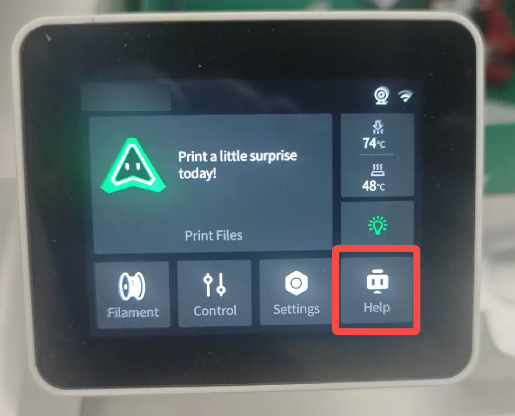
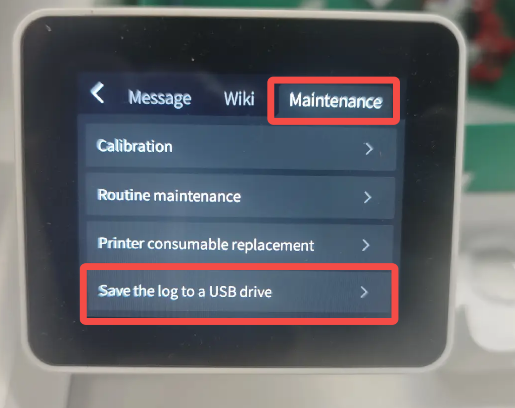
On the home screen, tap “Help → Maintenance → Export Logs to USB” to export the logs and save them to the USB flash drive.
Note: Logs cannot be exported while the printer is printing. If a print job is in progress, pause the task before exporting the logs.
 |
 |
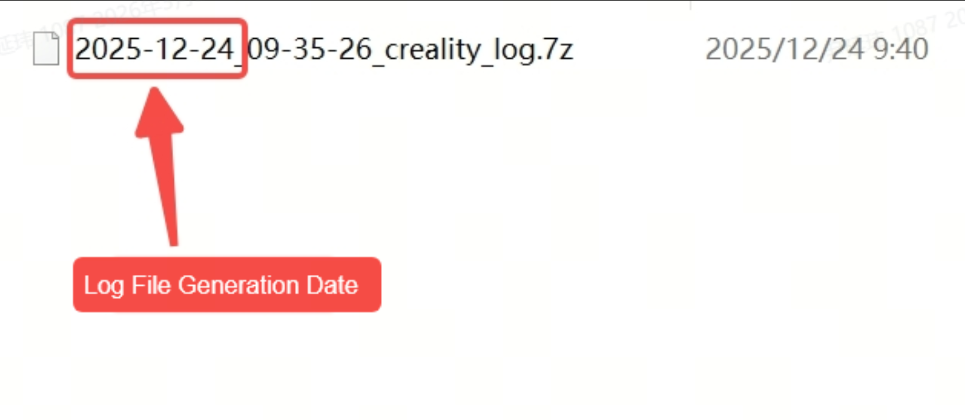
The log files are saved in a compressed archive format, and the file name begins with the date the logs were generated. When submitting the logs, do not unzip the file—submit the compressed archive directly.