¶ Issue Description
If you are using an Intel 13th or 14th Generation desktop processor (such as i9-13900K/KF, i9-14900K/KF, i7-13700K/KF, i7-14700K/KF, etc.); 13th/14th Gen HX mobile processors; Other processors with P-cores and E-cores , Creality Print may crash or freeze during slicing.
Typical Symptoms:
- The application crashes immediately after clicking "Slice"
- The slicing progress bar freezes, followed by the software becoming unresponsive or crashing
- The more complex the model (higher polygon count), the higher the probability of a crash
¶ Root Cause
On some Windows computers with a hybrid P-core (Performance-core) and E-core (Efficient-core) architecture, Creality Print may crash, freeze, or become unresponsive while slicing complex models. During high-load multi-threaded computation, the P-cores (Performance cores) may produce calculation errors due to abnormal voltage behavior. Slicing is a CPU-intensive multi-threaded operation that triggers this issue.
For more details, see Intel's official statement.
¶ Solution
We provide a dedicated launch script in the installation directory that restricts Creality Print to run only on E-cores (Efficiency cores), bypassing the unstable P-cores. This completely resolves the slicing crash issue.
¶ Steps
Step 1: Locate the Creality Print installation folder
Open the Creality Print installation folder. The default path is:
C:\Program Files\Creality\Creality Print x.x.x.xxxxx
💡 Quick tip: Right-click the Creality Print desktop shortcut → select "Open file location"
Step 2: Find the batch file
In the installation folder, locate the following file:
run_creality_on_e_cores.bat
The file type is displayed as "Windows Batch File", approximately 2 KB in size.
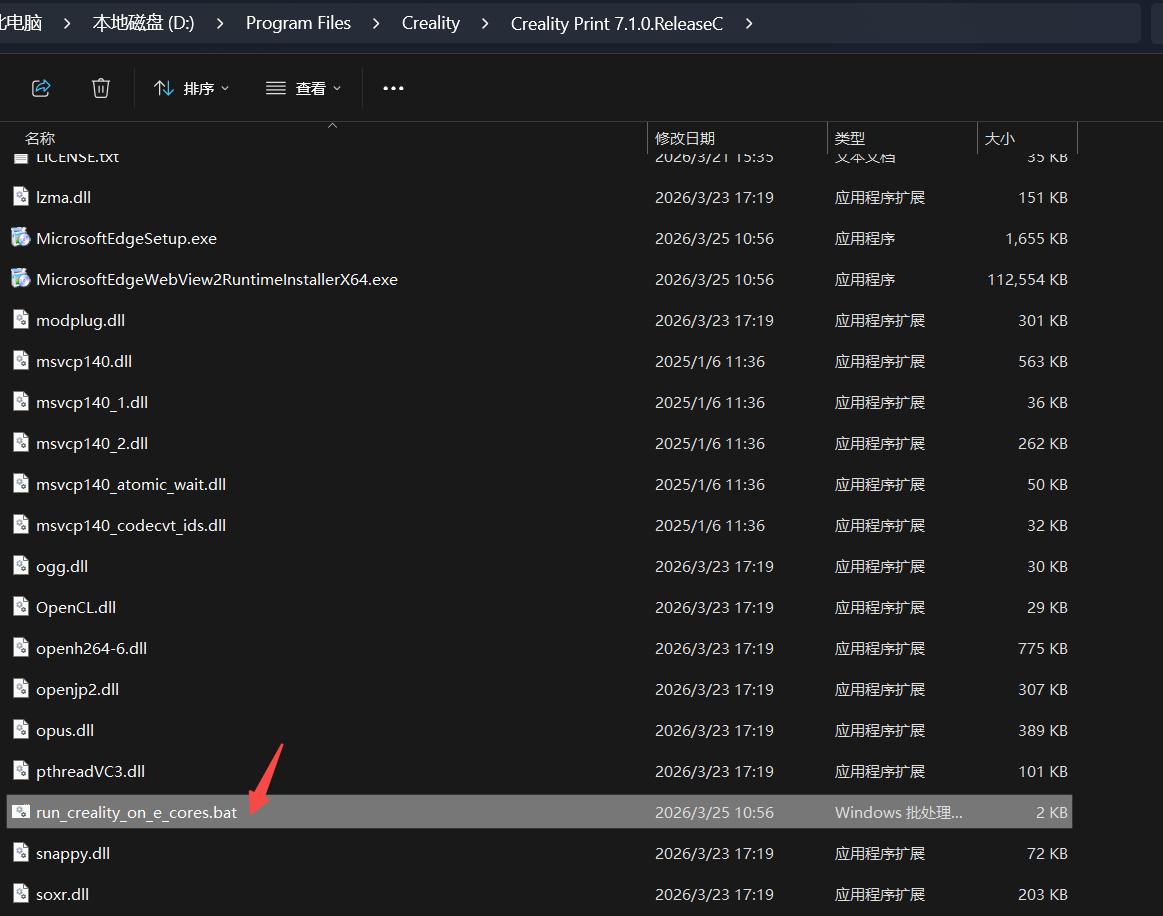
Step 3: Double-click the batch file to launch the program
Simply double-click run_creality_on_e_cores.bat and Creality Print will start normally.
The program will now run exclusively on the CPU's efficiency cores, and slicing will no longer crash.
⚠️ A black Command Prompt window will briefly appear and close automatically — this is normal.
Step 4 (Optional): Create a desktop shortcut
For everyday convenience, we recommend creating a shortcut:
- Right-click on run_creality_on_e_cores.bat
- Select "Send to" → "Desktop (create shortcut)"
- (Optional) Right-click the new shortcut → "Properties" → "Change Icon" → browse to Creality Print.exe in the same folder and select the original icon
From now on, use this shortcut to launch Creality Print.
¶ FAQ
Q: Will slicing be slower when running on E-cores?
A: Slicing speed for complex models may be slightly reduced, since efficiency cores have lower per-core performance than performance cores. However, the E-cores on 13th/14th Gen processors are still quite capable, and real-world slicing speed remains acceptable — far better than being unable to slice due to crashes.
Q: Do I need to use the batch file every time?
A: Yes. Launching from the Start Menu or the original desktop shortcut will use all cores, and the crash may reoccur. We recommend creating a shortcut as described in Step 4 to replace the original icon.
Q: I don't see the batch file in my installation folder.
A: Please update Creality Print to the latest version (7.1.0 or later). The batch file is included automatically with the new version.
Q: Does this affect AMD processors or Intel 12th Gen and earlier?
A: No. This issue only affects Intel 13th/14th Generation K/KF/KS series desktop processors. Users with AMD processors, Intel 12th Gen or earlier, or Intel non-K suffix processors do not need to take any action.
Q: Is this a Creality Print bug?
A: No. This is a confirmed CPU hardware defect acknowledged by Intel. All software with high CPU utilization may be affected. We provide this script to help users continue using the slicing function normally until the hardware issue is resolved.