¶ Measurement Tool
 !
!
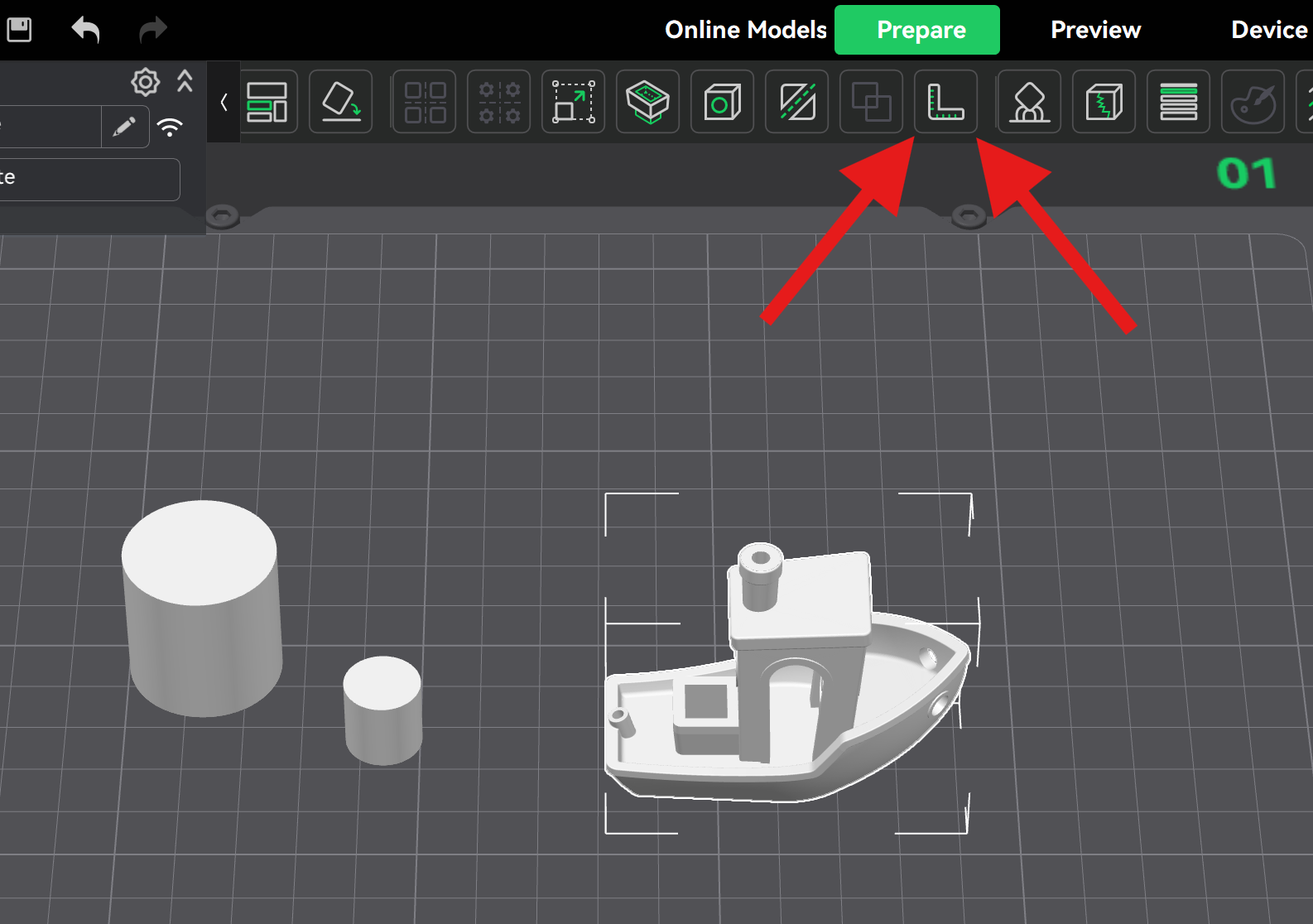
Creality Print introduced the measurement tool in version 4.3, which can be used to measure angles and distances between objects.
This feature allows you to measure distances between different positions within the same object, as well as data between multiple objects. To measure multiple objects, you need to select them in advance by holding Ctrl + Left Mouse Button, then click the measurement tool to measure angles or distances between different positions of the multiple objects.

¶ How to Use
The measurement tool can measure angles and distances between different positions. The measurement subjects are divided into four categories: Point, Line, Surface, and Circle. (Point and Line sections use a single object as an example. Surface and Circle sections use two objects as an example.)
¶ 1. Point
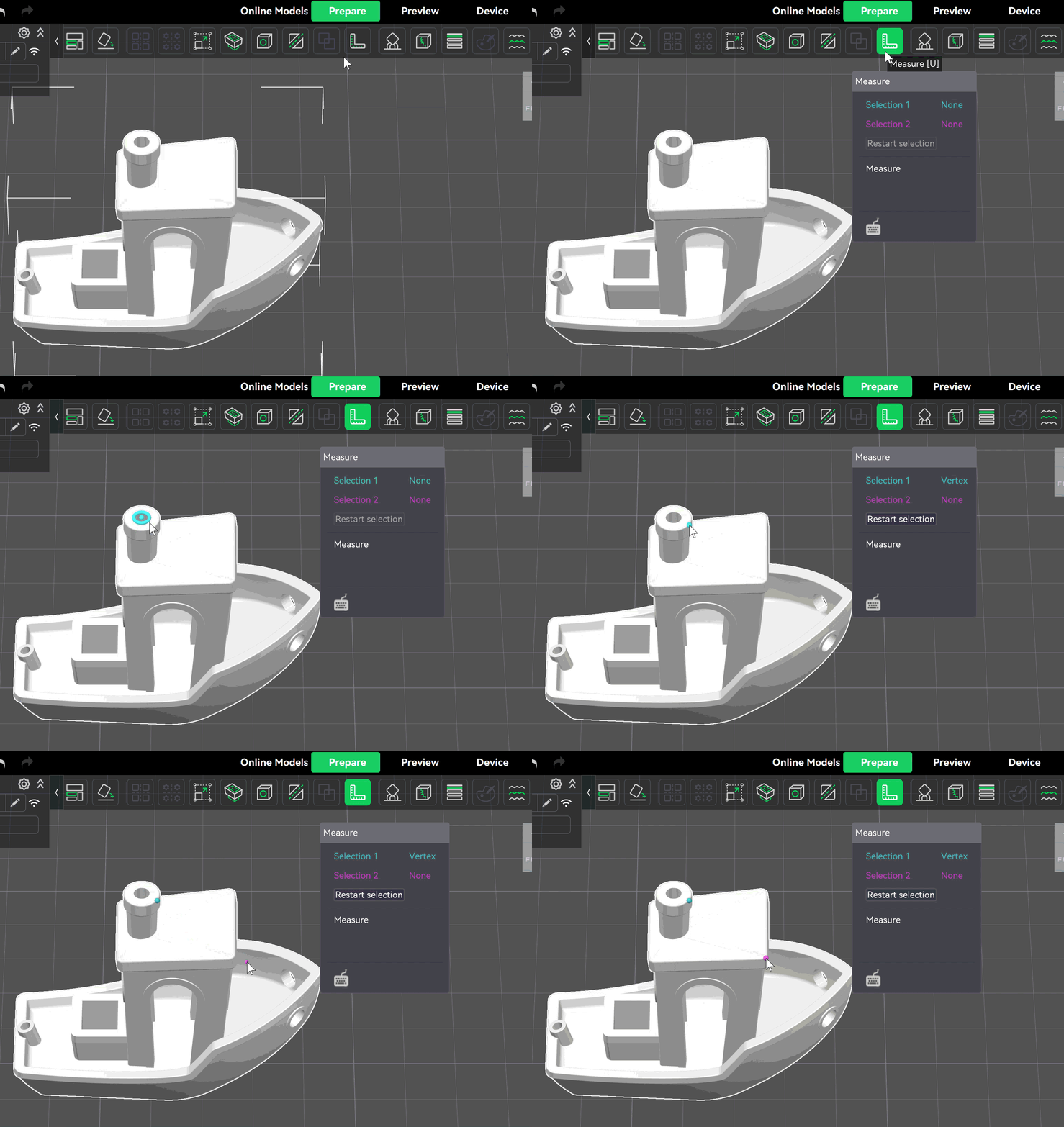
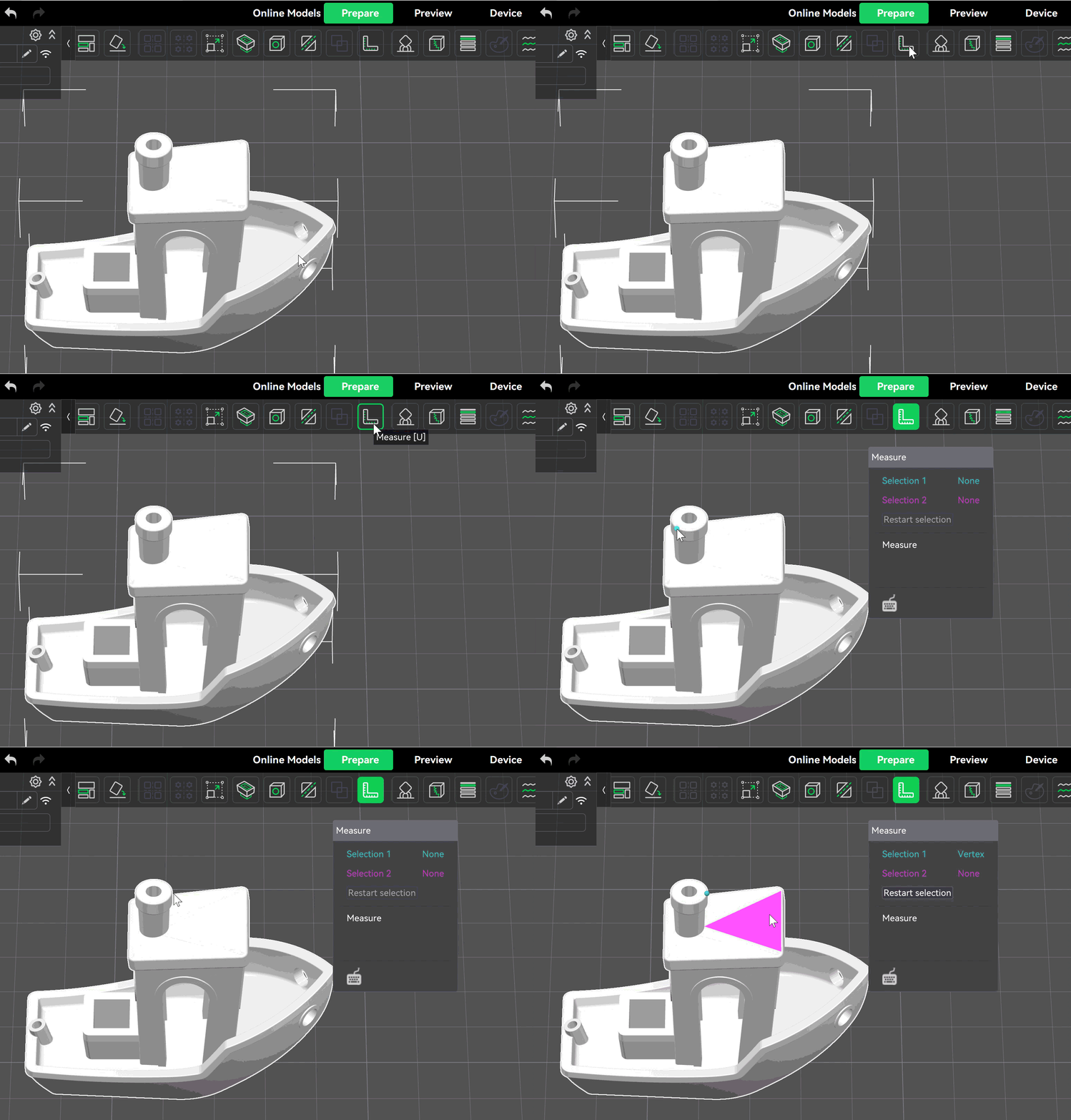
- Hover your mouse over the corner of the model to select a point.
- Click Left Mouse Button at any position to select a point.
After selecting two points at different positions, the straight-line distance and XYZ distances between the points will be measured.
Point and Point
¶ 2. Line
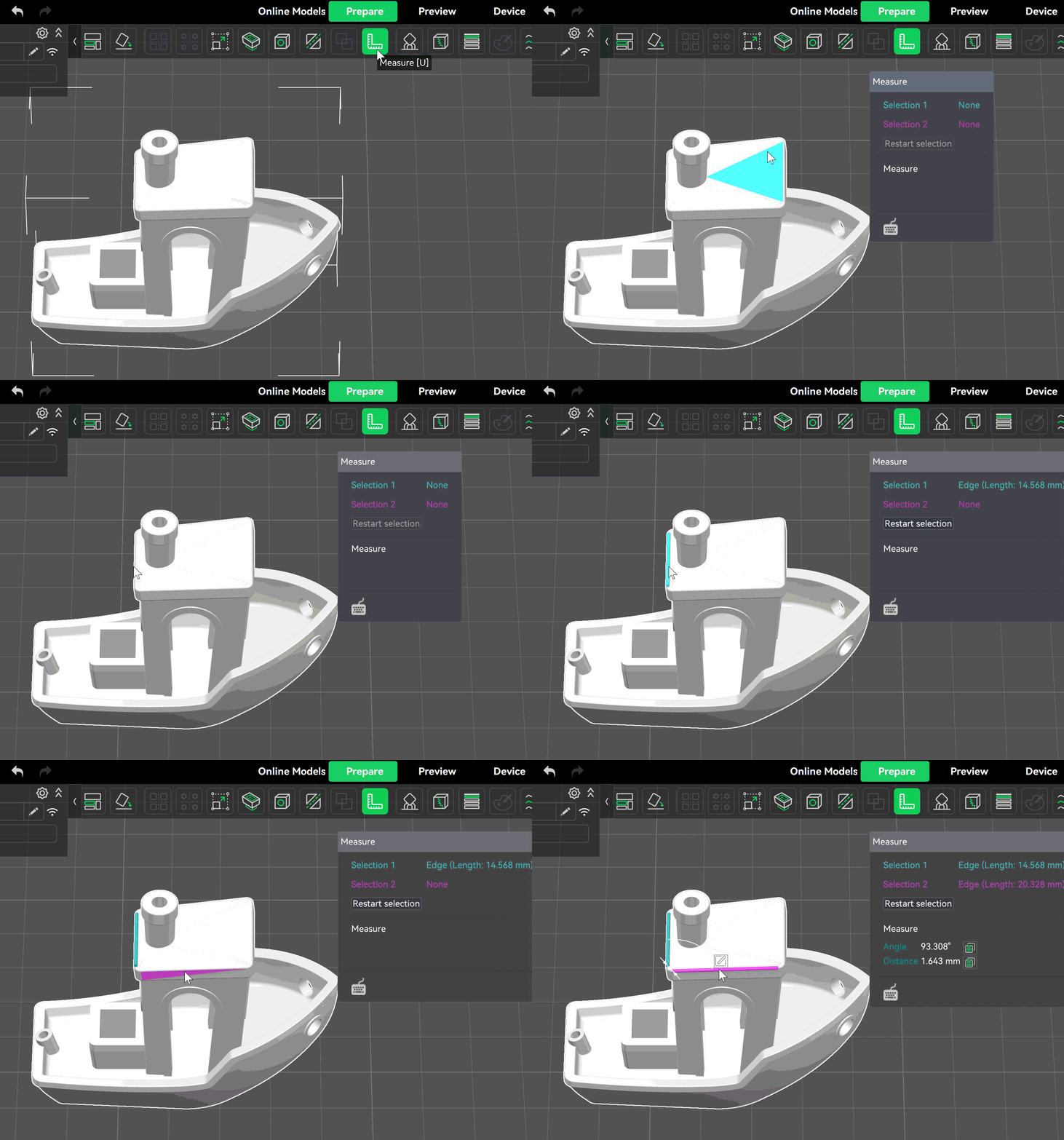
Click the left mouse button on any edge of the model to select a line. You can then measure the straight-line distance, XYZ distance, and angle between the line and other positions.
-
Line and Line: You can measure the angle and distance between two lines, as shown below:
-
Line and Point: You can measure the parallel distance and straight-line distance.
¶ 3. Surface
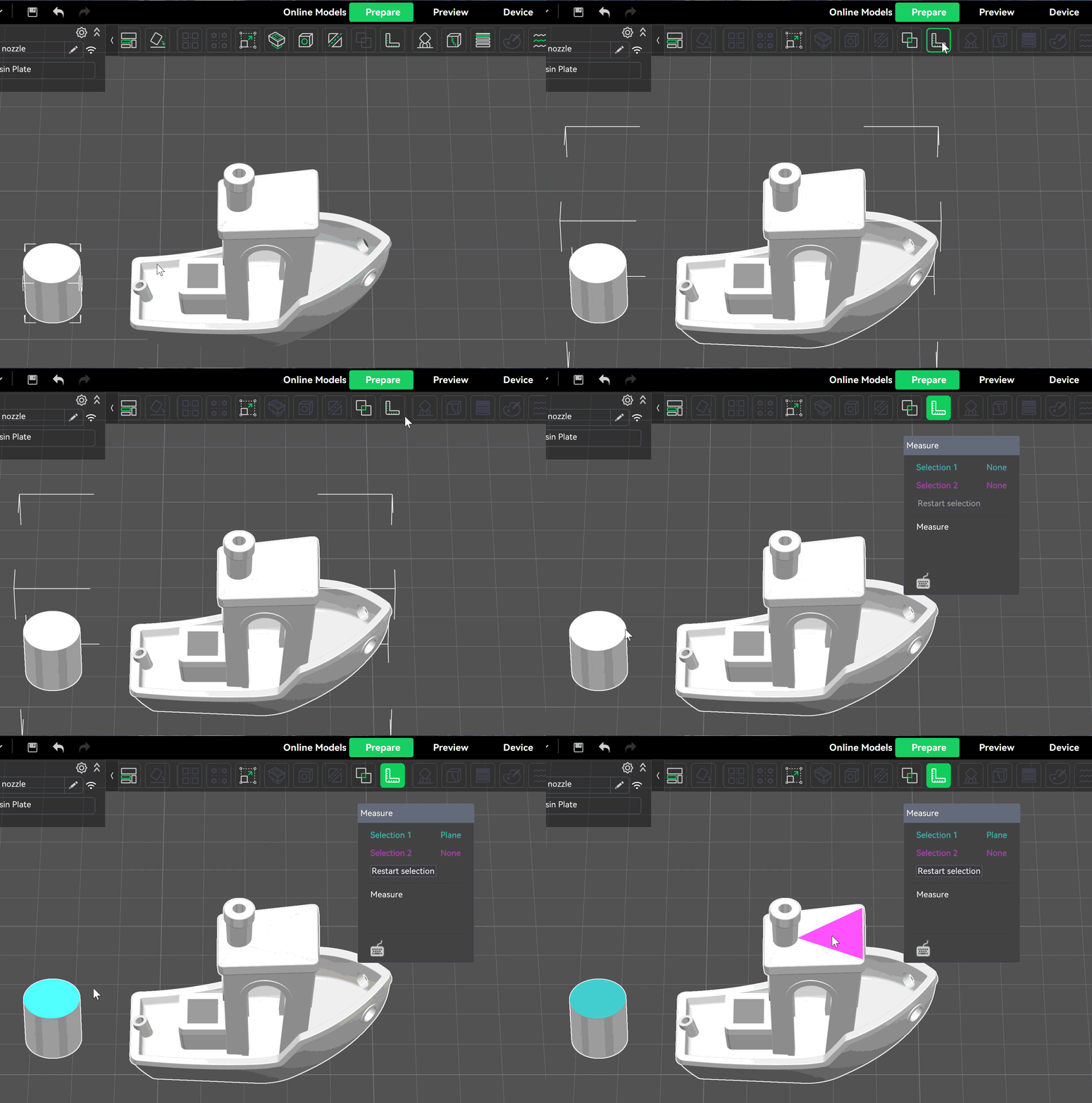
Click the left mouse button on any face of the model to select a surface.
- Surface and Surface:
- If the two surfaces are parallel, you can measure the distance between them in the Z direction; if they are not parallel, you can measure the angle between the two surfaces. As shown in the following two figures:

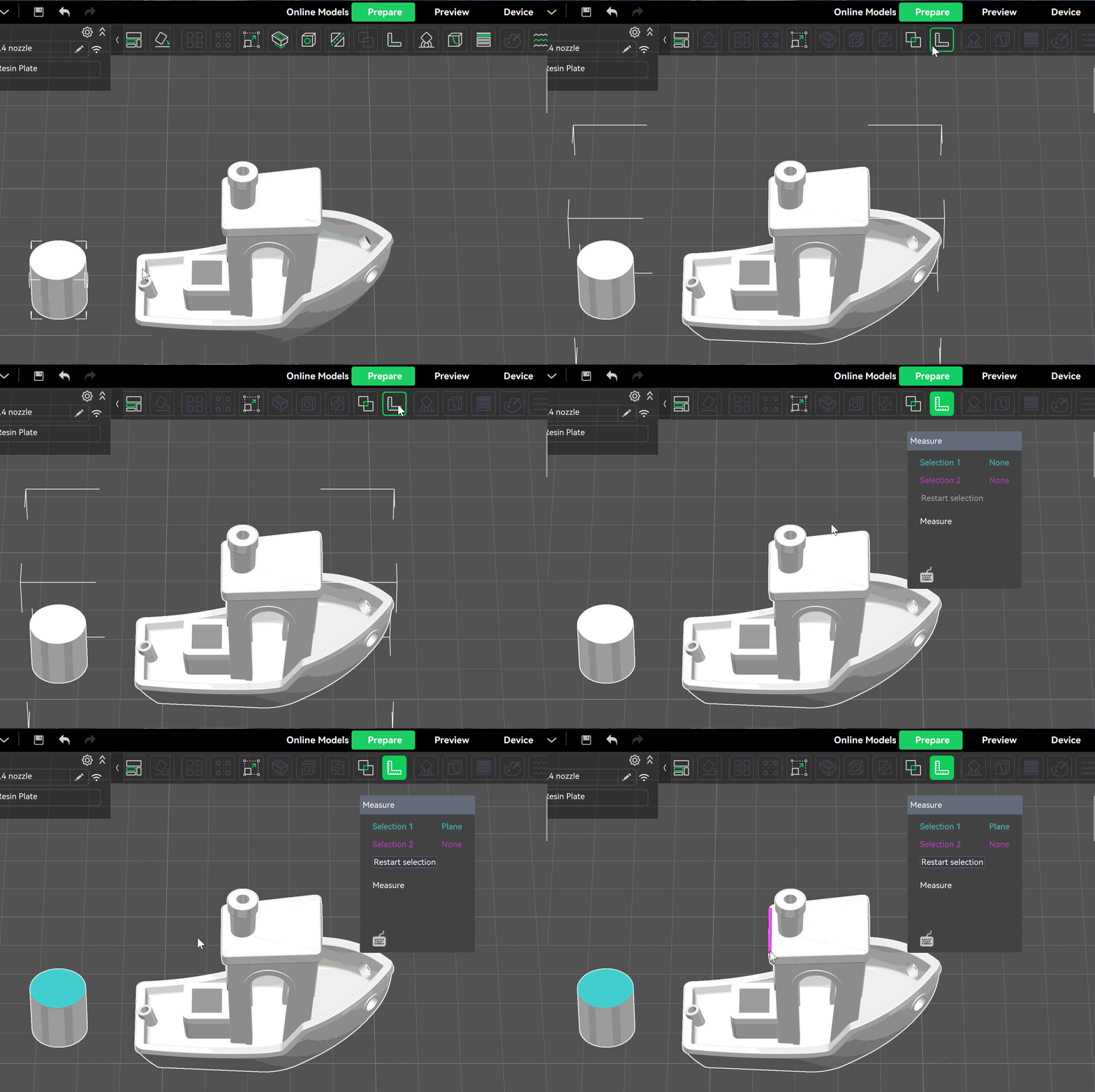
- Surface and Point:
- You can measure the distance in the Z direction.
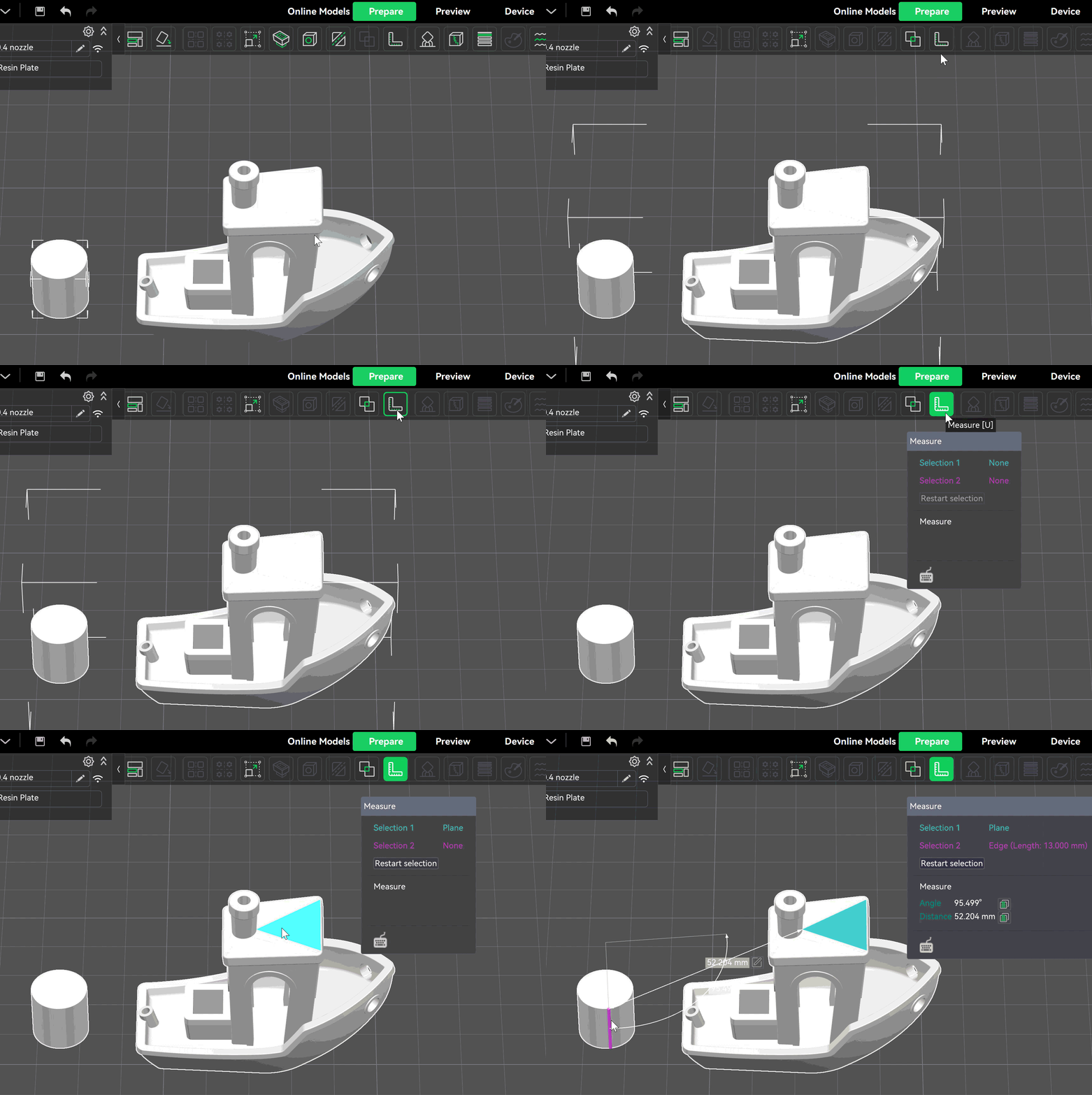
- Surface and Line:
- You can measure the distance and angle.
¶ 4. Circle
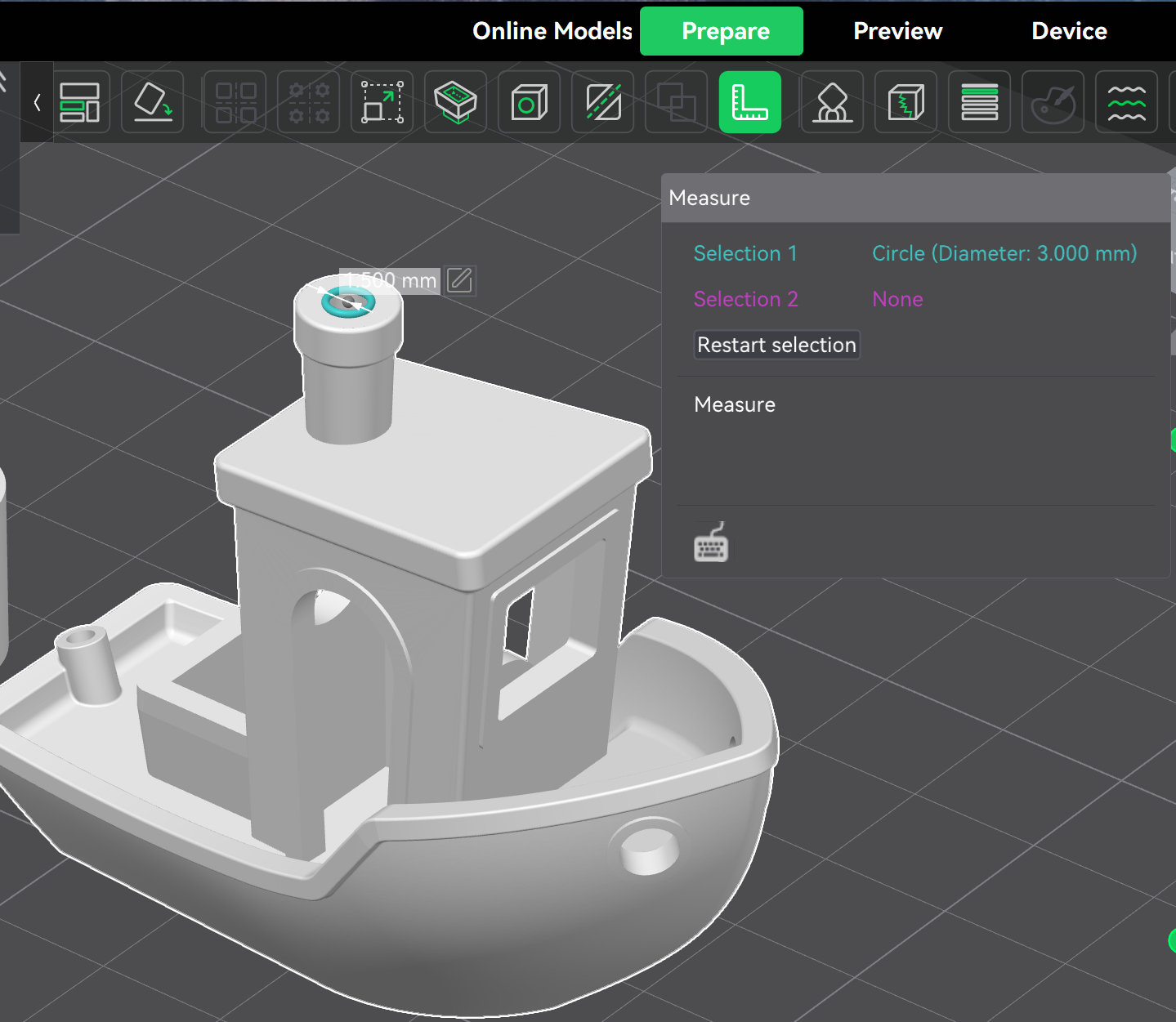
- Select the circumference of a circular face with your mouse to select a circle. After selecting the circle, you can measure its radius (diameter).
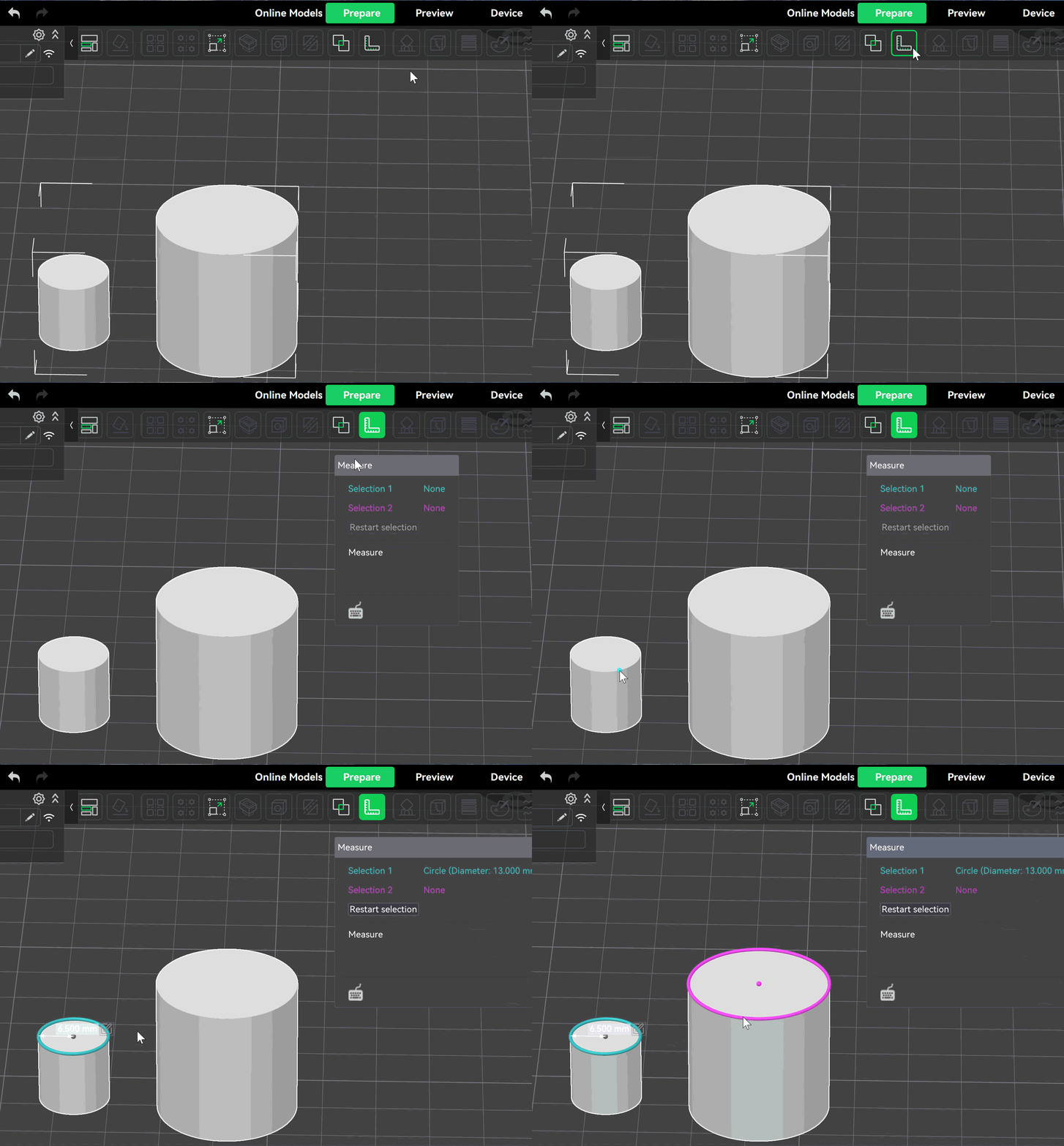
- Circle and Circle:
- You can measure the straight-line distance between the centers of the two circles.
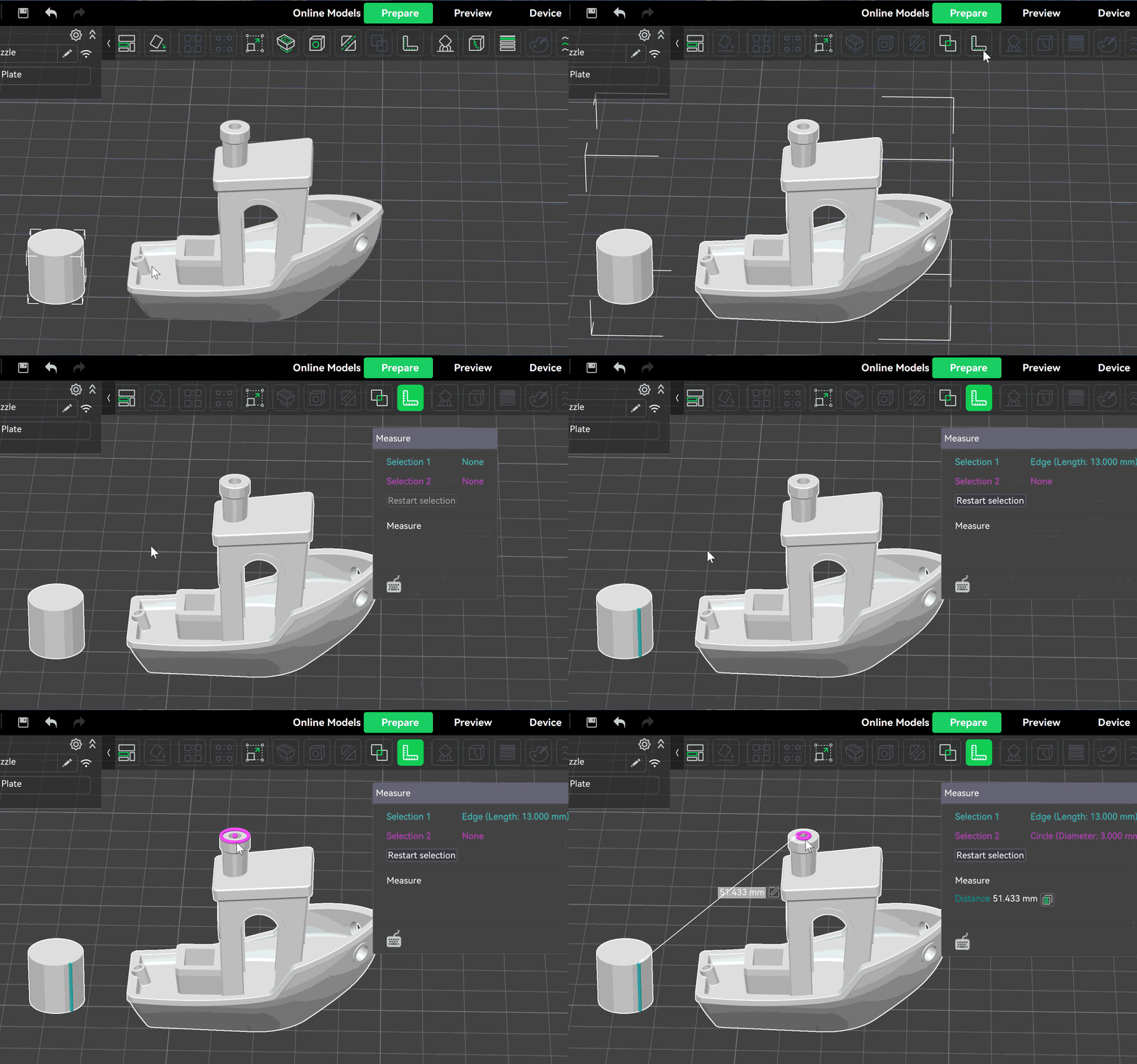
- Circle and Line:
- You can measure the distance between the circle center and the line.
- Circle and Surface:
- You can measure the distance from the circle to the nearest point on the edge of the surface.

¶ 5. Advanced Usage
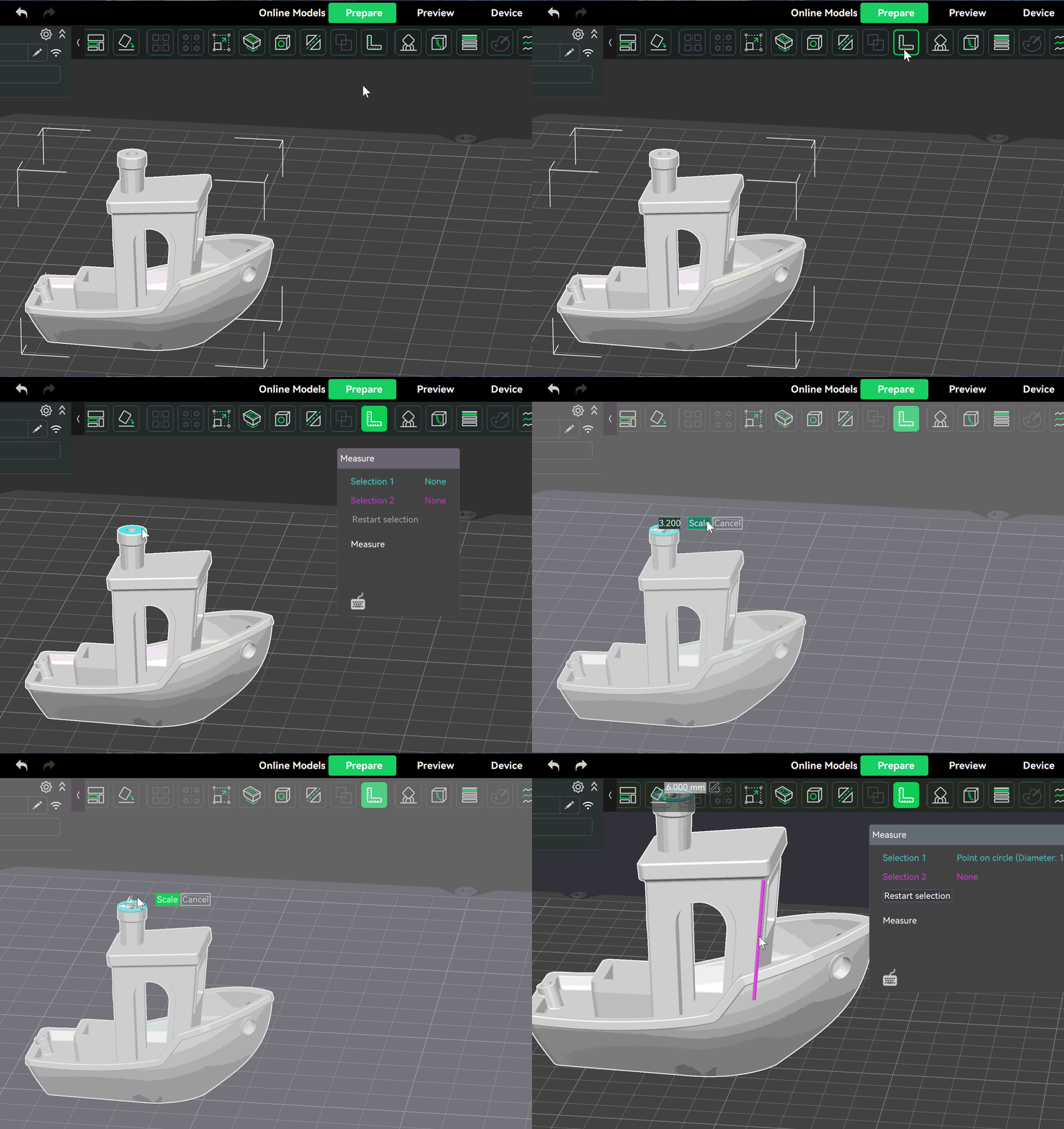
Select the circumference of a circular face with your mouse to select a circle. After selecting the circle, you can measure its radius (diameter). You can edit the scale ratio on the right side of the radius display box to adjust the hole size according to your specific needs, meeting assembly requirements under different conditions.