To support the use of different nozzle diameters on the K3 across various printing scenarios, Creality Print 7.3 has optimized the configuration and printing workflow for multiple nozzle diameters.
With this feature, you can select the appropriate diameter for each nozzle based on requirements such as model detail and printing efficiency, and configure the corresponding process and filament parameters separately.
This guide walks you through the complete workflow: nozzle diameter configuration -> parameter settings -> filament grouping -> slicing -> sending the print job.
¶ 1. Select Nozzle Diameters
After adding a K3 printer, you can select the nozzle diameters currently installed on the printer from the Prepare page.
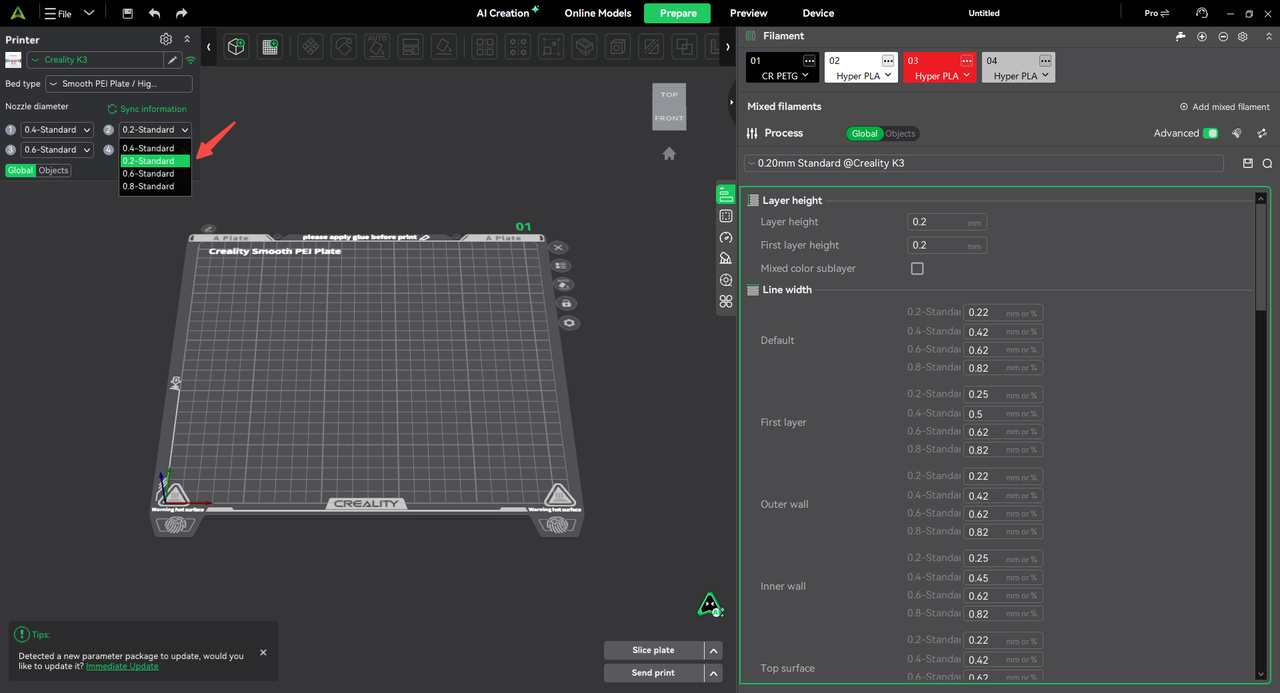
The following four presets are currently supported:
0.2 - Standard
0.4 - Standard
0.6 - Standard
0.8 - Standard
To support printing TPU on the K3 in the future, we are considering adding more print presets, such as 0.4 - High Flow (provisional), to accommodate a wider range of printing scenarios.
Select the preset that matches the nozzle actually installed on the printer.
If a K3 printer is already connected, you can also click Sync Information to synchronize the diameters of the nozzles installed on the printer with Creality Print, reducing the risk of manual configuration errors.
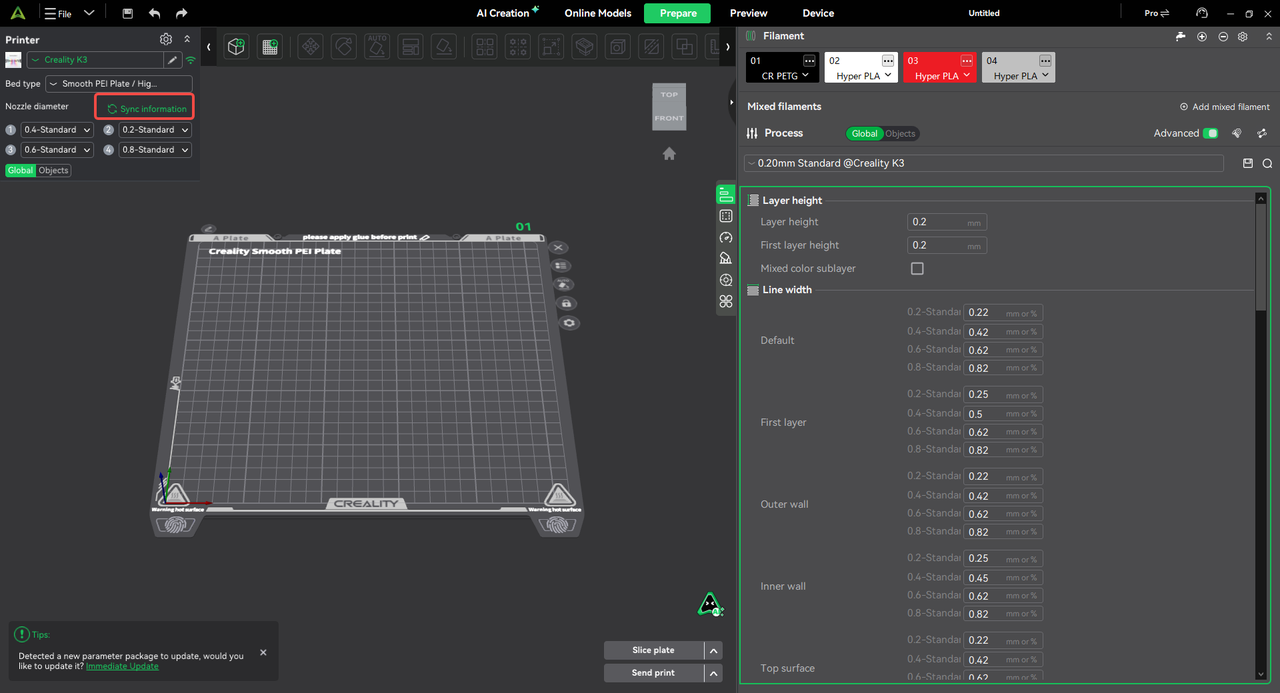
Tip
Before slicing, make sure the nozzle diameters configured in the software match the nozzles actually installed on the printer.
¶ 2. Configure Print Parameters for Different Nozzles
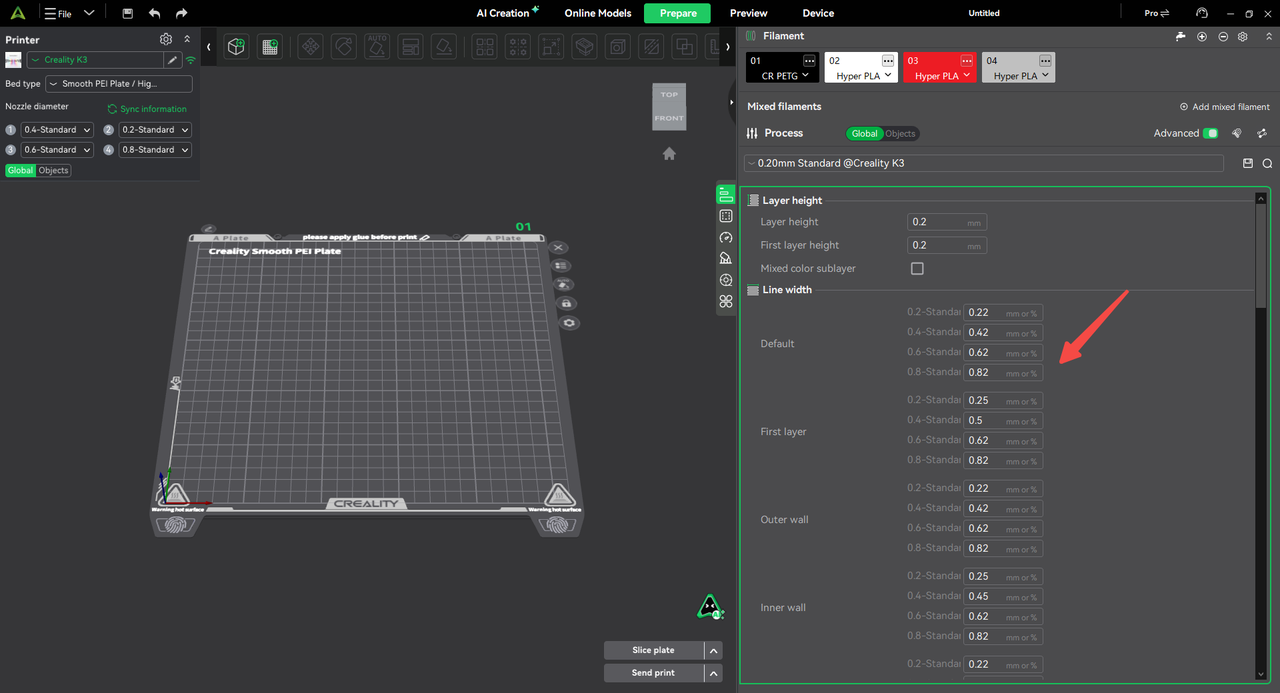
After you select the nozzle diameters, Creality Print provides the corresponding parameter configurations for each diameter.
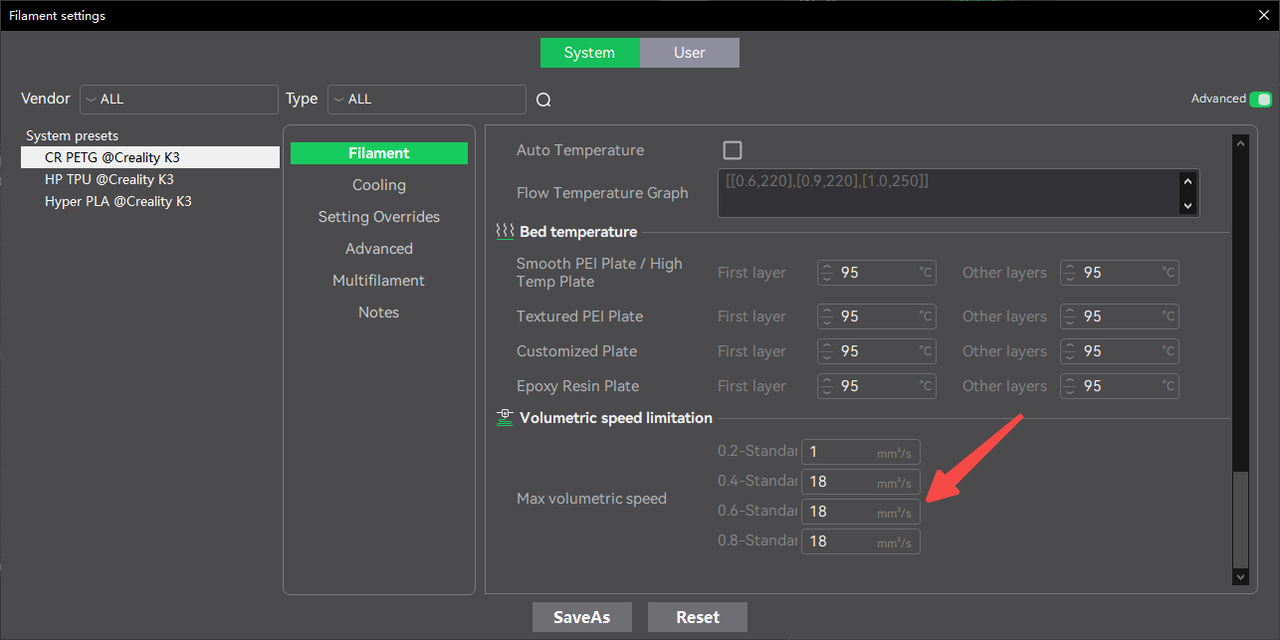
Some Printer, Process, and Filament parameters can be configured separately by nozzle diameter.
For example, when a printer is fitted with nozzles of different diameters, you can separately configure the line width, print parameters, and filament parameters appropriate for each nozzle.
This ensures that the slicing engine uses the corresponding parameters to calculate the toolpaths for each nozzle during slicing.
 |
 |
¶ 3. Slice and Check Parameter Compatibility
After configuring the parameters, click Slice Plate.
The Filament Grouping screen opens, and the system automatically checks whether the layer height in the current process preset is within the valid range supported by the corresponding nozzle diameter.
If the current process preset is incompatible with the nozzle diameter, the system displays a warning, as shown in the figure.
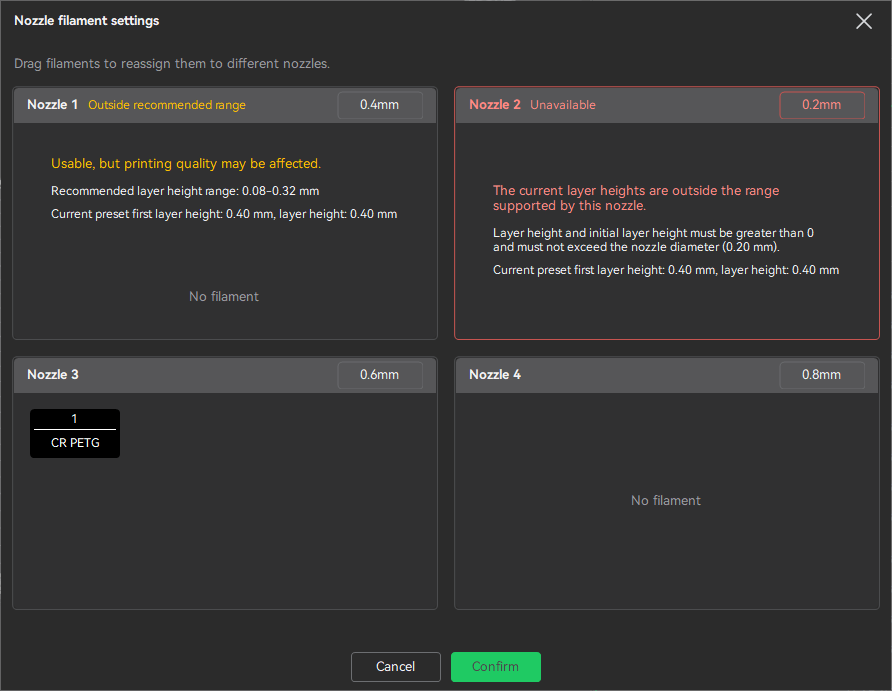
This check helps prevent slicing or printing issues caused by a mismatch between the nozzle diameter and layer height settings.
¶ 4. Assign Filaments to Different Nozzles
On the Filament Grouping screen, separate filament grouping areas are displayed for the different nozzles.
Drag filaments to assign the filaments in the project to the corresponding nozzles.
For example:
0.4 mm nozzle -> Hyper PLA A
0.6 mm nozzle -> Hyper PLA B
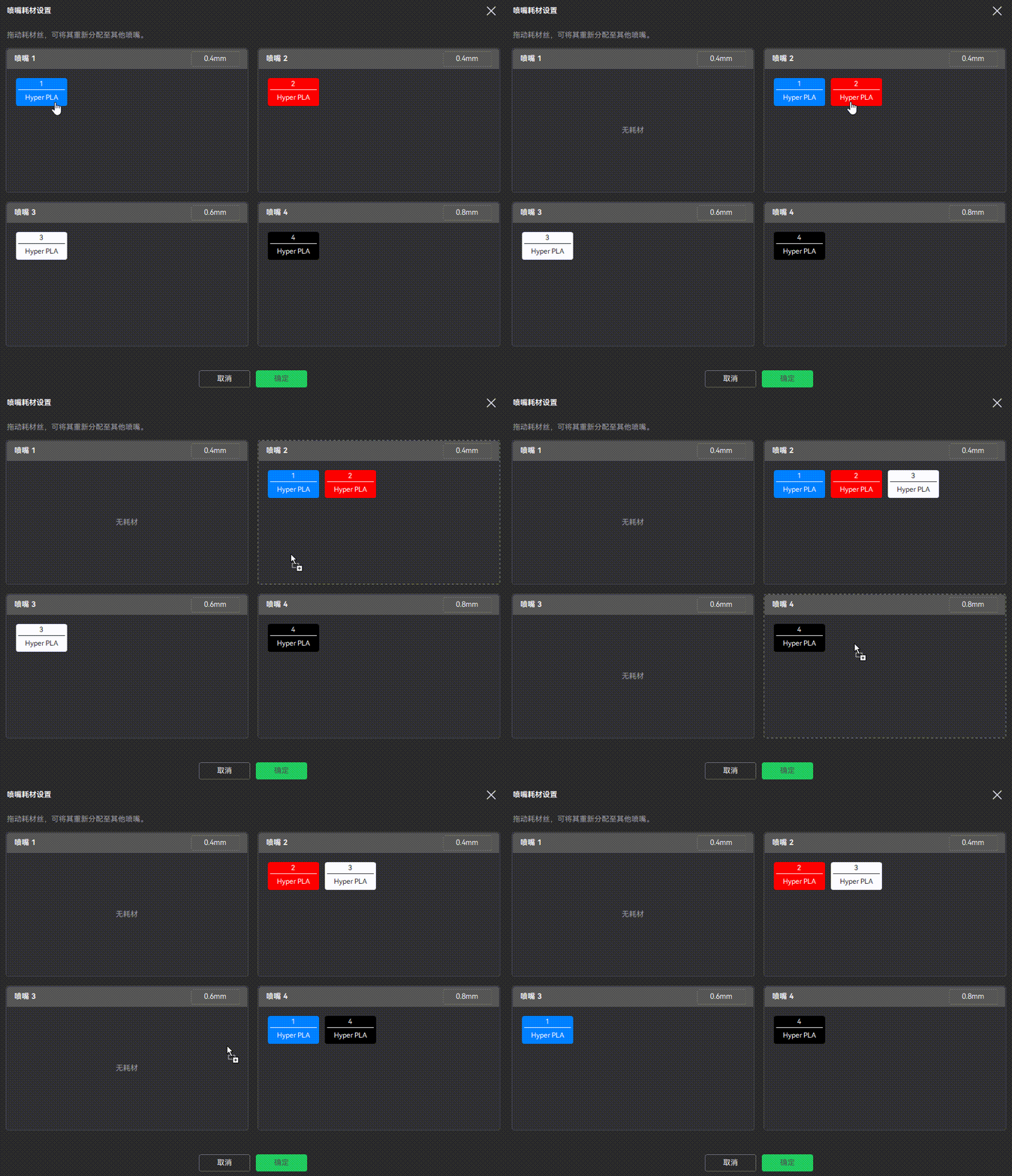
After completing the assignments, make sure each filament is assigned to the correct nozzle.
Recommendation
When grouping filaments, verify all three of the following:
Nozzle diameter -> Filament -> Process parameters
Make sure all three are compatible before proceeding with slicing. This reduces the need to readjust the settings when sending the print job.
¶ 5. Confirm the Groups and Start Slicing
After verifying the filament-to-nozzle assignments, click Confirm.
Based on the current filament groups, Creality Print applies the parameters for the corresponding nozzle diameters and completes the slicing process.
After slicing, check the following on the Preview page:
Model toolpaths
Areas assigned to different filaments
Areas printed by different nozzles
Overall slicing result
Before sending the print job, make sure the toolpaths match the expected result for the model.
¶ 6. Regroup Filaments If Changes Are Needed
If the nozzle or filament assignments do not meet your expectations during preview, you do not need to restart the entire slicing workflow.
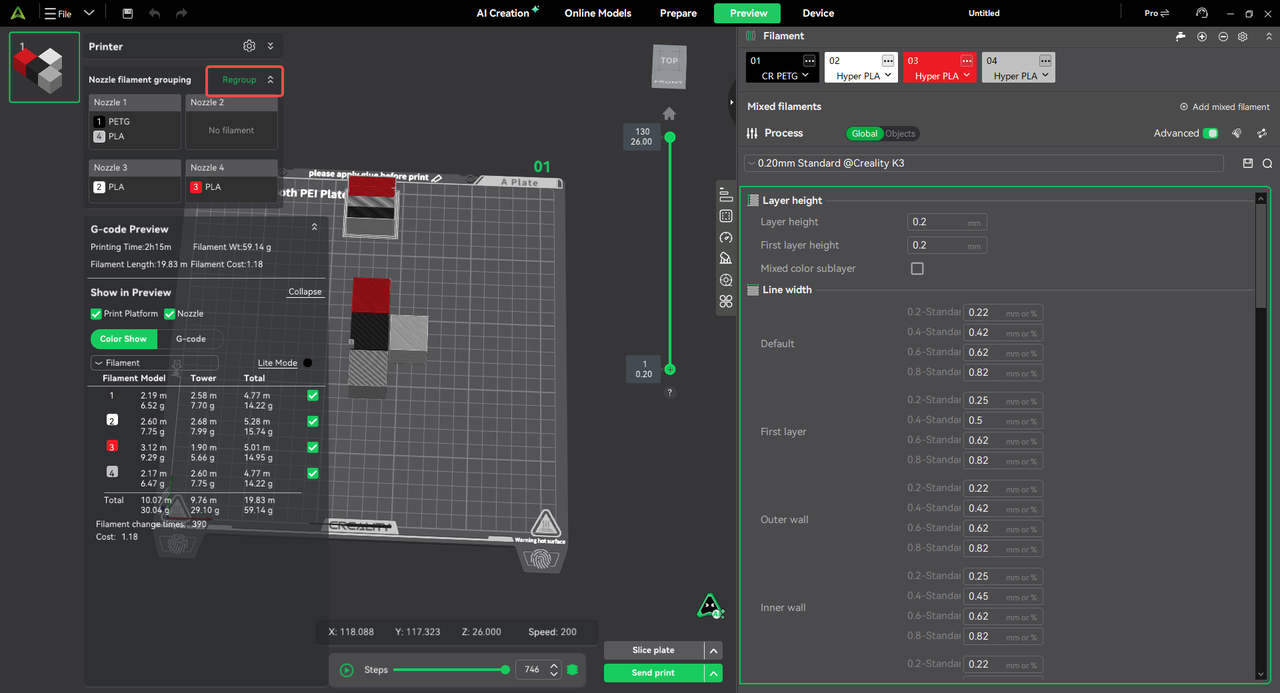
Click Regroup on the Preview page to reopen the Filament Grouping window.
Adjust the filament-to-nozzle assignments and confirm them again.
This makes it easier to adjust multi-nozzle, multi-filament printing configurations.
¶ 7. Send the Print Job and Confirm Nozzle Mapping
After verifying the G-code toolpaths and preview results, click Send Print.
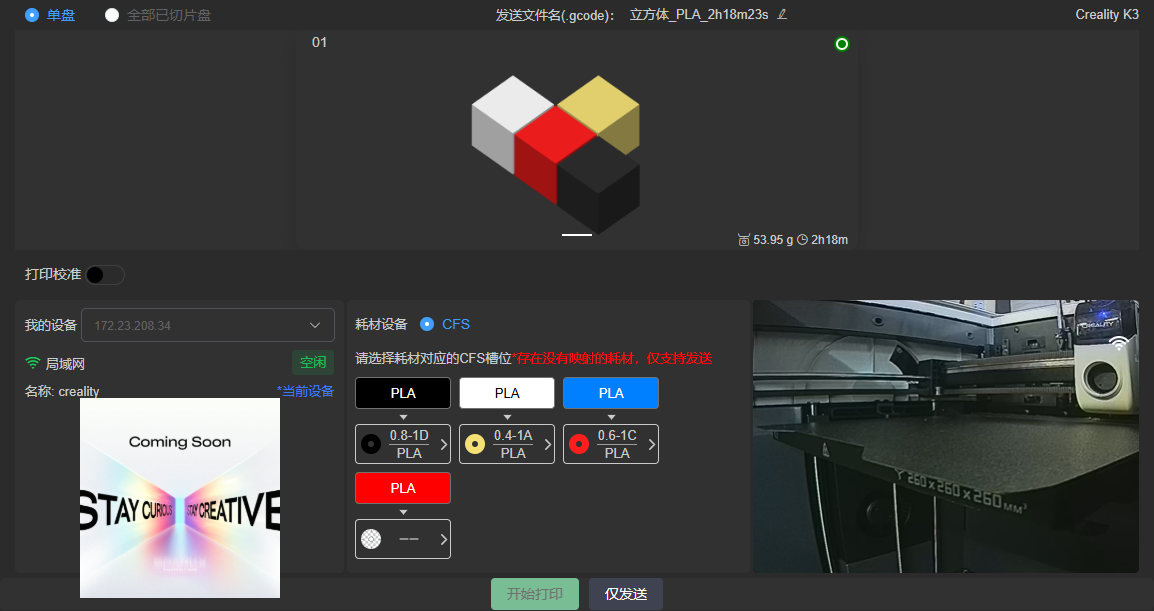
On the send print page, Creality Print establishes the nozzle-to-filament mapping based on:
The nozzle diameters actually installed on the printer + the filament grouping information used for the current sliced job
Please note:
Nozzles with different diameters cannot be cross-mapped.
For example, if the blue filament was assigned to the 0.6 mm nozzle during slicing, it can only be mapped to a 0.6 mm nozzle on the printer on the send print page. It cannot be remapped to a 0.4 mm, 0.2 mm, or any other nozzle diameter.
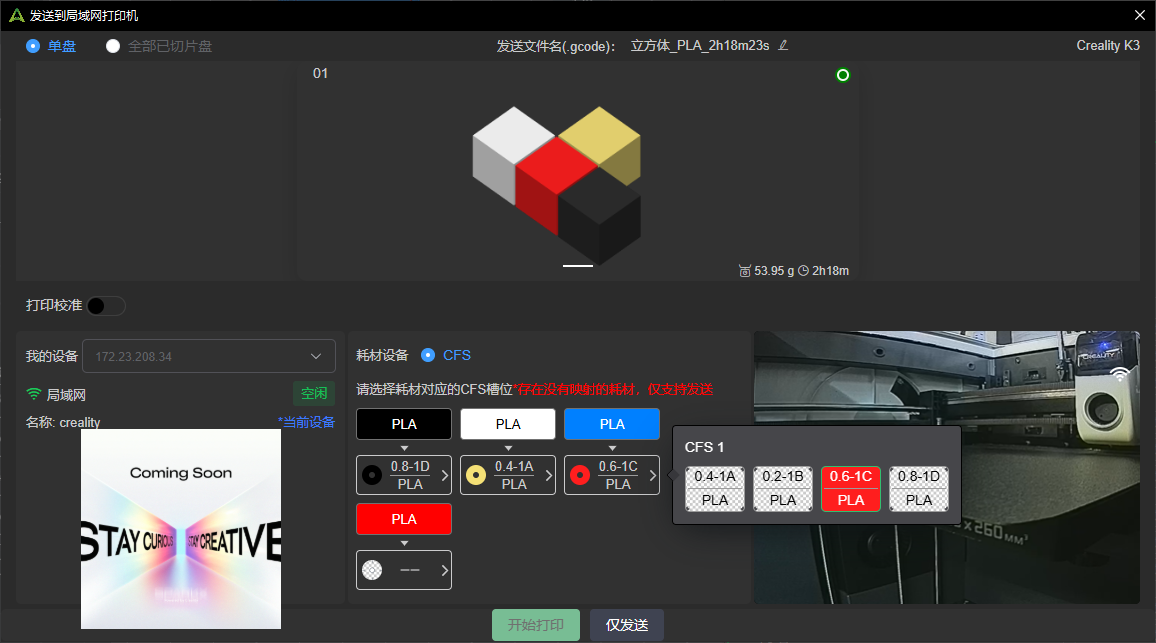
This ensures that the nozzle used for the actual print matches the nozzle specifications and parameters used during slicing.
¶ 8. Start Printing
After completing the nozzle-to-filament mapping, verify once more that the installed nozzle diameters, filament assignments, and slicing configuration are consistent.
After confirming that everything is correct, click Start Print to send the job to K3 and begin printing.
¶ Important Notes Before Use
¶ 1. Mixed-Diameter Multi-Nozzle Printing Is Currently an Experimental Feature
In the current version, mixed-diameter printing with multiple extruders is still an Experimental Feature.
When printing with different nozzle diameters, the wipe tower and support-related areas may present some print-quality risks. Use this feature as appropriate for the specific model and printing requirements.
¶ 2. Parameters for Some Nozzle Diameters Are Still Being Refined
The filament and process parameters for the following nozzle diameters have not yet undergone comprehensive testing:
0.2 mm
0.6 mm
0.8 mm
Print quality may vary with certain models, filaments, or complex printing scenarios. Before starting the final print, review the slicing result and adjust the parameters based on the actual print results where necessary.
¶ 3. Automatic Mapping Is Not Yet Available
In the current version, the K3 Automatic Mapping feature is still being optimized and is therefore not yet available.
For now, verify the nozzle-to-filament mapping on the send print page. This feature will continue to be improved in future versions.