¶ Creality Print on ChromeOS — Installation Guide
Community wiki · Verified on ChromeOS Crostini (Debian 13, x86_64) · Creality Print V7.3.0
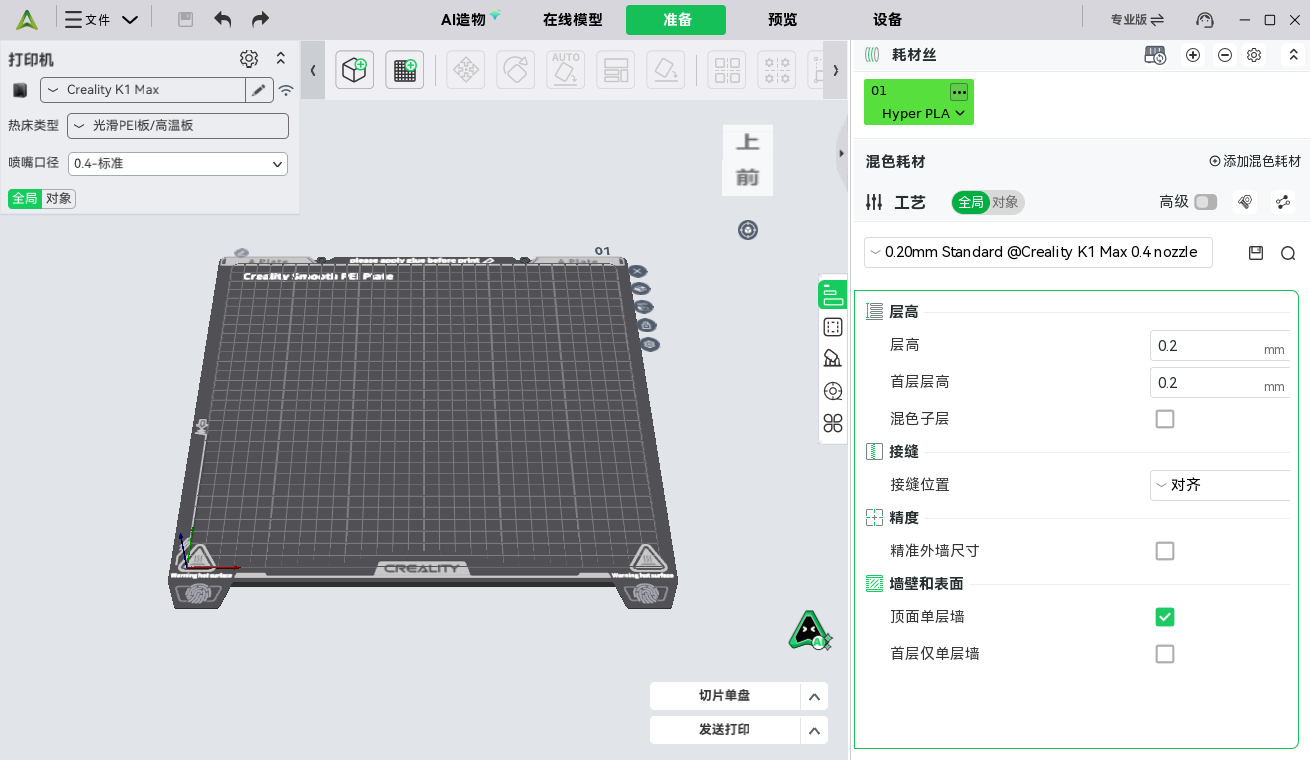
¶ Overview
Creality Print is Creality's free slicer for their FDM 3D printers. On ChromeOS it runs inside the Linux development environment (Crostini). Two installation methods are covered here: Flatpak (recommended) and AppImage.
| Flatpak ⭐ Recommended | AppImage | |
|---|---|---|
| Self-contained deps | ✅ Sandboxed runtime | ❌ Relies on host packages |
| UI language switching | ✅ Works out of the box | ❌ Broken on minimal systems* |
| Login / online model library | ✅ Built-in WebKit | ⚠️ Requires libwebkit2gtk on host |
| Updates | One command: flatpak update |
Manual re-download |
| Offline install to a new machine | Needs runtime download (~1.1 GB) | ✅ Single file, copy & run |
| Disk usage | ~3.2 GB total (shared runtime) | ~200 MB + host packages |
* See Troubleshooting: Crostini ships only the en_US locale by default, so the AppImage build cannot initialize Chinese even when selected in-app.
¶ Prerequisites
- An x86_64 or ARM64 (aarch64) Chromebook / Chromebox:
- x86_64: both the Flatpak and AppImage methods work;
- ARM64: since V7.3.0 an official aarch64 Flatpak bundle exists — Flatpak only (the AppImage is still x86_64-only).
- Linux development environment enabled: Settings → Advanced → Developers → Linux development environment.
- Internet access for the Flatpak method (Flathub runtime download).
# Verify architecture & environment
uname -m                # x86_64 or aarch64
cat /etc/debian_version # e.g. 13.x (Crostini)
¶ Method 1: Flatpak (Recommended)
¶ 1.1 Install (full command line: download → install → set up)
Linux builds are distributed on GitHub only — Creality's official download page offers just Windows / macOS, so don't look there. Copy-paste the whole block; it goes from download to GPU-enabled in one shot:
# ① Download the bundle (x86_64, 181 MB; ARM64 machines: swap in the link below)
wget https://github.com/CrealityOfficial/CrealityPrint/releases/download/v7.3.0/CrealityPrint-Linux-flatpak_V7.3.0-Release_x86_64.flatpak

# ② Add the Flathub repo and install (first run pulls ~1.1 GB of runtime)
flatpak remote-add --if-not-exists --user flathub https://dl.flathub.org/repo/
flatpak install --user -y CrealityPrint-Linux-flatpak_V7.3.0-Release_x86_64.flatpak

# ③ Set up: enable GPU (access groups + X11 backend; see "Final fix" under Troubleshooting)
sudo usermod -aG render,video $USER
flatpak override --user --nosocket=wayland --env=GDK_BACKEND=x11 io.github.crealityofficial.CrealityPrint
ARM64 machines: in ①, swap the address for the aarch64 bundle (244 MB); every other command is identical.
Theusermodin ③ needs a logout/login (orvmc stop terminain crosh, then reopen Linux) to take effect; the launcher icon then launches with GPU rendering.
What gets installed:
| Component | Size | Purpose |
|---|---|---|
io.github.crealityofficial.CrealityPrint |
764 MB | The app itself |
org.gnome.Platform 50 |
1.1 GB | Runtime: GTK, WebKit, glibc, … |
org.gnome.Platform.Locale |
833 MB | Language data (incl. Simplified Chinese) |
org.freedesktop.Platform.GL (Mesa) |
531 MB | GPU drivers |
¶ 1.2 Launch
flatpak run io.github.crealityofficial.CrealityPrint
Or simply pick CrealityPrint from the ChromeOS app launcher — it integrates like any host app and can be pinned to the shelf.
¶ 1.3 First-launch notes
- Language: switch in gear icon (Preferences) → General → Language. Works out of the box because locale data ships inside the sandbox. Restart the app when prompted.
- SSL store prompt: tick Remember my choice, then click Yes.
- Wayland: supported natively — no X11 workarounds needed on Crostini.
¶ 1.4 Update
flatpak update
¶ 1.5 Uninstall
flatpak uninstall --user io.github.crealityofficial.CrealityPrint
# Optional: also remove the shared GNOME runtime if nothing else uses it
flatpak uninstall --user --unused
¶ ⚠️ Known quirk
The Flatpak bundle's internal metadata reports version 6.2.0 even for the V7.3.0 release — Creality forgets to bump it. The actual program inside is the version you downloaded. Don't be alarmed.
¶ Method 2: AppImage
¶ 2.1 Install (full command line: deps → download → set up)
⚠️ x86_64 only; on ARM64 machines use the Flatpak method instead.
Copy-paste the whole block (downloads come from GitHub; the official site has no Linux builds):
# ① Host dependencies (runtime WebKit libs only; the -dev packages in older guides are unnecessary)
sudo apt install -y libopengl0 libglu1-mesa libwebkit2gtk-4.1-0 libjavascriptcoregtk-4.1-0 libfuse2t64

# ② GPU access group (once)
sudo usermod -aG render,video $USER

# ③ Download and deploy into ~/bin
mkdir -p ~/bin
wget https://github.com/CrealityOfficial/CrealityPrint/releases/download/v7.3.0/CrealityPrint-V7.3.0.6151-x86_64-Release.AppImage -O ~/bin/CrealityPrint.AppImage
chmod +x ~/bin/CrealityPrint.AppImage

# ④ First launch (it asks about the SSL certificate store: tick Remember my choice → Yes)
~/bin/CrealityPrint.AppImage &

# ⑤ Persist Simplified Chinese (run once after quitting the app)
sed -i 's|"language": "en_US"|"language": "zh_CN"|' ~/.config/Creality/"Creality Print"/7.3/Creality.conf
Notes: AppImage needs no installation — step ③ is the install. The Chinese UI also requires a host-side zh_CN locale (first Troubleshooting entry); the usermod likewise needs a re-login.
¶ 2.2 Launch
~/bin/CrealityPrint.AppImage
On first launch it will ask about the SSL certificate store — choose Remember my choice → Yes.
¶ 2.3 Uninstall
rm ~/bin/CrealityPrint.AppImage
rm -rf ~/.config/Creality ~/.local/share/CrealityPrint ~/.cache/CrealityPrint   # config leftovers
sudo apt purge libwebkit2gtk-4.1-0 libjavascriptcoregtk-4.1-0                   # if webkit was installed only for this
¶ Quick Summary
Download   Flatpak: 181 MB bundle + 1.1 GB online    AppImage: one ~200 MB file
Install    flatpak install --user xxx.flatpak        chmod +x + apt dependencies
Language   ✅ 20+ languages, switch anytime          ❌ limited by host locale
WebKit     ✅ built into the sandbox                 ⚠️ must be apt-installed
Update     flatpak update                            manual re-download
Disk       ~3.2 GB (runtime is shared)               ~200 MB + host packages
Removal    one flatpak uninstall command             manual file deletion + apt purge
Bottom line: use Flatpak unless you must install fully offline.
¶ Troubleshooting
¶ AppImage cannot switch to Chinese
Crostini ships only the en_US locale. The AppImage build initializes its UI language through the host's glibc locale data, finds no zh_CN, and silently falls back to English. Fix on the host:
sudo apt install locales fonts-noto-cjk
sudo dpkg-reconfigure locales        # enable zh_CN.UTF-8
(The Flatpak build is immune — its locale data lives inside the sandbox.)
¶ AppImage fails to mount
sudo apt install libfuse2t64 # Crostini (Debian 13) needs the legacy FUSE2 library
¶ Flatpak first install is slow
The ~1.1 GB runtime download happens once; every subsequent GNOME-50-based Flatpak app shares it.
¶ Choppy 3D viewport (GPU rendering not enabled)
Diagnosis: if ls /dev/dri shows no devices and glxinfo -B reports llvmpipe, ChromeOS has not enabled GPU passthrough for Crostini — the 3D viewport is running on CPU software rendering.
Enabling passthrough: update ChromeOS, enable "Crostini GPU Support" at chrome://flags/#crostini-gpu-support, and reboot. After reboot, ls /dev/dri showing renderD128 means the channel is up; eglinfo's GBM/Device platform should report virgl (Intel ...) — your real GPU.
Permission check (if eglinfo reports Permission denied, or test -r /dev/dri/renderD128 fails): ls -l /dev/dri — renderD128 belongs to the render group, while the default Crostini user is often only in video. Run sudo usermod -aG render,video $USER, then in crosh (Ctrl+Alt+T) run vmc stop termina and reopen Linux so the group applies to all processes. (Measured on this machine: joining the group fixed renderD128 access, yet the Wayland window path still fell back to llvmpipe — see below.)
⚠️ Measured limitation (2026-10, current ChromeOS): even with passthrough working, Crostini's Wayland EGL window surfaces and the X11 GLX path still fall back to llvmpipe (the Sommelier compositor does not hand windowed apps a hardware EGL surface); only the GBM / X11-EGL paths reach virgl. So Creality Print's 3D viewport remains CPU-rendered on current builds. Permission issues were ruled out by controlled tests: after joining the render group — and even after temporarily chmod 666-ing the device nodes — the app process (checked via /proc/<PID>/fd) never opened any /dev/dri device; its rendering path simply does not attempt GPU use in this environment, and its GL context also fails to initialize in X11 mode. Mitigation: llvmpipe on a modern multi-core CPU (measured ~670 glmark2 points on an i7-12700) handles everyday slicing fine. Keep the GPU flag and render-group membership enabled (no downsides; benefits Vulkan apps and future ChromeOS updates). If a later ChromeOS update brings hardware EGL surfaces to Wayland windows, the app will benefit automatically with no app-side changes.
✅ Counter-proof (measured 2026-10): in the same environment with the same permissions, OrcaSlicer V2.4.2 (AppImage, Wayland backend) successfully held /dev/dri/renderD128 and rendered via virgl hardware once permissions were in place — while Creality Print never attempts to open the GPU device. The bottleneck is confirmed to be the app's own rendering path. If you need a GPU-accelerated slicer now, switch to OrcaSlicer (ships Creality printer profiles; its AppImage additionally needs host-side libopengl0, libglu1-mesa, libwebkit2gtk-4.1-0, and the current user must be able to access /dev/dri/renderD128 — join the render group and restart the VM).
🏁 Final fix (2026-10, GPU + Chinese together, on the Flatpak build itself): after layered investigation (code comparison, AppImage control experiment, permission experiments) the root cause is confirmed: the default Crostini user is not in the render group, so GL cannot open /dev/dri/renderD128 and silently falls back to llvmpipe; and the app's Wayland window path gets no hardware surface in this environment, so it must run on the X11 backend. Two commands fix it:
sudo usermod -aG render,video $USER        # join the GPU access groups
flatpak override --user --nosocket=wayland --env=GDK_BACKEND=x11 io.github.crealityofficial.CrealityPrint
The first takes effect after logout/login (or run vmc stop termina in crosh and reopen Linux); the second switches the app to the X11 backend permanently — the normal launcher icon now launches with GPU. Verify: glxinfo -B and the app should report virgl hardware rendering (measured working on an i7-12700 / UHD 770, successfully holding renderD128). For Chinese, use the in-app setting (the Flatpak build carries locale data in its sandbox and is unaffected by host locales). If you prefer the AppImage route, it is verified working too (GPU + Chinese) — install per Method 2 and set language to zh_CN in its config.
¶ Where are my files?
The app's home is the container home, visible in the ChromeOS Files app as Linux files. USB drives appear under /media / /run/media only after mounting them via the Files app (the Flatpak already has /media permission).