¶ Font Installation Tutorial
Font Installation Tutorial (Universal for Windows + Mac)The fonts displayed in FDS are the system fonts installed on the current computer. You may install additional fonts manually if a wider font selection is required.
¶ Preparation
Font Files: Obtain legal and compliant font files, commonly in TTF (TrueType Font), OTF (OpenType Font), and TTC (TrueType Collection) formats. Avoid using corrupted or pirated fonts.
File Extraction: If the font file is a compressed package (ZIP, RAR format), right-click the compressed file and select "Extract to Current Folder" or a specified path to extract the font files (no extra operations are needed after extraction; use the original font files directly).
Close Software: It is recommended to close running office and design software (such as Word, Excel, Photoshop, AI, etc.) before installation to prevent the installed fonts from taking effect immediately. There is no need to close core system programs.
¶ Windows Installation Method (Universal for Win10/Win11)
Three installation methods are provided below. Method 1 (the simplest) is recommended, and Method 3 is suitable for batch installation of multiple fonts. Users can choose according to their needs.
¶ Method 1: One-Click Installation via Right-Click (Recommended for single/few fonts)
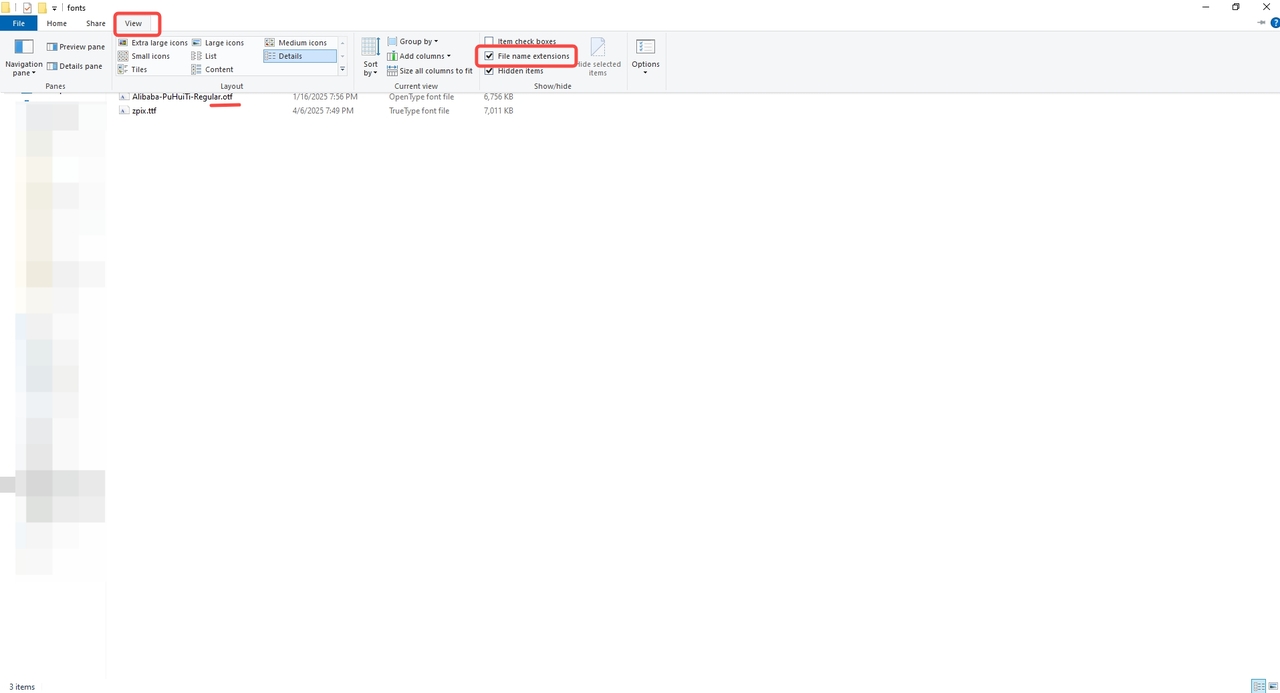
Locate the extracted font files (with extensions .ttf, .otf, .ttc). You can select a single file or hold the Ctrl key to select multiple font files.
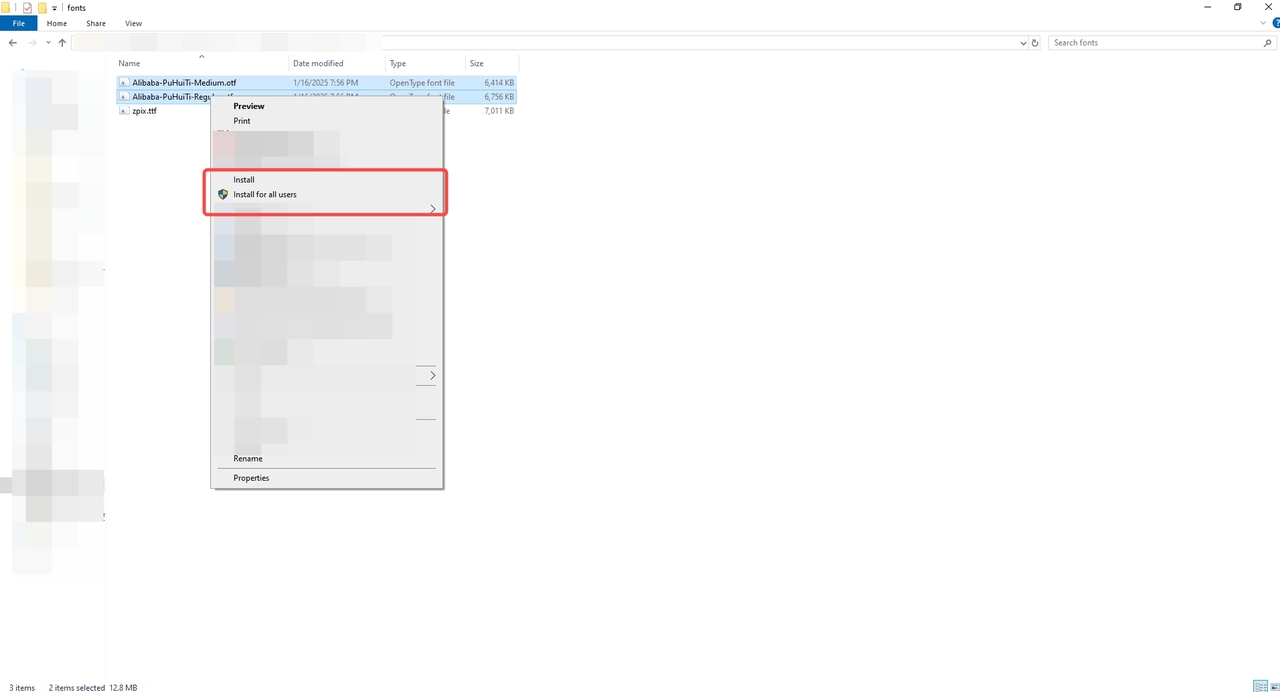
Right-click the selected font files and choose Install (only available to the current user) from the pop-up menu. To make the font available to all users logged in to the computer, select Install for all users (requires administrator privileges; follow the prompts to confirm).
Wait 1–3 seconds for the system to complete the installation automatically. A "Installation Complete" prompt will pop up (some systems finish installation without a prompt).
¶ Method 2: Preview & Install via Double-Click (Single font)
Double-click the extracted font file to open the font preview window (where you can view font styles and glyphs).
Click the Install button in the top-left corner of the preview window; the system will start installing.
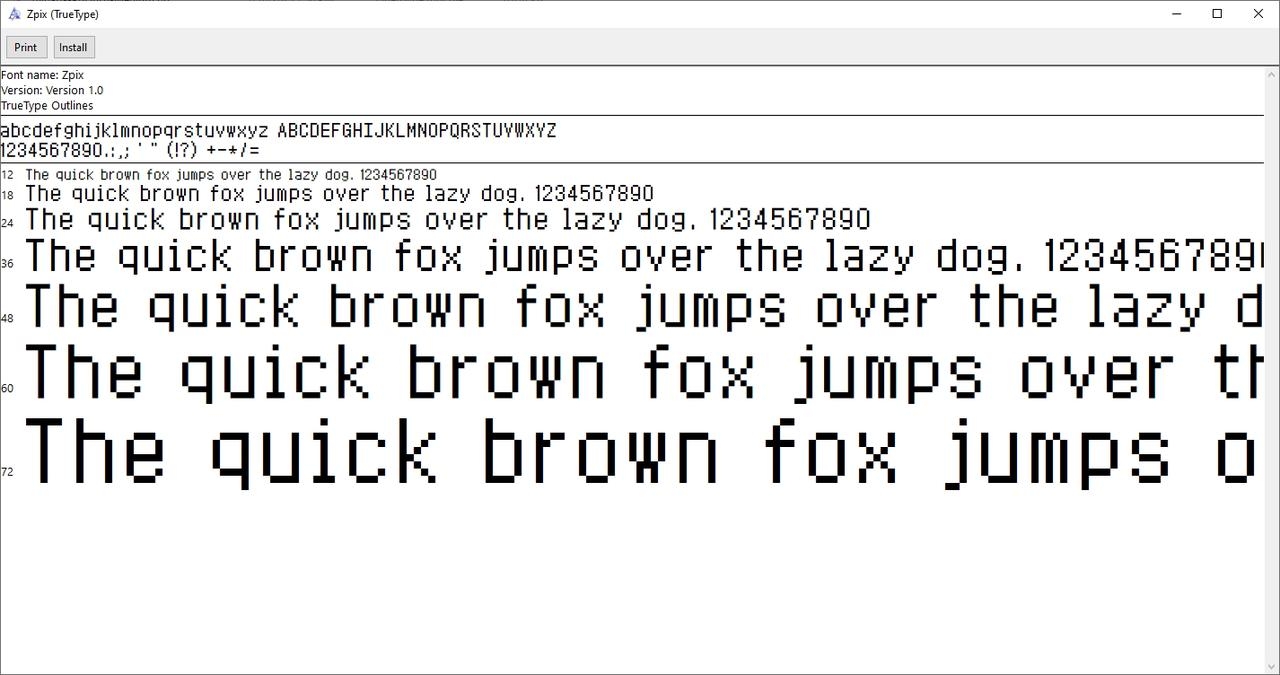
After installation, close the preview window — the font has been added to the system font library automatically.
¶ macOS Installation Method (Universal for all versions)
Two common methods are provided for Mac. Method 1 is for single fonts, and Method 2 is for batch installation, both with simple operations.
¶ Method 1: Direct Installation via Double-Click (Single font)
Locate the extracted font file and double-click to open the font preview window (to view font styles).
Click the Install Font button in the bottom-right corner of the preview window. A permission verification window will pop up (enter your computer’s login password if set).
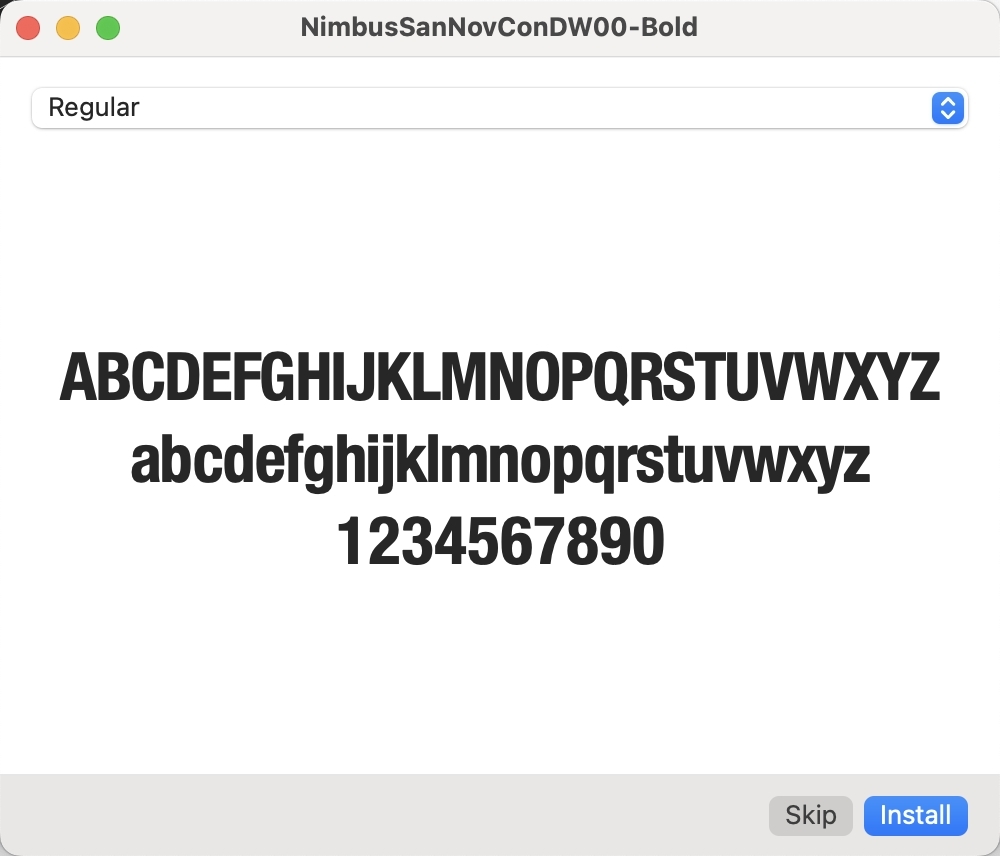
After entering the password, the system finishes installation automatically. The preview window will show "Installed" when successful; close the window.
¶ Method 2: Batch Installation via Font Book (Multiple fonts)
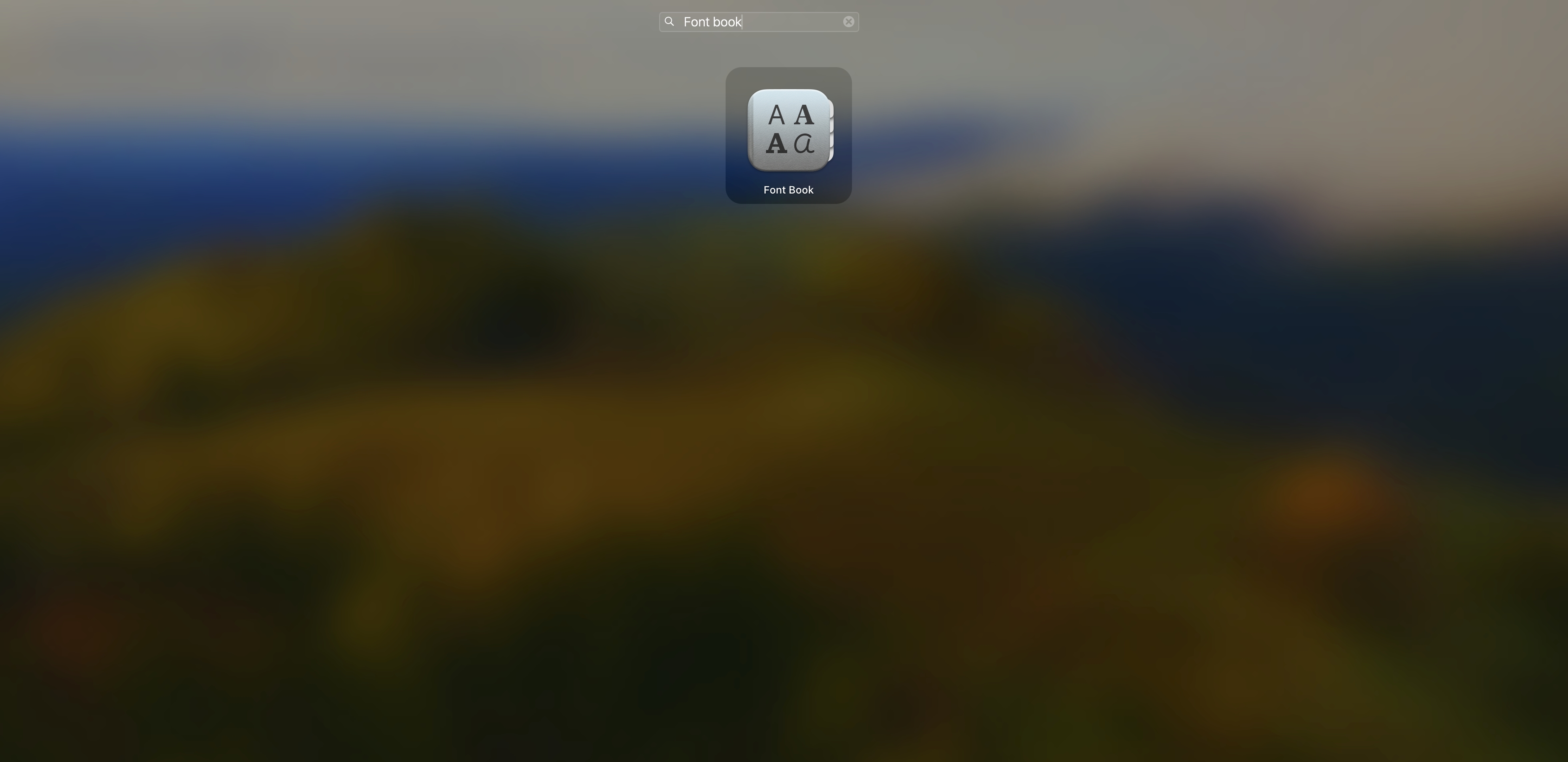
Open the built-in Font Book app: Press Command + Space to open Spotlight Search, type "Font Book", and click the result to launch it.
Open the folder containing the extracted font files and select all fonts to install (press Ctrl + A to select all).
Drag the selected font files directly into the Font Book window; the system will install them in batches automatically.
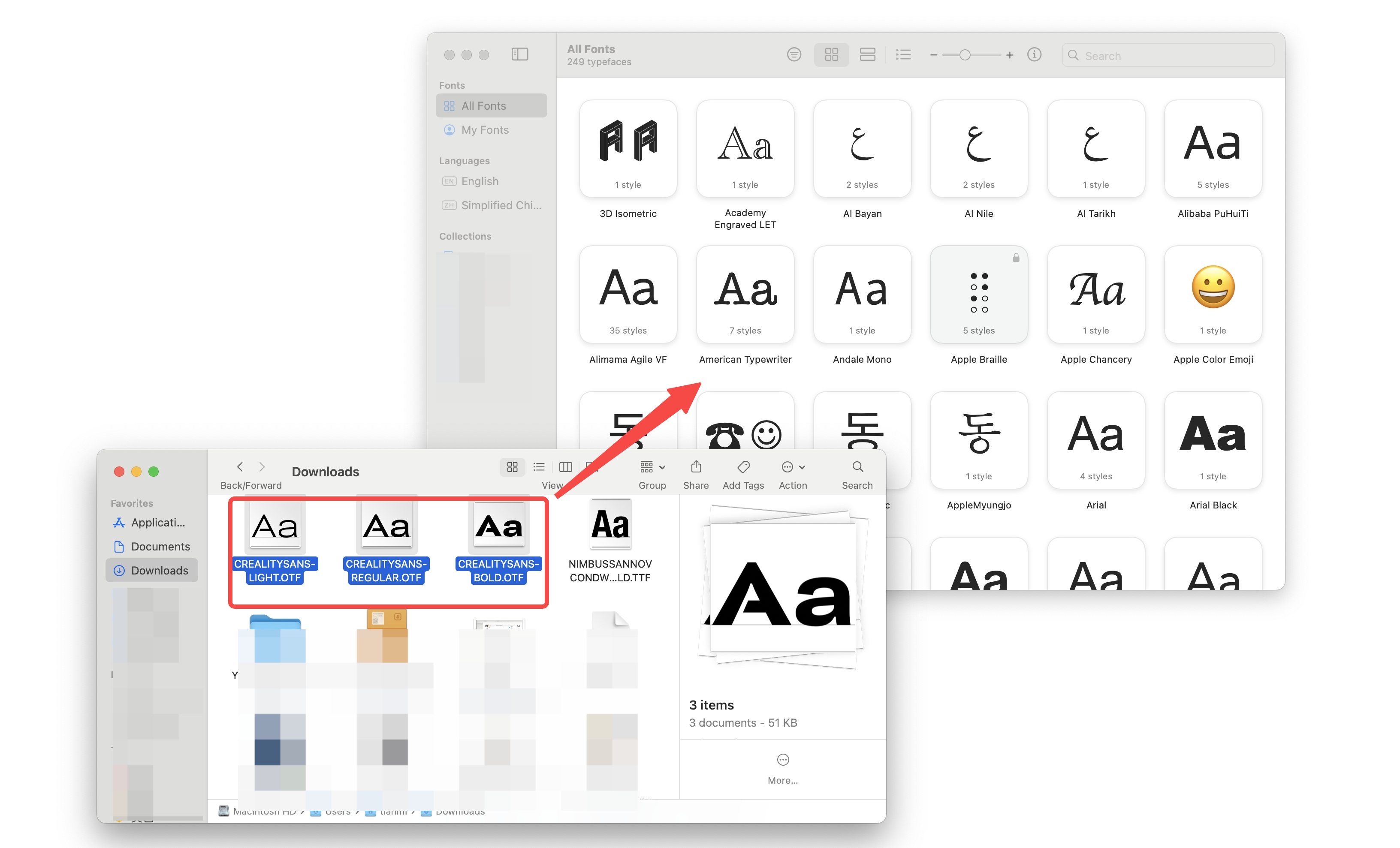
After installation, the new fonts will appear in Font Book and be ready for use in all applications.
¶ FDS Newly Installed Font Application
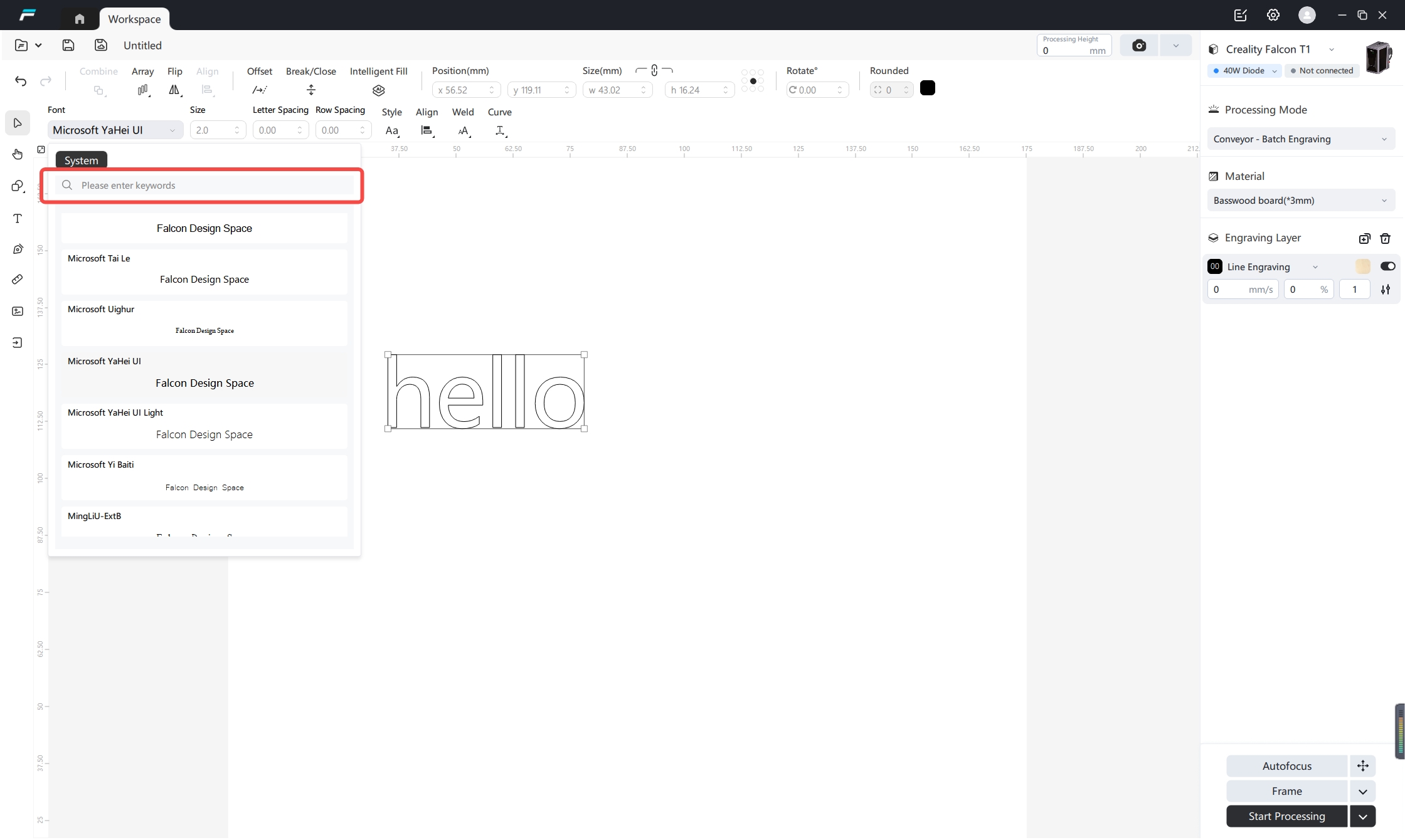
After completing the above font installation steps, open the FDS software and you can search for and use the fonts.
¶ Installation Verification
To confirm successful installation and ensure normal use:
Open any software that supports font selection (e.g., Word, PPT, Notepad, Photoshop, etc.).
In the software’s font dropdown list, type the installed font name (case-sensitive exact match) or scroll to find it.
If the font appears and displays/edits text normally, installation is successful. If not, refer to "Troubleshooting".
¶ Troubleshooting
Font corrupted prompt: Re-download the font or use a different source.
Font not showing in software: Restart the software / restart the computer.
Installation failed: Check administrator permissions.
¶ Font Uninstallation
To remove unused fonts and free up system space:
¶ Windows
Press Win + R, type %windir%\Fonts, and open the system Fonts folder.
Find the font to uninstall (search by name for quick location).
Right-click the font and select Delete, then confirm to finish uninstallation (the font will no longer appear in software).
¶ macOS
Open the Font Book app (search via Spotlight).
Locate and select the font to uninstall in Font Book.
Right-click the selected font and choose Remove, then confirm in the pop-up prompt to complete uninstallation.