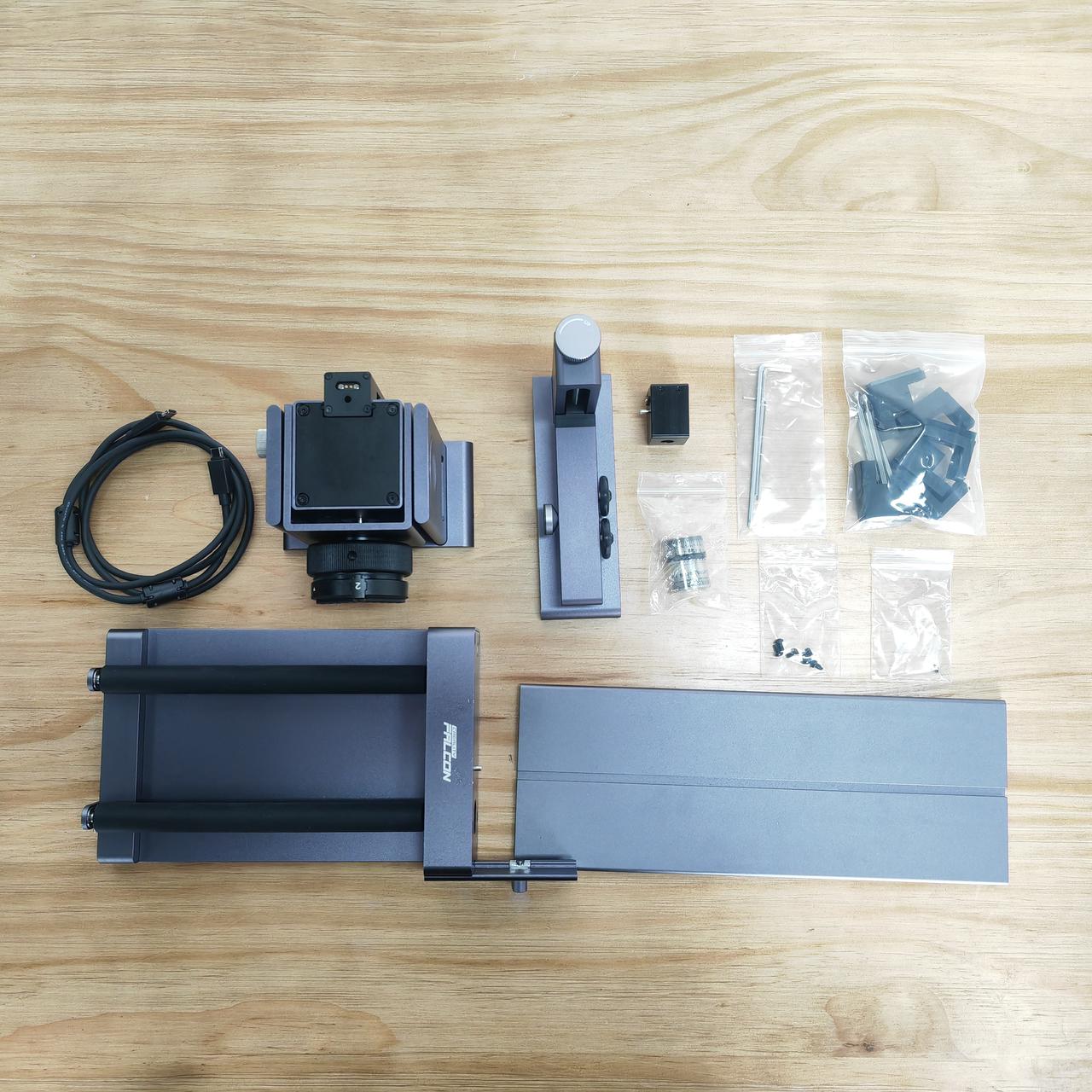
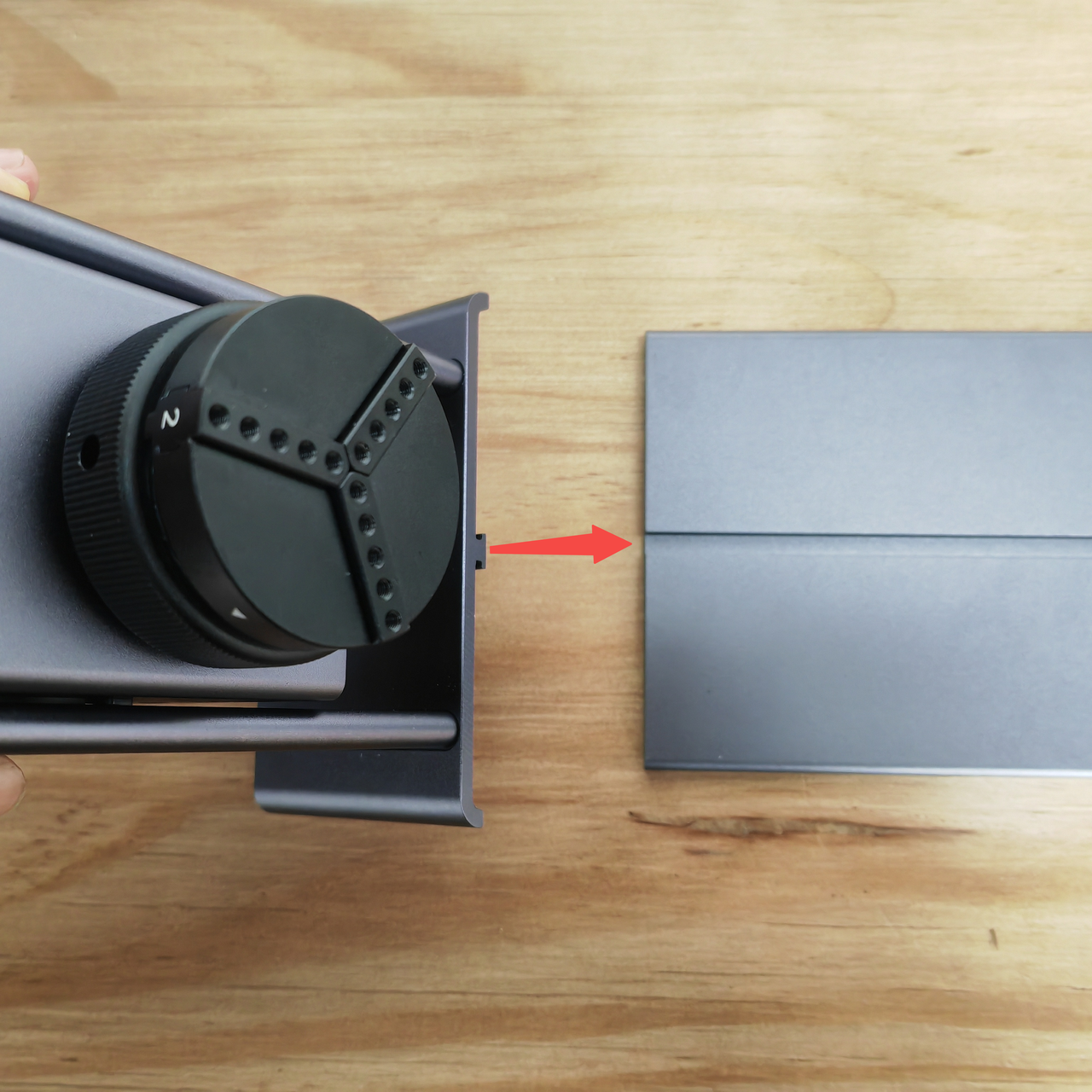
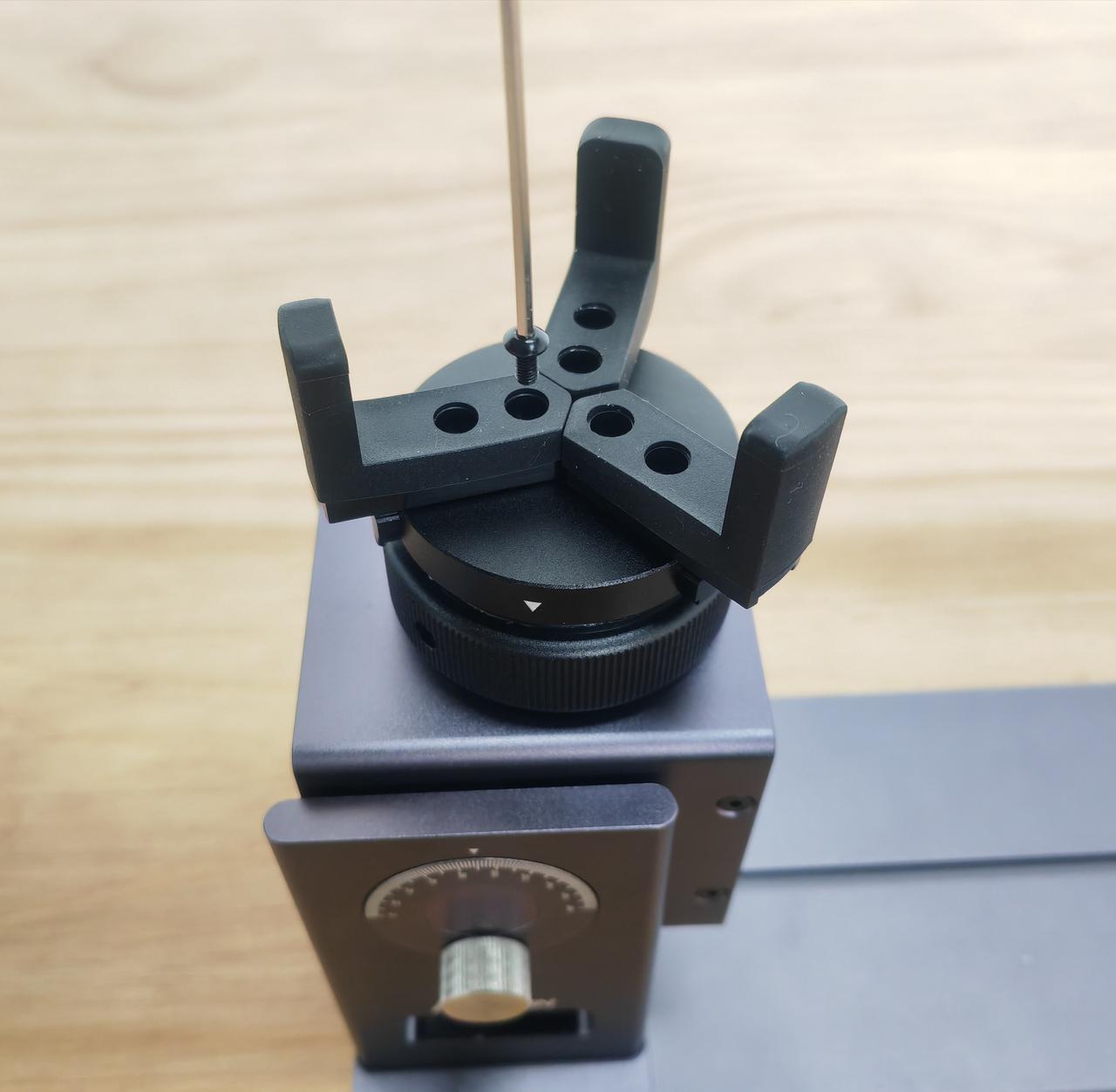
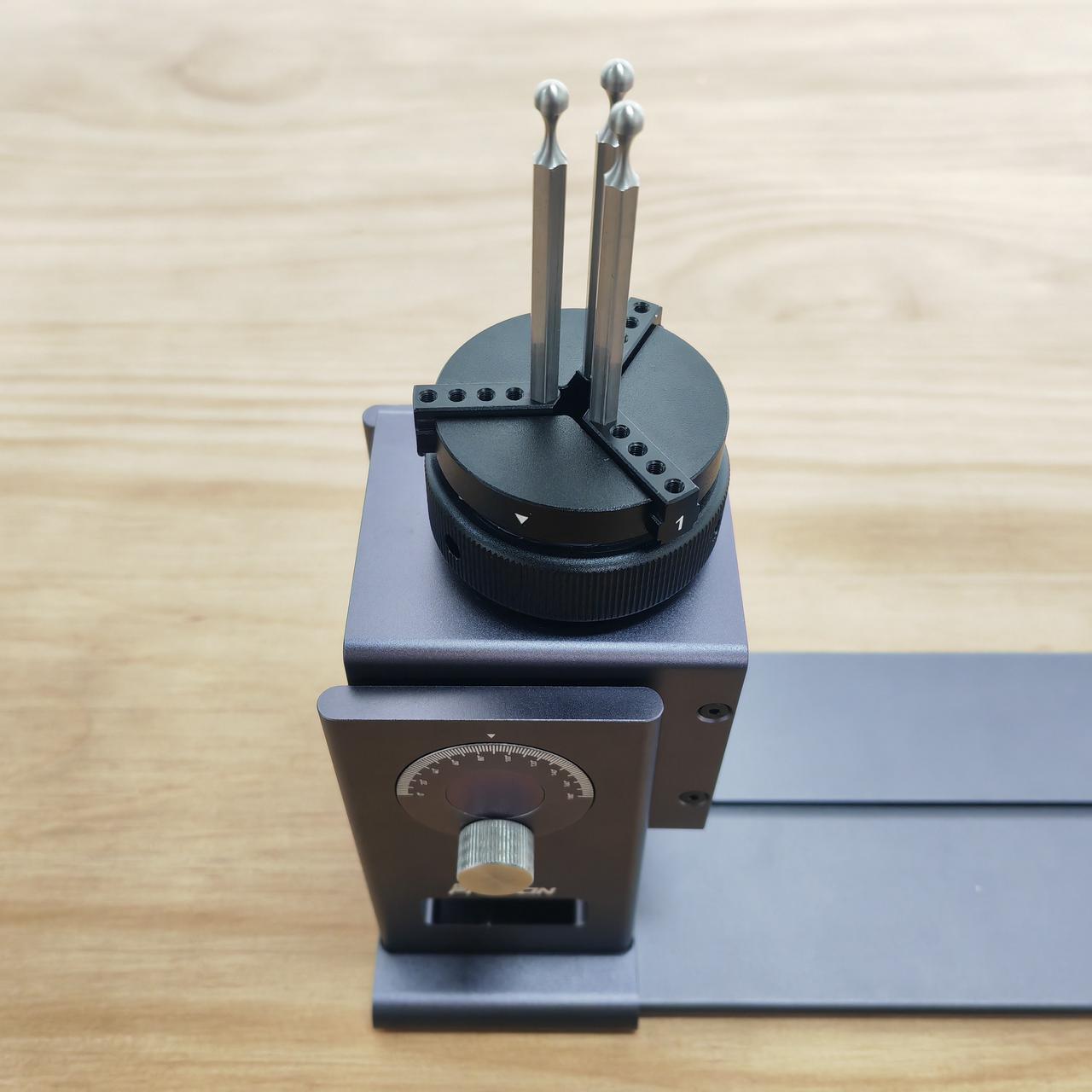
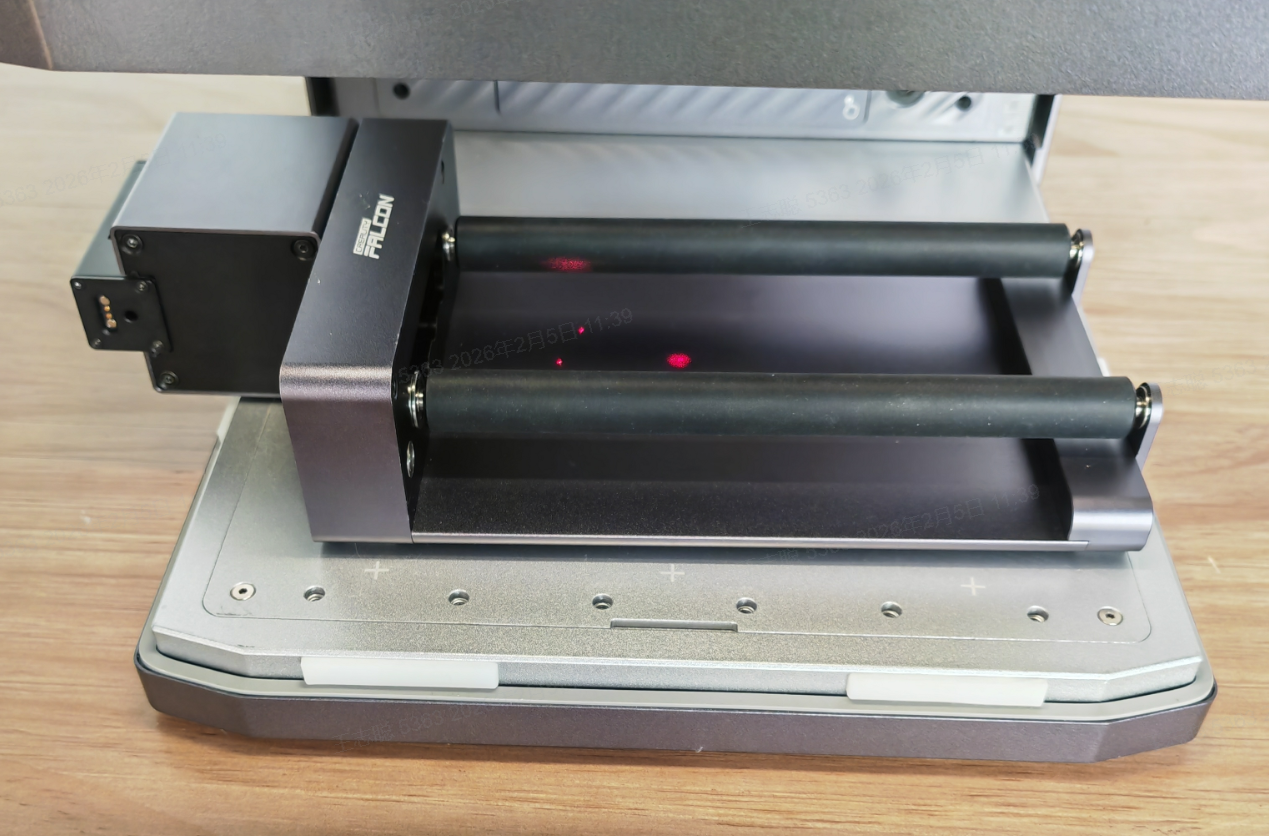
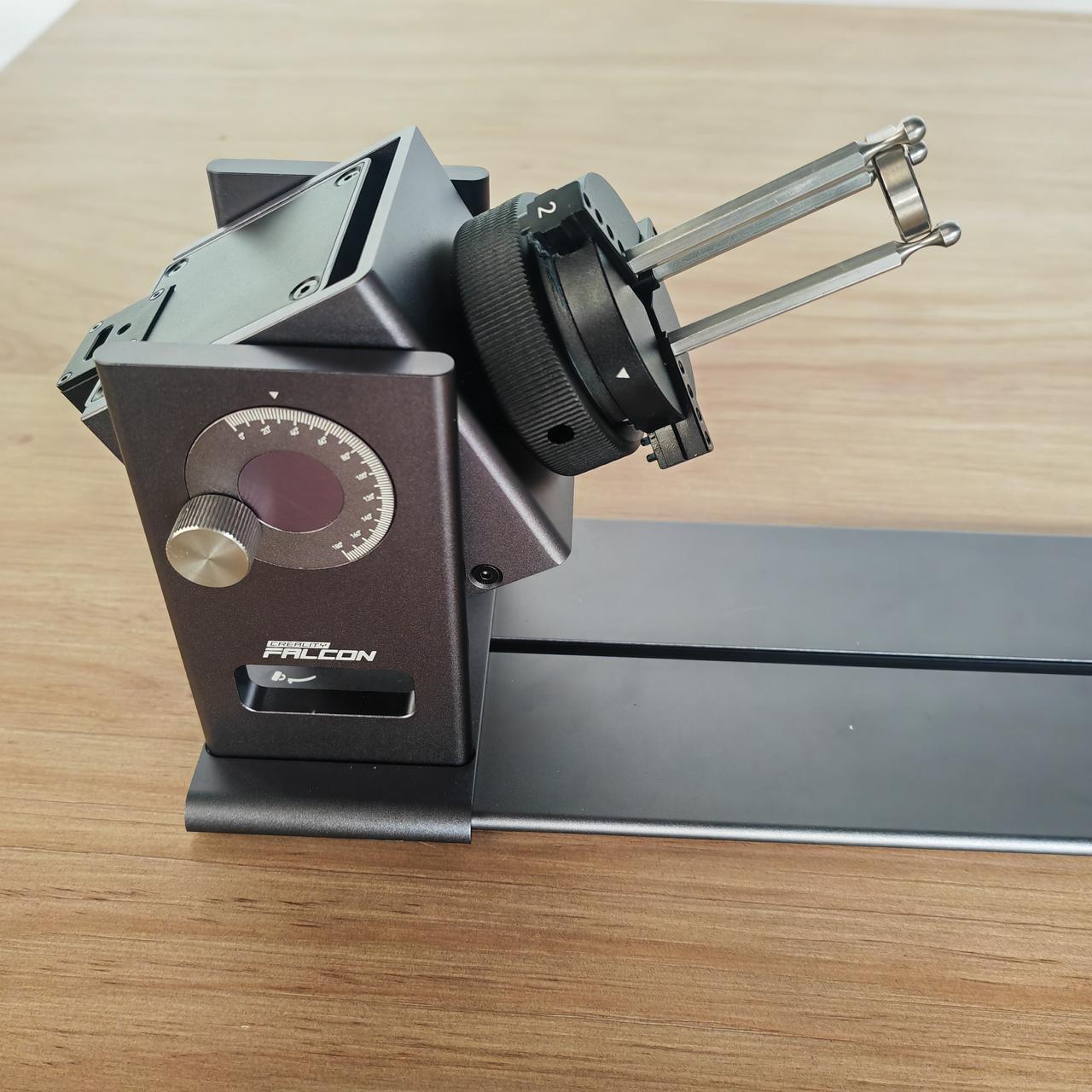
Screw the stud into the threaded hole of the chuck.
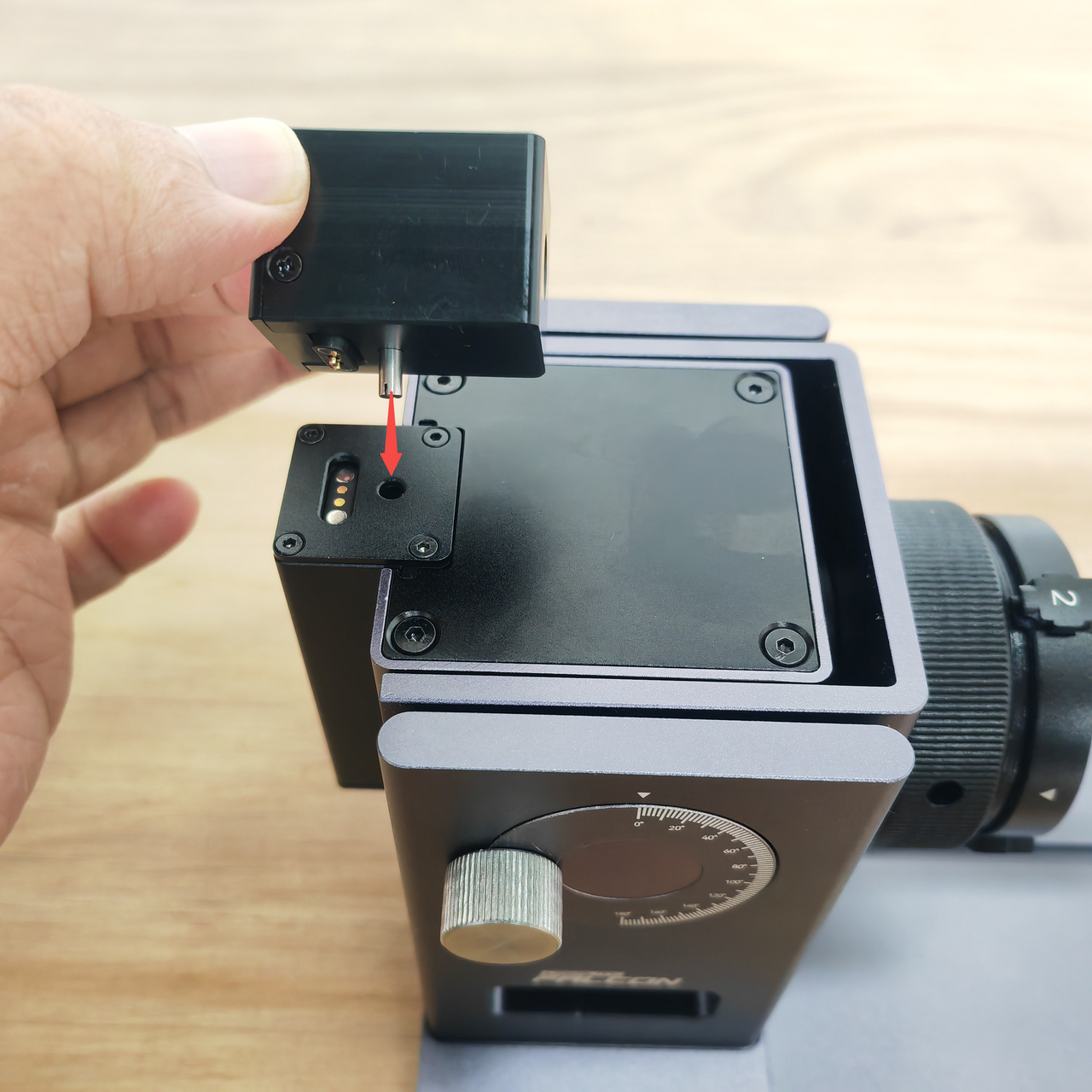
¶ Install the laser auxiliary line module on the chuck
Align the positioning post of the laser auxiliary line module with the mounting hole on the chuck.
¶ Install the motor module on the chuck onto the roller
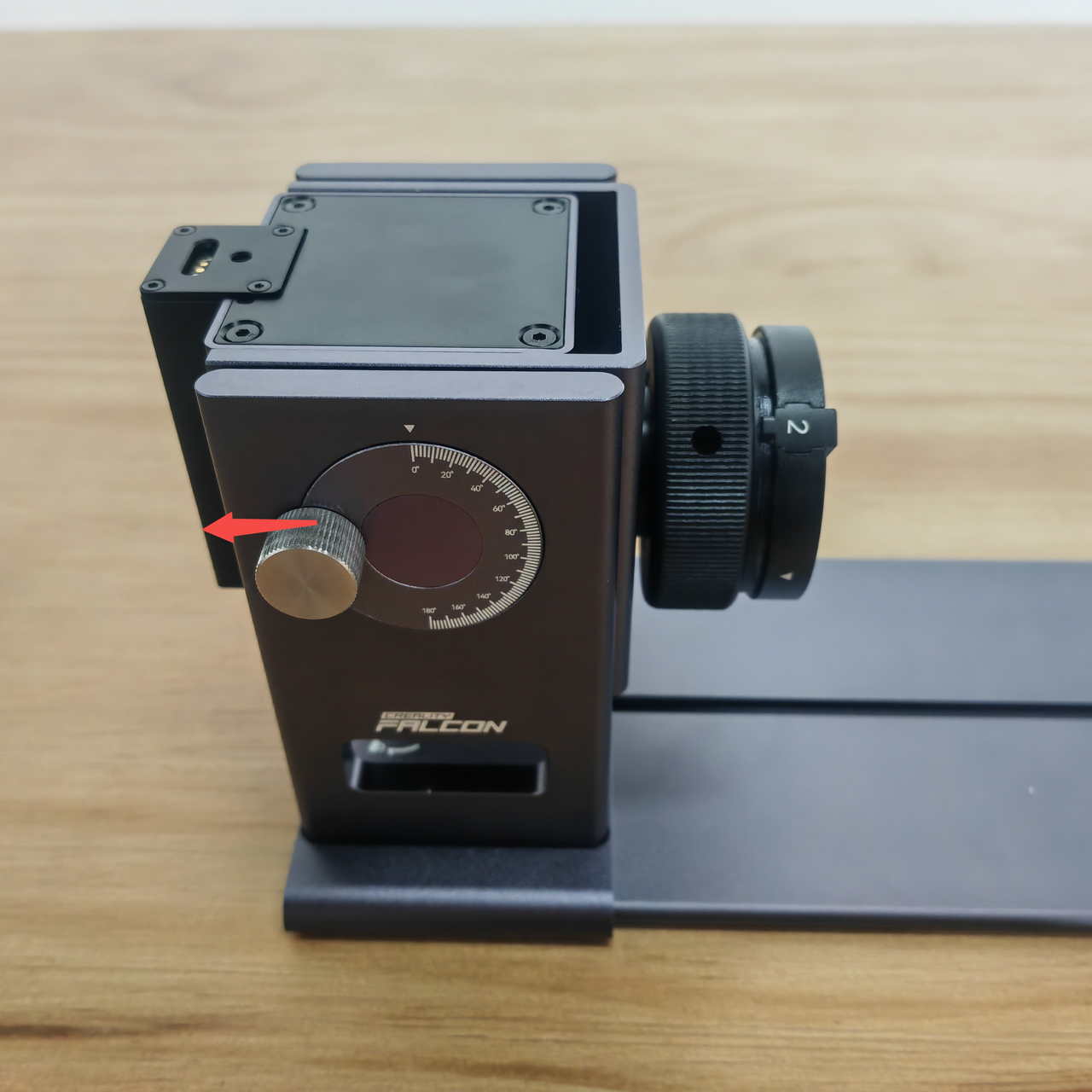
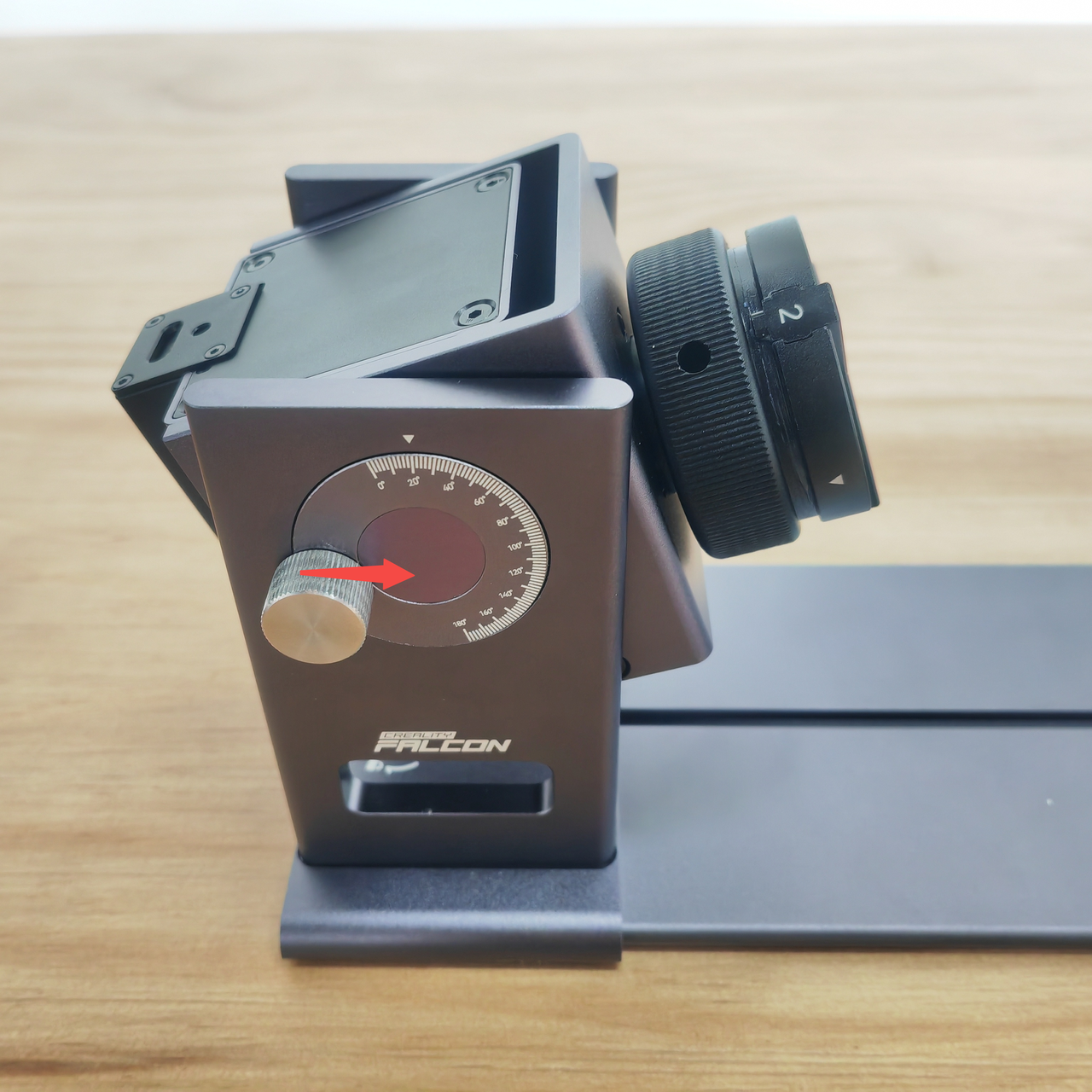
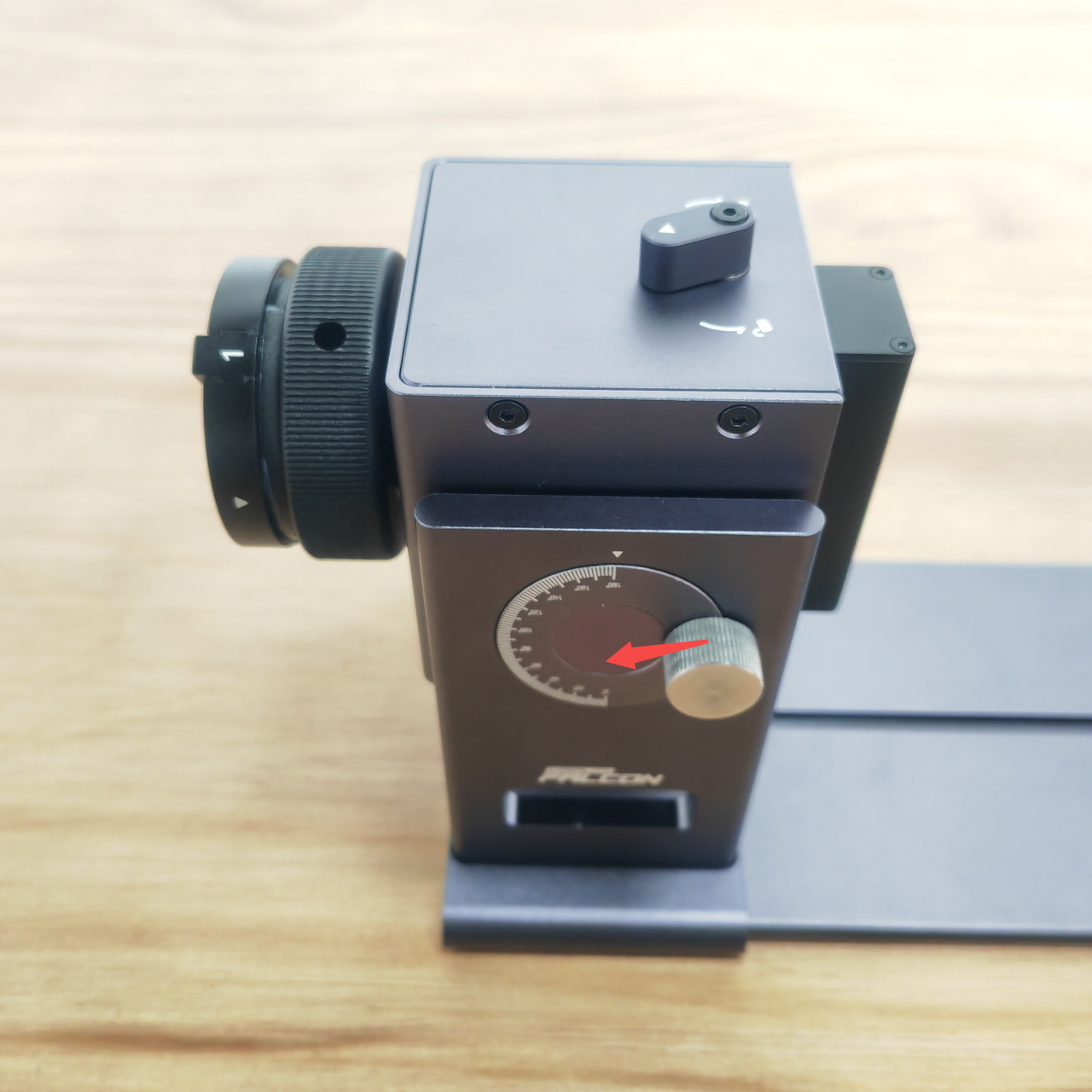
Rotate the chuck counterclockwise and rotate the chuck 180 degrees.
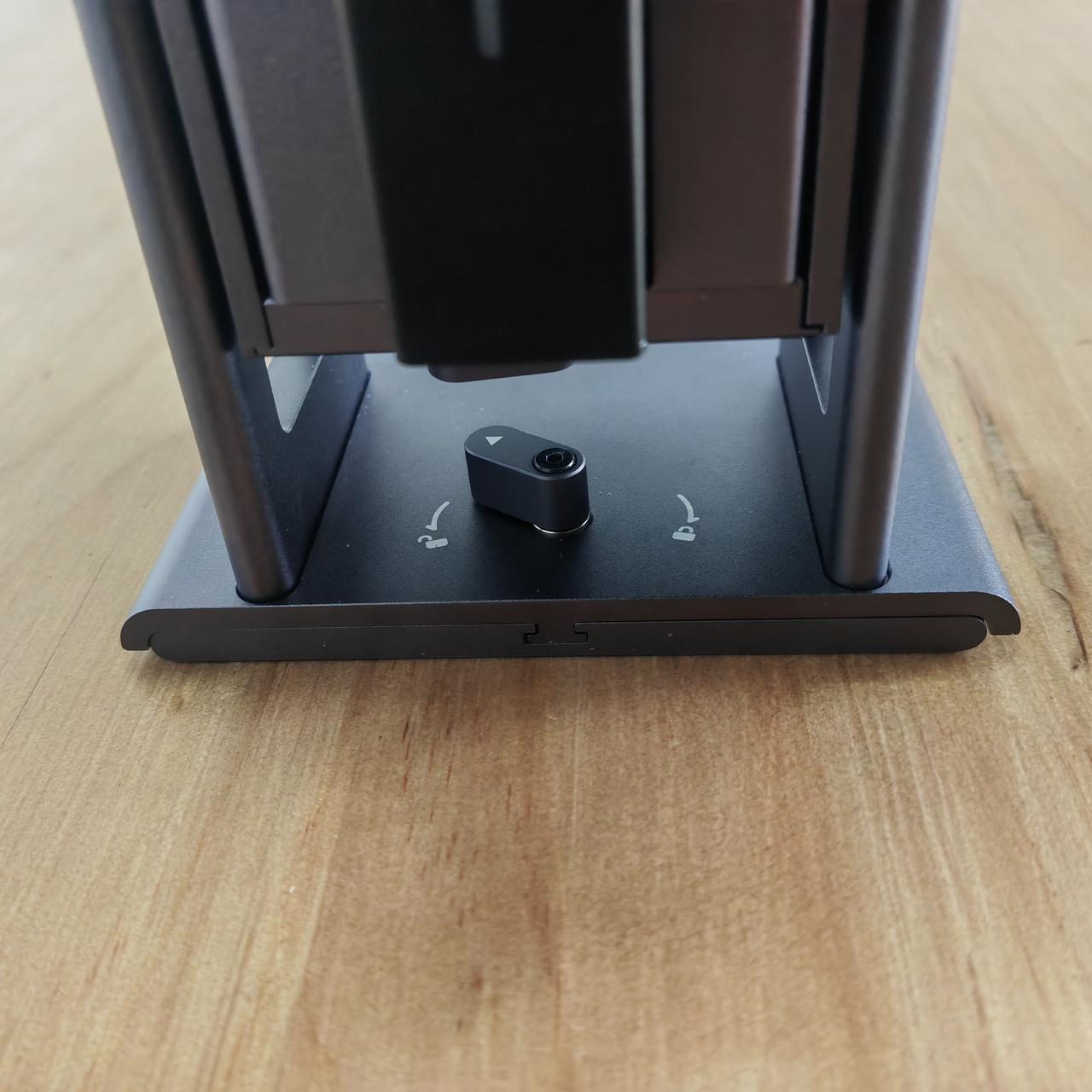
After rotating the lever counterclockwise, remove the motor module.
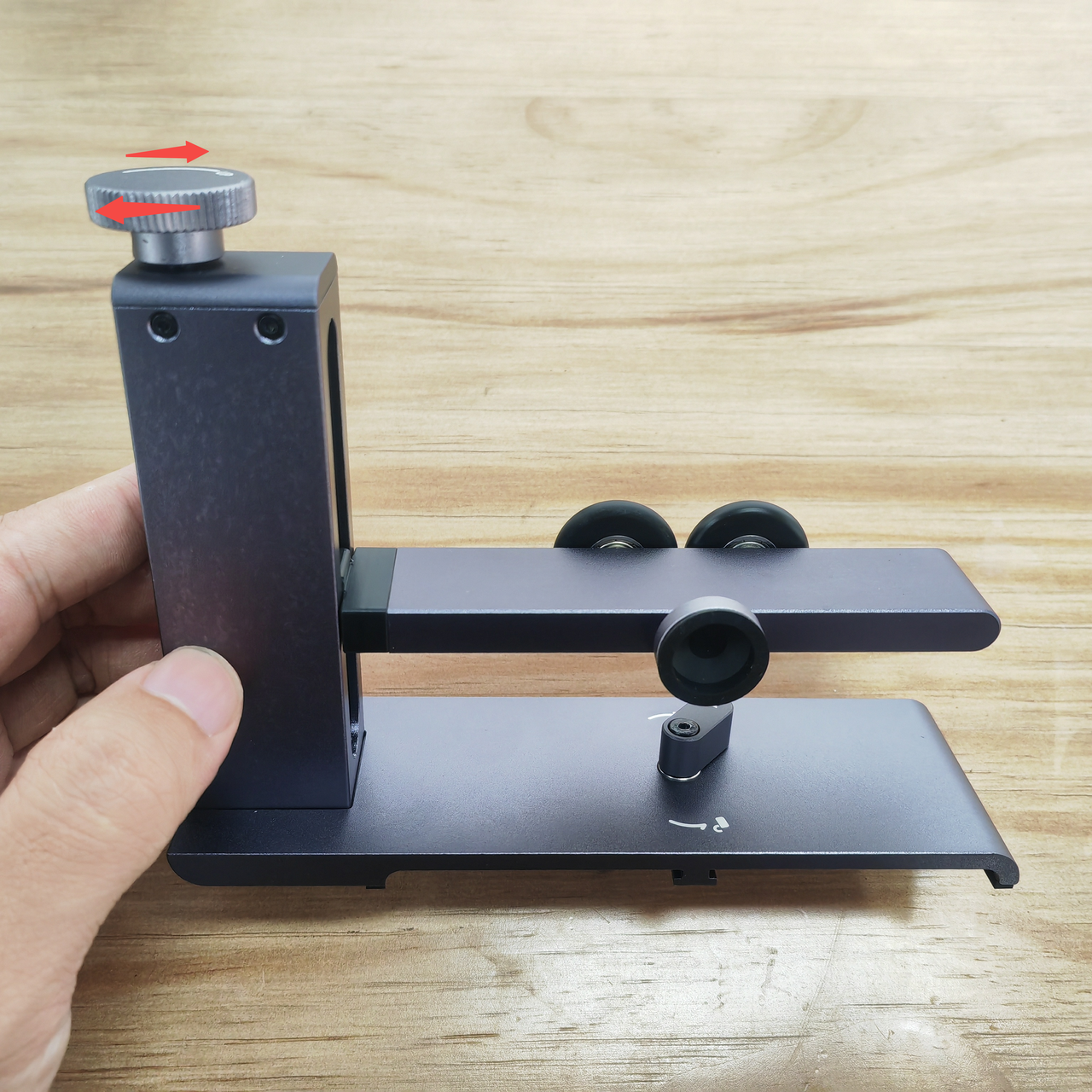
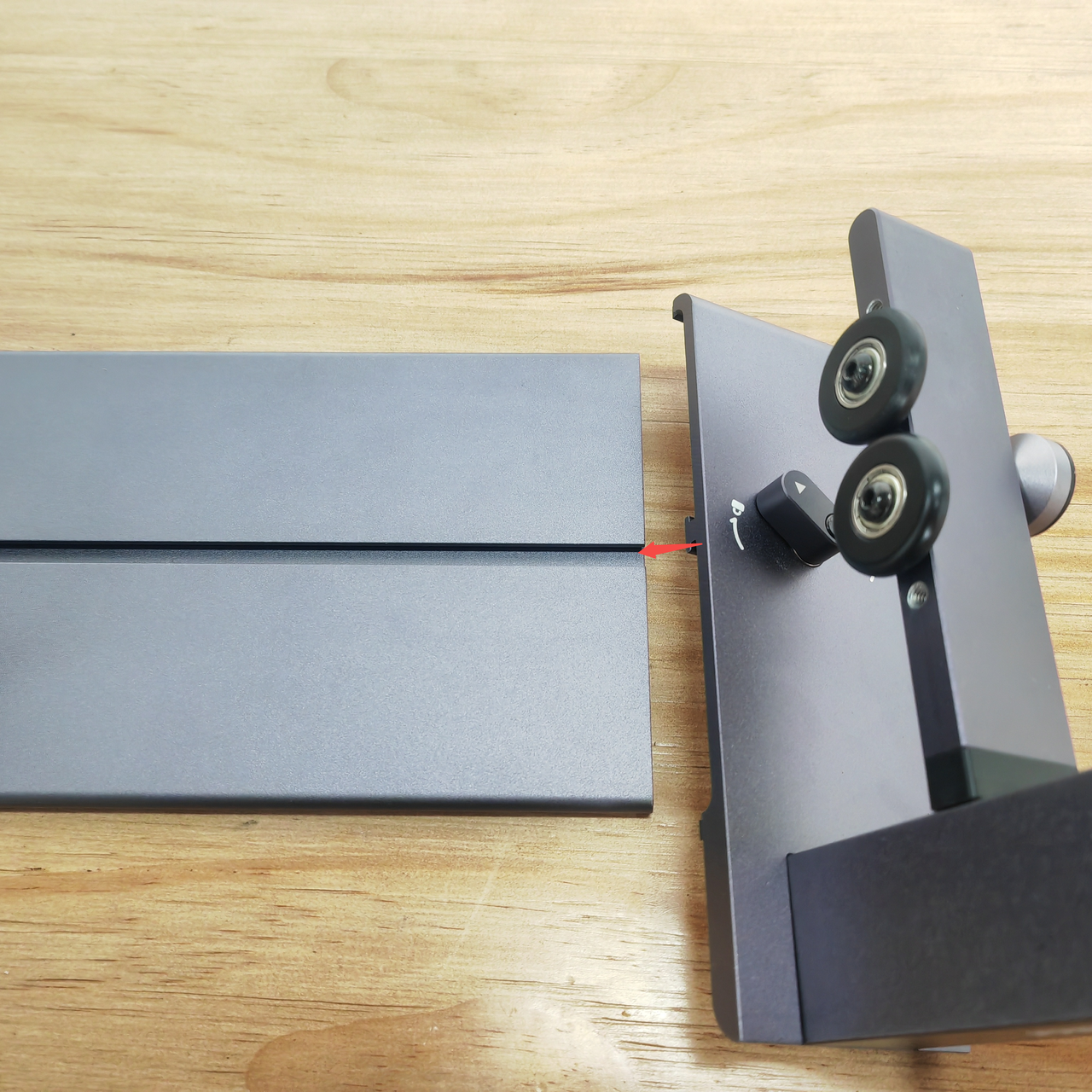
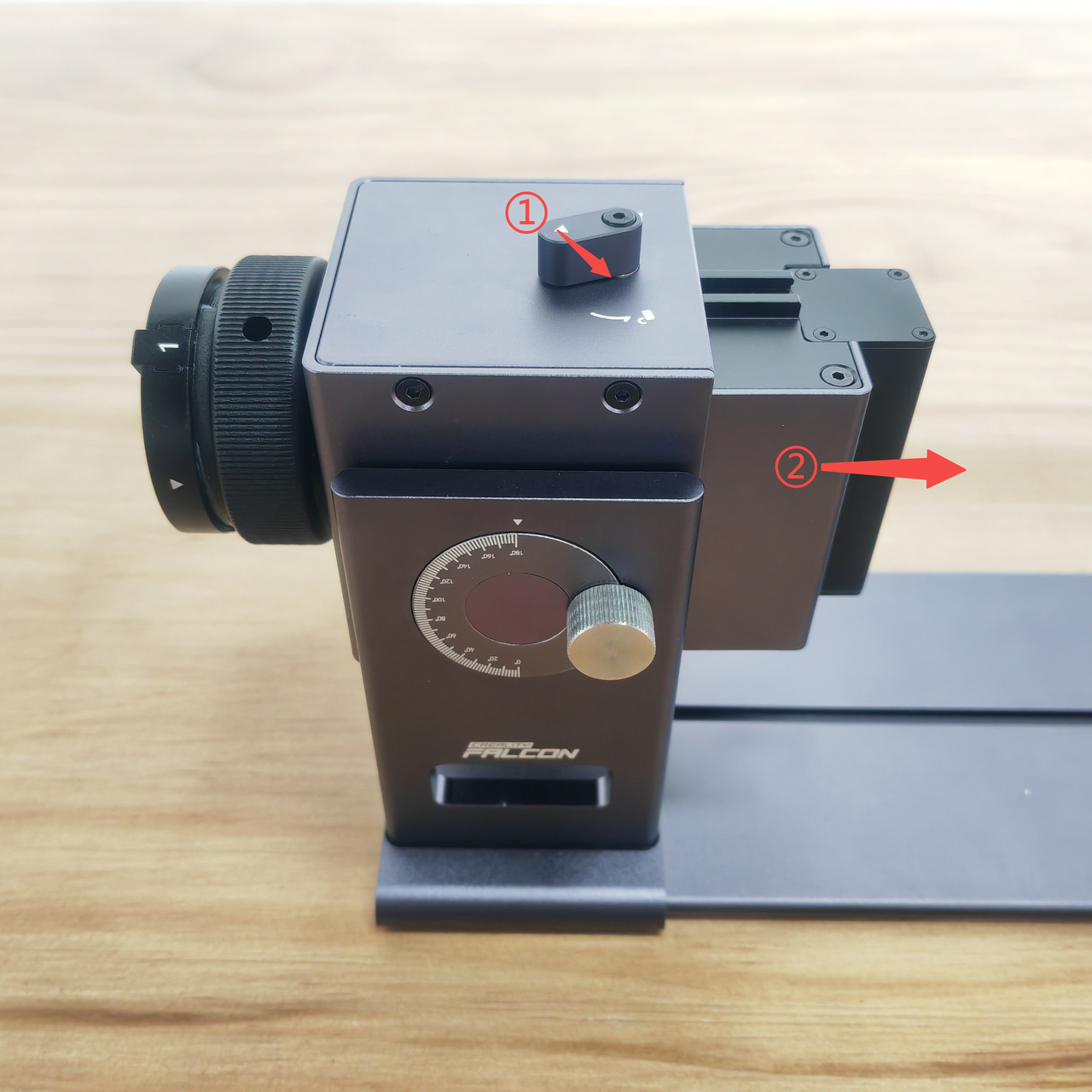
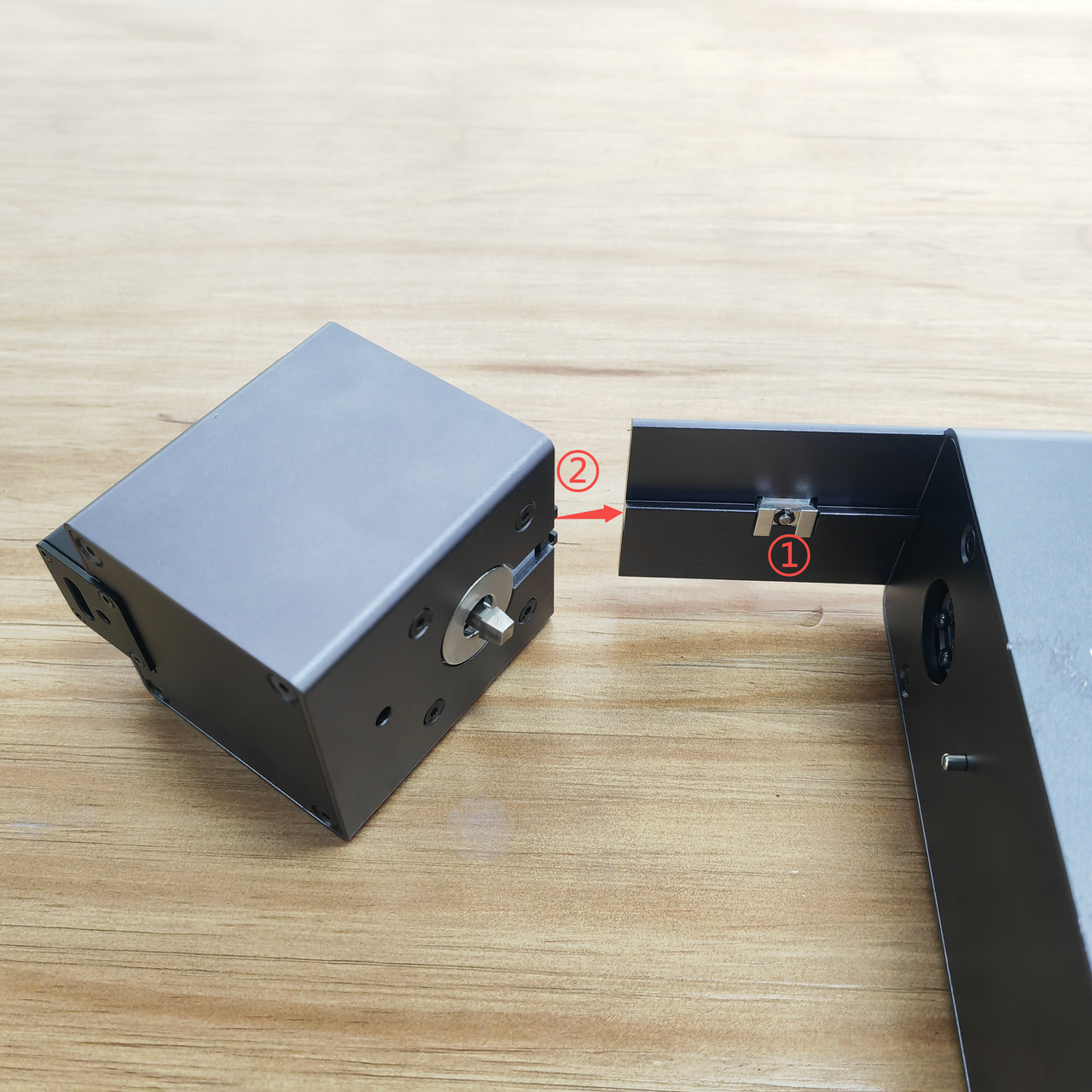
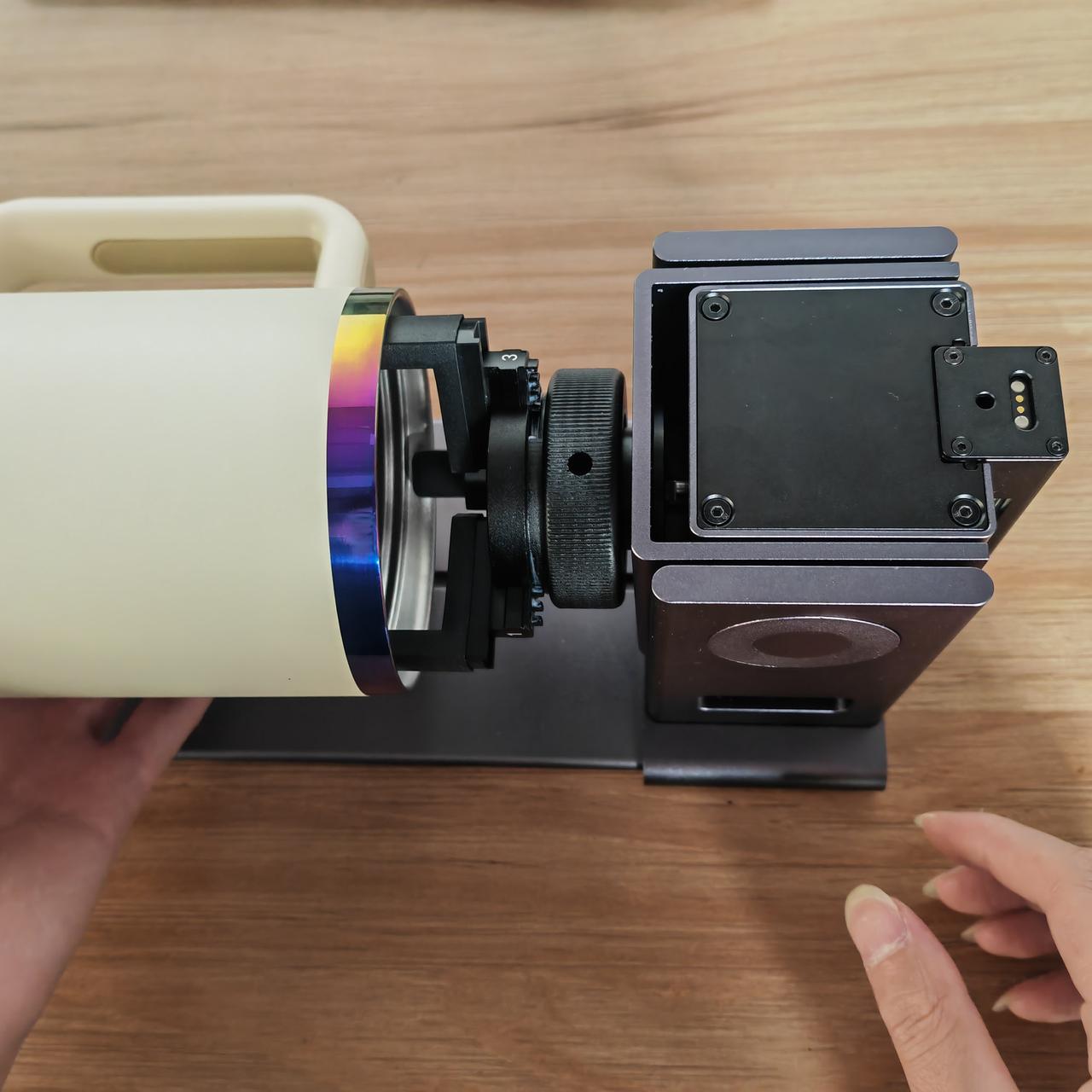
Loosen the nut at position ①, align the motor module slot with the drum slot, and push the motor module into the roller.
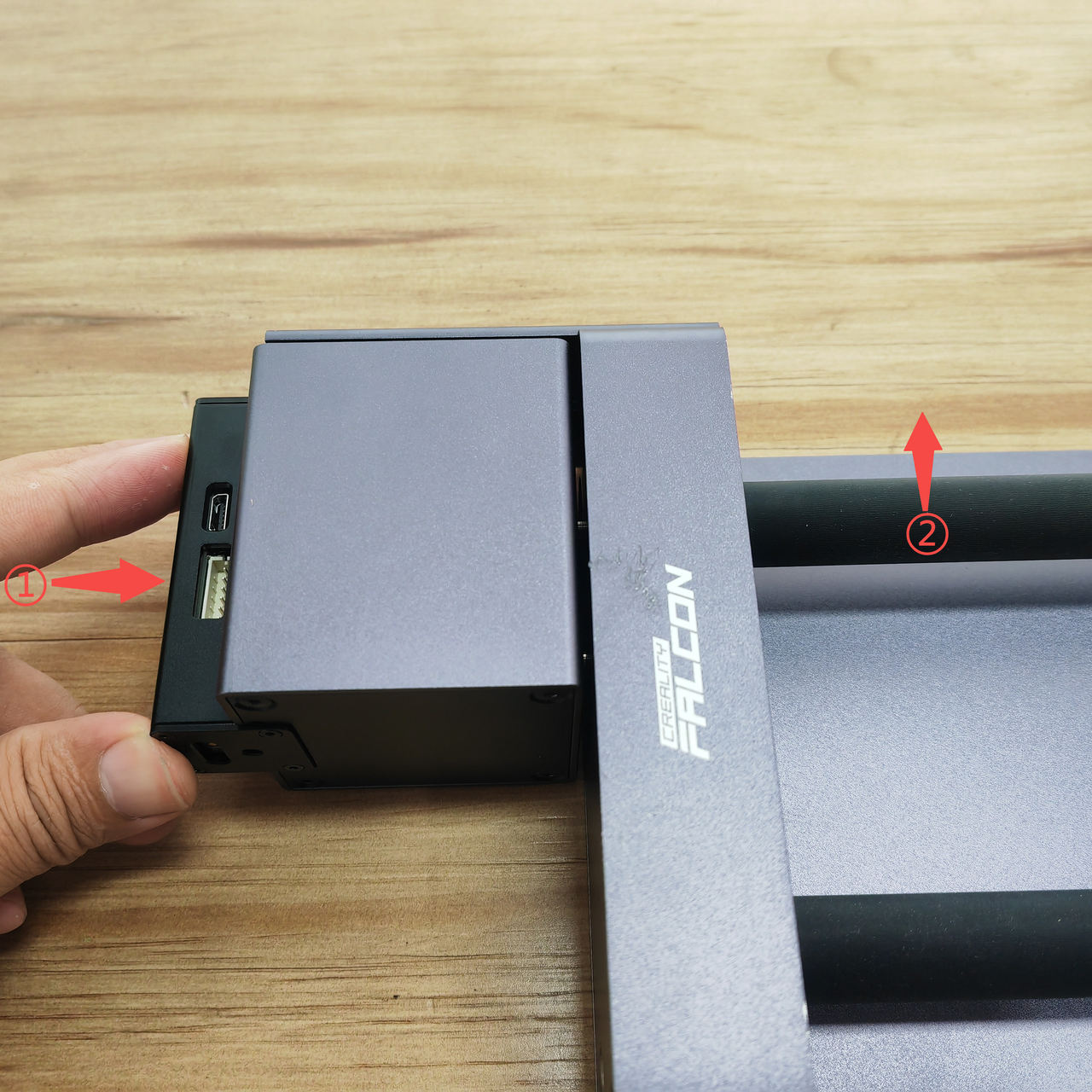
Gently push the motor module with your left hand, and turn the black roller 1-2 times with your right hand. During this process, the motor module will move slightly to the right and fit into the roller.
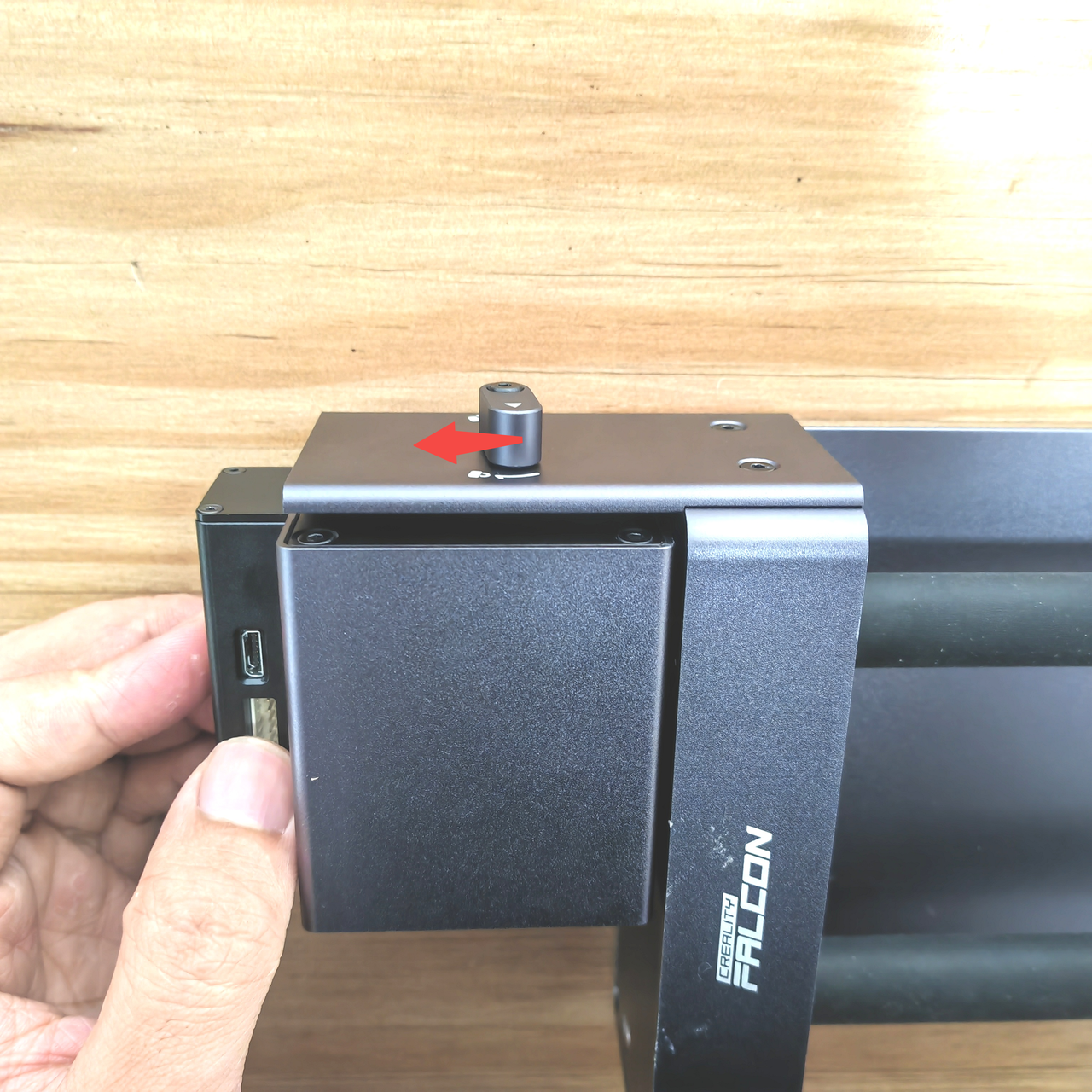
Keep the left hand in a position of gently pushing the motor module, and rotate the lever to lock the motor module with the roller.
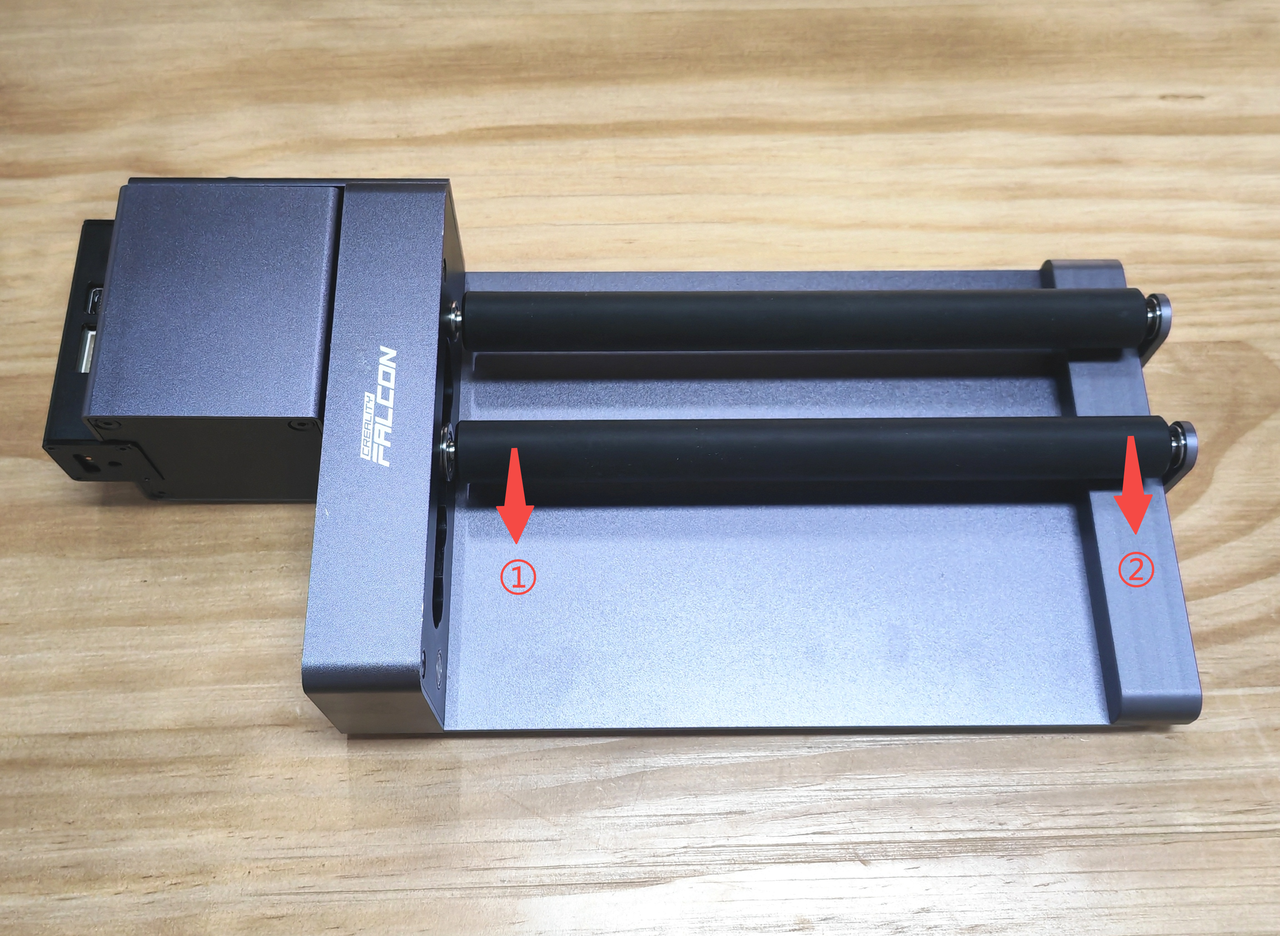
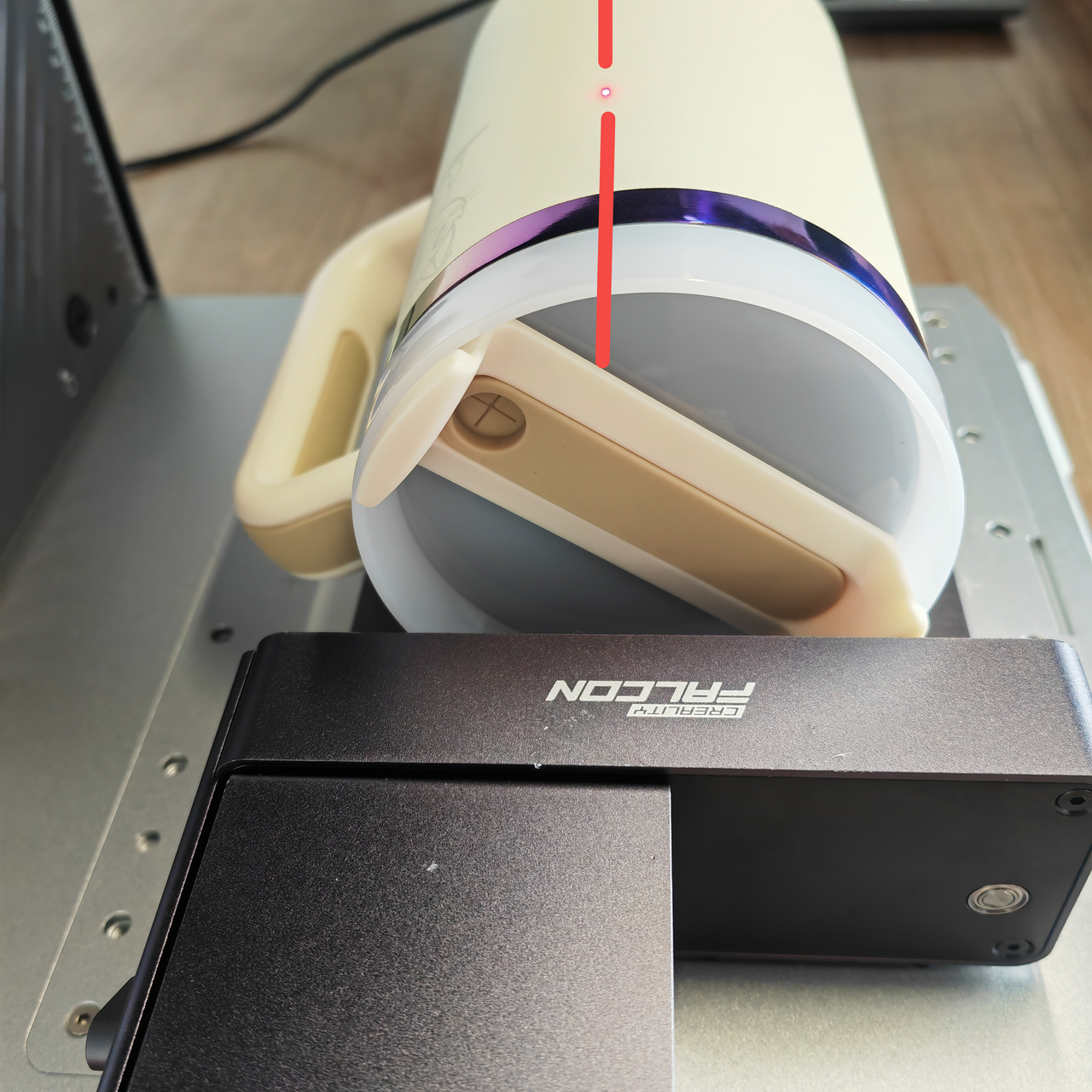
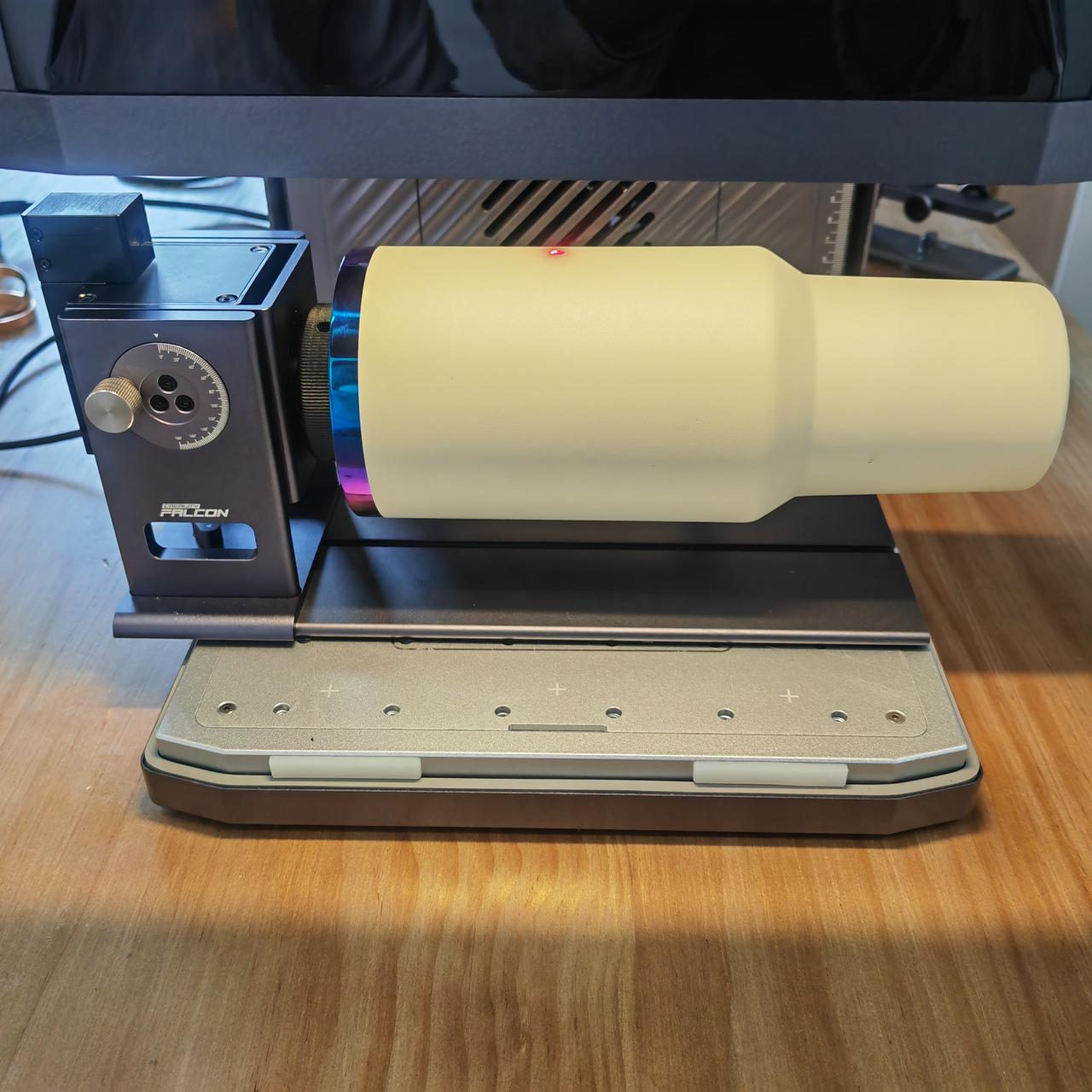
Place the water cup on the roller, adjust the position of the roller so that the red dot T1 falls on the central axis of the water cup.
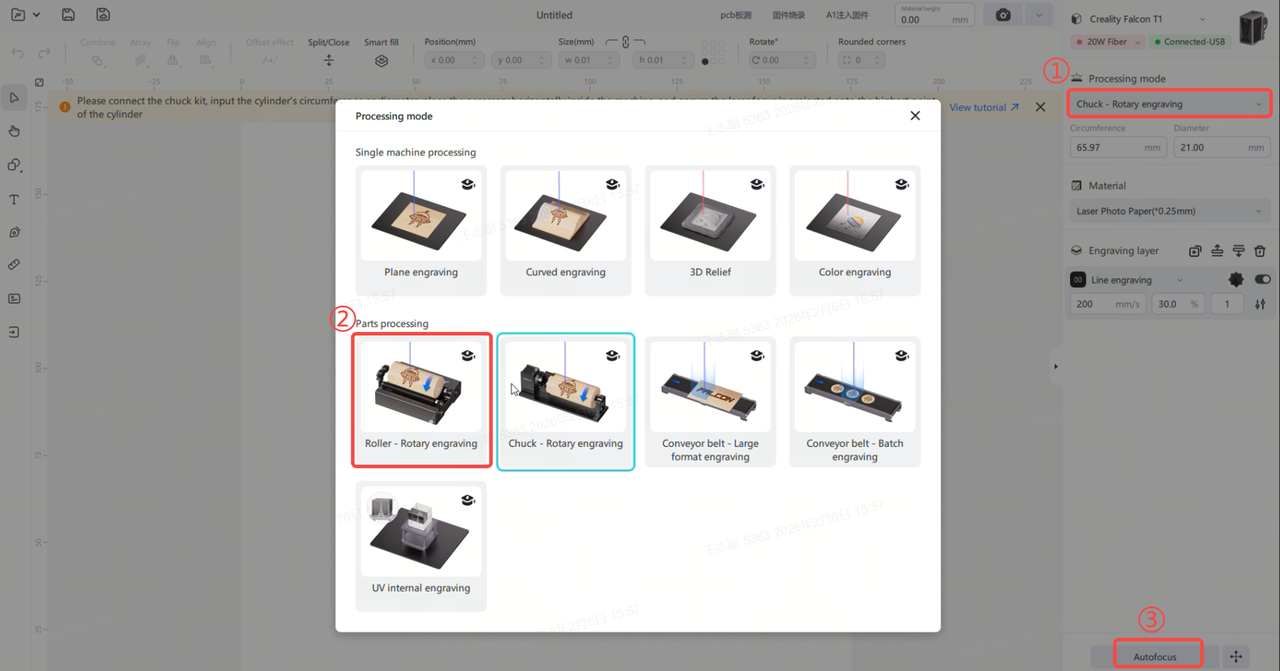
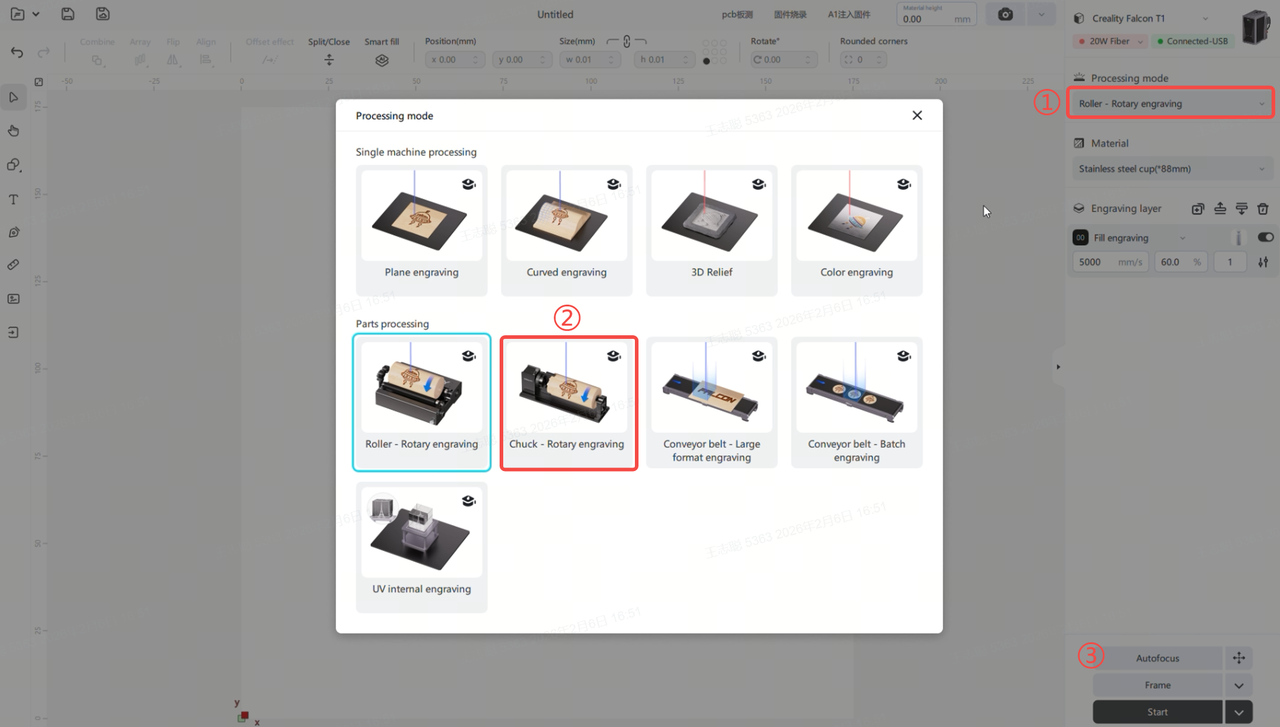
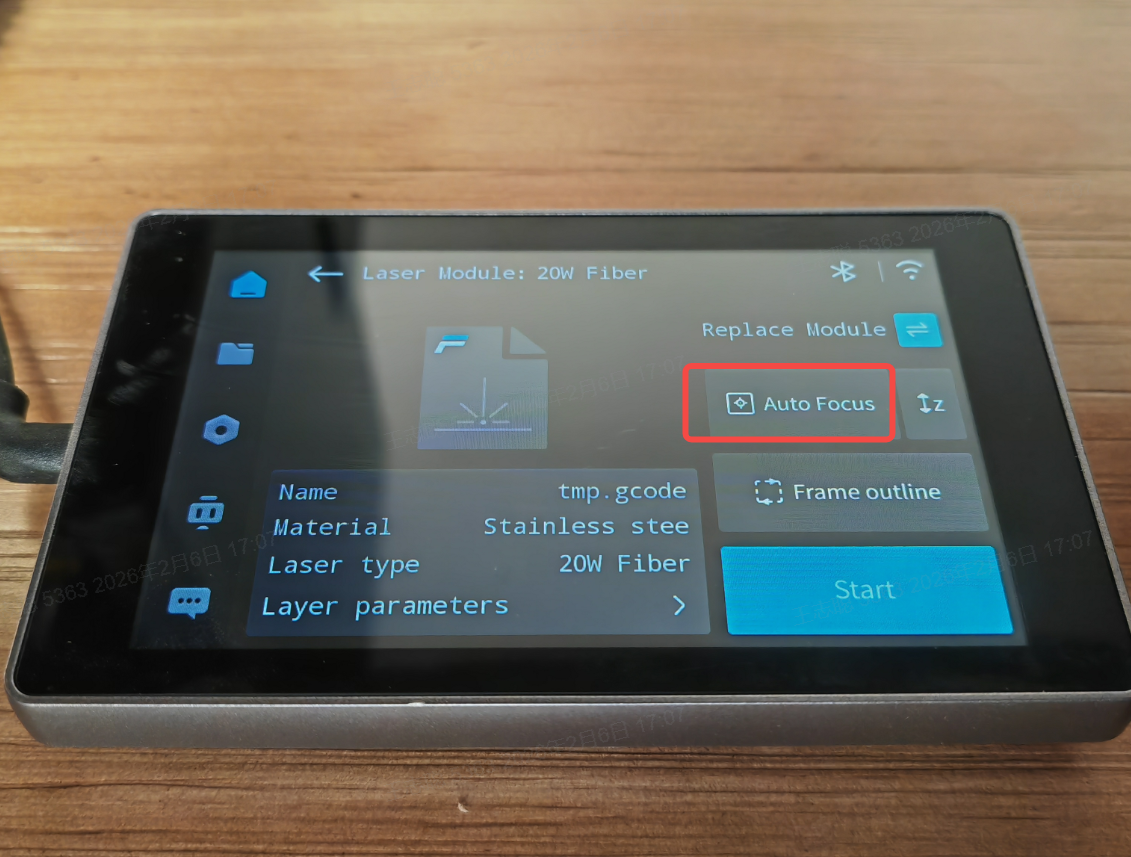
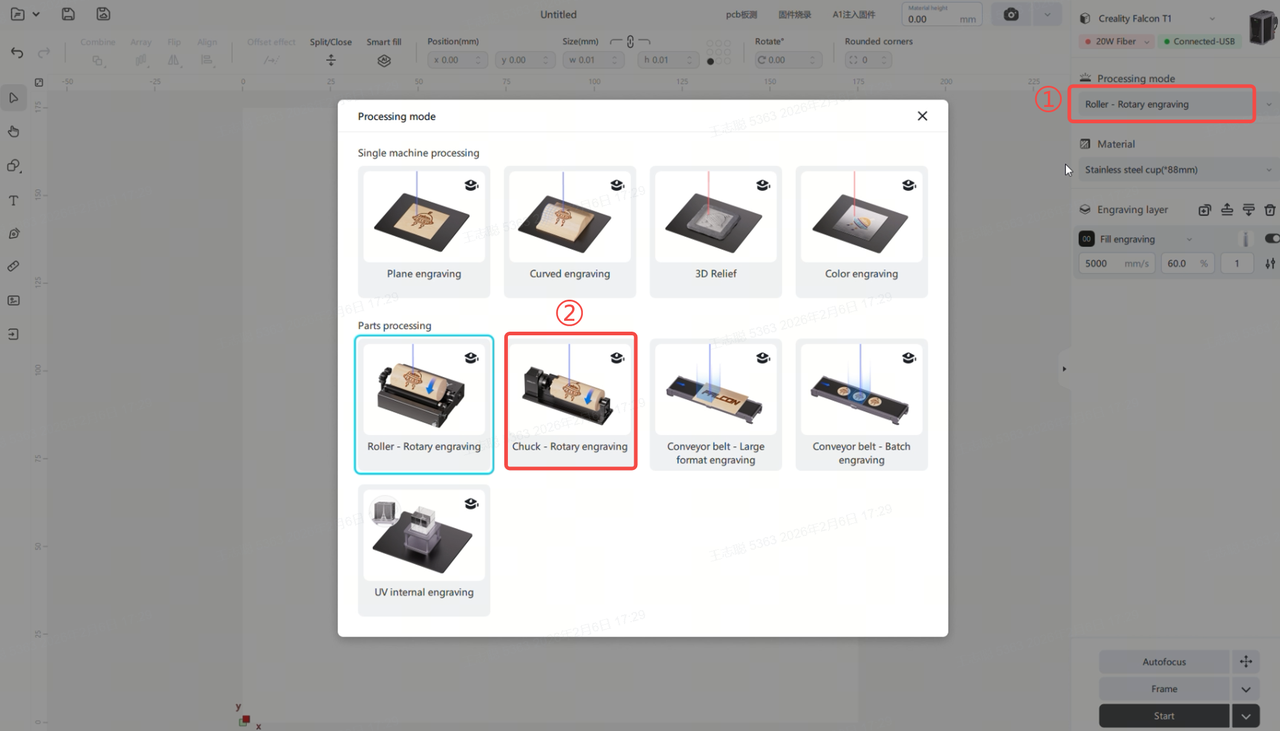
Open Falcon Design Space, connect to T1. Then select Roller-Rotary Engraving in Processing Mode, and click Auto Focus.
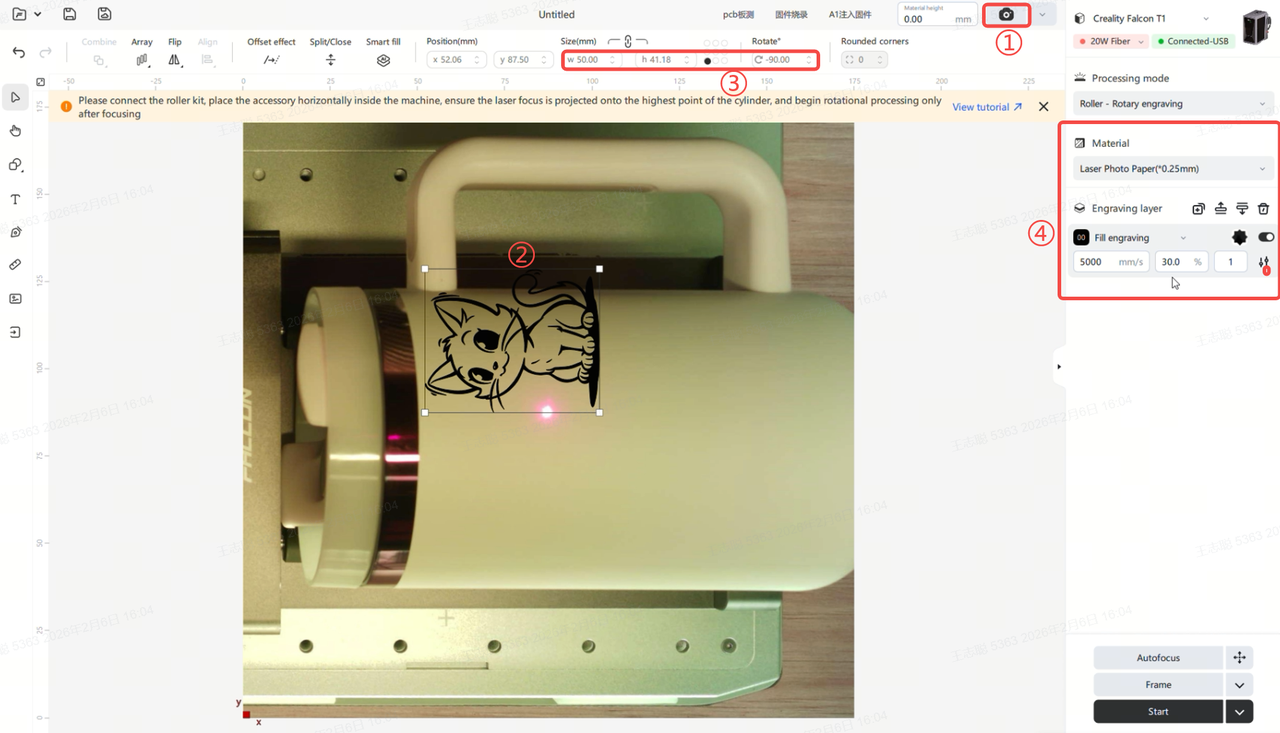
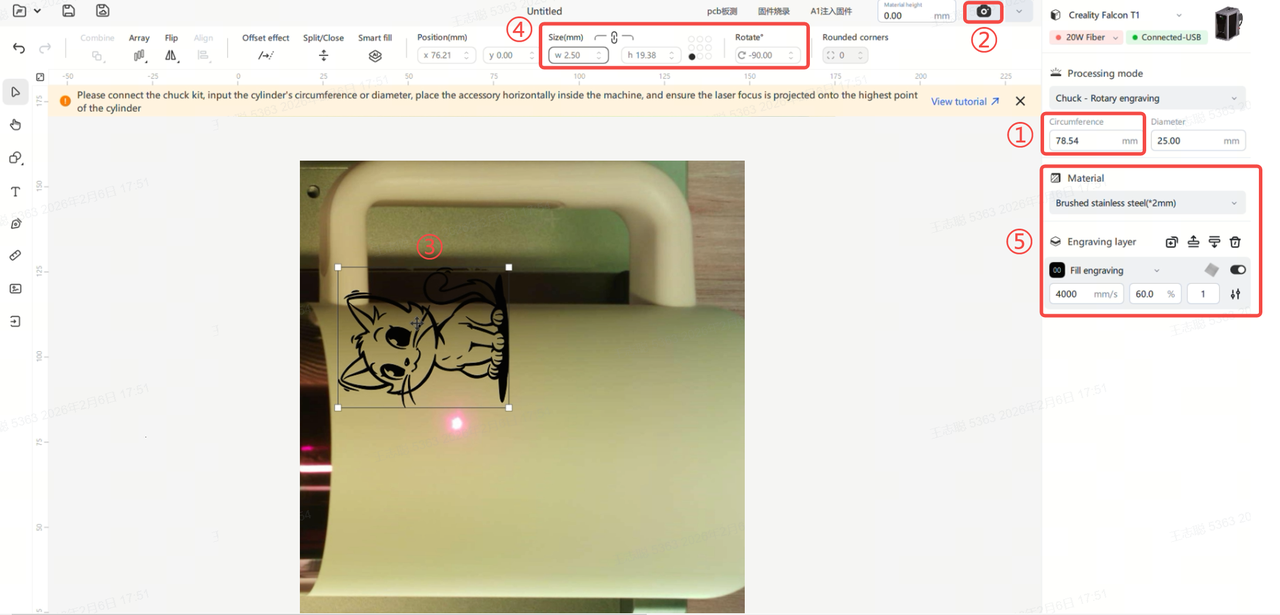
Click to take a photo, then import the carving pattern and position it properly, set the rotation direction and pattern size, and set the material and carving mode.
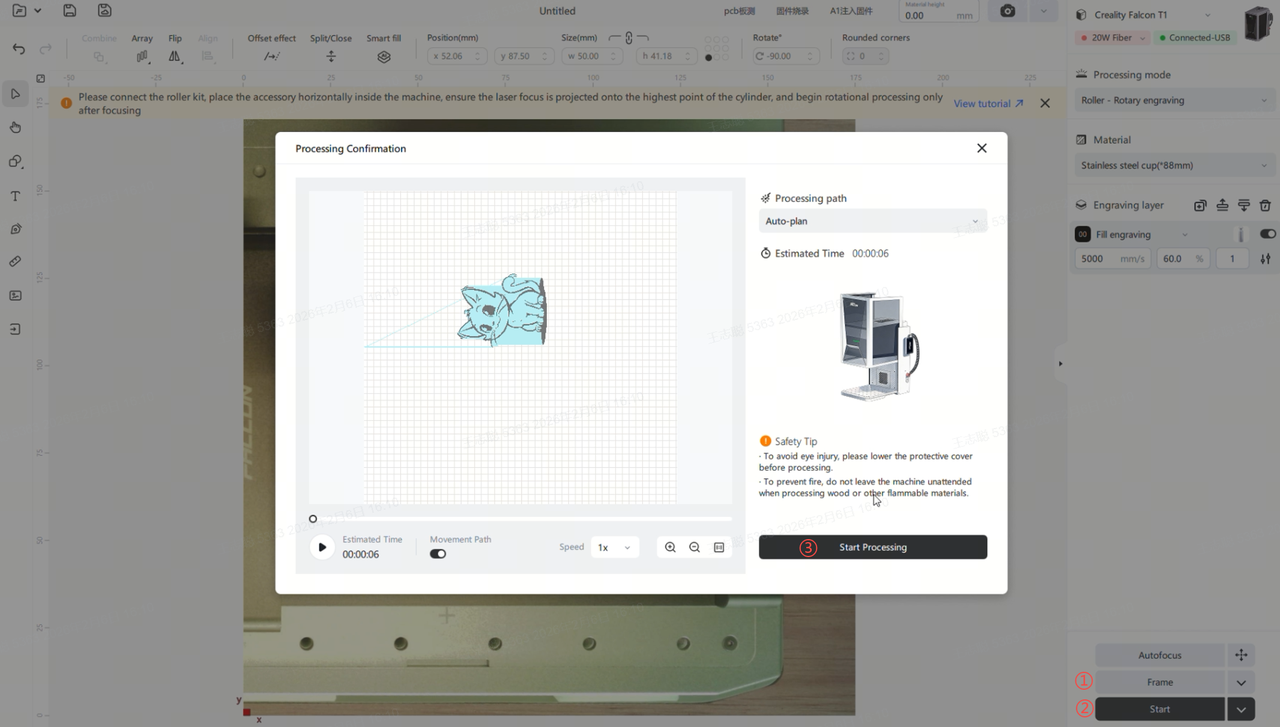
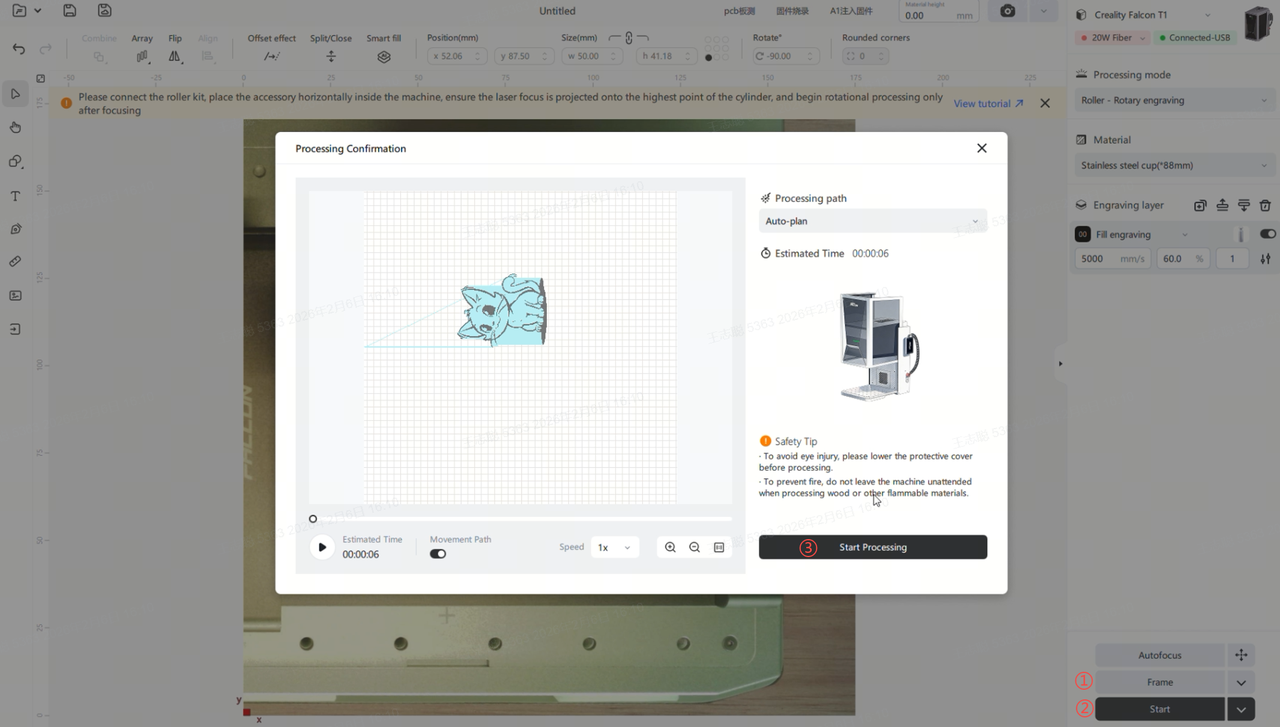
Click on Frame, observe whether the carving area of the water cup meets the expectations. If there are no issues, click Start to begin carving.
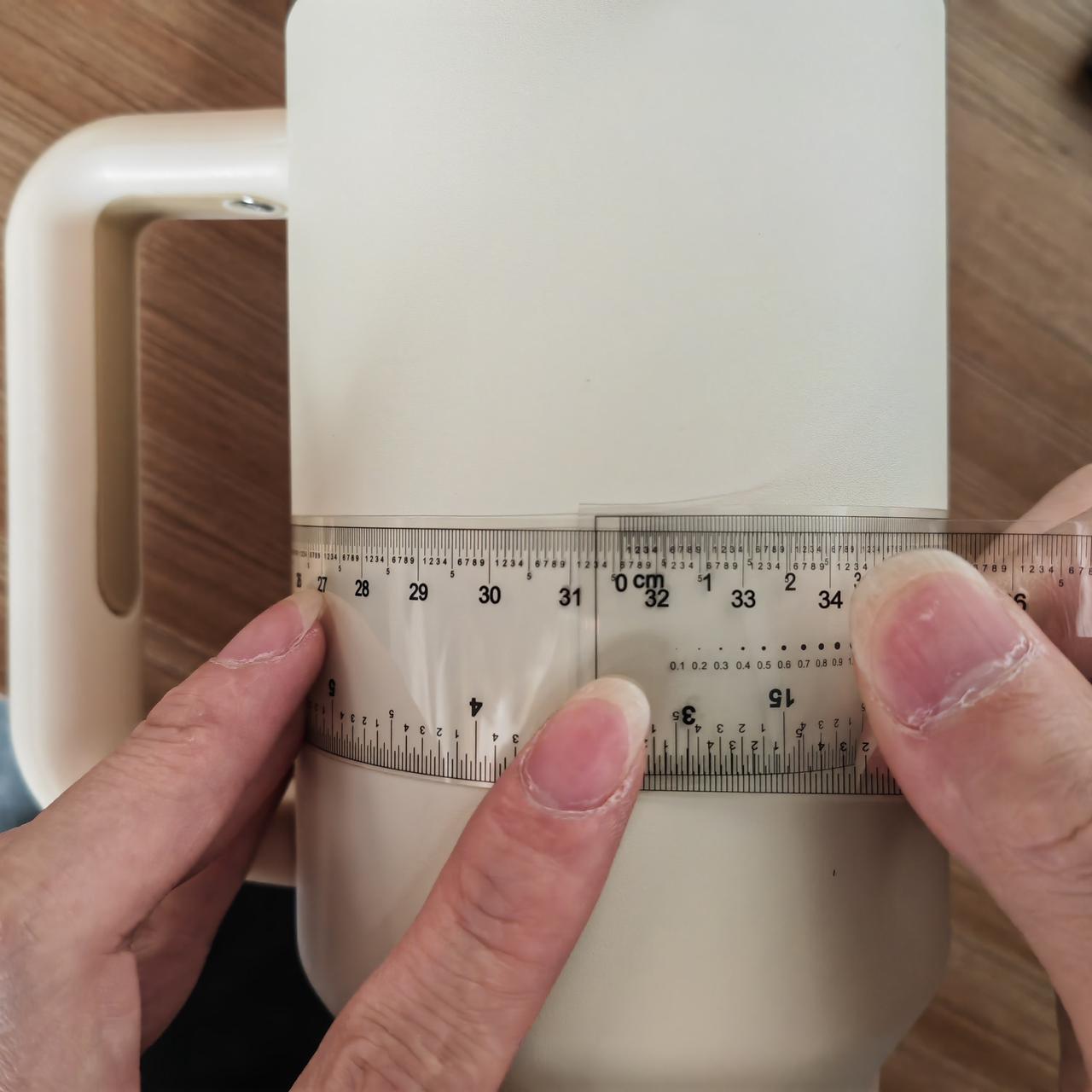
Determine the engraving position on the water cup, use a ruler to measure the circumference and record it.
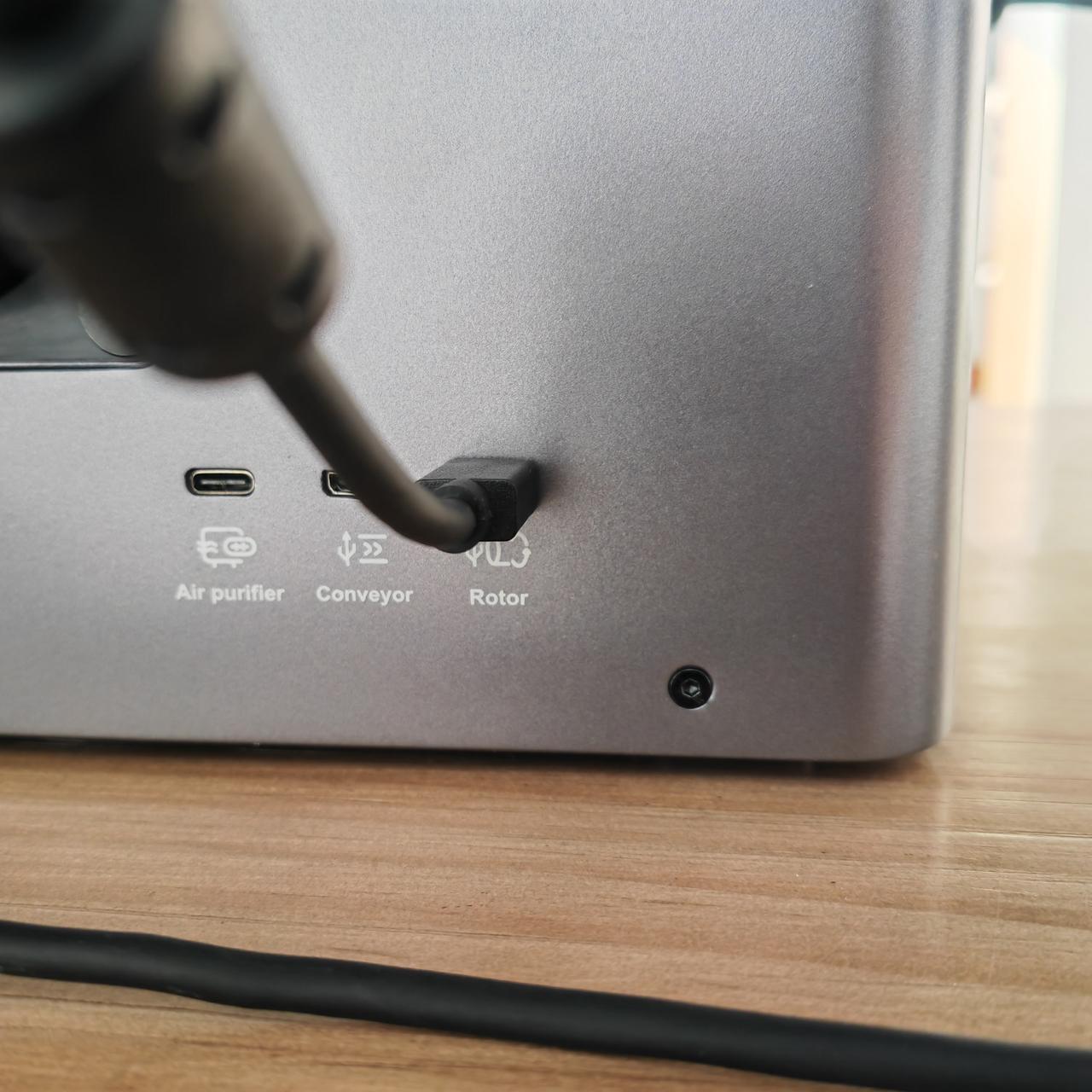
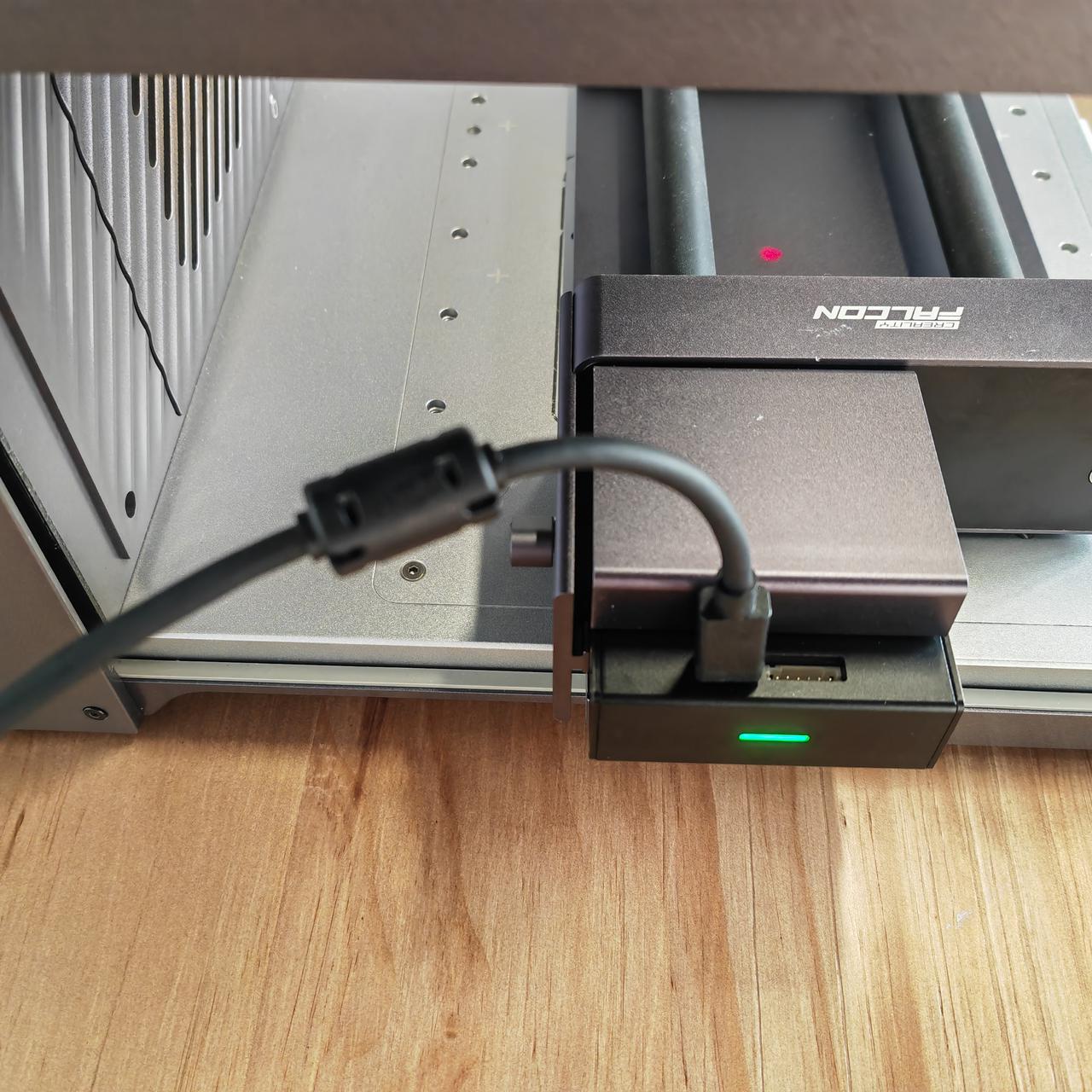
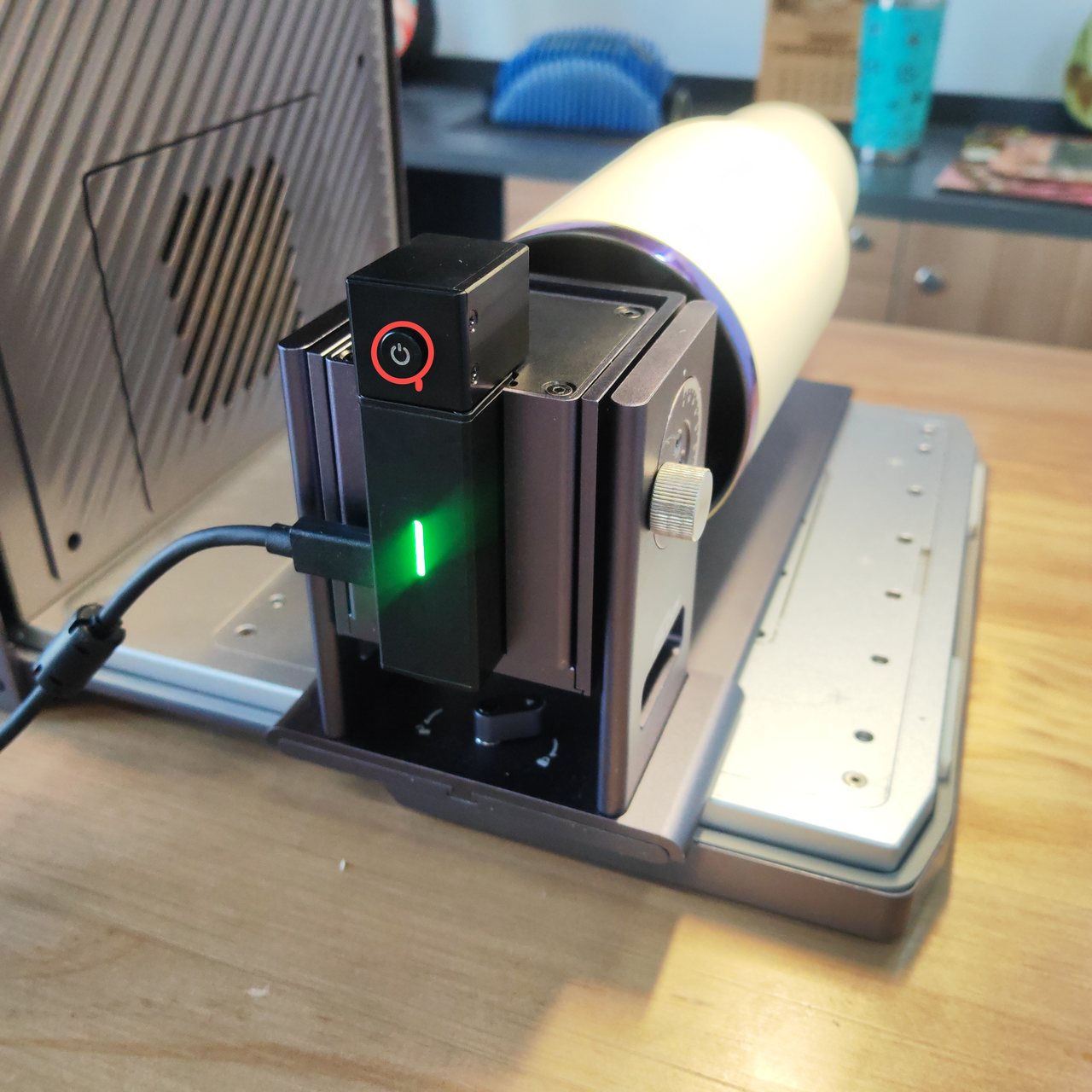
Use the gripper to secure the water cup, place the chuck on T1, and use the Mini-A data cable to connect the chuck and T1.
Caution: Avoid direct exposure of the laser guide line to human eyes. When T1 is powered on, press the switch on the back of the chuck to turn on the laser guide line.
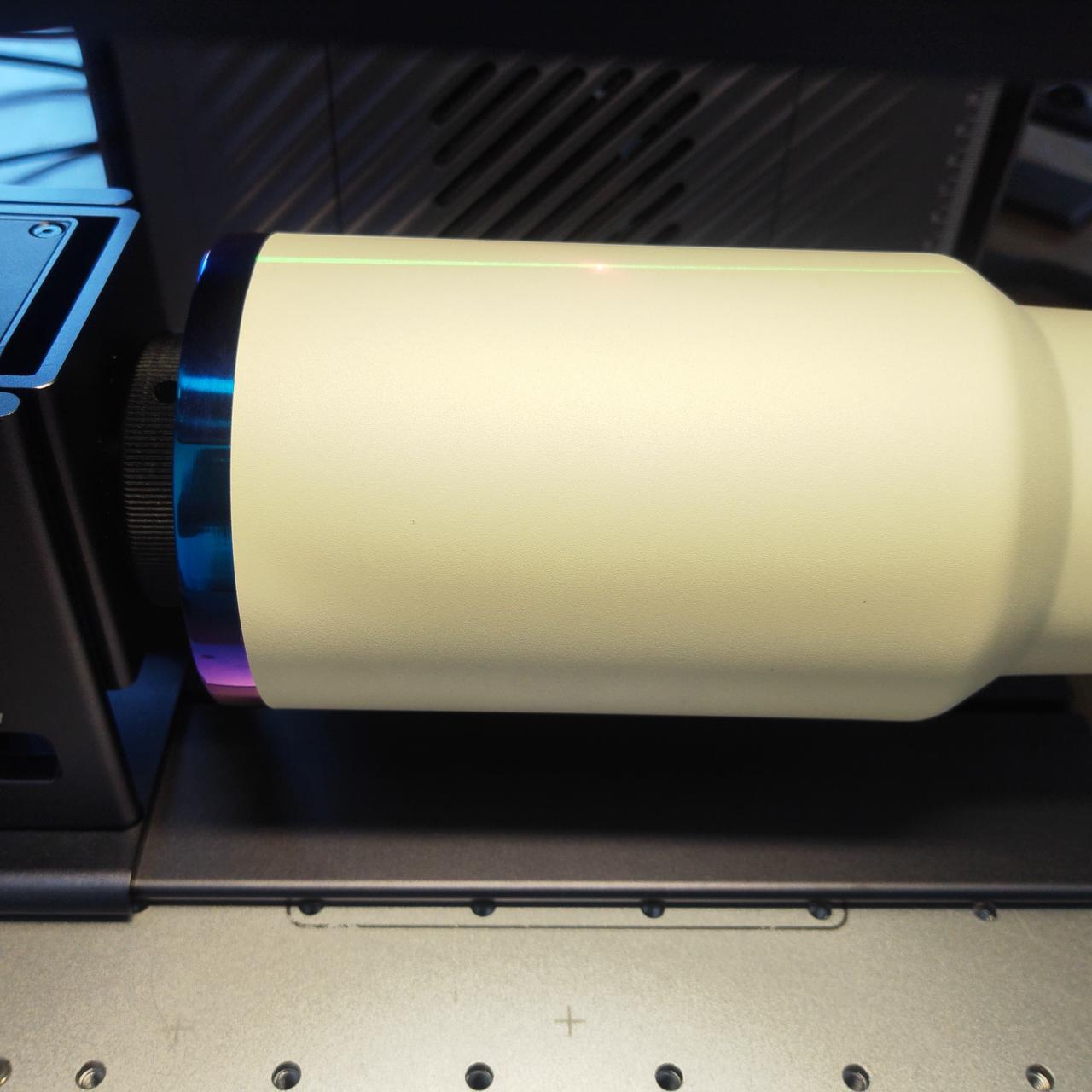
Adjust the position of the chuck so that the green laser auxiliary line coincides with the red dot of the T1 laser.
Open Falcon Design Space, connect to T1. Then select Chunk-Rotary Engraving in Processing Mode, and then click Auto Focus.
Enter the circumference of the water cup, click to take a photo, then import the carving pattern and position it properly, set the rotation direction and pattern size, and set the material and carving mode.
Click on Frame, observe whether the carving area of the water cup meets the expectations. If there are no issues, click Start to begin carving.
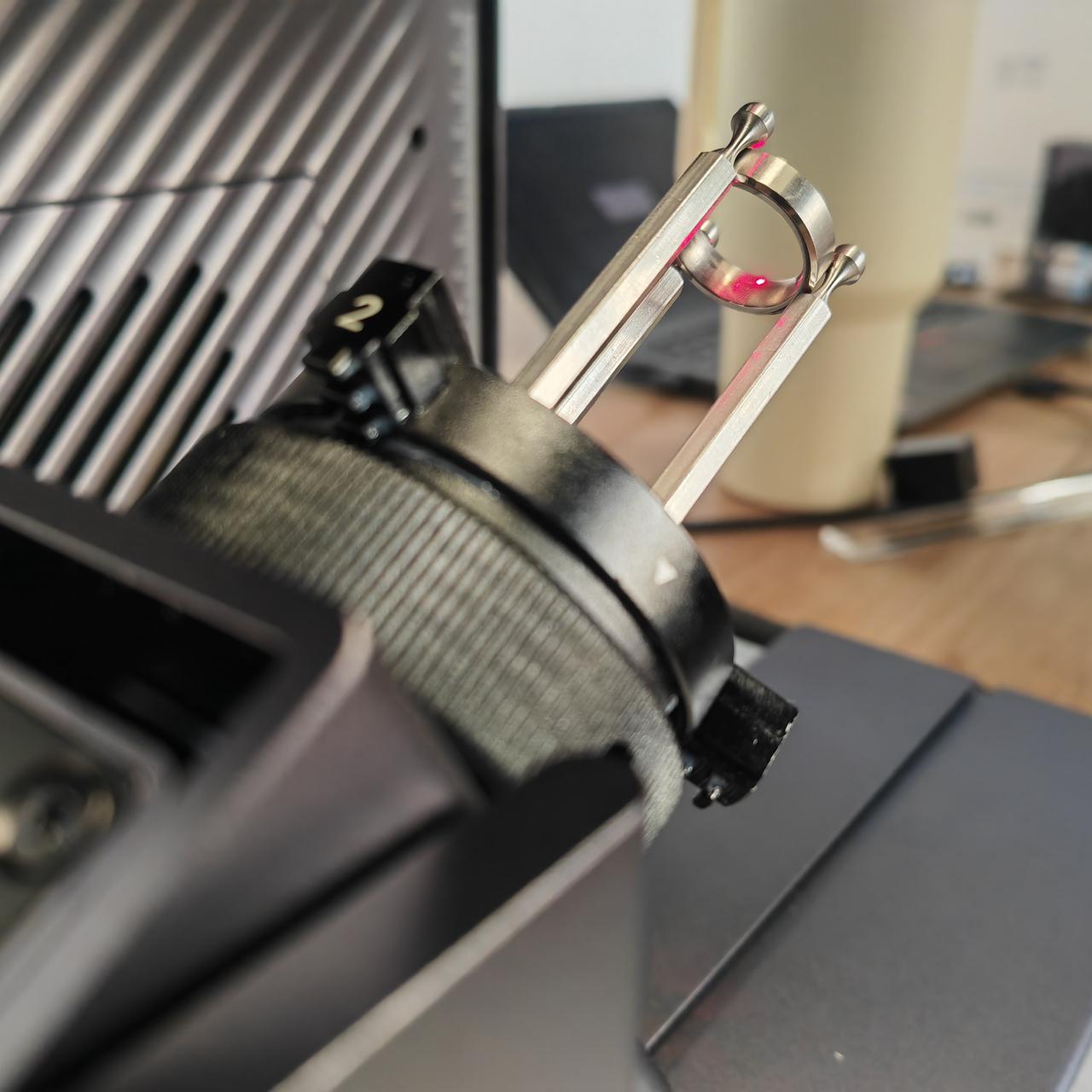
Measure the inner diameter of the ring and record it, then use studs to secure the ring on the chuck.
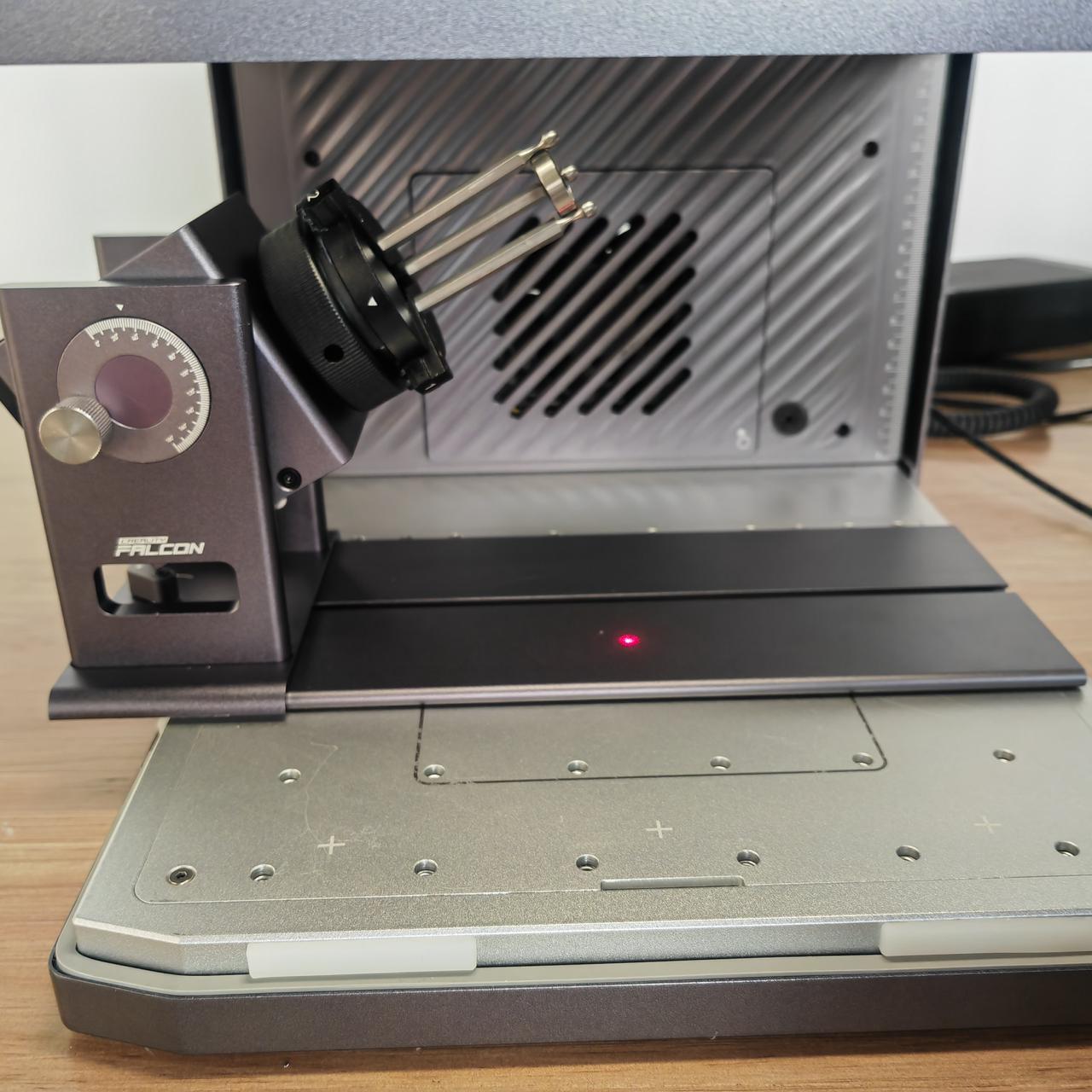
Place the chuck in the T1 workspace, connect T1 and the chuck using a Mini-A data cable. Adjust the position of the chuck so that the T1 laser red dot falls on the chuck base plate.
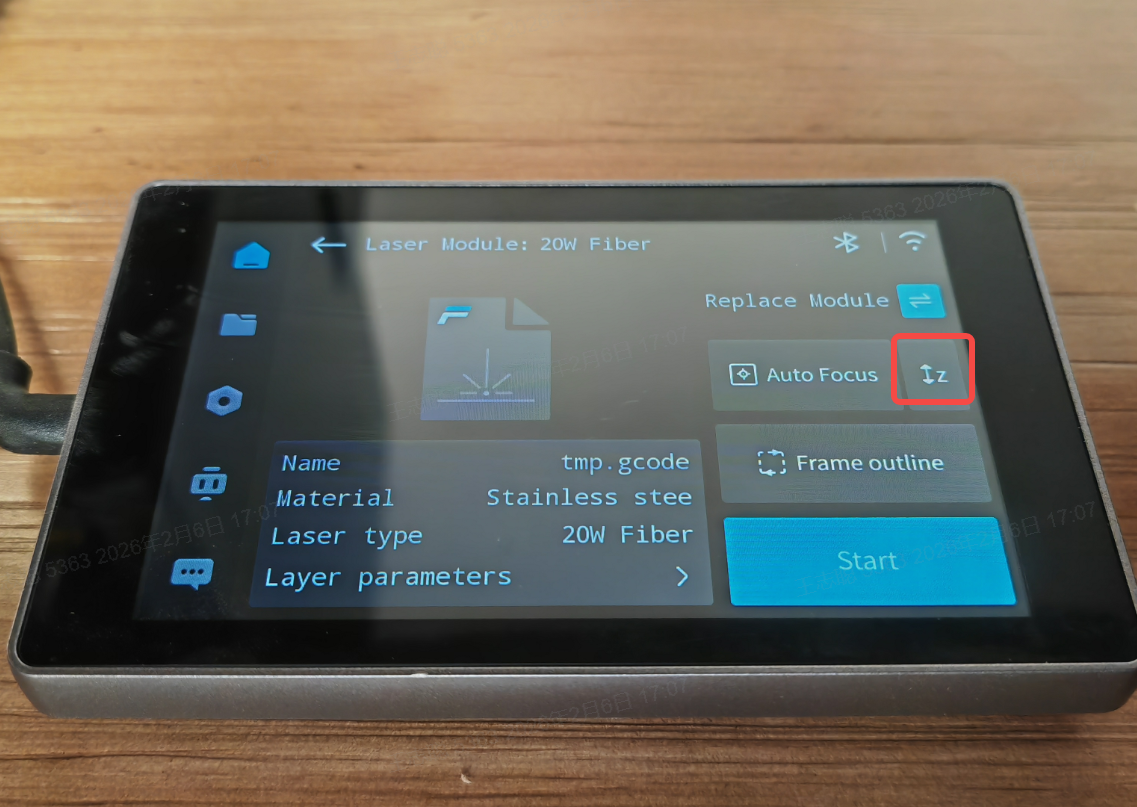
Use the T1 screen to click Auto Focus to make the laser focus on the chuck base plate.
Adjust the position of the chuck and the rotation angle of the chuck so that the red dot T1 falls inside the ring.
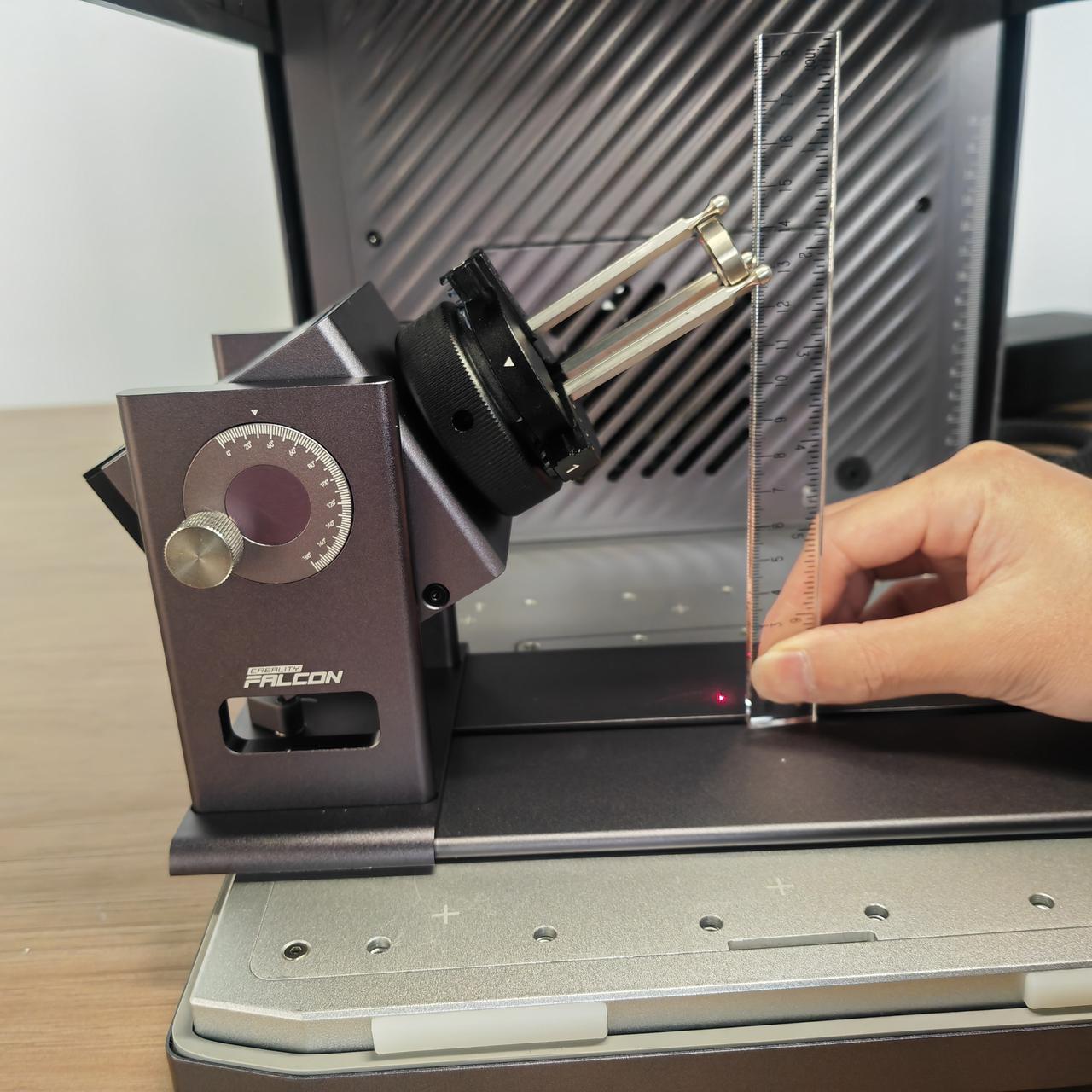
Use a ruler to measure the closest distance from the chuck base plate to the inner side of the ring, and record the distance H.
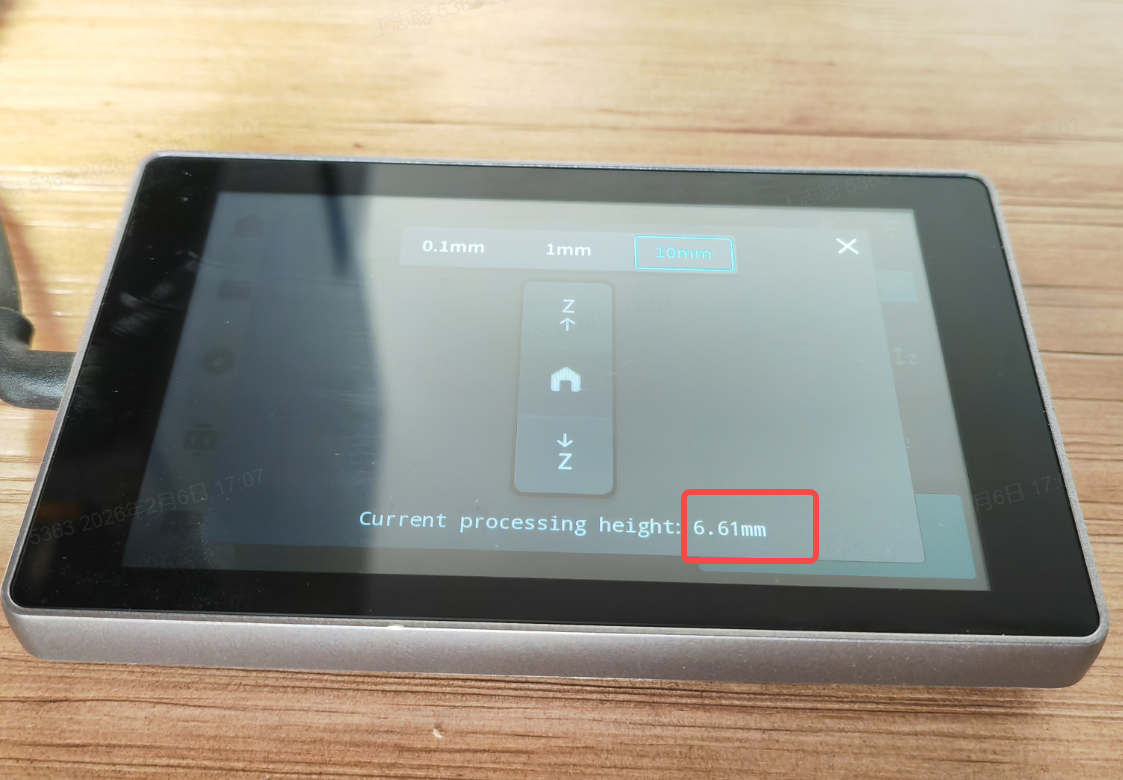
Click Z on the screen, record the value of Current processing height, e.g., 6.61mm.
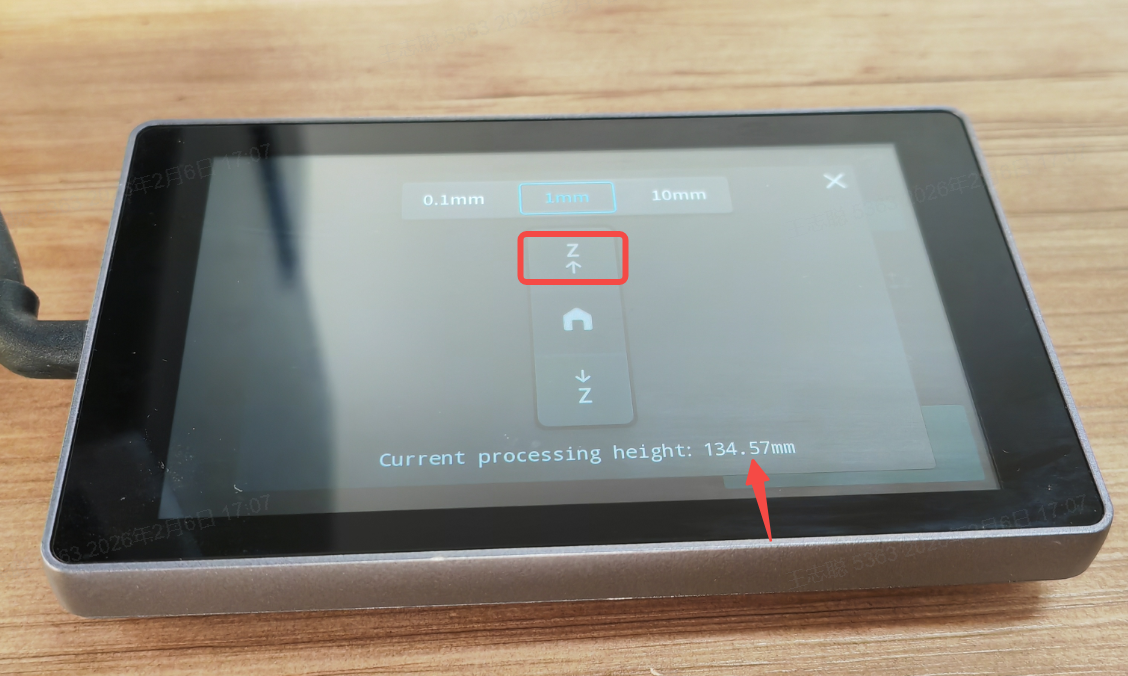
Set the focal length from T1 to the inner side of the ring: Add the value of the Current processing height from the previous step to H to obtain the focal length, then click Z up to make the value at the arrow equal to the focal length, and then click X in the upper right corner of the T1 screen to exit.
Open Falcon Design Space, connect to T1. Then select Chunk-Rotary Engraving in Processing Mode.
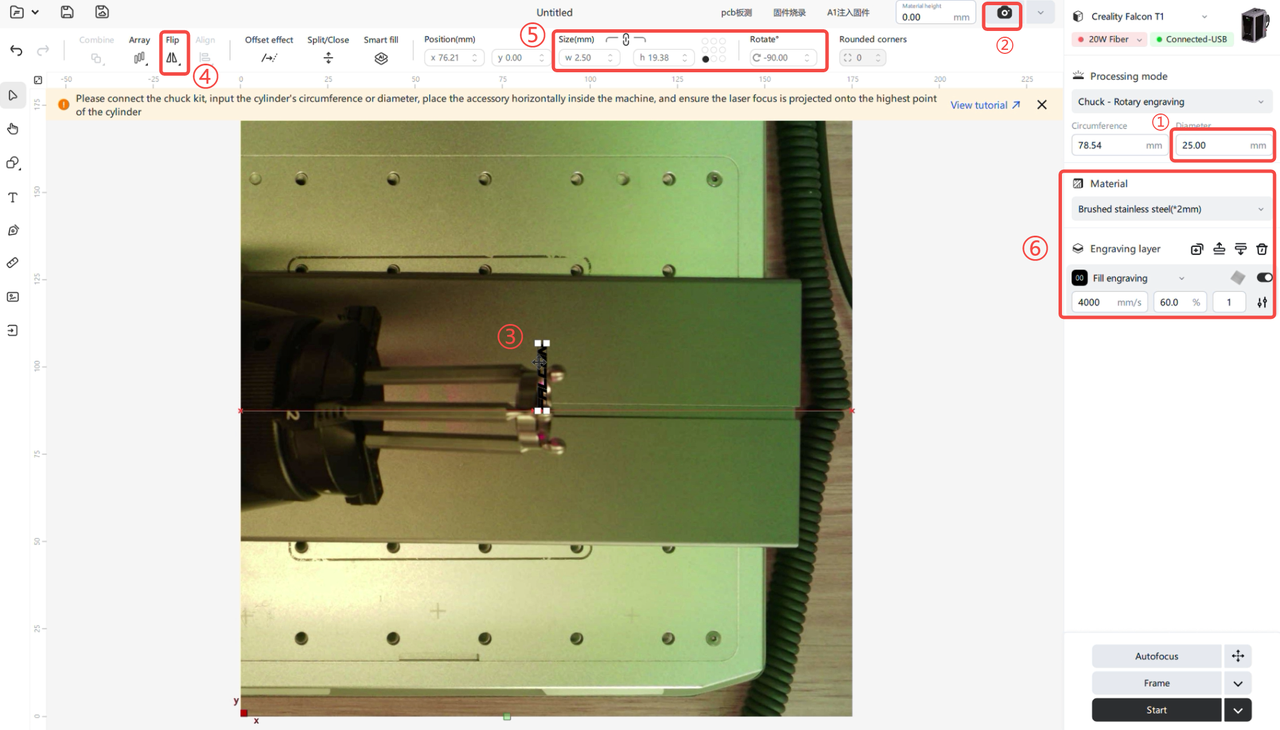
① Enter the inner diameter of the ring, ② click to take a photo, ③ then import the engraving pattern and position it properly, ④ click Flip, select Vertical Flip, ⑤ set the rotation direction and pattern size, ⑥ set the material and engraving mode .
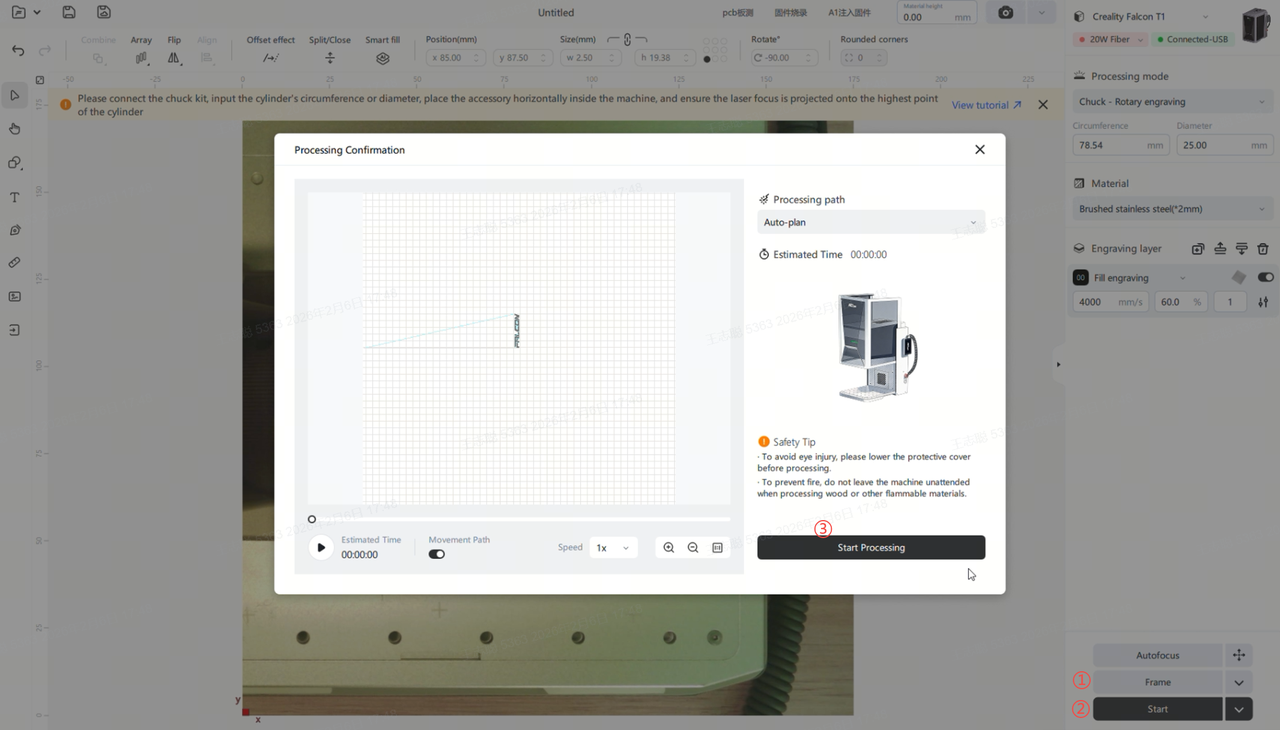
Click on the Frame, observe whether the ring carving area meets expectations. If there are no issues, click Start to begin carving.