¶ Creality Falcon T1—LightBurn Connection Guide and Configuration File Import
¶ Operating Steps
Configuration File:/falcon_t1.lbdev
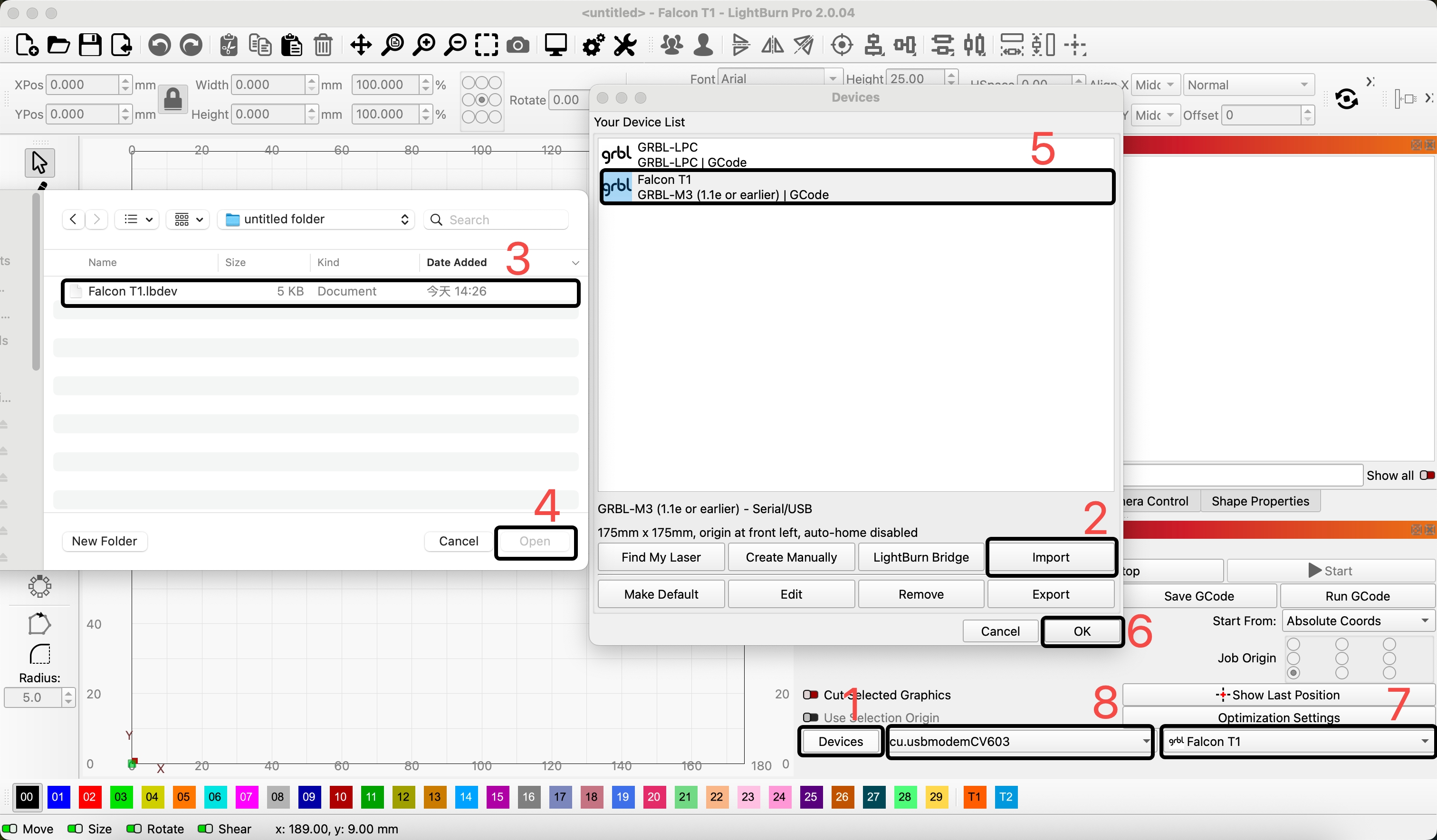
1. Select [Devices] to enter the device page
2. Select 【Import】 to import the LightBurn configuration file
3. Select to provide the "Creality Falcon T1.lbdev" configuration file
4. Open
5. Select the imported Creality Falcon T1 device
6. Select [OK] to confirm
7. Confirm whether the device is selected as the 【Creality Falcon T1】 device
8. After selecting the correct COM port, the command bar of LightBurn will prompt device information, indicating a successful connection;
¶ If the connection fails:
1. Determine whether the machine starts up normally and whether the CH340 driver is installed
2. Ensure that the Type-C port of the data cable is inserted into the computer Type-C port on the Creality Falocn T1 machine
3. If you are unsure about the COM port, you can plug and unplug the device to check for updates, or check through the computer's [Device Manager].