¶ Falcon A1C Laser Engraver Frequently Asked Questions (FAQ)
¶ Equipment - related
1.What is the maximum working area of Falcon A1C?
150*150mm
2.What is the maximum processing height of Falcon A1C?
148mm
3.What is the maximum processing speed of the A1C?
15000mm/min
4.What is the maximum weight the worktable can bear during processing?
3 kg
5.What type of laser source does Falcon A1C use?
The standard 10W/5W blue laser is a semiconductor laser with a wavelength of 445±15nm and a spot size of approximately 0.08*0.20mm; The optional 1.2W infrared laser is a solid - state pumped laser with a wavelength of 1064±1nm and a spot size of approximately 0.05*0.05mm.
6.What interfaces are equipped with Falcon A1C, and what are their respective functions?
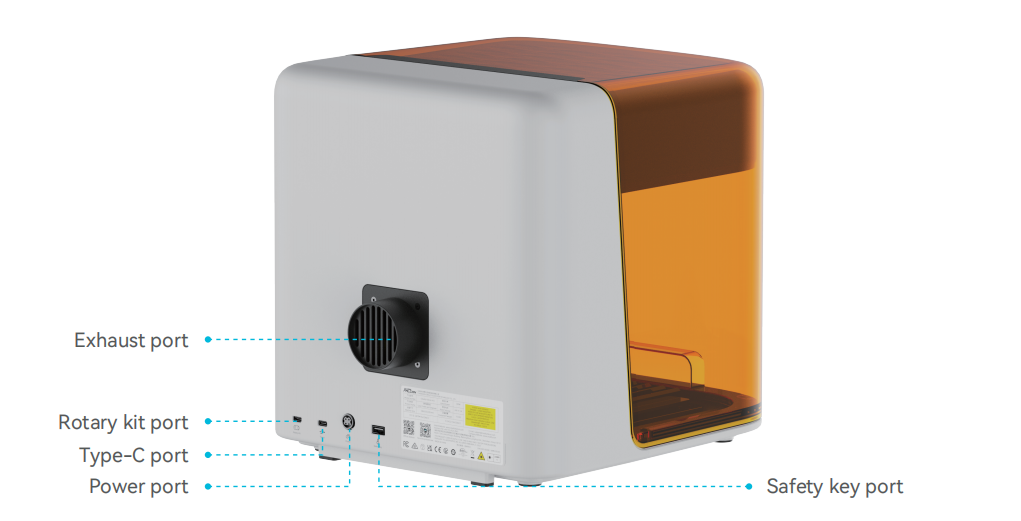
Rotary kit interface: For connecting the rotary kit.
Type-C interface: 1) Connect to a computer via data cable; 2) Offline processing with USB flash drive
Power interface: For connecting the power adapter
Safety key interface: For connecting the USB safety key
7.What buttons is Falcon A1C equipped with, and what are their respective functions?
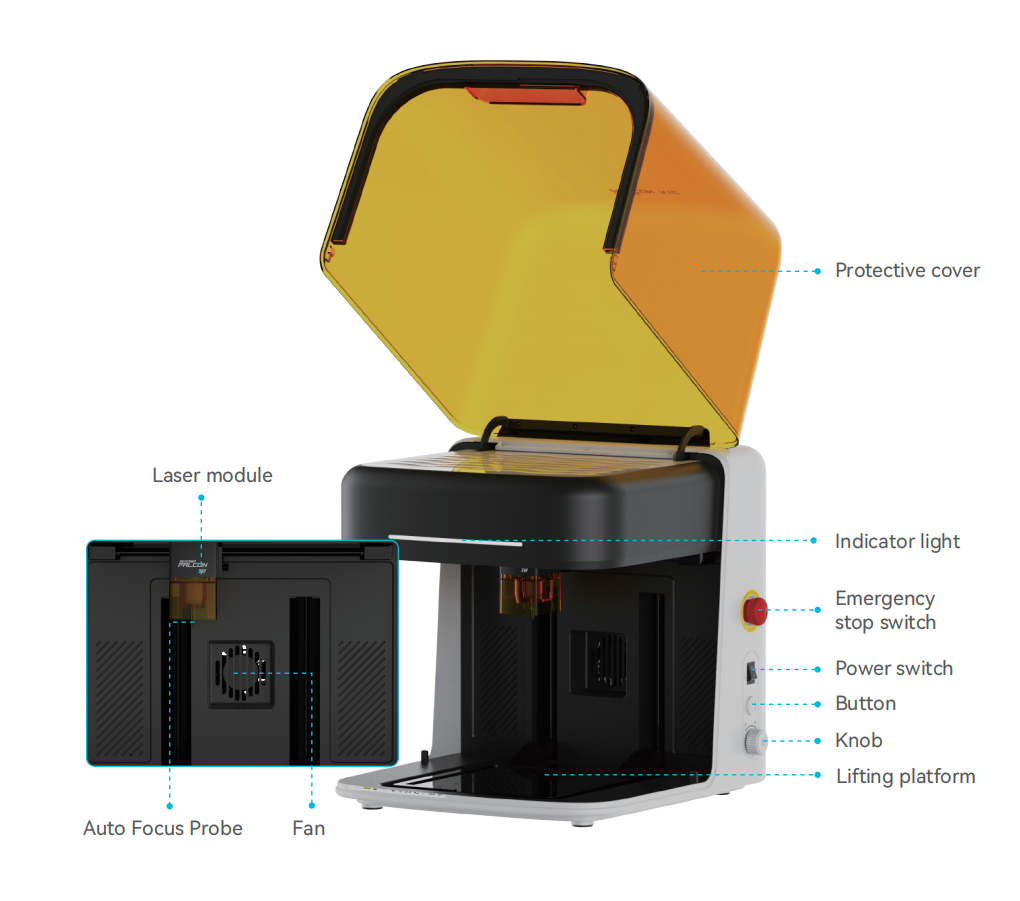
Emergency stop switch
1)Press for immediate power cut in case of emergency;
2)Rotate clockwise to restore the power supply.
Power switch
Symbol 'O' means power off, Symbol 'I' means power on.
Button
Click: Pause/Resume Processing.
Long press 3s: End Processing.
Long press 5s: Enter network pairing mode.
Knob
Up arrow:Platform Raise.
Down arrow:Platform Lower.
Click button:Auto Focus.
8. Indicator Light Description
|
Device Status |
Indicator Status |
|
Standby (No Network) |
Fast green breathing |
|
Standby (Network Connected) |
Slow green breathing |
|
Processing |
Solid green |
|
Processing Paused |
Green blinking |
|
Network pairing mode |
Red-green alternate blinking |
|
Device error / Device abnormal |
Red blinking |
|
Firmware upgrading |
Green blink - off - Red blink - off |
|
Power Off |
Off |
9.What should you do if the power cuts off during processing?
If power failure occurs while an engraving task is running, the laser head will stay in its current position. After power is restored and the device restarts, it will initialize automatically and will not resume the original task.
10.Will the laser processing damage the work platform?
Engraving: When engraving thin materials such as paper, the laser may penetrate the material and leave marks on the work platform. It is recommended to place laser-impermeable objects under the engraving material, such as metal plates or honeycomb blade plates.
Cutting: A honeycomb blade plate is recommended for laser cutting consumables. It can protect the work platform while improving the finish of your workpiece.
11.Why is the pattern not engraved at all (or only engraved very shallowly)?
First, check the compatibility between the material and the laser source. Before formal engraving, test the power, speed and passes for the material to obtain optimal processing parameters. Place the material under the probe and complete auto-focus before engraving. If the engraving result is still poor after completing the above steps, please contact customer service or replace the laser module.
12.Falcon A1C does not respond after power-on (indicator light off)
(1) Check whether the power plug on the device side is fully inserted.
(2) Check if the power socket has electricity.
(3) Confirm the power switch on the device is turned on: O = Power Off; I = Power On.
(4) Check if the emergency stop switch has been reset.
(5) Ensure the safety lock is properly installed.
(6) Confirm the correct power adapter is used.
24V 3A adapter for the 5W laser module;
24V 5A adapter for the 10W laser module or 1.2W infrared laser module.
13. Are laser safety glasses required during operation?
Laser safety glasses must be worn when operating the laser engraver. The A1C is equipped with a light-blocking front cover to block most laser leakage during normal processing. However, the laser will be exposed directly when using the rotary kit. Therefore, we recommend wearing safety goggles at all times during engraving. Note: Do not look directly at the laser even with Laser safety glasses on.
14. What safety protection features does Falcon A1C have?
(1) Built-in safety lock
(2) Tilt Protection
(3) Class 1 laser safety
(4) Flame Detection for Safer Engraving
(5) Processing pause protection when the cover is opened accidentally
(6) Overheat detection protection: processing stops automatically upon overheating
15.Why does the flame alarm trigger frequently during processing?
(1)Do not operate the Falcon A1C under direct strong light or sunlight.
(2)Adjust the sensitivity of the flame sensor in Falcon Design Space.
16.What should be noted when unboxing?
(1)Remove all protective materials, including silicone strips, PE protective films and machine supporting foam.
(2)After powering on the machine, manually lift the worktable base and take out the supporting foam underneath the worktable.
(3)Carefully check all labels and markings on the machine.
¶ Usage - related
1.What non-transparent materials can the Falcon A1C laser engraver engrave or cut?
Engraving materials for 5W/10W laser:
Cardboard, wood boards, bamboo boards, rubber sheets, leather, fabrics, acrylic, painted metal, plastic, etc.
Cutting materials for 10W laser:
Cardboard, wood boards, bamboo boards, cloth, leather, fabrics, dark acrylic (transparent acrylic cannot be cut), plastic, etc.
Engraving materials for 1.2W infrared laser:
Gold, silver, brass, iron, aluminum, stainless steel, plastic, titanium alloy, electroplated metal, shale, etc.
2.What are the recommended accessories?
AP1 mini Air Purifier, Flexible fixture, Exhaust Fan, Rotary kits
3.Can it engrave on reflective/transparent materials such as ceramics/glass? It is not recommended to engrave directly on any highly reflective material, such as mirror - finished stainless steel. However, before engraving, apply an anti - reflective material to the surface of the material to ensure the engraving effect and prevent the reflected light from damaging the laser module.
4.Why can't the material be cut through in a single pass?
The Creality Falcon A1C laser module is offered in 5W and 10W power options. Taking basswood boards as an example, the 10W laser module of the A1C can cut basswood boards up to 5 mm thick in one pass.
5.Why does the laser occasionally fail to cut through wood?
(1) The cutting speed setting is too high.
(2) The cutting power setting is too low.
(3) The laser module is aging, resulting in power attenuation.
(4) Differences in the thickness or material of various wood may lead to incomplete cutting.
(5) Prolonged operation or high ambient temperature causes excessive internal temperature of the laser.
6.What precautions should be taken for the infrared laser?
(1) Above 35°C: The engraver may overheat. Processing will pause to prevent damage to the laser
module.
(2) When the Falcon A1C is equipped with the 1.2W infrared laser module, a 24V 5A power adapter is required. (The adapter is included with the 1.2W infrared laser module.)
(3) Camera calibration is required upon first use of the infrared laser for optimal processing results.
7. Why are there many burning marks on the back of the board after cutting? When cutting wood boards, place the cutting plate underneath the wood to greatly reduce burn marks on the material.
8.How to clean the laser lens? After the machine is used for a period of time, the mirror surface of the laser may become dirty. You can use a dust - free cloth and a cotton swab with an appropriate amount of alcohol to clean the protective mirror and air nozzle of the laser. Note that the protective mirror is very fragile and easy to scratch.