¶ 1. Download and Install the App
Open your phone's app store and search for "Falcon Design Space," or click here to download the appropriate version of the app.
Once installed, open the app to get started. To check for updates or update the app, go to your system settings.
¶ 2. Connect Your Laser Engraver
Note: Before connecting, make sure both your phone and the laser engraver are connected to the internet to ensure a successful connection.
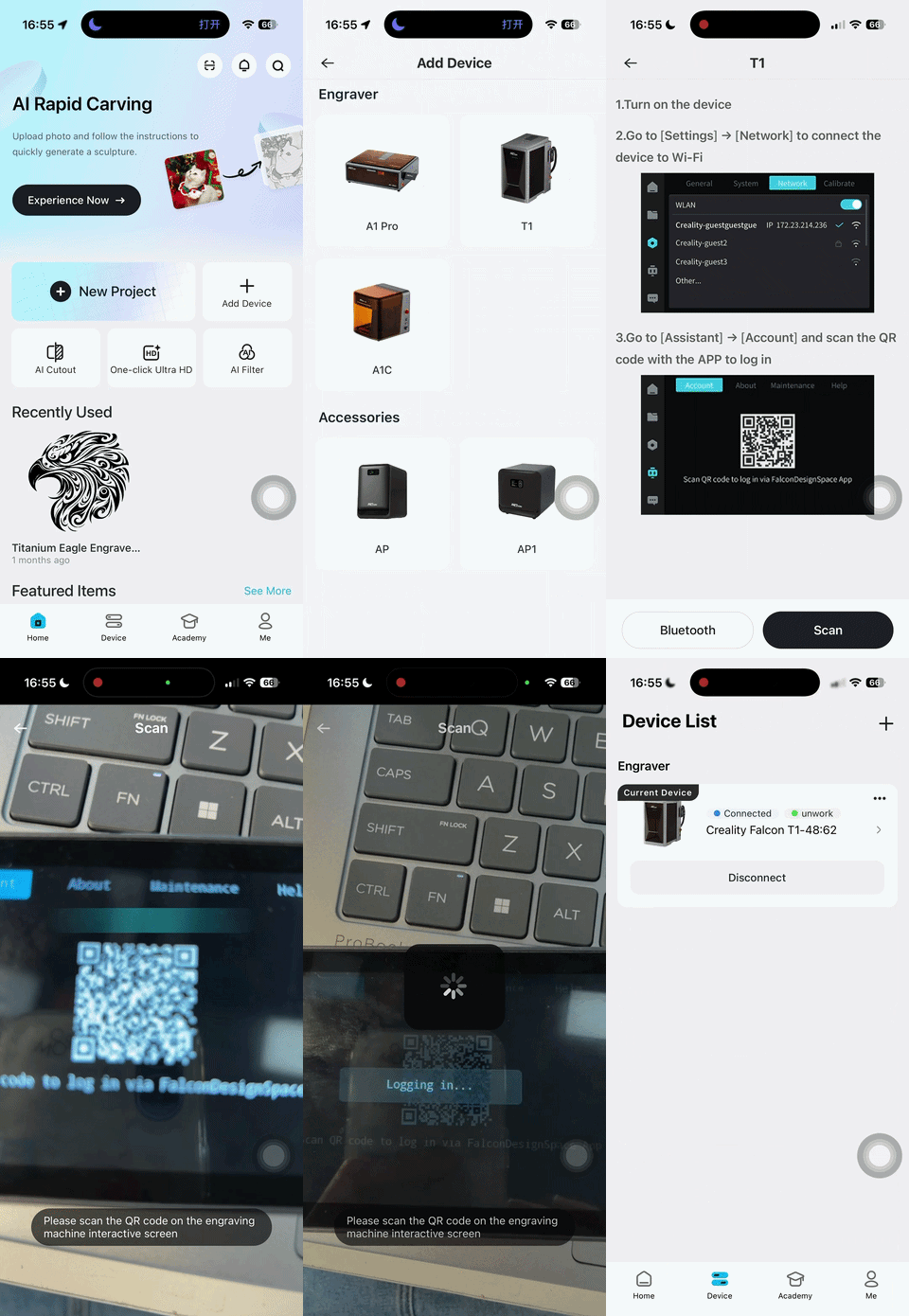
Turn on the laser engraver, then open the Falcon Design Space app. On the app’s home screen, tap "Add Device" to open the device connection page. Select your device and follow the on-screen instructions to complete the connection.
For example, when connecting a Falcon T1, turn on the machine and scan the QR code as instructed on the device’s touchscreen to complete the connection.
¶ 3. Select and Edit Your Image
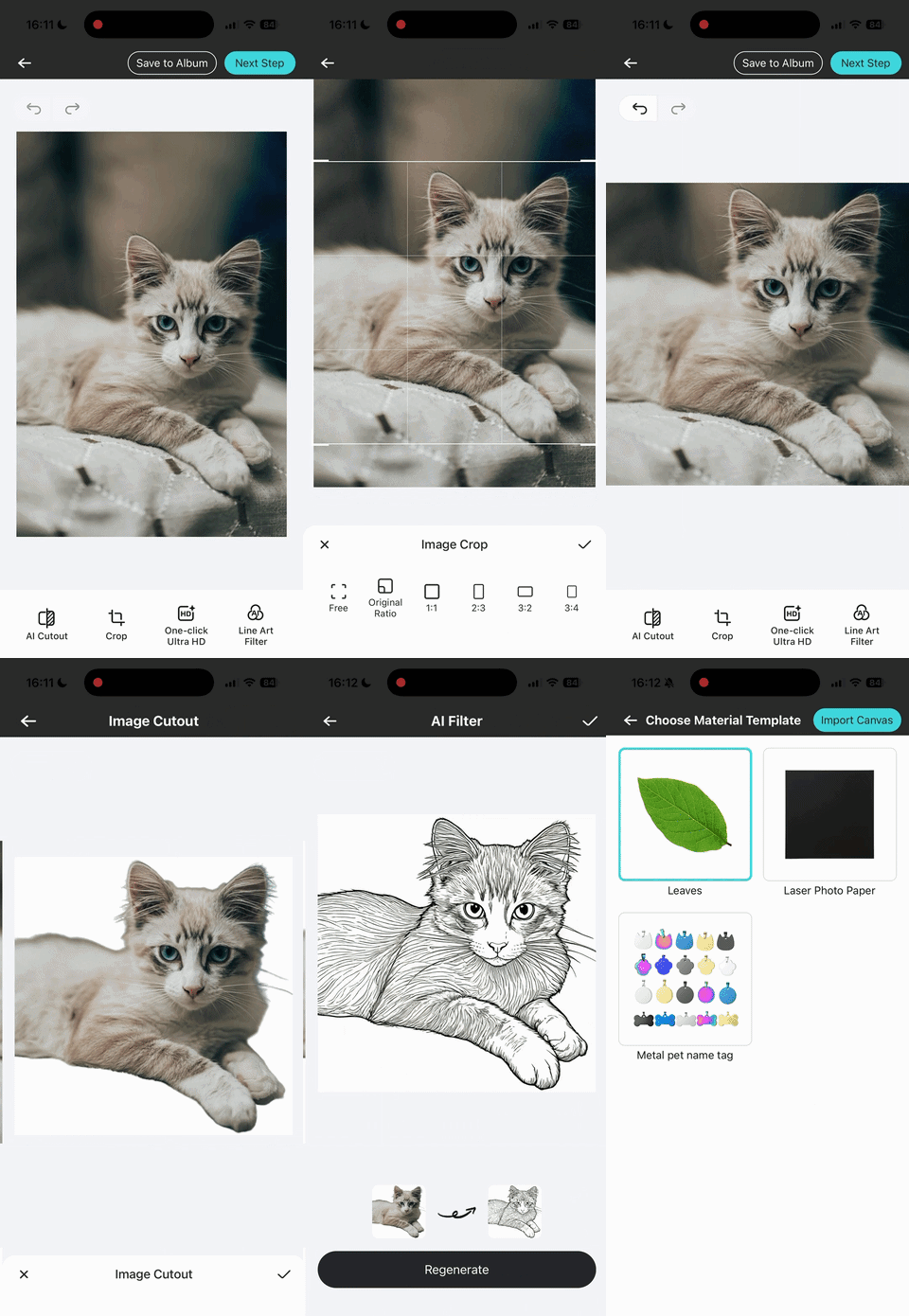
On the app’s home screen, tap "Experience Now" under "AI Rapid Carving", then select a photo from your photo library.
Adjust the crop area to fit the desired image size. Use "AI Cutout" to make the main subject stand out.
Then, use the "Line Art Filter" to convert the photo into a line-art style suitable for laser engraving.
When the conversion is complete, tap "Next Step" to open the material template selection page.
¶ 4. Import Your Image and Align It
Place your material on the machine’s workbed.
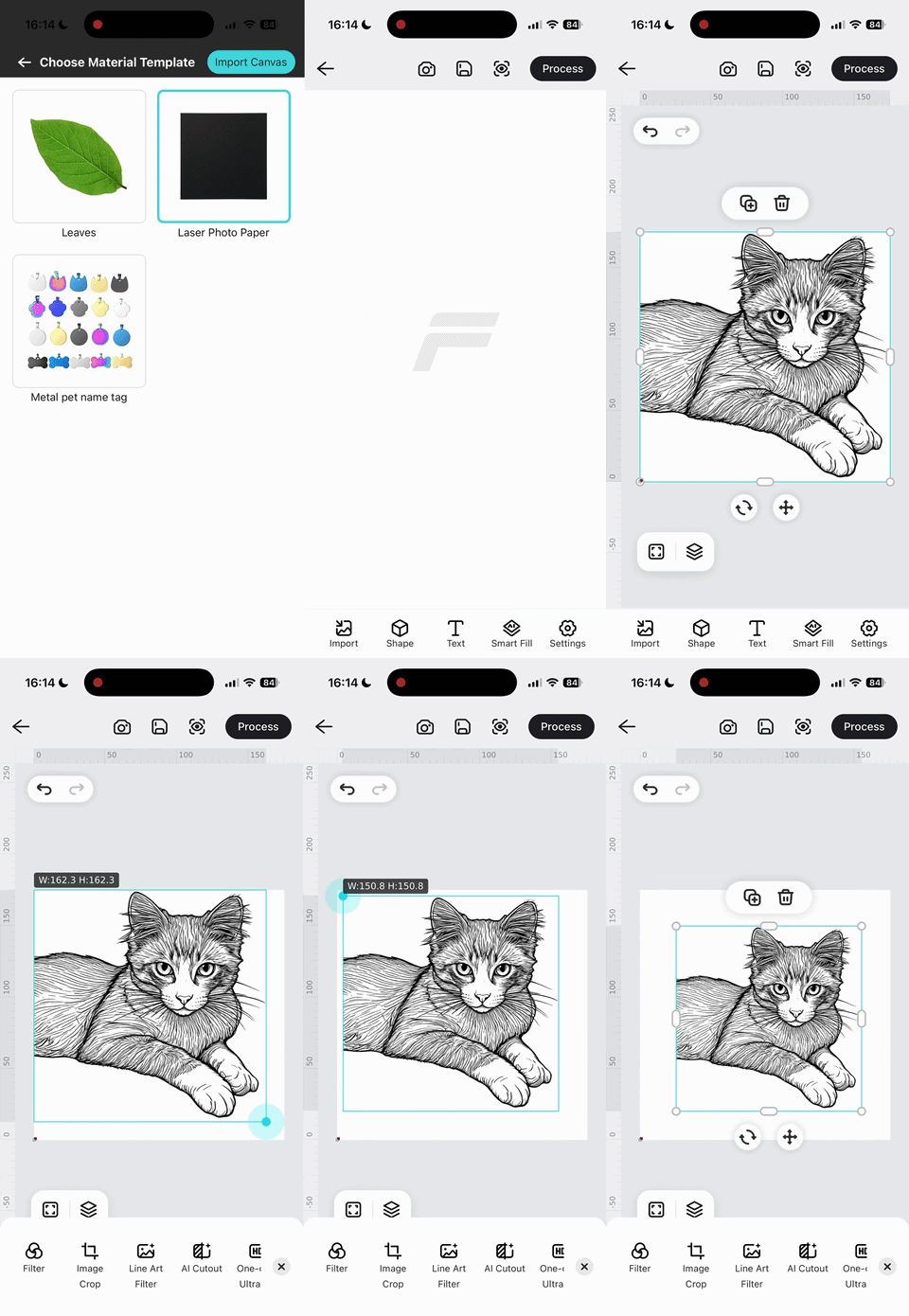
Select the material, then tap "Import Canvas" to continue editing on the canvas.
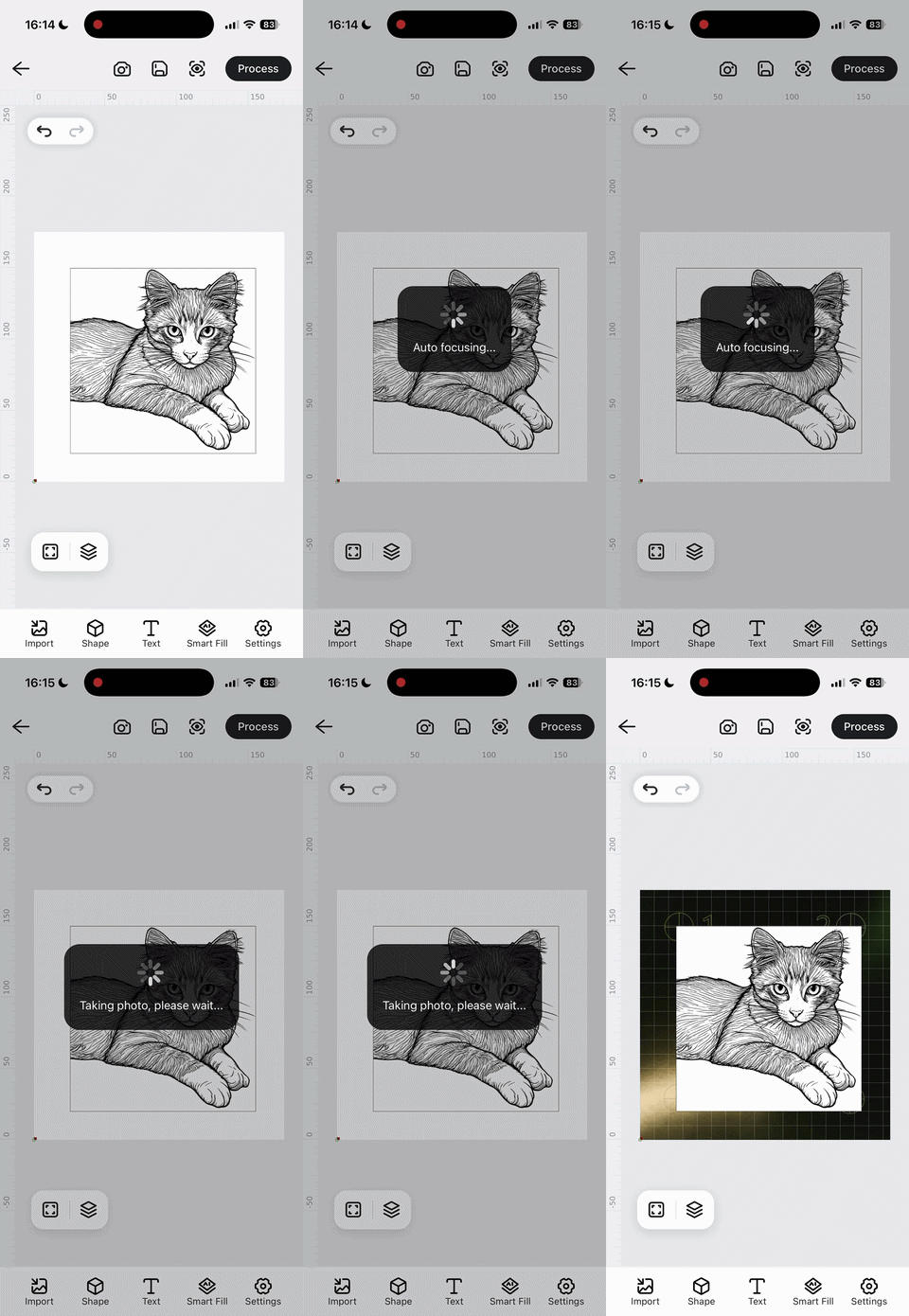
When you're finished editing, tap the camera button at the top of the screen. The machine automatically focuses before taking a photo, so wait a moment for the process to complete.
After camera alignment is complete, tap "Process" to enter the processing confirmation page.
Note: You don’t need to run autofocus again after completing the camera alignment process. If you change the laser module or material during the process, please take another photo or run autofocus before using "Frame".
¶ 5. Start Engraving
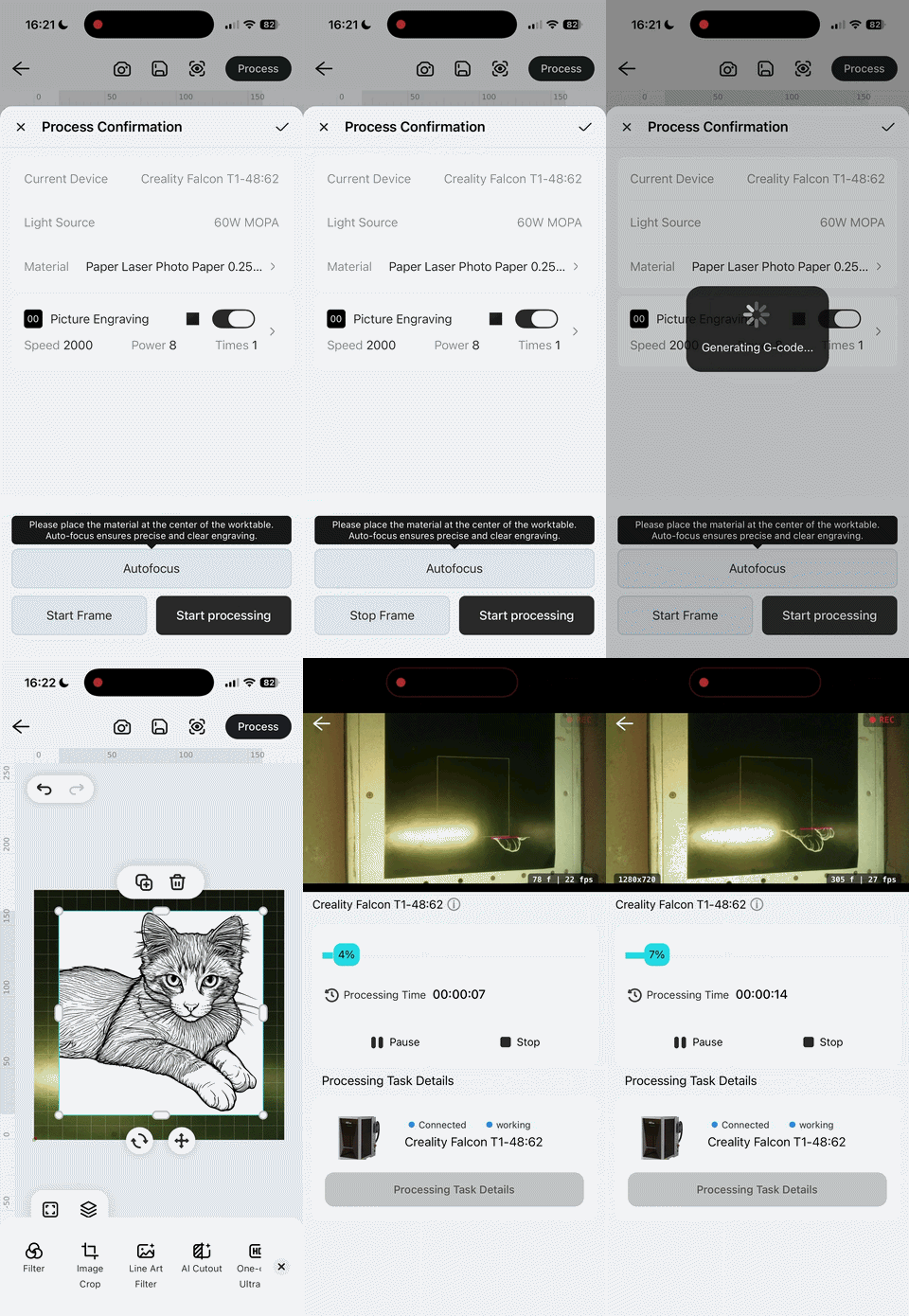
On the processing confirmation page, tap "Start Frame". Check the machine's movement to make sure the engraving area is entirely within the boundaries of the material.
If everything is correctly positioned, tap "Stop Frame", then tap "Start processing". The app will send the file to the laser engraver.
Once the file has been sent successfully, follow the on-screen instructions and press the Start button on the machine to begin engraving.
During engraving, you can view the live camera feed from inside the machine in the app.
Important: Do not open the protective cover while the machine is operating.
¶ 6. Remove Your Engraved Work
Once the app indicates that processing is complete, you can open the protective cover and remove your very first engraved piece!