¶ Initiating a Print Job Using a USB Drive
¶ Prepare a USB Drive
The performance of the USB drive largely determines the speed at which the printer parses files. Therefore, we recommend using a USB drive from a well-known brand.
¶ Prepare the Model Slice File
Open the model file you have created or downloaded from an online model resource library using Creality Print slicing software. Select K3 as the printer model in the upper left corner, confirm that the parameter information is correct, and then click the lower right corner to slice.
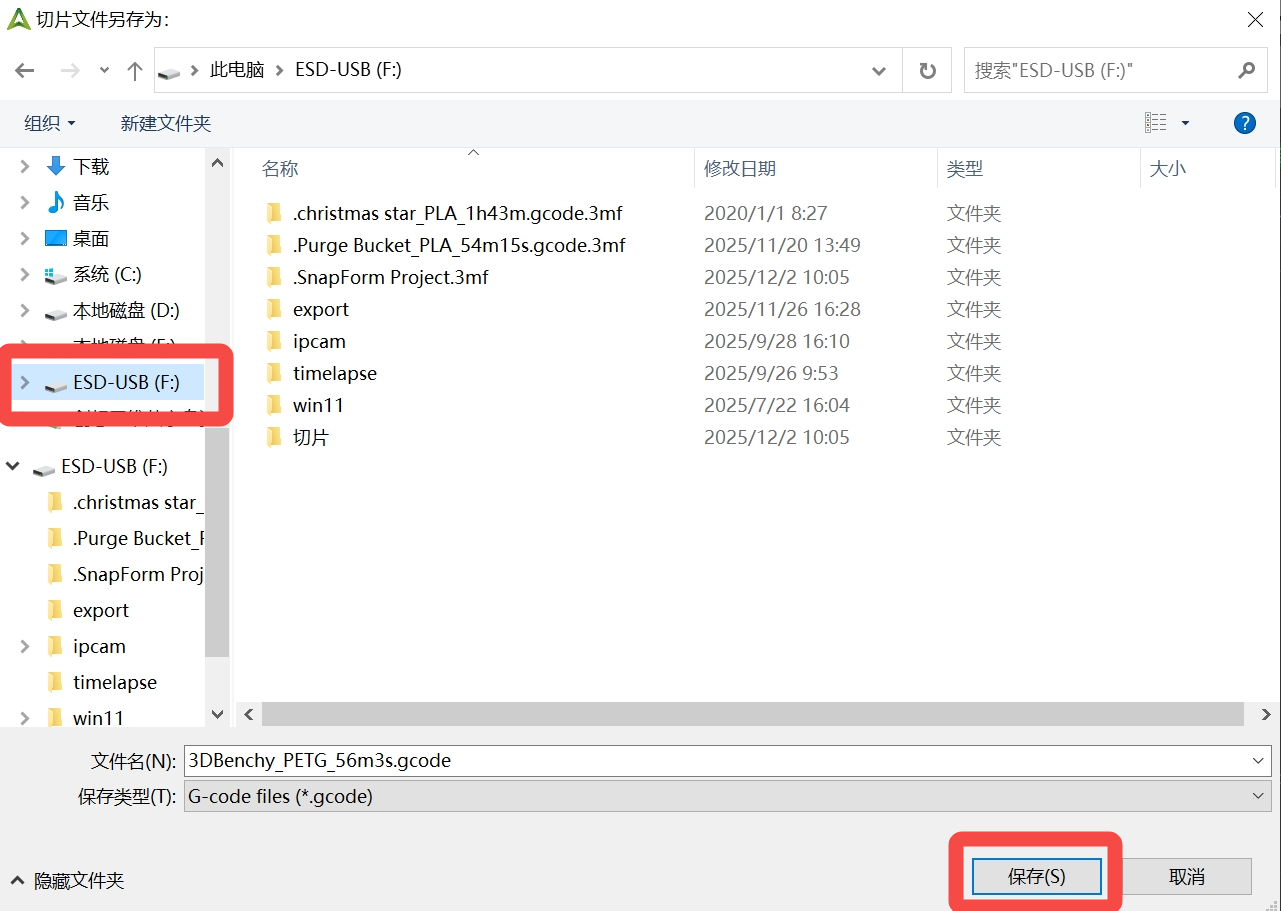
Once slicing is complete, select Export Slice File and save the sliced file to the prepared USB drive.
Insert the USB Drive Containing the Slice File into the Printer and Start Printing
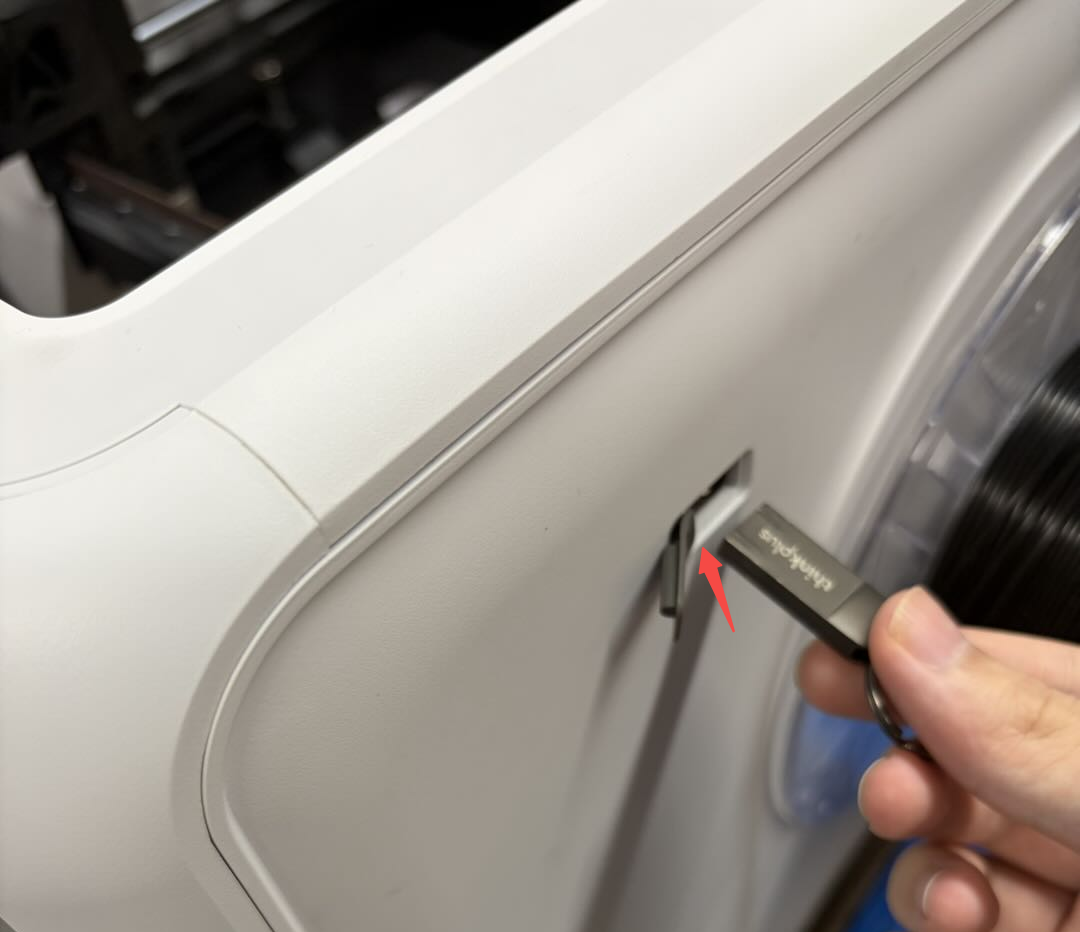
Insert the USB drive into the USB port on the left side of the printer. The machine will automatically read the files on the USB drive. Click "Print File - USB Drive", wait for the USB drive to finish reading, then select the slice file you want to print, choose whether to enable print calibration, select the filament color to use, and click "Print" to start the
¶ USB Drive Specification Requirements
USB 2.0 protocol or above (the actual minimum write speed must be greater than 10 MB/s). Supported USB drive file systems: FAT32/exFAT/NTFS/ext2/3/4. The K3 only supports mounting one USB drive at a time and cannot connect multiple USB drives via a USB hub.
The printer itself has no USB drive capacity limit. Please note that the maximum capacity of the USB drive is limited by the file system format:
If the USB drive file format is FAT32, the maximum supported USB drive capacity is 2TB when formatted on Linux or Mac systems; on Windows systems, the maximum supported USB drive capacity is 32GB. For Windows operating systems, if the USB drive capacity exceeds 32GB, it will be formatted as exFAT by default. Linux and Mac OS do not have this format restriction.
If the USB drive file format is exFAT, the maximum supported USB drive capacity is 128PB.
¶ K3 supports the following functions:
Copying model files from the USB drive to local storage;
Initiating a print job using slice files on the USB drive;
Copying local G-code files to the USB drive;
Deleting files on the USB drive.
Please note that when the USB drive capacity is large (e.g., 1TB or more) or when a large number of files are stored on the USB drive, the time required for the machine to read the USB drive will be longer!