¶ Halot Sky-2025 Touch Screen Operation Guide
¶ I. SKY-2025 Main Screen Interface Overview
¶ 1. Main Screen Interface
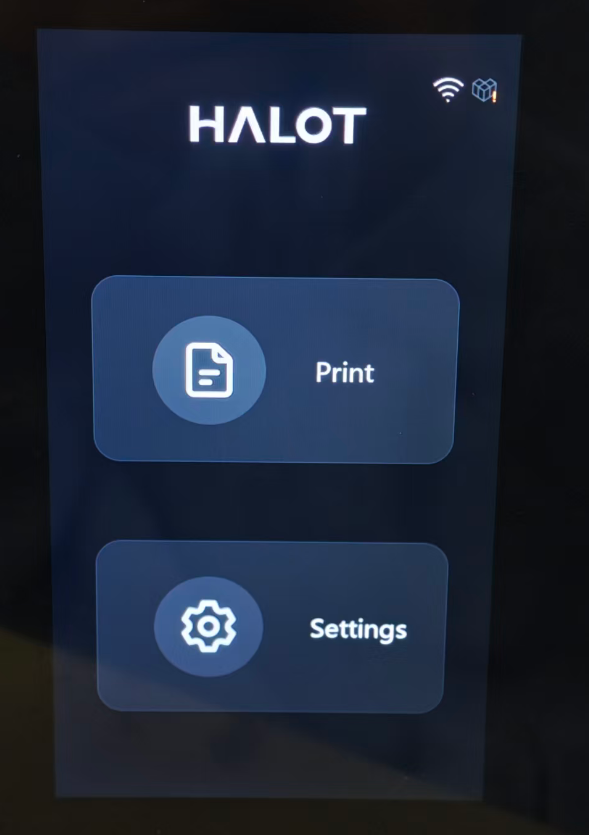
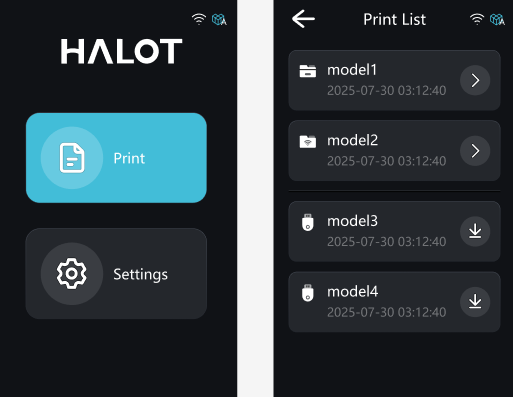
This is the main interface of the SKY-2025 resin printer, providing access to printing operations and printer settings. Please be aware that due to constant firmware improvements, the UI you see might look a little different from this guide.
¶ 2. Top Status Bar Icons Description
WiFi Icon:
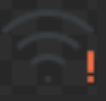 :No WiFi connection.
 :WiFi connected.
 :Strong WiFi signal.
 :Medium WiFi signal.
 :Weak WiFi signal.
Creality Cloud Icon:
 :Creality Cloud not activated.
 :Creality Cloud activated for China region, not connected.
 :Creality Cloud activated for International region, not connected.
 :Creality Cloud activated for China region and connected.
 :Creality Cloud activated for International region and connected.
¶ II. Print Menu:
- Print: Enter the printing workflow to select files and manage print jobs.
⑴. File: Browse and select model files stored on the device's internal storage or USB drive for printing. - Print Operation Options:
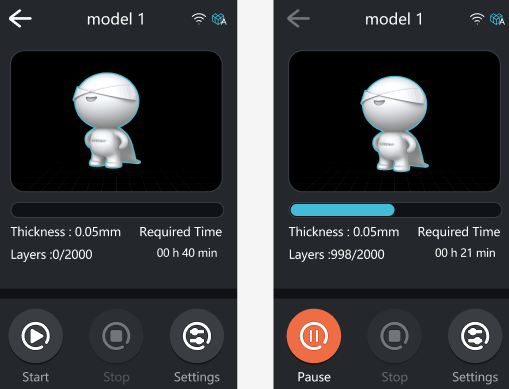
⑴. Pause/Continue: Click “Pause” to temporarily stop the printing process. After clicking, the button will change to “Continue.” Click “Continue” to resume printing from the paused position.
⑵. Stop: Terminate the current print job. A confirmation prompt will appear to prevent accidental operation.
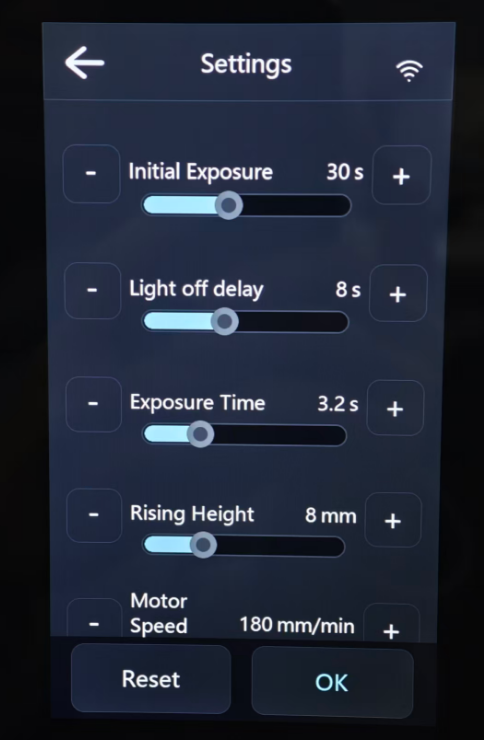
⑶. Setting: Fine-tune printing parameters during the process (e.g., exposure time, motor speed). Recommended for professional and experienced users.
¶ III. Settings Menu:
-
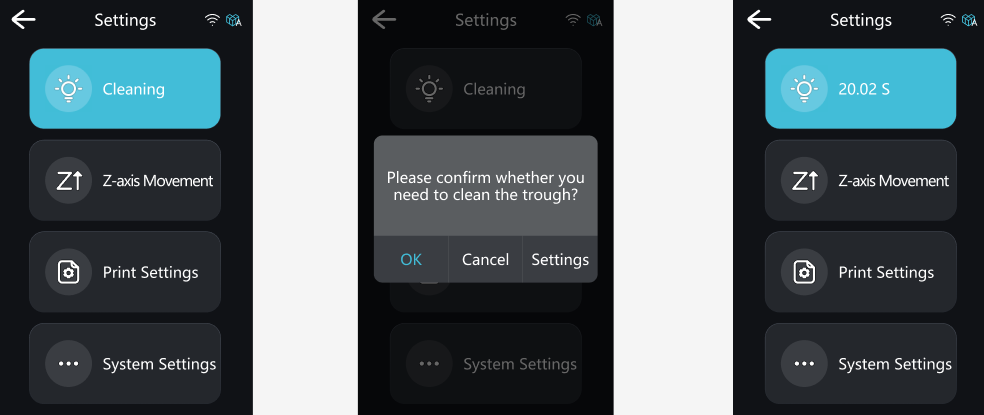
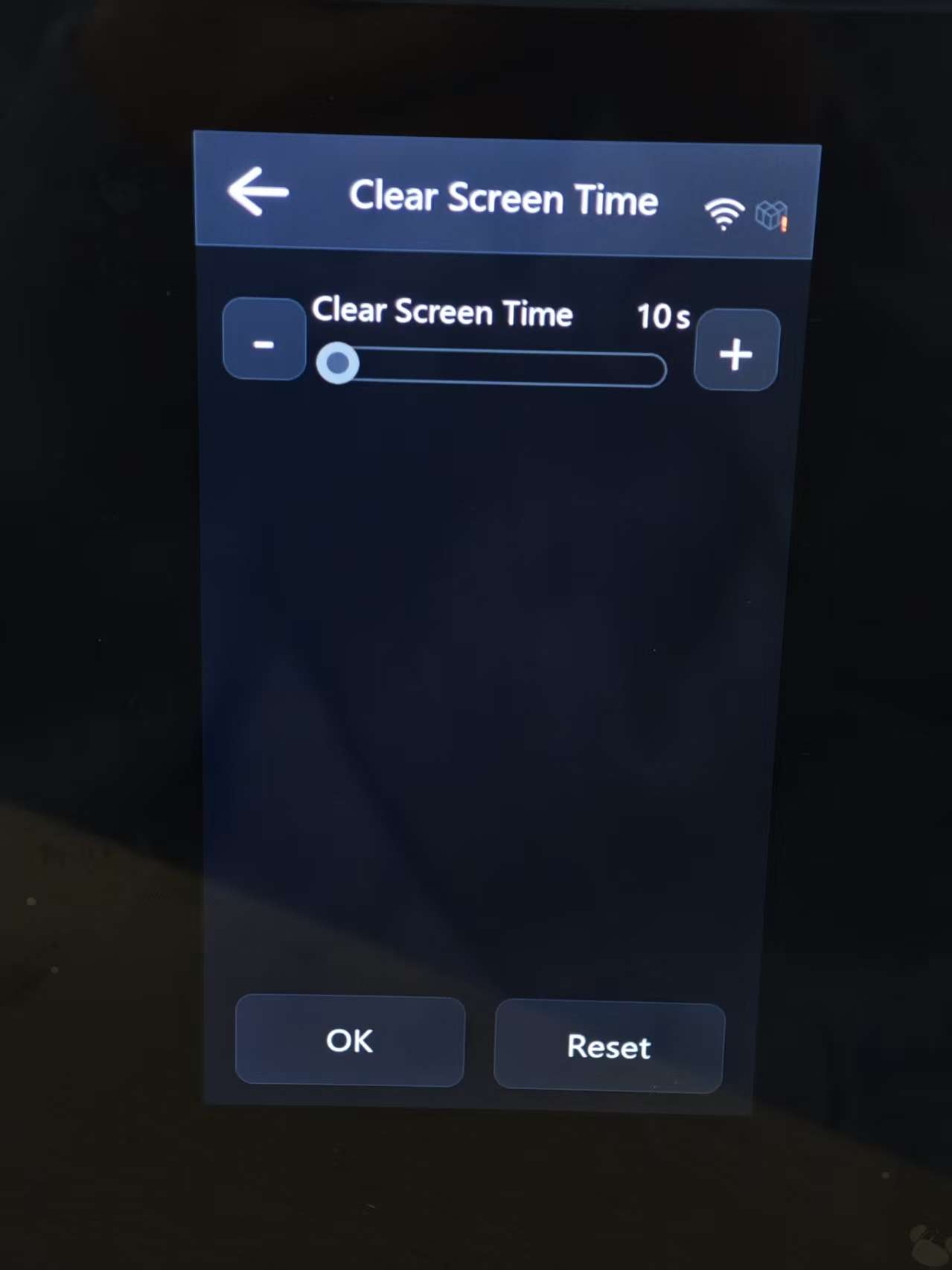
Cleaning: Start full-screen exposure to solidify any remaining resin in the vatin, aim to clean impurities. This function can also be used to check whether the screen has any dead pixels. Enable Cleaning, the system will prompt you to select whether to clean the trough and configure settings.
⑴. Settings: Set the exposure duration for cleaning.
-
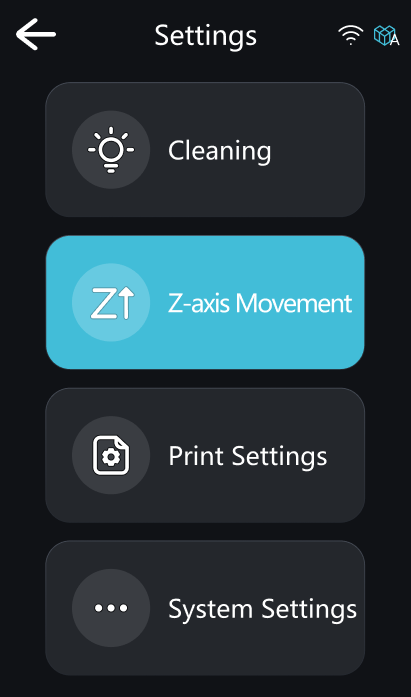
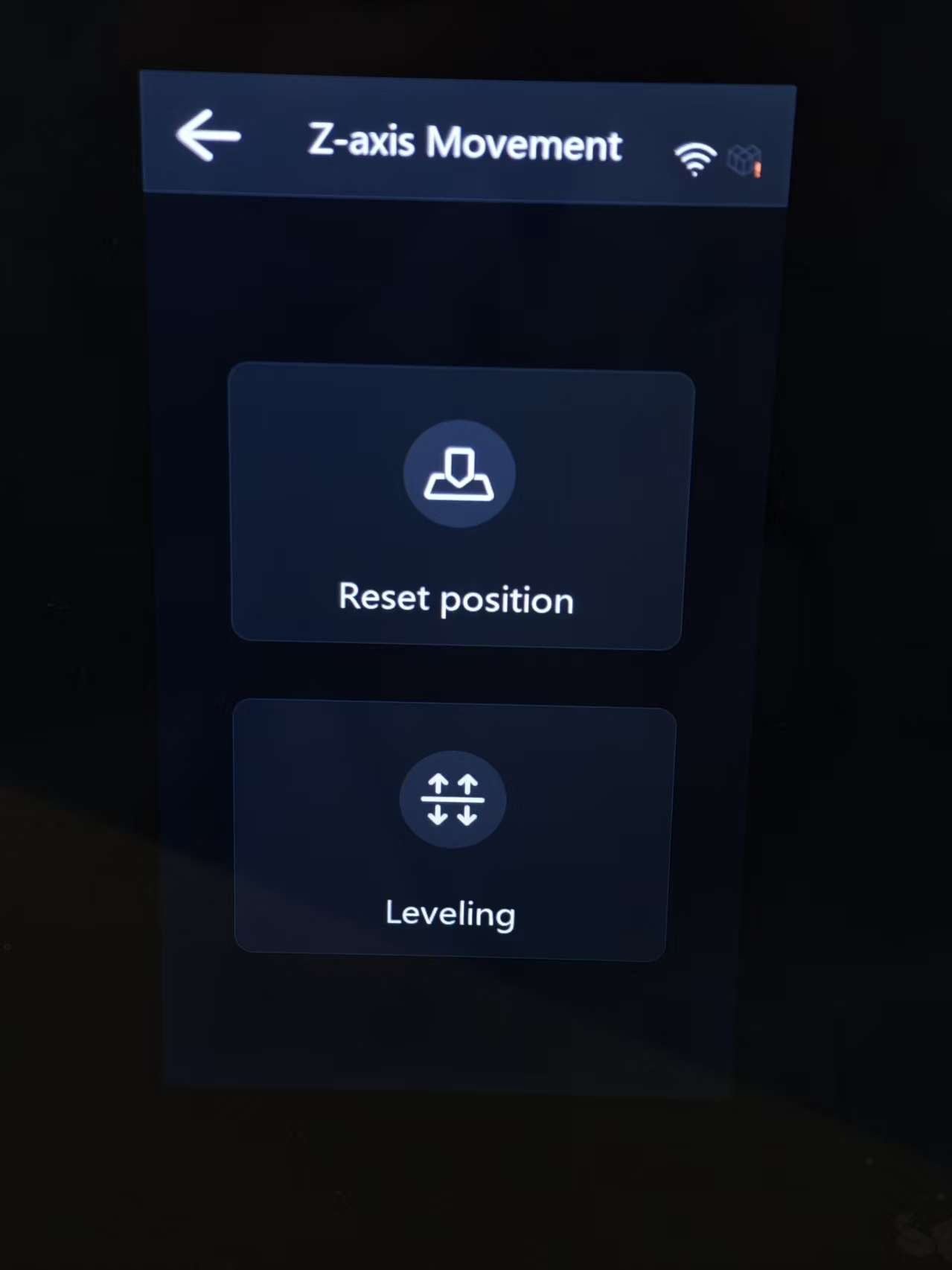
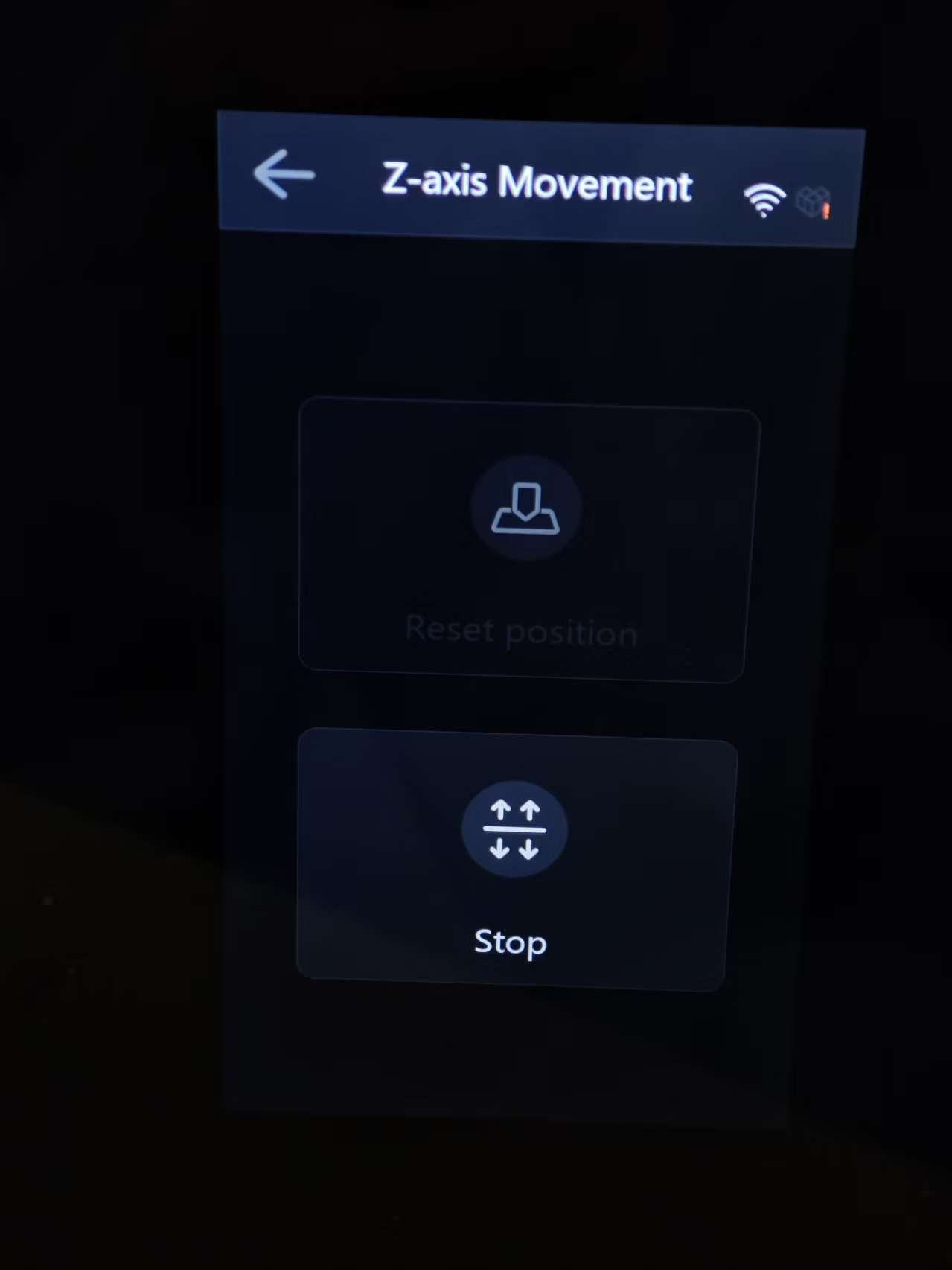
Z-axis Movement: Manually control the movement of the Z-axis, typically during maintenance and leveling.
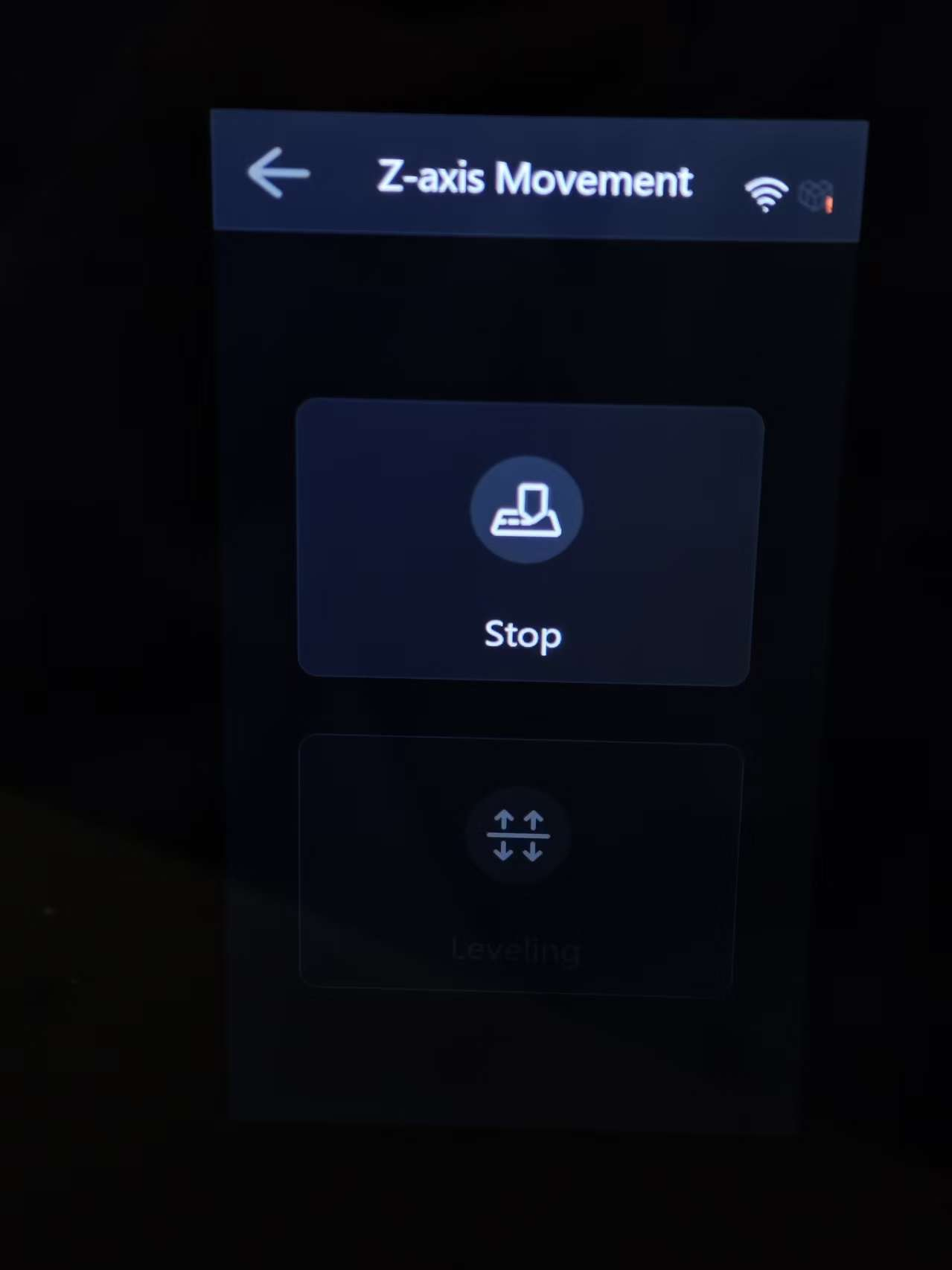
⑴. Reset Position: When clicked, the Z-axis will return to the machine’s initial zero position. During operation, the button changes to “Stop,” which can be clicked at any time to interrupt the motion.
⑵. Leveling: When clicked, the Z-axis first performs a homing operation, then automatically lowers to the leveling position. During operation, the button changes to “Stop,” which can be clicked at any time to interrupt the motion.
-
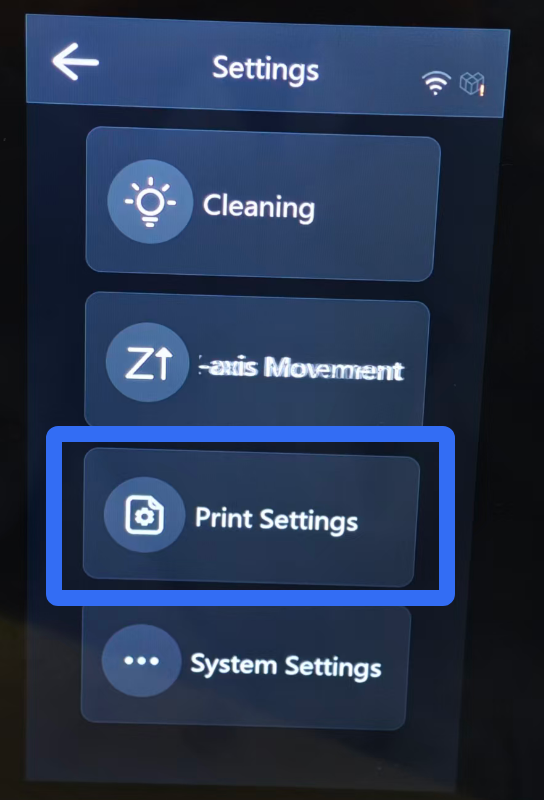
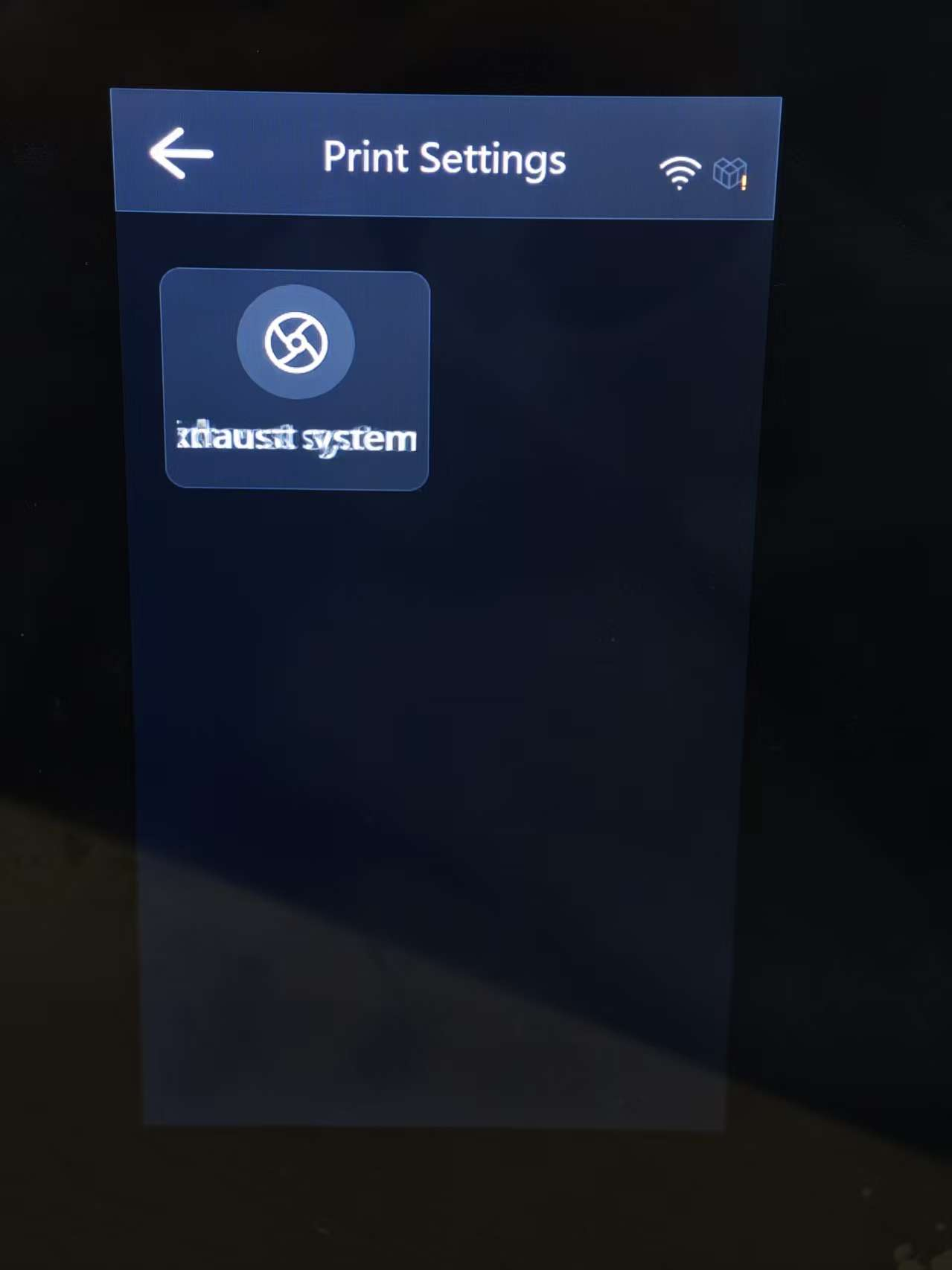
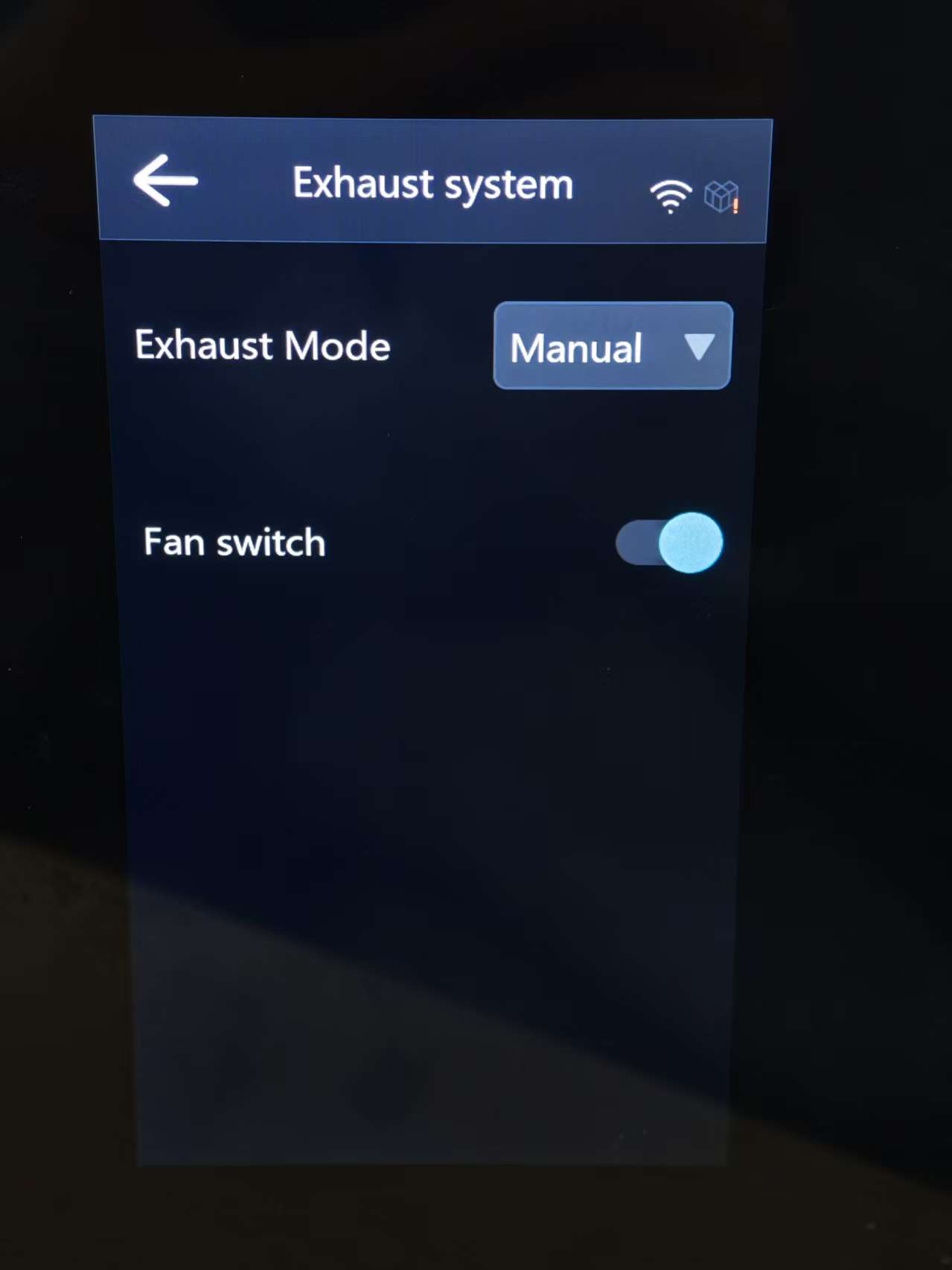
Print Settings: Used to enable or disable functions related to the printing process.
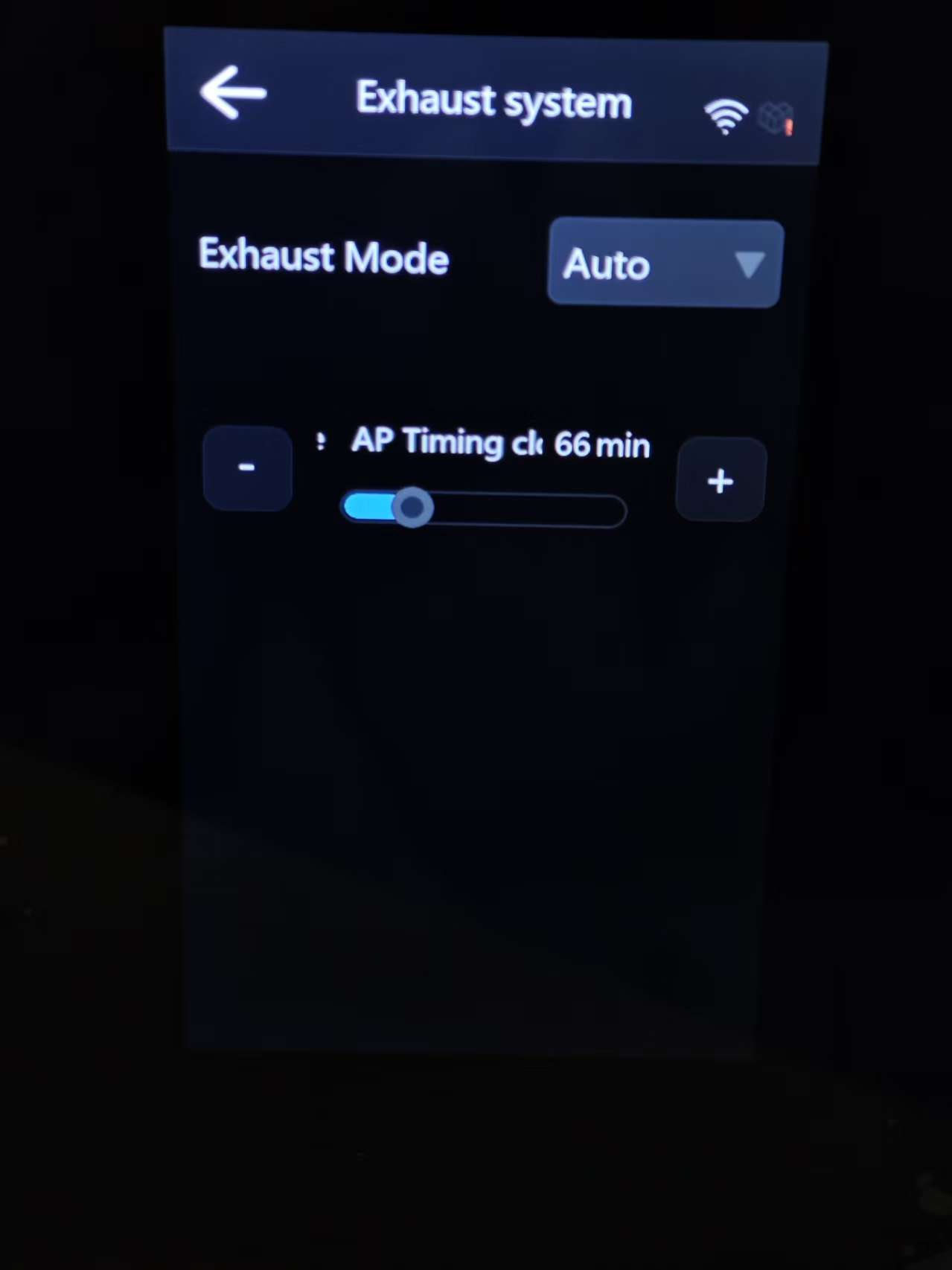
⑴. Exhaust Mode: Can be set to Manual or Automatic.
⑵. Auto: Allows you to set the exhaust duration to minutes (min). When enabled, the exhaust system will automatically operate for the specified time after printing to purify the air inside the chamber.
⑶. Manual: Users can manually control the fan on/off as needed to suit different usage scenarios.
-
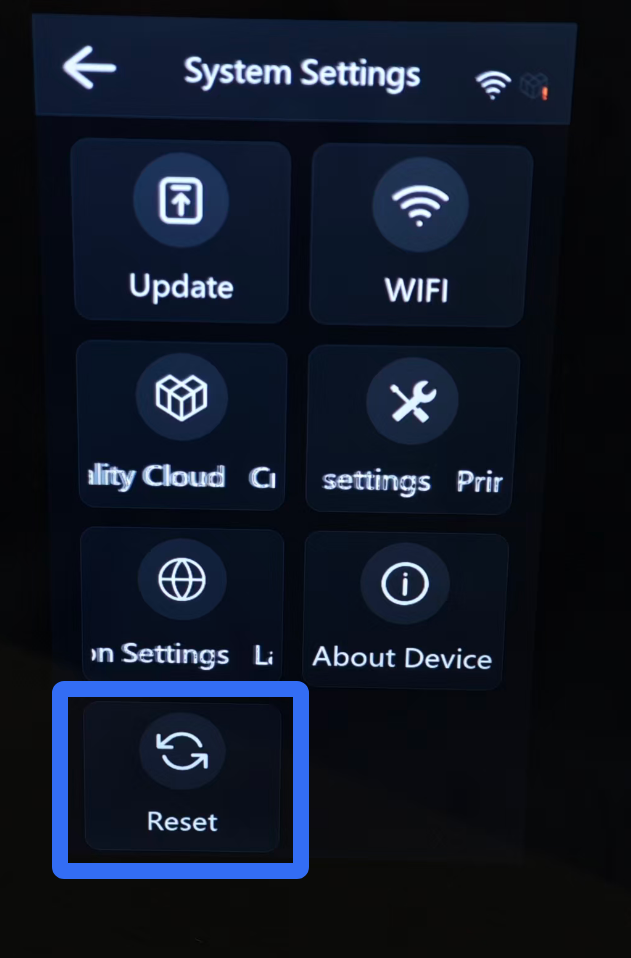
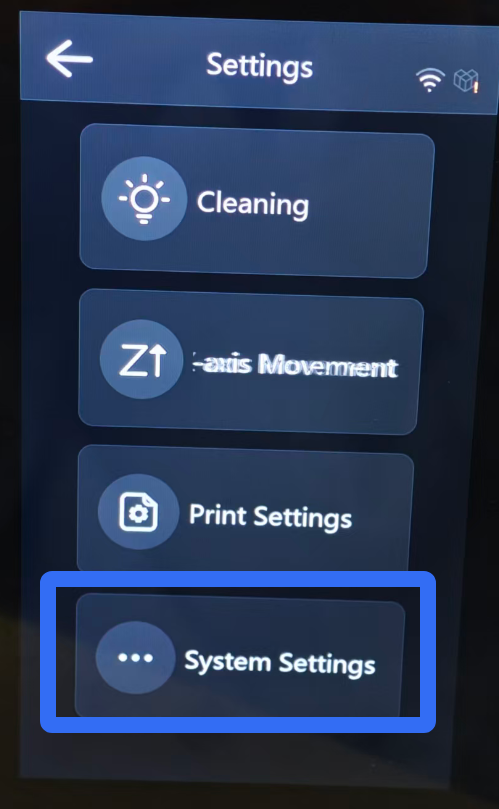
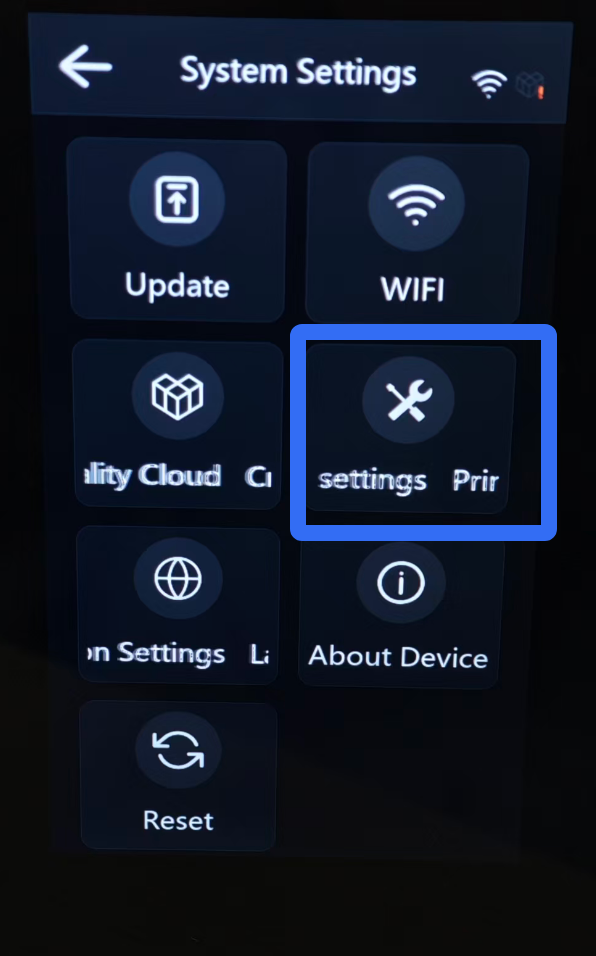
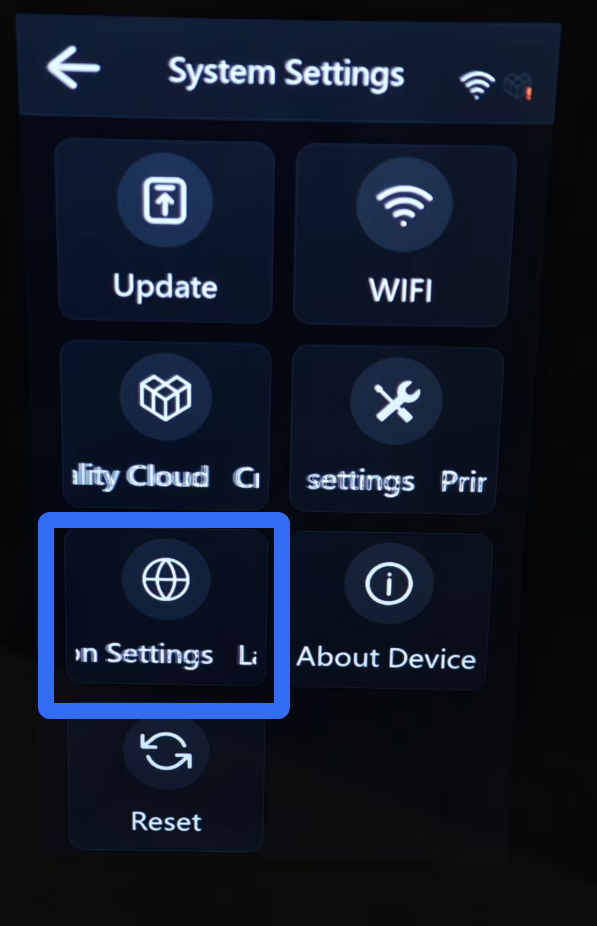
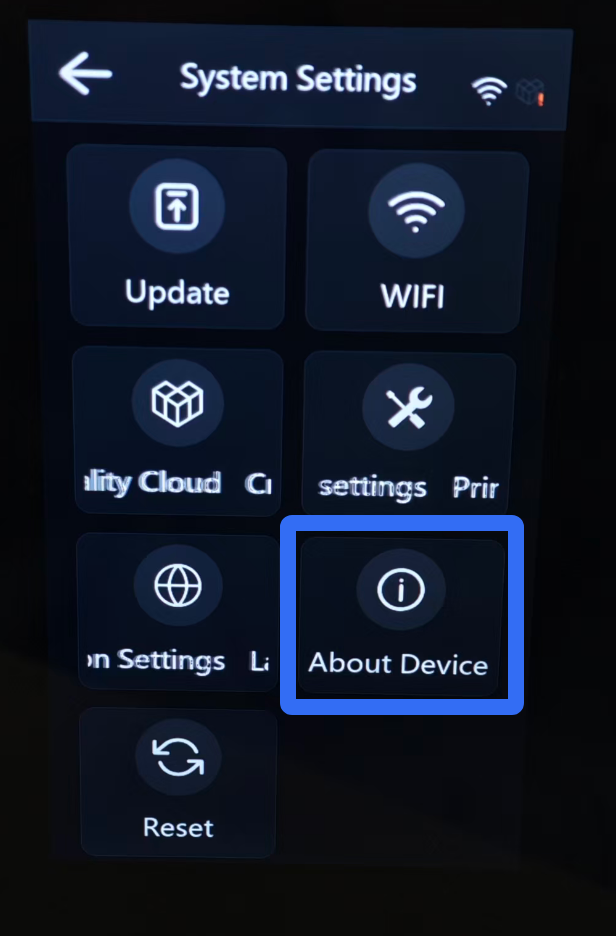
System Settings: Provides options to configure the network, set the language and region, upgrade firmware (local upgrade & online upgrade), view device information, and restore factory settings.
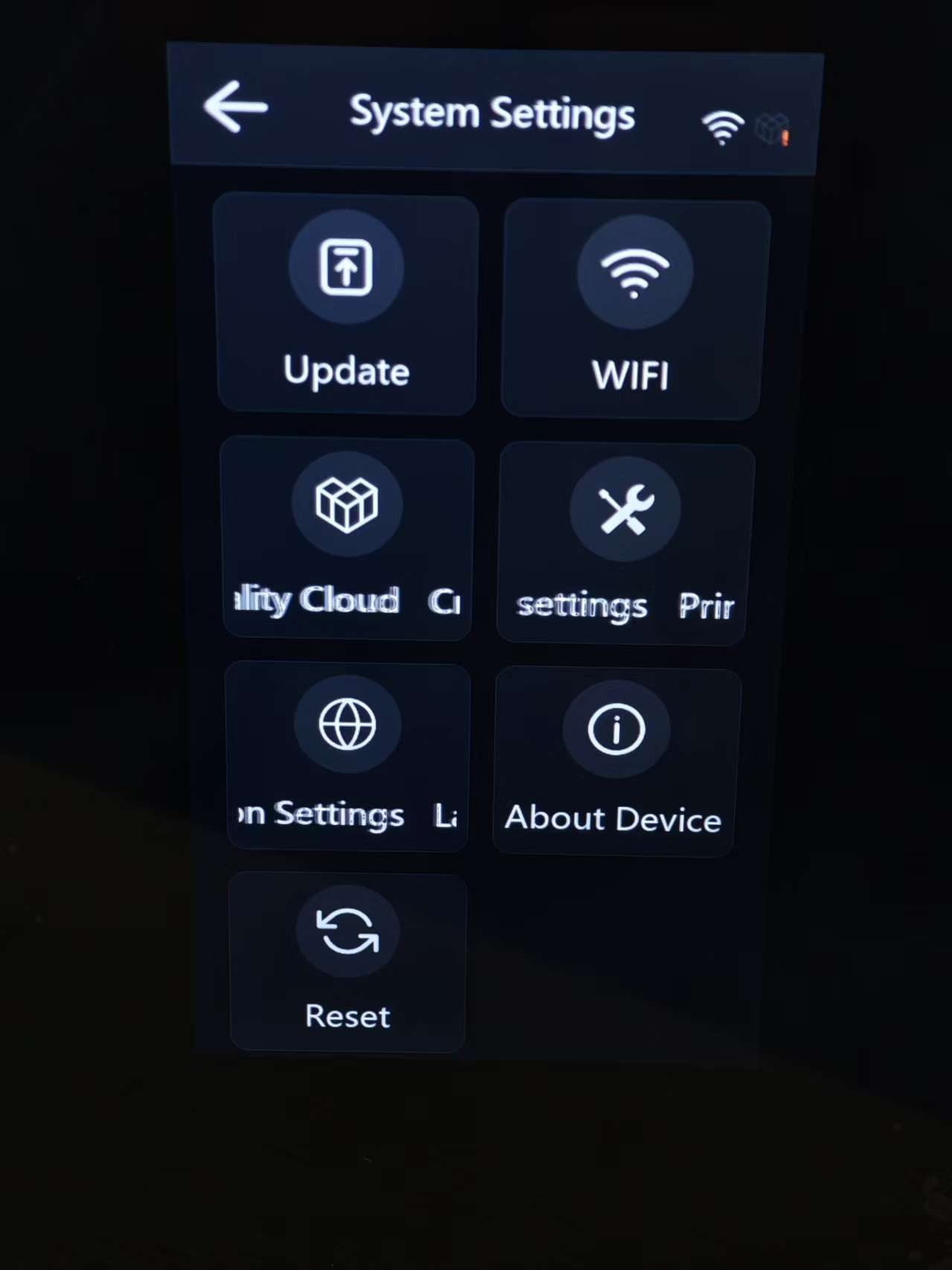
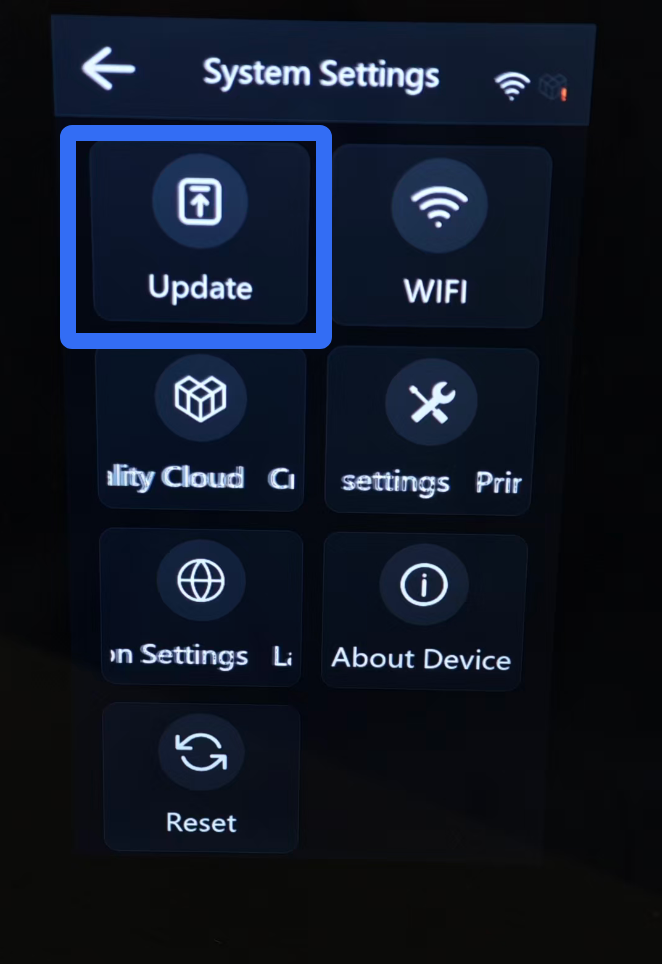
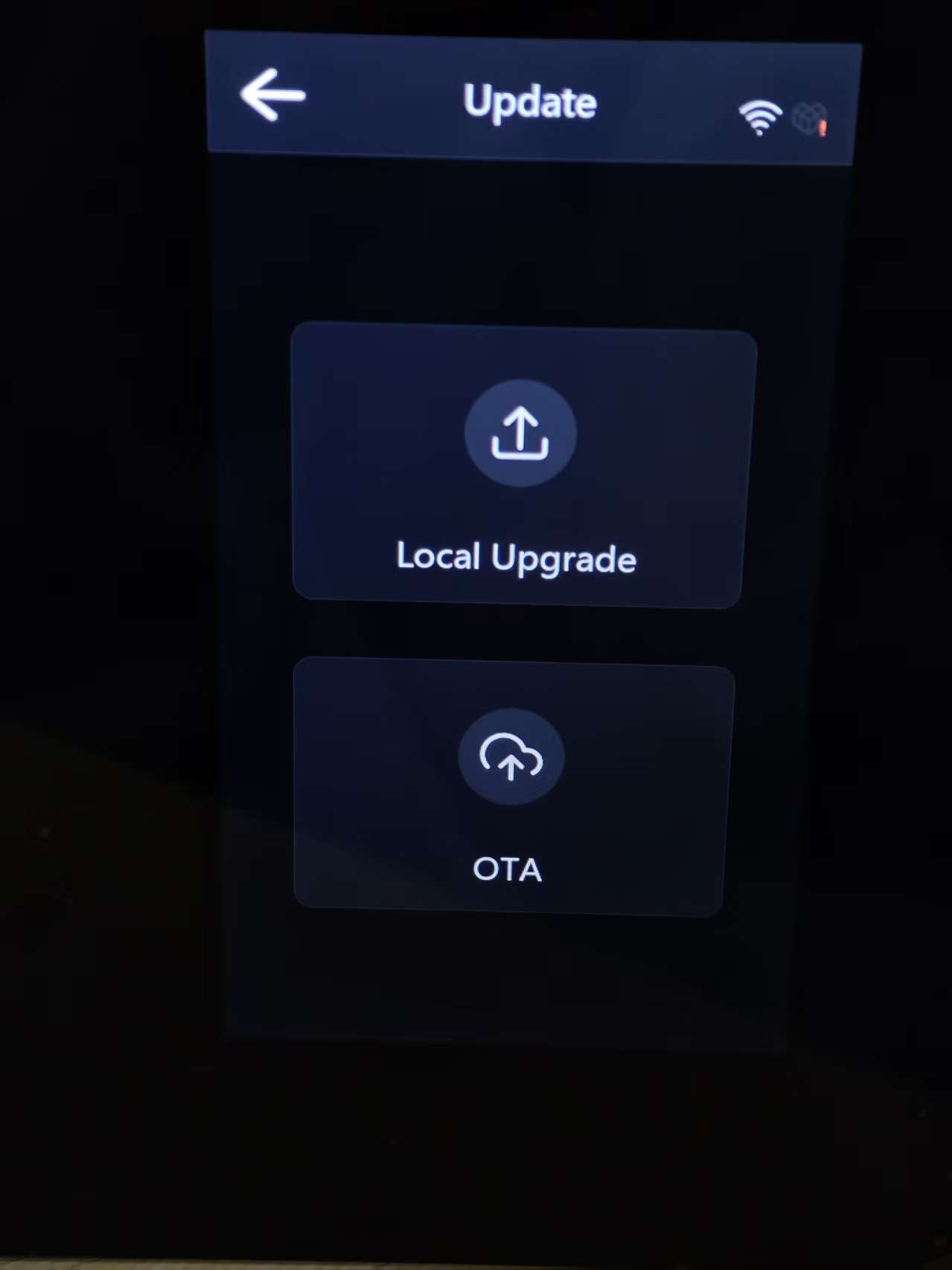
⑴. Update: Update the device firmware.
①. Local Upgrade: Manually update by inserting a USB drive containing the firmware file.
②. OTA: Automatically detects and installs official firmware updates when the device is connected to the internet.
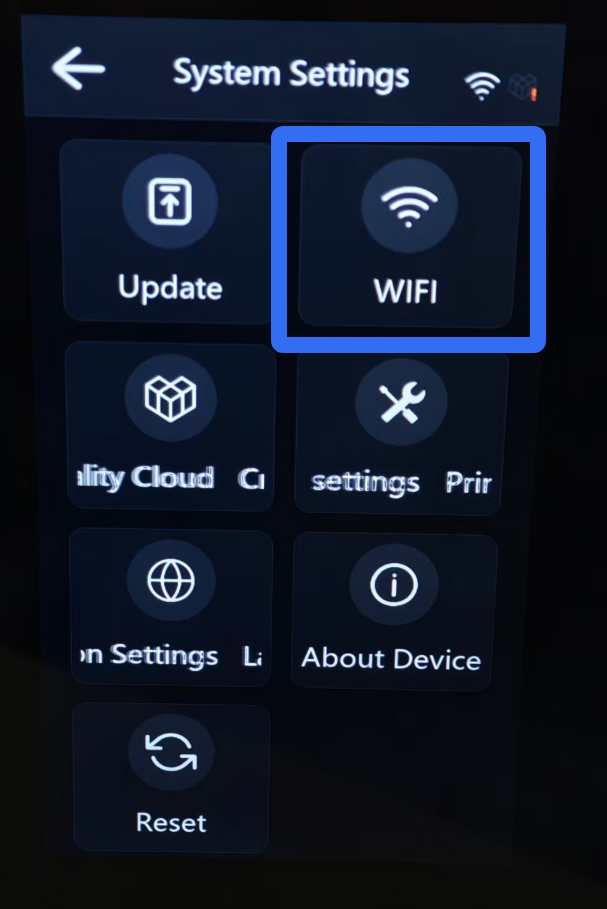
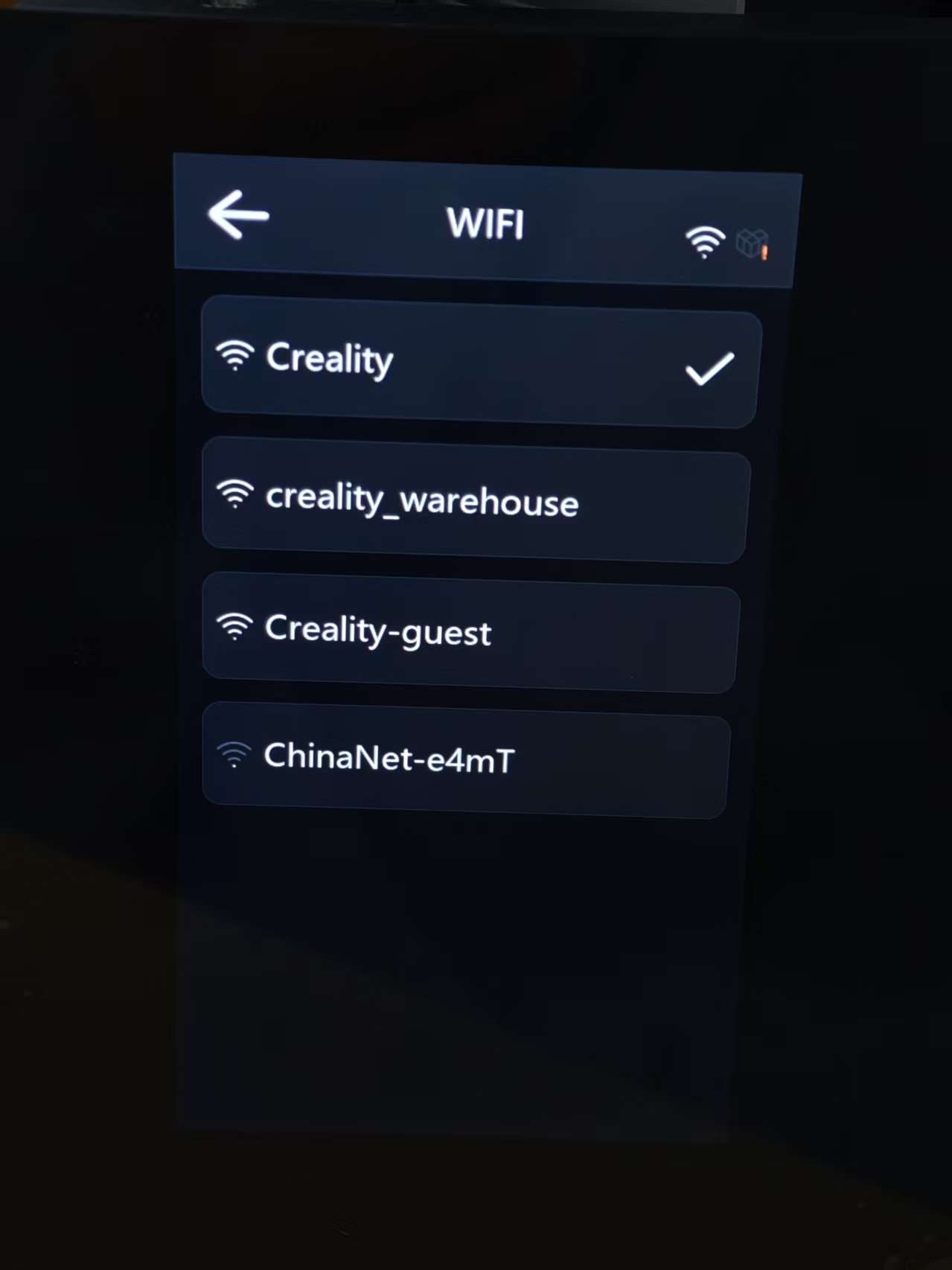
⑵. WIFI: Search, select, and connect to a WiFi network.
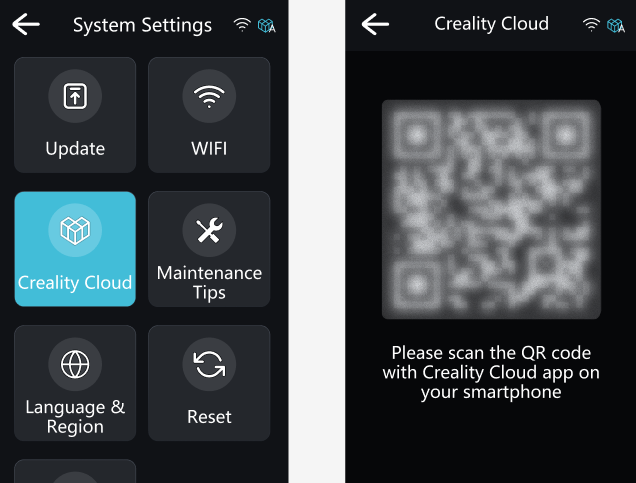
⑶. Creality Cloud: Log in and bind your Creality Cloud account to enable features like the cloud model library and remote printing. Requires an internet connection.
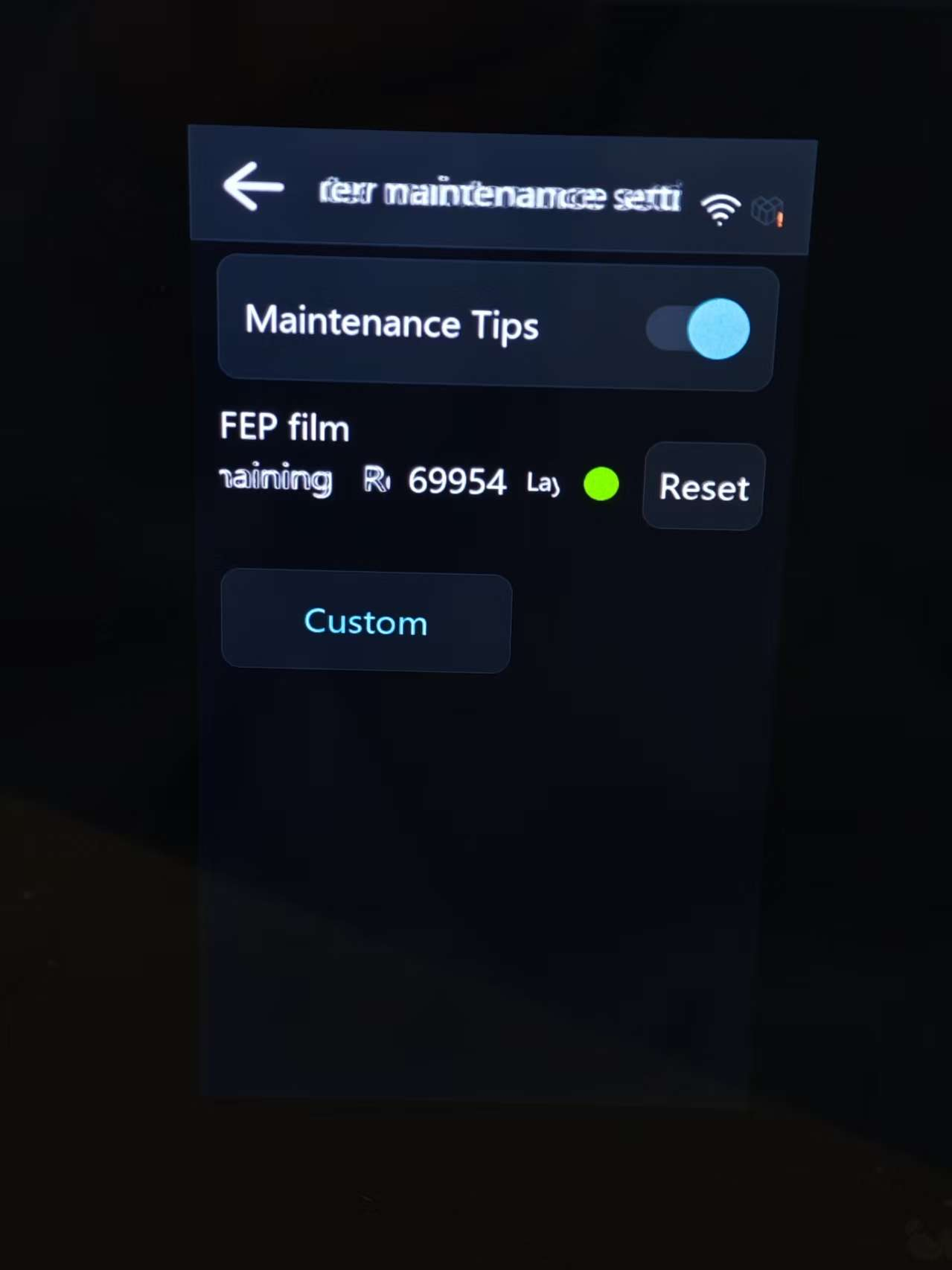
⑷. Printer Maintenance setting: Configure maintenance reminders and settings.
① Maintenance Tips: Toggle this function to enable or disable reminders for maintenance tasks like Release film replacement.
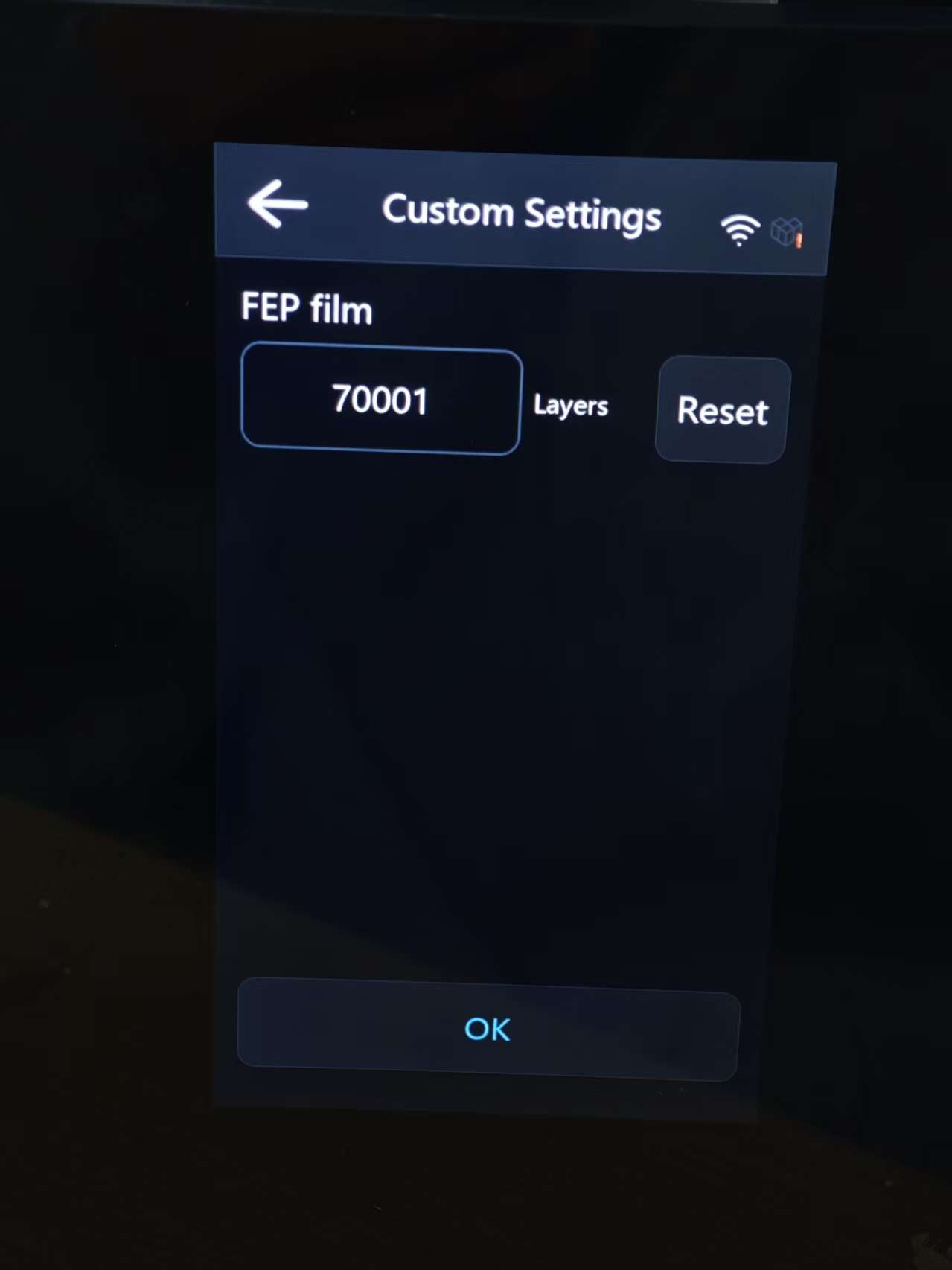
② Custom: Customize the service life of the FEP film, measured in layers.
③ When the maintenance countdown ends, the system will prompt you to replace specific components. If the components have already been replaced, please click “Reset” to restart the timer.
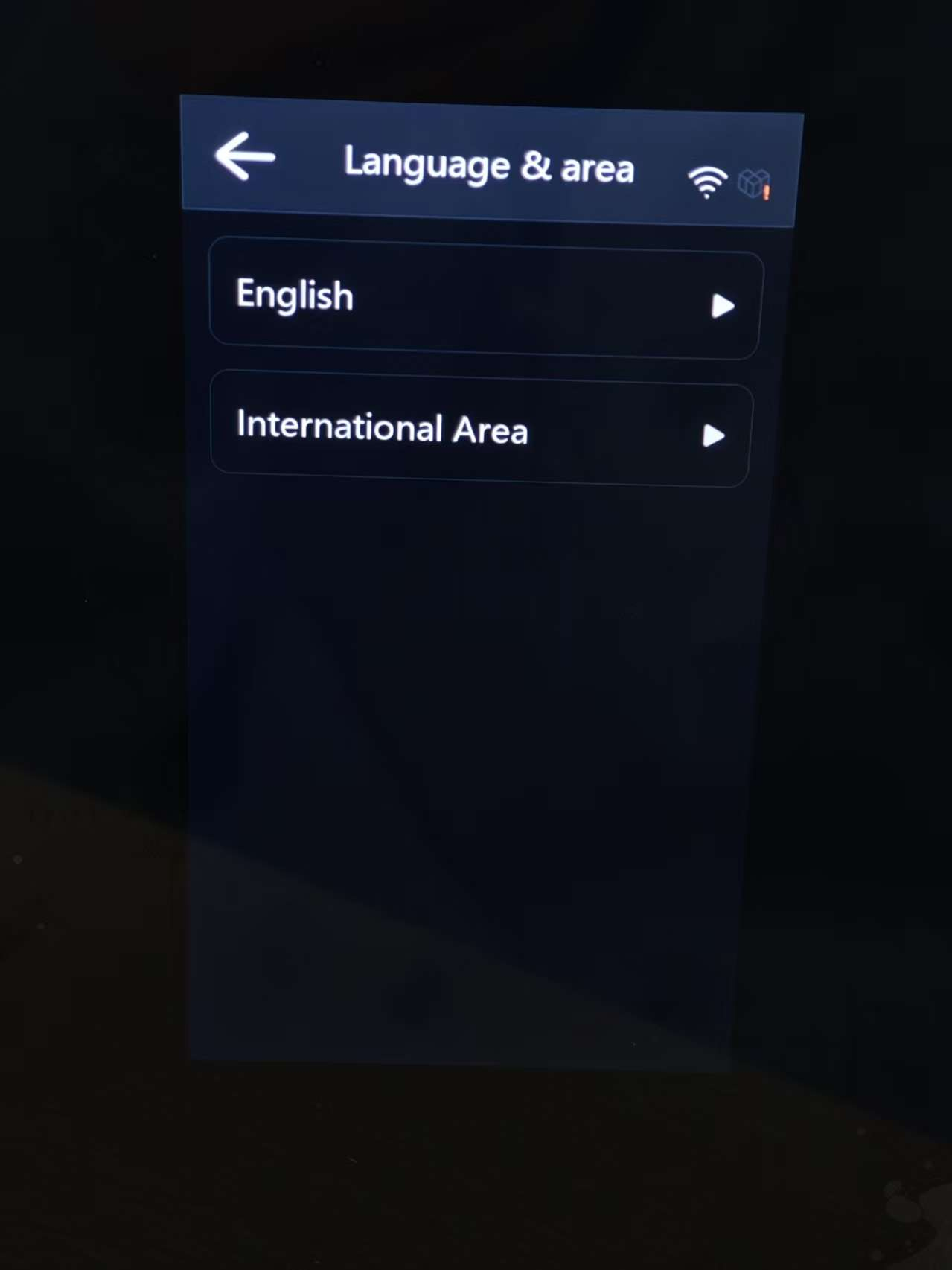
⑸. Language & Area: Set the display language and region. To ensure proper Creality Cloud service, the region setting should match the registration region of your Creality Cloud account.
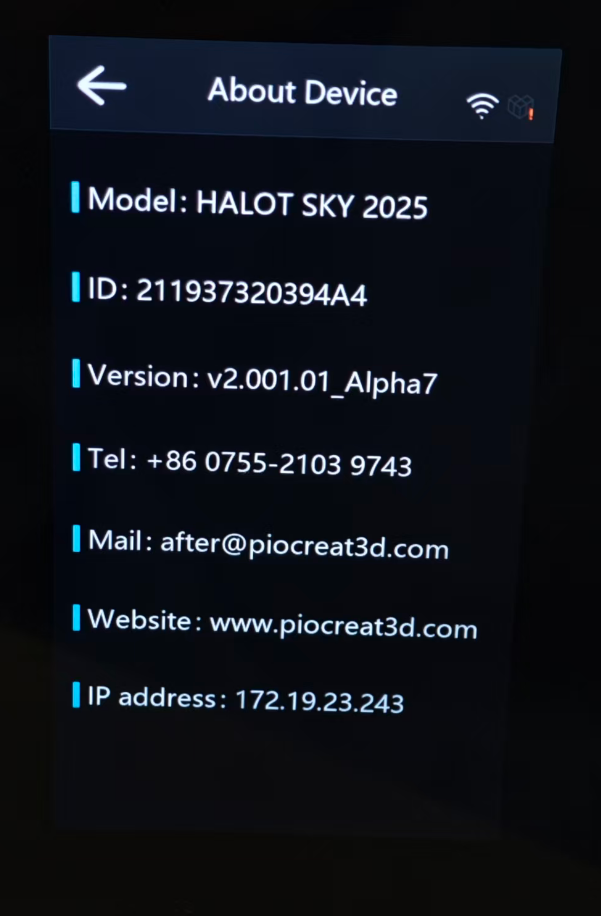
⑹. About Device: View core device information, including: Model, Device Unique ID, Firmware Version, Official Contact Phone Number, Official Support Email, Official Website and IP Address.
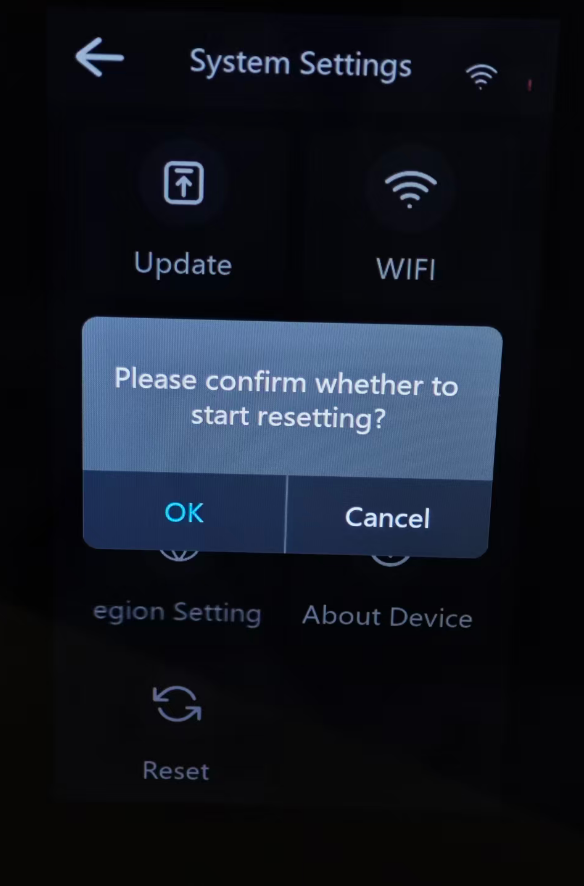
⑺. Reset: Erase all user settings and personal data, restoring the device to its original factory state.