¶ CFS 2 Multi-Color Filament System
¶ CFS 2 Main Functions When Connected to a Printer
 |
 |
¶ Pre-loading
When inserting filament into the feeder while the CFS 2 is idle, the feeder will send the filament into the hub outlet until it is detected by the hub outlet sensor, then retract it. This process is called pre-loading.。
¶ Purpose:
- Provides interactive feedback to the user when inserting filament;
- Tensions the filament on the spool to ensure the filament is not loose.
¶ Filament Runout Detection
Single-material printing:
The logic is the same as that of a single printer. Once the extruder detects no filament, it reports material exhausted and requires new filament to be inserted. If automatic filament resumption is enabled, it will resume automatically.
Multi-material printing:
There is a special case in multi-material printing where the last section of filament has already left the spool and been fed into the CFS. If a filament change is required mid-print at this point, since the filament has already left the spool and cannot be retracted, the remaining filament will be flushed directly. After flushing is complete, it will switch to the filament in another slot to continue printing. The screen will prompt that the filament is exhausted and the old filament is being flushed.
¶ Automatic Filament Refill
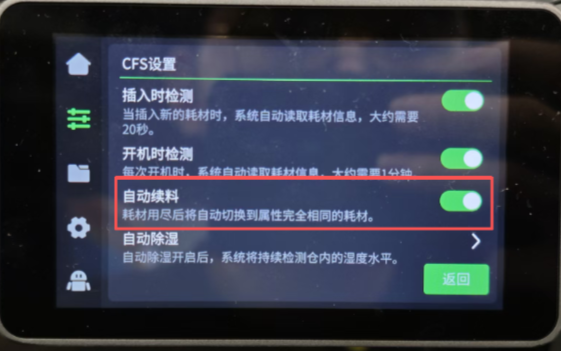
When the filament in a slot of the CFS 2 is exhausted, it can automatically switch to filament with identical properties in another slot. These properties include filament brand, filament type, filament color, and filament printing temperature. Please configure the filament information before printing.
¶ Viewing and Editing Filament Information
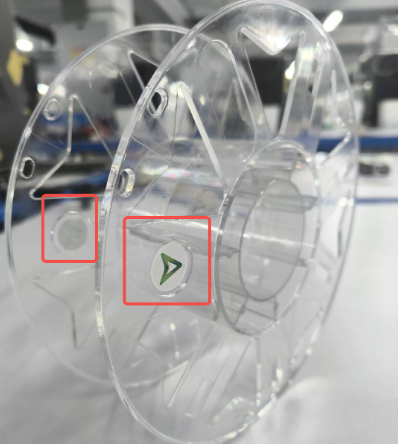
Creality's official RFID filament spools are equipped with RFID tags on both sides. The CFS has two RFID reader circuit boards that can read filament information. During pre-loading, the spool rotates and the multi-color box RFID circuit board communicates with the RFID tags on the filament to read the RFID information. After obtaining and parsing the RFID filament serial number, the following information is retrieved:
RFID filament serial number
Filament code
Filament color value
Filament length
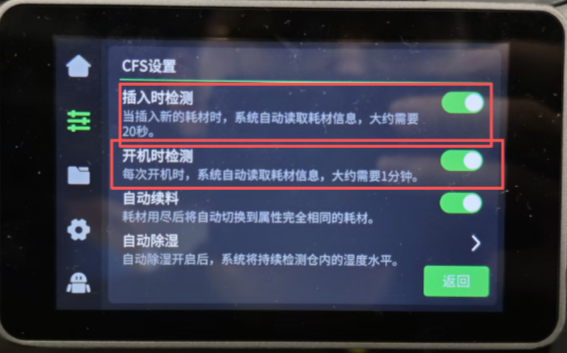
The RFID reading function can be set on the screen to detect on insertion or on startup. If "Detect on Insertion" is enabled, the RFID reading operation will be performed after pre-loading. Similarly, if "Detect on Startup" is enabled, after each printer restart, it will begin reading the RFID of each slot in sequence.
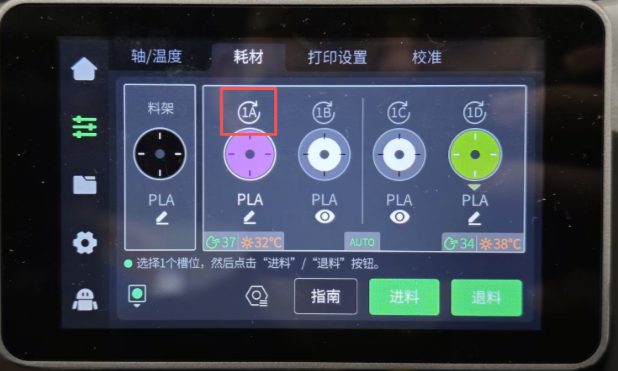
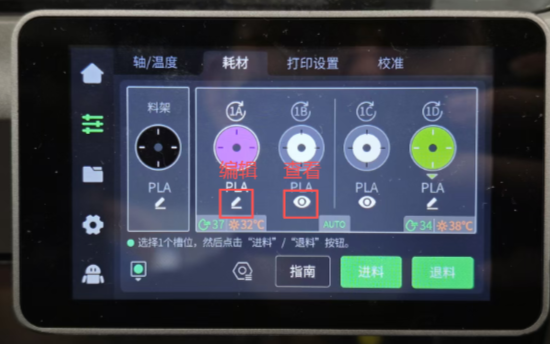
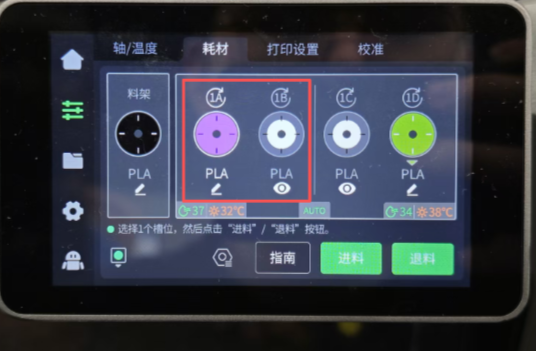
You can also manually click the number above each slot on the screen or in the slicing software to perform an RFID read.
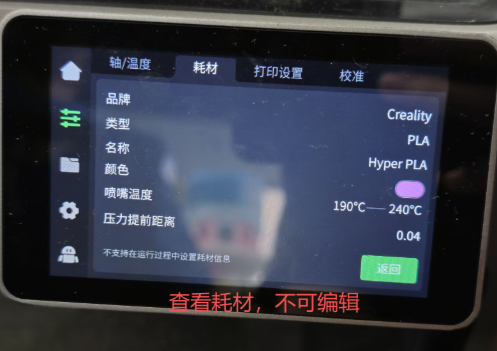
Viewing filament information: After RFID filament is read, the filament brand, type, name, color and other data are automatically parsed. Click the eye icon to view the filament information. Only viewing is supported; manual editing is not available. If the current filament is RFID-based and you next want to use non-RFID filament, you will need to click the pre-loading button, wait for the reading to complete, and then click the filament edit button.
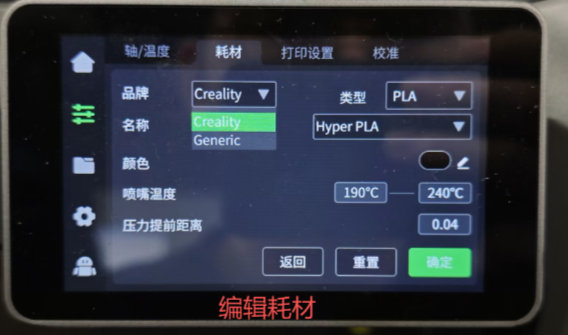
Editing filament information: For non-RFID filament, you can manually enter the brand, type, name, color and other parameters. Once saved, the entire printer will use these parameters for printing.
 |
 |
|
¶ Remaining Filament Estimation
The RFID reading process can simultaneously estimate the remaining filament on the spool.
The working principle is to estimate the percentage of remaining filament on the spool based on the length of filament fed out per full rotation of the RFID tag on the spool.
A complete 1kg spool is set as 100% by default.
¶ Filament Mapping
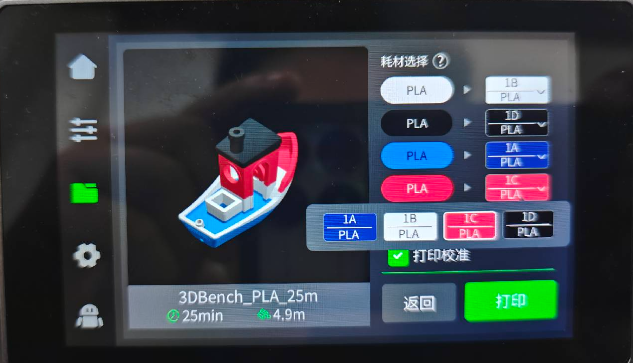
When initiating a multi-color print job, if the corresponding color filament is not available, the system will automatically match the model with the closest color filament available on the multi-color box.
¶ Temperature and Humidity System / CFS Number
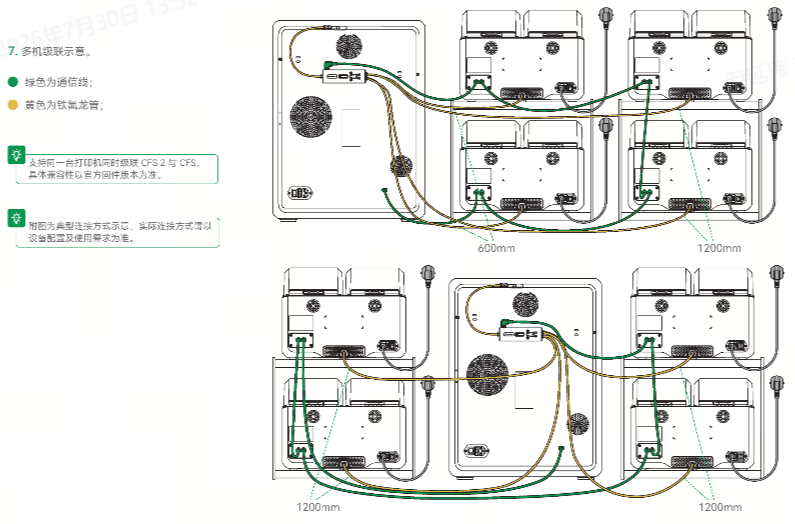
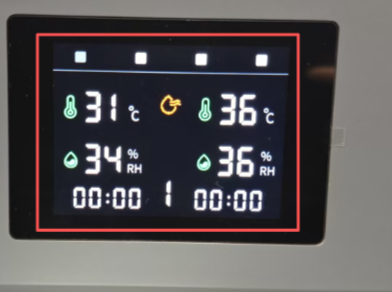
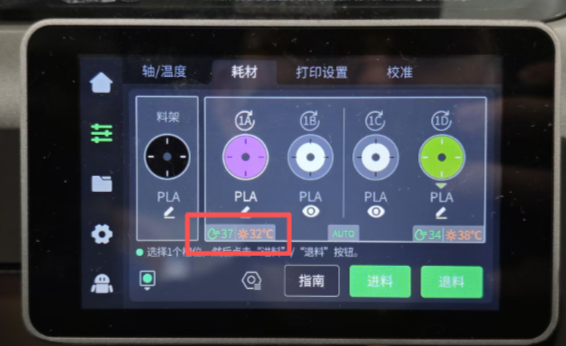
The CFS 2 multi-color box is equipped with high-precision temperature and humidity sensors. Through the display screen, the real-time temperature and humidity of the left chamber and right chamber can be monitored independently. You can observe whether the automatic dehumidification mode and active drying mode are enabled, and view the remaining drying time and the duration for which automatic dehumidification has been active. If multiple CFS 2 boxes are connected, sequential numbering will be assigned to each CFS 2.
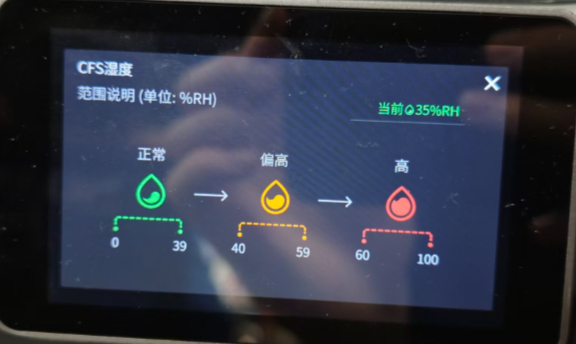
The filament humidity range description can be viewed on the filament interface.
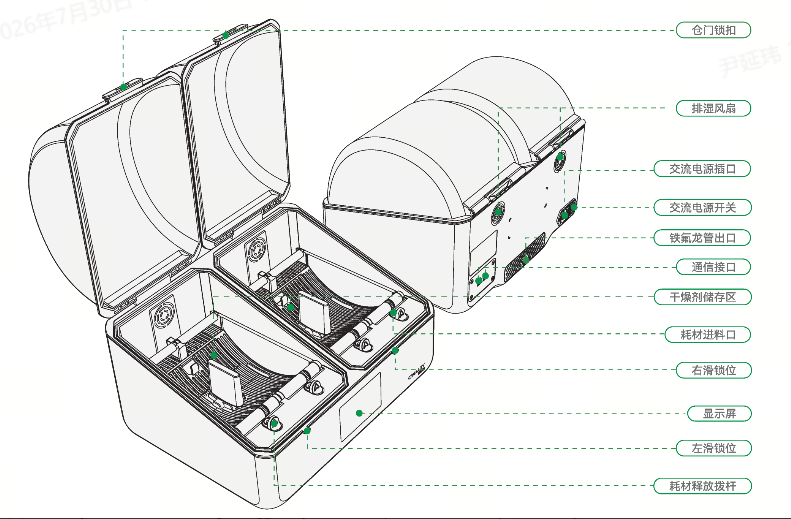
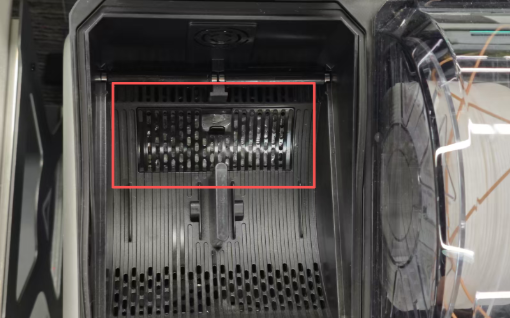
Two desiccant storage compartments are located beneath the slots of the CFS 2 multi-color box. Desiccant can be placed there to absorb moisture inside the chamber after the lid is closed. Please note that the desiccant should be replaced manually on a regular basis to prevent it from becoming ineffective.
¶ Automatic Dehumidification
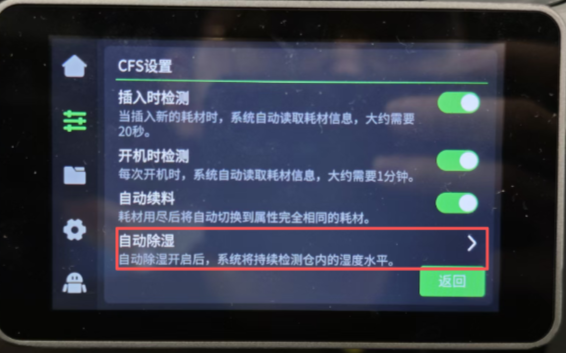
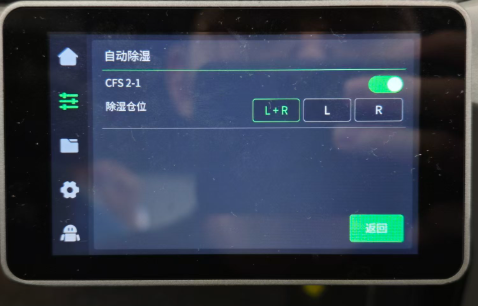
Once the automatic dehumidification function is enabled, the system will monitor the humidity inside the filament chamber in real time. Once the humidity inside the chamber exceeds the threshold, the device will automatically activate drying and dehumidification to prevent the filament from absorbing moisture and becoming soft.
The control interface supports multiple independent settings:
Each externally connected CFS 2 filament chamber can be started or stopped independently without affecting the others.
Sub-chamber adjustment is supported. You can individually select the chambers that require dehumidification. The default is L+R. Available options include L, R, and L+R. Chambers that are not selected will not activate dehumidification.
 |
 |
¶ Filament Drying
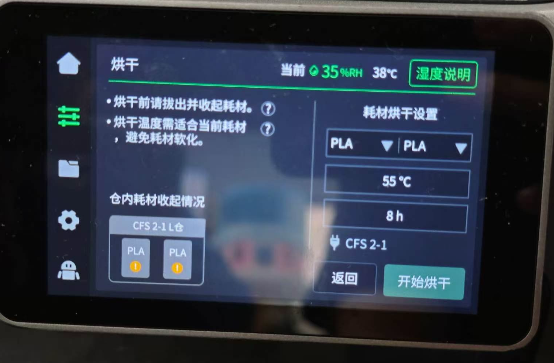
Active filament drying is the manual dehumidification of the filament chamber, which removes moisture from within the filament to resolve issues such as stringing, bubbling, and layer splitting during printing.
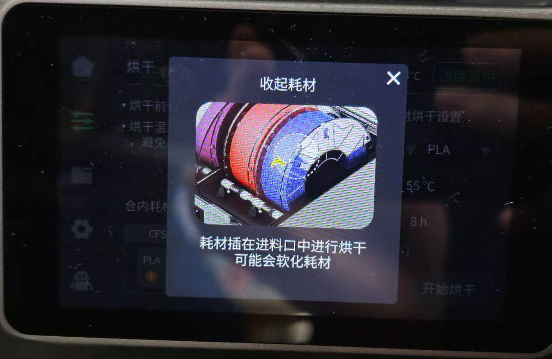
Prerequisites: Active drying requires an external dedicated independent power supply, and all filament inside the chamber must be fully retracted into the chamber. When no power supply is connected or filament is exposed, the drying function is entirely locked and cannot be operated.
Operating notes: Unload and retract the filament before drying; adjust the temperature to suit the filament type before drying.
Status indicators: The filament storage status is displayed in real time in two states: Not retracted (orange) and Retracted (green).
Drying settings: The system automatically calculates and allows configuration of parameters such as filament type, drying temperature, and drying duration.
 |
 |
 |
 |
¶ CFS 2 Workflow:
¶ Filament Change (Loading & Unloading)
During the loading process, the feeder is responsible for feeding the filament to the hub outlet. After the hub outlet's odometer wheel calculates that a short length of filament has been fed, the feeder stops, and the hub outlet motor then feeds the filament into the extruder.
During the unloading process, the feeder and the hub outlet motor operate simultaneously. The feeder drives the spool to rotate in reverse while the hub outlet motor retracts the filament until it is pulled back inside the CFS 2.
What is the difference between the hub outlet assembly and the older CFS model, and what are the advantages of the changes? Filament runout detection Hall sensor.
Buffer Device
¶ Reading Filament Information
The CFS 2 reads the RFID spool tags and automatically parses data such as filament brand, type, and color. Only viewing is supported; manual editing is not available. If third-party filament without RFID is used, the user must manually enter and save the filament data.
¶ Automatic Filament Feeding
Once the CFS 2 has fed the filament to the extruder and successful extrusion is confirmed, the feedback value from the buffer will be used to assist with feeding or retraction. When resistance is encountered during the feeding process, the buffer's slider will be pushed to the right. When the filament is consumed by the extruder, the slider will return to the left. The assist mode determines whether feeding is required based solely on the feedback signal from the buffer, regardless of whether a print job is currently in progress.
¶ Automatic Dehumidification / Filament Drying
When the automatic dehumidification or filament drying function is enabled, the system verifies whether the power supply is connected, filament is in place, and sensors are functioning normally; otherwise, dehumidification will not start. Once all checks pass, the device activates the chamber heating module at the configured temperature and duration until the humidity drops below the set threshold or the drying duration ends, at which point dehumidification stops. Drying can also be manually stopped by turning off the automatic dehumidification switch.
¶ Other Functions — Status Light
For reference, please see the Wiki: CFS Status indicator Explaination