After scanning, the scanning result has a rough, uneven, or grainy surface is a common issue in 3D scanning. The cause may come from the object's material, scan parameters, scanning technique, post-processing, or other factors. This guide will help you troubleshoot step by step and improve the surface quality of your scans.
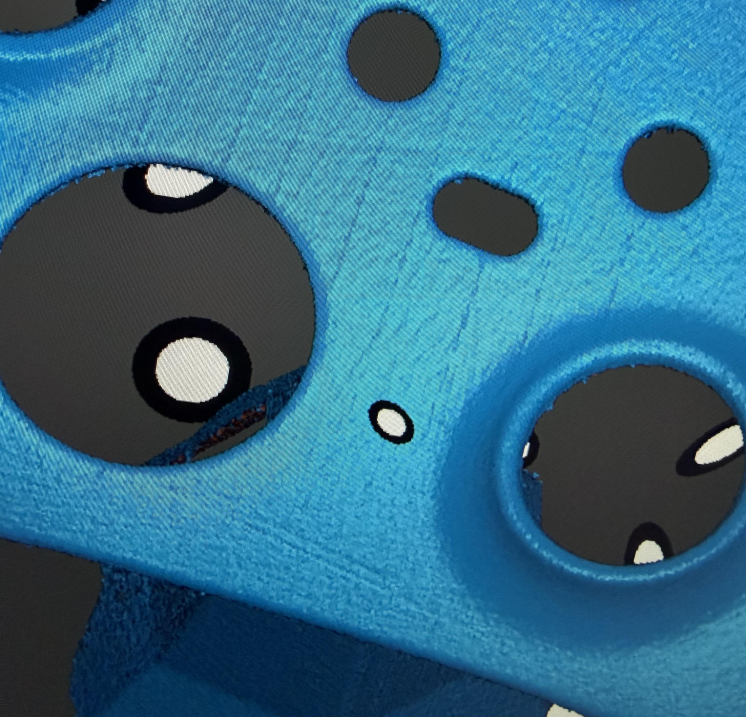
¶ 1. Check the Object's Surface Material
The material and reflectivity of the object's surface can significantly affect scan quality. Check for the following conditions first:
- Dirt or dust on the surface: Clean the object surface first to ensure clean scan data.
- Black, dark, or reflective surfaces: These surfaces tend to absorb or reflect laser light, resulting in insufficient data and a rough model surface.
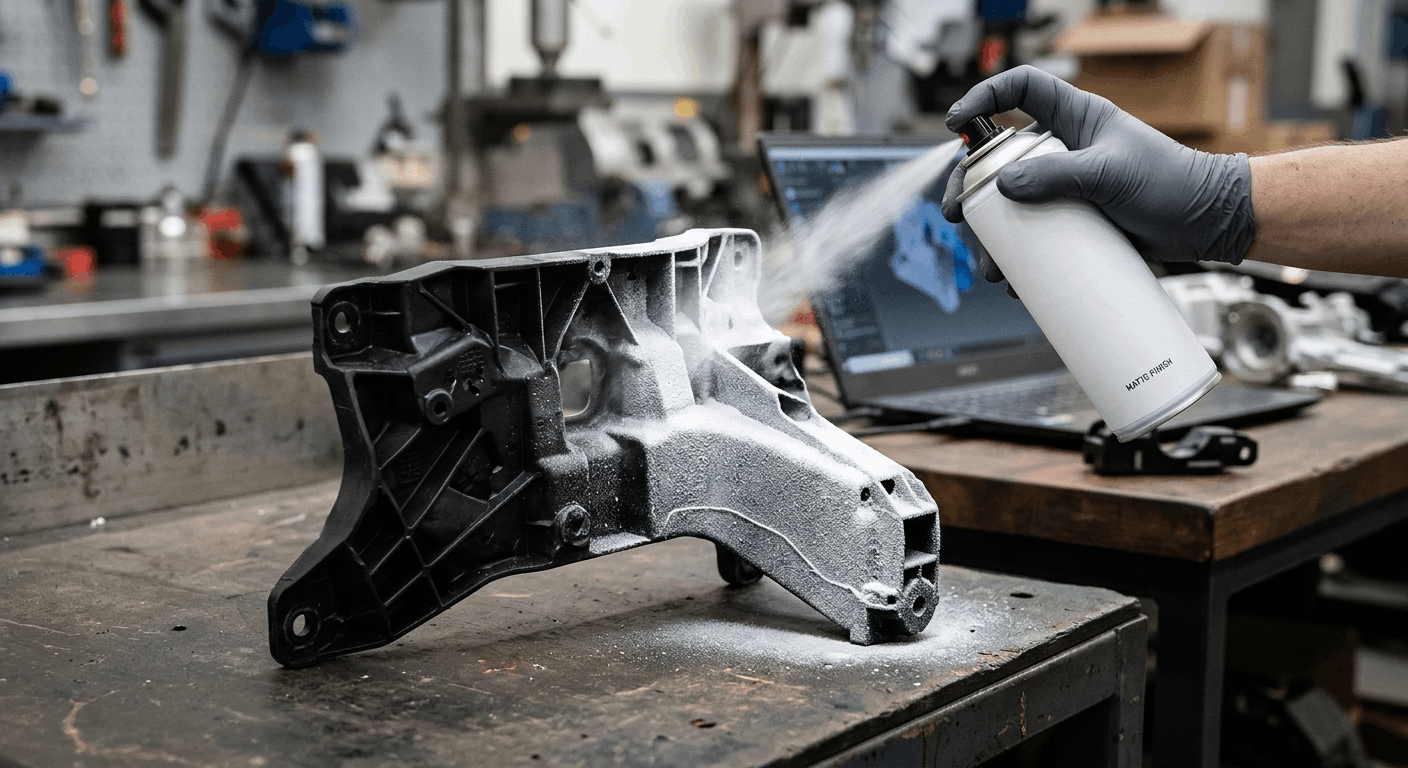
- When using Infrared Mode, it is recommended to apply scanning spray before scanning.
- When using Blue Laser Mode, because the laser energy is more concentrated, it performs very well on black, metal, and other reflective parts. Data can usually be captured by scanning from multiple angles. If data capture is difficult, scanning spray can also be used.
¶ 2. Check the Scanning Environment
Keep the scanning background clean and simple. Remove unrelated objects and avoid strong reflections, complex textures, and direct strong light, so as to reduce background noise being captured along with the object.
¶ 3. Check Scan Settings
Improper scan settings directly affect surface quality. Check whether the following settings are correct:
¶ 1. Resolution Setting
Resolution should be set according to object size. For smaller objects, use a smaller resolution. For example, when scanning a 10 cm part, set the resolution to 0.15 mm. For larger objects, use a larger resolution. For example, when scanning a car door, set the resolution to 0.5 mm.
For Blue Laser Mode, when the real-time resolution is set below 0.2 mm, it is recommended to switch to Parallel Line mode.
¶ 2. Exposure and Laser Settings
- Exposure that is too high or too low will cause abnormal data. Check the IR camera window on the right side of the software to ensure proper exposure.
- For Infrared Mode, as shown below, from left to right: underexposed, optimal exposure, overexposed.
.png)
- For Blue Laser Mode, as shown below, from left to right: underexposed, optimal exposure, overexposed.
.png)
¶ 3. Working Distance
Keep the scanner within the optimal working distance range. Being too close or too far will affect data capture quality and stability.
.png)
¶ 4. Check Scanning Technique
Operating technique significantly affects surface quality.
- Avoid leaving the laser line on the same point for too long: If the scanner stays over one area for too long or repeatedly scans the same area, laser marks are likely to appear on the model surface, causing roughness.
- Control the number of scan frames: More frames are not always better. Overly long scans may introduce noise or small stitching errors. If the object is large, segmented scanning is recommended.
- Ensure complete scan data capture:
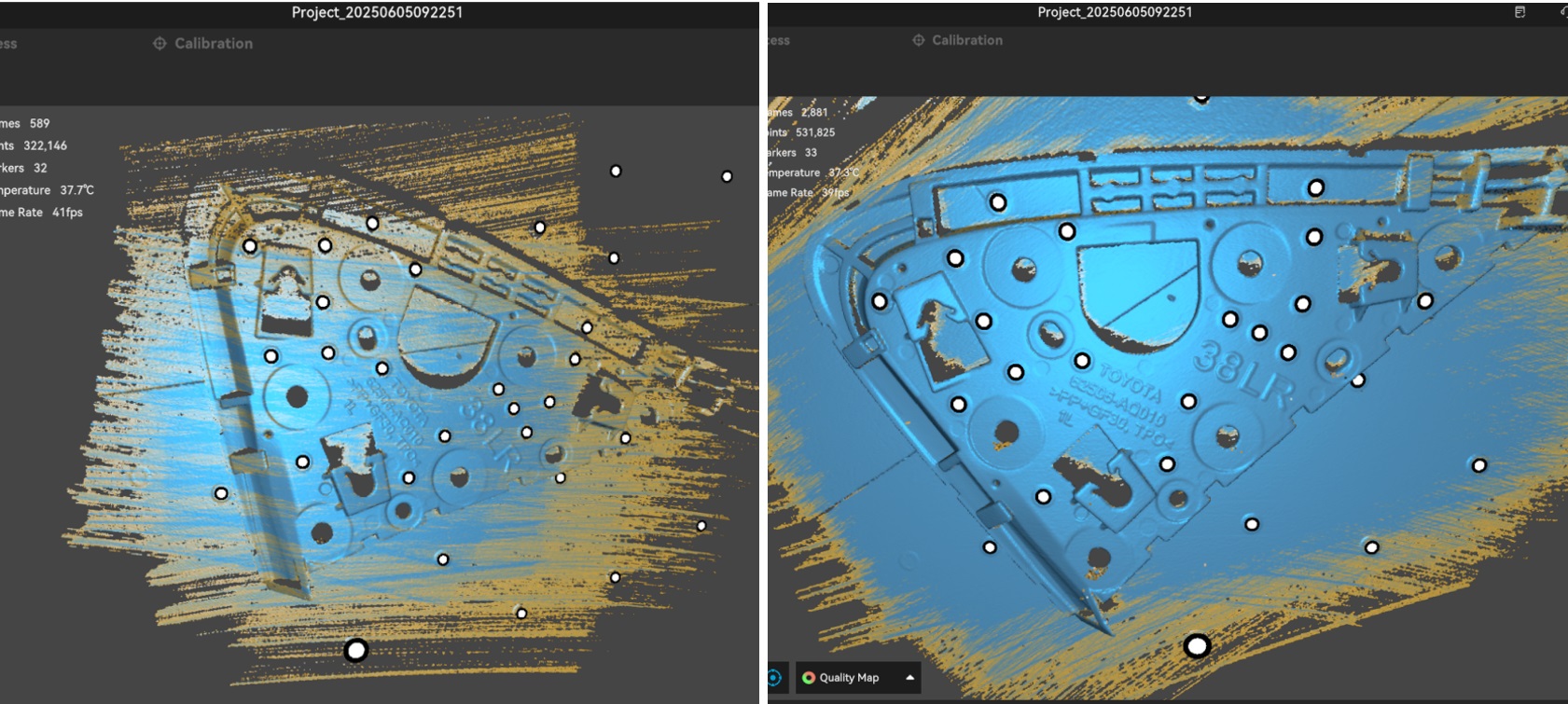
For Blue Laser Mode, continue scanning until the model turns blue. Yellow indicates insufficient scanning. Left: insufficient scanning. Right: sufficient scanning.
For Infrared Mode, green indicates sufficient scanning, while red indicates insufficient scanning. Left: insufficient scanning. Right: sufficient scanning.
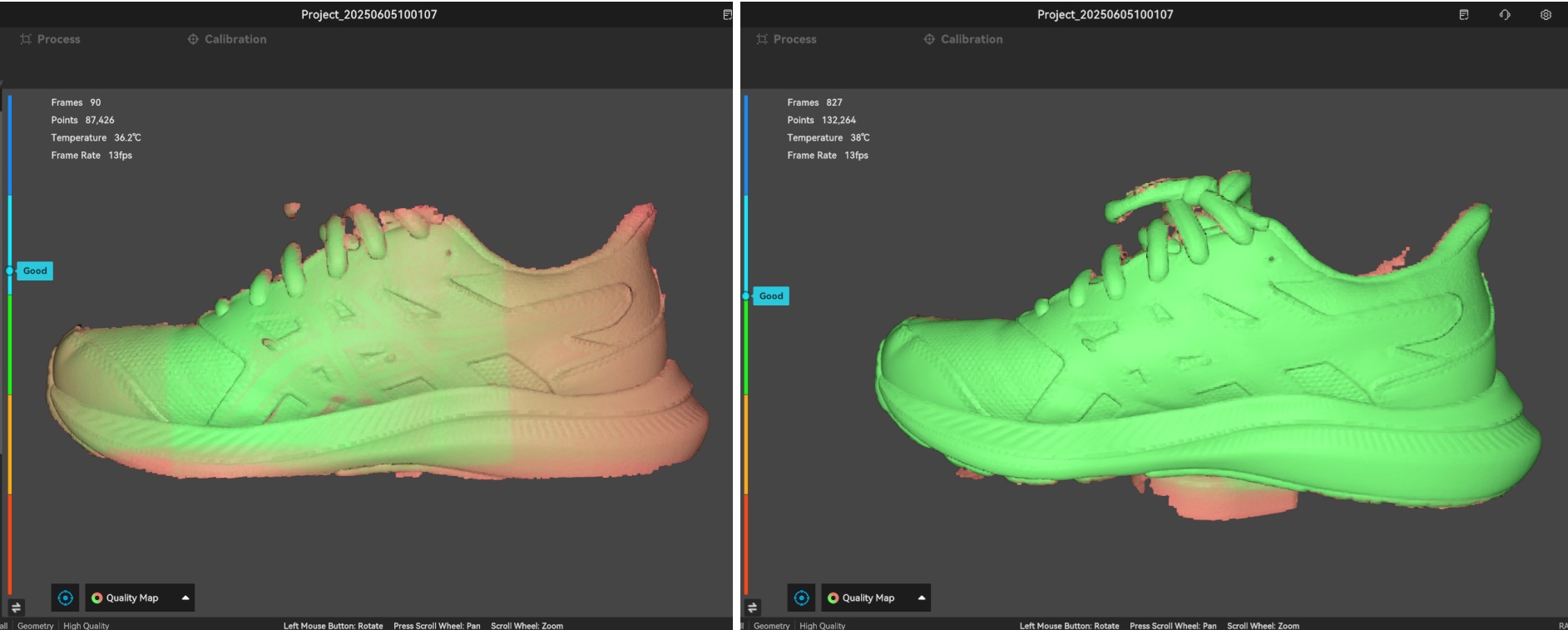
- Ensure stable tracking: Frequent tracking loss during scanning will cause data stitching errors and rough or misaligned surfaces.
¶ 5. Enable "Remove Markers"
If markers were attached to the object surface during scanning, make sure the “Remove Markers” option is enabled during point cloud fusion to reduce the effect of markers on the surface.
.png)
¶ 6. Check the Device Calibration Status
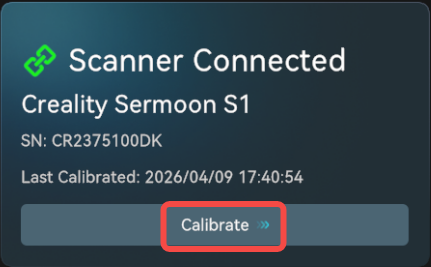
Check whether the device has not been calibrated for a long time or has been subjected to impact. Reduced accuracy may also increase point cloud noise and surface roughness. It is recommended to recalibrate the device using the calibration board.
¶ 7. Post-Processing Optimization
If the scan data itself is already good but the surface is still slightly rough, you can smooth the scanned surface using the Smooth or Simplify functions. If you are still not satisfied, export the model and further process it with third-party mesh editing software such as Meshmixer.

If the issue still cannot be resolved after the above troubleshooting, please provide photos of the object and the scan project file, and contact after-sales technical support (cs@creality.com) for further analysis.