This guide will help you troubleshoot issues such as misalignment and uneven surfaces when aligning multiple scans in CrealityScan, and provides corresponding recommendations for improving alignment accuracy.
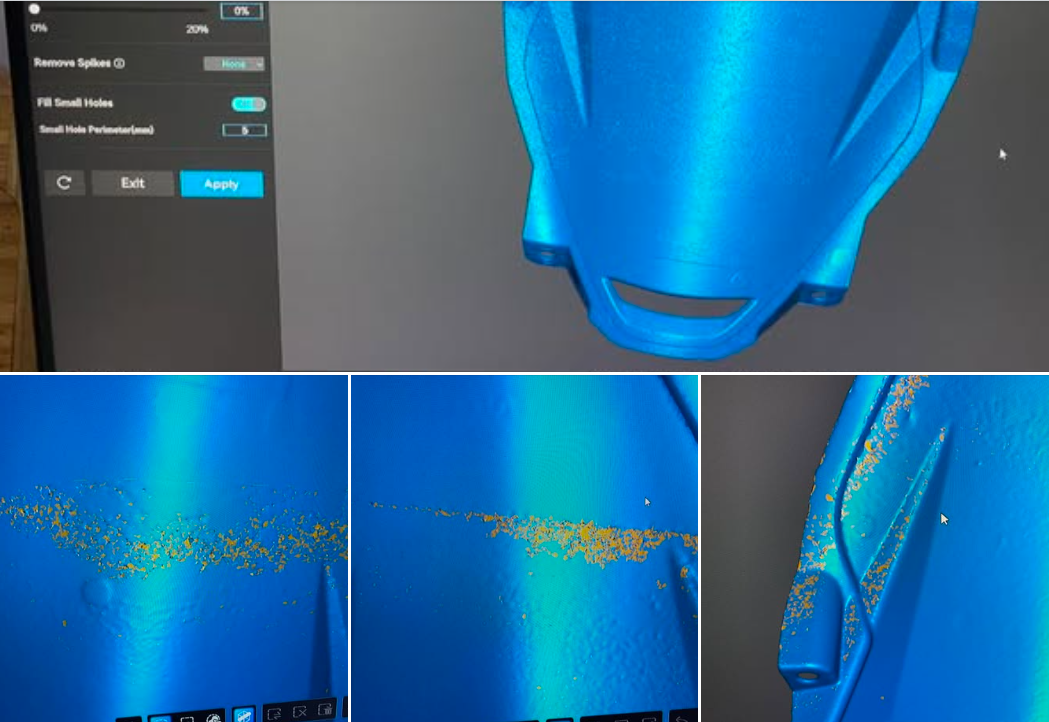
¶ 1. Troubleshooting Steps
¶ 1.1 Check the Object Features
Avoid scanning objects that are too thin or flexible. Thin-walled parts and flexible objects, such as clothing, fabrics, silicone parts, and soft plastics, can easily deform when they are flipped or during scanning. This may cause the contours of two scans to no longer match, making it difficult to align them correctly. If you need to scan a flexible object, we recommend using a fixture to secure it in place.
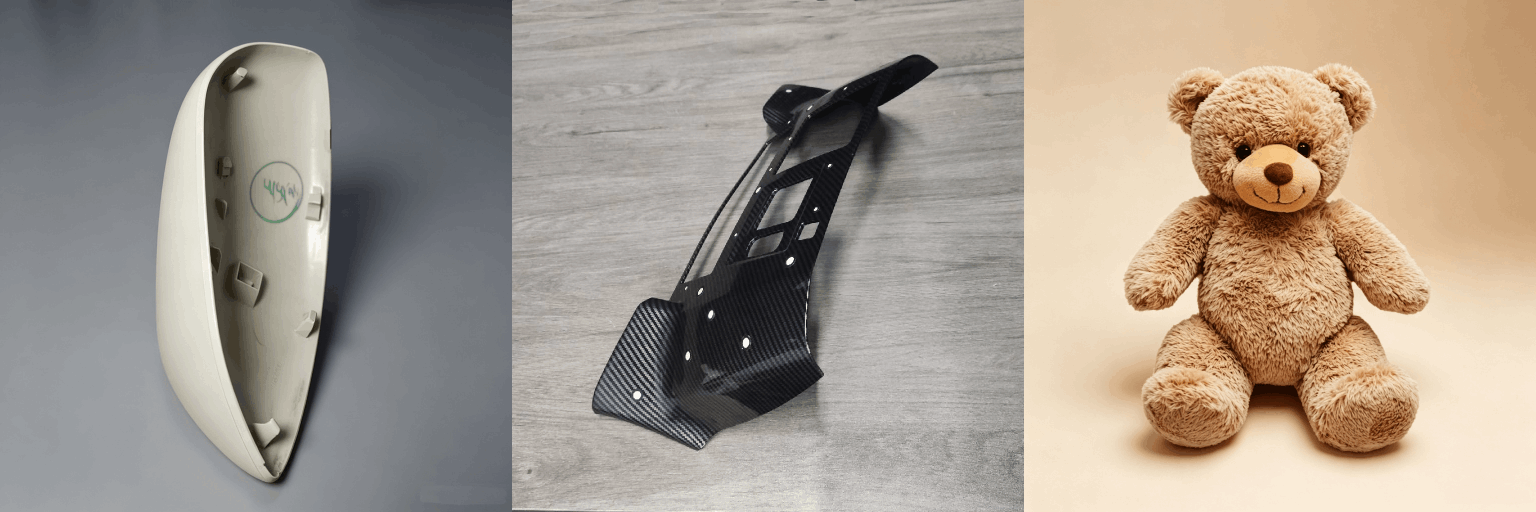
If the object's surface is smooth and lacks distinctive geometric features, tracking may become unstable during scanning, and the software may not be able to find enough matching features during alignment. In this case, we recommend applying markers to the object's surface and using marker-based alignment. This can significantly improve the success rate and accuracy of alignment.
.png)
¶ 1.2 Check the Scan Data Quality
First, make sure that the two scans have sufficient overlap. The overlapping area should be at least 30%. If there is insufficient overlap, the software may fail to align the scans because there is not enough common data between them.
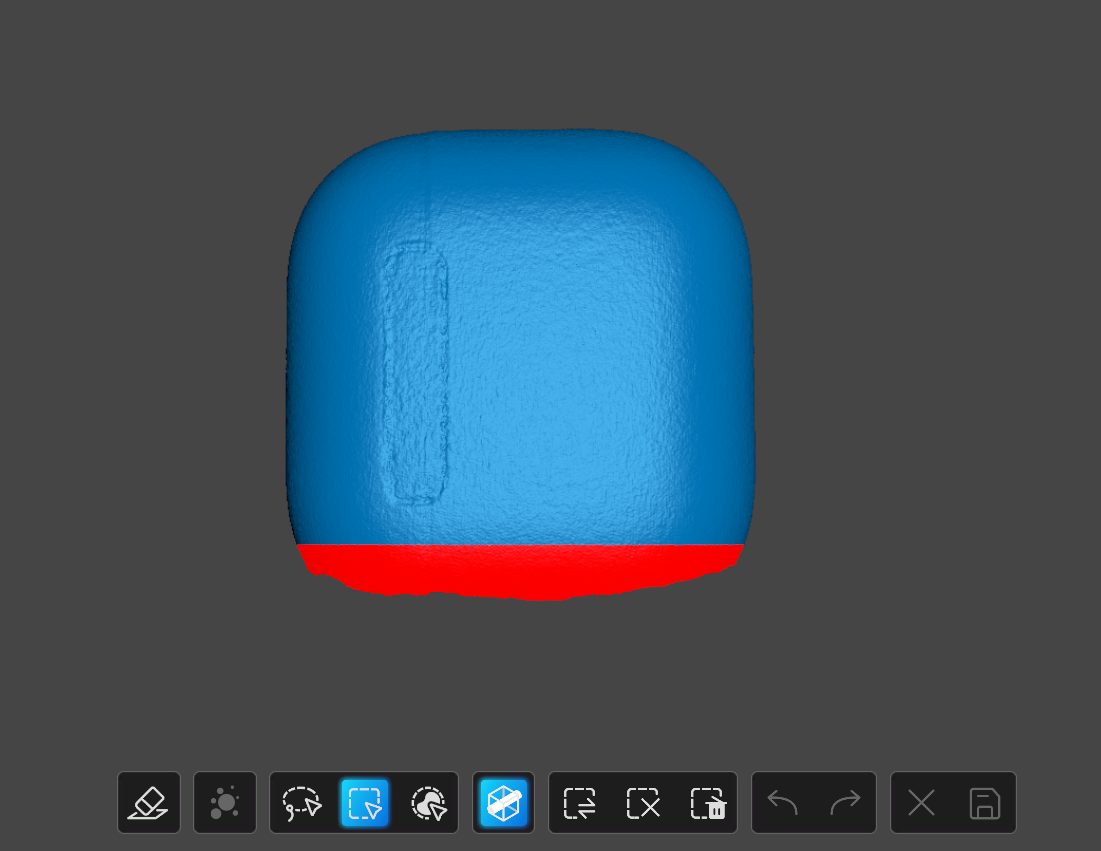
Check and clean the scan data before entering the alignment interface. Unwanted background point clouds or noise may interfere with alignment. We recommend using the editing tools to remove unwanted point clouds before alignment.
.png)
If the edges of the scan data show curling, distortion, or uneven areas, you can remove the low-quality point clouds around the edges before alignment, as long as sufficient overlap remains.
¶ 1.3 Check the Alignment Operation (Manual Alignment)
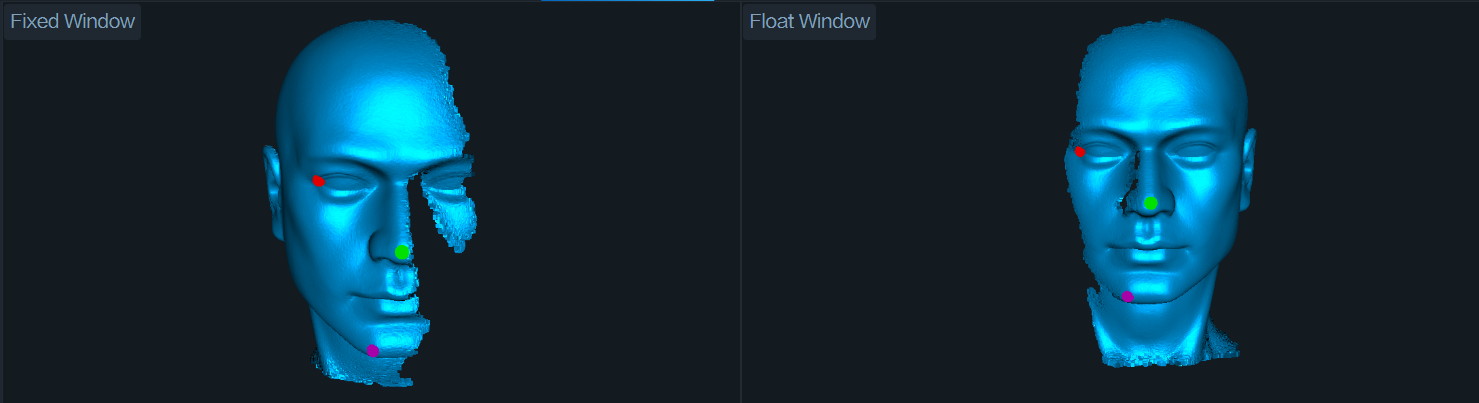
When performing manual alignment, select at least three pairs of corresponding feature points. The selected points should have unique and distinctive features, such as sharp edges, specific grooves, corners, or label that are unlikely to be repeated on the object. This helps improve alignment accuracy.
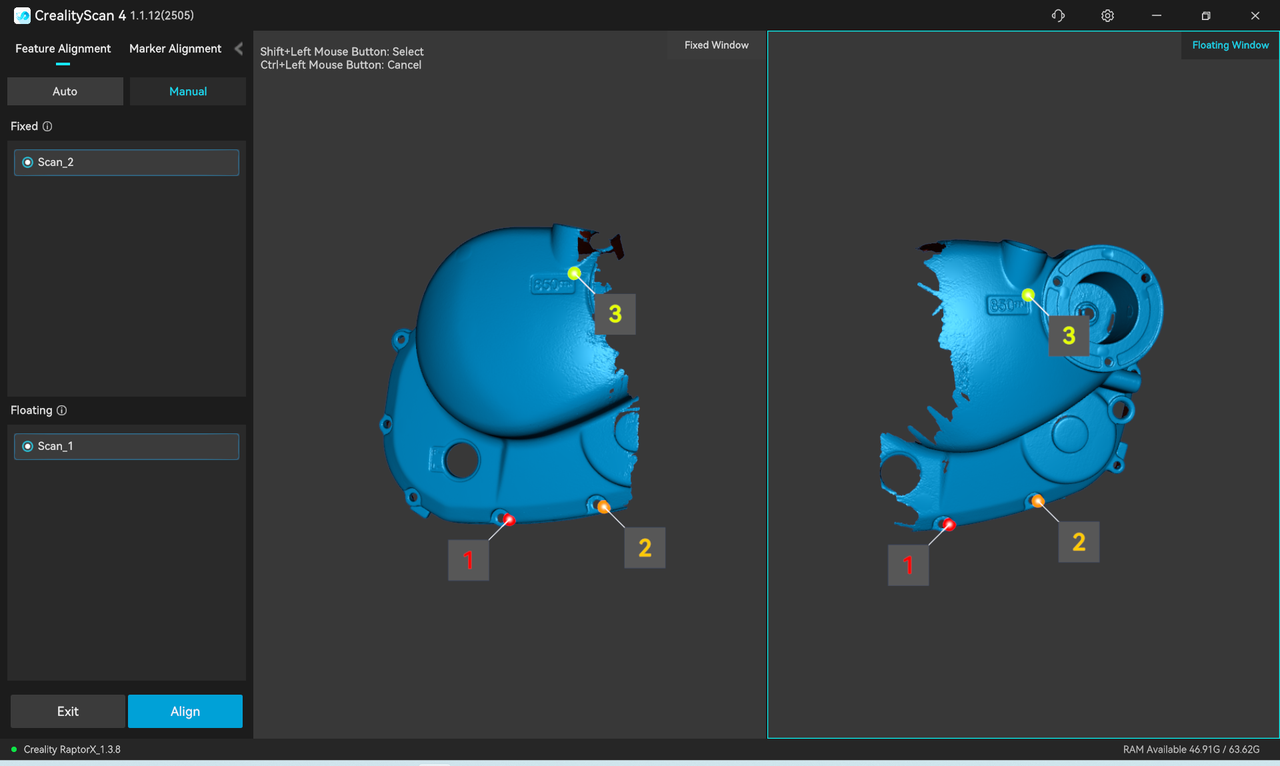
If the alignment result is not satisfactory, select additional pairs of corresponding points, such as four pairs or more, to improve alignment accuracy.
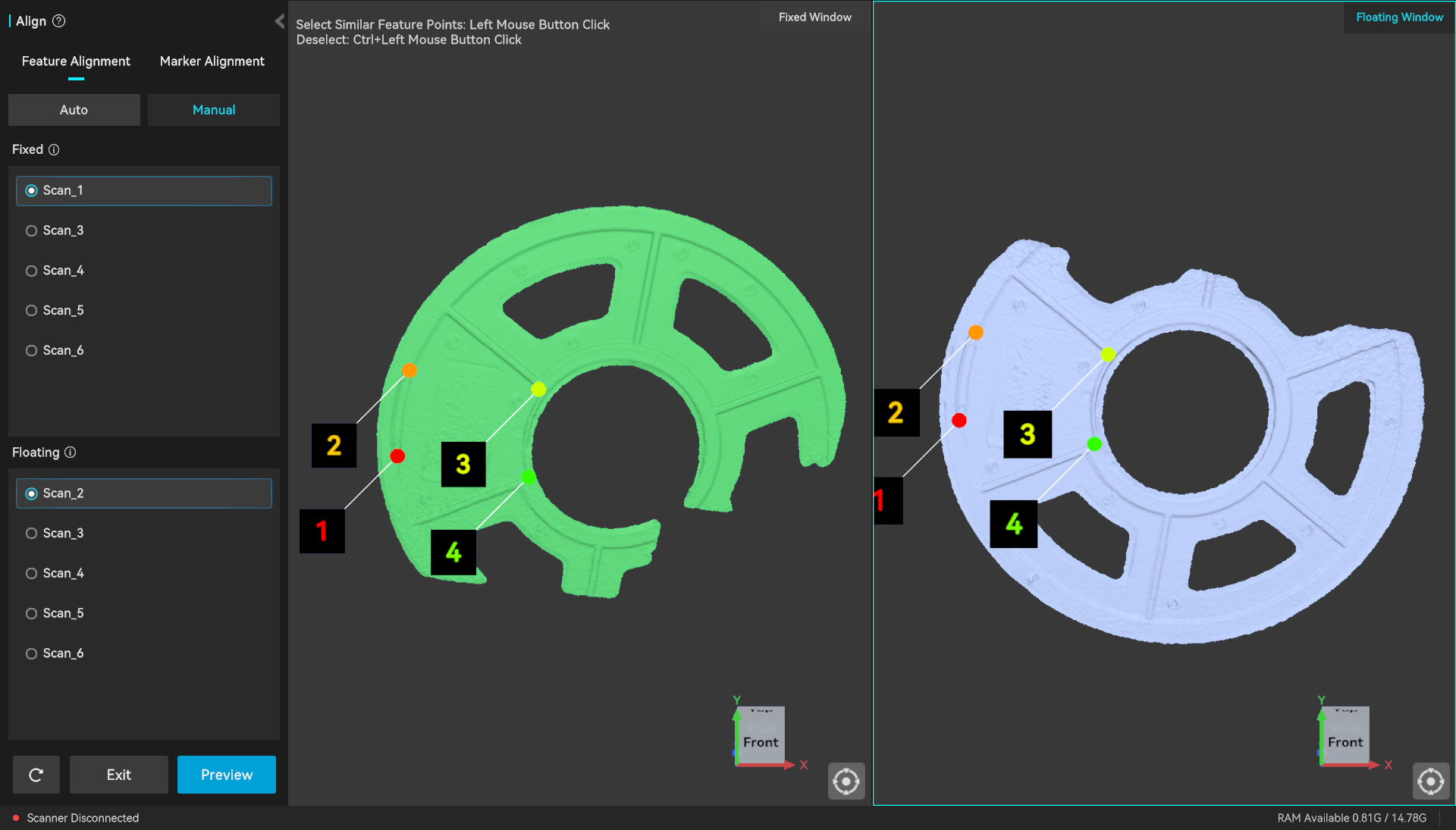
¶ 1.4 Check the Markers (Marker-Based Alignment)
When applying markers, make sure they are distributed randomly across the object. Marker arrangements that are too regular, such as markers placed in a straight line or a regular triangle, may cause scanning or alignment errors.
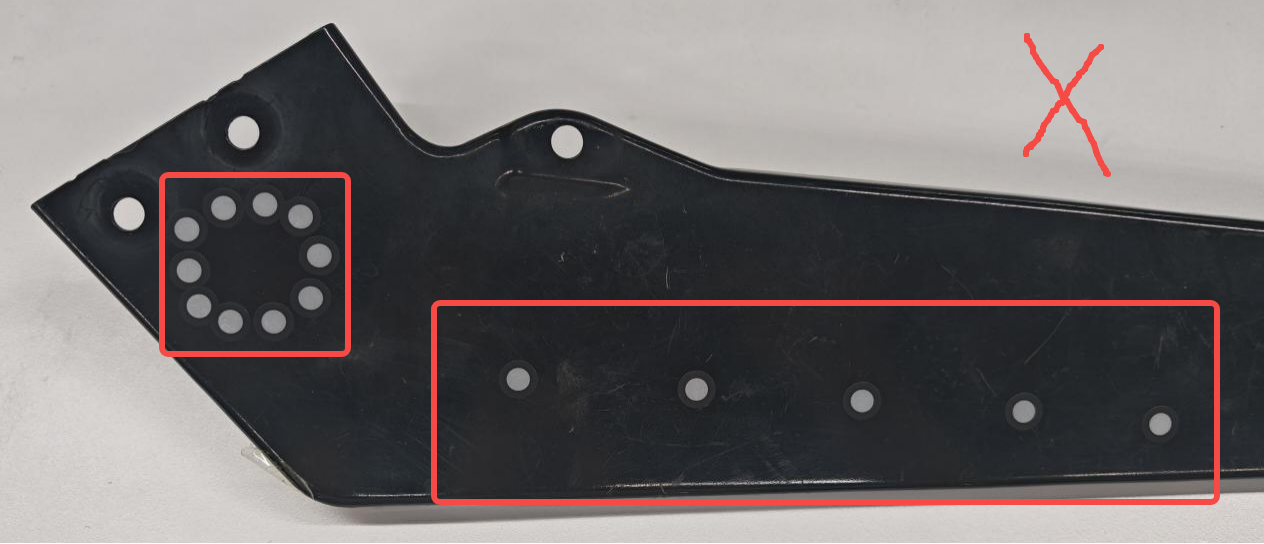
Then check whether there are enough common markers in the scan data that needs to be aligned. At least three common markers should be visible in both scans for the software to align them.
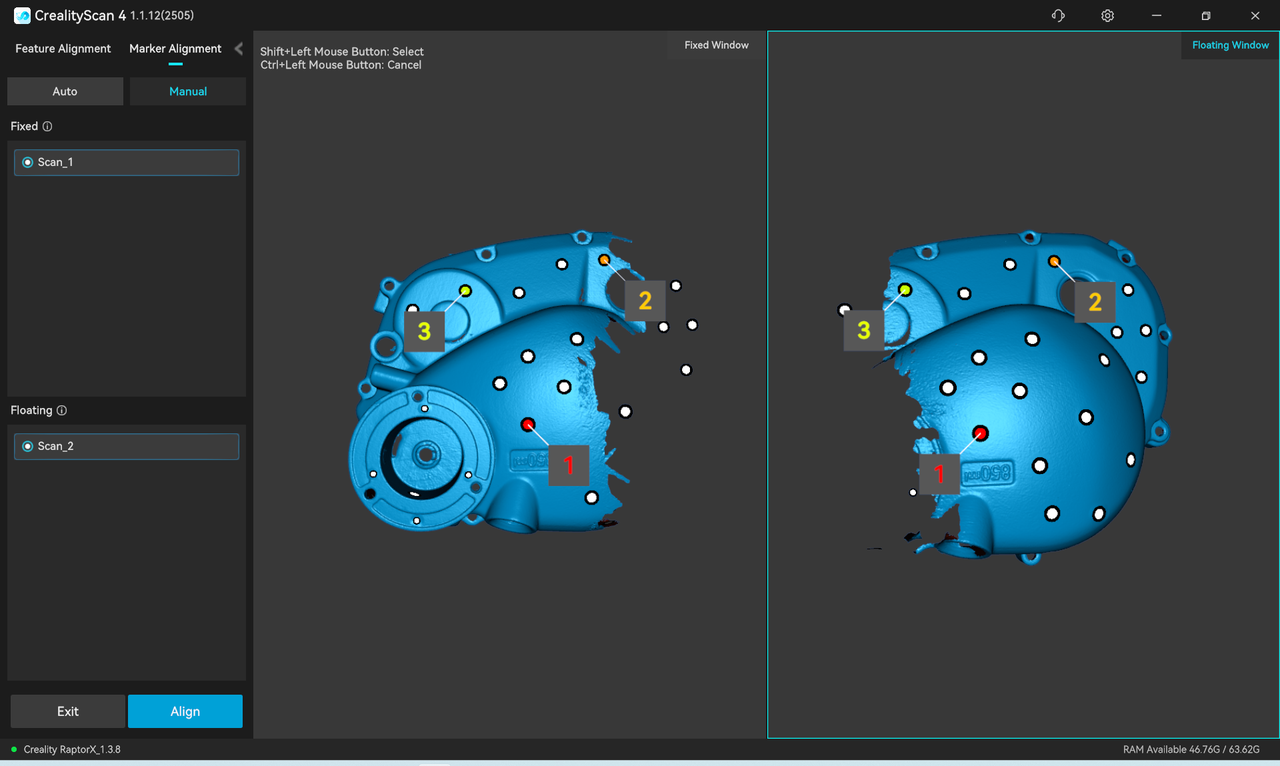
¶ 2. Preventive Recommendations
Before using the alignment function, make sure the following conditions are met to effectively improve the alignment success rate:
- Make sure the scans to be aligned have sufficient overlap (at least 30%) and retain clear, recognizable features in the overlapping area.
- Avoid scanning objects that are too thin or flexible. If scanning such objects is necessary, we recommend using a fixture to secure them in place.
- During manual feature alignment, select more corresponding points and choose locations with distinctive features. For models with few distinctive features, we recommend selecting four or more pairs of corresponding points to ensure accurate alignment.
- For objects with few distinctive features, we recommend applying markers before scanning. When using marker-based alignment, make sure the markers are randomly distributed, sufficient in number, and clean and intact.
If the issue persists after following the steps above, please contact our after-sales support team at cs@creality.com and provide the project files so that we can perform further analysis.