¶ Issue Description
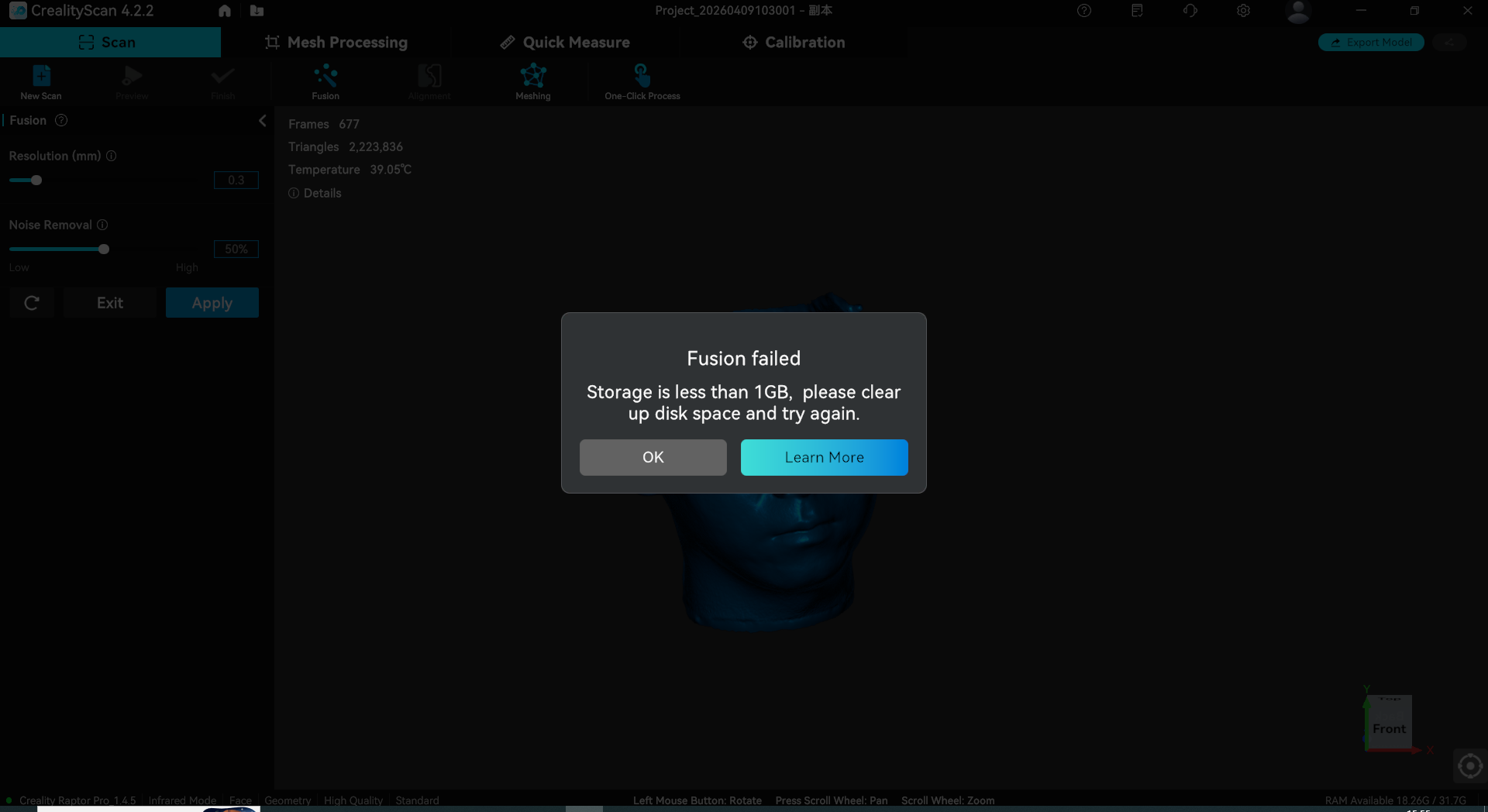
The software displays the following error message:
"Storage is less than 1GB. Please clear up disk space and try again."
¶ Possible Cause
The system disk (usually Local Disk C: on Windows) or the disk where CrealityScan stores projects has insufficient free space. This prevents the software from processing the scanned data.
¶ Solutions
1. Open "This PC" (Windows) or "Finder" (Mac) and check the available space on each disk. Pay attention to the system disk and the disk where CrealityScan is installed.
2. Clear up disk space to ensure enough free space for processing large models.
- Empty the Recycle Bin / Trash
- Delete temporary files (use Disk Cleanup on Windows; on Mac, empty the Trash and clean
~/Library/Cachesfolder) - Uninstall unnecessary applications
- Move large files to another disk with more free space or to an external storage device
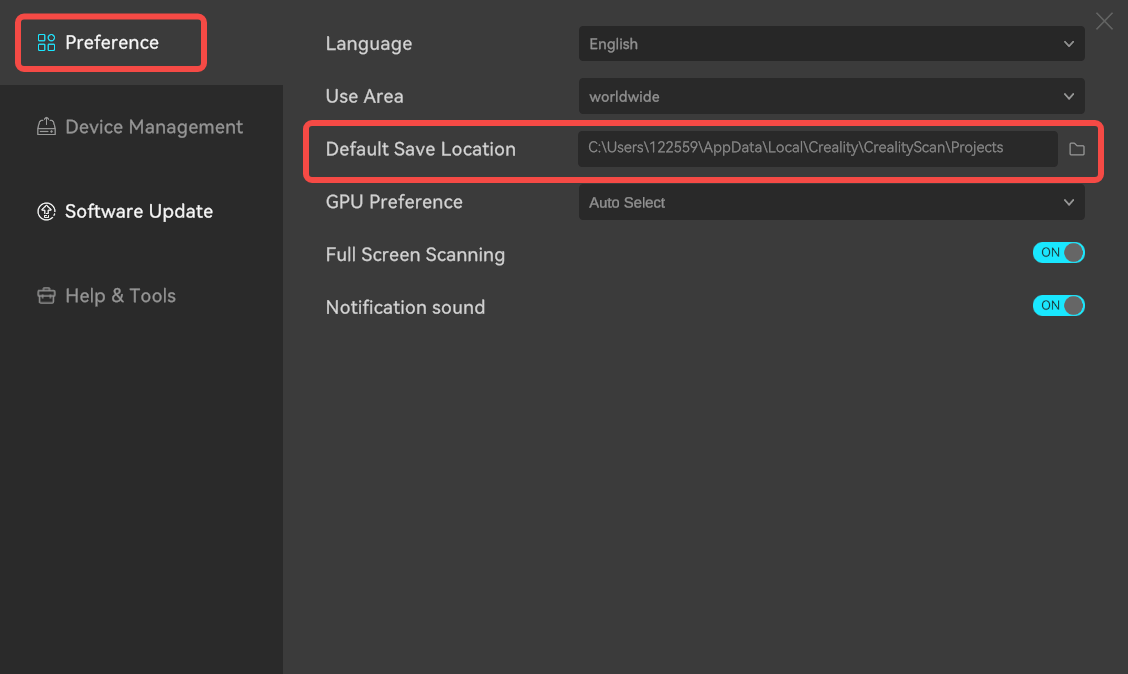
3. In CrealityScan settings, change the "Default Save Location" to a different disk with more free space. (It is recommended to take a screenshot or note down the original path so you can find the previously scanned project files later.)
4. After cleaning up disk space, restart CrealityScan and try scanning or processing again.