¶ How to transfer scanned files from your phone to your computer
¶ Version requirements: Mobile app ≥ V3.0.0, PC ≥ V4.2.0
-
Make sure your phone and computer are connected to the same network. (Please allow CrealityScan to access private and public networks through the firewall on the computer)
.png)
-
In the CrealityScan software on your computer, click Open → Import from Phone.
.png)
-
Open the CrealityScan app on your phone (recommended to use the latest version). On the home screen, select the project you want to import, tap the icon in the lower‑left corner of the project, and choose Share to PC.
.png)
-
Tap the "Scan QR Code" button on your phone and scan the QR code displayed on the PC.
.png)
-
Wait for the project transfer to complete. During transmission, do not close the window or turn off your phone screen.
.png)
-
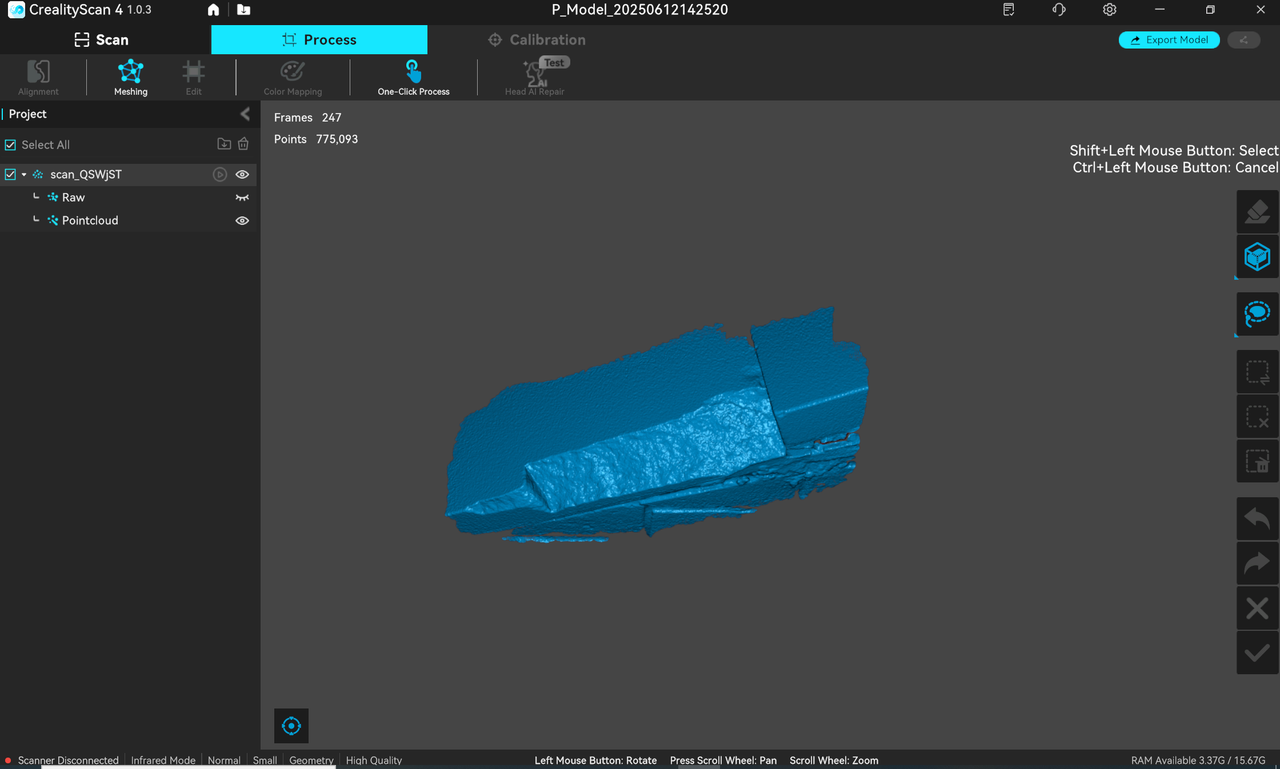
Once the transfer is complete, you can proceed with model processing in CrealityScan on your computer.
.png)
If the project files transfer fails, make sure CrealityScan has permission to access the camera.
Android & iOS: Go to Settings > Privacy & Security > Camera, then enable camera access for CrealityScan.
¶ Version requirements: Mobile app < V3.0.0, PC < V4.2.0
-
Make sure your phone and computer are connected to the same network. (Allow CrealityScan to access private and public networks through the firewall)
-
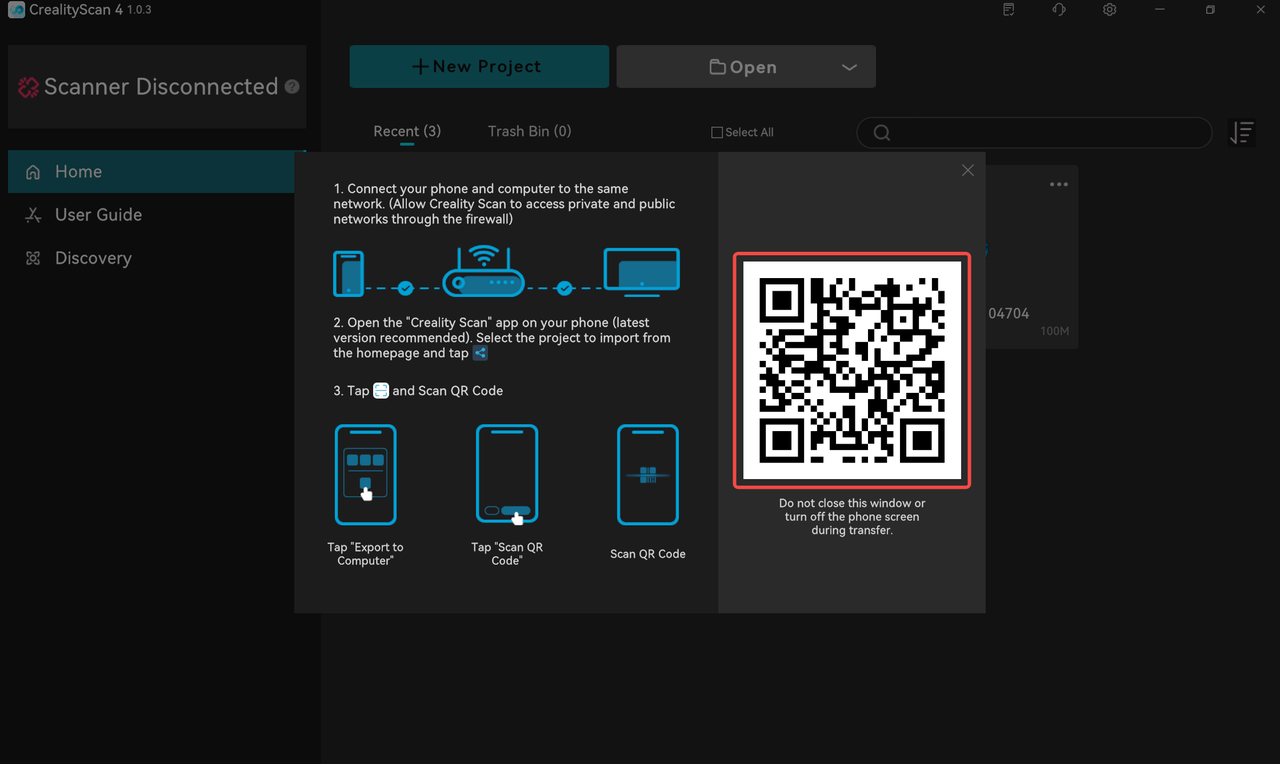
Click “Import from Smart Phone” in the "CrealityScan" software on your computer.
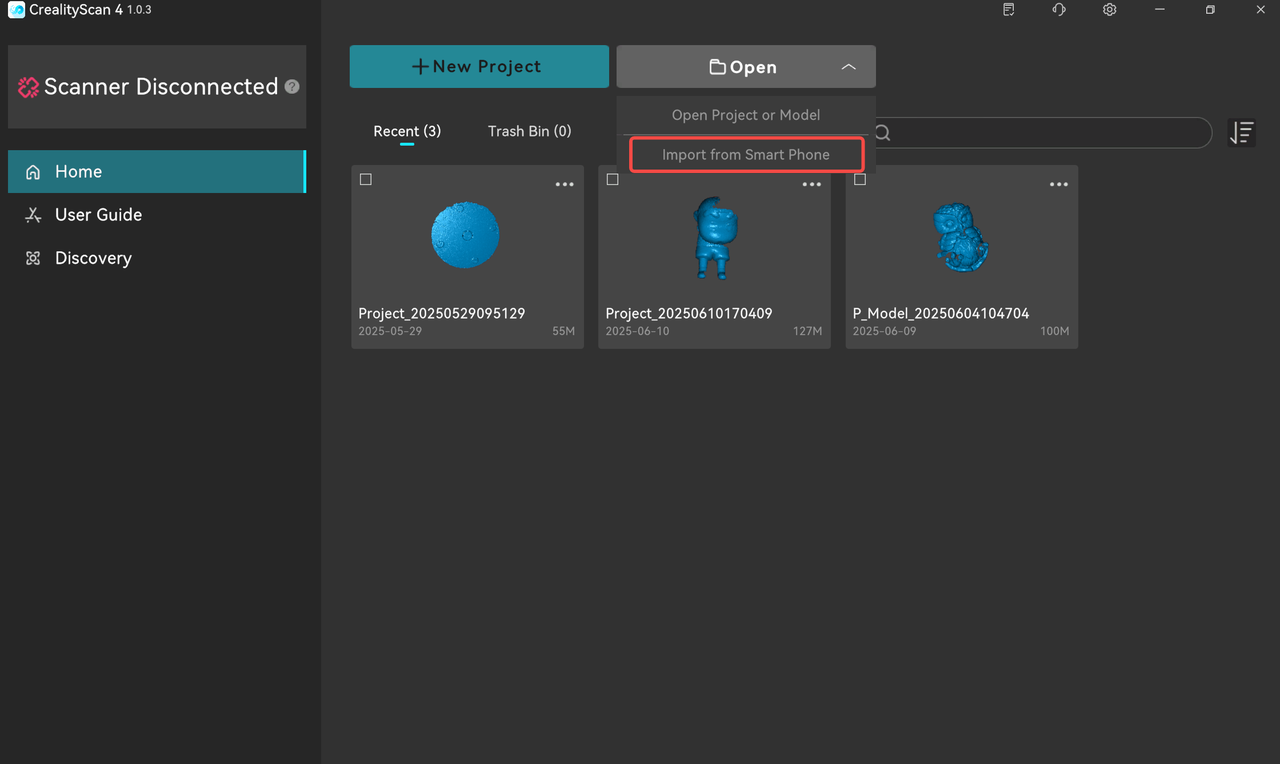
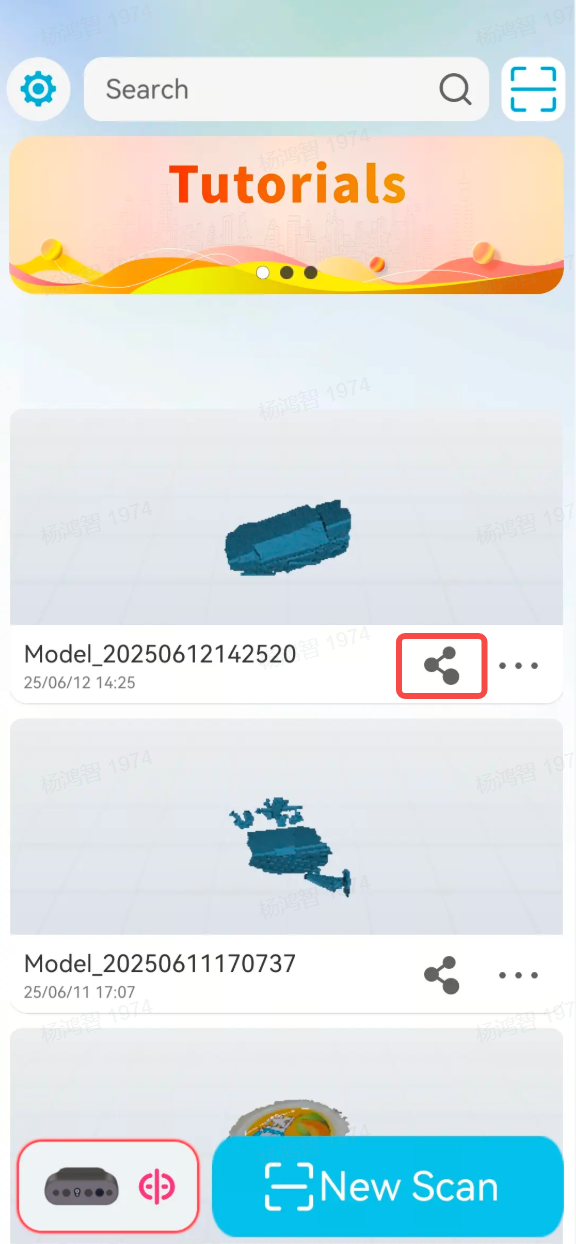
- Open the "Creality Scan" app on your phone (latest version recommended).
Select the project to export from the homepage and tap the share icon.
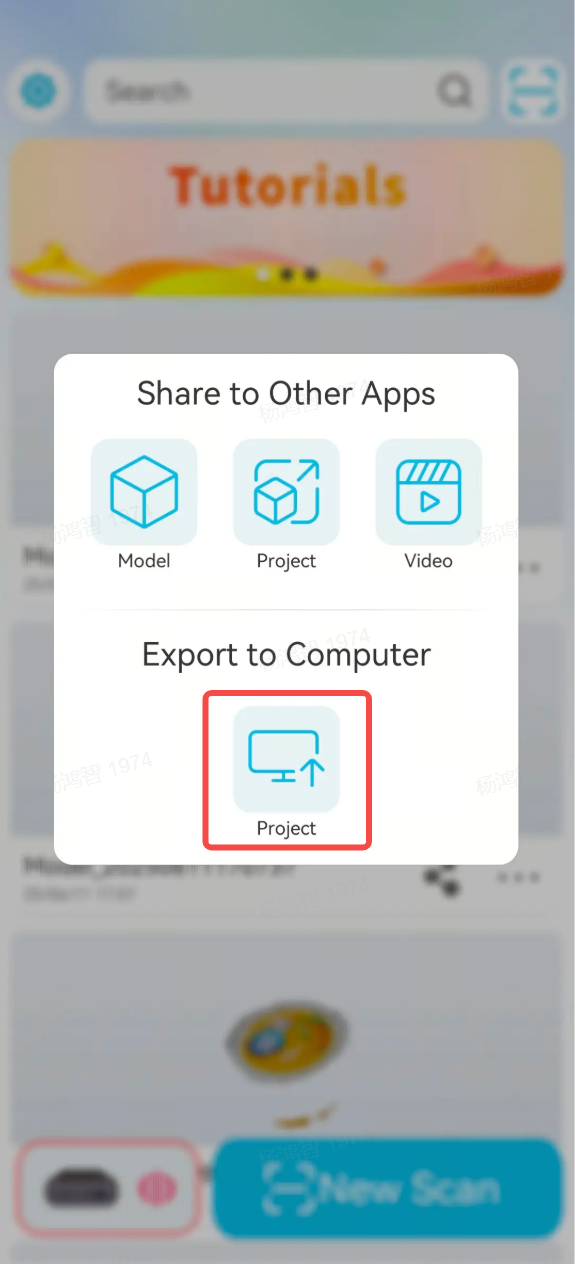
- Tap "Project" to export the file to computer.
- Tap "Scan QR Code" in the bottom right.
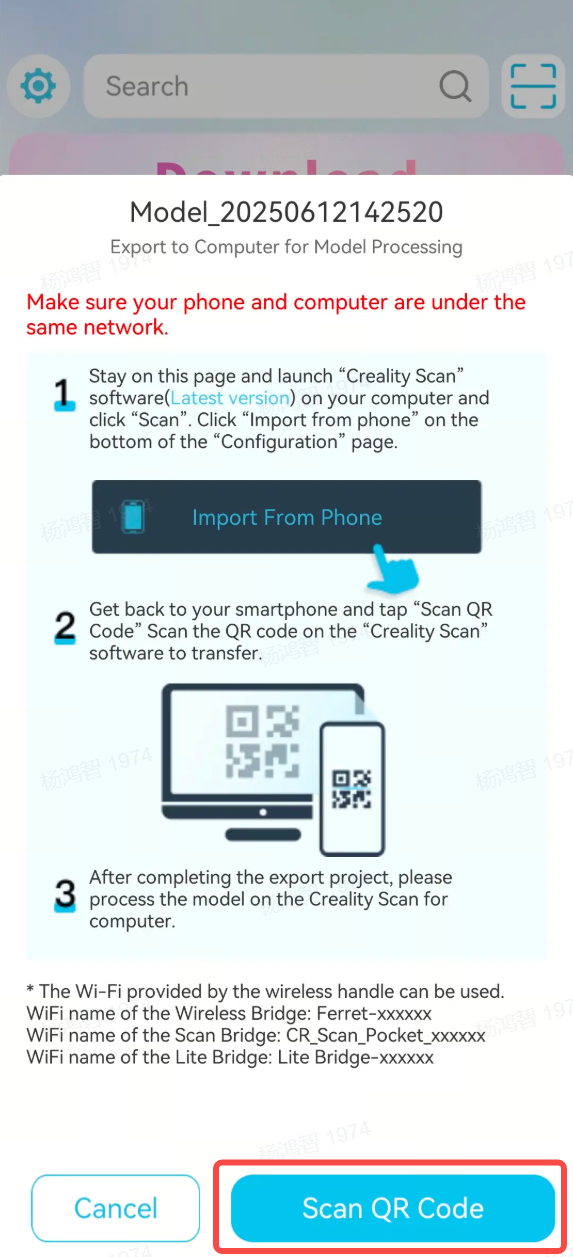
- Scan the QR code on your computer to transfer.
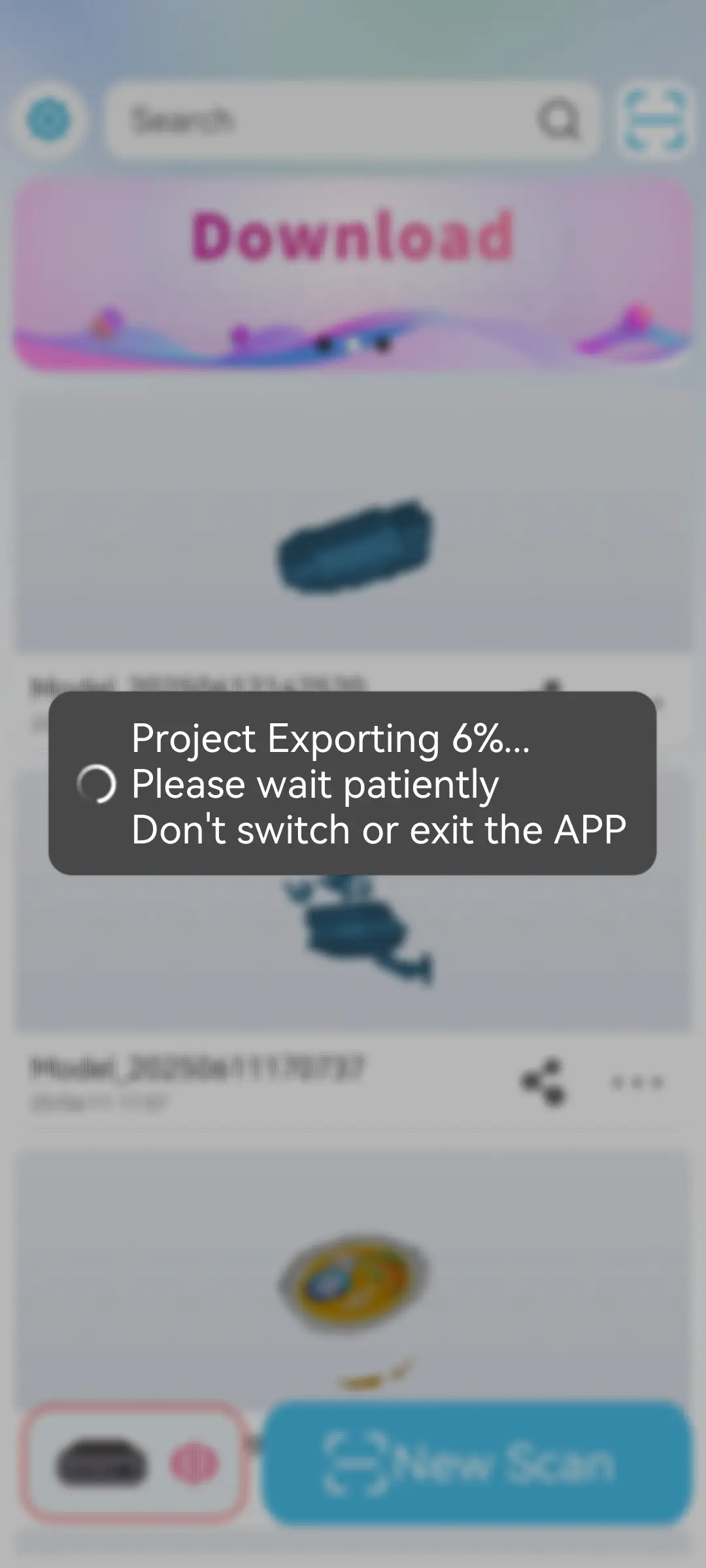
- Transfering... (Do not close the computer software window or turn off the phone screen during transfer.)
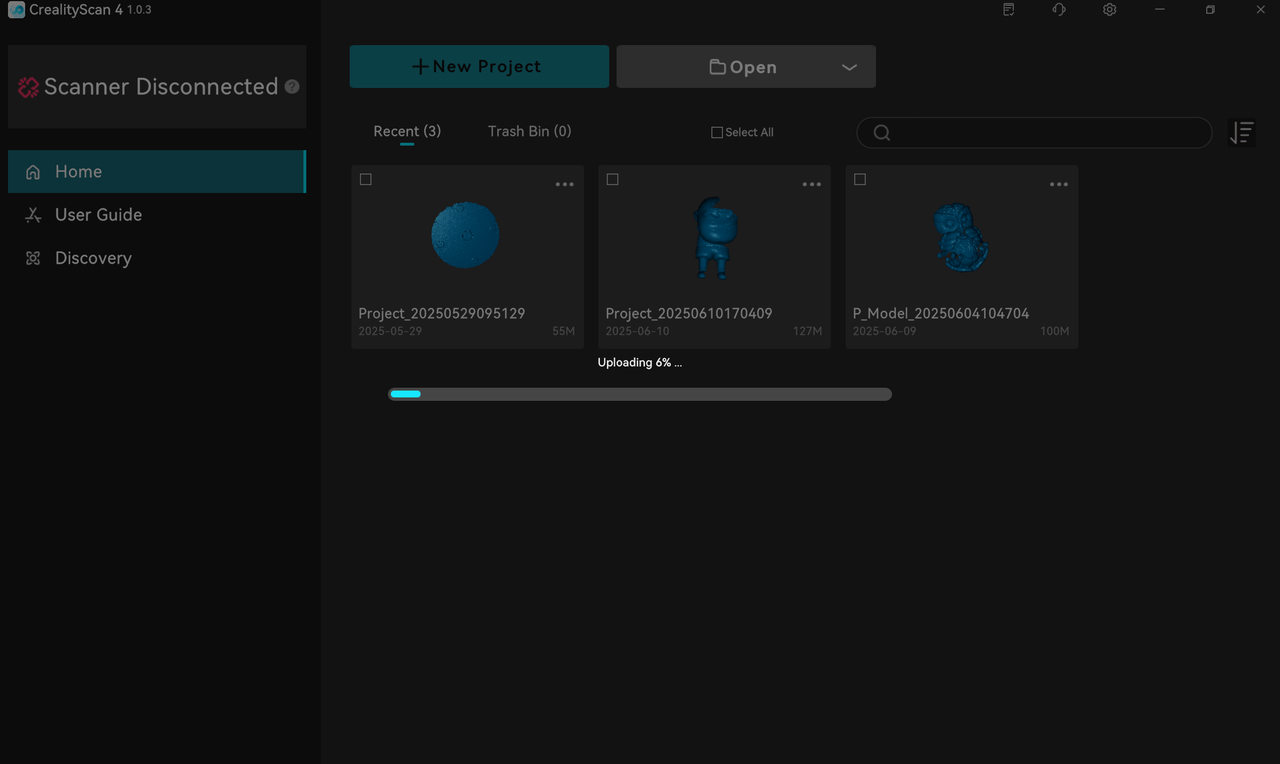
- Transfer complete. Please process the model using "CrealityScan" on your computer.