¶ Address of Software download
https://www.crealitycloud.cn/software-firmware/software/creality-scan
¶ System Requirements
¶ Windows 10/11 (64-bit)
Recommended Configuration: CPU i7-Gen10,NvidiaGraphics Card(VRAM:8GB),RAM 32GB
Software Version: CrealityScan 4 ≥ v1.4.7
¶ macOS
Recommended Configuration: CPU: Apple M1/M2/M3/M4 series processors; Memory,16GB or above
System Version: macOS 11.7.7 or later (including Big Sur, Monterey, Ventura)
Software Version: CrealityScan 4 ≥ v1.4.7
¶ Software User Guide
¶ Connecting the Device
.png)
Check if the scanner is connected successfully in the information panel on the left side of the homepage; After connected the scanner, the information panel will display the basic device information and allow access to the calibration page.
① The left-side panel contains three entry points: Homepage, User Guide, and Discover.
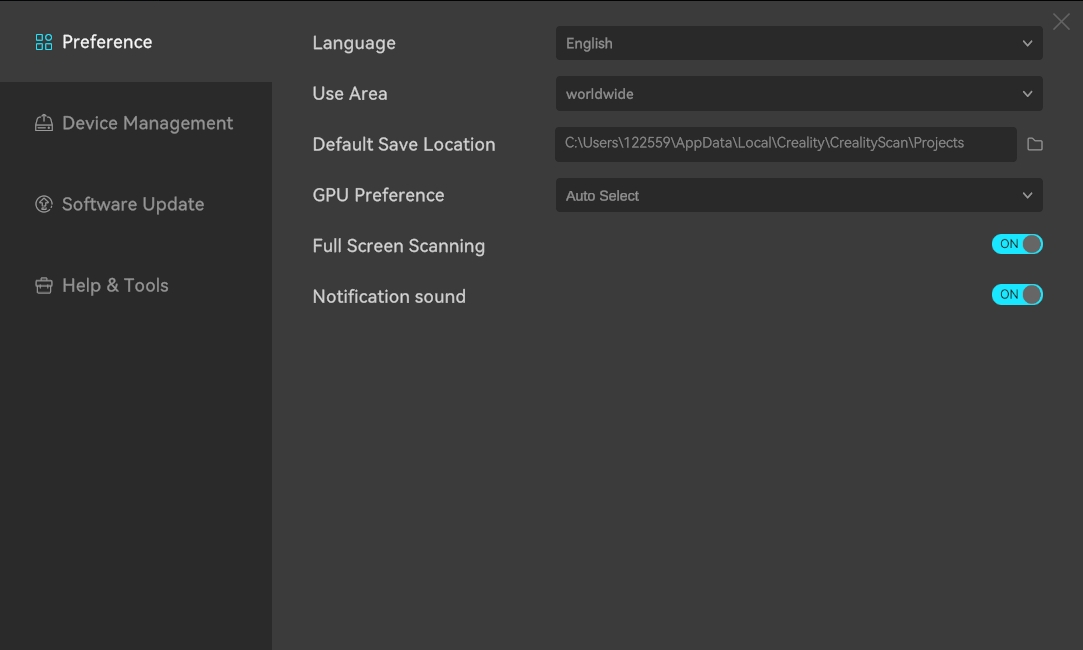
② The software setting window is set in the upper right corner, supporting functions such as language switching, performance testing, and full-screen scanning.
③ The middle panel displays a multi-project list for "Recent Projects". Click on the corresponding image to open the respective multi-project. The "Recycle Bin" allows you to restore or permanently delete projects, and the "Search Bar" enables you to search for existing projects.
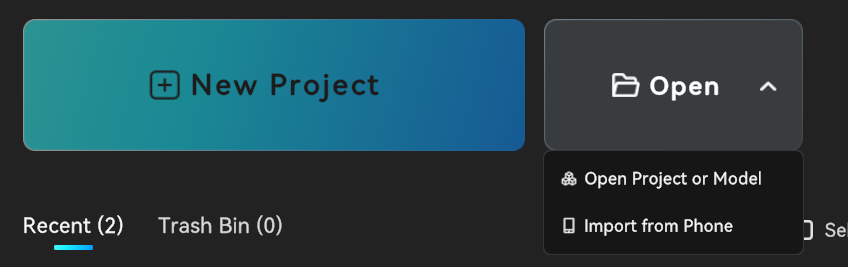
④ There are 3 ways to start the scanning poccess:
- Click "Create New Project" to start scanning;
- Click "Open" and select "Open Local Project" to import multi-projects (in .obp format) from local folders or view models (in .stl, .obj, or .ply formats);
- Click "Import from Mobile Phone" to import projects from the mobile app via the local area network (LAN). Note that the mobile phone and computer must be connected to the same LAN.
¶ Quick Calibration
¶ Reference Link:
The calibration videos for the Sermoon series are as follows:
https://www.youtube.com/watch?v=EqT7tp2xlkg
.png)
After the device is connected, access the calibration function via the calibration button on the device card on the homepage.
.png)
When using the scanner for the first time, you must align it with the back of the calibration board included in the package and scan the QR code. After entering the scanning process, ensure the scanner is aligned with the front of the calibration board, and move the scanner as guided.
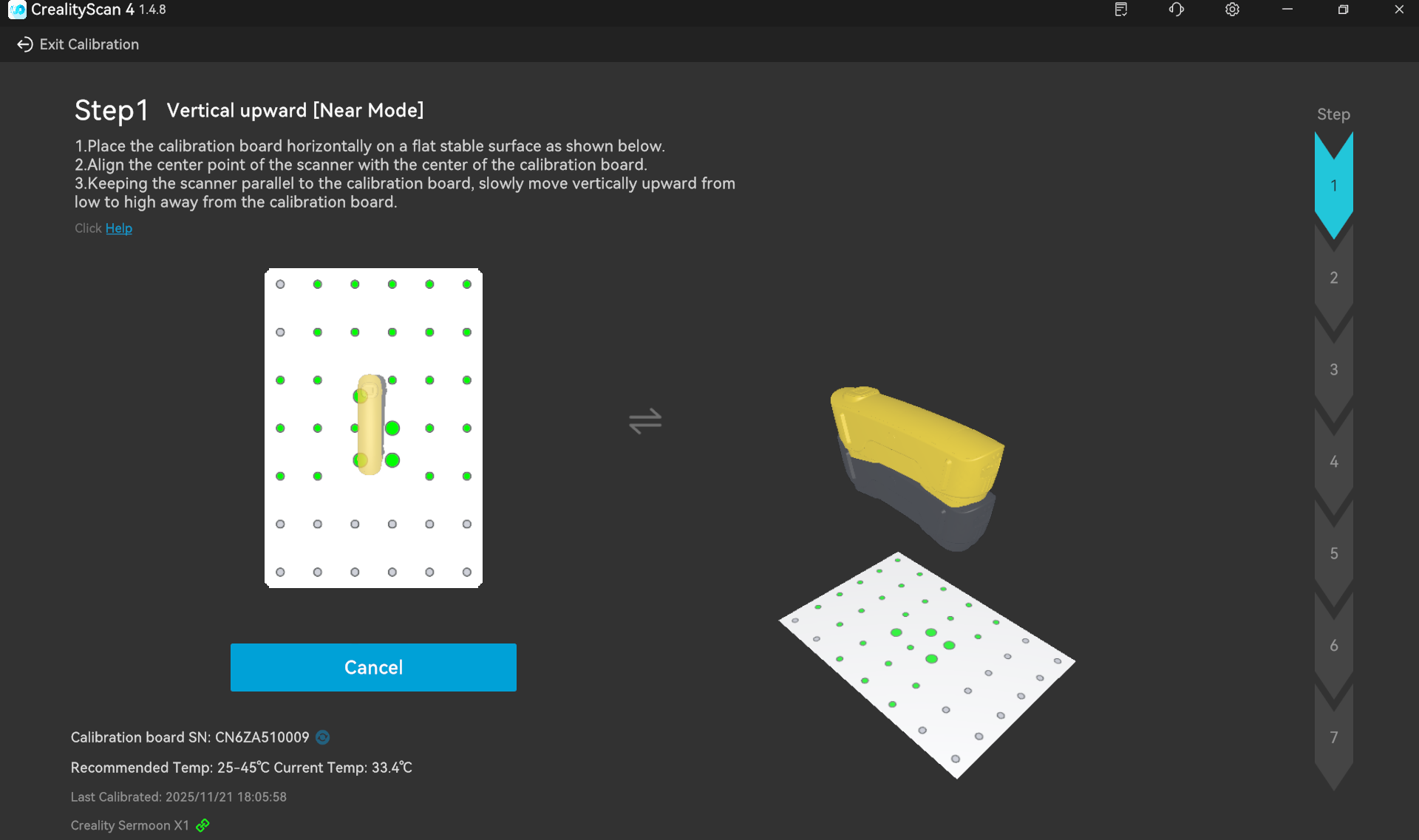
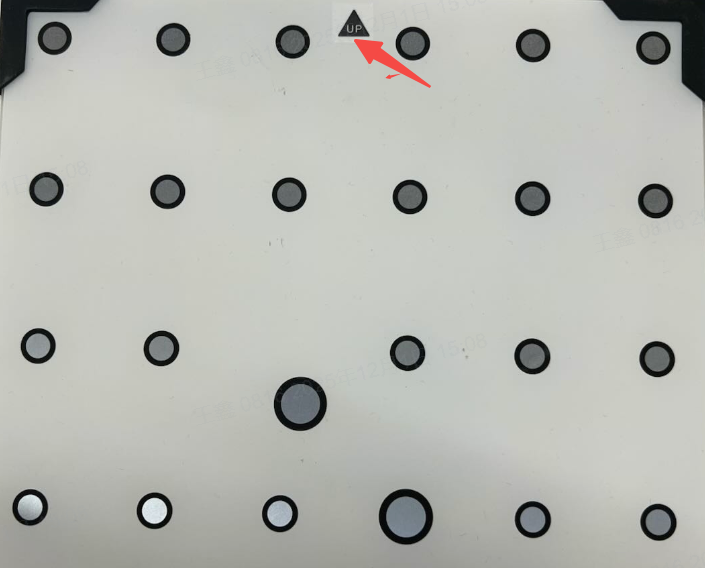
The left and right sides are the 3D Process Guidance Areas, which display the pose and angle requirements for the current data collection. Please note that you need to match the orientations of the scanner and the calibration board according to the diagram. When placing the calibration board on the desktop, ensure the arrow faces upward.
The central guidance area is mainly used to guide the scanner's pose in real time. As each pose is successfully collected, the sequential steps on the right will light up one by one.
- The left guidance area primarily guides the scanner's front, rear, left, and right movements.
- The right guidance area primarily guides the adjustment of the scanner's height.
During calibration, move the scanner to the target position according to the guidance until the two scanner models overlap, thus completing the pose collection (as shown in the figure below).
After the current pose collection is completed, the system will automatically proceed to the next pose collection. Please move the scanner in accordance with the guidance repeatedly until all poses in the entire process are collected.
Once collection is finished, the system will automatically enter the calibration processing stage—please wait patiently for the calibration result. After successful calibration, please start scanning to experience high-quality scanning.
¶ Create a New Scanning
Clicked "Create New Project" in homepage as shown in the figure below:
.png)
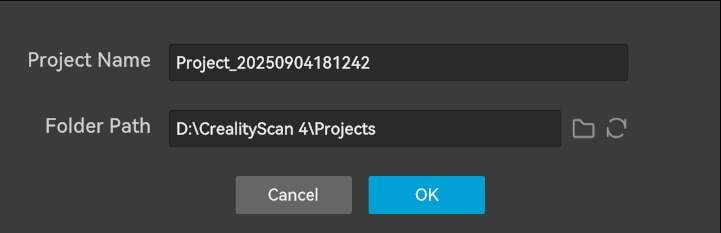
In the pop-up window, enter the project name, select a folder path, and then click the "OK" button.It is recommended to use the name of the scanned object as the project name to facilitate subsequent file identification.
¶ Scan Configuration
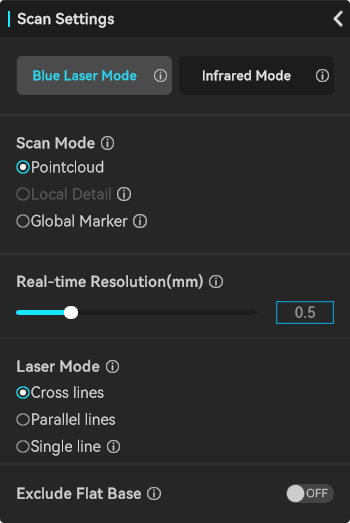
Scan settings parameters as below:
¶ Light Source Selection
Select either the blue laser mode or the infrared mode for scanning. The choice should be determined based on specific scanning requirements and the characteristics of the object.
| Scanning Light Source Selection | Applicable Scenarios |
|---|---|
| Blue laser mode |
Suitable for scanning objects with rich details and special surface materials. Particularly applicable to industrial manufacturing and inspection scenarios with high precision requirements, which require circular reflective markers for scanning and tracking. |
| Infrared mode | Suitable for rapid scanning, supporting geometric tracking (marker-free, ideal for scanning targets such as human bodies, human faces, sculptures, and cultural relics), texture tracking, and marker tracking. Performs excellently in face/human body scanning (infrared structured light is invisible light and harmless to human eyes), medical rehabilitation, digitization of cultural relics and artworks, and scenarios sensitive to ambient light. |
¶ Scan Mode
¶ Pointcloud
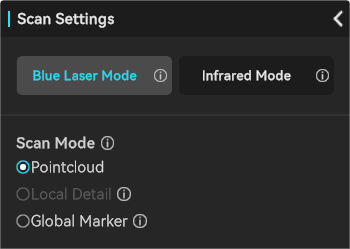
Directly obtain all the model information of the object.
¶ Local Detail (only supported at Blue Laser Mode)
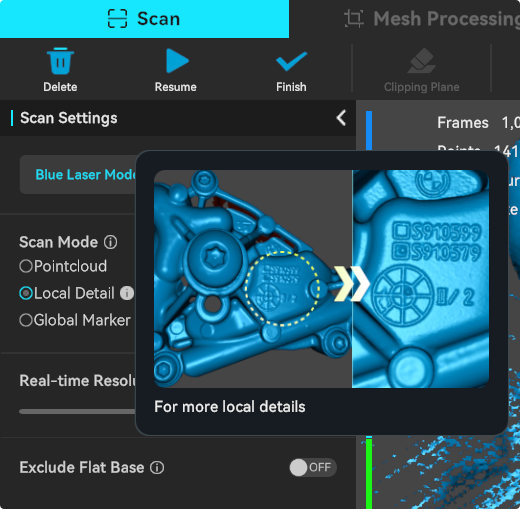
On the basis of the already scanned model, perform a more detailed point cloud scan on the selected local area.
¶ Global Marker
Only scan the external marker points of the object. For medium and large-sized objects (≥250×250×250 mm³), it is recommended to scan the frame points first and then the point cloud. This not only saves the memory space occupied by the model but also captures the object features faster and achieves higher model accuracy.
¶ Photogrammetry (only supported by Sermoon X1)
To improve the measurement accuracy of large-sized objects, a photogrammetry function has been added in the X1 Frame Point Mode.

¶ Color Mapping
The color mapping function switch for the blue laser mode is located within the "Global Marker" mode.
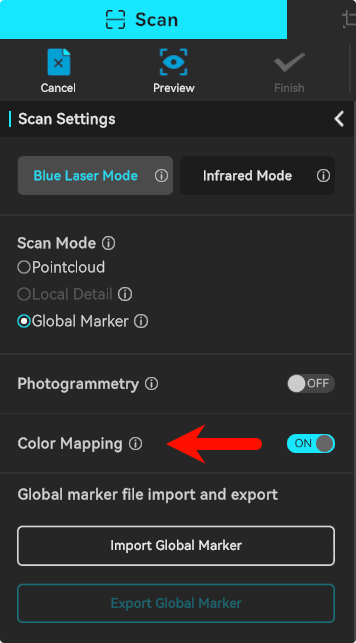
Note: Regarding the infrared mode, the color mapping function will be activated only after the scanning is completed and the model is meshed.
.jpg)
¶ Laser Type Selection in Blue Laser Mode
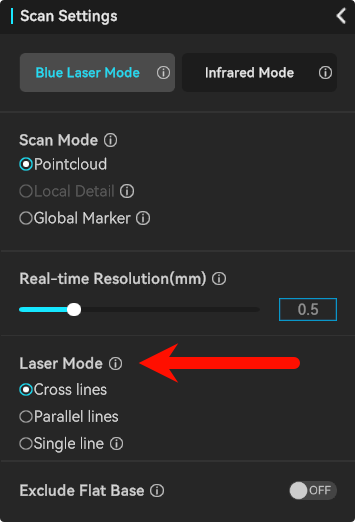
Note: Different devices use different laser types.
Cross Lines: Fast scanning speed, suitable for scanning large objects.
Parallel Lines: Suitable for scanning small objects or local details.
Single Line: Suitable for scanning slits or deep holes.
¶ Type selection in infrared mode
.jpg)
¶ Scanning mode selection
Point Cloud scanning : Directly obtain all model information of the object.
Global Marker Scanning : For medium and large objects or those with fewer feature points, it is recommended to scan the Global Marker first and then the point cloud, which can achieve higher model accuracy.
¶ Selection of scanned object and target size
Select based on the scanned object: object, human face, human body.
The size of the scanned object can be selected based on the actual size:
Large:500x500x500~2000x2000x2000mm³
Medium:250x250x250~500x500x500mm³
Small:150x150x150~250x250x250mm³
¶ Infrared Tracking Mode Selecting
Geometry
Relies on the object’s geometric shape for tracking. For objects with rich and irregular geometric features, it is recommended to use Geometry Mode for scanning.
Texture
Suitable for objects with rich and irregular textures but limited geometric features (e.g., patterned vases, oil paintings, etc.).
Marker
If an object has neither obvious geometric nor texture features, Marker Mode can be used for scanning. This mode requires attaching reflective circular markers on or around the object to assist with tracking. For large objects, markers with an inner diameter of 6mm should be used, while for small objects, markers with an inner diameter of 3mm are suitable.
Please refer to the link for details: Guidelines for Using Markers
¶ Real-time scanning interface
After adjusting the scanning settings and clicking "Preview", you can preview the image and point cloud. At this stage, you can adjust the exposure/laser brightness (in blue light mode).
Click "Start" to officially enter real-time scanning (see the interface below). During scanning, you can still adjust the exposure/laser brightness.
.png)
¶ Explanation of the Scanning Interface
- IR Camera (Depth Camera) Preview Window: The upper-right window displays the IR image from the depth camera.
- RGB Camera Preview Window: The lower-right window displays the color image from the RGB camera. It can adjust the RGB exposure automatically or manually to get a satisfactory RGB image effect.
- Distance Indicator: When the distance between the scanner and the scanned object is within the "Optimal Distance" range, the collected point cloud is of the highest quality, and the tracking stability is also optimal.
During scanning, pay attention to the reminder on the distance indicator bar on the right side of the scanning settings sidebar, and adjust the scanner in a timely manner to keep it within the optimal distance range.
- Supports switching the distance indicator bar between cursor mode and histogram mode. Cursor mode is recommended for beginner, while histogram mode is recommended for professional users.
- Scanning Range: Supports adjusting the distance range for point cloud collection. Point clouds outside this range will not be collected or displayed in the 3D Point Cloud Rendering Area.
- 3D Point Cloud Rendering Area: The main area is used to preview the current frame of point cloud collected by the scanner and the historically collected point clouds.
- Move the cursor into the 3D Point Cloud Rendering Area to manipulate the point cloud:
| Mouse Button | Laptop Trackpad | Operation |
Note |
|---|---|---|---|
| Left Mouse Button | Single-finger press |
Press and drag to rotate the point cloud | Scanning pauses |
| Middle Mouse Button Press | Two-finger press | Press and drag to pan the point cloud | Scanning pauses |
| Middle Mouse Button Scroll | Two-finger upward/downward swipe | Scroll to zoom in/out of the point cloud | Scanning pauses |
-
Editing Operation Instructions
Icon Function Description .png)
Reset View: During the scanning pause phase, after manipulating the point cloud, it supports returning the point cloud to the state of the object's perspective and size in the view at the time of pausing. 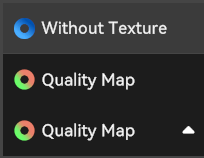
Point Cloud Rendering Mode Switch: Supports switching between three modes: Color Model, White Model, and Quality Chromatogram. The chromatogram is displayed by default. In the Quality Chromatogram mode, it is recommended to fully scan until the point cloud of the scanned object turns green, then click "Complete Scanning" to enter subsequent processing. The upper left corner displays the number of frames collected so far, the number of historically collected points, the current device temperature of the scanner, and the acquisition frame rate. 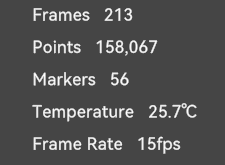
Current Status Display: The upper left corner shows the number of frames collected so far, the number of historically collected points, the current device temperature of the scanner, and the acquisition frame rate. The lower left corner displays the model, firmware, and scanning configuration, while the lower right corner displays the available memory. ¶ Operation Tips for Blue Laser Mode Scanning
To pursue scanning quality, it is recommended not to use texture mapping in blue laser mode.
The main differences from infrared mode are as follows:- For the depth camera preview window, click to expand the menu and adjust the laser brightness. In semi-outdoor scenarios, manual adjustment to increase brightness is supported to reduce sunlight interference. When adjusting, ensure the window has normal exposure (no blue or red shown).
- Undo/redo functions are not supported.
Operation Interface for Blue Laser Scanning:
- During preview, adjust the IR exposure and laser brightness to ensure the marker points and laser lines in the depth camera preview window are in a normally exposed state (refer to the figure below: blue indicates underexposure, red indicates overexposure, and the optimal state is light white). Aim the scanner at the part of the scanned object with rich features, and adjust the distance between the scanner and the scanned object to the "optimal distance" according to the distance indicator bar.

-
Click "Start Scanning" to enter real-time scanning. During the scanning process, keep the distance relatively fixed and move the scanner slowly back and forth. Enable the Quality Chromatogram mode, and aim at the part of the scanned object being scanned (you can pause for 1-2 seconds slightly) until the point cloud turns blue. Then move the scanner to aim at the unscanned parts, so as to continuously ensure normal exposure and the "optimal distance".
-
Continue scanning according to the on-screen prompts until the entire point cloud of the scanned object turns blue (indicating that all object model data has been collected and the model quality is high). (As shown in the figure below)
.png)
Click "Finish" to end the scanning process and enter the "Fusion" processing stage.¶ Operation Tips for Infrared Mode Scanning
Scanning Operation Tips:
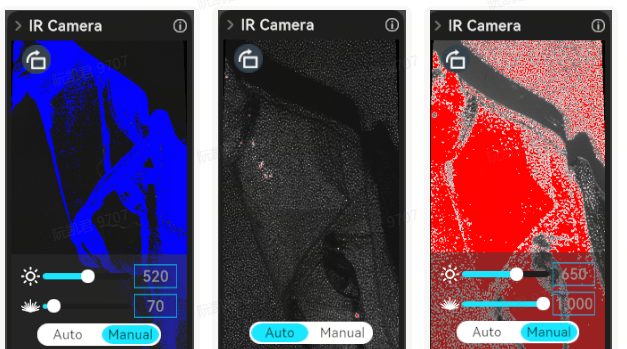
- During preview, ensure the depth camera preview window is in a normally exposed state (refer to the figure below: blue indicates underexposure, red indicates overexposure, and the optimal state is no blue or red shown).
The IR exposure is set to automatic by default (automatic mode is applicable for large objects, human bodies, or human faces). If the exposure effect is poor in automatic mode, switch to manual exposure and adjust the screen to normal exposure for better results.
-
Aim the scanner at the part of the scanned object with rich features, and adjust the distance between the scanner and the scanned object to the "Optimal Distance" according to the distance indicator bar.
-
Enable the Quality Chromatogram mode, and continue scanning according to the on-screen prompts until the entire point cloud of the scanned object turns green,this indicates that all object model data has been collected and the model quality is high.Click "Complete Scanning" to end the scanning process and enter the processing stage.
.png)
¶ Clipping Plane
When the blue laser line scanning is paused, click the [Clipping Plane] button to enable or disable it.
- Hold down Shift + left mouse button, then manually select 3 points or 3 markers on the plane data to create a plane.
- Hold down the left mouse button on the arrow, move the clipping plane to an appropriate height, and click to confirm.
- After completing the clipping plane settings, resume the previously paused scanning task. The data below the plane will be automatically cropped, eliminating the need for subsequent deletion steps.
.png)
¶ Pocessing page
¶ Mesh Processing
After scanning is completed, one-click processing or manual processing is supported. The manual processing sequence is Enclosing → Editing → Texturing. After point cloud optimization, you can choose to edit the point cloud or use it for multi-point cloud aligning.
.png)
The main window is primarily used to display point clouds or models. Move the cursor into the 3D Model Preview Area to manipulate the point cloud/mesh model; the operation instructions are as follows:
Mouse Button Laptop Trackpad Operation Note Left Mouse Button Single-finger press Press and drag to rotate the point cloud Pause scanning Middle Mouse Button(Press) Two-finger press Press and drag to pan the point cloud Pause scanning Middle Mouse Button(Scroll) Two-finger up/down swipe Scroll to zoom in/out on the point cloud Pause scanning ¶ Multi-project panel
The left Multi-Project Panel displays a list of currently open multi-projects. During the processing of each sub-project, a maximum of three data states can be unlocked, namely Original (Point Cloud), Fused (Point Cloud), and Markers. Meshes and textures are displayed separately at the end of the project, and their display can be switched manually. Users can right-click to delete or rename.
.jpg)
There are two button options in the upper right corner of the Project Panel:
-
Import the project as a sub-project of the current multi-project: Import from local device/Import from mobile device.
-
Delete the current sub-project.
¶ Fusion
Click "Fusion" on the scanning interface to enter the merge interface.
.png)
Fuse point clouds to obtain a better 3D point cloud model.
.png)
The smaller the Resolution setting, the better the details, but more memory and processing time are required.
The higher the Noise Removal level, the more points can be retained.
Remove Markers will optimize the mesh at the positions where markers are identified. The mode based on marker scanning enables marker removal by default.
¶ Meshing
On the "Scan" processing interface, click "meshing" to enter the mesh construction interface.
.png)
The meshing operation converts pointcloud data into a triangular mesh model.
During the meshing process, you can manually configure the number of the triangles, adjust the mesh smoothness, set the percentage for removing isolated parts, and choose whether to remove spikes, fill holes, and make the model watertight.
.png)
- Triangles: The higher Triangles is set, the higher the degree of detail restoration of the model.
- Mesh Smoothing: The higher the smoothness level, the smoother the mesh.
- Boundary Smoothing: Smoothes the model and the boundaries of holes.The higher the smoothness level, the smoother the mesh.
- Remove Isolated Parts: Eliminates isolated components in the model. The larger the value, the more faces will be removed.
- Fill Small Holes: The hole-filling mode will automatically fill holes in the model.
- Watertight: The closing mode will automatically generate the missing surfaces of the model and create a geometrically closed 3D model. The non-closing mode will not automatically generate missing surfaces.
¶ Edit
After finished the scanning, the raw point cloud and fused point cloud can be edited and processed using the bottom toolbar.
Icon Function Description 
Penetrate Selection: Supports selecting the mesh behind the selected area. For the raw data, selection always has a penetrate selection effect by default, so this option cannot be turned on or off. 
Lasso Select: Selects an area by dragging the mouse. 
Rectangle Select: Selects an area in a rectangular shape. .png)
Connected Component: Select all connected points in the clicked area. 
Invert Selection: Automatically selects the unselected area (opposite of the current selection). 
Unselect: Cancels the current selection. 
Delete Selection: Removes the selected part. 
Undo:Reverts the last deletion operation. 
Redo:Restores the last undone deletion operation. 
Cancel Edit:Exits the editing mode without saving changes. 
Saved Edit: Saves the editing changes and exits the editing mode. Similarly, the meshed model can be edited (click the "Mesh Processing" button in the toolbar above to perform operations such as "Simplify", "Smooth" or "Fill Holes").
.png)
¶ Alignment
When there are at least 2 projects that have undergone point cloud fusion in the Multi-Project Panel, click "Alignment" on the processing page to enter the stitching page.
.png)
Multi-project Alignment provide 4 modes: Feature Alignment-Auto,Feature Alignment-Manual, Marker Alignment-Auto, Marker Alignment-Manual. You can switch between modes at the top of the left-side list:
- Automatic Alignment(Feature/Marker) requires sufficient common feature areas or markers between models.
- Manual Alignment(Feature/Marker) requires selecting corresponding points on the models in the fixed window and floating window,at least 3 pairs of point are needed.
¶ Automatic Feature
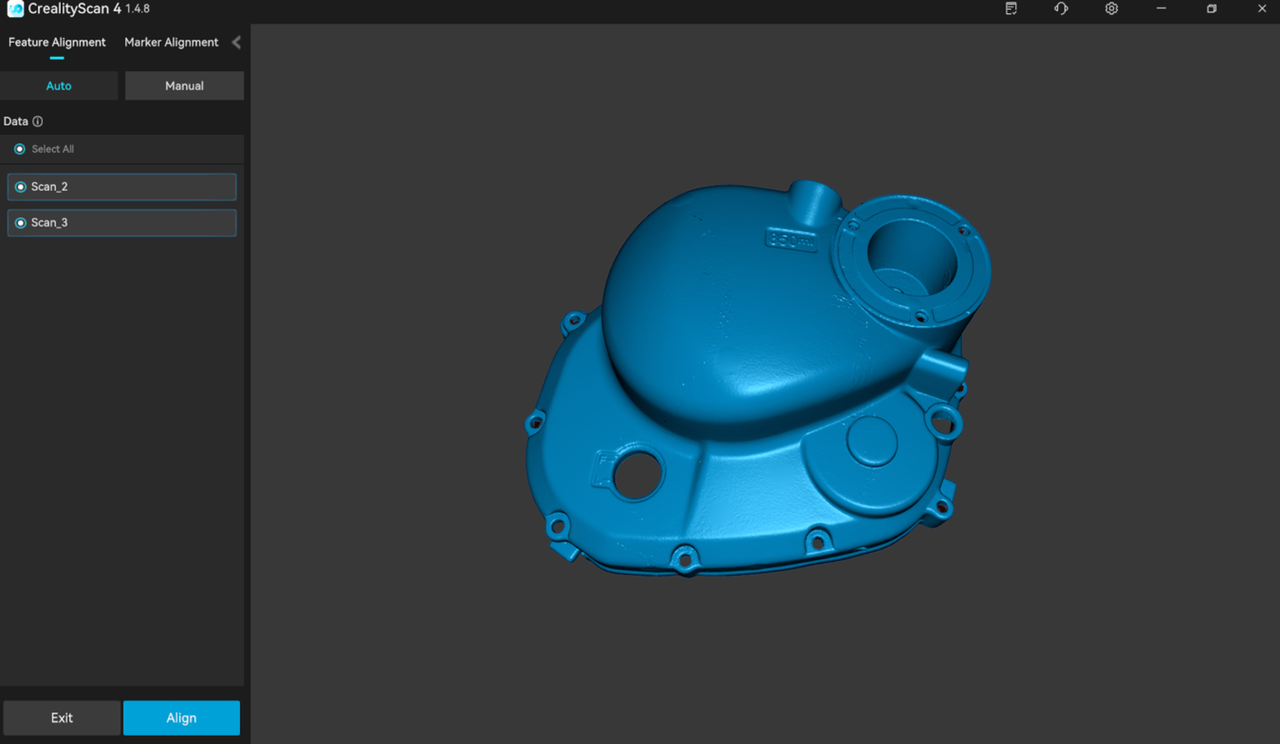
The left sidebar shows the Model List. In the Automatic Feature Alignment mode, you can select two target sub-projects for stitching from the Model List, And Click "Align" and wait for the alignment process to complete.
¶ Manual Feature
The left sidebar displays the Fixed Window List and Floating Window List. In Manual Alignment mode, you can select one sub-project to be aligned from each of the two lists on the left, and display them in the corresponding Fixed Window and Floating Window respectively, and then select at least three pairs of matching points on the models in the Fixed Window and Floating Window.
Finally click "Align" and wait for the process to complete.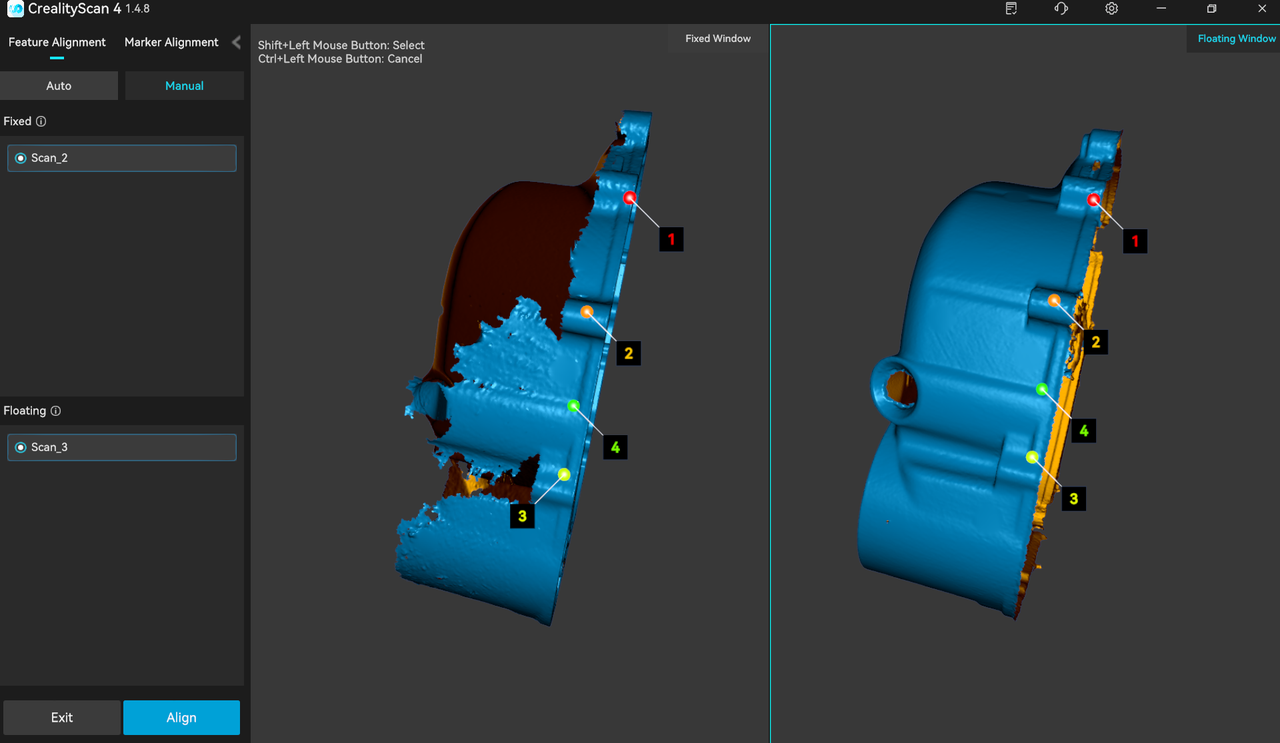
¶ Automatic Marker
The left sidebar displays the Mode list. In the Automatic Marker Alignment mode, you can select two target sub-projects for align from the model list, and click "Align" to wait for the process to complete.

¶ Manual Marker
The left sidebar displays the Fixed Window List and Floating Window List respectively. In the Manual Marker Alignment mode, you can select one target sub-project from each of the two lists on the left, and display them in the corresponding Fixed Window and Floating Window, and select at least three pairs of matching markers on the models in the Fixed Window and Floating Window.
Finally click "Align" and wait for the process to complete.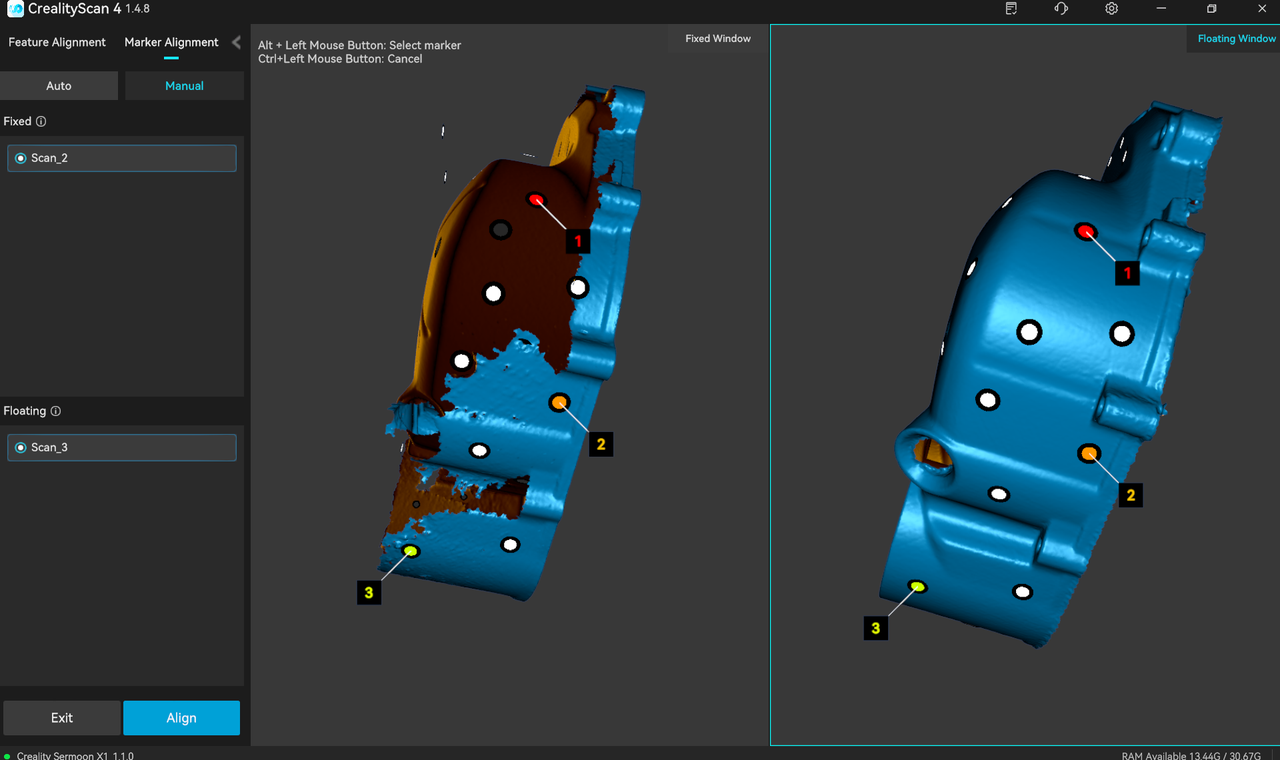 After confirming the result, the user can either continue stitching pairs of projects or click the "Exit" to leave the alignment page.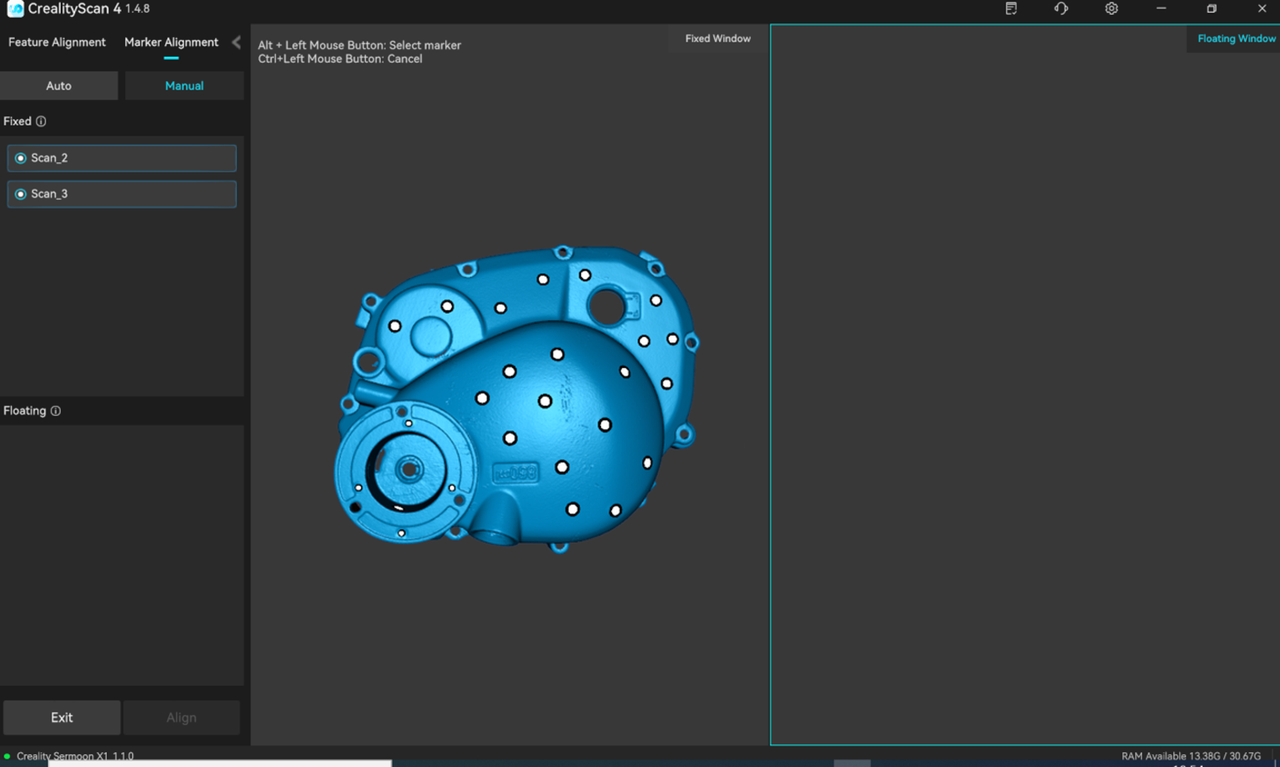
¶ Color mapping
The Raptor scanner is equipped with a high-definition RGB camera, allowing for the capture of true-color textures for 3D models.
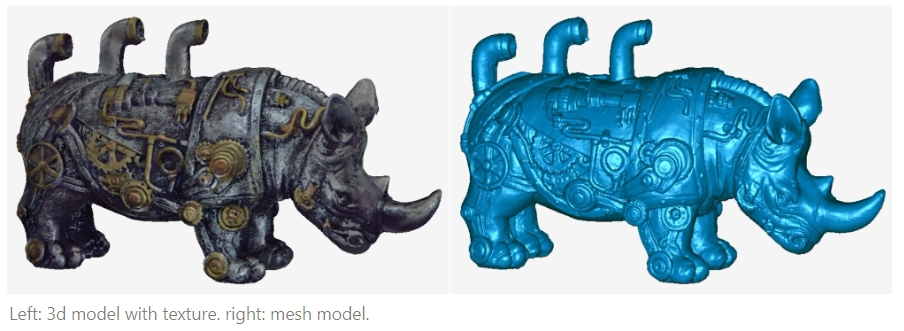
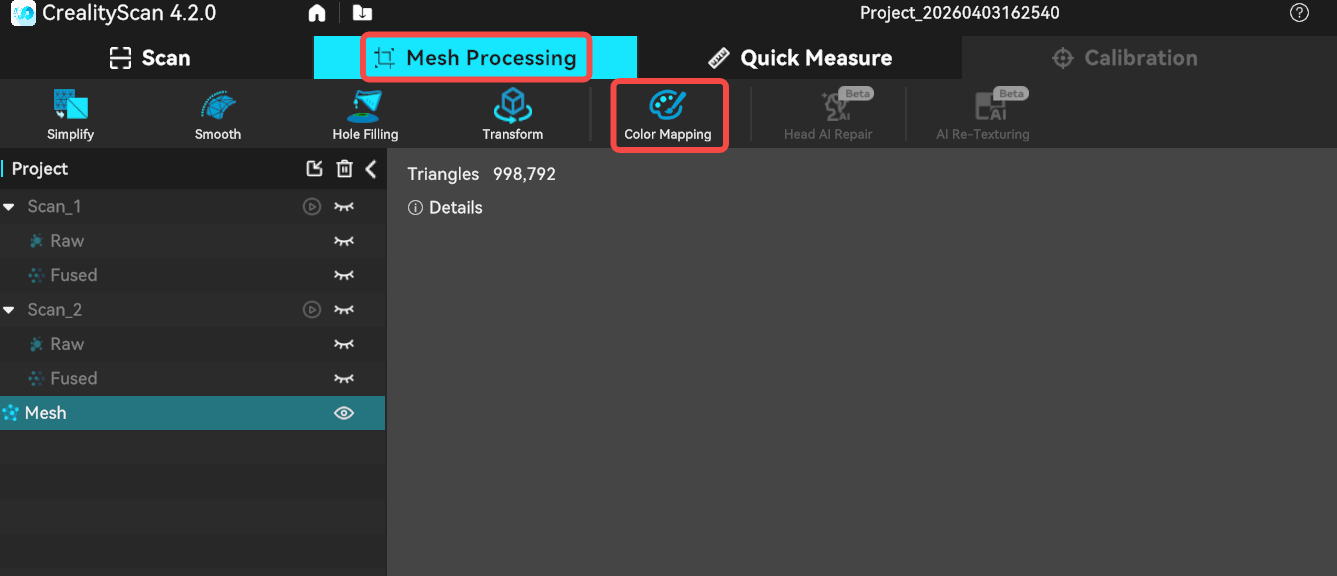
After meshing is complete, if the color mapping function is enabled in the scanning settings, you can click Mesh Processing -> Color Mapping to apply the texture.
¶ Export the completed 3D model
.png)
- Optimized point clouds support export in .asc, .ply, .stl, and .obj formats.
- Meshes support export in .asc, .ply, .stl, and .obj formats.
- When exporting texture images, only supported.ply ,.obj packages (including .obj, .mth, and .png files)
¶ Firmware Upgrade
Firmware upgrade can be divided into automatic detection upgrade and manual upgrade.
.png)
- After the scanner is successfully connected, if the software has an internet connection, it will automatically detect whether the scanner's firmware version needs an update. You can proceed with the update after confirming it manually.
- To update the firmware manually, navigate to Settings > Firmware Update in the top right sidebar. Download the corresponding latest firmware from the provided download link, click "Select File", then click "Update Now" and wait for the process to complete.