- Starting with PC V4.3.1 and mobile V3.1.1, online automatic firmware updates for the scanner require users to sign in to their account. This sign-in is intended to support online services and a more consistent online update experience.
- If you prefer not to sign in, please refer to the manual update instructions and download the firmware package to update manually.
¶ Auto Update
- When the scanner is successfully connected and the computer is connected to the internet, the system will automatically detect whether a firmware update is available.
.png)
- Click OK to start the update. The system will complete the upgrade automatically. Once finished, the device will restart and reconnect to the software.
.png)
¶ Manual Update (Ferret Scanner Example)
¶ On PC
- Download the firmware from CrealityCloud. It is recommended to download the .zip file. If the firmware is in .bin format, manual update requires Creality Scan V4.1.1.10 or earlier..
.png)
- Go to the Settings page from the top-right corner of the software home screen.
.png)
- Open Device Management, click Select File, and locate the downloaded firmware package. In the pop-up update window, click OK and wait for the update to complete.
.png)
¶ On Mobile Phone
To perform manual firmware updates on mobile phones, please install software version V3.1.1 or above.
- Download the corresponding firmware from CrealityCloud. Please download the .zip format; mobile does not support updating .bin firmware files.
- Open CrealityScan and make sure the scanner is connected.
- Open the settings page and ensure you are logged in. If you are not logged in, the firmware update cannot proceed.
.png)
- In the file manager on your mobile phone, locate the downloaded firmware file, tap to open it, and select “CrealityScan” to open.
.png)
- After the app opens, tap “Update Now” to perform the update.
.png)
¶ All-in-One Device Firmware Update (P1)
The P1 only supports OTA updates via an internet connection and does not support local updates.
Creality releases system updates periodically to optimize performance and add new features. Please keep your Creality Sermoon P1 device up to the latest system version and upgrade as prompted for the best user experience.
- Go to Settings, select WLAN, and connect the P1 to an available Wi-Fi network.
.png)
- Open Software Update and tap "Check update". If a new version is available, follow the prompts to update the device.
.png)
¶ Firmware Upgrade via Mobile Phone
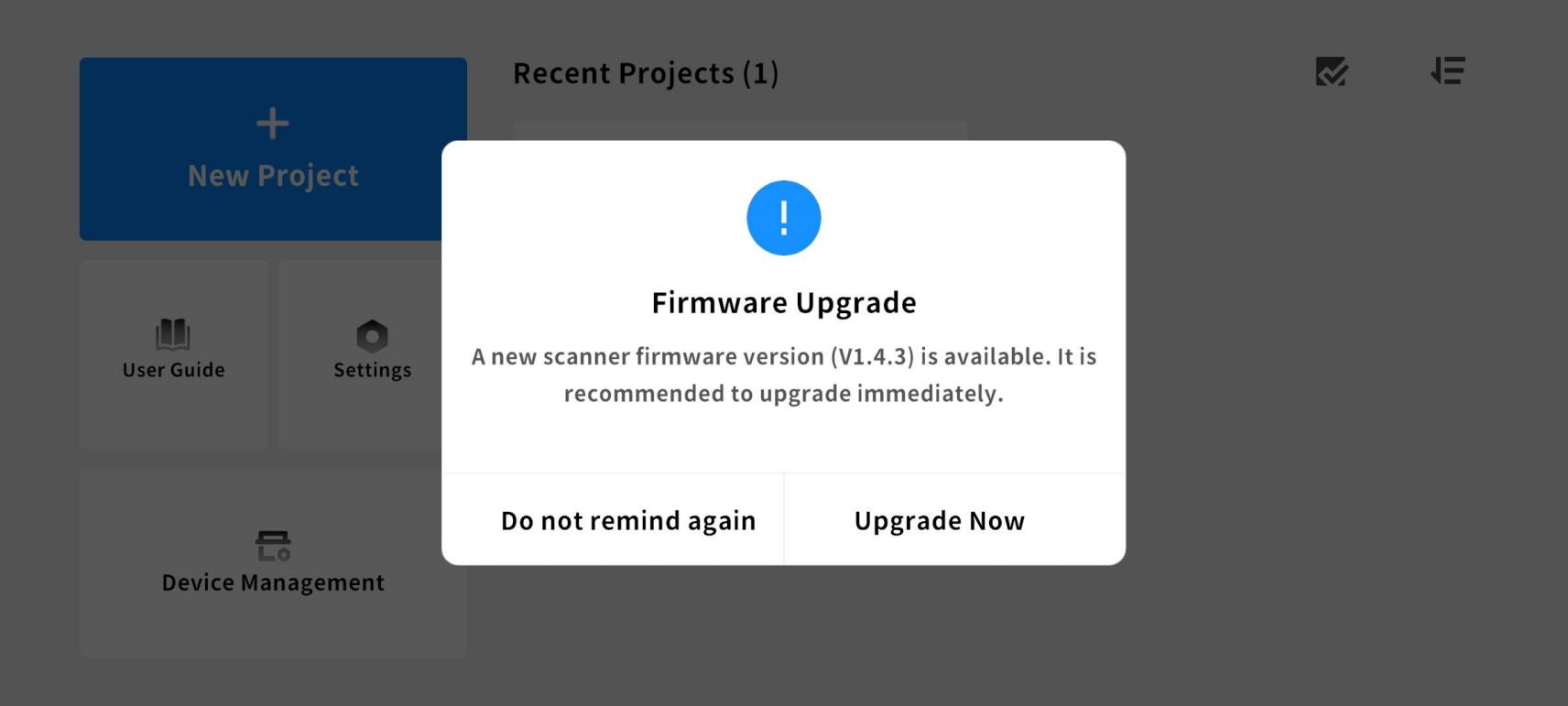
The app will automatically detect the device firmware version and prompt the user to upgrade when a new version is detected. The scanner and Wi-Fi Scan Bridge firmware are typically updated separately; please follow the prompts to complete the update process.
¶ 4.1 Upgrade Process
- Connect device to APP
- Go to Device Management
- If a new version is available, tap Upgrade Now
- Follow instructions to upgrade the scanner or Wi-Fi Scan Bridge
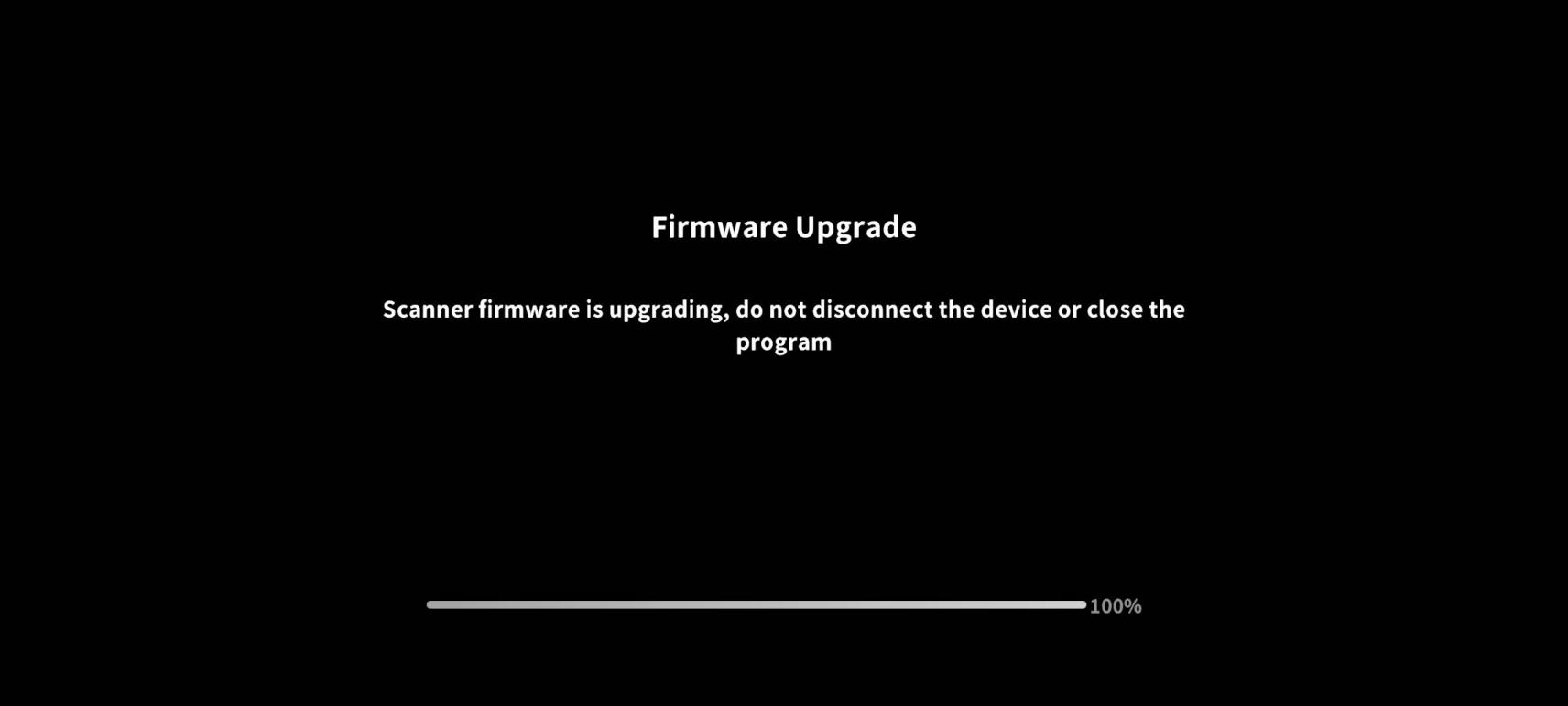
- The device will auto-reboot after the upgrade
¶ 4.2 Upgrade Notes
To ensure a stable upgrade process, please note the following:
● Do not power off the scanner during the upgrade
● Ensure sufficient battery
● Keep the app in the foreground
● Do not switch networks or disconnect Wi-Fi
¶ 4.3 Upgrade Troubleshooting
If any issues arise during the upgrade process, please try the following:
● Reconnect the mobile phone and retry the upgrade
● Restart mobile phone & APP
● Check network stability