If you encounter the following issues, they may be caused by an abnormal connection between the scanner and the computer, by data transmission, or camera parameter errors:
- Scanner preview failure
- Failure to capture data
- Abnormal display in the IR window
¶ Recommended Actions:
- Contact after-sales support first and let them help identify the cause.
- If after-sales support recommends a factory reset, follow the instructions below. This operation will reset all hardware settings and calibration information, and the calibration data will be cleared. You will need to recalibrate before scanning again. Under normal circumstances, please do not perform this operation on your own.
¶ PC
- Click "Settings" in the upper-right corner of the main menu.
.png)
- Select "Help & Tools", then click "Factory Reset". Click "OK" and wait for the device to finish resetting.
.png)
- A factory reset will reset all hardware settings and calibration information, and the calibration data will be cleared. Be sure to recalibrate before scanning again.
.png)
¶ Creality Pika
In addition to resetting via the software, Pika can also be reset directly on the device.
- Swipe down on the screen to enter the settings page.
- Scroll down on the settings screen and find the "Restore Factory Settings".
.png)
- Tap "Restore" and wait for the device to finish resetting.
.png)
¶ Sermoon P1 All-in-One
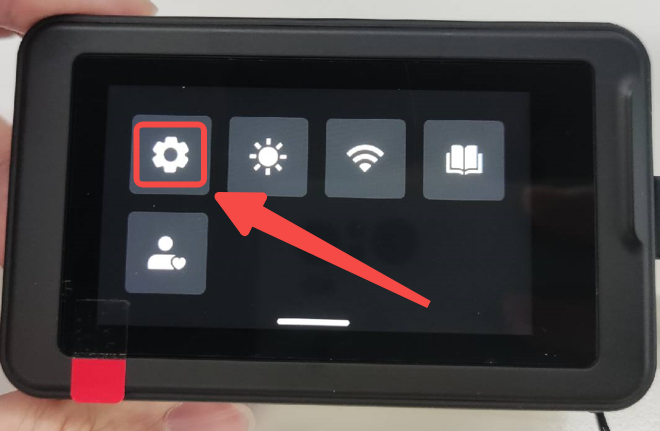
Sermoon P1 does not support factory reset through the CrealityScan software. Please follow the instructions below to operate it directly on the device.
- Tap "Settings".
.png)
- Scroll down on the settings screen and find the "Restore Camera to Factory Settings" option.
.png)
- Tap "Confirm" and wait for the device to finish resetting.
.png)
Note: Sermoon P1 also provides a "Restore Factory Settings" function. This operation will restore the device's system settings, clear stored information, and delete all projects. Please use it with caution.