Meshing is the process of connecting discrete point cloud data to form multiple triangles, thereby constructing a continuous mesh model.
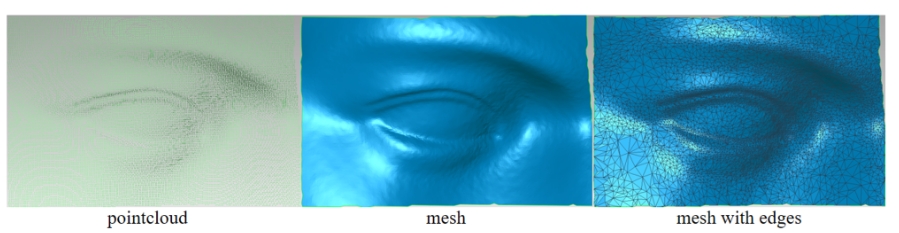
During the meshing process, you can manually configure the number of triangles, adjust the mesh smoothness, set the percentage for removing isolated parts, and choose whether to remove spikes, fill holes, and make the model watertight.
.png)
¶ Triangles
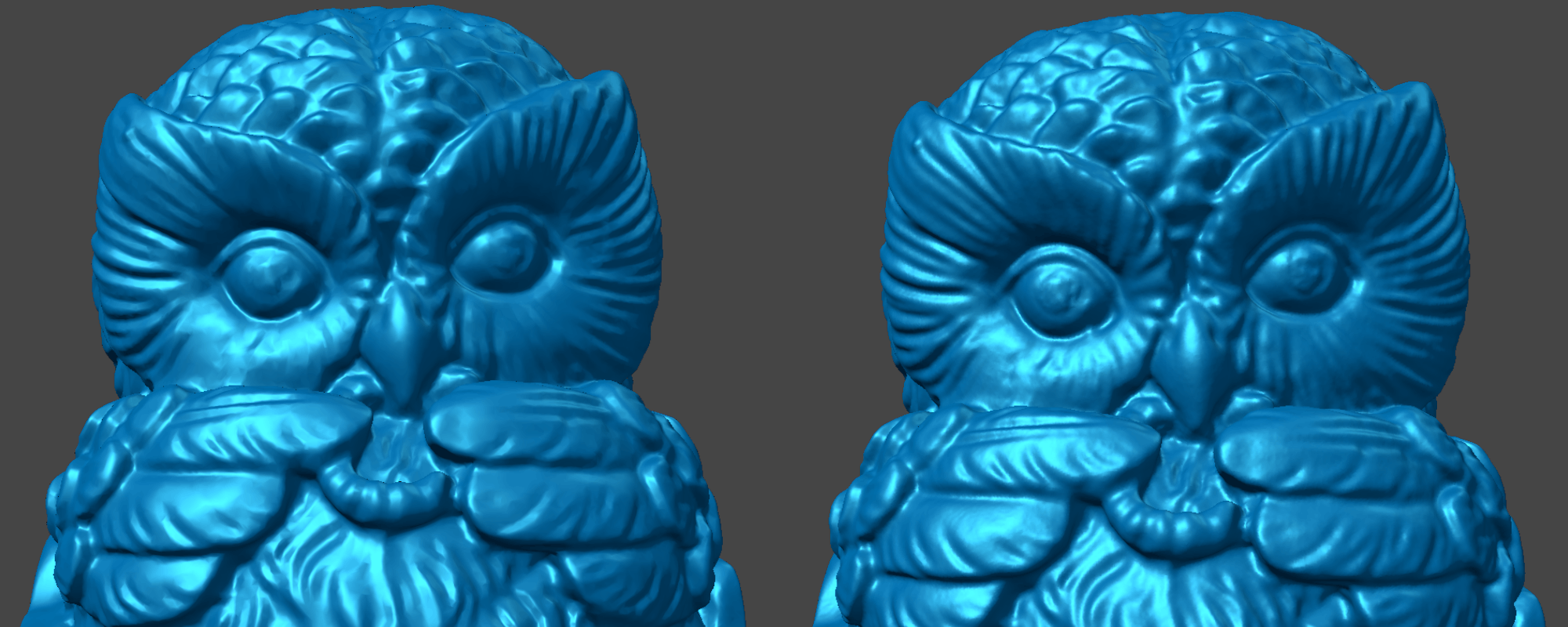
The higher the number of triangles, the richer the model details and textures, and the smoother the curved surfaces. However, this also results in a larger file size and longer mesh generation time.
- When to increase: When fine detail reproduction is needed (e.g., carvings, highly textured objects), or for high-precision presentation.
- When to decrease: When the object has a simple structure, or is only for quick preview or 3D printing.
Recommendation: For objects with a naturally smooth surface or low requirements for texture detail, you can use the default triangles setting.
¶ Mesh Smoothing
Makes the model smoother. The higher the level, the smoother the result. For specific effects, refer to the Smooth tutorial.
- When to increase: When the scan data has obvious noise, uneven surfaces, or when the model itself should have a relatively smooth surface (e.g., plastic casing, ceramic).
- When to decrease: When the object surface has rich textures or details that you do not want to smooth away.
¶ Boundary Smoothing
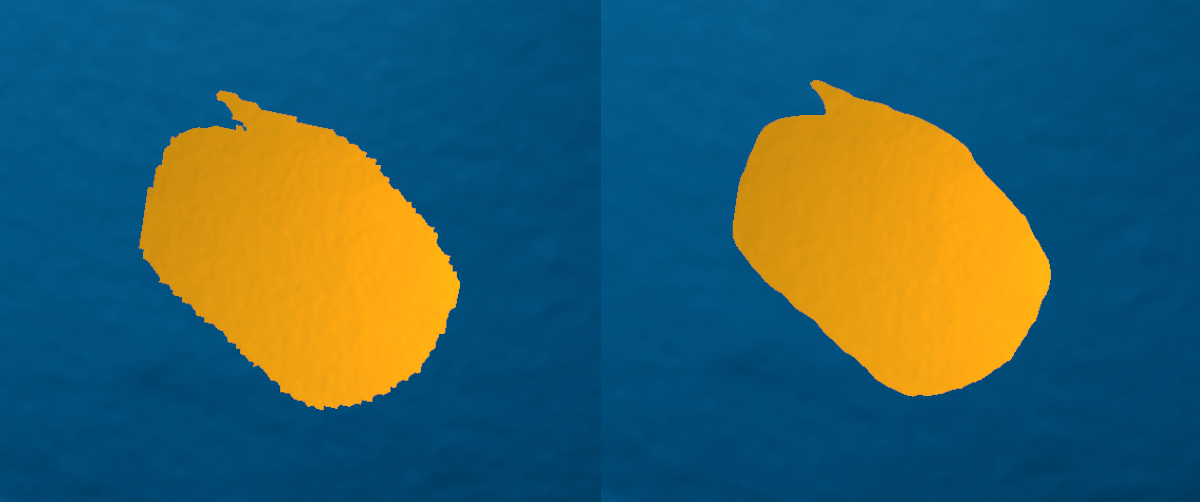
Smooths the boundaries of the model and holes. The higher the level, the smoother the result.
- When to increase: When the model edges have obvious jaggedness, burrs, or uneven hole edges.
- When to decrease: When the boundary shape itself needs to be precisely preserved (e.g., mating surfaces, assembly edges).
Difference from "Mesh Smoothing": Mesh Smoothing affects the entire surface, while Boundary Smoothing only affects edges and the area around holes, without affecting the internal surface of the model.
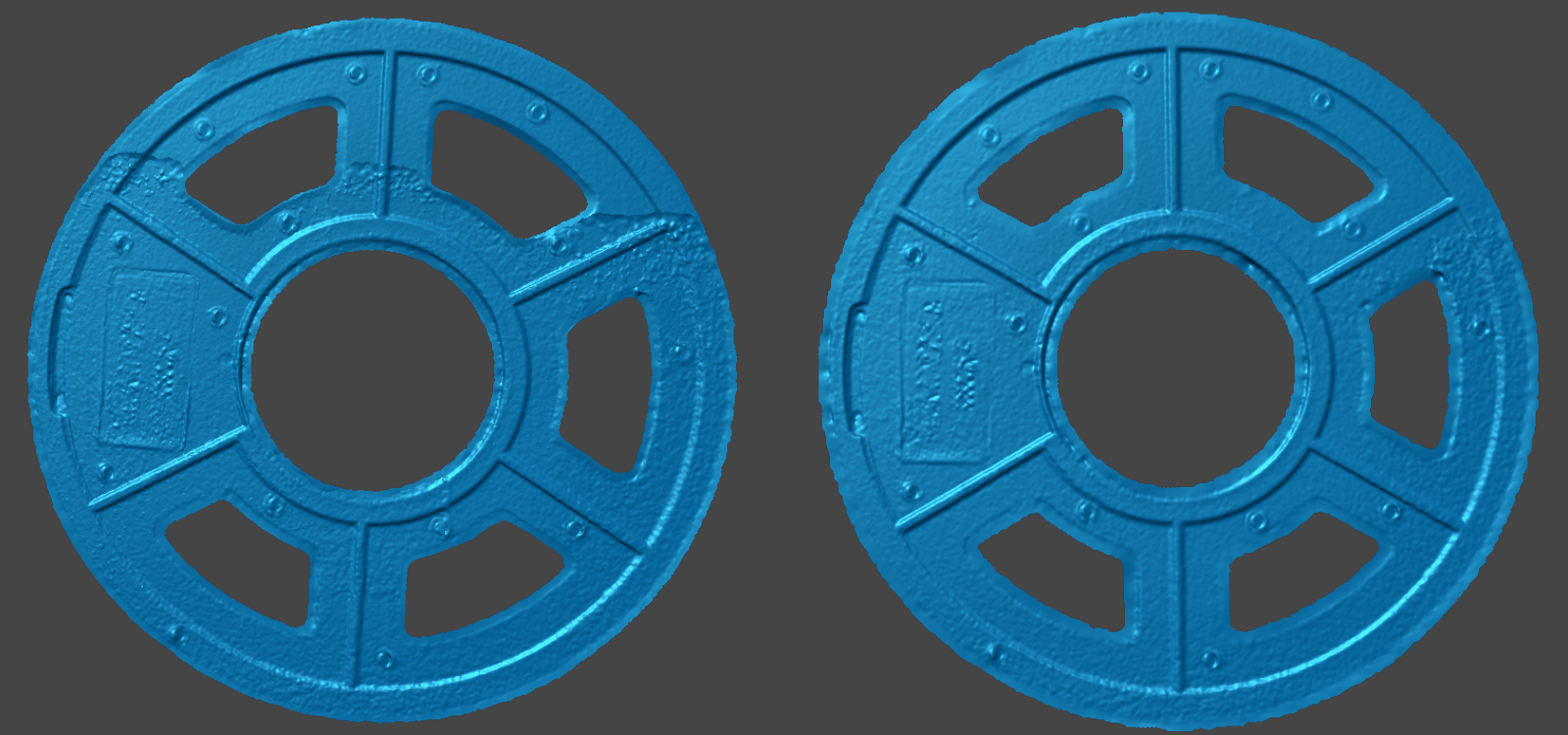
For models that need to be aligned, if there is a visible seam at the boundary between two scan datasets, Boundary Smoothing can be used to reduce the difference and make the transition more natural.
¶ Remove Isolated Parts
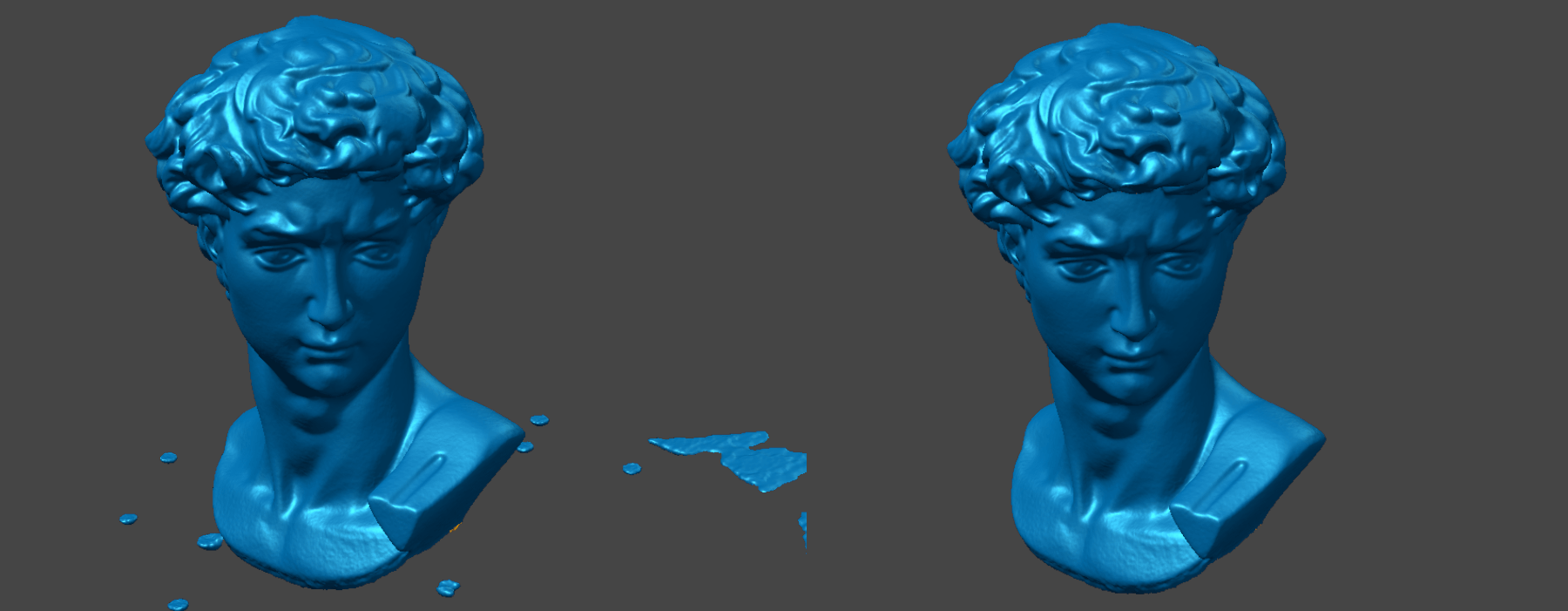
Removes isolated components from the model. The larger the value, the more data are removed, but too large a value may accidentally delete small structures that should be kept.
- When to increase: When there are many unnecessary floating noise points or fragments in the scan data.
- When to decrease: When the model itself contains small but important independent structures that need to be preserved.
¶ Fill Small Holes
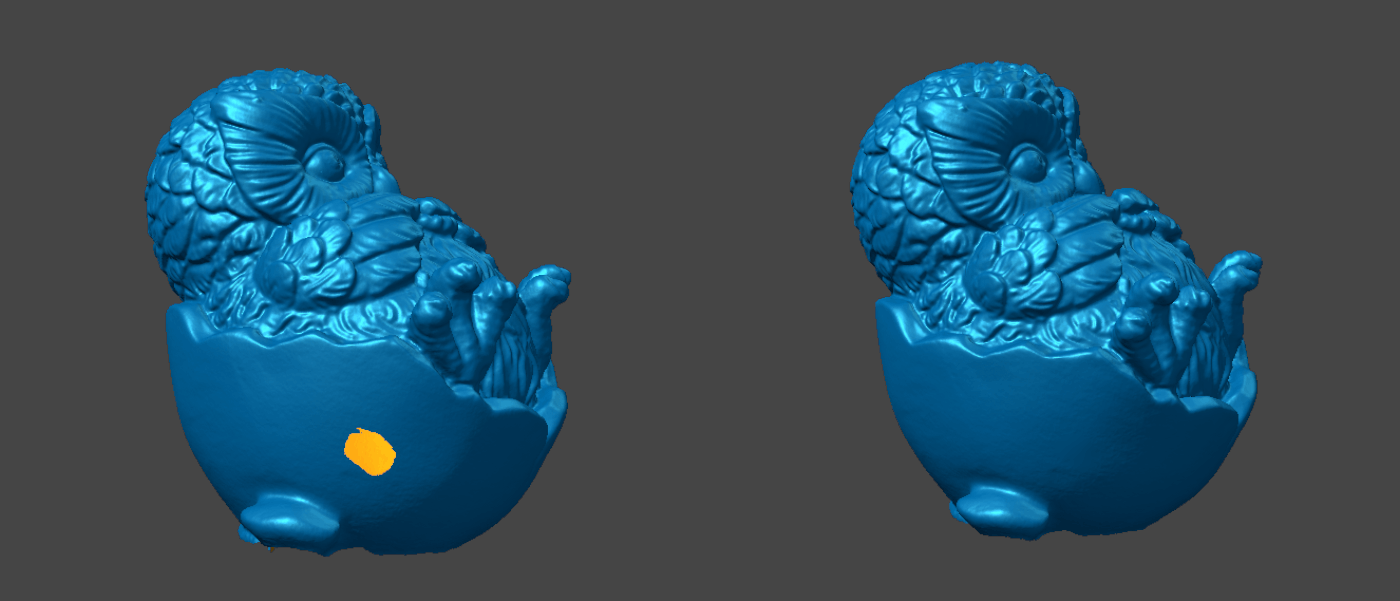
When parts of the scanned object were not captured and data is missing, you can enable Fill Small Holes to automatically repair the incomplete mesh and close the holes.
- Note: If holes are still not filled after meshing, the "Small Hole Perimeter" threshold may be set too small. Try increasing this value and meshing again.
- Note: If the hole is too large, the automatically filled shape may differ from the actual geometric contour of the object. In this case, it is recommended to use a more advanced hole-filling tool for repair.
¶ Watertight
Completely seals the scanned model so that its surface has no holes.
- When to enable: When you need to export a model for 3D printing, or when the model needs to be a fully closed solid.
- When to disable: When the model is only for display, measurement, or reverse engineering reference.