¶ How to Identify C14/C13 Mainboard?
1. Check the mainboard silkscreen:
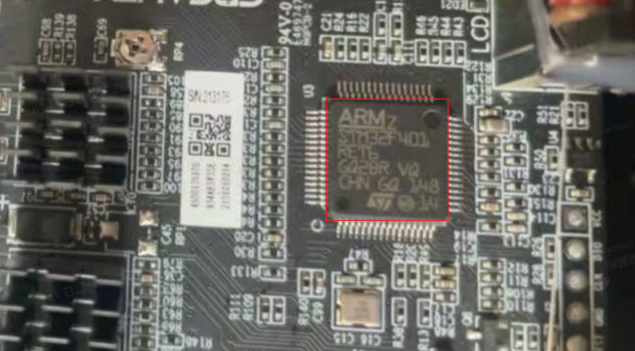
|
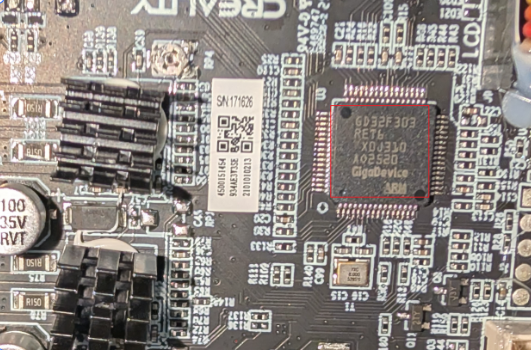
|
2. Device screen: Settings - About - Device Information, where you can check the mainboard model information
¶ Differences between C13 and C14:
- The older C13 only requires flashing a .bin file
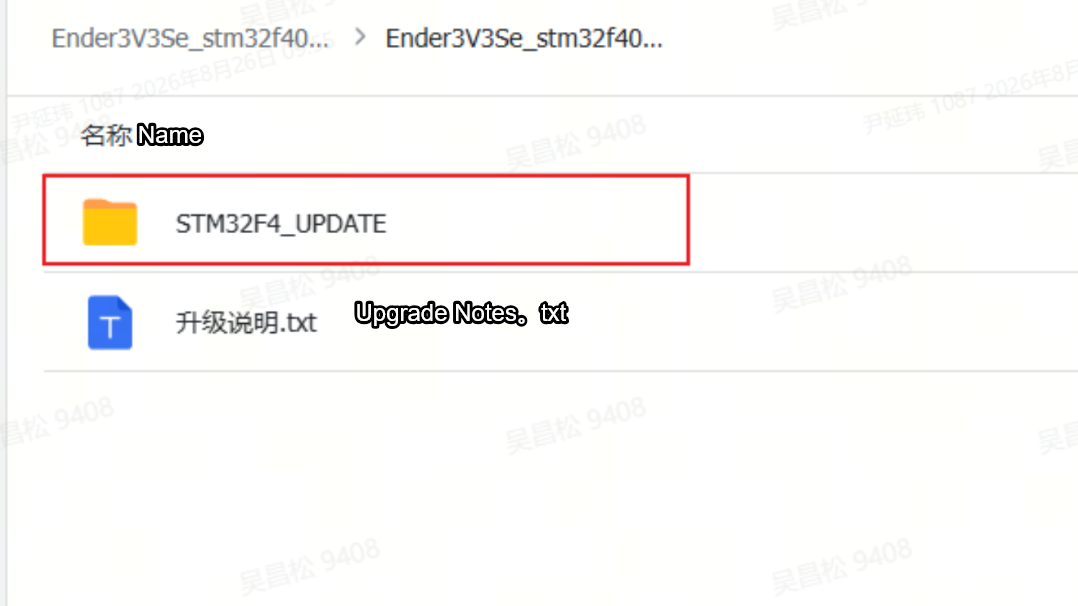
- The C14 requires copying the entire "STM32F4_UPDATE" folder to the TF card
- The update procedure is the same for both
Note: All C01 mainboard update methods prior to K2 are identical.
Incorrect firmware updates may result in missing functionality
¶ Operation
¶ Step 1: Firmware update method for the (lower computer) mainboard corresponding to the Nebula screen.
¶ Ender 3 V3 SE C14 chip mainboard updates :
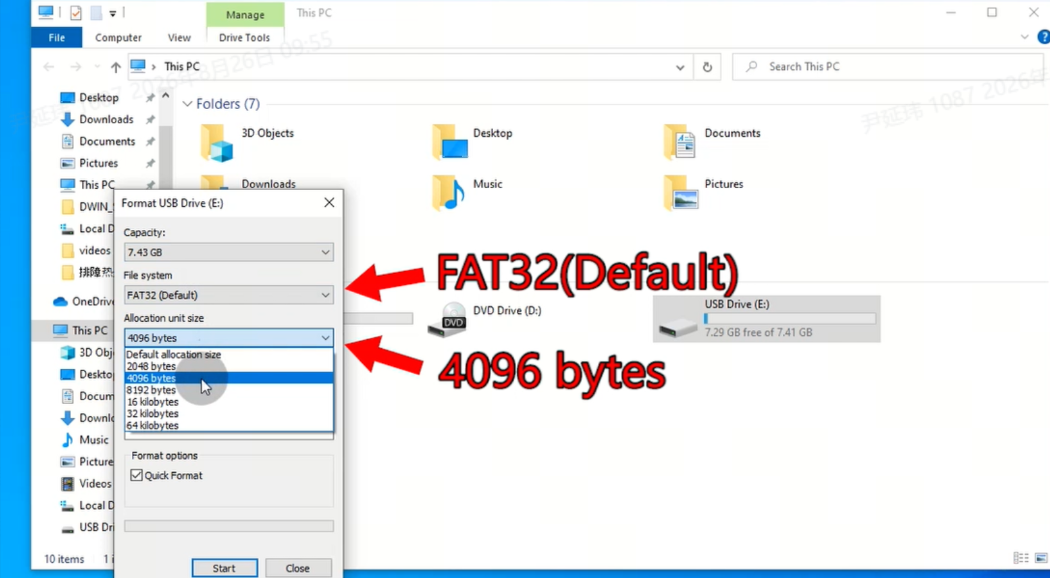
• Format the TF card on your computer, select allocation unit size 4096.
• Copy the firmware folder "STM32F4_UPDATE" into the blank TF card.
• Turn off the printer and insert the TF card into the mainboard card slot.
• Restart and wait for the updates to complete.
• After the update is complete, remove the TF card and delete the .bin file inside.
¶ Step 2: Nebula screen firmware update method:
1. Use any one of the following: USB drive, SD card + card reader, or TF card + card reader (manual upgrades)
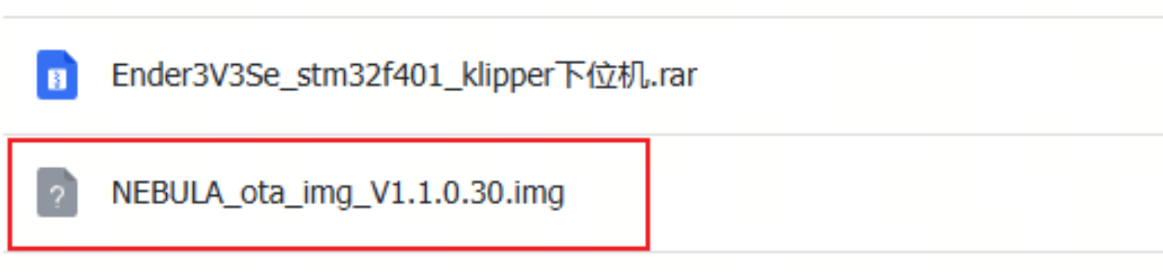
2. Copy the firmware file NEBULA_ota_img_V1.1.0.30.img to the root directory of the USB drive (no need to extract!).
3. While the device is powered on, insert the USB drive into one of the two USB ports on the Nebula screen.
4. Within one minute of inserting the USB drive, the device will pop up a [New Version Detected] prompt. Select [Upgrade] and the device will begin the upgrade process.
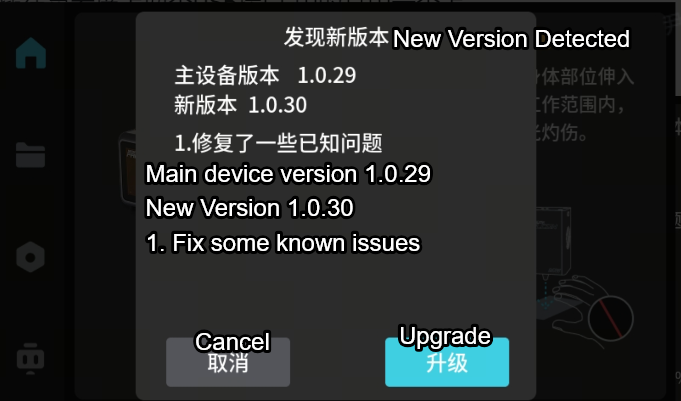
5. Wait approximately 1–3 minutes; when the installation reaches 100%, the upgrade is successful.
6. After the device restarts, check whether the firmware version on the home screen shows the [New Version]. If it does, the upgrade was successful; otherwise it has failed and the upgrade must be performed again.
7. After the update is complete, remove the USB drive and delete the firmware file from it.
¶ Firmware downloads for C14 + Nebula screen:
If the firmware fails to open, please contact after-sales customer service (cs@creality.com) to have the firmware file sent separately.
Ender 3V3 SE_stm32f401_klipper下位机(low computer mainboard).rar
¶ Step 3: Mainboard firmware update method for C13 mainboard + Nebula screen:
Mainboard firmware download address for the Nebula screen:
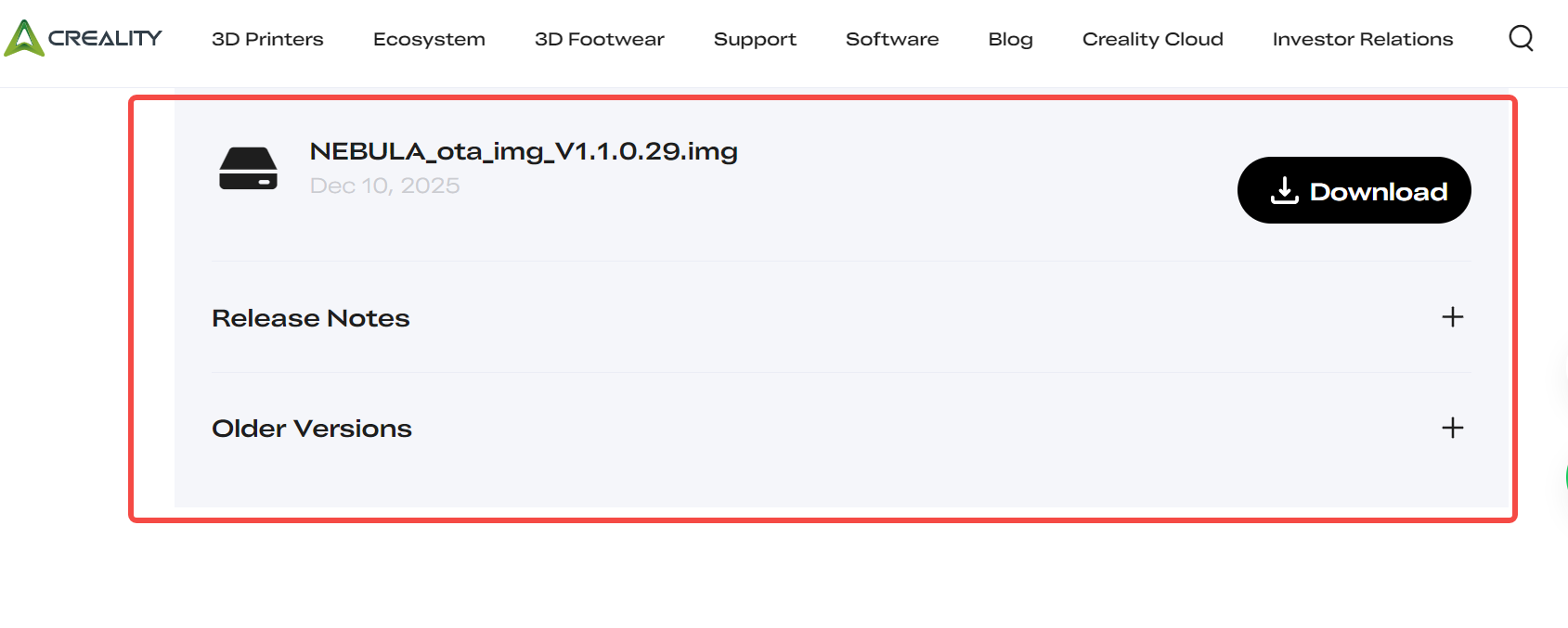
If the firmware fails to open, please contact after-sales customer service (cs@creality.com) to have the firmware file sent separately.
Download Package for Ender 3V3 SE firmware; Adaptive Ender-3 V3 SE + C13 mainboard:
Ender 3V3 SE_firmware; Adaptive Ender-3 V3 SE + C13 mainboard
¶ Ender 3 V3 SE mainboard update:
• Format the TF card on your computer, select allocation unit size 4096.
• Rename the firmware file "Ender3V3SE_firmware.bin" and place it into the TF card.
• Turn off the printer and insert the TF card into the mainboard card slot.
• Restart and wait for the update to complete.
• After the update is complete, remove the TF card and delete the .bin file inside.