¶ 1. Introduction
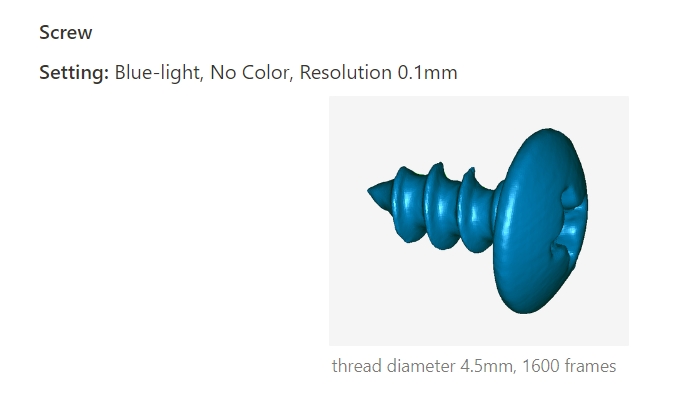
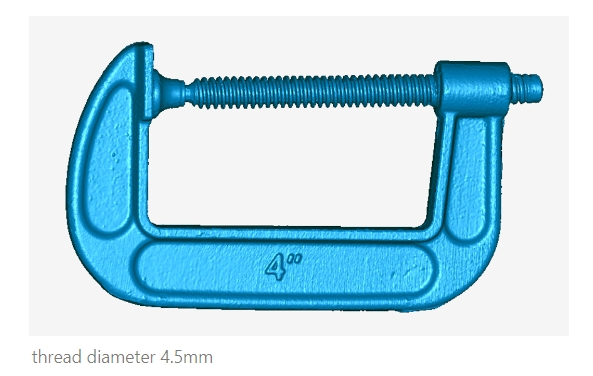
CR-Scan Raptor is a 3D scanner with metrology-grade accuracy, with a maximum accuracy of 0.02mm. Using a blue parallel 7-line laser and a 2.3-megapixel high-resolution camera for scanning, it produces richer details, sharper edges, and restores the 3D shape of the object accurately. Using an all-glass lens with large depth of field and low distortion, from coins or bolts and large objects (5-2000mm) can be scanned easily.
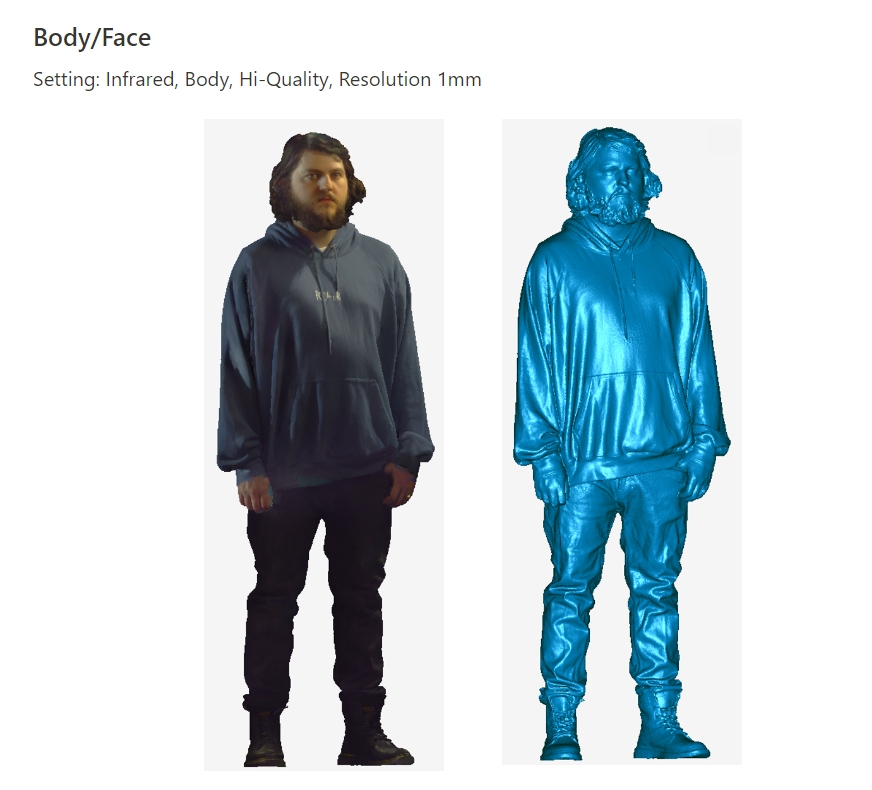
In addition, it also incorporates infrared structured light technology, which can achieve marker-free point scanning and can scan faces, human bodies, cultural relics and other objects.
It has high precision, wide adaptability, low dependence on powder spraying, and can directly scan many black and metal objects. Unlike other industrial-grade line laser3D scanners, it can also obtain the full-color texture of the object surface. With 12 white LED supplemental lights, it can obtain clear textures even in darklight environments.
¶ 2. Scan Configuration
CR-Scan Raptor includes two scanning modes: blue laser scanning and infrared scanning.
¶ Blue laser mode
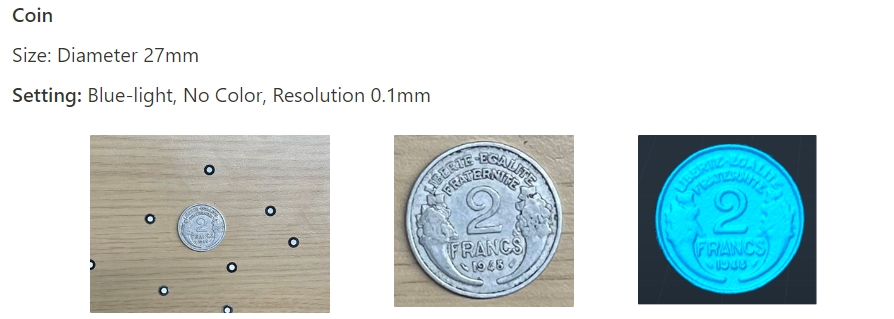
Blue laser mode is suitable for scans that require higher accuracy and detail. It requires circular reflective marker assistance for scanning. For smaller objects, markers can be affixed to the desktop or scanning pad, and then the object can be placed on the desktop or pad for scanning. For larger objects, markers need to be affixed to the surface of the object.
.png)
¶ Infrared mode
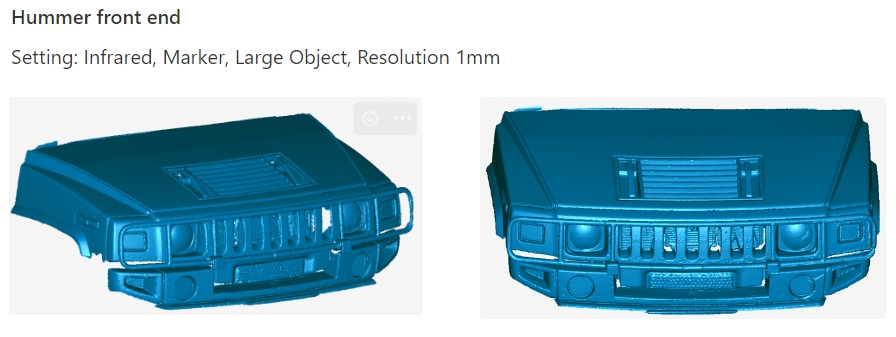
Infrared mode is suitable for scanning larger targets such as faces, bodies, and sculptures (150-2000mm). It enables markerless scanning and also supports marker-based scanning and texture feature scanning.
.jpg)
¶ 3. Basic Terms and Concepts
¶ Scanning distance
The accuracy of all scanners is related to the scanning distance. The Raptor scanner has a minimum working distance of 150 mm and can reach a maximum distance of 1000 mm. The scanner should maintain an appropriate distance from the object to ensure reliable tracking without losing accuracy. Follow the instructions provided by the scanning software to maintain the "Optimal Distance".
| Scanning mode | Scanning distance |
|---|---|
| Blue laser | 150-400mm |
| NIR | 170-1000mm |
.png)
¶ Exposure time
Creality Scan offers two camera exposure control modes: Automatic Exposure and Manual Exposure.
- For relatively large targets, such as human face and body, Auto-Exposure can be used for scanning.
- For smaller objects, automatic exposure may not be accurate. It is recommended to manually adjust the exposure time of the IR camera.
For infrared mode, adjust the IR camera's exposure time so that the markers have sufficient brightness but are not overexposed. The areas marked in red in the IR image window indicate over-exposed regions.
-
First, adjust the IR camera's exposure time so that the fiducial points have sufficient brightness but are not overexposed. The areas marked in red in the IR image window indicate overexposed regions.
-
Then, adjust the brightness of the laser so that it has sufficient brightness but does not overexpose.
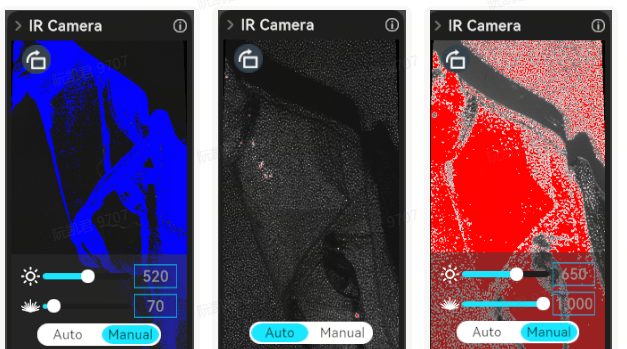
For blue laser scanning, we recommend users manually adjust the laser brightness and camera exposure time for better scanning quality. The desired state is to have both the markers and laser lines bright enough but not over-exposed, as shown in the figure above.

¶ Markers
To use the blue laser mode of the CR-Scan Raptor, the reflective circular markers are required for assistance in scanning. When the object is small, the markers do not need to be attached to the surface of the object; they can be placed on the scanning pad or tabletop. However, when the object is larger, the markers need to be attached to the surface of the object, as shown in the following image. Note that, makers should be randomly placed.
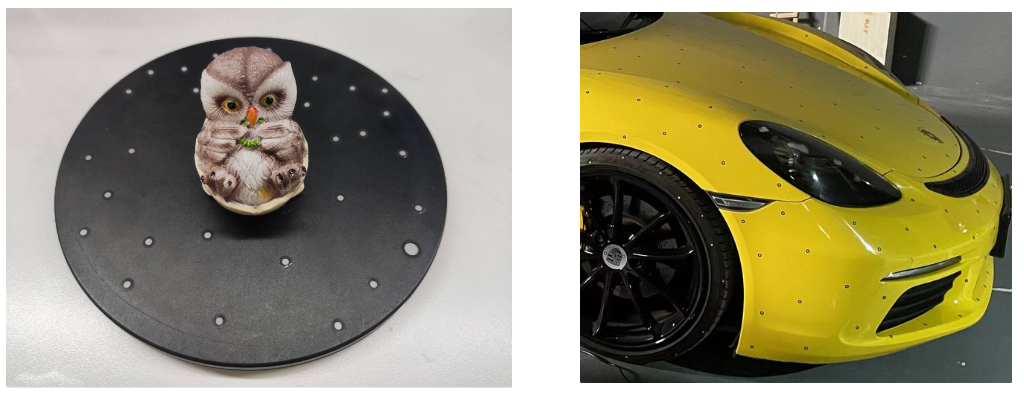
Two types of markers with diameters of 3mm and 6mm are supported. It is recommended to use the 3mm markers for smaller objects, while the 6mm markers are recommended for larger objects.
¶ Scanning speed
For line laser scanning, the scanning speed is influenced by the computer’s performance and the speed of the hard drive. For better performance, we recommend users to use solid-state drives (SSD) or high-speed mechanical hard drives. The GPU has a significant impact on frame rate. The Creality Scan software allows users to manually select their graphics card.
.png)
¶ Quality map
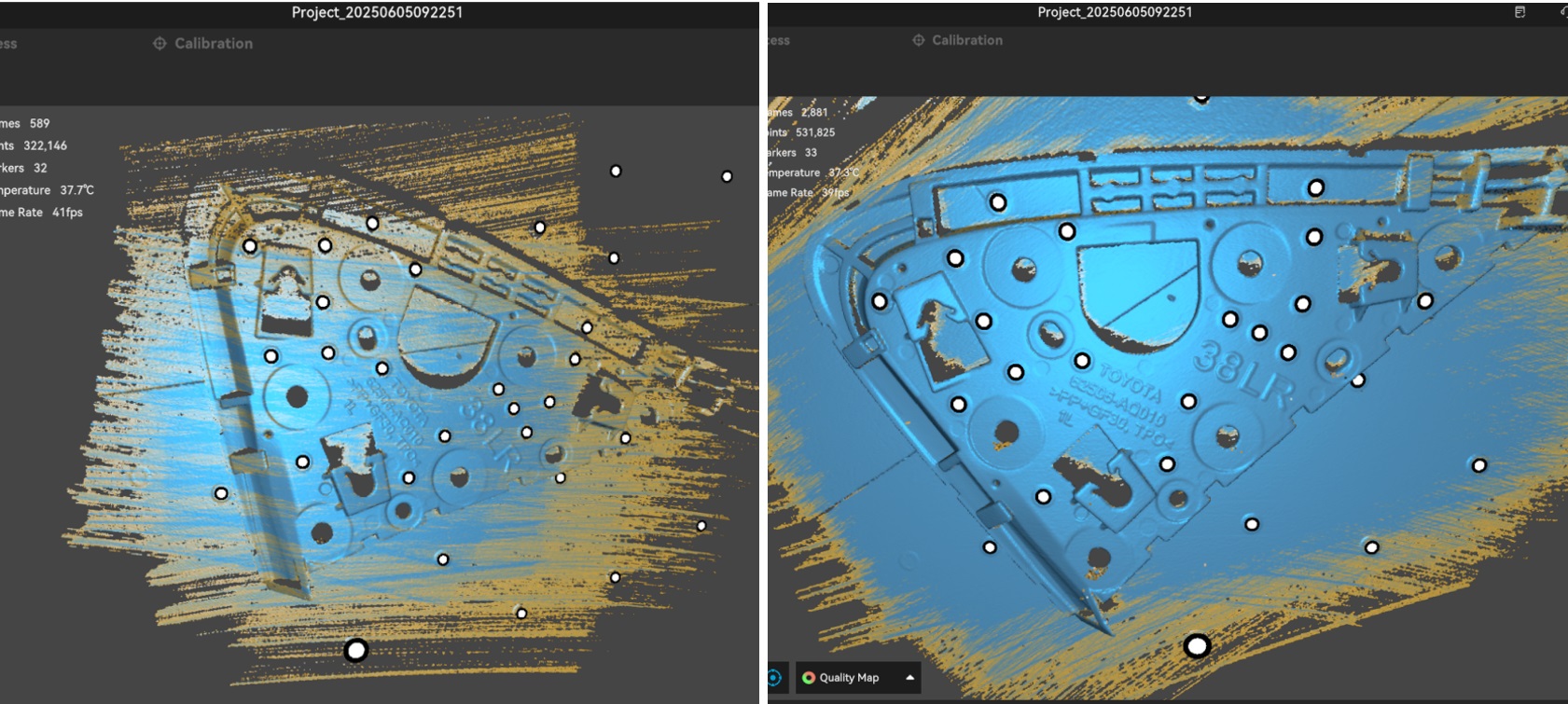
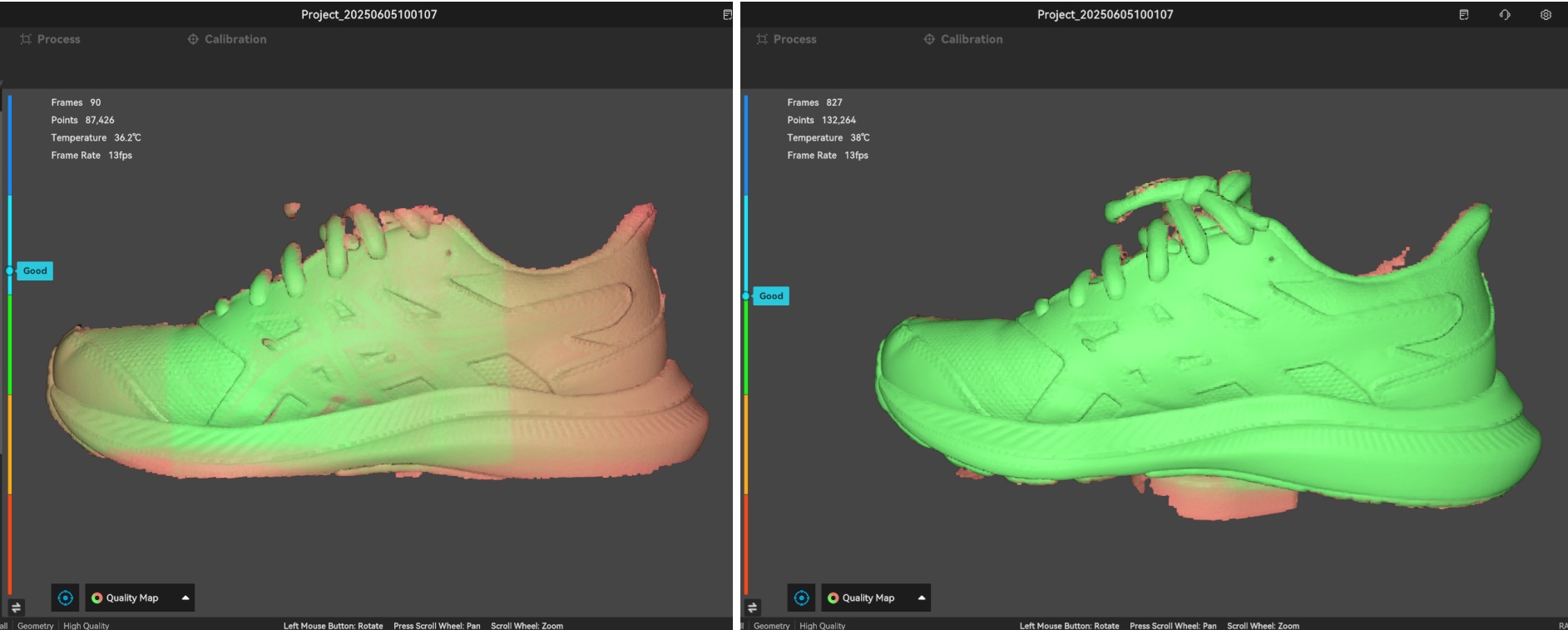
During the scanning process, Creality Scan provides a quality map for point clouds to indicate whether the current scan quality is high enough. The following image is an example of determining scan completeness based on the quality colormap of point clouds.
-
For blue laser scanning, you should continue scanning until the quality map of the model turns blue. Yellow indicates insufficient scanning.
-
For infrared scanning, the object on the left shows a mix of red and green, indicating a relatively poor quality of the scanned point cloud, while the object on the right appears uniformly green, indicating a relatively good quality of the scanned point cloud.
¶ Pointcloud Fusion
After the scanning process, it is necessary to perform pointcloud fusion to fuse the scanned multiple frames of point clouds (several hundred or even thousand frames) and obtain a higher quality pointcloud.
Resolution is one of the important parameters for this process. A smaller resolution setting will capture more details in the model but may require longer processing time. However, setting the resolution too small, such as 0.02mm, may result in missing parts of the model.
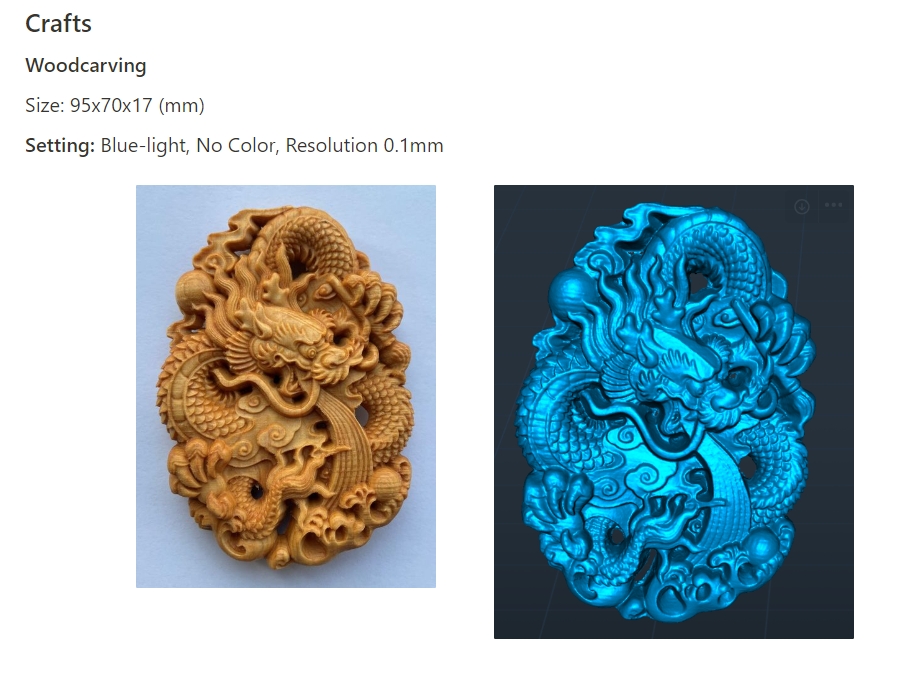
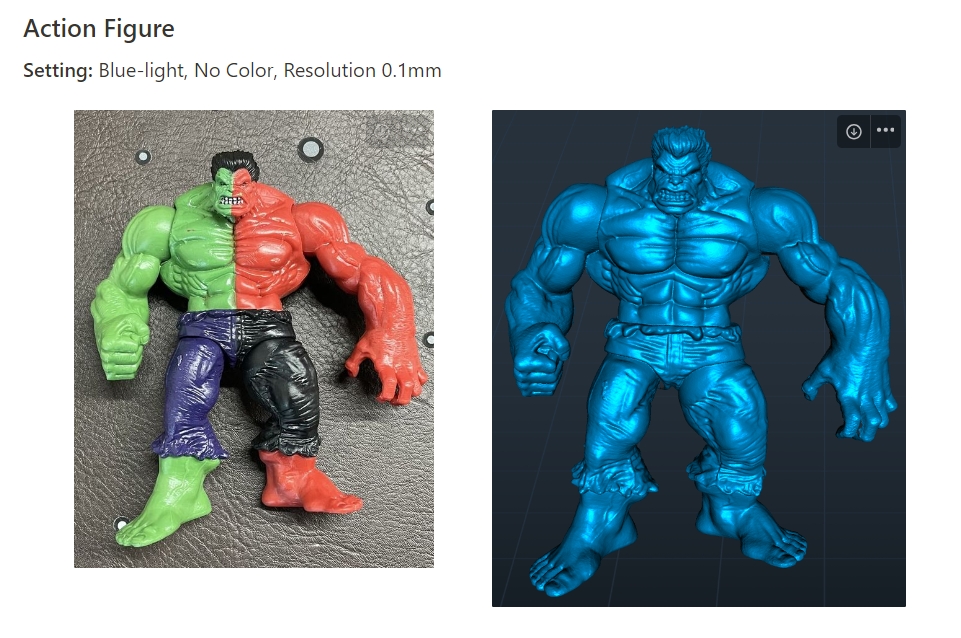
When dealing with smaller objects, such as those below 25cm, or when seeking better details, it is recommended to set the resolution to 0.1mm or 0.15mm. Using a resolution of 0.1mm, we can achieve sufficiently good detail for most objects.
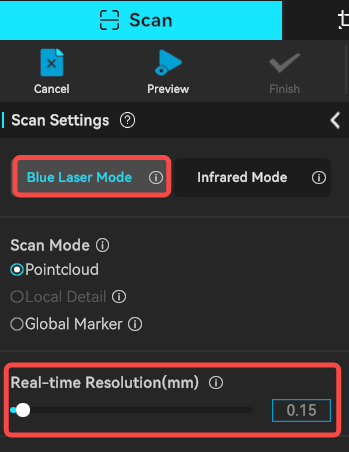
For blue laser scanning, the software requires users to set two resolutions: the resoluion in real-time scanning and the resolution in pointcloud fusion.
¶ (1) Real-time Resoluion(Avaiable for Blue laser Mode)
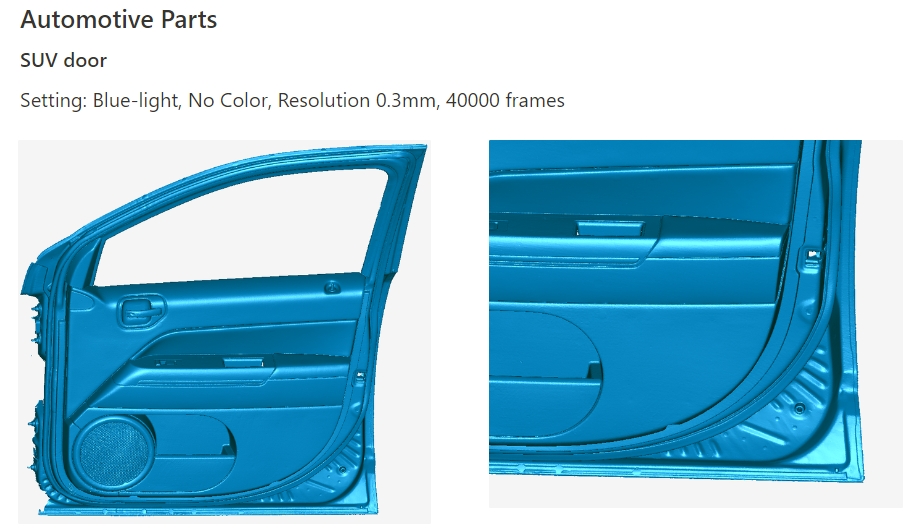
The resolution primarily affects the quality of real-time scanning rendering and impact the final 3D model. The smaller the resolution, the finer the model rendered in real-time scanning, but it will consume more memory. For smaller objects, it’s recommended to set a smaller resolution. For instance, when scanning a 10cm part, you can set the resolution to 0.15mm. For larger objects, we suggest using a larger resolution for scanning. For example, when scanning a car door, you can set the dot pitch to 0.5mm.
¶ (2) Resolution in pointcloud fusion
It will directly impact the details of the final model. The smaller the resolution, the better the detail, but it requires more processing time and RAM. For most objects, a resolution of 0.1mm can achieve good detail. If a resolution of 0.02mm is used, the processing time and memory will increase sharply. For larger objects, it is recommended to use a larger resolution. For example, when scanning a car door, a resolution of 0.5mm can be used.
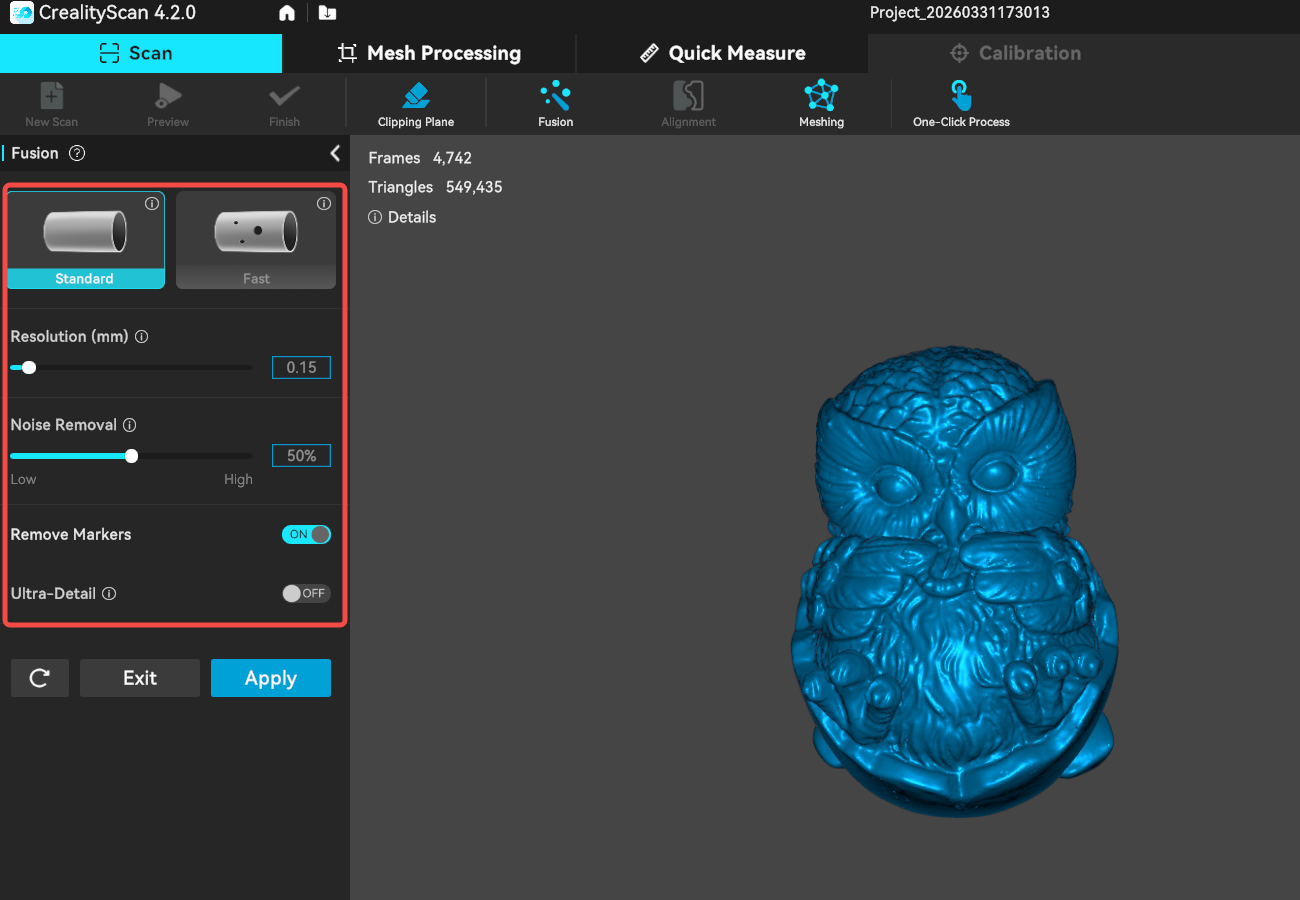
Noise Removal: The lower the noise reduction level, the more data can be retained.
Remove Markers: This function is only displayed when using blue laser scanning or when markers are set in tracking mode. It is used to remove markers and fill the corresponding holes.
Ultra-Detail (only available for Blue laser scanning): The resolution can be set to a smaller value when enabled. (effective only when the computer memory is greater than 8G)
The CrealityScan software allows users to perform pointcloud fusion multiple times. For instance, if you are not satisfied with the current results, you can modify the parameters and re-run the pointcloud fusion step.
¶ One-click Process
One-click processing is designed for beginners who have little experience with 3D scanners. If you require better scan quality, it is not recommended to use One-click Processing and instead manually adjust the parameters for each processing step.
.png)
¶ Model editing
Creality Scan provides pointcloud editing functionality.
After scanning is complete, you can immediately use the point cloud editing feature to remove unnecessary parts, which can accelerate the data processing process.
| Icon | Function Description |
|---|---|
 |
Penetrate Selection: Supports selecting the mesh behind the selected area. For the raw data, selection always has a penetrate selection effect by default, so this option cannot be turned off. |
 |
Lasso Select: Selects an area by dragging the mouse. |
 |
Rectangle Select: Selects an area in a rectangular shape. |
.png) |
Connected Component: Select all connected points in the clicked area. |
 |
Invert Selection: Automatically selects the unselected area (opposite of the current selection). |
 |
Unselect: Cancels the current selection. |
 |
Delete Selection: Removes the selected part. |
 |
Undo:Reverts the last deletion operation. |
 |
Redo:Restores the last undone deletion operation. |
 |
Cancel Edit:Exits the editing mode without saving changes. |
 |
Saved Edit: Saves the editing changes and exits the editing mode. |
.png)
¶ Meshing
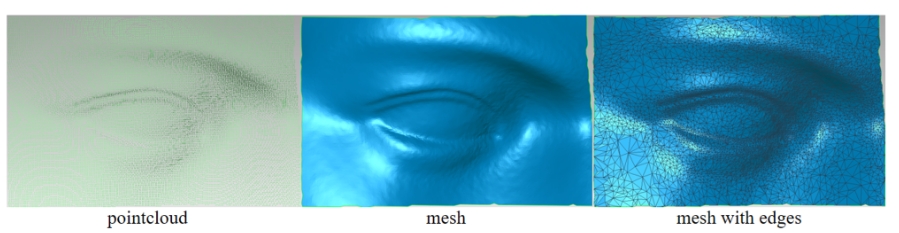
The meshing operation converts pointcloud data into a triangular mesh model.
 ~
~
During the process of meshing, you can manually configure the number of faces of the generated mesh, adjust the level of smoothness of the mesh, and choose whether to fill holes and close the model.
The more triangles in the mesh, the finer the model, but it also takes longer to generate the mesh.
.png)
¶ Color Mapping
The Raptor scanner is equipped with a high-definition RGB camera, allowing for the capture of true-color textures for 3D models.
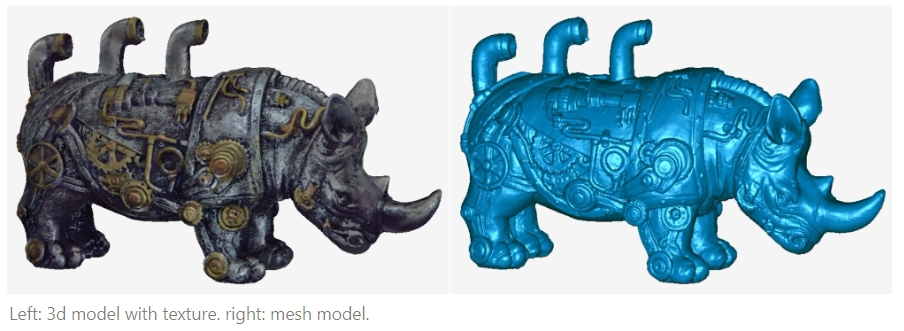
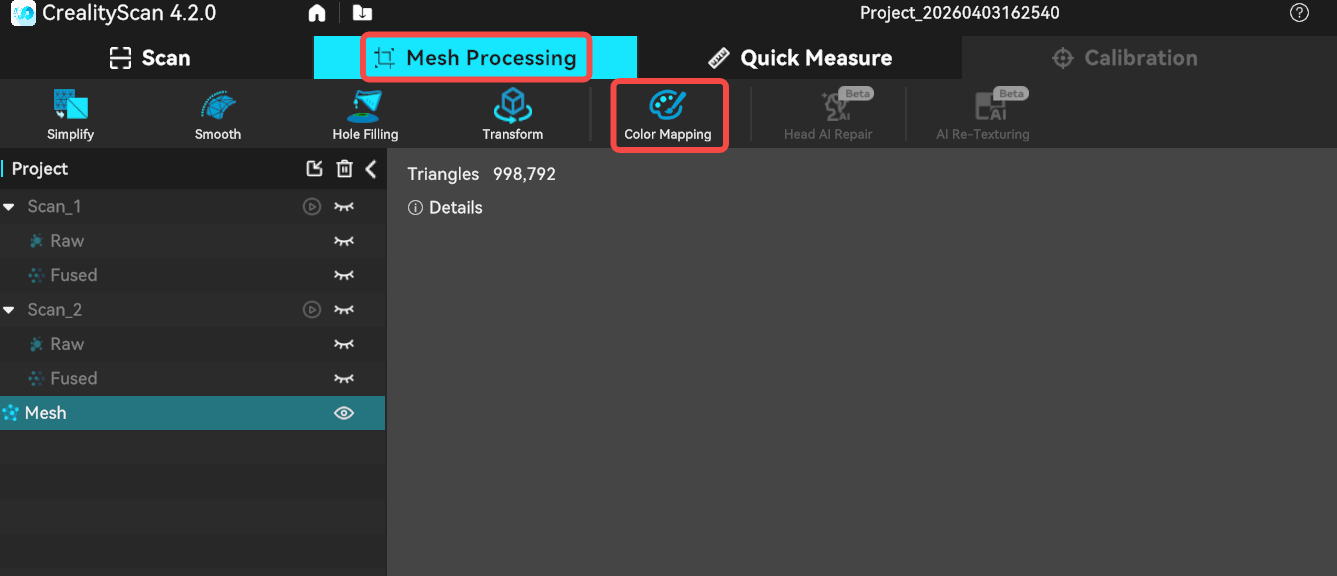
After meshing is complete, if the color mapping function is enabled in the scanning settings, you can click Mesh Processing -> Color Mapping to apply the texture.
¶ Import Scanned File
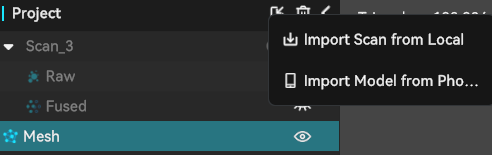
When scanning with a PC, if you don't have time to wait for the post-processing to complete, you can click "Complete" and use the "Import Scanned File" feature in the future to import the scan project file into the software for further processing.
¶ Alignment
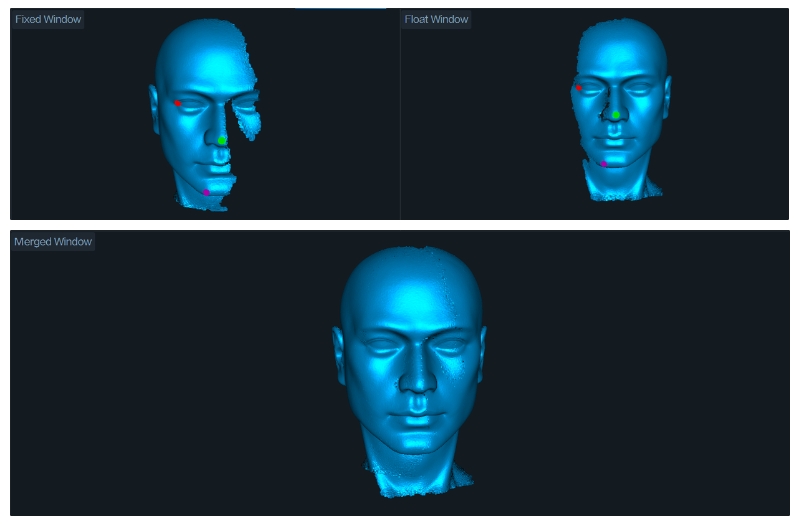
If it is unable to capture all the data of an object in one scan, you can perform multiple scans. you can use the alignment feature to combine them into a complete model. This is extremely helpful for scanning larger objects.
.png)
How to scan the bottom of an object?
When you need to scan the bottom of an object, you can place the object on a tabletop and scan the visible parts first. Then, create a new project and position the object on its side or upside-down for another scan. Use the alignment feature to merge these two sets of pointclouds together, creating a complete 3D model of the object. During both scans, make sure that there are sufficient overlapping areas being captured.
After completing the first scan and performing pointcloud fusion, you can start a new scan by selecting "New Scan."
.png)
On the page for alignment, you can automatically or manually align the fused point clouds. Below is an example of manual alignment.
¶ Calibration
When the scanner is bumped or hasn’t been calibrated for a long time, calibrating it with the included calibration board can restore the scanner’s measurement accuracy.
Additionally, if your scan requires high precision, please preheat for 30 minutes before starting the calibration, and commence scanning your target after the calibration is complete.
CR-Scan Raptor Scanner calibration process:
Creality Raptor : Calibration Tutorial
¶ 4. Scanning Techniques
(1) How to avoid "line artifacts"?
a) Don't set the resolution too small. A resolution of 0.1mm can capture enough detail for most objects. If the resolution is too small, the scanned model will have more details but is also prone to line artifacts.
b) Use appropriate camera exposure time and laser intensity. Ensure the laser lines and marker images have sufficient brightness, but avoid overexposing the laser lines (overexposed parts will appear red).
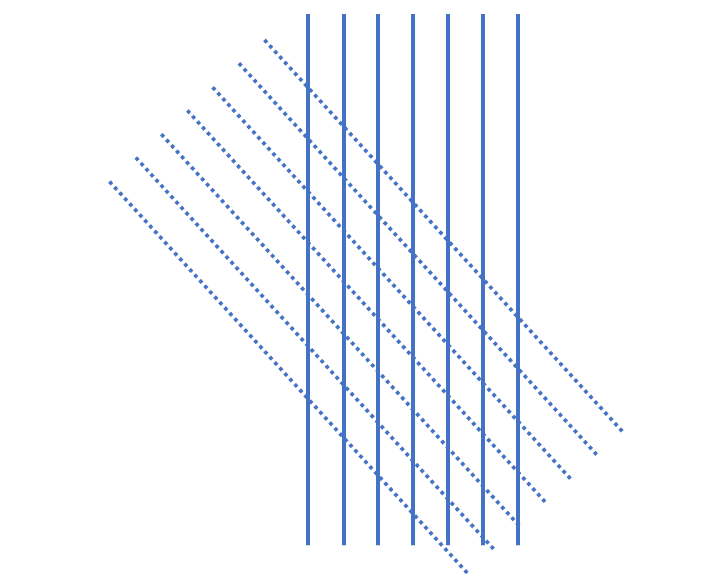
c) Scan the same area in a crosswise manner.
d) Scan a sufficient number of frames to make the model quality map turn green.
¶ 5. Scanning Cases
¶ Mechanical Parts
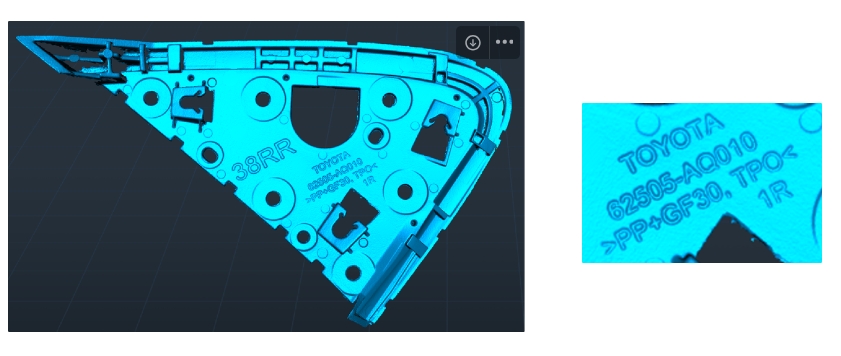
Rearview mirror trim
Size: 220x130x25 (mm)
Setting: Blue-light, No Color, Resolution 0.1mm, 4000 frames